

 Flat 1


Can ChatGPT Make a PowerPoint Presentation? Step-by-Step Guide
Yes, ChatGPT can help you make a presentation by generating the outline, slide-by-slide content, key messages, and speaker notes. It can also produce a basic downloadable PowerPoint file through supported paid Agent workflows, but the native result may still look plain or minimally formatted. The best approach is to use ChatGPT for research, structure, and writing, then review the facts and move the content into a professionally designed presentation template. Pairing AI-generated content with a polished template or a tool such as Creatos AI gives you the speed of AI without relying on generic-looking slides as the final presentation.
Introduction
It’s one of the most common AI questions in marketing, education, and business: can ChatGPT make PowerPoints? The answer is yes — and it now handles more of the work than ever, from building a logical structure to writing slide content and drafting speaker notes.
This guide covers exactly how to use ChatGPT to create a PowerPoint presentation, from a blank prompt to a finished deck. It also covers a major change from May 2026: ChatGPT now works inside PowerPoint through an official OpenAI add-in. Whether you’re building a business pitch, a training module, or a client proposal, the workflow below applies to any topic or industry.
Whether it looks genuinely polished and professional depends on your prompts and how much you refine the output afterward — and this guide covers both in detail. Once you learn the prompting patterns, the ChatGPT PowerPoint workflow becomes a repeatable system you can apply to any future deck, regardless of topic, audience, or deadline.
What ChatGPT Can (and Cannot) Do for Presentations
Before building your workflow, it helps to understand where ChatGPT adds the most value. ChatGPT can increasingly handle PowerPoint creation from start to finish — but there’s still an important distinction. ChatGPT is exceptional at the content layer (text, structure, speaker notes) and now assists with in-app slide building, while polished visual design still benefits from your judgment and a good template.
What ChatGPT Can Do
ChatGPT can generate slides for virtually any topic, as long as you give it a specific prompt with your topic, target audience, and slide count. Here’s what it handles well:
- Generate a structured presentation outline from a topic brief
- Write slide-by-slide content in bullet or paragraph format
- Craft speaker notes that expand on each slide naturally
- Summarize complex or technical content into clear key points
- Suggest visuals, metaphors, and layout ideas for specific slides
- Rephrase or improve existing slide text for clarity and impact
- Create and edit slides directly inside PowerPoint via OpenAI’s add-in (new — see the next section)
- Export a basic .pptx file directly for Plus, Pro, and Team users via ChatGPT agents
Given a specific enough prompt, ChatGPT also produces a full slide-by-slide structure with a logical narrative arc — a title, key content sections, and a closing slide.
What ChatGPT Still Can’t Do Well
- Produce fully branded, design-ready slides with custom fonts and templates automatically
- Reliably insert the right charts, images, or infographics without your direction
- Guarantee factual accuracy — every statistic and claim still needs human verification
The takeaway: ChatGPT gives you a strong first draft fast. The polish, branding, and fact-checking are where your input turns an AI draft into a presentation you’d actually stand behind.
Using ChatGPT Directly Inside PowerPoint (New for 2026)
The biggest change to this workflow is recent. On May 21, 2026, OpenAI launched an official ChatGPT add-in for Microsoft PowerPoint that lets you build and edit decks without ever leaving the app.
Here’s what the ChatGPT in PowerPoint integration does:
- Builds decks from scratch or edits existing ones using natural-language prompts — “Create a 10-slide pitch on our Q3 results” or “Tighten slide 4 and add a closing CTA.”
- Pulls from your connected sources. It can draw on material from services like Gmail, Outlook, and SharePoint to generate more accurate, personalized slides.
- Keeps slides editable and can audit a finished deck — flagging weak points in the narrative and predicting questions your audience might ask.
- Is rolling out broadly in beta across plans, from Free and Go up through Plus, Pro, Business, Enterprise, Edu, Teachers, and K-12.
- How to use it: install the ChatGPT add-in from within PowerPoint (or Microsoft AppSource), open the side panel, and prompt it the way you would in a normal ChatGPT conversation. There’s no export step — the slides are built in your live deck.
Two limits worth knowing, both flagged by OpenAI: some advanced formatting (such as complex template or font handling) may not be fully supported yet, and the assistant can change or delete content if a request is vague — so be specific, review every change, and keep a copy of important decks. As always, fact-check anything that will appear on screen.
This makes the manual copy-paste method below optional rather than mandatory for PowerPoint users — but the manual workflow still gives you the most control over content quality, and remains the best route for Google Slides users and anyone refining content before designing.
Choosing the Right Platform
Once you know what you want ChatGPT to produce, pick where you’ll build the final deck. For anyone exploring ChatGPT for PowerPoint creation, the main options:
| Platform | Key Feature | Best For |
| ChatGPT add-in for PowerPoint | Builds/edits slides natively inside PowerPoint | The fastest end-to-end route for PowerPoint users (2026) |
| Microsoft PowerPoint | Powerful design tools and animations | Detailed offline presentations |
| Google Slides | Real-time collaboration, cloud-based | Team projects and shared access |
| Plus AI | AI add-in for Google Slides and PowerPoint | Polished templated design on top of AI content |
| SlidesAI | Converts raw text into designed slides automatically | Quick automated presentation creation |
| Gamma | Web-native, card-based interactive format | Online sharing and non-traditional formats |
For occasional users who just want a content draft, manually transferring ChatGPT output into PowerPoint or Google Slides is still the simplest, most cost-effective path. For frequent presenters, the native PowerPoint add-in or a tool like Plus AI removes the back-and-forth, and SlideUpLift’s own AI presentation maker, Creatos takes it further by turning your brief into a designed, on-brand deck.
What You Need to Get Started
A complete chat GPT presentation workflow needs very little setup:
A computer with internet access
A free or paid OpenAI account (chatgpt.com)
Presentation software: Microsoft PowerPoint or Google Slides
Optional: the ChatGPT PowerPoint add-in, or a third-party tool like Plus AI, for in-app generation
Workspace tip: if you’re using the manual method, open ChatGPT and your presentation software side by side. On dual monitors, dedicate one screen to each so you can transfer content without constantly switching windows.
Step-by-Step: Creating a Presentation with ChatGPT
This is the manual workflow — the most reliable way to control content quality before you design. (If you’re using the native PowerPoint add-in, you can run these same prompts in the side panel and skip the copy-paste.)
Step 1 — Define Your Topic and Audience
Before writing any prompt, define three things: your topic, your audience, and your goal. These shape everything ChatGPT produces.
- Topic: What is the presentation about?
- Audience: Who’s watching, and what do they already know?
- Goal: What should they know, feel, or do afterward?
Example brief: “My topic is data privacy. My audience is small business owners with limited technical knowledge. My goal is to help them understand three practical steps they can take immediately to protect customer data.”
Step 2 — Generate Your Presentation Outline
Build the outline before any slide content — it’s far faster to rearrange sections now than after everything is written. Ask ChatGPT for an outline of a set length (say, six slides) and tell it your topic, audience, and the structure you want: a title slide, an introduction, a few key sections, and a conclusion with a call to action. A typical outline looks like this:
- Slide 1 — Title: Why Data Privacy Matters for Your Business
- Slide 2 — What Is Data Privacy? (Simple definition and why it matters)
- Slide 3 — The Real Risks: What Can Go Wrong
- Slide 4 — 3 Steps to Protect Your Business Today
- Slide 5 — Tools and Resources Available to You
- Slide 6 — Key Takeaway and Next Step
Review and adjust before moving on. Approving the structure here prevents wasted effort later.
Step 3 — Generate Slide-by-Slide Content
Once the outline is approved, generate content one slide at a time for more control over tone, depth, and length. For each slide, give ChatGPT the slide title, your audience, and how many bullet points you want — keeping each point to a single, concise sentence. The result for a “risks” slide might look like this:
- Data breaches can expose your customers’ personal information and permanently damage your reputation.
- Non-compliance with regulations such as GDPR can result in significant fines.
- Phishing attacks targeting small businesses have risen sharply in recent years.
When the full set is done, review for consistency in tone, sentence length, and clarity before moving to notes.
Step 4 — Write Speaker Notes
Each slide benefits from a matching speaker note — a script that adds depth during delivery without cluttering the slide. Ask ChatGPT to write notes for a given slide that expand on each bullet in a conversational tone and run to a set length (around 90 seconds when read aloud). It produces a spoken-style paragraph per bullet — useful for formal talks, recorded sessions, or when someone else delivers the deck.
Step 5 — Format, Edit, and Build in Your Tool
Whether your deck looks genuinely polished comes down to this step. The content foundation is solid; the design layer needs you.
To make a PowerPoint that stands out from a generic AI deck, you’ll need to :
- Choose a clean, professional templates in PowerPoint or Google Slides
- Paste in all slide content and speaker notes
- Replace generic placeholders with specific data, charts, or images
- Standardize fonts, heading styles, and bullet formatting across slides
- Edit the language into your own voice — cut filler and vague phrasing
- Fact-check every statistic, claim, and figure before sharing
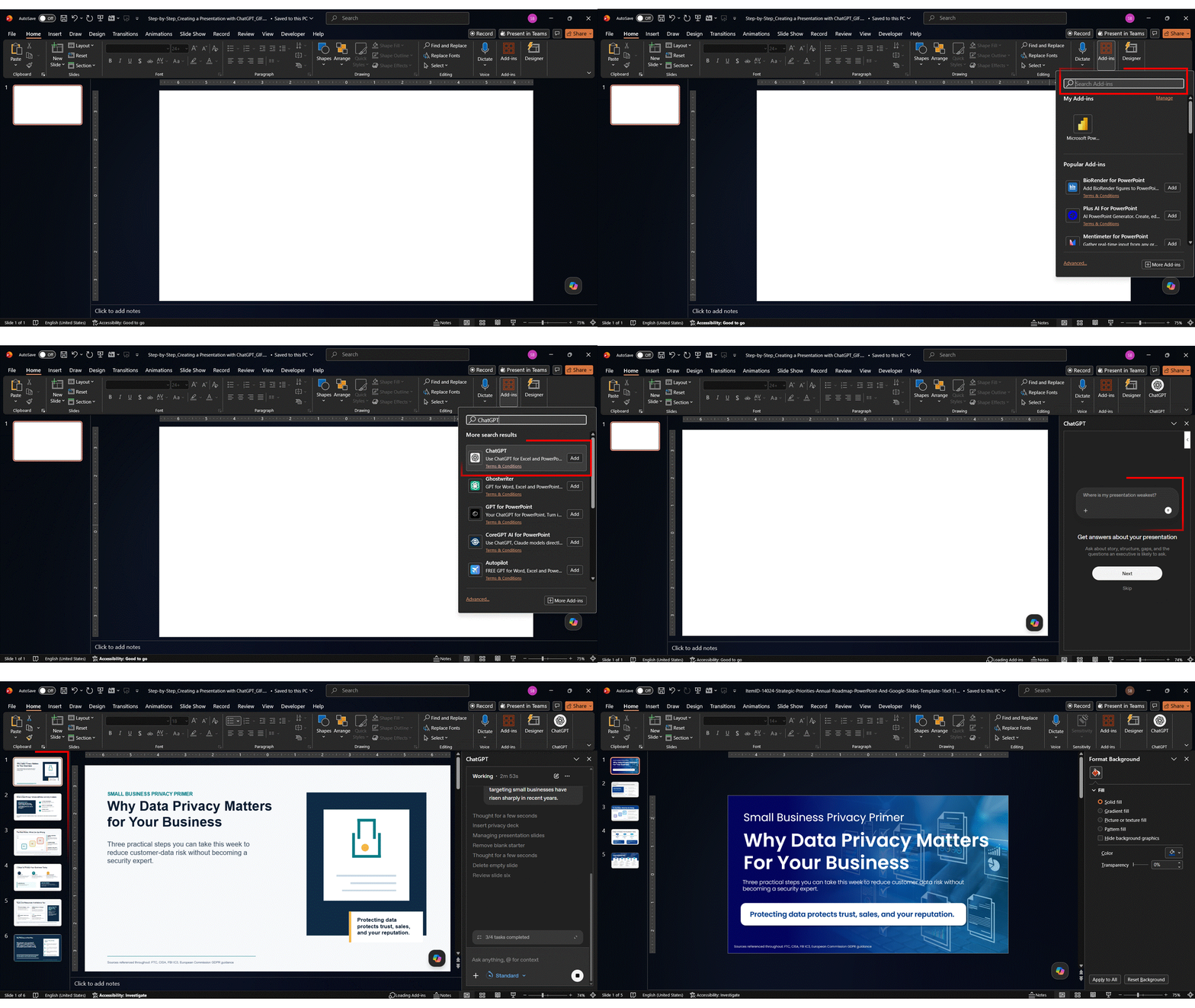
That’s the complete process for how to make a PPT in ChatGPT from start to finish. Always treat the output as a first draft — the editing step is where the deck becomes genuinely yours. If you want to automate repetitive formatting tasks, explore VBA PowerPoint automation — it can handle bulk edits across slides in seconds.
Why the Right Prompt Matters Most
The single biggest variable in the quality of ChatGPT’s output is the quality of your prompt. A vague request — “make me a presentation on marketing” — returns generic, forgettable slides. A specific one that names your topic, audience, slide count, format, and tone returns a draft you can actually build on. Getting the prompt right is what separates a usable ChatGPT PowerPoint presentation from filler you’d have to rewrite from scratch.
Think of prompting as the skill that compounds: the better your inputs, the less editing you do later. Be specific about who the deck is for, what each slide should accomplish, and how long the points should be — then refine with follow-up prompts rather than expecting a perfect first pass. This applies whether you’re prompting ChatGPT in your browser or through the native PowerPoint add-in.
To make this easier, we’ve put together a full, ready-to-use library of presentation prompts — covering titles, outlines, slide content, and speaker notes — that you can copy and adapt to any topic. See our guide to ChatGPT presentation prompts for the complete set.
Other AI Tools for Presentation Automation
If you want automated visual design layered on top of AI content, these are worth exploring alongside ChatGPT:
| Platform | Key Feature | Ideal Use Case |
| Plus AI | Direct add-in for Google Slides and PowerPoint | AI content inside your existing workflow |
| SlidesAI | Converts raw text into a designed deck | Turning documents or notes into slides fast |
| Gamma | Web-native, card-based format | Online sharing and interactive formats |
| Canva Magic Design | Design from a text prompt with template options | Users prioritizing aesthetics with minimal setup |
If you want to know how to create a PPT using ChatGPT without any third-party tools, the manual copy-paste workflow above is the most reliable path. Before choosing a tool, it helps to compare the best presentation software options available — each suits a different workflow and use case. If you’re already inside PowerPoint or Google Slides and want full design automation, Plus AI is the most seamless add-in; for a fully designed deck from a text dump, SlidesAI or Gamma are faster. For a broader comparison of AI presentation makers that combine content generation with automated design, there are several strong options worth evaluating. ChatGPT alone is best when content quality is the priority before any design work.
Conclusion
ChatGPT is one of the fastest ways to move from a blank page to a structured, content-ready presentation. It handles the most time-consuming parts — outlining, writing, summarizing, and drafting speaker notes — and, with the 2026 PowerPoint add-in, can now build and edit slides inside the app itself.The process is straightforward: define your topic and audience, generate an outline, build slide content section by section, write speaker notes, then design and fact-check. The gap between a mediocre AI deck and a genuinely strong one comes down to how much you refine after the first draft. If you want to take that refinement further, these business presentation tips cover design, structure, and delivery in detail. Use the prompts here as a starting point, adapt them to your audience, and treat every ChatGPT output as a draft — not a final product.
FAQs
-
Can ChatGPT make PowerPoints that are ready to present without design work?
Not quite. ChatGPT produces structurally complete presentations — outlines, bullet points, and speaker notes — but they usually need a design pass before they’re presentation-ready. With the 2026 PowerPoint add-in, ChatGPT can build slides directly in the app, and Plus, Pro, and Team users can export a basic .pptx via ChatGPT agents, but formatting is still minimal. For a professional result, apply a template, refine fonts and spacing, add relevant visuals, and edit the language. The content foundation is strong; the design layer is yours.
-
Can ChatGPT create a PowerPoint presentation for professional business use?
Yes. It handles proposals, reports, investor pitches, client updates, and training materials well. The key is specific context in your prompt — audience type, business goal, and slide count. Business decks generated through ChatGPT should always be fact-checked, branded with your company template, and reviewed by a subject-matter expert before going out. ChatGPT speeds up drafting; human review ensures accuracy and credibility.
-
What are the best prompts for generating ChatGPT slide content?
The best prompts specify topic, audience, format, and tone. A reliable structure: “Write [number] bullet points for a slide titled [Slide Title] for a [audience] audience. Tone: [professional/conversational/persuasive]. Keep each point under 15 words.” For outlines: “Generate a [number]-slide outline on [topic] for [audience]. Include an intro, [number] key sections, and a closing call to action.” The more context you give, the better the output — then always edit for specificity and voice.
-
How do I turn ChatGPT output into a formatted PowerPoint file?
There are three routes. (1) Use the ChatGPT PowerPoint add-in to build slides directly in the app. (2) Copy and paste ChatGPT’s structured text into PowerPoint or Google Slides slide by slide — ask it to format output with clear per-slide headings to make this fast. (3) Export a .pptx directly via ChatGPT agents (Plus, Pro, Team). The steps for how to use ChatGPT to create PowerPoint presentation content are consistent regardless of route: outline, slide content, speaker notes, then design and fact-check.
-
Can ChatGPT write speaker notes for a presentation?
Yes. Give it the slide content and a clear brief: “Write speaker notes for this slide that take 90 seconds to read aloud and expand on each bullet naturally.” The output is a spoken-style script that elaborates without repeating the slide verbatim — useful for formal talks, recordings, or handing the deck to someone else. Review the notes for accuracy and edit them to match your speaking style before delivery.
-
Is there an official way to use ChatGPT directly inside PowerPoint?
Yes — as of May 2026. OpenAI launched an official ChatGPT add-in for Microsoft PowerPoint that creates and edits slides inside the app using natural-language prompts, and can pull from connected services like Gmail, Outlook, and SharePoint. It’s rolling out in beta across plans, from Free up to Enterprise. Third-party options like Plus AI and SlidesAI remain strong alternatives, especially for Google Slides users or anyone who wants heavier design automation.
-
What is the difference between ChatGPT and tools like Gamma or SlidesAI?
ChatGPT is primarily a content engine — and now an in-app PowerPoint editor — that gives you fine control over language and structure. Tools like Gamma and SlidesAI combine AI content generation with automated visual design, producing a formatted deck faster but with less precision over the text. Many people use both ChatGPT to write and refine, then a design tool to lay it out. If design quality is the priority, start with a dedicated tool; if content quality is, start with ChatGPT.
-
How can I use ChatGPT to summarize complex topics for slides?
Paste the content into ChatGPT and ask it to condense: “Summarize the following into 3 key bullet points for a presentation slide. Use clear, simple language for a [audience] audience: [paste text].” You can also ask it to adjust the reading level or strip jargon. This is one of ChatGPT’s most consistent presentation use cases — it reliably turns dense material into clean, slide-ready points without losing the core message.
-
How do I make a ChatGPT-generated presentation look professional?
Treat the content as a first draft and invest in editing and design: apply a clean, consistent template; replace generic bullets with specific data, examples, or case studies; standardize fonts, headings, and spacing; remove filler and generic AI phrasing; fact-check every statistic; and align colors and visuals to your brand. The single most impactful change is editing the language — swapping vague statements for concrete ones. A refined deck built on ChatGPT content consistently outperforms a raw AI-generated one.
-
Can ChatGPT make a PowerPoint presentation that is accurate and trustworthy?
Only after you verify it. ChatGPT produces plausible, well-structured material, but it can generate inaccurate statistics, outdated figures, or confident-but-wrong claims. Before sharing any ChatGPT-generated deck, fact-check every statistic, date, and quote against a primary source — especially for financial, scientific, regulatory, or benchmark data. Use ChatGPT for structure and language efficiency; use verified sources to confirm every fact your audience will see.
Table Of Content
Related Presentations


Related posts from the same category
29 Aug, 2025 | SlideUpLift
50 ChatGPT Prompts for Presentations (Copy-Paste Ready, Categorized for Professionals)
Most professionals don’t have a ChatGPT problem. They have a prompt problem. If you’ve ever asked ChatGPT to “make me a presentation on quarterly sales” and watched it spit out

13 Aug, 2025 | SlideUpLift
How To Create Infographics In PowerPoint For Smarter Visual Storytelling?
As a professional, you might have to host meetings and deliver presentations to your stakeholders and team members. As a host, it's crucial to deliver presentations in a way that

6 May, 2025 | SlideUpLift
VBA in PowerPoint: How to Automate Your Slides
Quick answer: VBA (Visual Basic for Applications) is the programming language built into PowerPoint. You use it to write macros that automate repetitive tasks — formatting every slide, inserting logos,

29 Feb, 2024 | SlideUpLift
How to Create Harvey Balls in PowerPoint: A Complete Step-by-Step Guide
Quick Answer: What Are Harvey Balls and How Do You Create Them? Harvey Balls are circular ideograms — partially filled circles — used to represent qualitative data such as project

7 Dec, 2022 | SlideUpLift
How To Create Neumorphic PowerPoint Presentation To Dazzle Your Audience?
Neumorphic designs are a relatively recent design style that was first used in the User Interface design of gadgets in the previous decade. The perfect and straightforward design is unexpectedly
29 Aug, 2023 | SlideUpLift
How to Use Word Art in Google Slides?
Google Slides has proven to be a dynamic platform. It enables you to easily create powerful presentations due to its seamless collaboration capabilities and variety of creative tools. Word Art

10 Nov, 2021 | SlideUpLift
PowerPoint Presentation Tips: How to Make a Good PowerPoint Presentation
A well-crafted PowerPoint presentation can have a lasting impact on your audience. However, creating an effective presentation can be daunting, especially if you are unsure how to make it engaging
14 Oct, 2022 | SlideUpLift
How To Create Your Perfect Webinar Presentation
Webinars are becoming an increasingly important tool for businesses to connect directly with their customers — to educate and inform, maintain relationships and even build a brand. They're also excellent

15 May, 2024 | SlideUpLift
How To Create A Captivating Title Slide For A Presentation
Are you looking for a way to ditch the boring title slide and hook your audience from the start? This blog will teach you all you need to know to

5 May, 2025 | SlideUpLift
Step-by-Step Guide: How to Create a PowerPoint Template
If you use PowerPoint often to make professional presentations, you probably have realized that the built-in PowerPoint Library doesn't have sufficient PowerPoint templates available for all types of presentation needs.