



How to Add a Timer to Google Slides: Step-by-Step Guide
This blog walks you through how to add a timer to Google Slides using simple, practical methods that actually work. It covers Auto-play timing, visible countdown timers, videos, and add-ons, along with tips to avoid common issues. By the end, you’ll know exactly which timer method to use for smooth, well-paced presentations.
Introduction
Ever catch yourself constantly checking the clock while presenting in Google Slides? Adding a timer can take that stress away by helping you manage slide timing, activities, and transitions more smoothly. Google Slides may not have a built-in countdown timer, but it still gives you plenty of easy ways to add one without overcomplicating things.
In this blog, we’ll walk through the simplest methods of how to add a timer to Google Slides—from automatic slide transitions to visible countdown timers and handy add-ons. You’ll learn how each method works, when it makes the most sense to use it, and how to keep your timer helpful without letting it steal attention from your content.
How to Add a Timer to Google Slides?
There are several ways to add a Google Slides timer, each serving a different purpose. Some methods let your slides advance automatically without any interaction, while others display a visible countdown timer directly on your slide for everyone to see. Here are the four most effective ways:
- Method 1: Using the auto-play option
- Method 2: Embedding a timer on screen in Google Slides
- Method 3: Using a Countdown Video from YouTube or Google Drive
- Method 4: Using Timer Add-ons or Extensions for Google Slides
Method 1: Using the Auto-play Option in Google Slides
If you want your slides to move automatically after a set time, the Auto-play option is the quickest way to do it—no add-ons needed.
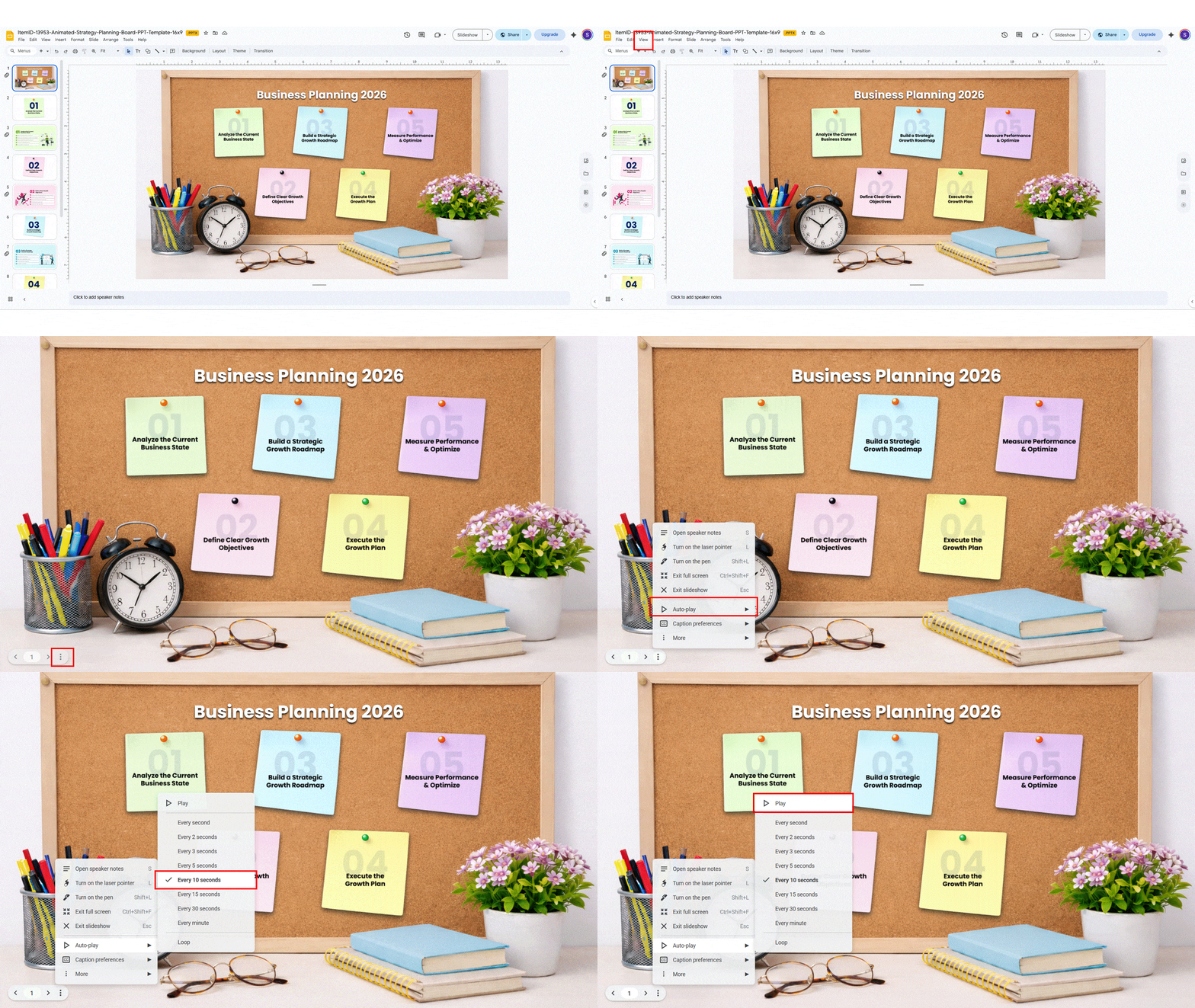
- Step 1: Open your presentation: Open the Google Slides file where you want the slides to run on a timer.
- Step 2: Start the slideshow: Click Slideshow in the top-right corner to enter presentation mode.
- Step 3: Open Auto-play settings: Move your mouse to the bottom-left of the screen, click the three dots (⋮), and choose Auto-play.
- Step 4: Set the timing: Pick how long each slide should stay on the screen (for example, 5 or 10 seconds). This timing works like a slide timer.
- Step 5: Loop the slides (optional): Turn on Loop if you want the presentation to repeat continuously—great for events or displays.
- Step 6: Let it run: Click Play, and your slides will advance automatically based on the time you selected.
Auto-play is perfect when you want a hands-free, timed presentation. It’s simple, fast, and ideal for self-running slideshows—just remember, it controls slide timing, not a visible countdown.
Method 2: Embedding a Timer on Screen in Google Slides
If you want your audience to see the time counting down, embedding a timer directly on the slide is a great option. This works well for quizzes, activities, and time-bound discussions.
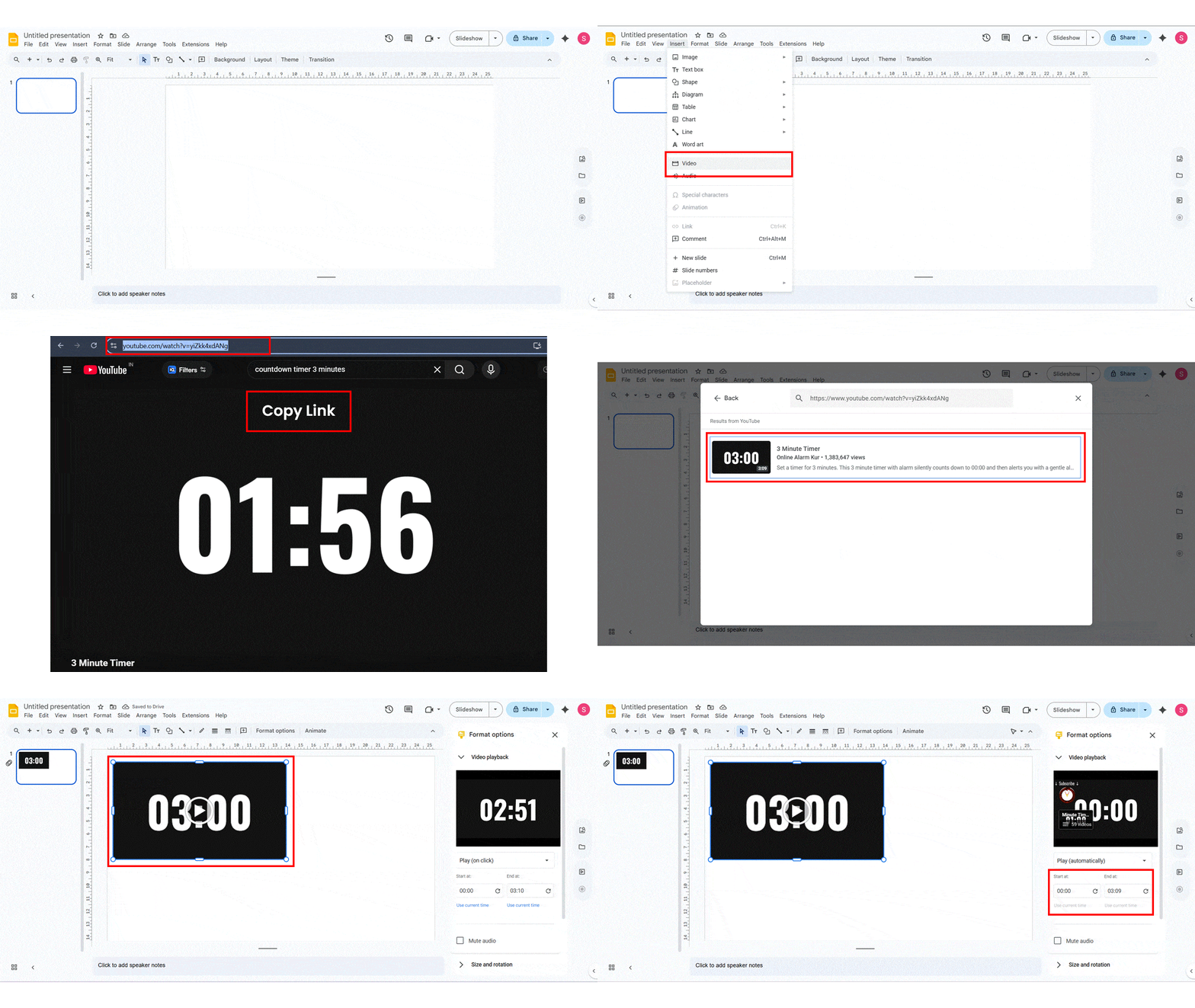
- Step 1: Find an online timer: Open a browser and search for a countdown timer (for example, a 1-minute or 5-minute timer).
- Step 2: Copy the embed link or video link: Most timer websites or YouTube countdown videos provide a share or embed option. Copy the embed link or video URL.
- Step 3: Insert the timer into your slide: Go back to Google Slides, select the slide where you want the timer, then click Insert → Video or Insert → Embed URL (if available).
- Step 4: Position and resize the timer: Resize and place the timer on the slide so it’s clearly visible but doesn’t distract from your content.
- Step 5: Set playback options: Click the embedded timer, choose Format options, and set it to autoplay so the timer starts as soon as the slide appears.
- Step 6: Test the timer: Run the slideshow to make sure the timer starts automatically and ends at the right time.
Embedding a Google Slides timer lets your audience track time visually, making it perfect for interactive sessions. It takes a bit more setup than Auto-play, but the clarity it adds is worth it.
Method 3: Using a Countdown Video from YouTube or Google Drive
Want a quick, visual timer without any complicated setup? You can use a countdown video directly in your Google Slides. It’s perfect for activities, presentations, or keeping meetings on track.
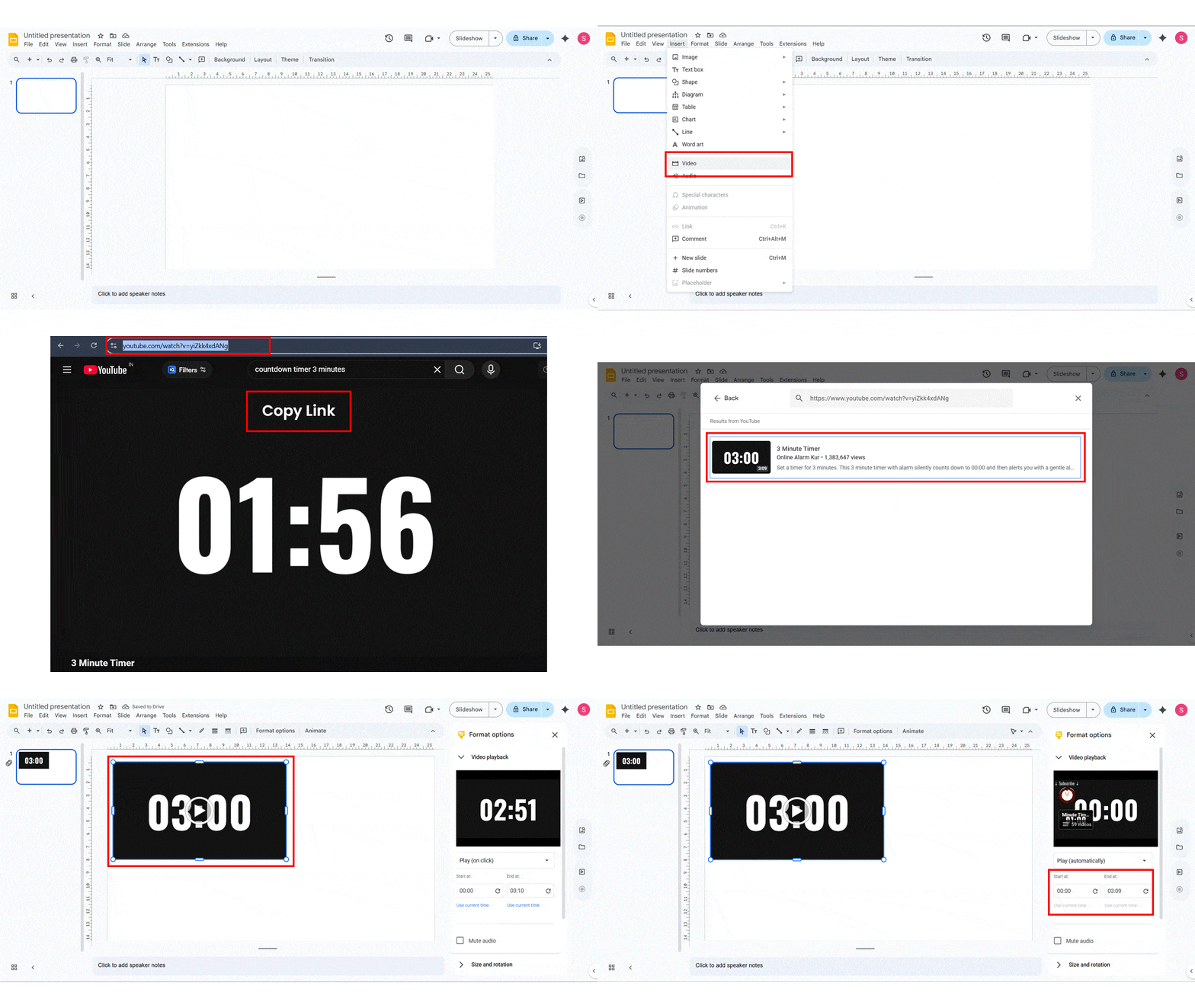
- Step 1: Find a countdown video: Go to YouTube or your Google Drive and search for a timer or countdown video that matches your required duration.
- Step 2: Copy the video link: If it’s YouTube, click Share → Copy link.
If it’s in Google Drive, make sure the video is shareable and copy the link. - Step 3: Insert the video into your slide: In Google Slides, go to Insert → Video, then paste the YouTube link or choose the video from Google Drive.
- Step 4: Resize and place the video: Adjust the video on your slide so it’s easy to see but doesn’t cover your main content.
- Step 5: Set playback options: Click the video, open Format options, and select Autoplay when presenting. You can also choose Start at or End at if you want a specific segment of the video.
- Step 6: Test your countdown: Run the slideshow to make sure the video starts automatically, and the countdown works as expected.
Using a countdown video is one of the easiest ways to add a timer to Google Slides. It’s simple, engaging, and instantly shows your audience how much time is left.
Method 4: Using Timer Add-ons or Extensions for Google Slides
If you want a fully customizable timer that sits right on your slides, Google Slides add-ons or browser extensions are the best choice. They can show a visible countdown and give more control over timing.
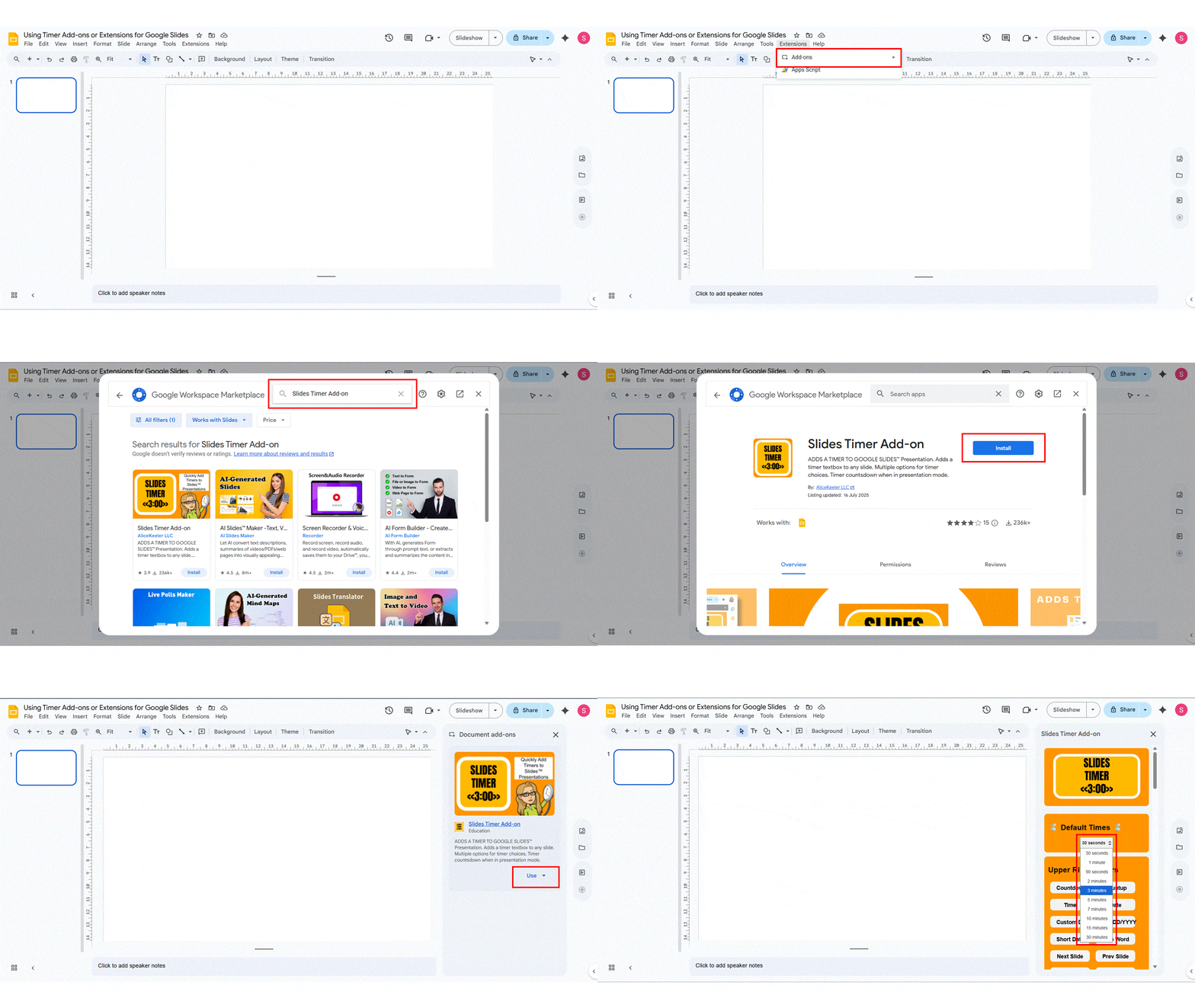
- Step 1: Open Google Slides: Go to your presentation where you want the timer to appear.
- Step 2: Install a timer add-on: Click Extensions → Add-ons → Get add-ons.
Search for timers like “Slides Timer” or “Pear Deck Timer”, then click Install. - Step 3: Grant permissions: Follow the prompts to give the add-on the necessary permissions. This usually takes just a few clicks.
- Step 4: Open the timer add-on: After installation, go to Extensions → [Your Timer Add-on] → Start to launch the timer sidebar or pop-up.
- Step 5: Set the timer: Choose your countdown duration, display style, and any alert options. Some add-ons let you show the timer in full-screen or a small corner display.
- Step 6: Start the timer during presentation: Run your slideshow, then start the timer. It will count down live on the slide while your presentation continues.
- Step 7: Test before presenting: Always test the timer to ensure it appears correctly and counts down for the desired duration.
Google Slides Timer add-ons give you full control and a visible countdown directly on your slides. They’re ideal for workshops, timed exercises, or any Google Slides presentation where keeping track of time matters.
Troubleshooting Common Timer Issues in Google Slides
- Timer not showing on the slide: Make sure it’s properly inserted and visible in presentation mode.
- Auto-play not working: Check that Auto-play is enabled and your browser allows media to auto-play.
- Countdown video doesn’t start automatically: Enable Autoplay in Format options and confirm the video link works.
- Timer add-on not appearing: Ensure the add-on is installed, authorized, and refreshed in Google Slides.
- Timer resets or stops unexpectedly: Avoid switching tabs or minimizing the browser while the timer runs.
- Timer overlay blocking slide content: Resize or move the timer to avoid covering important elements.
- Audio or alert not working with timer: Check browser sound permissions and ensure the tab is unmuted.
Accessibility and Pro Tips for Timers in Google Slides
- Use high-contrast colors: Make sure your timer is easy to see for all viewers, especially those with visual impairments.
- Add text labels: Include a visible countdown or time remaining label alongside videos or add-ons.
- Keep timers simple: Avoid distracting animations or flashing effects that can overwhelm the audience.
- Test on multiple devices: Check how the timer appears on laptops, tablets, and projectors to ensure consistency.
- Provide verbal cues: For live presentations, mention the remaining time for audiences who may miss visual timers.
- Match slide timing with timers: Ensure Auto-play or embedded timers sync with your slide transitions.
- Backup plan: Have a manual stopwatch or secondary timer ready in case the digital timer fails.
- Use add-ons wisely: Only install trusted extensions to avoid slowdowns or crashes during presentations.
What are the Benefits of Including a Timer in Google Slides?
The following are a few benefits of using a timer in your presentation: you can also access customization options via the sidebar.
- Keeps presentations on track: Helps you stay within your allotted time without rushing or dragging.
- Improves audience engagement: Viewers can see time limits, keeping them focused and attentive.
- Ideal for interactive sessions: Perfect for quizzes, activities, or timed discussions.
- Reduces presenter stress: Knowing the timer is running allows you to concentrate on content instead of watching the clock.
- Professional and polished look: Timed slides or countdowns give your presentation a structured, organized feel.
- Encourages efficiency: Forces concise communication and avoids long-winded explanations.
- Supports remote or self-running presentations: Timers help guide audiences when slides advance automatically.
When you insert timer into a Google Slides presentation, it contributes to a more engaging, organized, and professional experience for yourself and your audience. If you need help getting better at presenting your slideshow, our blog on practical ways to improve your presentation skills will surely help.
How Does A Timer for Google Slides Work?
A timer in Google Slides acts as a countdown or auto-advance tool that tracks or controls the duration of each slide. Depending on the method you use:
- Auto-play timers automatically move slides after a set time.
- Embedded timers or videos display a visible countdown for your audience.
- Add-ons or extensions provide fully customizable timers with alerts, start/stop controls, and positioning options.
In all cases, the timer either signals when it’s time to move on or visually shows the remaining time, helping both presenters and viewers manage the pace of the presentation.
Verification Checklist Before Your Presentation
- Test all timers – Ensure Auto-play, embedded videos, or add-ons work correctly.
- Check slide transitions – Make sure timing matches your planned flow.
- Verify visibility – Ensure timers and content are clearly visible on screens or projectors.
- Confirm audio and alerts – Test any sounds or notifications associated with timers.
- Review device compatibility – Check how the presentation appears on laptops, tablets, or external displays.
- Backup plan ready – Have a manual timer or stopwatch available in case of technical issues.
- Internet connection (if needed) – Ensure stable access for online videos or cloud-based timers.
- Final rehearsal – Run through the slides to confirm timing, content, and overall flow.
Conclusion
In this guide, we looked at a few easy ways to add a timer to Google Slides, from using Auto-play and countdown videos to working with timer add-ons. We also went over common issues you might run into, along with accessibility tips and best practices to keep your timer visible without being distracting. With these methods, you can build well-timed, professional presentations that keep your audience focused and take the stress out of managing time. Whether you’re presenting in a classroom, a meeting, or running a self-playing slideshow, adding a timer is a small change that can make a big difference.
FAQs
-
Can I insert a timer into Google Slides?
Yes, you can add a timer to Google Slides, even though there isn’t a built-in countdown feature. You can use options like Auto-play, embedded countdown videos, or timer add-ons to control slide timing. These methods help keep your presentation organized and running smoothly without manual slide changes.
-
Can I set different times for different slides using timers?
Yes, you can time slides on Google Slides differently depending on the method you use. Timer add-ons and embedded countdown videos allow more flexibility, while Auto-play applies the same timing unless adjusted manually. This helps you control the pace of your presentation based on the content of each slide.
-
How to insert a timer into Google Slides presentation?
- Step 1: Open your presentation in Google Slides and select the slide where you want the timer.
- Step 2: Go to Insert → Video and add a countdown timer for Google Slides from YouTube or Google Drive.
- Step 3: Resize and position the timer so it doesn’t cover important content.
- Step 4: Click the video, open Format options, and enable Autoplay when presenting.
- Step 5: Run the slideshow to make sure the countdown starts automatically.
-
Is there a built-in feature for inserting a timer into Google Slides?
Google Slides doesn’t have a dedicated built-in countdown timer, but it does offer the Auto-play/auto-advance feature to add a timer to Google Slides, letting you control how long each slide stays on screen. For a visible countdown timer, you can embed a timer video or use an add-on.
-
Can I use an add-on to create a timer on Google Slides?
Yes, you can use add-ons or browser extensions to insert a timer in Google Slides. These tools let you add customizable countdown timers, set durations, and sometimes control placement and appearance. They’re great for showing a visible timer without manual setup.
-
Do timers work smoothly on different devices and browsers?
Timers in Google Slides generally work across devices and web browsers, but performance can vary depending on the method you use (Auto-play, embedded videos, or add-ons). It’s best to add a timer to Google Slides and test your presentation on different devices to ensure smooth performance.
-
Can I customize the appearance of timers to match my presentation theme?
Yes! You can adjust how a timer looks when adding a timer to Google Slides by resizing it, moving it, or choosing a video or add-on style that fits your theme. Embedded videos and add-ons give you more control over appearance so your timer blends seamlessly with your slides.
-
How can I ensure the timer is visible but doesn’t distract from the main content?
- Place the timer in a corner or edge of the slide when adding a timer to Google Slides.
- Use simple, clean designs without flashy animations or bright colors.
- Resize the timer so it’s readable without overpowering your main content.
- Match the timer’s style and colors with your slide theme for a seamless look.
-
How do I display a stopwatch or clock during my Google Slides presentation?
You can put a timer on Google Slides using a timer or stopwatch add-on, or embed a stopwatch/clock video from YouTube or Google Drive. Enable Autoplay when presenting and position it so it’s visible without covering key content.
-
What are the easiest methods to include a timer in Google Slides?
The simplest ways to insert a timer into Google Slides are:
- Auto-play / Auto-advance: Set slides to advance automatically after a specific time.
- Embedded countdown videos: Insert a countdown timer for Google Slides from YouTube or Google Drive and enable autoplay.
- Timer add-ons: Use a Google Slides add-on to add a visible, customizable countdown timer.
These methods are quick to set up and help keep your presentation on track without manual timing.
Table Of Content



Related posts from the same category

24 Jan, 2024 | SlideUpLift
How To Insert A Fraction in Google Slides?
Google Slides is not just a versatile tool for conveying ideas and strategies but also numbers and complex data. Some numbers and data are part of advanced equations, including fractions.

19 Mar, 2024 | SlideUpLift
How To Insert An Equation In Google Slides?
Google Slides is a fantastic online professional software for professionals across industries. If you are new to it, you must be wondering how to insert an equation in Google Slides.
1 Oct, 2025 | SlideUpLift
Insert Calendar In PowerPoint And Google Slides: Quick Guide For Smarter Planning.
Do you want your presentations to be more organized, attractive, and professional? Learning how to add a calendar in PowerPoint or Google Slides will take boring schedules and deadlines and

21 Oct, 2021 | SlideUpLift
How To Insert PDF Into Google Slides Presentations?
PDFs are versatile containers of content, often used for detailed documents, reports, or complex visuals. By inserting PDF into Google Slides, you can provide a cohesive presentation to your audience

18 Nov, 2023 | SlideUpLift
How to Insert Icons in Google Slides Presentations?
Google Slides has become an indispensable presentation creation tool. Adding visual elements to your presentations plays a pivotal role in retaining your target audience's attention. To make the content easier

8 Oct, 2025 | SlideUpLift
How to Insert Emoji in Google Slides & PowerPoint for Fun, Eye-Catching Slides
Have you ever thought about how a simple emoji can change the mood or tone of your presentation? You could use a smiley face 😊, that would certainly lighten the
29 Aug, 2023 | SlideUpLift
How to Use Word Art in Google Slides?
Google Slides has proven to be a dynamic platform. It enables you to easily create powerful presentations due to its seamless collaboration capabilities and variety of creative tools. Word Art

18 Nov, 2023 | SlideUpLift
How to Select Multiple Slides in Google Slides Presentations?
The feature to select multiple slides in Google Slides is a game-changer for anyone looking to boost efficiency in presentation creation. It enables you to make bulk edits, apply consistent

29 Dec, 2023 | SlideUpLift
How to Make Checkboxes in Google Slides?
Google Slides is one of the most widely used presentation tools today. It is used for creating simple text and picture presentations and complex presentations. You can create surveys and

1 Dec, 2022 | SlideUpLift
How to Add a Border in Google Slides
Google Slides is an incredible presentation tool that enables you to craft proficient, eye-catching business presentations. This tool offers users a variety of ways to enhance their presentations, including the