

 Flat 1


How to Add a Border in Google Slides (7 Easy Methods)
To add a border in Google Slides, insert a rectangle shape, set its fill to transparent, and customize the border color and weight from the toolbar. You can apply borders to a single slide, an image, a text box, a shape, or every slide in your entire deck at once through the Theme editor — pick the method that fits your workflow.
Whether you need to know how to add a border on Google Slides for a single quick frame or you want a polished look applied across a 40-slide deck, the seven methods below cover every scenario. All of them work directly in the browser — no add-ons required.
Why Use Borders for Google Slides?
Google Slides is built around simplicity and real-time collaboration — which means it skips the dedicated “Slide Border” button that PowerPoint users might expect. But a well-placed border for Google Slides does more visual work than it might seem:
- Defines structure — A border draws a clear boundary around your slide content, making each frame easier to scan at a glance.
- Reinforces branding — Matching border colors to your palette ties every slide together without needing elaborate design work.
- Directs attention — Borders placed around images, text boxes, and shapes naturally pull focus to what matters most.
- Adds personality — Decorative and themed borders give a presentation a distinctive look without requiring deep design skills.
Unlike PowerPoint, Google Slides has no built-in slide-border option. That said, a few clever workarounds achieve the same result — and in some cases, offer more flexibility.
Method 1: Add a Border to a Single Slide (Rectangle Shape)
The fastest way to understand how to add a border to a Google Slide is through the rectangle shape. It’s the most versatile approach and works across all versions of Google Slides, whether you’re on desktop or Chromebook.
Steps:
- Open your presentation and go to the slide you want to frame.
- Click Insert → Shape → Shapes and choose the Rectangle.
- Draw the rectangle from one corner of the slide to the opposite corner, hugging the full edge.
- With the shape selected, click Fill color in the toolbar and choose Transparent.
- Click Border color and select the color you want.
- Click Border weight to set the thickness — 2–6 px is a reliable range for most presentations.
- Right-click the rectangle → Order → Send to back, so the border sits behind all your content.
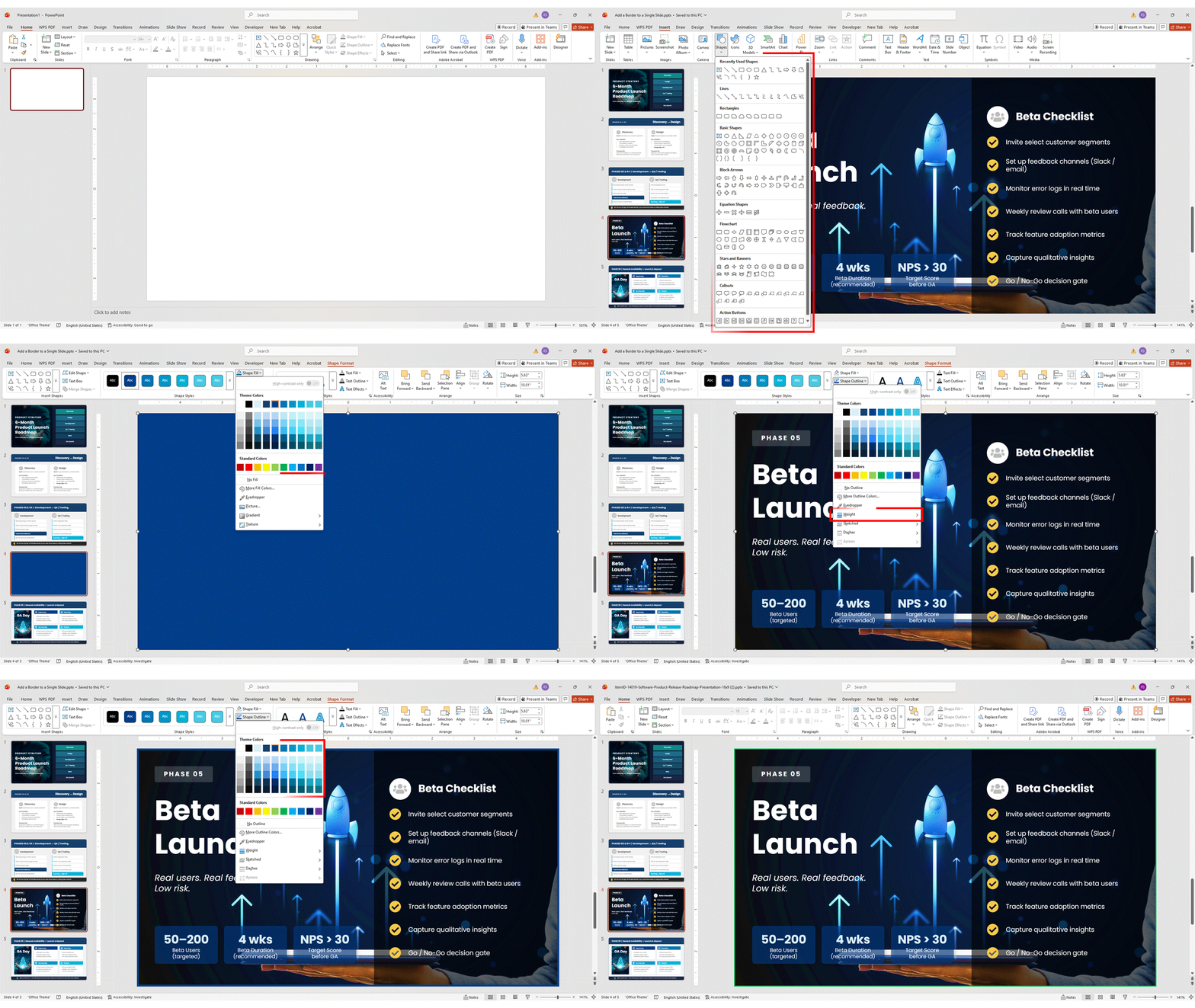
Pro tip: Open Arrange → Position and size to enter exact pixel coordinates, which locks the border precisely to the slide edge. You can also switch the line to dashed or dotted using the Border dash dropdown — a quick way to give a Google Slide border a more editorial feel without any extra effort. If you want to layer in extra depth on those rectangles, see our guide on how to add drop shadows in Google Slides.
Method 2: Add a Border to All Slides at Once (via Slide Master)
If you want to know how to make a border on Google Slides that flows consistently across every slide in your deck, the Slide Master (accessed through the Theme editor) is the right path. Any element you place on the master slide automatically appears on every layout that inherits from it.
Steps:
- Click Slide in the top menu bar and select Edit theme.
- In the Theme editor, click the master slide — the largest thumbnail at the very top of the left panel.
- Go to Insert → Shape → Shapes and draw a rectangle across the full slide canvas.
- Set Fill color to Transparent, then choose your Border color and Border weight exactly as in Method 1.
- Right-click the shape → Order → Send to back.
- Click Done (or close the editor with the X) to apply the changes.
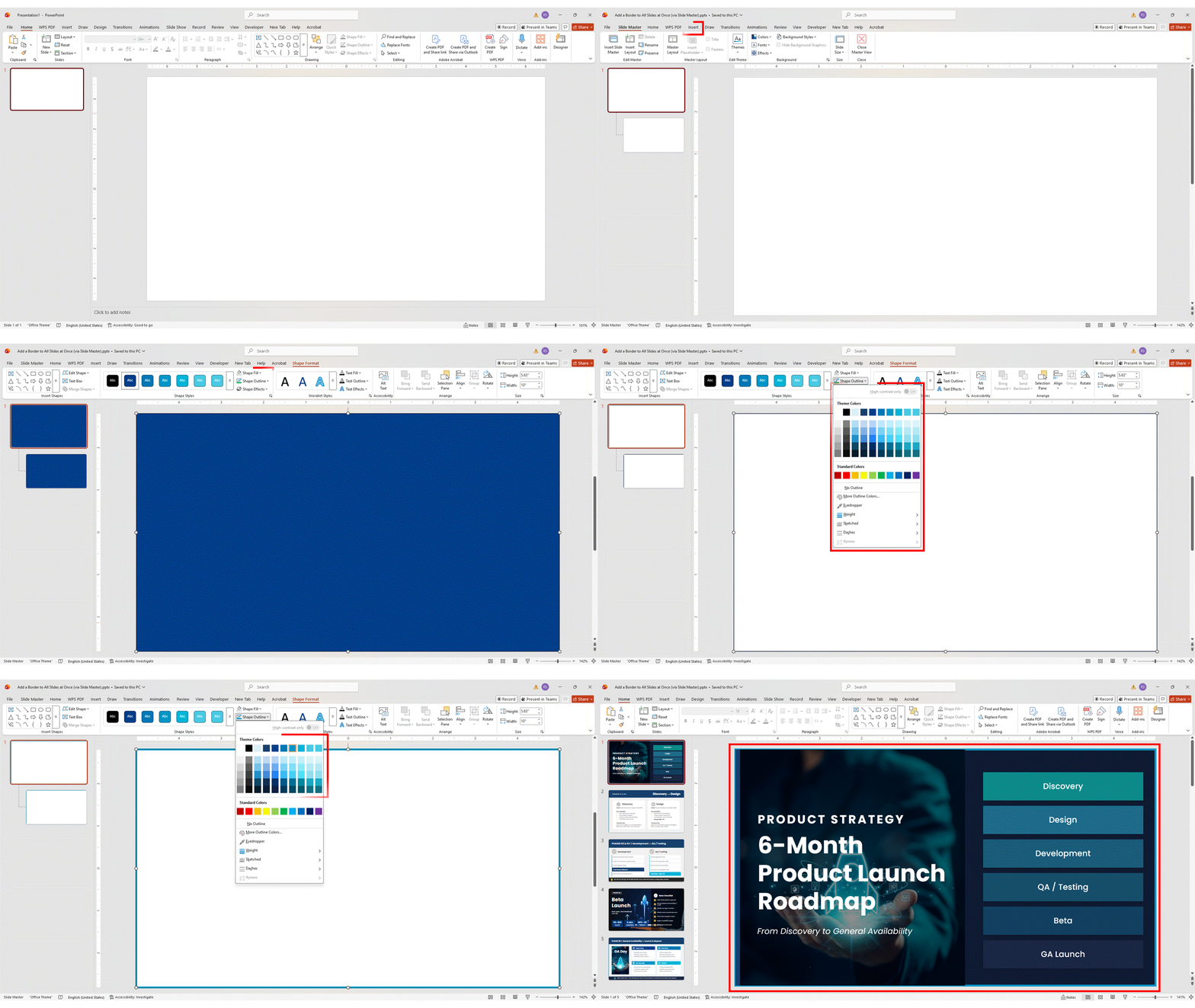
Every existing slide now carries the border, and any new slide you add will inherit it automatically. For a deck with 30 or more slides, this saves a significant amount of repetitive formatting time — and it ensures pixel-perfect consistency across every frame. The same approach works for other deck-wide elements — for example, see how to add a header and footer in Google Slides using the same Theme editor.
Method 3: How to Add a Border in Google Slides Using a 1×1 Table
Tables might seem like an unusual choice for borders, but this is one of the most practical methods if you’re working in a shared presentation. A table-based border stays anchored far more reliably than a free-floating shape — collaborators are much less likely to accidentally drag it out of position during editing.
Steps:
- Go to Insert → Table and select 1×1 (one row, one column).
- Drag the table’s handles until it covers the entire slide area.
- Go to Format → Table properties.
- Under the table border, set the color and line weight you want.
- Set the Cell background to no fill (transparent).
- Click OK.

The difference is subtle but worth knowing: because tables are anchored and selected differently from shapes, they hold their position better in multi-editor workflows. If you’ve tried Method 1 and found the border keeps getting nudged, this is the fix. If you’re working more extensively with tables in your decks, our guide on how to add and edit tables in Google Slides covers formatting beyond just borders.
Method 4: Use an Image as a Decorative Border
This is the method for presentations where you want real visual character. If you’ve been hunting for cute, transparent borders for Google Slides to drop straight into your deck, here’s exactly how to use them.
Steps:
- Find or download a border image with a transparent background — PNG format is essential. SlideUpLift’s Google Slides templates library, Freepik, and Vecteezy all have large selections.
- In Google Slides, click Insert → Image → Upload from computer (or use Search the web to find one without leaving the app).
- Resize the image so it covers the full slide canvas from edge to edge.
- Right-click → Order → Send to back to layer it behind all other content.
- If the border feels too strong, open Format → Format options → Adjustments and lower the Opacity slider until it sits comfortably in the background.

This is also the cleanest approach for transparent borders for Google Slides that need to sit over background images or colored slides without blocking the content underneath.
It’s worth thinking of this method as how to make a frame in Google Slides using image assets rather than shapes — a PNG border acts as a decorative frame rather than a geometric stroke, which opens up a much wider range of creative styles.
Decorative borders for Google Slides built this way — floral frames, watercolor washes, geometric edges, hand-drawn patterns — add a level of polish that simple rectangle shapes can’t replicate. This is the go-to method for classroom slides, event presentations, and any deck where visual personality matters.
Method 5: How to Add a Border to an Image in Google Slides
Adding a frame to a photo or graphic makes it look intentional rather than dropped in. The good news is that Google Slides add border to image functionality is built right into the toolbar — no extra shapes or layers required.
Steps:
- Click the image on your slide to select it.
- In the toolbar, click Border color and choose your color.
- Click Border weight and select a thickness.
- Optionally, click Border dash to switch between solid, dashed, or dotted.
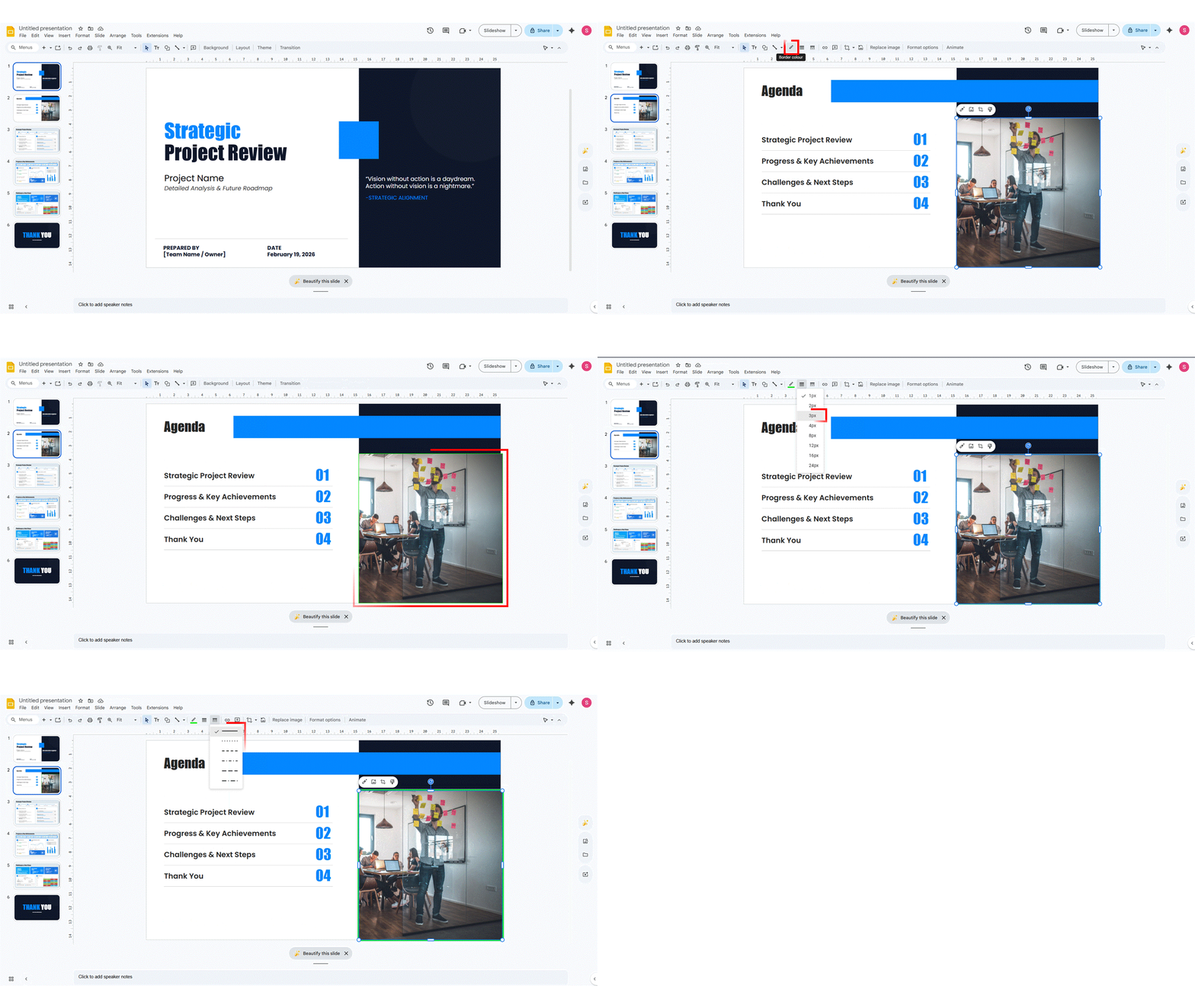
This is the most direct way to add a border to an image in Google Slides — no extra shapes, layers, or third-party tools required. For an even more refined look, open Format → Format options → Drop shadow. A subtle shadow alongside a thin border gives photos a framed, editorial quality that works well in portfolio or case-study presentations. While you’re refining how images look on your slides, you may also find how to apply filters to pictures in Google Slides.
Method 6: How to Add a Border to a Text Box
Putting a visible border around a text box is a clean way to create callout labels, quote blocks, sidebar notes, and info panels.
How to Add Border to Text in Google Slides
- Click the text box to select it.
- In the toolbar, click Border color and pick your color.
- Adjust the border weight for the thickness you want.
- Use a border dash to choose solid, dashed, or dotted as needed.
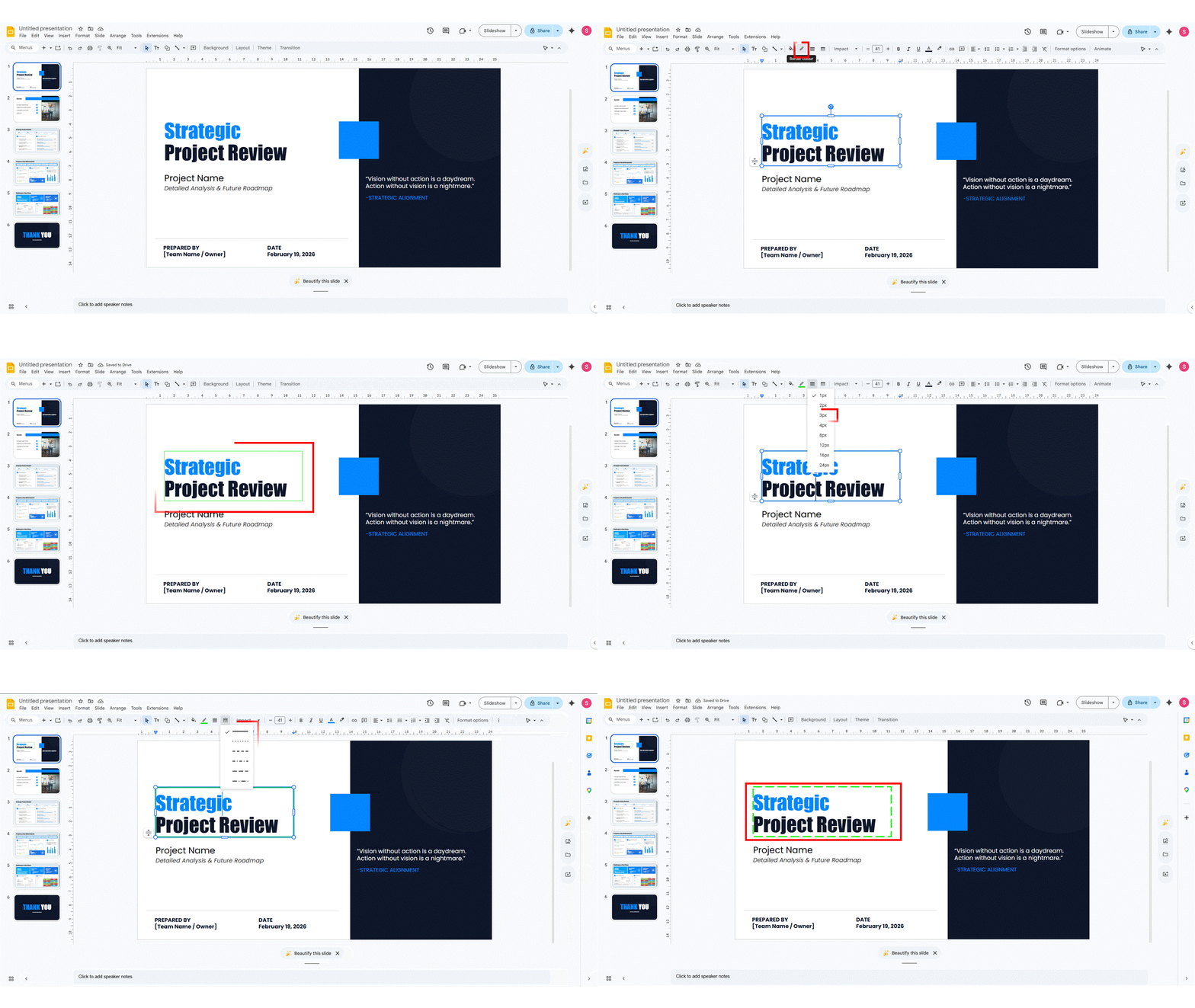
A quick note on a common question: for how to add a border to text in Google Slides at the character level — meaning a visible stroke directly around individual letters — Google Slides doesn’t support native text stroke. For that specific effect, design the text in a tool like Canva and import it as an image, or use a compatible add-on. For other text formatting essentials, see how to add bullet points in Google Slides.
Going to Format → Format options gives you access to corner rounding (for a card-style text box) and shadow controls, both of which pair well with a visible border.
Method 7: Add a Border to a Shape
Shape borders follow the same toolbar controls as text boxes, but have particular value when you’re building diagrams, flowcharts, or step-number visuals.
Steps:
- Click the shape to select it.
- Use Border color, Border weight, and Border dash in the toolbar to style the border.
- For a clean outline-only shape, set Fill color to Transparent — this creates a frame effect without any solid background block.
- To update multiple shapes at once, hold Shift, select them all, then apply your border settings — every selected shape updates in one action.
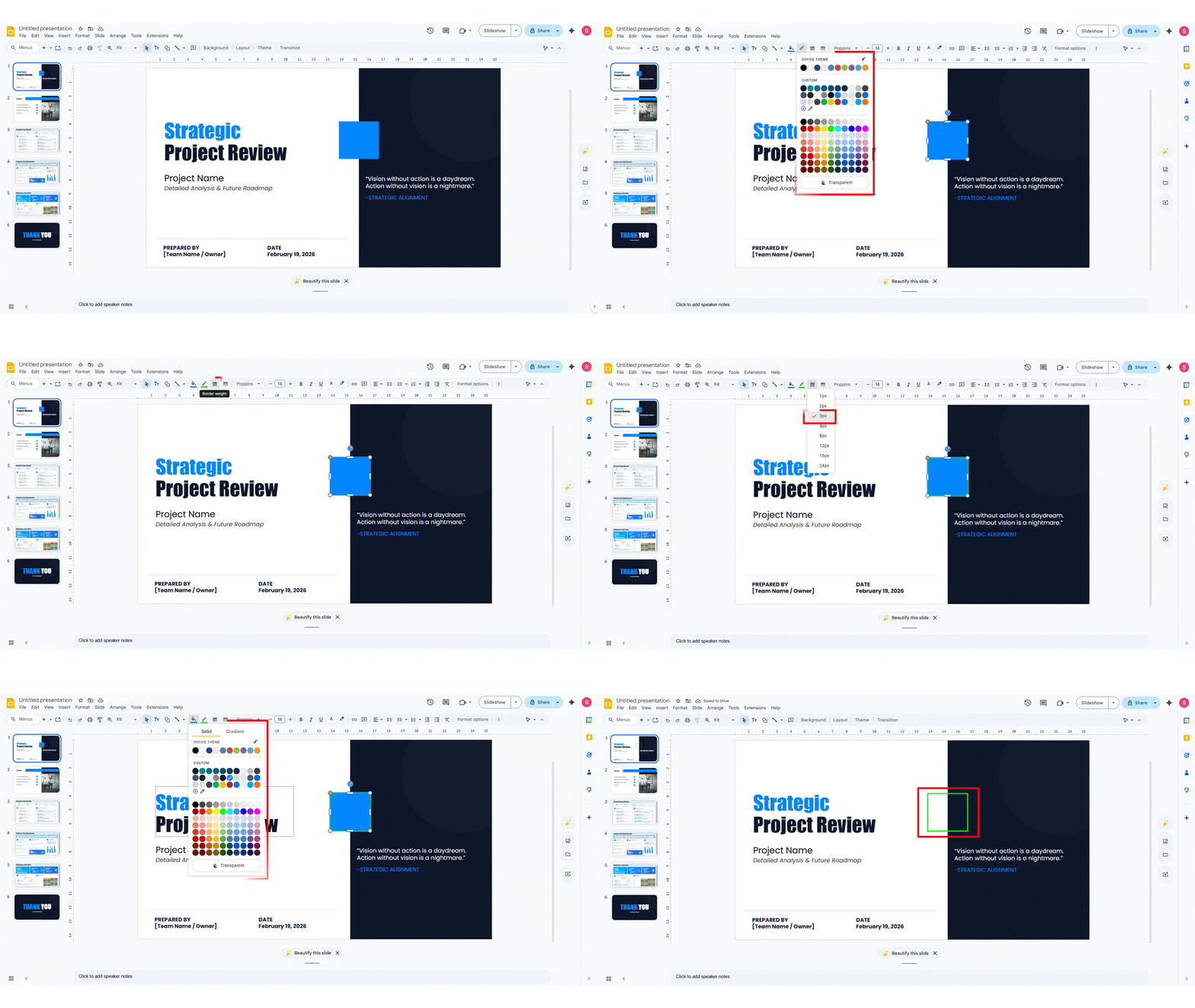
Shapes with transparent fills and visible borders are especially useful for icon frames, connector circles, and diagram annotations where you want structure without visual heaviness. For more on Google Slides design elements that pair well with shape borders, browse our full library of Google Slides tutorials.
How to Remove Borders in Google Slides
Removing a border is just as straightforward as adding one. The exact steps depend on which method you used to create it.
- Remove a rectangle or table border from a slide:
- Click the rectangle or table acting as the border.
- Press Delete or Backspace.
- Remove a border from an image:
- Select the image.
- Click Border color in the toolbar → choose Transparent.
- Remove a border from a text box or shape:
- Select the text box or shape.
- Click Border color → choose Transparent.
- If the line is still visible, also set Border weight to 0 px.
- Remove a border from all slides (Slide Master):
- Click Slide → Edit theme.
- In the master slide, click the border rectangle and press Delete.
- Close the Theme editor.
Helpful troubleshooting tip: If you can’t click or find a border element on a slide, it may have been sent to the back and is sitting behind other content. Use Edit → Select all or click near the slide edge while nothing else is selected to surface it, then delete.
Wrapping Up
Google Slides may not have a single “Add Border” button, but these seven methods give you full control over every kind of border. Whether you’re figuring out how to add a border in Google Slides for the first time or looking for a faster workflow, there’s a method here that fits your specific situation — from a quick shape on one slide to an image-based frame that spans your entire presentation.
A quick guide to choosing the right method:
- One slide, minimal effort → Rectangle shape (Method 1)
- Entire deck, consistent branding → Slide Master (Method 2)
- Shared file, stays in place → 1×1 table (Method 3)
- Creative or themed presentations → Image border (Method 4)
- Framing photos or graphics → Image border in toolbar (Method 5)
- Callout boxes or quote panels → Text box border (Method 6)
- Diagrams and step visuals → Shape border (Method 7)

If you want to skip the formatting entirely, SlideUpLift’s Google Slides template library includes hundreds of professionally designed layouts with borders, frames, and visual structure already built in — ready to customize for your next presentation.
FAQs
-
Can I add a border to all slides at once in Google Slides?
Yes. Use the Slide Master by going to Slide → Edit theme. Any border shape you add to the master slide automatically applies to every slide that uses that layout. It is the most efficient way to set a consistent border for Google Slides across a full deck without repeating steps per slide.
-
How do I remove a border in Google Slides?
Select the element serving as the border — rectangle, table, or image — and press Delete. For borders applied through the Slide Master, go to Slide → Edit theme, select the border shape on the master slide, and delete it there. For image or text box borders, set the Border color to Transparent in the toolbar.
-
What is the best border weight for a presentation?
A border weight between 2 px and 6 px works well for most presentations. Thinner borders (1–2 px) suit minimal or professional designs. Thicker borders (4–6 px) work better for bold, creative, or teaching-focused slides. Avoid weights above 8 px unless you’re deliberately using the border as a design element rather than a subtle frame.
-
Can I add a border to a picture in Google Slides on mobile?
Yes. The Google Slides mobile app supports border formatting for images. Tap the image to select it, then tap the Format icon (paint roller) and look for the Border & Fill section — you’ll find border color and weight options there.
-
Why doesn't Google Slides have a built-in slide border tool?
Google Slides prioritizes collaboration and simplicity over advanced formatting features. It doesn’t include a native slide-border setting, the way PowerPoint does. That said, the rectangle shape workaround and the Slide Master method together give you the same level of control — and in the case of the Theme editor, arguably more flexibility for branding consistency.
-
Can I use a custom image as a border in Google Slides?
Absolutely. Insert a transparent PNG border image via Insert → Image, resize it to the full slide canvas, and send it to the back. This is the most effective route to decorative borders for Google Slides for themed, educational, or creative presentations — and it supports styles that simple geometric shapes can’t replicate.
Table Of Content



Related posts from the same category

23 Sep, 2022 | SlideUpLift
How To Add Drop Shadows In Google Slides
Google Slides provide effects like drop shadows, which is an effective feature for presentation design. They can assist in making a flat image, text, or object more interesting by making

6 Jan, 2023 | SlideUpLift
How to Add Header and Footer in Google Slides?
Google Slides is a powerful presentation tool allowing users to create professional-looking presentations easily. One important aspect of any presentation is the header and footer, which can provide context and

23 Aug, 2023 | SlideUpLift
How to Add and Remove a Watermark in Google Slides?
Whether you're a business professional striving for brand consistency, an educator seeking to protect your research, or an individual looking to add a unique touch to their slides, knowing how

6 Sep, 2022 | SlideUpLift
How to Add and Edit Tables in Google Slides?
In the business world, slide decks are all-pervasive. Google Slides is gaining rapid prominence as one of the most excellent tools for designing slide decks. Presenters frequently use tables to

29 Dec, 2023 | SlideUpLift
How to Make Checkboxes in Google Slides?
Google Slides is one of the most widely used presentation tools today. It is used for creating simple text and picture presentations and complex presentations. You can create surveys and

24 Jan, 2024 | SlideUpLift
How To Insert A Fraction in Google Slides?
Google Slides is not just a versatile tool for conveying ideas and strategies but also numbers and complex data. Some numbers and data are part of advanced equations, including fractions.

18 Jan, 2023 | SlideUpLift
How To Add And Edit Maps In Google Slides?
Google Slides is a powerful and convenient tool for creating presentations, and it has a range of features that can help you make your slides more interactive and engaging. One

18 Nov, 2022 | SlideUpLift
Learn How To Add Bullet Points In Google Slides
In today’s dynamic world, people have very less attention span to read and absorb information. Be it blogs, posts, or presentations, people generally scan through the information. To get people

1 Oct, 2025 | SlideUpLift
Insert Calendar In PowerPoint And Google Slides: Quick Guide For Smarter Planning.
Do you want your presentations to be more organized, attractive, and professional? Learning how to add a calendar in PowerPoint or Google Slides will take boring schedules and deadlines and

22 Sep, 2023 | SlideUpLift
How to Add Speaker Notes in Google Slides?
A presentation is a smart way to represent what is on your mind in a work environment. It helps in showcasing your idea logically. But to tell a compelling story,