
 Flat 4


How to Insert a PDF into Google Slides Every Method That Actually Works
No, Google Slides does not let you insert a PDF directly as an editable PDF object. Instead, you can use one of three practical workarounds. First, convert the PDF pages into images and insert those images onto slides. Second, upload the PDF to Google Drive and add a clickable link to the file from your presentation. Third, convert the PDF into a PowerPoint (.pptx) file and open that file in Google Slides. The best method depends on whether you simply need to display the PDF pages, provide access to the original file, or continue working with the converted presentation content.
If you have ever tried to insert a PDF into Google Slides, you already know the frustration — drag it onto a slide, and nothing useful happens. Google Slides does not support native PDF rendering, which leaves millions of presenters, teachers, marketers, and students hunting for a reliable workaround.
This guide covers every practical approach for inserting PDF content into a Google Slides presentation in 2026 — including detailed step-by-step walkthroughs, a mobile-specific section for iPhone and Android users, troubleshooting fixes for the most common problems, and 10 frequently asked questions. Whether you need to add a single chart from a PDF report or work an entire multi-page document into your deck, you will find the right method here.
If you’re importing a PDF just to reuse its layout, it’s often faster to rebuild it with editable Google Slides templates — you get the same structure without the image-quality loss.
That’s it. For multiple pages, Shift-select all exported images in step 4 — Slides adds one per slide automatically.
What you will find in this guide:
- Method 1: Insert PDF pages as high-resolution images — best for visual fidelity
- Method 2: Insert a PDF as a clickable Drive link — best for long documents
- Method 3: PDF to PPTX and open in Google Slides — best when you need editable content
- Method 4: Insert PDF into PowerPoint — step-by-step for all three main approaches
- Method 5: Mobile insertion — full walkthrough for iPhone and Android
- How to handle multi-page PDFs without bloating your file
- Best practices, troubleshooting, and 12 FAQs
| Method | Estimated Time |
| Method 1: Insert as images | 3–5 minutes per page |
| Method 2: Clickable Drive link | Under 2 minutes |
| Method 3: PDF to PPTX to Slides | 3–5 minutes |
| Method 4: Insert PDF into PowerPoint | 2–5 minutes |
| Method 5: Mobile (iOS / Android) | 3–5 minutes |
| Multi-page batch insert | 5–10 minutes for up to 20 pages |
Can You Insert a PDF Directly into Google Slides?
The short answer is no — not natively. But the longer answer is more interesting, and understanding why will save you a lot of trial and error.
Why Doesn’t Google Slides Support PDF Embedding Natively?
Google Slides is a cloud-based, object-oriented presentation tool. Unlike Microsoft PowerPoint on Windows, it has no built-in mechanism to render or embed a PDF file as live content within a slide canvas. As of 2026, Google Workspace has not introduced native PDF support in Slides — a limitation consistent across all recent Google Workspace release notes.
The core technical reason is a mismatch in file architecture. PDFs are fixed-layout documents engineered for print fidelity — they describe exactly how content should appear on a physical page. Google Slides, by contrast, operates on a flexible object-based canvas where each element (text box, image, shape) is independently positioned and scaled. There is no standardised bridge between the two formats that would allow Slides to natively parse and render PDF content without an intermediary step.
What Happens If You Drag and Drop a PDF into Google Slides?
When you drag a PDF file directly onto the Google Slides editing canvas, one of two things will happen:
- The file is ignored entirely — nothing appears on the slide and no error is shown.
- Google Chrome prompts you to open the file in a new tab rather than insert it into the slide.
You will not see the PDF rendered as viewable content within your presentation. This surprises many users who are accustomed to how PowerPoint handles object insertion, where a file can be embedded and double-clicked to open. Google Slides simply does not have an equivalent feature.
Tip: If you are using Google Chrome and dragging a PDF causes it to open in a new tab instead, that is your browser’s built-in PDF viewer taking over — not Google Slides responding to the file.
Which Method Is Right for You? (Decision Table)
| Method | Best For | Editable? | File Size Impact | Difficulty |
| Method 1: Insert as Images | Visual fidelity, charts, diagrams | No | Medium–High | Easy |
| Method 2: Clickable Drive Link | Long PDFs, manuals, research papers | No | None | Easy |
| Method 3: PDF to PPTX to Slides | When you need to edit PDF content | Yes | Low | Medium |
| Method 4: Insert into PowerPoint | PPT users, Windows object embedding | Limited | Low–Medium | Easy–Med |
| Method 5: Mobile (iOS / Android) | On-the-go edits, phone/tablet | No | Medium | Easy |
Method 1 — Insert PDF as Images into Google Slides (Best for Visual Fidelity)
The most reliable and widely supported way to insert a PDF into Google Slides is to bring each PDF page onto a slide as a high-resolution image. This preserves every visual element of your original document — fonts, charts, diagrams, colour gradients, and table layouts — exactly as they appear in the source PDF. It works on every device, requires no special plugins, and produces a presentation that any audience can view without permission issues or software dependencies.
Step 1 — Get Your PDF Pages Ready as Images (PNG vs JPG: Which to Choose?)
Before you can insert anything, you need your PDF page saved as an image file. The two most common formats are PNG and JPG, and choosing the right one makes a real difference to quality and file size.
| Format | Best For | Avoid When |
| PNG | Text-heavy pages, charts, logos, diagrams, transparent backgrounds | Photography-heavy pages where file size matters |
| JPG | Photo-heavy PDFs, marketing imagery, gradient-rich pages | Pages with fine text or sharp-edged diagrams — compression causes blur |
DPI guidance:
- 150 DPI — Standard laptop/desktop screen presentations
- 200–300 DPI — Large display, projector, or 4K screen presentations
- 300+ DPI — Print-quality backup copies (not needed for screen use)
Free tools to export PDF pages as images:
| Tool | Free? | Max Pages (Free) | Output Quality | Best For |
| Adobe Acrobat | Yes (limited) | 2 per day | Highest | Professional quality |
| Smallpdf | Yes (limited) | 2 per day | High | Quick single-page export |
| iLovePDF | Yes (limited) | ~3 per day | Medium–High | Batch multi-page export |
| PDF24 | Yes (unlimited) | Unlimited | Medium–High | Browser-based, no install |
| Preview (Mac only) | Yes (unlimited) | Unlimited | High | Mac users — no install needed |
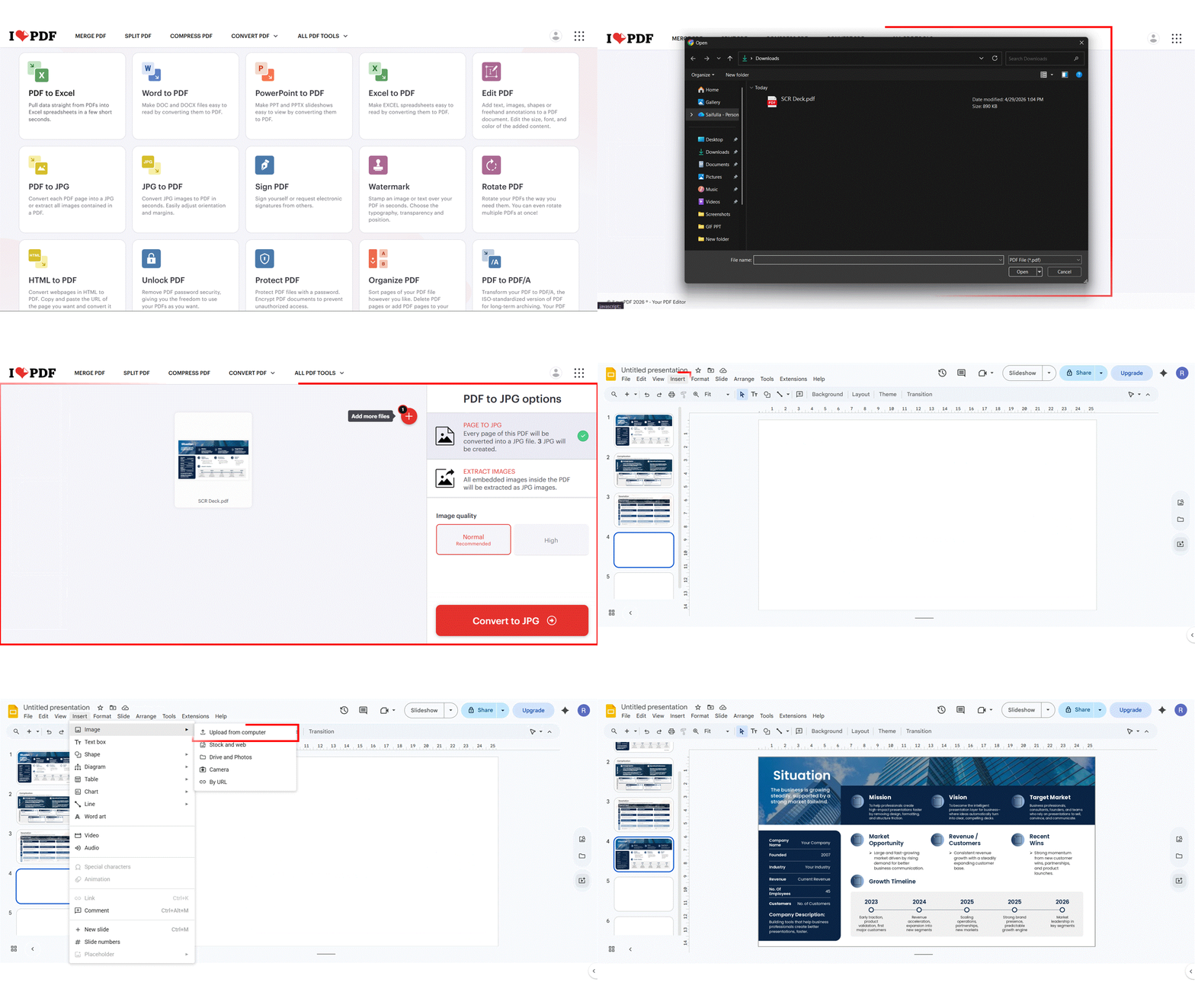
Step 2 — Upload Images to Google Slides
Once your PDF page is saved as a PNG or JPG image, follow these exact steps to insert it onto your slide:
- Open your Google Slides presentation in your browser.
- Click on the slide in the left-hand panel where you want the PDF content to appear.
- From the top menu, click Insert.
- Hover over Image — a sub-menu will appear.
- Select Upload from computer.
- Browse to your exported image file, select it, and click Open.
- The image will appear centred on your slide. Click and drag it into position.
Tip: You can also use Insert → Image → Google Drive if you have already uploaded the image to your Drive — useful for sharing presentations with a team.
Tip: Keyboard shortcut: Copy the image to your clipboard (Ctrl+C / Cmd+C) and paste directly onto the slide with Ctrl+V / Cmd+V — this skips the menu entirely.
Step 3 — Resize, Reposition, and Align on Slide
After inserting, use these built-in Google Slides tools to position your image precisely:
- Resize proportionally: Hold Shift while dragging any corner handle to preserve aspect ratio and avoid distortion.
- Centre on slide: Right-click the image → Centre on page → Horizontally or Vertically.
- Use alignment guides: Go to View → Guides → Show guides for pixel-accurate alignment.
- Position panel: Click Format → Format options → Position and size for exact pixel coordinates.
- Full-slide fit: To cover the entire slide with your PDF image, drag the corners to the slide edges or use Format → Format options to set the width to 960px and height to 540px (standard 16:9 slide dimensions).
Note: Always hold Shift when resizing — a distorted PDF image looks unprofessional and can misrepresent data in charts or tables. Want to make sure your images stay perfectly in place after resizing? Learn how to Lock an Image in Google Slides.
Pros and Cons of Inserting PDF as Images
| Pros | Cons |
| Perfect visual fidelity — looks exactly like the original PDF | Text inside the image is not searchable or selectable |
| Works on all devices and browsers without plugins | File size increases significantly with multiple pages |
| No special permissions or software required | Content cannot be edited after insertion |
| Ideal for charts, diagrams, infographics, and branded layouts | Requires an extra export step before inserting |
Method 2 — Insert a PDF as a Clickable Drive Link in Google Slides
If your PDF is long — a research paper, a product manual, a full annual report — adding every page as an image is impractical. The fastest alternative is to link your PDF directly from Google Drive. A clickable element on your slide opens the full PDF in a new browser tab when selected during the presentation. This method keeps your Slides file small, requires no image export, and gives viewers access to the complete document with a single click.
This is the method most commonly recommended for anyone asking how to add a PDF to Google Slides when the document is too large to insert page by page. It is also the approach behind the question How to put a PDF in a Google slide so viewers can access the full document.
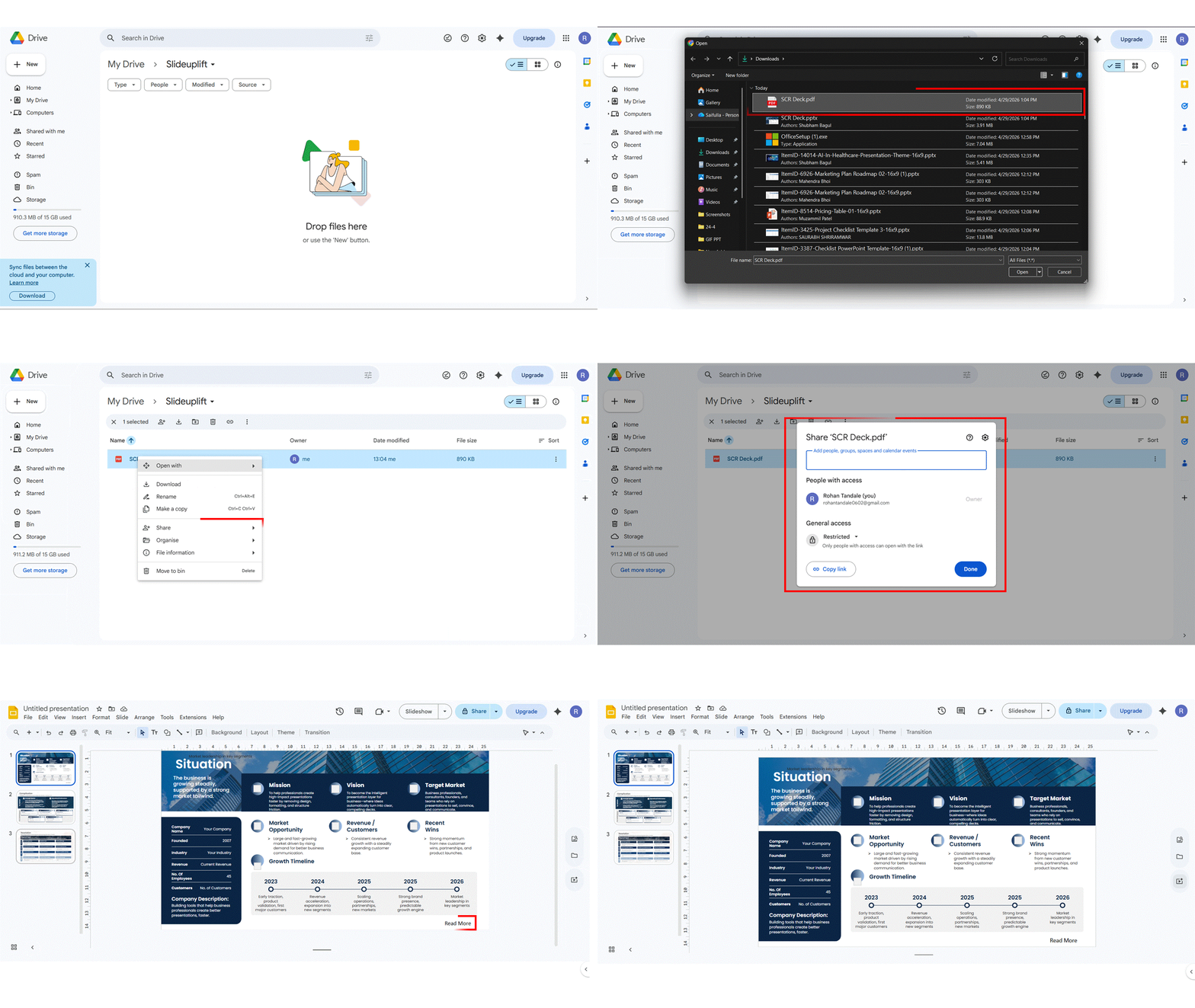
Step 1 — Upload Your PDF to Google Drive
- Go to drive.google.com and sign in.
- Click the + New button in the top-left corner.
- Select File upload from the dropdown.
- Browse to your PDF on your computer and click Open.
- Wait for the upload to complete — you will see it appear in your Drive file list.
Step 2 — Set Sharing Permissions Correctly
This step is critical. If your PDF’s sharing permissions are set to Restricted, viewers who click the link during your presentation will see an ‘Access Denied’ error — even if they are logged into a Google account.
- Right-click your uploaded PDF in Google Drive.
- Select Share from the context menu.
- Under General access, click the dropdown that says Restricted.
- Change it to Anyone with the link.
- Make sure the permission level is set to Viewer (not Editor).
- Click Copy link, then click Done.
Tip: If you are presenting to an internal team only, set sharing to ‘Anyone in [your organisation] with the link’ — this keeps the PDF private outside your company while allowing all colleagues to open it.
Step 3 — Create a Clickable Link in Google Slides
Now attach the Drive link to a text or image element on your slide:
- Open your Google Slides presentation.
- Select the text or image you want to make clickable — for example, a button shape, a text box reading ‘View Full Report’, or a thumbnail image of the PDF cover page.
- Press Ctrl+K (Windows) or Cmd+K (Mac) to open the Insert link dialog, OR go to Insert → Link from the top menu.
- Paste your Google Drive PDF link into the URL field.
- Click Apply.
- The element now has a blue underline (for text) or a link indicator (for images) showing it is clickable.
Tip: Test the link before your presentation: open the slide in an incognito/private browser window and click the element. If it opens the PDF without asking you to log in, your sharing permissions are set correctly, and every viewer will have access.
Pros and Cons of Using a Clickable Drive Link
| Pros | Cons |
| Keeps presentation file size very small — no image assets | The viewer must leave the slide to read the PDF |
| Works for PDFs of any length without any export step | Requires an internet connection during the presentation |
| Full PDF is accessible — readers can scroll, zoom, search | Depends on the correct Drive sharing permissions being set |
| Easy to update — replace the Drive file, and the link still works | Clicking opens a new browser tab, which can disrupt presentation flow |
Method 3 — Open a PDF as Editable Google Slides (Via PowerPoint)
The two methods above produce slides where your PDF content is either a static image or a link to an external file — neither is editable. If you actually need to modify the text, reorder elements, or rework the layout of your PDF content inside Google Slides, this is the method to use.
The workflow uses a PDF-to-PPTX step as a bridge. Tools like Adobe Acrobat, Smallpdf, and iLovePDF can export a PDF as a .pptx file, which Google Drive then converts into a fully editable Google Slides deck when you open it. This is the recommended approach for anyone asking how to upload a PDF to Google Slides and actually work with the content rather than just display it. Want to learn more about working with PowerPoint files in Google Slides? Read our full guide on How to Convert PowerPoint to Google Slides.
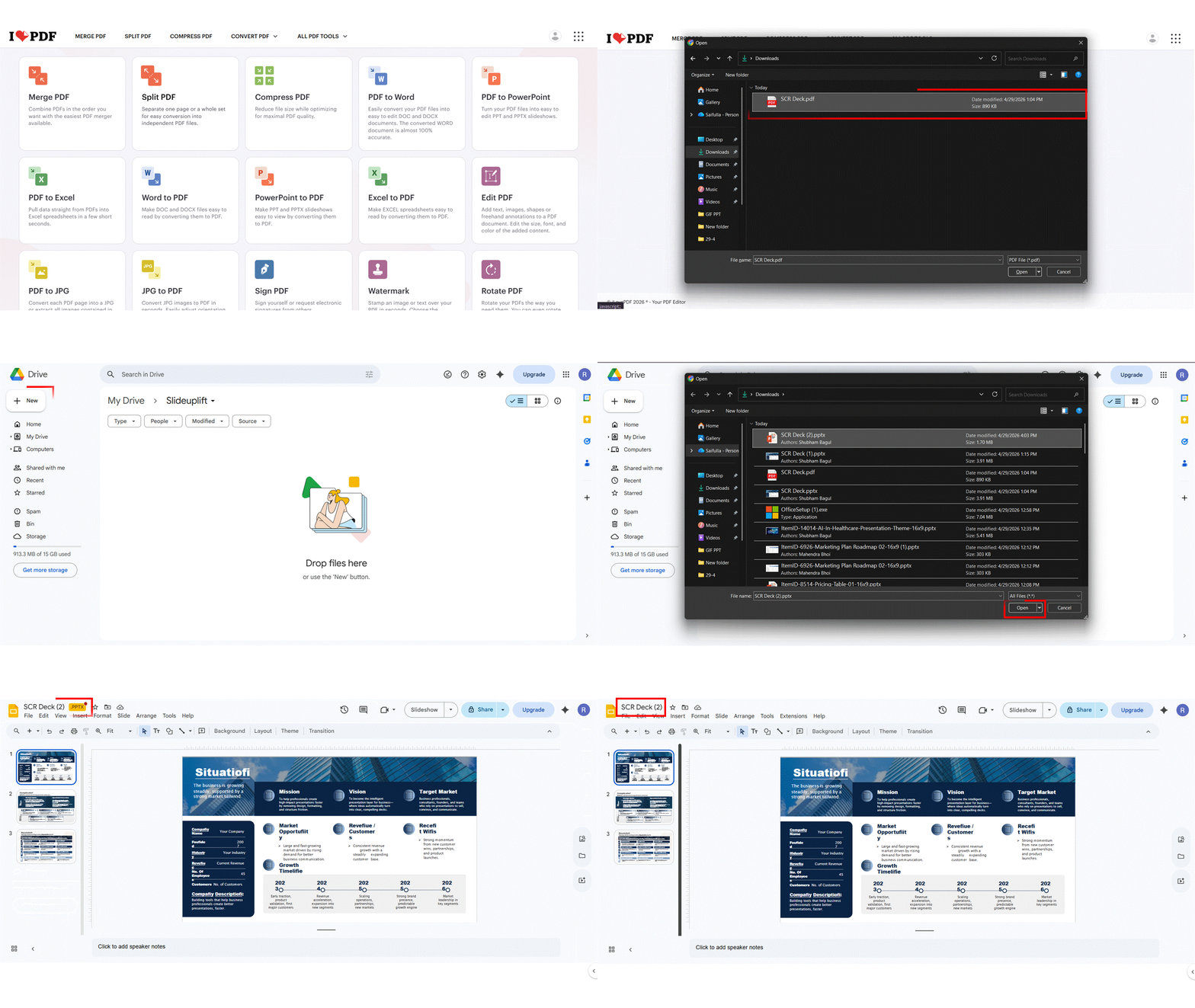
Step 1 — Export Your PDF as a PowerPoint File (.pptx)
- Go to your chosen tool’s PDF to PowerPoint page.
- Upload your PDF file.
- Click Convert (or Export to PPT).
- Download the resulting .pptx file to your computer.
Use any of the following free or freemium tools to export your PDF as a .pptx:
- Adobe Acrobat (acrobat.adobe.com) — highest quality output, best font preservation. Free plan: limited exports.
- Smallpdf (smallpdf.com) → PDF to PPT — quick and browser-based. Free: 2 conversions per day.
- iLovePDF (iLovePDF.com) → PDF to PowerPoint — unlimited free exports with good quality.
Step 2 — Upload the .pptx to Google Drive and open it in Google Slides
- Go to drive.google.com.
- Click + New → File upload and select your downloaded .pptx file.
- Once uploaded, right-click the file in Drive.
- Select Open with → Google Slides.
- Google Drive will automatically convert the PowerPoint file into an editable Google Slides deck. This opens in a new tab.
- Click File → Save as Google Slides to save a permanent, editable copy.
Tip: You can also drag your .pptx file directly onto the Google Drive browser window — it will upload and appear in your file list, ready to open.
What to Expect: Formatting Changes After Opening in Google Slides
This method gives you editable slides, but the conversion process is imperfect. Here is what typically changes and how to fix it:
| What breaks | Why it happens | How to fix |
| Custom fonts replaced with defaults | Google Slides only supports web-safe fonts | Manually reapply fonts from the Google Fonts library |
| Spacing and line height shifts | PDF and PPTX measure spacing differently | Adjust text box size and line spacing in Format options |
| Vector graphics become rasterised images | Google Slides does not support SVG vectors natively | Re-source original vector assets if quality matters |
| Complex table layouts collapse | Table cell merging rules differ across formats | Rebuild tables manually in Google Slides |
Note: The more complex the PDF layout (multi-column text, nested tables, custom fonts), the more reformatting you should expect. For simple, single-column documents, this method works very cleanly.
Pros and Cons of the PDF via PPTX to Google Slides Method
| Pros | Cons |
| Produces fully editable slides — text, images, layout, all modifiable | Formatting drift is likely, especially fonts and spacing |
| Works for any PDF regardless of source application | Complex layouts (multi-column, tables) may need manual rebuilding |
| Free tools available — no paid software required | The quality of the output depends on which conversion tool you use |
| Best option when you need to present and edit the PDF content | Not suitable if the visual accuracy of the original PDF is critical |
Method 4 — How to Insert PDF into PowerPoint (PPT)
Many presenters work across both platforms. If you need to insert a PDF into a PPT file rather than Google Slides — or if you are building your deck in PowerPoint before uploading to Drive — PowerPoint offers a few more built-in options than Google Slides does. Here are the three main approaches.
Method A: Insert PDF as an Image in PowerPoint (All Platforms)
This is the most universally reliable way to insert a PDF into a PPT file. It works on Windows, Mac, and any version of PowerPoint from 2016 onwards.
- Export your target PDF page as a PNG or JPG (using Adobe Acrobat, Smallpdf, iLovePDF, or Preview on Mac).
- Open your PowerPoint (.pptx) file.
- Navigate to the slide where you want the content to appear.
- Click Insert in the top ribbon.
- Select Pictures → This Device (Windows) or Picture → Picture from File (Mac).
- Browse to your image file, select it, and click Insert.
- Resize and reposition using the corner handles — hold Shift to maintain aspect ratio.
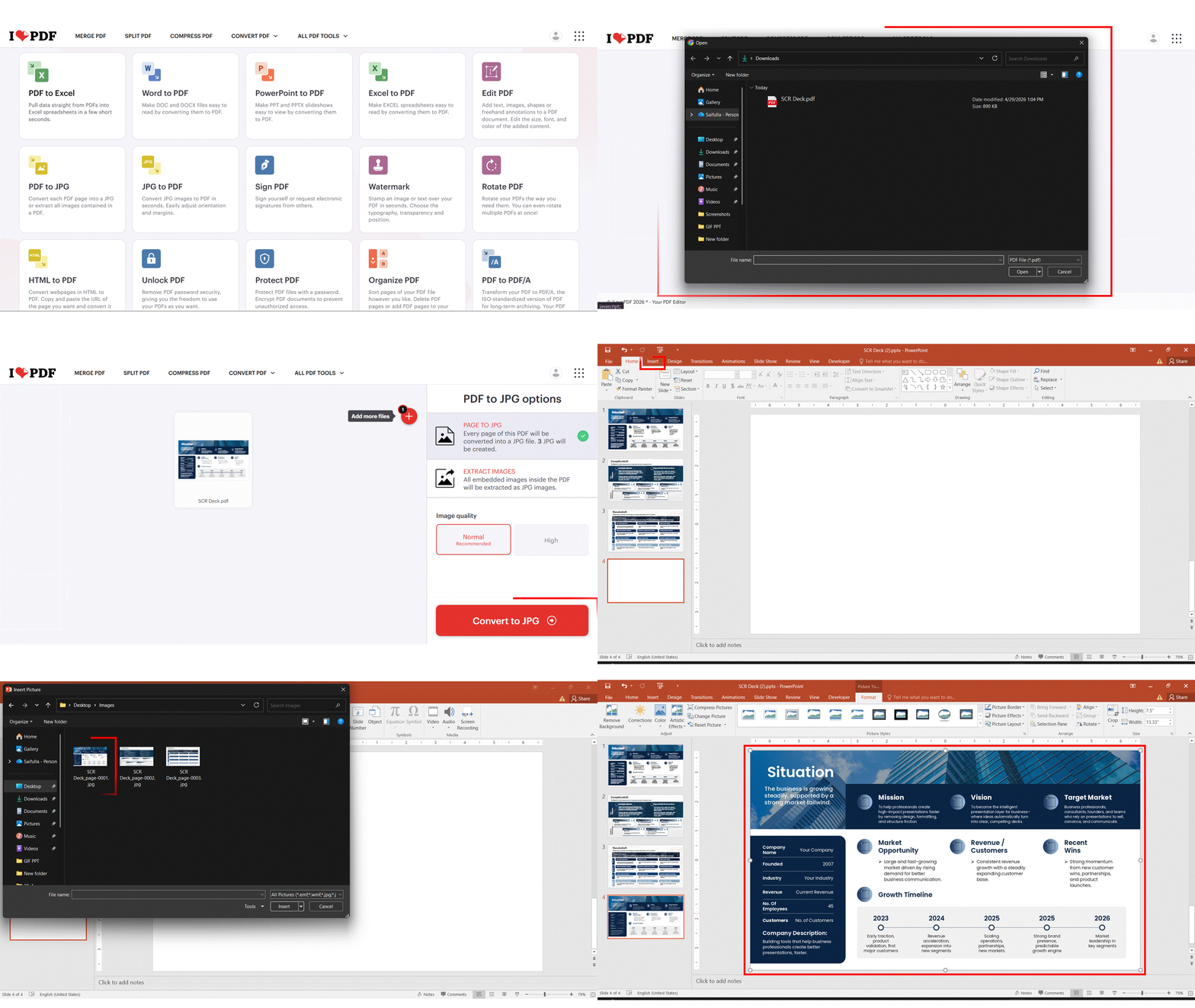
Inserting a PDF page as an image gives you full visual control and is compatible with every version of PowerPoint.
Tip: For bulk inserting, select multiple image files at once in the file browser (Shift+click) — PowerPoint will insert each as a separate object on the active slide, which you can then distribute to individual slides manually.
Method B: Insert PDF as an Object in PowerPoint (Windows Only)
PowerPoint on Windows allows you to embed a PDF file as an object — a feature Google Slides does not offer. The embedded PDF appears as a clickable icon on your slide, which viewers can double-click to open the full document.
- Open your PowerPoint presentation.
- Go to Insert → Object.
- In the dialog box, select Create from file.
- Click Browse and navigate to your PDF file.
- Tick the Display as icon checkbox if you want it to appear as a clickable icon on the slide.
- Click OK to embed the PDF.
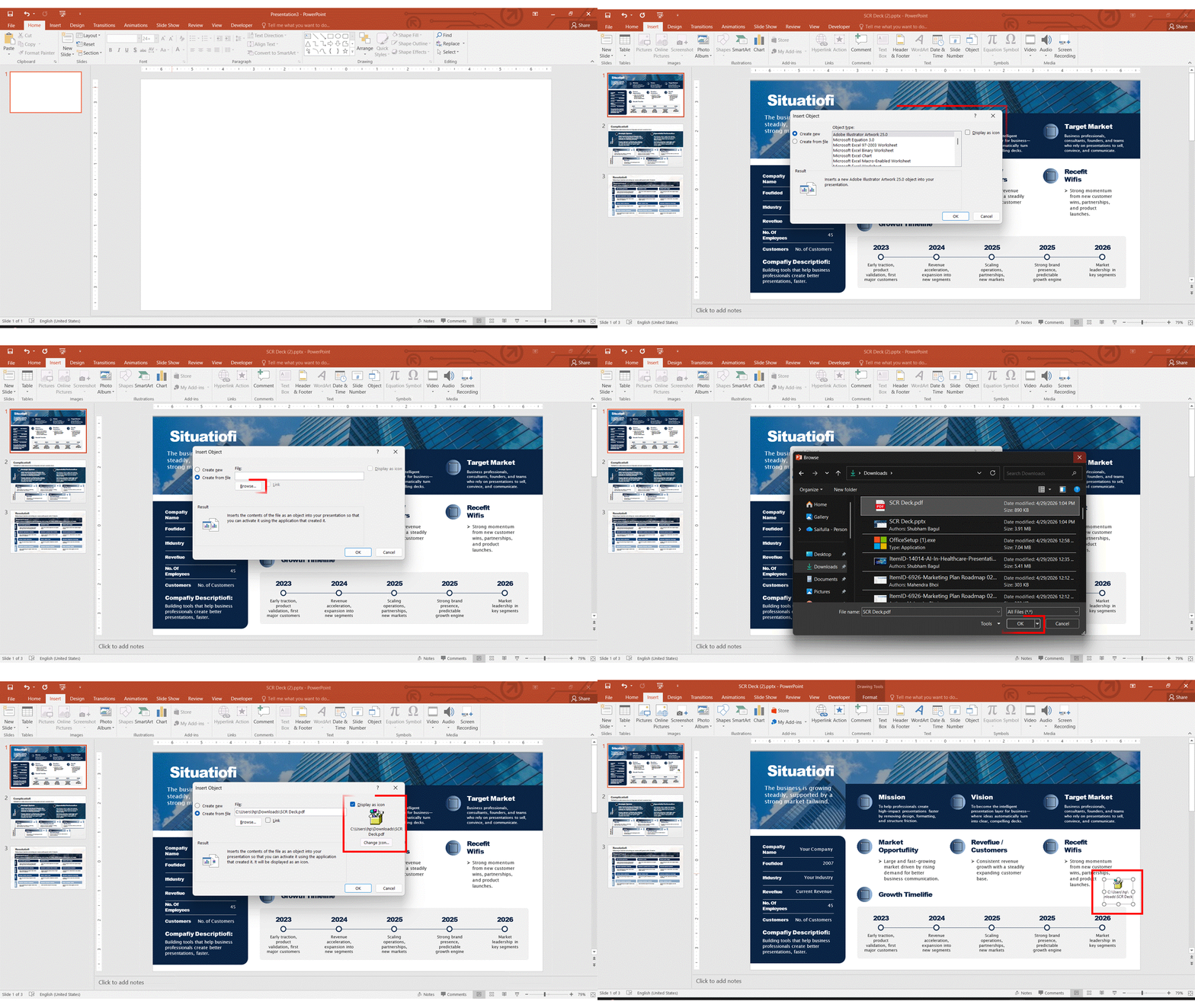
Note: This method requires Adobe Acrobat or another PDF reader to be installed on any machine where the presentation will be viewed. It is Windows-only — Mac PowerPoint does not support Insert Object for PDFs.
Method C: Use Screenshot to Get a PDF into PowerPoint Instantly
If you just need a quick visual snapshot and want to know how to get a PDF file into PowerPoint without exporting anything first, the Screenshot tool is the fastest option:
- Open your PDF in any viewer (Adobe Reader, browser, or Preview on Mac).
- Navigate to the specific page you need.
- Switch to PowerPoint and go to Insert → Screenshot.
- Select Screen Clipping from the dropdown.
- Drag to select the area of the PDF page you want to capture.
- PowerPoint will paste the clipping directly onto your slide as an image.
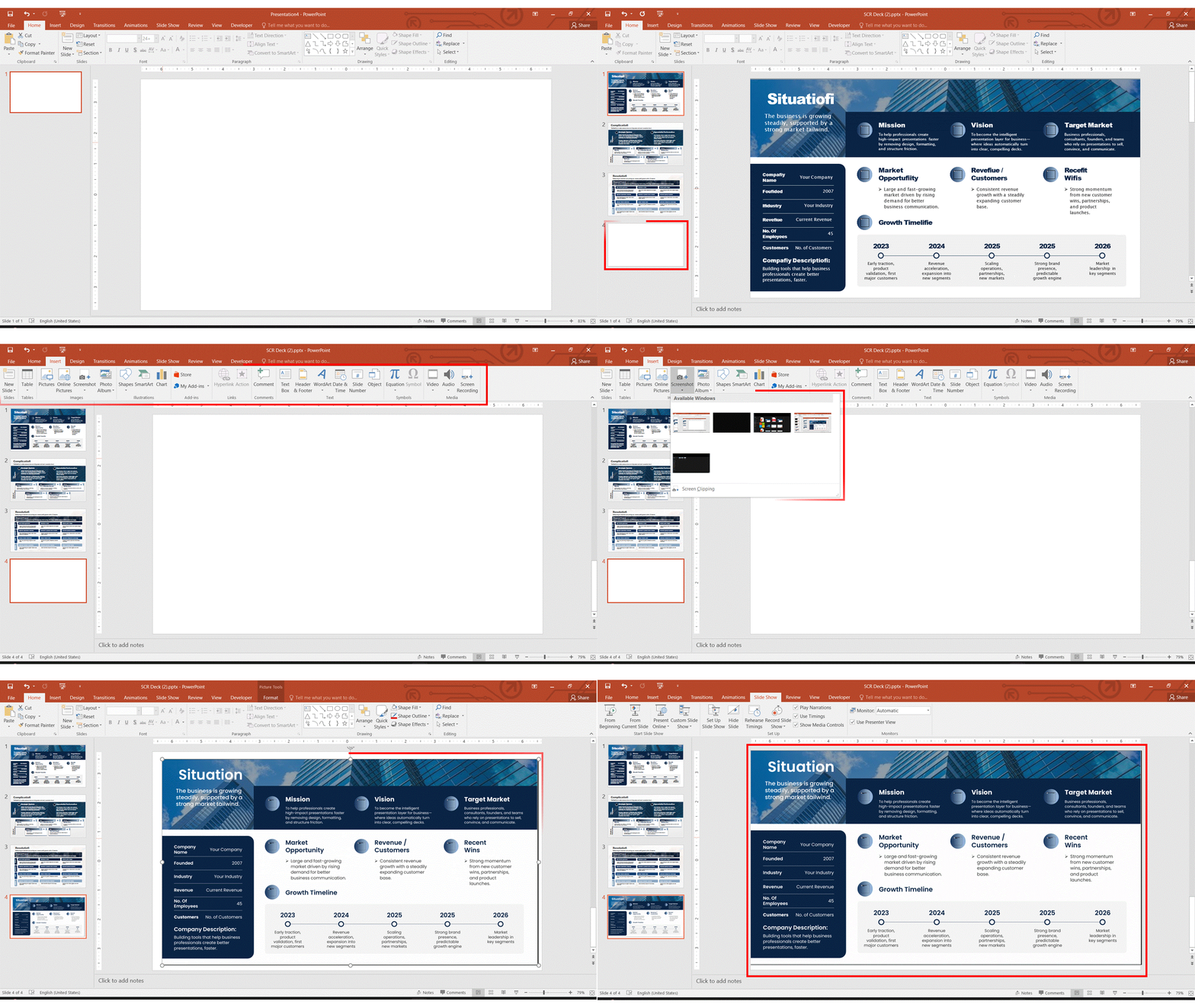
This is also a fast way to add PDF content to a PowerPoint without installing any external tools. The quality depends on your screen resolution — for sharp results on a retina or 4K display, this method works very well.
Pros and Cons of Inserting PDF in PowerPoint
| Pros | Cons |
| Object embedding lets viewers open the full PDF (Windows) | Object embedding requires PDF reader on the viewer’s machine |
| Screenshot method needs no file export or extra tools | Screenshot quality depends on screen resolution |
| Works across all PowerPoint versions (image method) | Object insert is Windows-only — Mac users are limited to image/screenshot |
| More insertion options than Google Slides overall | No live PDF rendering in any method |
How to Insert a Multi-Page PDF into Google Slides
Inserting a single-page PDF image is straightforward. But what happens when you are dealing with a 15-page annual report, a 30-page research paper, or a 50-page product catalogue? Uploading multiple PDF pages requires a slightly different strategy depending on document length.
Strategy for 5-Page PDFs vs 30-Page PDFs
Up to 5 pages — Insert one by one
Export each page as a separate PNG image and insert them onto individual slides. This gives you maximum control over ordering, layout adjustments, and any notes you want to add per slide. It is worth the extra few minutes for short documents.
6 to 20 pages — Batch export and bulk upload
Use a batch export tool such as iLovePDF ‘s ‘PDF to JPG’ feature to export all pages as a ZIP file of numbered images. Upload all images to Google Drive first, then insert them using Insert → Image → Google Drive — you can select multiple images at once, and Google Slides will add one slide per image automatically.
21 or more pages — Be selective
Think carefully before inserting every page of a long document into a presentation. A 40-slide deck built entirely from PDF images will be heavy, slow to load, and difficult to navigate during a live presentation. Instead, export only the specific pages your audience needs — skip title pages, blank pages, and supporting appendices that are not central to your message.
Tip: The trick to inserting many pages efficiently comes down to preparation: name your exported image files sequentially — page-01.png.webp, page-02.png.webp — so they maintain their correct order when you select them in bulk.
How to Select Specific Pages Only
Most tools allow you to export a custom page range rather than the entire document:
- Adobe Acrobat: File → Export To → Image → set the page range before exporting.
- Smallpdf: Use the Split PDF tool to isolate the pages you need, then export that smaller file.
- iLovePDF: Select PDF to JPG, upload your file, choose custom pages, and download.
- Preview (Mac): Select specific page thumbnails in the sidebar (Shift+click for a range), then File → Export Selected Images.
Batch Tips to Save Time
- Name files sequentially before uploading: page-01.png.webp, page-02.png.webp — Google Slides respects alphabetical order when inserting multiples.
- Multi-select in the upload dialog: Hold Shift and click all your image files, then click Open — Slides creates one new slide per image automatically.
- Use Grid view after inserting: Go to View → Grid view to see all inserted slides at once, drag to reorder, and quickly delete any you do not need.
- Check total file size after batch insert: Go to File → Download as PDF temporarily to see the estimated file size — above 10MB, and your presentation may lag on slower connections.
Method 5 — How to Insert PDF into Google Slides on Mobile (iPhone and Android)
Most tutorials skip mobile entirely, leaving a huge gap for anyone working from a phone or tablet. The good news: inserting PDF into Google Slides on mobile is absolutely possible — it just requires one preparatory step that desktop users skip.
Inserting PDF into Google Slides on iPhone (iOS)
The Google Slides iOS app does not allow direct PDF insertion, but it handles image insertion without any issues. Here is the full workflow:
- Export your PDF page as an image. The easiest free option on iPhone is to open the PDF in the Files app, tap Share → Print, then pinch to zoom on the print preview — this reveals the rendered page as an image you can screenshot. Alternatively, use the free Adobe Acrobat app.
- Once your image is in your Camera Roll or saved to Files, open the Google Slides app.
- Open your presentation and tap the slide you want to edit.
- Tap the + (Insert) icon in the top-right corner of the toolbar.
- Select Image.
- Choose Photo Library (for Camera Roll images) or Files (for images saved to iCloud or local storage).
- Tap your image to insert it onto the slide.
- Drag and pinch to resize and position.
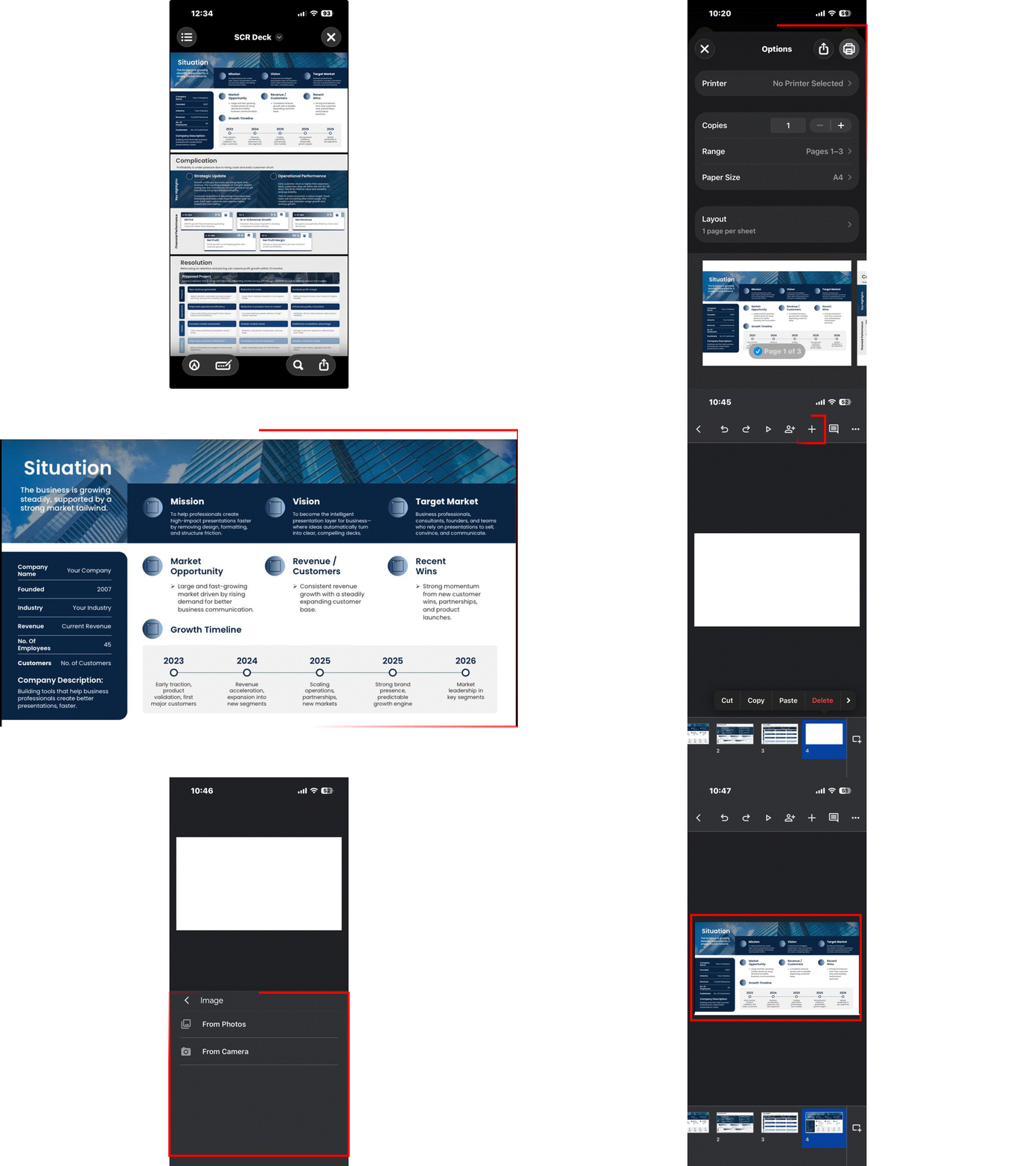
Tip: On iOS 17 and later, you can use the Shortcuts app to automate the PDF-to-image export step for documents you insert frequently. Create a shortcut that opens a PDF from Files, exports page 1 as PNG, and saves it to Photos — saving you several taps each time.
Inserting PDF into Google Slides on Android
The Android workflow is very similar, with slightly different app navigation:
- Export your PDF page as an image. The free Adobe Acrobat app on Android allows you to export individual pages as JPG. WPS Office and Xodo are also free and support PDF-to-image export.
- Open the Google Slides app on your Android device.
- Open your presentation and tap the slide you want to update.
- Tap the + icon in the top toolbar. Select Insert Image.
- Choose from Photos for images in your gallery, or From Drive if you saved the image to Google Drive.
- Select your image and tap Insert.
- Pinch to resize and drag to position on the slide.
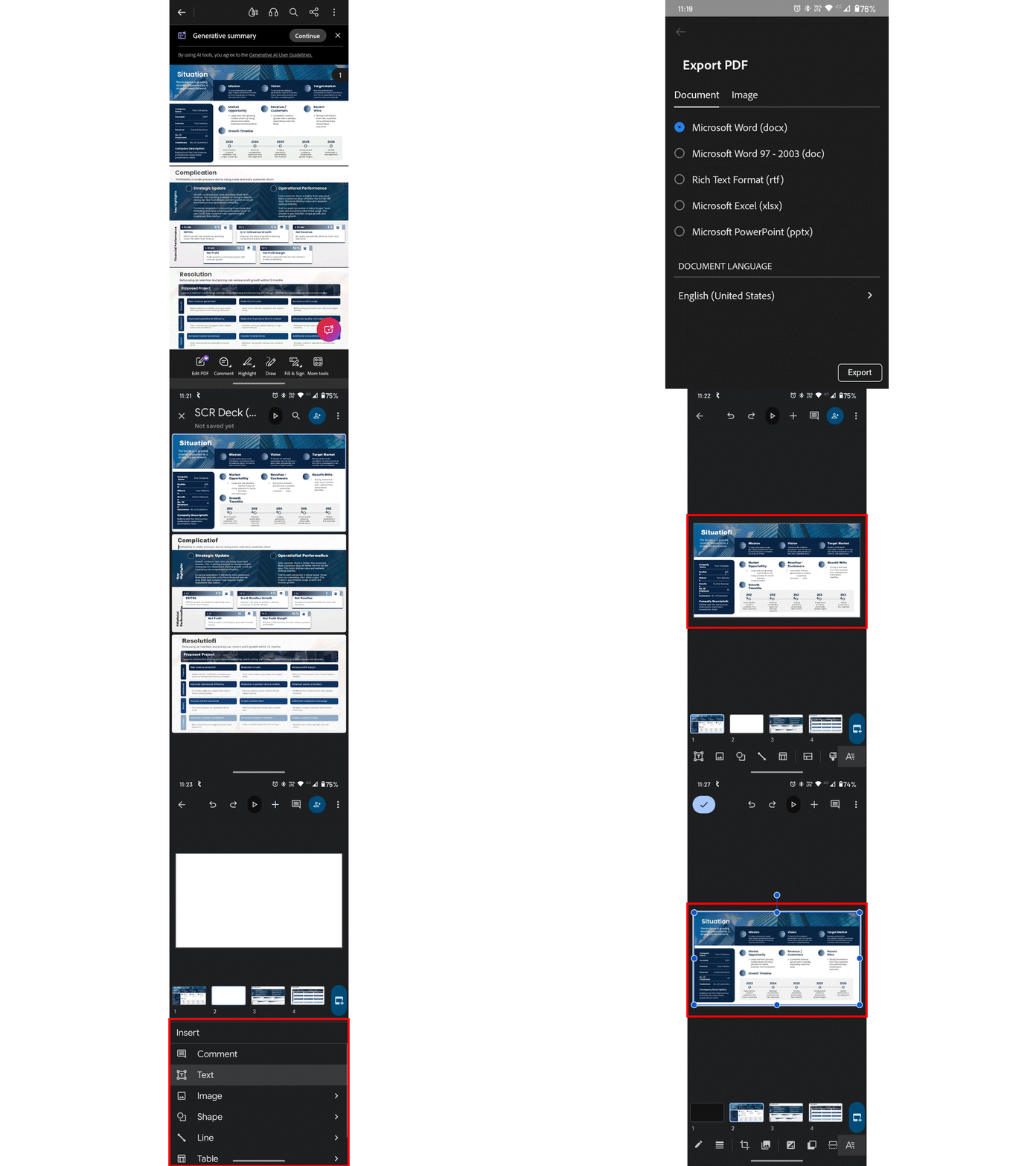
Tip: Save your exported PDF images to Google Drive rather than your device gallery — this makes them accessible across all your devices and prevents them from getting lost among phone photos. Want to add more visual elements to your slides on mobile? See our guide on How to Add a GIF to Google Slides.
Limitations on Mobile vs Desktop
| Limitation | iOS (iPhone/iPad) | Android |
| Drag-and-drop from another app | Not supported | Not supported |
| Alignment and position tools | Limited — fewer options than desktop | Limited — fewer options than desktop |
| Multi-image batch insert | Not available — one at a time | Not available — one at a time |
| Format options panel | Available but simplified | Available but simplified |
| Insert from Google Drive | Fully supported | Fully supported |
Best Practices for Using PDFs in Google Slides
Keep File Sizes Small — Compression Tips
Large images inserted from PDFs are the most common cause of slow-loading, laggy presentations. Target a total presentation file size under 10MB for smooth performance across all connection speeds. Looking for more ways to make your presentation look polished? Check out our guide on How to Make Google Slides Look Good.
- Use TinyPNG or Squoosh (both free, browser-based) to compress PNG and JPG images before uploading — often reduces file size by 60–80% with no visible quality loss.
- Export JPGs at 85% quality — visually indistinguishable from 100% in a presentation context, but significantly smaller.
- Avoid inserting the same image on multiple slides — use a master slide or duplicate the slide instead of re-uploading.
Always Add Alt Text to PDF-Derived Images (Accessibility)
When your slide content exists inside an image, screen readers cannot parse any text within it. Adding descriptive alt text is essential for accessibility compliance and also helps AI tools that index presentation content.
- Right-click the inserted image on your slide.
- Select Alt text from the context menu.
- In the Description field, write a clear, specific description — for example: ‘Bar chart showing Q3 revenue by product category, with SaaS up 24% year-on-year.’
- Click Apply.
Maintain Aspect Ratio When Resizing
Distorted images look unprofessional and can misrepresent data in charts and tables. Every time you resize a PDF-derived image, hold Shift while dragging a corner handle. Alternatively, use Format → Format options → Size and position, and adjust width and height proportionally using the lock icon.
Check Sharing Permissions Before Every Presentation
Before any live presentation, test your deck by opening it in an incognito or private browser window. This simulates exactly what your audience will see. If any images were inserted via a Google Drive link that is restricted, they will appear as broken image icons to viewers without access. Verify the entire presentation renders correctly before you go live.
Use High-Resolution Exports for Large Displays
Images that look sharp on your laptop display can appear noticeably blurry when projected on a large conference room screen or 4K monitor. If you know your presentation will be displayed at scale, always export PDF pages at 200–300 DPI — this is especially important for slides containing small text, detailed diagrams, or fine data visualisations.
Troubleshooting Common Issues
Images Look Blurry After Insertion → Use 300 DPI
If your PDF-derived images look soft or pixelated on-screen, the export resolution was too low. Re-export the PDF pages at 200–300 DPI using your tool of choice and re-insert. Do not try to fix blurry images by stretching them larger on the slide — this makes the problem worse.
‘Access Denied’ When Clicking PDF Link → Fix Sharing Settings
If viewers see an ‘Access Denied’ error when clicking your Drive PDF link, the sharing permission is still set to Restricted. Go to Google Drive, right-click the PDF, select Share, and change General access to ‘Anyone with the link can view.’ Test again in an incognito window before presenting.
Formatting Breaks After PDF to PPTX Step → What to Manually Fix
If fonts, colours, or layout elements appear different after using Method 3 (PDF via PPTX), switch to PNG format for your image exports — PNG is lossless and preserves sharp edges on text, lines, and diagrams exactly. For layout fixes, see the ‘What to Expect’ table in Method 3 above.
Slide File Is Too Large After Adding PDF Images → Compress
If your presentation file has grown very large after adding several PDF pages:
- Re-compress your source images using TinyPNG or Squoosh, then re-upload the compressed versions.
- Remove any unused images from the presentation — they continue using storage even if deleted from slides unless you clear them explicitly.
- For very large decks, split the presentation into two or more separate files and combine them for the live presentation using Presenter View on separate tabs.
PDF Images Appear Cropped at the Slide Edges
If your image is being cut off at the slide boundaries, the image dimensions probably do not match the slide aspect ratio. Before inserting, confirm that your exported image dimensions match standard slide ratios: 1920×1080px for 16:9, or 1024×768px for 4:3 (Google Slides’ native 4:3 size is 960×720; 1024×768 gives a higher-resolution match). Adjust in your image export settings, or use the Crop tool within Google Slides (right-click the image → Crop image) to trim excess whitespace.
Cannot find the Inserted Image on the Slide
If you insert an image and it does not appear on the slide, it may have been placed behind another element or positioned outside the slide boundary. Go to Edit → Select all (Ctrl+A / Cmd+A) to select everything on the slide and look for selection handles outside the canvas. Use the Tab key to cycle through all objects. You can also right-click any element and select Order → Bring to front to check for hidden items.

Conclusion
Google Slides may not make it seamless, but knowing how to insert a PDF into Google Slides correctly means you will never be caught out in a presentation again. The five methods covered here give you an option for every situation:
- Method 1 (images) for maximum visual accuracy
- Method 2 (clickable Drive link) when the PDF is long and file size matters
- Method 3 (PDF via PPTX), when you need to edit the content
- Method 4 (PowerPoint) for PPT-first workflows
- Method 5 (mobile) for iPhone and Android on the go
The three things that matter most, regardless of method: export at the right resolution (150 DPI minimum, 300 DPI for large displays), compress images before inserting to keep file size under 10MB, and always test your presentation in an incognito window before going live. Do those three things consistently, and your PDF content will appear clean, sharp, and professional on any screen. Now that your PDF is in your slides, want to take your presentation further? Explore our guide on How to Make Google Slides Look Good.
If this guide helped you, share it with a colleague who has been struggling with the same problem — and check back regularly, as this page is updated whenever Google Workspace makes changes that affect how PDF content can be handled in Slides.
FAQs
-
How do I insert a PDF into Google Slides without losing quality?
Export your PDF pages as PNG files at 200–300 DPI before inserting. PNG is a lossless format that preserves sharp text, crisp charts, and fine graphical detail even after uploading to Google Slides. Avoid JPG for text-heavy or diagram-heavy pages, as compression artefacts soften edges and can make data harder to read.
-
Can I insert a PDF into Google Slides on a Chromebook?
Yes. Chromebooks run the full browser version of Google Slides. Use a web-based tool such as Smallpdf or iLovePDF to export PDF pages as images, save them to your Downloads folder or Google Drive, and then insert via Insert → Image → Upload from computer or Google Drive. The process is identical to any other desktop browser workflow.
-
How do I insert a multiple-page PDF into Google Slides?
Export all pages as individually numbered image files (page-01.png, page-02.png, and so on). In Google Slides, use Insert → Image → Upload from computer, then Shift-click to select all image files at once. Google Slides will create one new slide per image automatically. For very long PDFs, consider whether you need every page — be selective to keep file size manageable.
-
Does Google Slides support PDF embedding natively in 2026?
No. As of 2026, Google Slides does not support native PDF embedding or live PDF rendering within slides. There is no built-in feature that displays a PDF viewer inside a slide canvas. The methods covered in this guide — particularly inserting PDF pages as high-resolution images — remain the recommended approaches.
-
How do I make a PDF clickable in Google Slides?
Upload your PDF to Google Drive and set sharing to ‘Anyone with the link can view.’ Then, in Google Slides, select the text or image you want to act as the clickable element and press Ctrl+K (Windows) or Cmd+K (Mac). Paste the Google Drive PDF URL and click Apply. During your presentation, clicking that element opens the PDF in a new browser tab. See Method 2 in this guide for the full step-by-step walkthrough.
-
What is the best DPI setting when inserting a PDF image into Google Slides?
Use 150 DPI for standard laptop or desktop presentations. Use 200–300 DPI for projector displays, large monitors, or 4K screens. Going above 300 DPI increases file size without meaningful quality improvement in a slide presentation context — it is only worth it for printed handouts.
-
How do I insert a PDF into Google Slides on iPhone or Android?
Export your PDF page as a PNG or JPG image using a free app such as Adobe Acrobat (available on both iOS and Android). Once saved to your Camera Roll or Google Drive, open the Google Slides app, tap the + Insert button, choose Image, and select the exported image from your Photo Library, Files app (iOS), or Google Drive. See Method 5 in this guide for a full mobile walkthrough.
-
Will the text inside my PDF image be searchable in Google Slides?
No. Once a PDF page is placed on a slide as an image, the text inside it becomes part of the image and is no longer searchable, selectable, or indexable by search engines. For accessibility and discoverability, add detailed alt text to every PDF-derived image — this is the best available workaround.
-
What is the best free tool to export PDF pages as images for Google Slides?
For occasional single-page use: Smallpdf is beginner-friendly and quick. For batch multi-page export, iLovePDF offers unlimited free exports. For Mac users: Preview is built-in and completely free, with full DPI control. For the highest quality output, Adobe Acrobat’s free plan produces the sharpest results. PDF24 is also a strong free option with no page limits.
-
Can I insert a PDF into Google Slides while working offline?
Inserting new images is limited in offline mode. Google Slides does support offline editing if you have enabled it through Google Drive settings and previously opened the presentation while online. However, uploading new images from your device may not work depending on your browser and app version. For reliable offline work, insert all images while connected, save the presentation, then open it offline.
Table Of Content



Related posts from the same category

14 Jan, 2026 | SlideUpLift
How to Add a Timer to Google Slides: Step-by-Step Guide
This blog walks you through how to add a timer to Google Slides using simple, practical methods that actually work. It covers Auto-play timing, visible countdown timers, videos, and add-ons,

1 Oct, 2025 | SlideUpLift
Insert Calendar In PowerPoint And Google Slides: Quick Guide For Smarter Planning.
Do you want your presentations to be more organized, attractive, and professional? Learning how to add a calendar in PowerPoint or Google Slides will take boring schedules and deadlines and

24 Jan, 2024 | SlideUpLift
How To Insert A Fraction in Google Slides?
Google Slides is not just a versatile tool for conveying ideas and strategies but also numbers and complex data. Some numbers and data are part of advanced equations, including fractions.

19 Mar, 2024 | SlideUpLift
How To Insert An Equation In Google Slides?
Google Slides is a fantastic online professional software for professionals across industries. If you are new to it, you must be wondering how to insert an equation in Google Slides.

18 Nov, 2023 | SlideUpLift
How to Insert Icons in Google Slides Presentations
Quick Answer There are 5 ways to insert icons in Google Slides quickly and effectively: Install the Flaticon or Noun Project add-on via Extensions > Add-ons > Get add-ons Use

8 Oct, 2025 | SlideUpLift
How to Insert Emoji in Google Slides & PowerPoint for Fun, Eye-Catching Slides
Have you ever thought about how a simple emoji can change the mood or tone of your presentation? You could use a smiley face 😊, that would certainly lighten the

18 Nov, 2023 | SlideUpLift
How to Select Multiple Slides in Google Slides Presentations?
The feature to select multiple slides in Google Slides is a game-changer for anyone looking to boost efficiency in presentation creation. It enables you to make bulk edits, apply consistent

11 Mar, 2024 | SlideUpLift
How To Convert PDF To Google Slides? 1-Minute Guide
Professionals must deliver visually appealing and engaging presentations that capture the audience's attention and help them easily understand the context. Creating Google Slides presentations requires multiple resources. If those resources
10 Feb, 2026 | SlideUpLift
How To Convert Google Slides Into PDF: Quick & Easy Guide
This guide explains how to convert Google Slides into a PDF quickly and without formatting issues. It covers saving slides with or without speaker notes and methods for desktop and

23 Aug, 2023 | SlideUpLift
How to Draw On Google Slides?
Google Slides is an effective tool for creating professional presentations, especially when adding images, graphics, or any type of multimedia. Apart from adding multimedia to slides, Google Slides also offers