

 Flat 1


How To Lock An Image In PowerPoint: Complete Step-By-Step Guide
If you have ever spent time positioning a logo or background graphic perfectly — only for an accidental click to send it flying across the slide — this guide is for you. Learning how to lock an image in PowerPoint is one of the most practical skills for anyone who builds presentations regularly, especially in collaborative environments where multiple people edit the same file.
Whether you are on Microsoft 365, an older Office version, Mac, or the web, this guide covers every available method so you can find the right fix for your exact setup.
Quick Answer: In PowerPoint 365 (Windows): Right-click any image and select Lock — or open the Selection Pane (Alt + F10) and click the padlock icon.
What Does ‘Locking’ an Image in PowerPoint Mean?
To lock an image in PowerPoint means to fix its position and size on a slide so it cannot be accidentally moved, resized, or deleted during editing. The image stays anchored exactly where you placed it while you freely adjust every other element around it.
It is equally important to understand what locking does not do, because many users expect more protection than the feature currently provides:
| What Locking PREVENTS | What Locking Does NOT Prevent |
|---|---|
| Dragging or moving the image | Adjusting image brightness or contrast |
| Resizing by handle or arrow key | Changing the fill color of a locked shape |
| Accidental deletion in most workflows | Editing text inside a locked text box |
| Position changes by collaborators | Other users unlocking it (standard lock) |
| Misalignment during bulk edits | SmartArt content editing (fully blocked) |
Important: The standard built-in lock in PowerPoint 365 can be removed by any user who opens the file — it offers no password protection. For tamper-resistant locking in shared files, see the add-in options further below.
Which Versions of PowerPoint Support Image Locking?
Before trying to lock an image in PowerPoint, the single most important thing to check is your version. The native lock feature is only available to Microsoft 365 subscribers on Windows. Here is the full compatibility breakdown:
| Version | Native Lock? | Recommended Method |
|---|---|---|
| Microsoft 365 — Windows | Yes | Right-click Lock or Selection Pane |
| Office 2021 — Windows | Partial | Update to latest patch; try right-click method |
| Office 2019 — Windows | No | Slide Master method or OfficeOne add-in |
| Office 2016 — Windows | No | Slide Master method or OfficeOne add-in |
| Office 2013 / 2010 | No | Slide Master method or OfficeOne Shape Locker |
| PowerPoint for Mac | No | Slide Master or PPT Productivity add-in |
| PowerPoint Online (Web) | No | Grouping workaround only |
Note: If you purchased Office as a one-time license (e.g., Office Home & Student), the native lock feature is not available regardless of version. Only monthly or annual Microsoft 365 subscriptions include it.
How to Lock an Image in PowerPoint (2 Built-In Methods)
If you are on Microsoft 365 for Windows, here are the two native methods. Both achieve the same result — choose whichever fits your workflow.
Method 1 — Lock via Right-Click (Fastest)
Best for: Quickly locking a single image with one click. No extra panels needed.
- Open your PowerPoint presentation and go to the slide with the image you want to lock.
- Click the image once to select it. Selection handles (small squares) will appear at the corners and edges.
- Right-click on the selected image to open the context menu.
- Select Lock from the menu. The option appears near the bottom of the context menu.
- A small padlock icon will appear on the image thumbnail in the Selection Pane, confirming the lock is active.
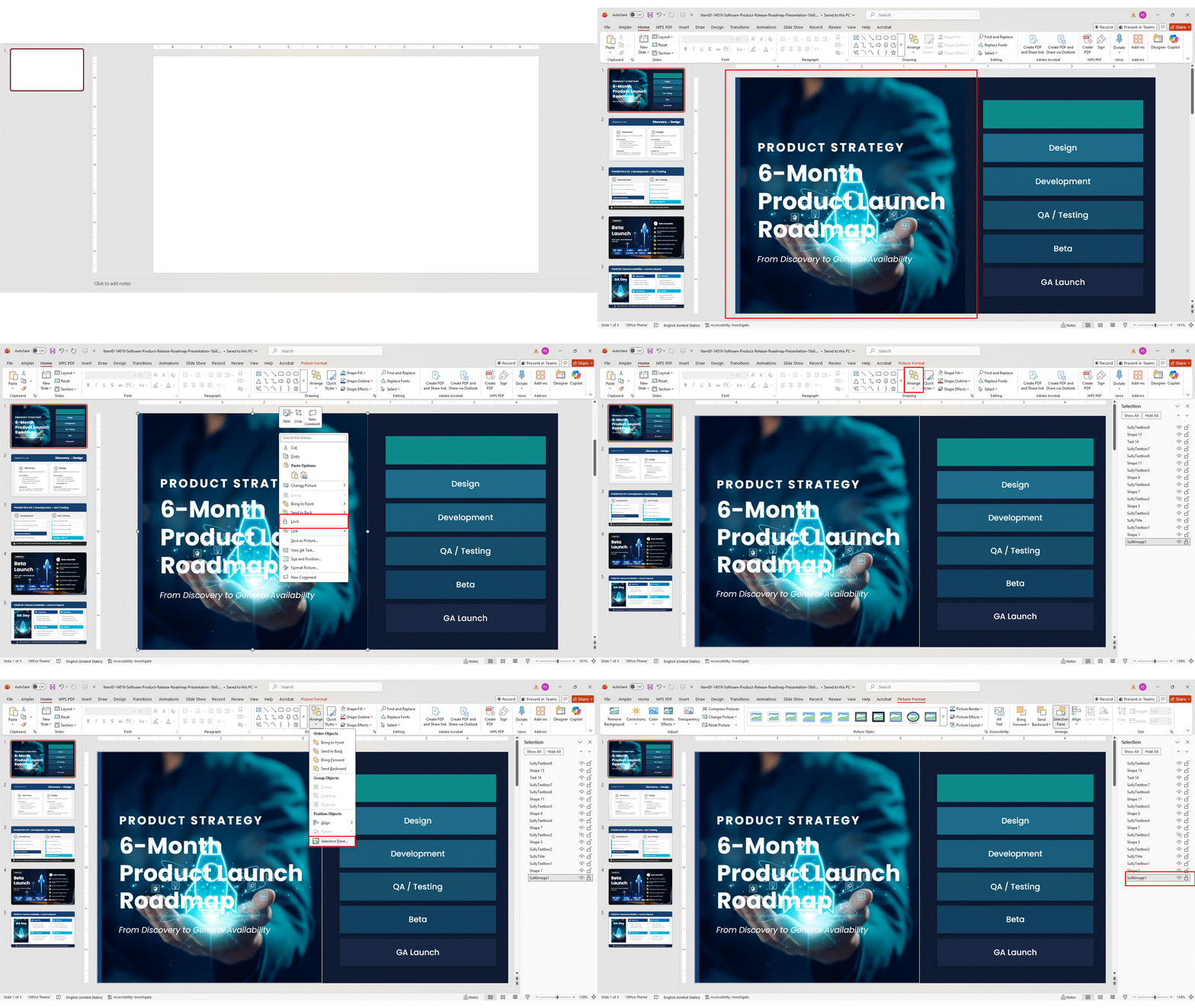
Tip: To unlock using this method: Right-click the same image and choose Unlock. The padlock icon disappears, and the image is freely movable again.
Method 2 — Using the Selection Pane (Lock Multiple Objects)
Best for: Managing several objects at once, or when you need a clear view of all slide elements and their lock status.
- Open the slide containing the image you want to lock.
- Go to the Home tab in the ribbon, click Select in the Editing group, then choose Selection Pane. Keyboard shortcut: Press Alt + F10 on Windows to open the Selection Pane instantly.
- The Selection Pane opens on the right side of the screen, listing every object on the current slide.
- Click an object in the list to highlight it on the slide — this helps you identify the correct image.
- Click the padlock icon to the right of the object’s name. A closed padlock confirms the lock.
- Repeat for any other images or objects you want to lock.
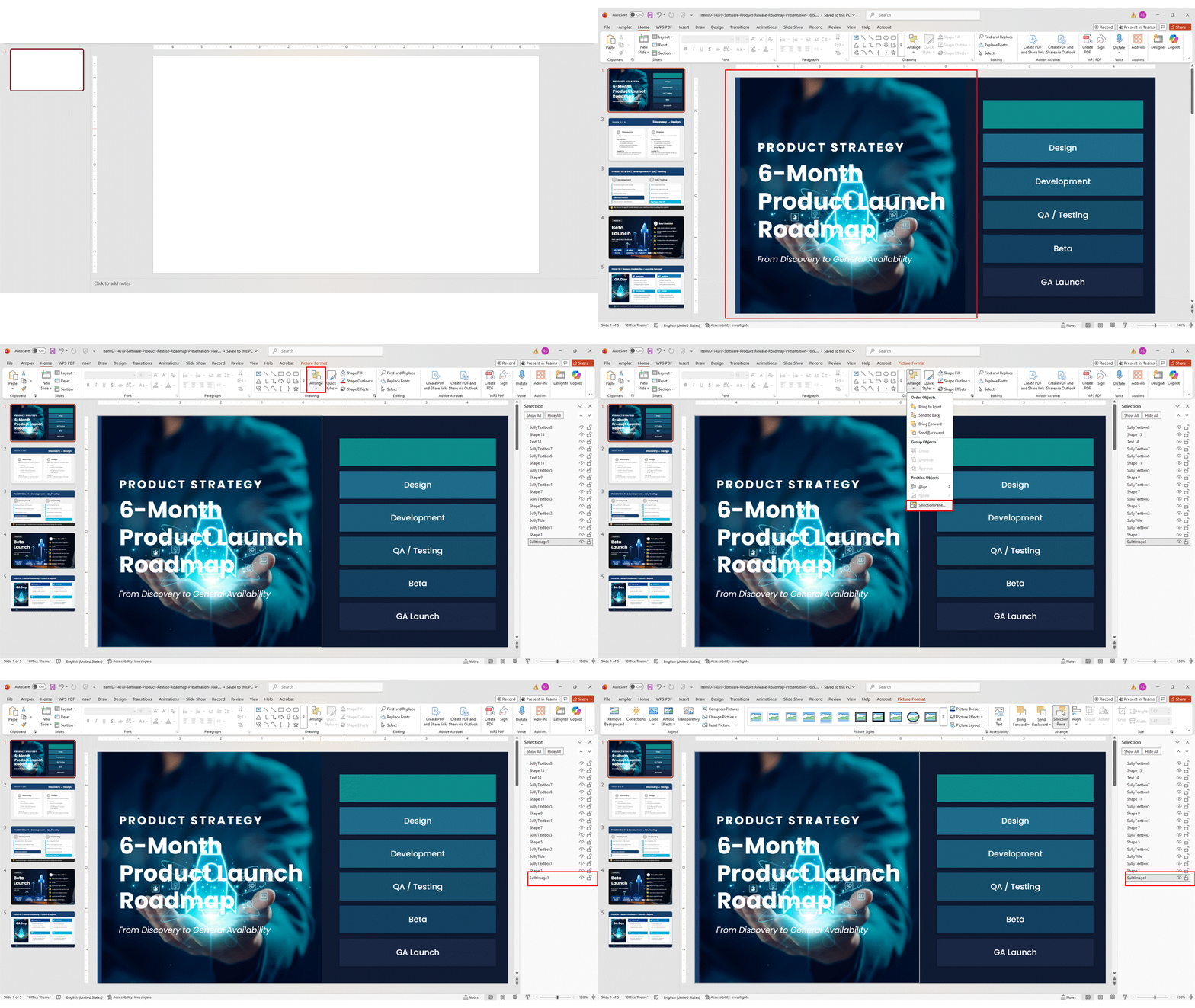
Tip: To lock multiple objects simultaneously: Hold Shift and click each image on the slide, then right-click and choose Lock. All selected objects are locked in one step.
How to Lock the Aspect Ratio of an Image in PowerPoint
Locking the aspect ratio is a separate feature from position locking. It ensures the image does not distort when resized — the width-to-height ratio stays proportional. This feature works in all versions of PowerPoint, including older ones, and on Mac.
- Click the image to select it.
- Go to the Picture Format tab in the ribbon.
- In the Size group, click the small diagonal arrow in the bottom-right corner to open the Format Picture / Size and Position dialog box.
- Under the Size tab, tick the box labeled Lock aspect ratio.
- Click Close. Any resize from this point will maintain the original proportions.
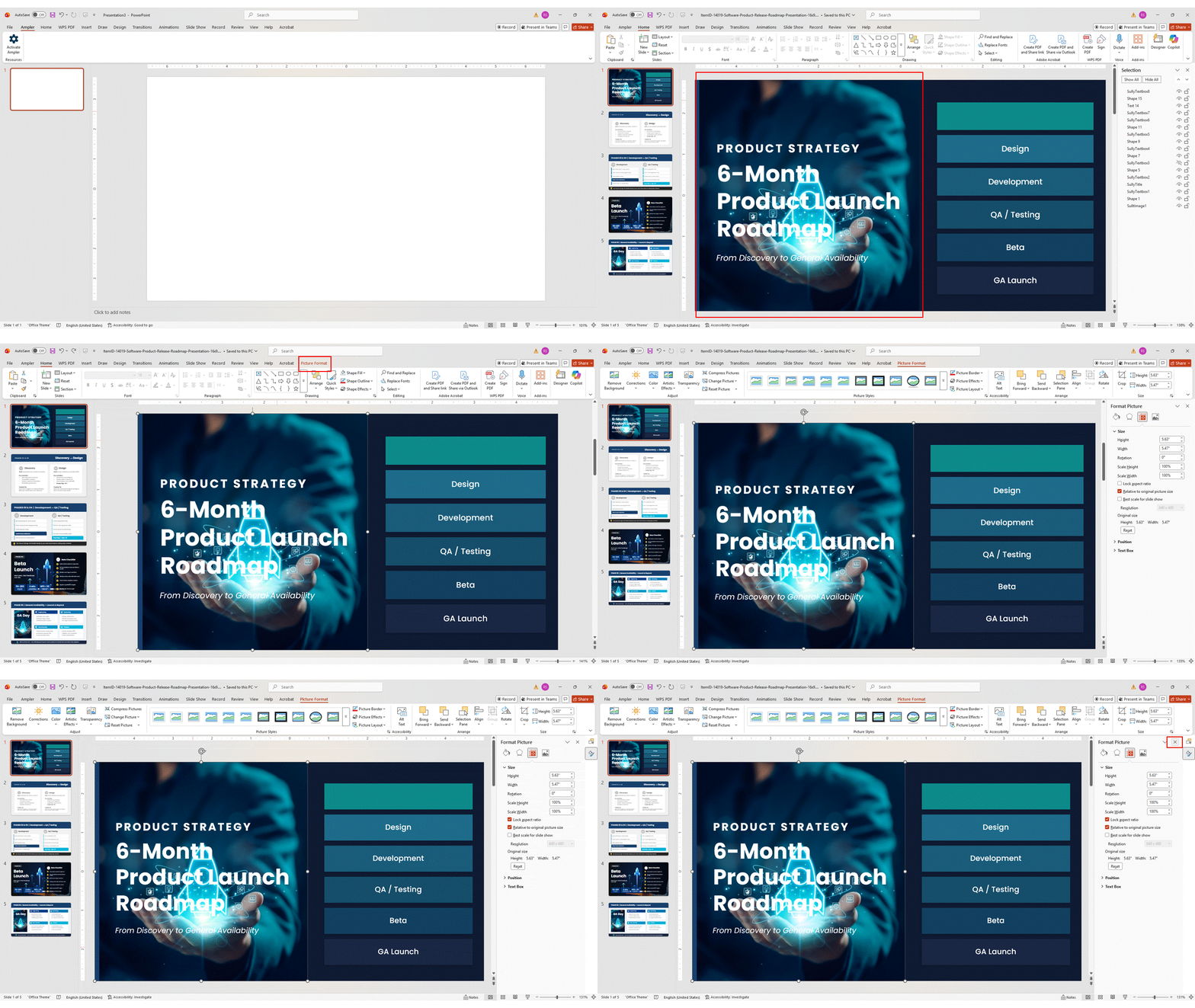
Tip: Always resize images by dragging a corner handle (not a side handle) to maintain proportions, even when aspect ratio lock is not enabled.
How to Lock an Image to the Slide Master (All Versions)
The Slide Master method works in every version of PowerPoint — including 2010, 2013, 2016, 2019, Mac, and Online. It is the best way to lock logos, watermarks, backgrounds, or any element that should appear consistently across all slides.
Objects placed in the Slide Master are completely invisible to selection from normal editing view — they cannot be clicked, moved, or edited without deliberately switching into Slide Master mode.
When to Use the Slide Master Approach
- Company logos or brand marks that must appear on every slide
- Copyright notices, legal text, or confidentiality labels
- Background images or textured patterns applied to all slides
- Presentation templates being distributed to a team
- Any element that must survive editing sessions by multiple collaborators
Step-by-Step: Placing an Image in the Slide Master
- Click the View tab in the ribbon.
- Select Slide Master. The presentation switches to master editing mode.
- Click the top-most thumbnail in the left panel (the master slide, not a layout).
- Insert your image using Insert > Pictures > This Device (or Online Pictures).
- Drag and resize the image to its final position.
- Optional — Microsoft 365 only: Right-click the image here and choose Lock for an extra layer of protection within the master view.
- Click Close Master View in the ribbon to return to normal editing.
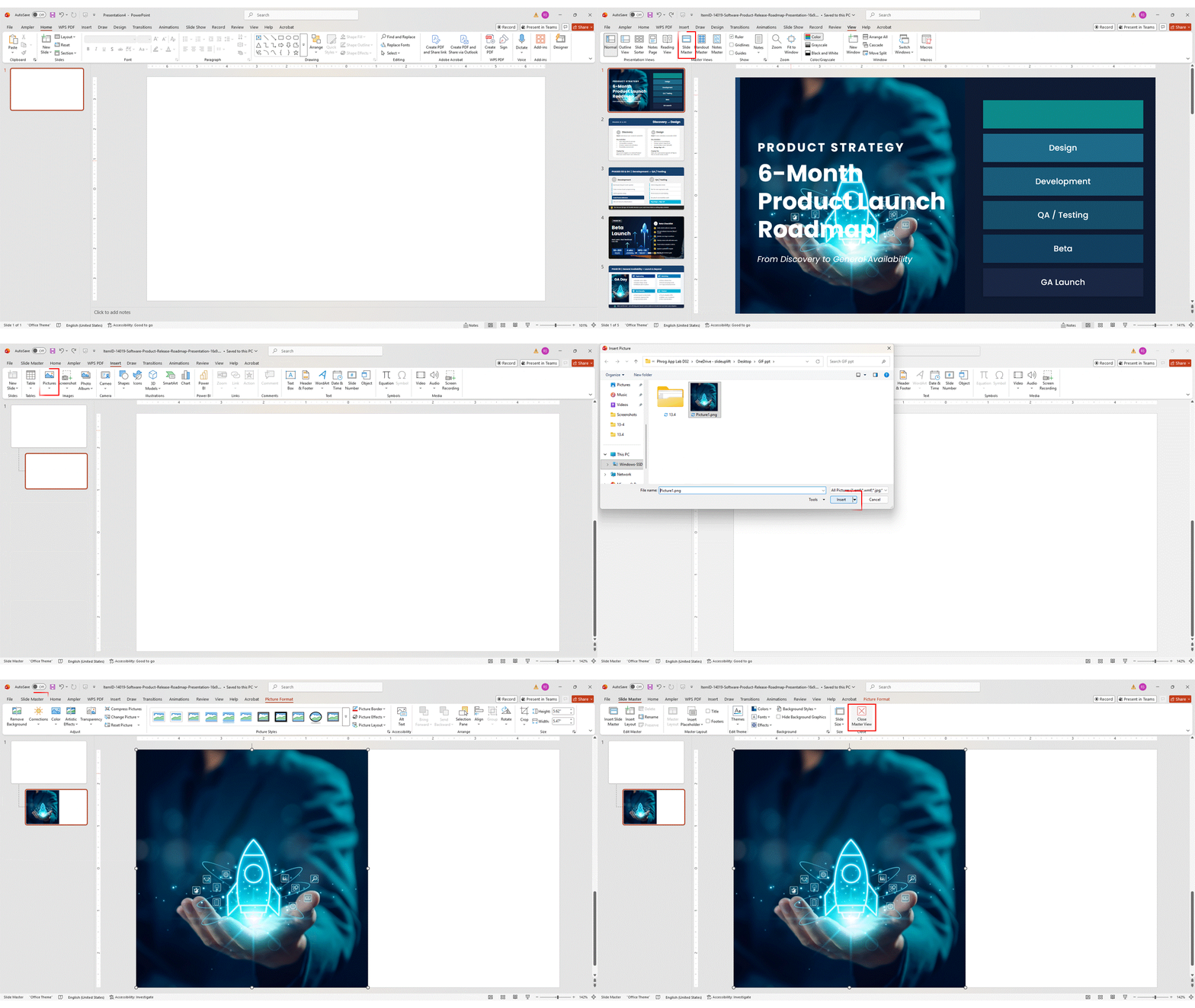
Important: Images placed in the Slide Master appear on all slides by default. If you only need an image locked on specific slide layouts (not all slides), click the relevant layout thumbnail — not the top master — before inserting.
How to Lock an Image in PowerPoint Online
PowerPoint Online (the browser-based version at office.com) has no native lock feature. The only available workaround is grouping, which makes accidental displacement much less likely without requiring any add-ins or desktop software.
Grouping Workaround — Step by Step
- Open your presentation in PowerPoint Online and navigate to the slide containing the image.
- Insert a placeholder shape over the image: go to Insert > Shapes and draw a rectangle on top of or beside your image.
- Format the placeholder shape so it is invisible: right-click it, choose Shape Format, then set Fill to No Fill and Outline to No Outline.
- Click the image to select it, then hold Shift and click the invisible shape to select both.
- Right-click the selection and choose Group, or go to the Shape Format tab and select Group > Group.
- The image and shape are now a single, grouped unit.
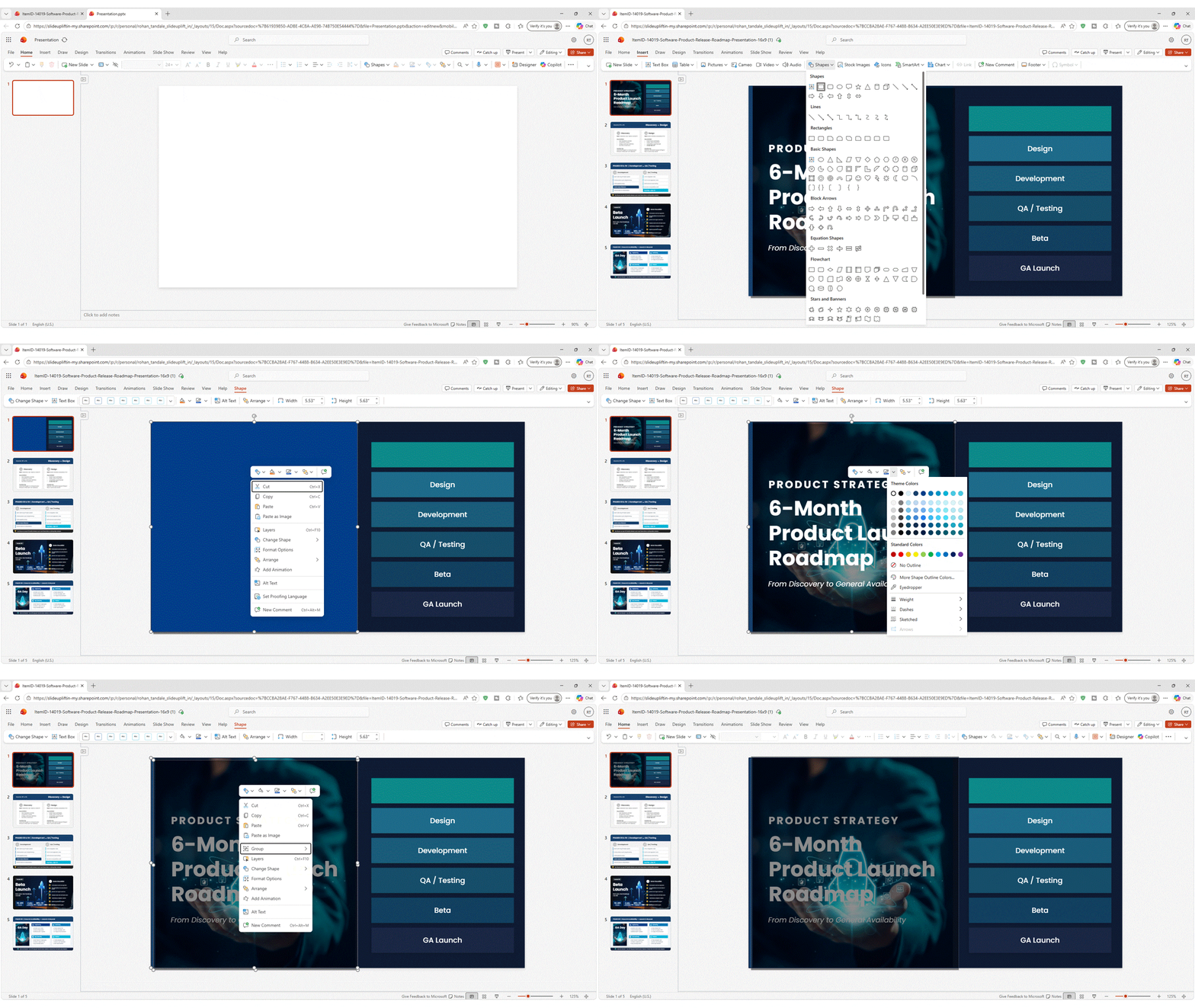
Tip: Name your grouped object something recognizable (like “LOCKED-logo”) using the Selection Pane so collaborators understand its purpose.
Important: Grouping in PowerPoint Online does not prevent a collaborator from right-clicking and selecting Ungroup. For stronger protection, open the file in PowerPoint for Windows and use the Slide Master method.
How to Lock an Image in PowerPoint on Mac
The native lock feature is not available in any version of PowerPoint for Mac as of April 2026. However, three effective workarounds exist depending on how much protection you need.
Mac Workaround 1 — Slide Master (Recommended for Fixed Elements)
Go to View > Slide Master, insert your image there, position it, then close the master view. Objects placed here cannot be selected or touched from normal editing view. This is the most reliable no-install solution for Mac users.
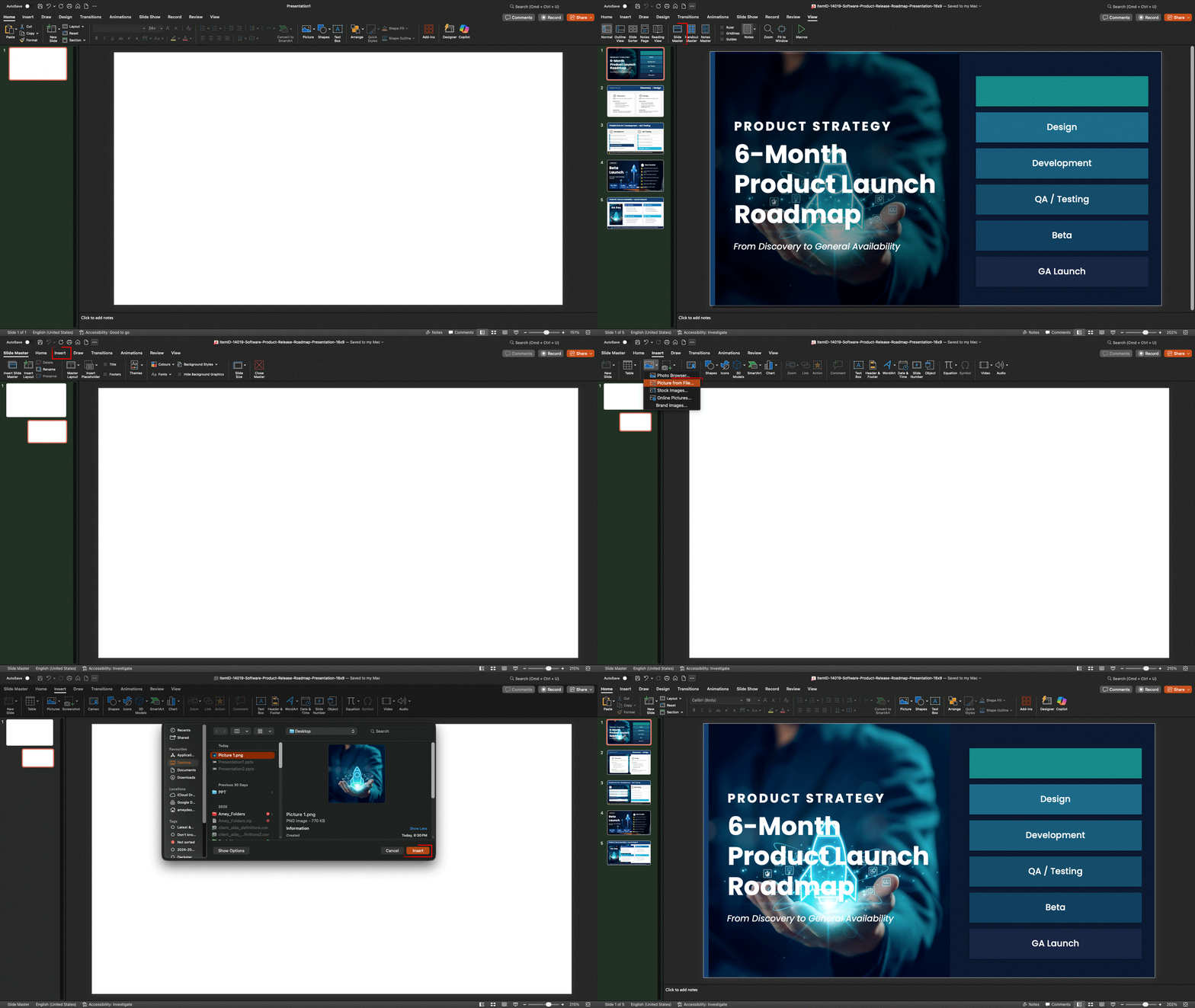
Mac Workaround 2 — Grouping
Select the image and at least one other object (even a transparent, borderless rectangle), then right-click and choose Group. The grouped unit is less likely to be accidentally displaced since moving one object moves all of them together.
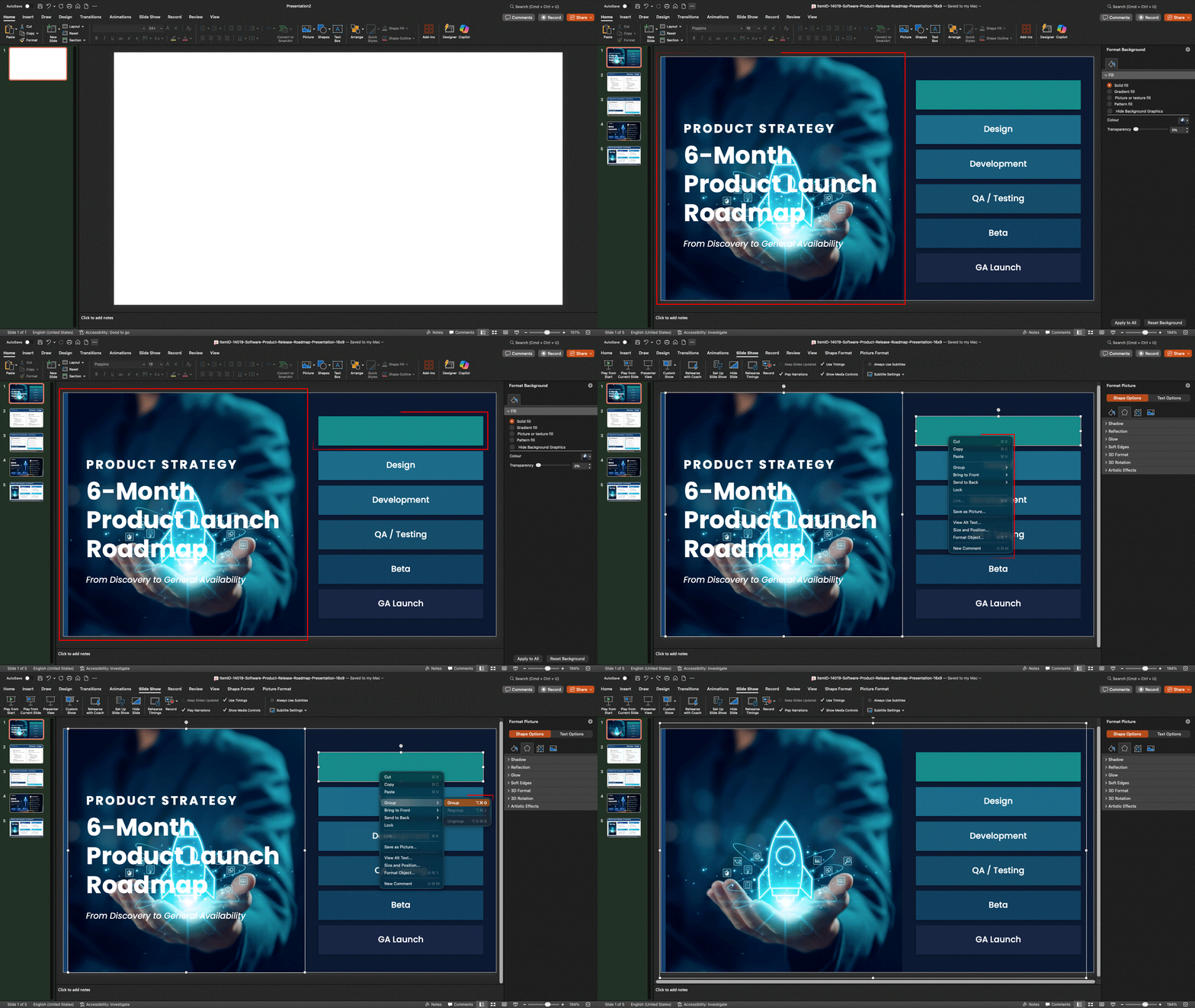
Mac Workaround 3 — PPT Productivity (Best for Teams)
PPT Productivity’s Shape Locker is the only add-in that supports genuine locking on Mac. Install it from Insert > Get Add-ins in PowerPoint for Mac (Microsoft 365 version required). Once installed, select any image, go to the PPT Productivity tab, and click Shape Locker.
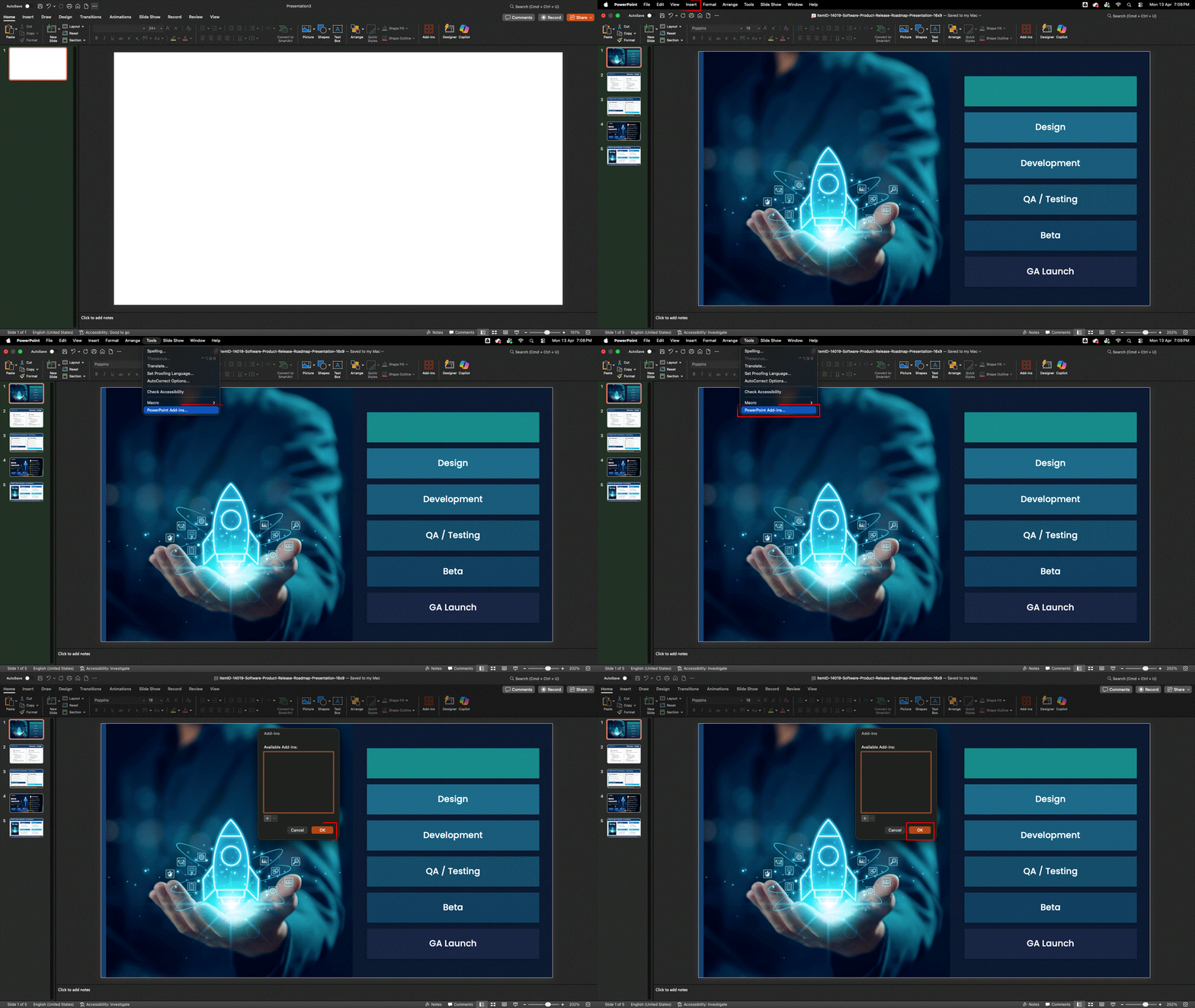
Locking Images with Third-Party Add-ins
Two add-ins are widely used for image locking in PowerPoint — one free, one paid. Both are considerably more powerful than Microsoft’s built-in lock for shared or professionally distributed presentations.
Option A — PPT Productivity Shape Locker (Paid, Most Powerful)
PPT Productivity is a professional PowerPoint add-in suite with over 100 features. Its Shape Locker provides the strongest locking available: objects locked with this tool can only be unlocked by other users who also have PPT Productivity installed, making it genuinely tamper-resistant for team use.
- Supported: Microsoft 365, PowerPoint 2016, 2013, 2010, and Mac
- Platform: Windows and macOS
- Price: Paid (30-day free trial available)
- Find it after installation: PPT Productivity tab > Shapes group > Shape Locker
Option B — OfficeOne Shape Locker (Free)
OfficeOne Shape Locker is a lightweight, free add-in that adds a simple Lock/Unlock toggle to your PowerPoint ribbon. It is particularly valuable for users on PowerPoint 2016 and older who have no native lock option at all.
- Supported: Microsoft 365, PowerPoint 2016, 2013, 2010, 2007
- Platform: Windows 7 through Windows 11 (not Mac)
- Price: Free
Important: If a file is opened on a computer without OfficeOne installed, the locked objects may become unlocked. This makes it unsuitable for distributing files to external collaborators unless they also install the add-in.
How to Install Any PowerPoint Add-in
- Click the Insert tab in the ribbon.
- In the Add-ins group, click Get Add-ins to open the Microsoft AppSource store.
- Search for the add-in by name.
- Click Add, then accept the license terms.
- After installation, the add-in appears in the ribbon under My Add-ins or in its own dedicated tab.
Note: In organizations with centralized IT management, add-ins may need to be approved and installed by your IT department. If the Get Add-ins button is greyed out, contact IT.
How to Unlock a Locked Image in PowerPoint
Unlocking is straightforward regardless of which method was used to lock.
Unlocking via Right-Click
- Click on the locked image to select it.
- Right-click and choose Unlock from the context menu.
- The padlock icon disappears — the image is now fully editable.
Unlocking via Selection Pane
- Open the Selection Pane with Alt + F10 or via Home > Select > Selection Pane.
- Locate the locked image — it will have a closed padlock icon next to its name.
- Click the padlock icon to toggle it to an open lock symbol.
- The image is now unlocked and can be moved or resized freely.
Important: If the image was locked using PPT Productivity’s Shape Locker, it can only be unlocked if PPT Productivity is installed on your machine.
Key Limitations to Know Before Locking
- The native lock offers no password protection. Any recipient can right-click and remove it. For genuine tamper-resistance, use PPT Productivity Shape Locker.
- Text inside a locked text box remains fully editable. The lock restricts position and size only.
- SmartArt is completely frozen once locked — unlike images, where brightness/contrast adjustments still work after locking.
- No native lock on Mac. Mac users must rely on the Slide Master method or PPT Productivity.
- Add-in dependency risk: files locked with PPT Productivity cannot be unlocked without the add-in installed, which can create friction for external collaborators.
- Accessibility note: some screen readers and assistive technologies may not interact correctly with locked elements, which can affect compliance for public-facing files.
- Background images inserted via Format Background > Picture cannot be dragged at all — they are already fixed and do not require locking.
Save time and avoid layout issues with our professionally designed PowerPoint templates—built to keep your slides structured, polished, and easy to manage.

Conclusion
Knowing how to lock an image in PowerPoint — and choosing the right method for your version and platform — saves real time and prevents avoidable design errors, especially in collaborative workflows.
| Your Situation | Best Method |
|---|---|
| Microsoft 365 on Windows | Right-click > Lock OR Alt + F10 > Selection Pane |
| Lock multiple objects at once | Shift + click all > Right-click > Lock |
| Office 2019 / 2016 — Windows | Slide Master method or OfficeOne add-in |
| PowerPoint for Mac | Slide Master or PPT Productivity add-in |
| PowerPoint Online (Web) | Grouping workaround |
| Need tamper-resistant locking for teams | PPT Productivity Shape Locker |
| Logo/watermark on all slides | Slide Master — works in all versions |
FAQs
-
Can I lock an image so it cannot be clicked at all?
Not with the native lock — a locked image can still be selected by clicking it. To make an image completely unclickable, place it in the Slide Master (View > Slide Master). Objects placed there cannot be selected or interacted with from the normal editing view.
-
Does the lock persist when I share a PowerPoint file?
Yes — lock attributes are saved inside the .pptx file and persist when shared or opened on another machine running Microsoft 365. However, the recipient can still right-click and remove the lock. Only files locked with PPT Productivity require the add-in to unlock.
-
Why is the Lock option missing from my right-click menu in PowerPoint?
The Lock option only appears in Microsoft 365 (subscription) on Windows, from Build 2309 onwards. If you do not see it, you are likely on a non-subscription version (2019, 2016), using PowerPoint on Mac, or using PowerPoint Online. Use the Slide Master method or install the free OfficeOne Shape Locker add-in as an alternative.
-
Does locking prevent text in a text box from being edited?
No. The standard PowerPoint lock restricts movement and resizing only — not content editing. A person can still click inside a locked text box and edit the text freely. For complete content protection, use PPT Productivity’s locking or mark the entire presentation as Final via File > Info > Protect Presentation > Mark as Final.
-
Can I lock videos, charts, and SmartArt the same way I lock images?
Yes — the lock feature in PowerPoint 365 works on all object types: images, videos, audio clips, charts, tables, SmartArt, icons, and 3D models. The method is identical: right-click or use the Selection Pane. SmartArt is fully non-editable once locked (both content and position), while images still allow brightness and contrast adjustments after locking.
Table Of Content





Related posts from the same category

27 Mar, 2023 | SlideUpLift
How To Flip An Image In PowerPoint
Are you looking to add a creative touch to your PowerPoint design? Flipping an image can be a quick and easy way to achieve that. Whether you want to create

24 Oct, 2019 | SlideUpLift
How To Highlight Part Of An Image Using Focus Effect In PowerPoint : Step-By-Step Tutorial
This PowerPoint tutorial explains how to highlight any specific aspect of an image in PowerPoint. A presentation with pictures and infographics is better than a boring-looking textual presentation. Images make

1 Dec, 2022 | SlideUpLift
How to cite images in PowerPoint
Images can enhance the impact of your professional presentations. You may choose the ideal photos to assist in captivating your readers and giving meaning to your words, but it is

14 Dec, 2020 | SlideUpLift
Quick Tutorial To Remove The Background From An Image And To Make A Background Transparent
PowerPoint has many built-in features that can help you edit images, just like any other professional photo editing tool does. In this tutorial, we will discuss- How To Remove The

8 Apr, 2026 | SlideUpLift
How to Embed YouTube Video in PowerPoint (2026 Complete Guide)
Most PowerPoint videos fail at the worst moment — they don’t play, lag during playback, or force you to switch tabs mid-presentation. This guide shows you exactly how to embed

22 Dec, 2020 | SlideUpLift
How to make a poster in PowerPoint | PowerPoint Tutorial
Most of the time, we use PowerPoint to create presentations, but did you know you could use PowerPoint to build other elements such as posters? It is quite handy software

6 Feb, 2024 | SlideUpLift
How To Save PowerPoint Slide As Image? A Complete Guide
Powerpoint presentations consist of slides that match the content the presenters want to convey to their listeners. It may occasionally be necessary to save specific images from PowerPoint presentations to

8 Sep, 2022 | SlideUpLift
How to Add Background Music in PowerPoint: The Complete Guide (All Versions)
You've spent hours building the perfect presentation — your slides are polished, your data is solid, your design is on point. But something still feels flat. That missing ingredient? Background

7 Feb, 2020 | SlideUpLift
How To Make A Filmstrip Effect In PowerPoint | PowerPoint Tutorial
Learn how to make a cool filmstrip effect. A PowerPoint Timeline Template need not be boring. This tutorial explains step-by-step instructions to create a cool Filmstrip timeline template in minutes.

20 Apr, 2021 | SlideUpLift
Create Catchy Shapes with this morphing technique in PowerPoint
Interesting graphics hold the attention and engagement of your audience, turning them from passive listeners to active participants. The stock images and shapes can only take you as far if