

 Flat 1


How to Embed YouTube Video in PowerPoint (2026 Complete Guide)
Most PowerPoint videos fail at the worst moment — they don’t play, lag during playback, or force you to switch tabs mid-presentation.
This guide shows you exactly how to embed a YouTube video in PowerPoint using five reliable methods that work across Windows, Mac, and the web, helping you deliver a professional PowerPoint presentation every time. You’ll also learn how to control playback, fix common issues, and choose the right method for your setup.
Quick Answer — How to Embed a YouTube Video in PowerPoint
- Open PowerPoint and go to your target slide.
- Click Insert → Video → Online Video.
- Paste the YouTube URL into the “Enter a Video URL” field.
- Click Insert and resize the video frame to fit your slide.
- Press F5 to test playback in Slide Show mode.
Tip: This method works on Windows (PowerPoint 2016 and later) and Mac (PowerPoint 2021 and later). For older versions, jump to Method 3 (local file) or Method 5 (hyperlink).
That’s the fastest method—now let’s break down every way you can do it.
Method 1: Insert Using the Video URL
This is the fastest option for getting a clip onto your slide. All you need is the video URL and an internet connection during the presentation. It works across Windows, Mac, and the browser-based version of PowerPoint.
Steps for Windows (PowerPoint 2016, 2019, 2021, 2024, and Microsoft 365)
- Open your PowerPoint presentation.
- Go to the slide where you want to add the video.
- Click the Insert tab in the top ribbon.
- Click Video → Online Video from the dropdown.
- Open YouTube and copy the video URL from the address bar.
- Paste the URL into the “Enter a Video URL” field.
- Click Insert and wait for the video to load.
- Drag and resize the video frame to fit your slide.
- Press F5 (Slide Show) to test playback.
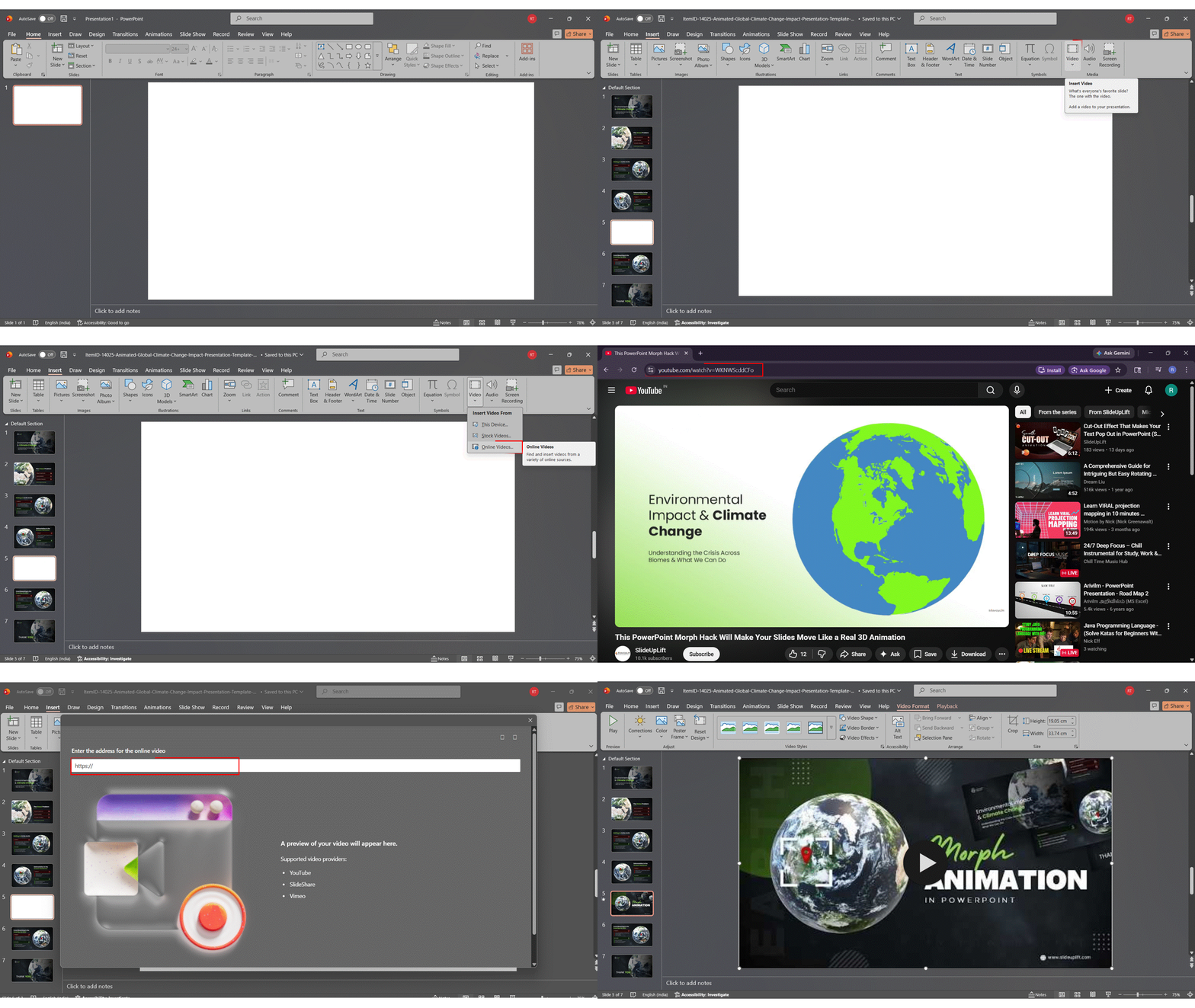
Tip: Use the youtu.be short URL if the full URL fails to load.
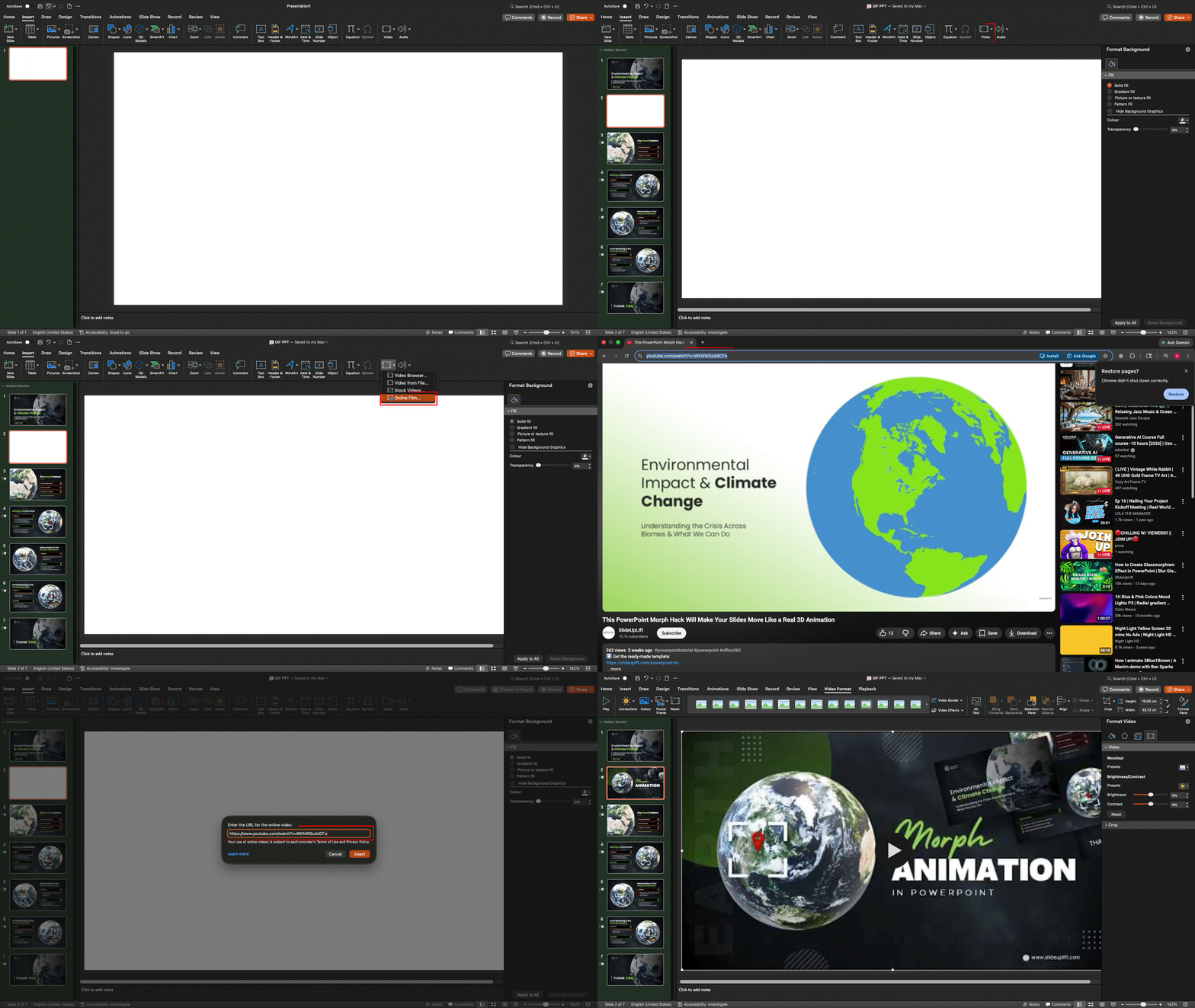
Steps for Mac (PowerPoint 2021 and Later Only)
Note: Earlier macOS versions of PowerPoint do not support online video insertion.
- Open PowerPoint 2021 or Microsoft 365 for Mac.
- Go to the slide where you want to embed the video.
- Click Insert → Online Movie from the menu.
- Paste the YouTube video URL into the field.
- Click Insert and resize the video on the slide.
- Test playback in Slide Show mode.
Tip: On Mac, the video object may appear labelled “Online Movie” — this is normal.
Steps for PowerPoint for the Web (Office.com)
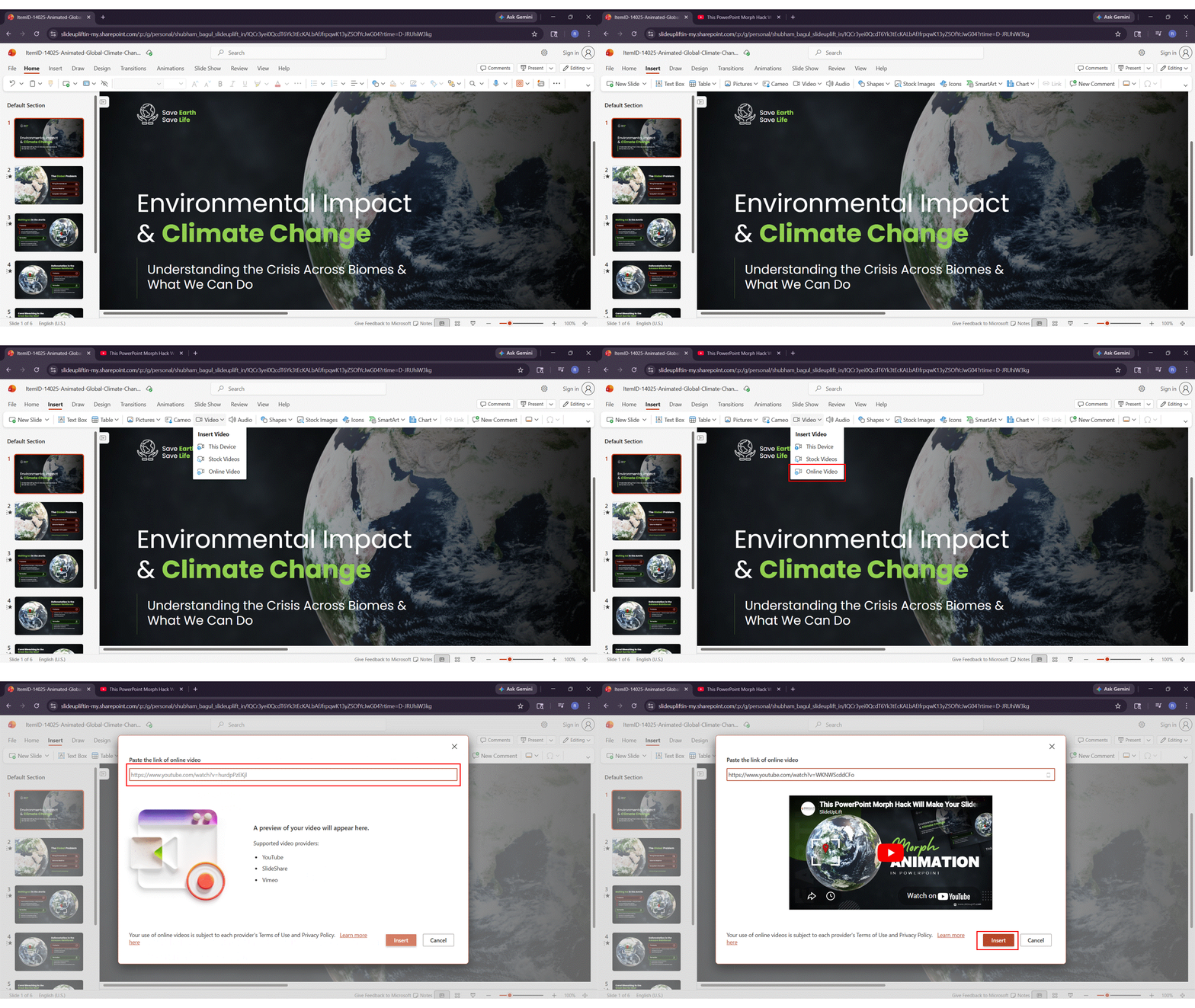
PowerPoint for the web supports URL insertion only. Embed code is not supported in the web version.
- Open your presentation at Office.com.
- Click Insert → Video → Online Video.
- Paste the YouTube URL and click Insert.
- Use Preview or Slide Show mode to test.
Method 2: Insert Using an Embed Code
Skip this section unless you are specifically using PowerPoint 2016 on Windows. The embed code method is not available in PowerPoint 2019, 2021, 2024, Microsoft 365, Mac, or the web version.
Use the embed code when you need precise control over autoplay, start time, or looping. This method works only on PowerPoint 2016 for Windows.
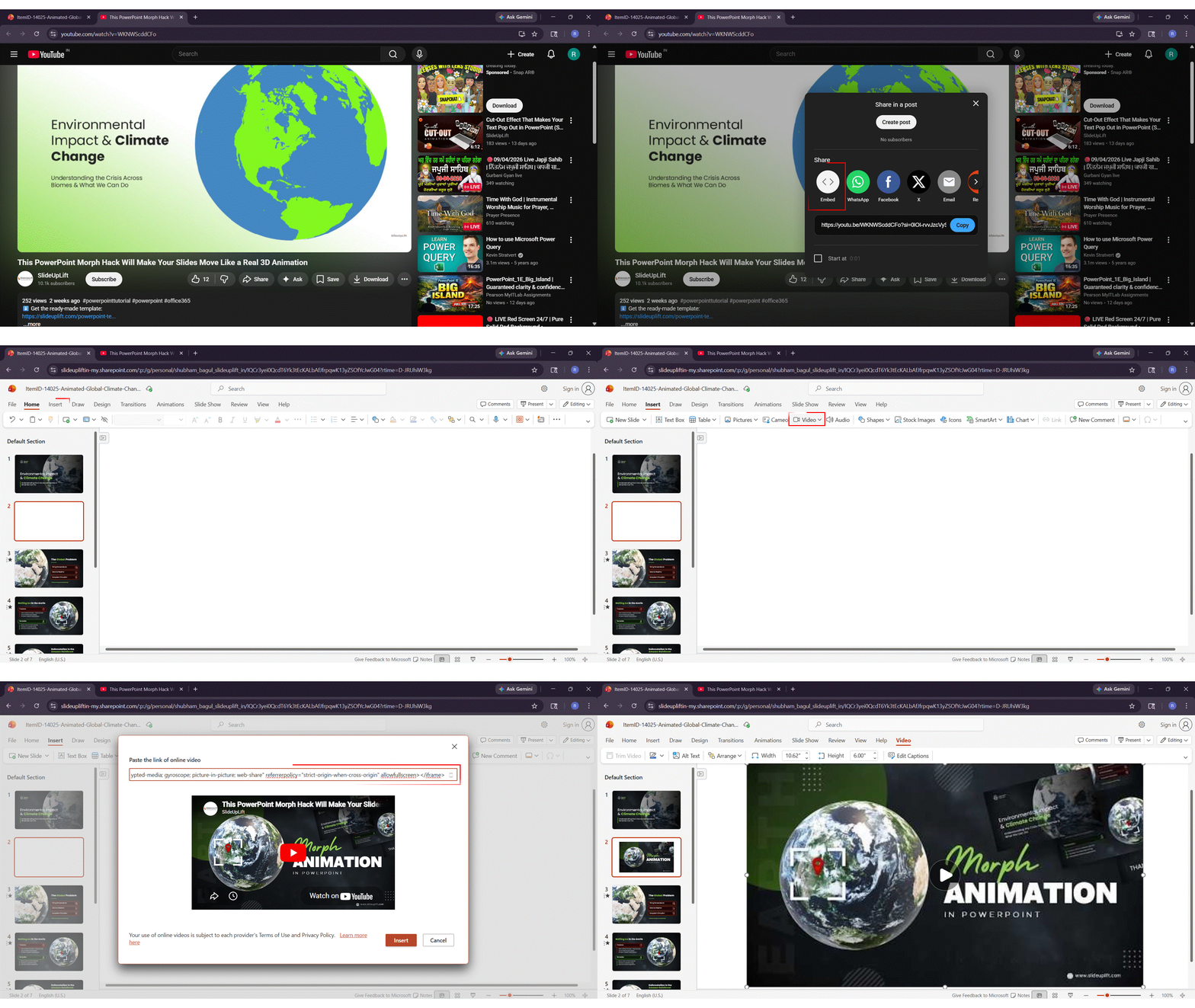
Step 1 — Get the Embed Code from YouTube
- Go to the YouTube video you want to embed.
- Click the Share button below the video player.
- Click Embed in the Share panel.
- Copy the entire iFrame embed code.
Important: If the copied text starts with “http” — STOP. You copied the wrong code. Click Embed again.
Step 2 — Paste the Embed Code into PowerPoint 2016
- Open PowerPoint 2016 and go to the target slide.
- Click Insert → Video → Online Video.
- Find the “Paste embed code here” field.
- Paste the code and press Enter or click the arrow.
- Resize and reposition the video on your slide.
Customize the Embed Code — YouTube API Parameters
You can modify the embed code to control how the video behaves. Add these parameters to the YouTube URL inside the iFrame src attribute:
| Parameter | What It Does | Example |
| autoplay=1 | Video starts automatically when slide appears | …?autoplay=1 |
| start=90 | Video begins at 90 seconds (1 min 30 sec) | …?start=90 |
| end=120 | Video stops at 120 seconds (2 minutes) | …?end=120 |
| loop=1 | Video replays automatically after it ends | …?loop=1 |
| mute=1 | Video plays with sound muted (required with autoplay) | …?mute=1 |
| modestbranding=1 | Reduces YouTube logo visibility in the player | …?modestbranding=1 |
Combine parameters with &: https://www.youtube.com/embed/VIDEO_ID?autoplay=1&start=90&mute=1
Method 3: Download the Video and Insert It Locally
The most reliable option for offline presentations or venues where YouTube may be blocked. A downloaded video plays directly from your file — no streaming, no internet dependency, no firewall issues.
What Video Formats Does PowerPoint Support?
Always use the correct format to avoid playback errors.
| Format | Compatibility | Recommended Codec |
| MP4 (.mp4) | Best — works on all Windows and Mac versions | H.264 video + AAC audio |
| MOV (.mov) | Good — mainly for Mac users | H.264 video + AAC audio |
| WMV (.wmv) | Windows only — limited Mac support | — |
| AVI (.avi) | Works but may cause large file sizes | — |
| MKV (.mkv) | Not recommended — often incompatible | — |
Best practice: Always use MP4 with H.264 + AAC for maximum compatibility.
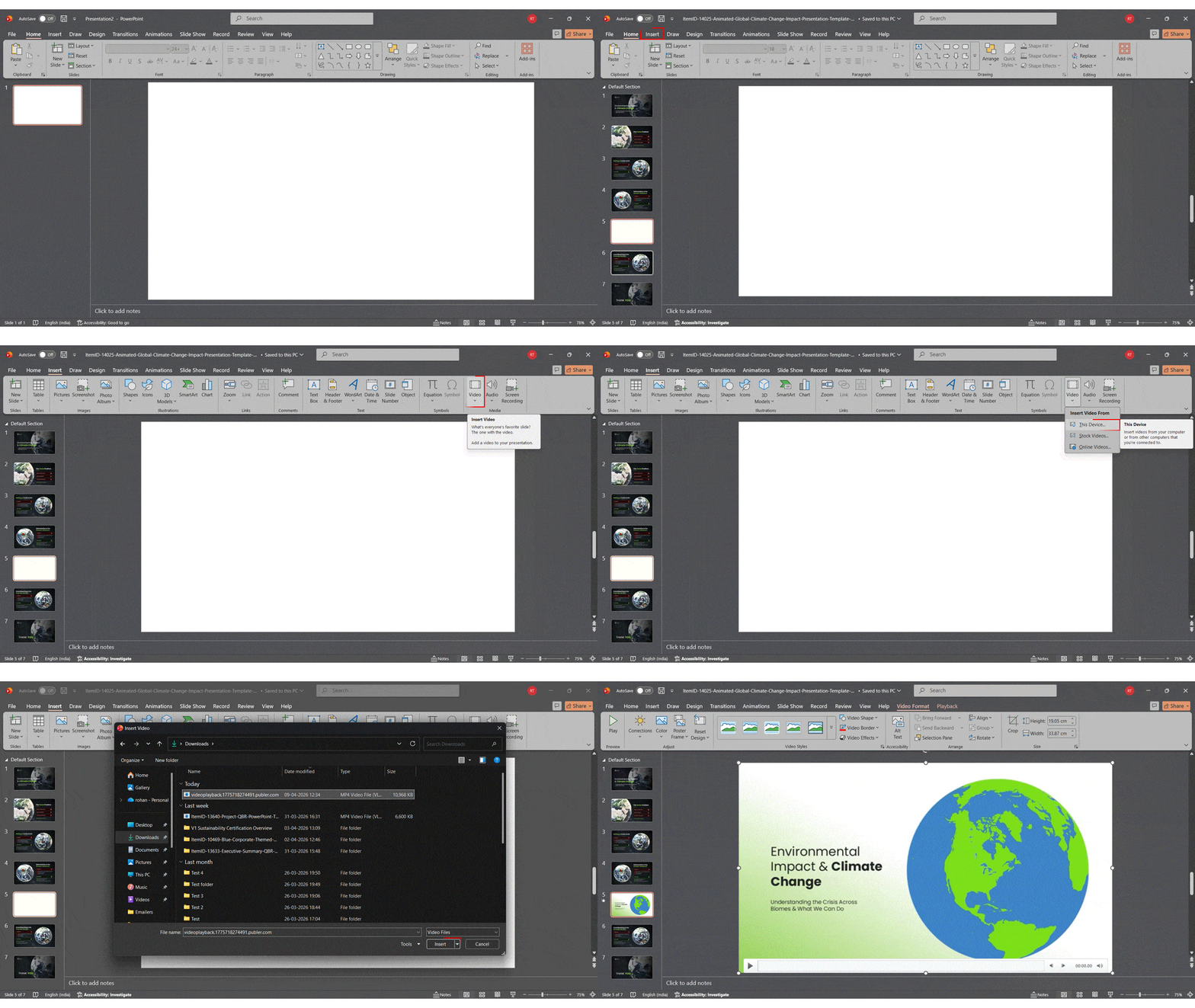
Steps to Insert a Downloaded Video on Windows
- Go to your PowerPoint slide.
- Click Insert → Video → Video on This PC.
- Browse to your downloaded video file.
- Double-click the file to insert it.
- Resize and reposition using the frame handles.
- Right-click the video → Format Video to adjust brightness or color.
Steps to Insert a Downloaded Video on Mac
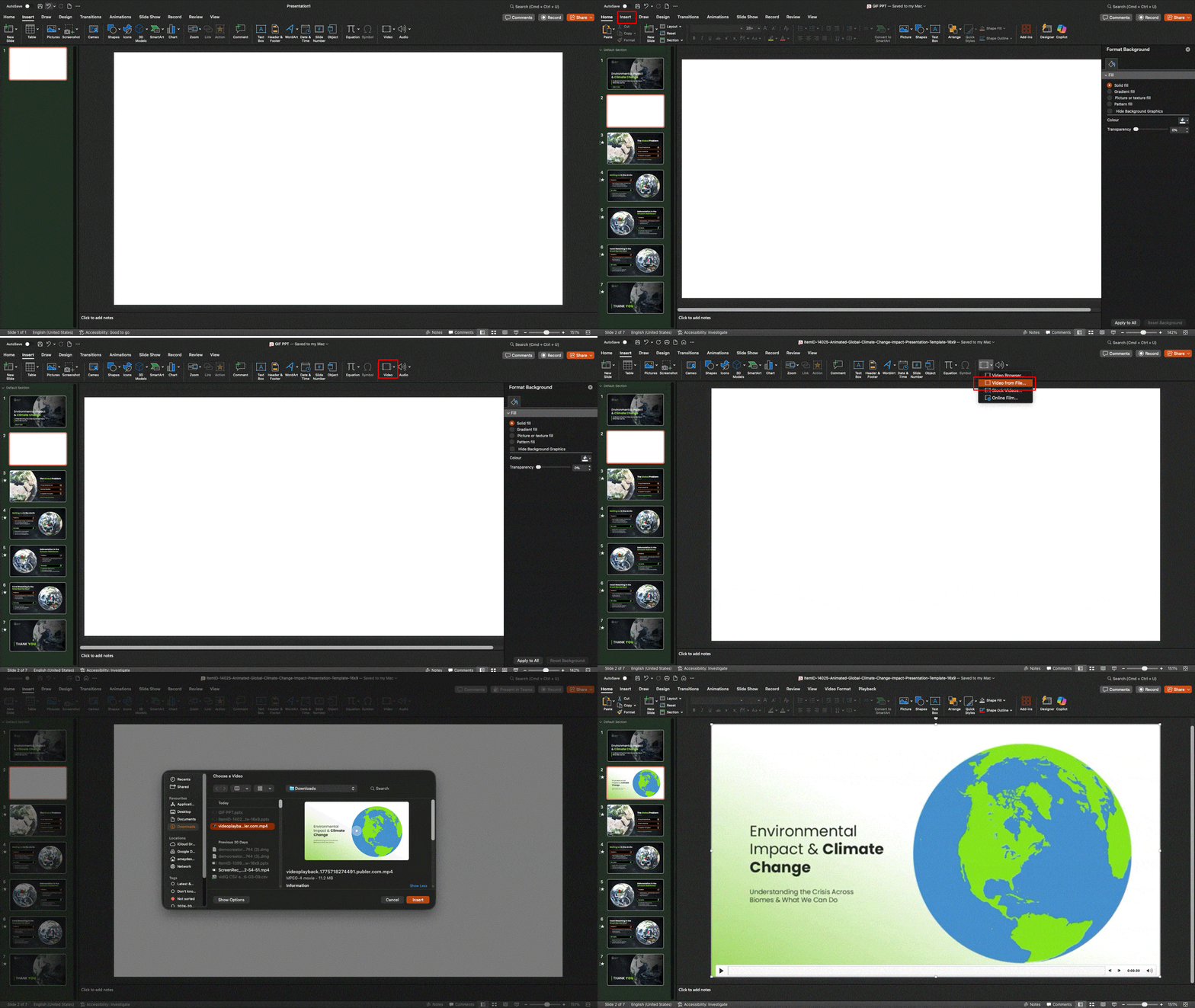
- Open your PowerPoint presentation on Mac.
- Click Insert → Video → Movie from File.
- Locate and select your downloaded video file.
- Click Insert and adjust the frame on your slide.
- Test playback in Slide Show mode before presenting.
Copyright Warning — When Is It Legal to Download a YouTube Video?
Downloading YouTube videos without permission violates YouTube’s Terms of Service. You may only use a downloaded YouTube video in PowerPoint if: you own the video and uploaded it yourself, the video is labeled with a Creative Commons license, you have explicit written permission from the creator, or you have a YouTube Premium subscription for offline viewing.
Note: YouTube Premium offline viewing is limited to the YouTube app only — not PowerPoint.
Method 4: Use PowerPoint’s Screen Recording to Capture a Clip
Record just the clip you need from a longer video — no download, no internet required during the presentation. PowerPoint’s built-in screen recorder (available from version 2013 on Windows) lets you capture exactly the segment you need from a longer video. The recording saves as a local file and embeds directly on your slide.
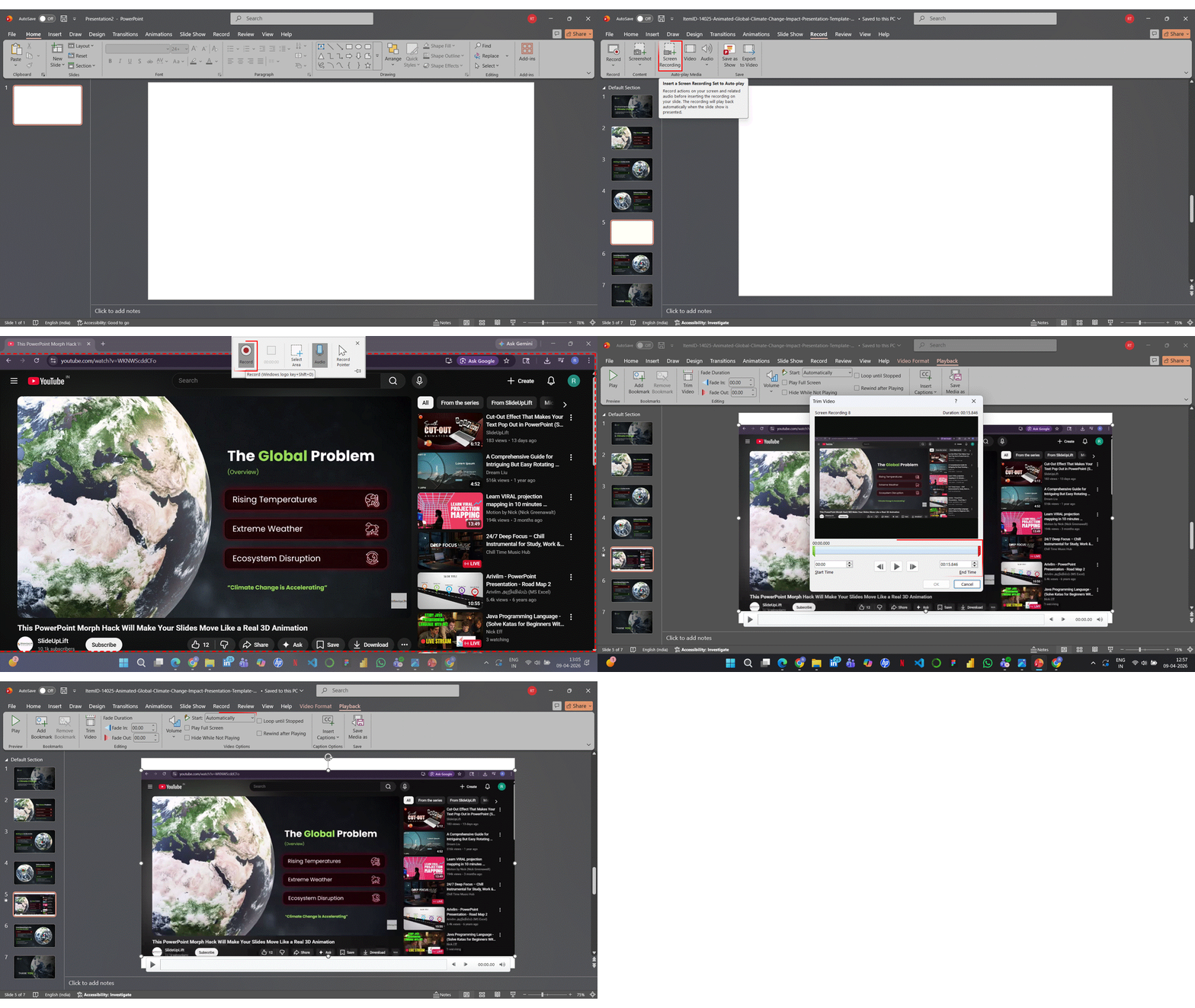
Steps for Windows (PowerPoint 2013+)
- Open PowerPoint and go to the Insert tab.
- Click Screen Recording.
- Click Select Area and drag to outline your browser’s video player. Keep the selection tight around the video frame — avoid capturing browser tabs, bookmarks, or other UI elements.
- Toggle Audio on if you need the video’s sound. Toggle the mouse Pointer off to keep cursor movements out of the recording.
- Switch to your browser and open the YouTube video. Set the video quality to 720p or 1080p before recording — PowerPoint captures whatever resolution is on screen.
- Press the Record button in the PowerPoint toolbar (or press Windows + Shift + R). A three-second countdown begins.
- Immediately click Play on the YouTube video and let it run through the segment you need.
- Press Windows + Shift + Q to stop the recording. PowerPoint automatically inserts the clip onto the current slide.
- Right-click the inserted video and select Trim to cut any extra seconds from the start or end.
- Go to the Playback tab and set your Start option (Automatically, On Click, or In Click Sequence).
Recording Quality and File Size
The screen recorder captures at your monitor’s display resolution. A 1080p recording of a 60-second clip typically produces a 15–30 MB file. Keep these points in mind:
Set YouTube to at least 720p before recording. If you record a 360p or 480p stream, the clip will look blurry when projected on a large screen. Longer recordings increase file size significantly — a five-minute capture at 1080p can exceed 150 MB and slow down your entire presentation file. After inserting the clip, go to File → Info → Compress Media and choose Full HD (1080p) or HD (720p) to reduce file size without noticeable quality loss. If your final PowerPoint file needs to stay under a specific size limit (for example, for email), compress the media or trim the clip to only the seconds you actually need.
When to Use Screen Recording Instead of Downloading
Screen recording makes more sense than downloading when you only need a short segment (under two minutes) from a long video, when you want to avoid installing third-party download tools, or when you need to capture something that is not easily downloadable — such as a live stream, a members-only video, or content behind an age gate.
Tip: The recording is embedded as a local video file — playback will not depend on your internet connection during the presentation.
Limitation: Screen Recording is only available on PowerPoint for Windows (2013 and later). It is not available on Mac or PowerPoint for the web. Mac users can use QuickTime Player’s screen recording feature, save the file as an MP4, and then insert it using Method 3.
Copyright note: Only use this method for content you have the right to record and use. Screen recording a video does not grant you a license to redistribute it.
Method 5: Add a YouTube Hyperlink to Your Slide
The lightest option — keeps your file small and works on every version of PowerPoint, including versions from 2007 onward.
This method does not embed the video inside your slide. Instead, clicking the linked object opens the video in your default web browser. It is the right choice when file size matters, when you are working on an older version of PowerPoint that does not support online video, or when you simply want to reference a video without giving it a full slide of its own.
Steps (All PowerPoint Versions)
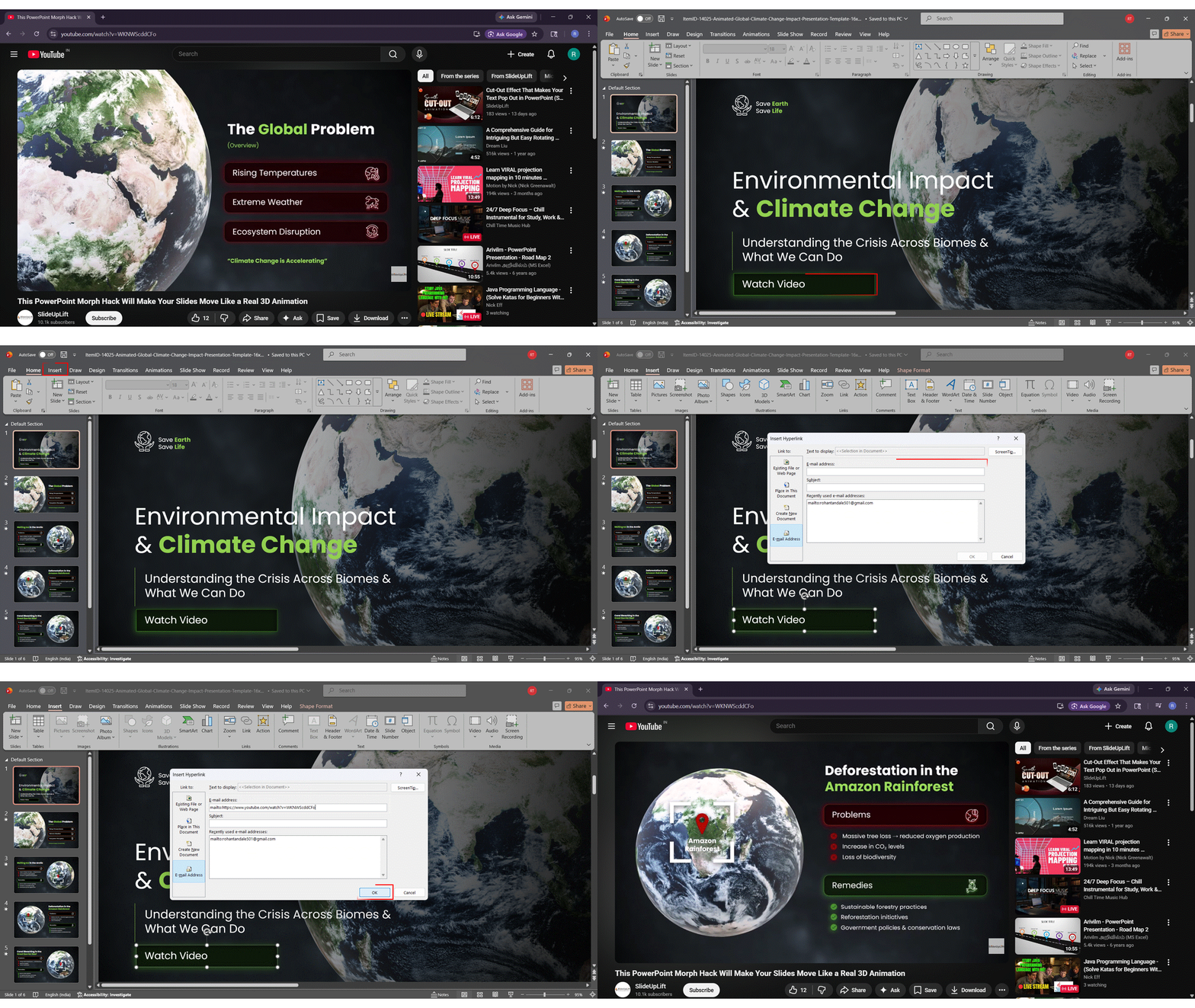
- Open the YouTube video in your browser and copy the URL from the address bar.
- In PowerPoint, go to the slide where you want the link.
- Select the object you want to make clickable — this can be a text box, a shape, a button, or an image (such as a screenshot of the video thumbnail).
- Click Insert → Link (or press Ctrl+K on Windows / Cmd+K on Mac).
- Paste the YouTube URL into the address field.
- Click OK to apply the hyperlink.
- During the presentation, click the linked object. The video opens in your default browser.
Making the Hyperlink Look Professional
A plain-text URL on a slide looks unfinished. Use one of these approaches instead:
- Thumbnail with play icon: Take a screenshot of the YouTube video’s thumbnail, paste it onto your slide, overlay a play button shape (▶), and hyperlink the entire group. This gives the visual impression of an embedded video.
- Descriptive label: Use clear text like “▶ Watch the 2-minute demo” or “Click to play product walkthrough” so the audience knows what will happen.
- Branded button: Create a rounded rectangle with your brand color, add “Watch Video” as text, and apply the hyperlink to the shape. This works well in corporate and sales decks.
What Happens When You Click the Link During a Presentation
When you click the hyperlinked object in Slide Show mode, PowerPoint minimizes and your default browser opens the YouTube video page. The audience will see the browser load, any YouTube ads that play before the video, and the full YouTube interface including recommended videos and comments.
To return to your presentation, press Alt+Tab (Windows) or Cmd+Tab (Mac), or click the PowerPoint icon in your taskbar. The presentation resumes on the same slide.
Important: If the presentation device has no internet connection, the link will not work — the browser will show an error page. Unlike Methods 1 and 2, there is no cached preview or fallback. If there is any chance of connectivity issues, pair this method with a local MP4 backup (Method 3) on the same slide.
When to Choose Method 5 Over Other Methods
Method 5 is the right pick when you are using PowerPoint 2010 or 2007 (which do not support online video embedding), when your file must stay under a strict size limit, when the video is supplementary and you may or may not play it depending on time, or when you are presenting in an environment where browser and internet access will work reliably.
Limitation: This method breaks the immersive flow of your presentation by switching to a browser window. The audience sees YouTube’s full interface, including ads and recommended videos. If seamless in-slide playback matters, use Method 1 or Method 3 instead.
How to Set Video Playback Options
Control when and how your video plays — automatically, on click, or as part of an animation sequence.
Automatically vs. On Click vs. In Click Sequence
| Start Setting | What Happens | Best Used When |
| Automatically | Video plays as soon as the slide appears | You want seamless, hands-free playback |
| When Clicked | The video plays only after you click it | You need to narrate before playing the video |
| In Click Sequence | Video plays as part of your animation sequence | You have animated elements before the video |
How to Loop a YouTube Video in PowerPoint
Looping only works fully for locally inserted video files. For embedded YouTube videos, use the embed code parameter loop=1 instead (Method 2 only).
How to Start an Embedded YouTube Video at a Specific Time
Use the start= parameter in the embed code (Method 2), or append &t=90s to the URL when using the URL method (Method 1). Replace 90 with the number of seconds where playback should begin.
This is useful when you only need a specific clip from a longer video.
Example:
- Standard URL: https://www.youtube.com/watch?v=VIDEO_ID
- With start time: https://www.youtube.com/watch?v=VIDEO_ID&t=90s
Paste this modified URL into PowerPoint using the same steps mentioned earlier.
Note: Timestamp accuracy varies by PowerPoint build. Always test before presenting.
For more on animations and transitions, explore our full library of PowerPoint tutorials.
Quick Comparison — All 5 Methods at a Glance
| Method | Internet Needed? | Works Offline? | Best For | Version Support | Recommendation |
| URL (Copy & Paste) | Yes | No | Quick setup, live demos | PPT 2016, 2019, 2021, 2024, M365, Web | Most Popular |
| Embed Code | Yes | No | Autoplay, timestamp control | PPT 2016 (Windows only) | — |
| Download Local File | No | Yes | Reliable offline playback | All versions | Most Reliable |
| Screen Recording | No | Yes | Clip a specific video segment | PPT 2013+ (Windows) | — |
| Hyperlink | Yes | No | Lightweight, minimal file size | All versions | — |
Troubleshooting — YouTube Video Not Playing in PowerPoint
The five most common playback problems — and exactly how to fix each one.
Fix 1 — Check Your Internet Connection and WebView2 Runtime
Online YouTube videos require an active internet connection to stream. PowerPoint also uses Microsoft Edge WebView2 to render web content inside Office. If WebView2 is missing or outdated, videos will not play correctly. Search for “Microsoft Edge WebView2 Runtime” and install the latest version, and make sure your internet connection is stable before starting the slide show.
Fix 2 — Video Shows as a Blank Box or Black Screen
Ensure the YouTube video is set to Public — private videos cannot be embedded. Check that the video’s owner has not disabled embedding. Re-insert the video using a fresh URL or embed code, then click the video placeholder once to load the preview image.
Fix 3 — Embed Code Not Working
Ensure you copied the full iFrame code — not just the URL. The embed code only works in PowerPoint 2016 for Windows. Try the URL method if the embed code fails in your version.
Fix 4 — Video Plays on Your PC but Not During the Presentation
The venue network may be blocking YouTube — test on the venue’s Wi-Fi beforehand. Corporate firewall settings can prevent YouTube from loading inside PowerPoint. Always bring a local MP4 backup on a USB drive for critical presentations.
Fix 5 — Mac-Specific Playback Issues
Online video insertion is not supported in PowerPoint versions older than 2021 on Mac. Update PowerPoint via the Microsoft AutoUpdate tool if videos refuse to embed. Use a locally downloaded MP4 file as an alternative on older Mac versions.
Fix 6 — “PowerPoint Can’t Insert a Video” Error
First, verify your internet connection is stable and the URL starts with https://. If the error persists, try the embed code method or insert a local MP4 file instead.
PowerPoint Version Support — What Each Version Can Do
Check your version before you start — not every method works in every release.
| PowerPoint Version | URL Method | Embed Code | Local File | Screen Record | Online Video (Mac) |
| Microsoft 365 (Windows) | ✅ Yes | ❌ No | ✅ Yes | ✅ Yes | — |
| Microsoft 365 (Mac) | ✅ Yes | ❌ No | ✅ Yes | ❌ No | ✅ Yes |
| PowerPoint 2024 (Win/Mac) | ✅ Yes | ❌ No | ✅ Yes | ✅ Yes (Win) | ✅ Yes (Mac) |
| PowerPoint 2021 (Win/Mac) | ✅ Yes | ❌ No | ✅ Yes | ✅ Yes (Win) | ✅ Yes (Mac) |
| PowerPoint 2019 (Windows) | ✅ Yes | ❌ No | ✅ Yes | ✅ Yes | — |
| PowerPoint 2016 (Windows) | ✅ Yes | ✅ Yes | ✅ Yes | ✅ Yes | — |
| PowerPoint for the Web | ✅ Yes | ❌ No | ❌ No | ❌ No | — |
| PowerPoint 2013 (Windows) | Limited | ❌ No | ✅ Yes | ✅ Yes | — |
Presentation-Day Checklist
Run through this before you go live — internet failures love important presentations.
- Test video playback in Slide Show mode — not just Normal view
- Confirm internet access on the presentation venue’s network
- Verify audio routes through the venue’s HDMI or speaker system
- Have a downloaded MP4 backup ready on a USB drive
- Keep the WebView2 Runtime up to date on the presentation device
- Place a “Video Test” slide early in your deck to verify A/V
Need more help preparing? Read our complete guide to PowerPoint presentation tips for delivery and design.
Conclusion
What to Do Next?
You now have five ways to get a YouTube video into PowerPoint — from a quick URL paste to a fully offline local file. Here’s how to pick yours:
- Presenting with reliable Wi-Fi? Use Method 1 (URL). It takes under a minute and works on Windows, Mac, and the web.
- Presenting at a venue, conference, or classroom where the internet is uncertain? Download the video as an MP4 and insert it locally (Method 3). It’s the only method that guarantees playback regardless of network conditions.
- Need a specific 30-second clip from a 20-minute video? Use Screen Recording (Method 4) to capture just the segment you need — no download tools required.
Whichever method you choose, run through the Presentation-Day Checklist above before going live. Test in Slide Show mode, confirm your audio routing, and keep a backup MP4 on a USB drive. These three steps take two minutes and prevent the most common video failures. Looking for professionally designed slides to match your presentation? Browse SlideUpLift’s free PowerPoint templates — ready-made decks you can customize in minutes.

FAQs
-
How do I embed a YouTube video in PowerPoint without the internet?
Download the video as an MP4 and insert it via Insert → Video → Video on This PC. The clip plays from your device with no connection needed.
-
Why is my YouTube video not playing in PowerPoint?
The most common causes are an unstable internet connection, an incorrect URL, or a missing WebView2 Runtime. Also, check that the video is set to Public on YouTube — private videos cannot play inside PowerPoint.
-
How do I make a YouTube video play automatically in PowerPoint?
Click the video to open the Playback tab, then set Start to Automatically. For the embed code method, add autoplay=1 to the YouTube URL inside the iFrame.
-
How do I insert a YouTube video into PowerPoint on Mac?
You need PowerPoint 2021 or Microsoft 365 for Mac. Go to Insert → Online Movie and paste the YouTube URL. Earlier Mac versions do not support online video — use a local MP4 instead.
-
How do I start an embedded YouTube video at a specific time?
Append &t=90s to the YouTube URL before pasting it into PowerPoint, where 90 is the number of seconds from the start. In the embed code, use the start= parameter instead.
-
How do I embed a YouTube video in PowerPoint 2019?
Use the URL method only — embed code is not available in PowerPoint 2019. Go to Insert → Video → Online Video, paste the URL, then set playback options in the Playback tab.
-
What is the best way to add a YouTube video to PowerPoint for offline use?
Download the video as an MP4 using a legitimate tool, then insert it via Insert → Video → Video on This PC (Windows) or Movie from File (Mac). Make sure you have the rights to use the video before downloading.
-
How do I avoid ads when a YouTube video plays inside PowerPoint?
The only reliable way is to download the video (where you have the rights) and insert it as a local file. Embedded YouTube videos are subject to YouTube’s ad platform and cannot be ad-free by default.
-
Can I embed a YouTube playlist in PowerPoint?
Only via the embed code method in PowerPoint 2016 for Windows. Get the embed code for the playlist from YouTube’s Share → Embed panel and use the playlist URL format. This method is not available in other PowerPoint versions.
Table Of Content




Related posts from the same category

1 Dec, 2022 | SlideUpLift
How to cite images in PowerPoint
Images can enhance the impact of your professional presentations. You may choose the ideal photos to assist in captivating your readers and giving meaning to your words, but it is

27 Mar, 2023 | SlideUpLift
How To Flip An Image In PowerPoint
Are you looking to add a creative touch to your PowerPoint design? Flipping an image can be a quick and easy way to achieve that. Whether you want to create

13 Mar, 2026 | SlideUpLift
How to Play Video in PowerPoint Across Single and Multiple Slides
This blog explains how to play a single video across multiple slides in PowerPoint using simple animation and playback settings. It walks through the step-by-step process of inserting the video,

22 Dec, 2020 | SlideUpLift
How to make a poster in PowerPoint | PowerPoint Tutorial
Most of the time, we use PowerPoint to create presentations, but did you know you could use PowerPoint to build other elements such as posters? It is quite handy software

8 Sep, 2022 | SlideUpLift
How to Add Background Music in PowerPoint: The Complete Guide (All Versions)
You've spent hours building the perfect presentation — your slides are polished, your data is solid, your design is on point. But something still feels flat. That missing ingredient? Background

13 Apr, 2026 | SlideUpLift
How To Lock An Image In PowerPoint: Complete Step-By-Step Guide
If you have ever spent time positioning a logo or background graphic perfectly — only for an accidental click to send it flying across the slide — this guide is

7 Feb, 2020 | SlideUpLift
How To Make A Filmstrip Effect In PowerPoint | PowerPoint Tutorial
Learn how to make a cool filmstrip effect. A PowerPoint Timeline Template need not be boring. This tutorial explains step-by-step instructions to create a cool Filmstrip timeline template in minutes.

8 Jun, 2023 | SlideUpLift
How To Embed PowerPoint In HTML/Website?
Ever wonder how to post a PowerPoint presentation to your website or blog without just posting an image of it? Embedding PowerPoint presentations in an HTML website can do this.

20 Apr, 2021 | SlideUpLift
Create Catchy Shapes with this morphing technique in PowerPoint
Interesting graphics hold the attention and engagement of your audience, turning them from passive listeners to active participants. The stock images and shapes can only take you as far if

24 Oct, 2019 | SlideUpLift
How To Highlight Part Of An Image Using Focus Effect In PowerPoint : Step-By-Step Tutorial
This PowerPoint tutorial explains how to highlight any specific aspect of an image in PowerPoint. A presentation with pictures and infographics is better than a boring-looking textual presentation. Images make