

 Flat 1


How To Broadcast a PowerPoint Presentation Online [6 Working Methods]
If you have been looking for a way to broadcast a PowerPoint presentation online to a remote audience, you have probably run into tutorials that tell you to click Slide Show > Present Online. Here is the problem: that feature no longer exists in most versions of PowerPoint.
Microsoft retired the Office Presentation Service, and the old Broadcast Slide Show button has been removed from newer builds. The Present Live feature in PowerPoint for the Web has also been deprecated. So if you tried those steps and hit a dead end, you are not doing anything wrong. The feature is simply gone.
But presenting PowerPoint online has actually become easier and more powerful than the old method ever was. From real-time presenting through Microsoft Teams to quick QR-code-based sharing through PowerPoint for the Web, you now have multiple reliable ways to share your slides with anyone, anywhere.
This guide walks you through six methods that work right now in 2026, with step-by-step instructions for each one so you can pick the approach that fits your setup.
In this article, you will learn:
- Why PowerPoint’s old broadcast feature was discontinued
- How to use PowerPoint Live in Microsoft Teams
- How to use Present Live in PowerPoint for the Web
- How to share your screen on Zoom and Google Meet
- How to share presentations asynchronously via cloud drives
- How to upload slides to public platforms for wider reach
- A side-by-side comparison of all six methods
Can You Still Use PowerPoint’s Built-In Broadcast Feature?
Short answer: No. Microsoft has officially deprecated the Present Online feature (also called the Office Presentation Service) in most versions of PowerPoint for Windows. If you open the Slide Show tab in a recent version of PowerPoint, you will not find the Present Online button that older tutorials reference.
The old feature allowed presenters to generate a shareable link so remote viewers could watch the slideshow in their web browsers. It was useful in its time, but it came with significant limitations: no audio transmission, transitions stripped down to basic fades, no audience interaction tools, and inconsistent reliability.
Microsoft now points users to PowerPoint Live in Teams as the official replacement. But depending on your tools and your audience, you have several other strong options. Let us walk through all six.
Method 1: PowerPoint Live in Microsoft Teams (Best for Business)
PowerPoint Live in Microsoft Teams is Microsoft’s direct replacement for the retired broadcast feature, and it is significantly more powerful. Instead of just streaming static slides through a browser link, it gives both the presenter and the audience a rich, interactive experience inside the Teams meeting environment.
How To Use PowerPoint Live in Teams
- Step 1: Open Microsoft Teams and start or join a meeting.
- Step 2: Click the Share button in the meeting controls at the top of the screen.
- Step 3: In the PowerPoint Live section, you will see your recent presentations. Select the file you want to present. If it is not listed, click Browse OneDrive or Browse my computer to locate it.
- Step 4: Your slides will load into the Teams meeting. You will see your speaker notes next to the current slide, along with a thumbnail strip for navigation. Your audience sees only the slides.
- Step 5: Use the navigation arrows to advance slides. Use the laser pointer, pen, or highlighter tools to annotate slides in real time.
- Step 6: When finished, click Stop presenting in the meeting toolbar.
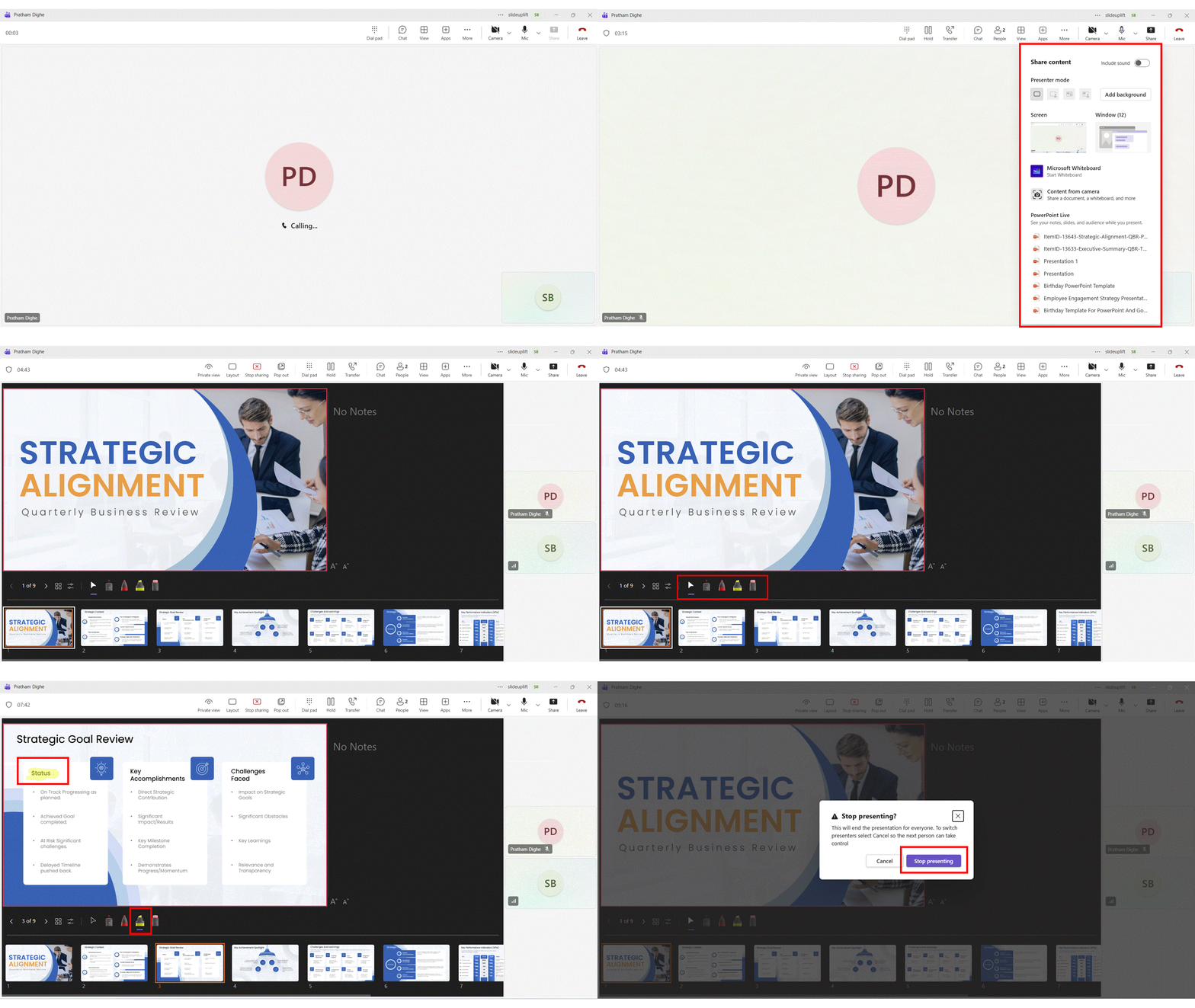
Why PowerPoint Live Is Different from Screen Sharing
Unlike basic screen sharing, PowerPoint Live uploads your presentation to the cloud and renders it independently for each attendee. This unlocks features that screen sharing simply cannot offer:
- For presenters: You can see your speaker notes, the chat, raised hands, and audience reactions all in one view, even on a single monitor. You can also use annotation tools (pen, laser pointer, highlighter) that are visible to everyone.
- For the audience: Attendees can independently navigate through slides without disrupting the live presentation. They can enable live captions in their preferred language, switch to high-contrast mode for accessibility, pinch to zoom on mobile devices, and send real-time reactions.
Pro Tip: You can launch PowerPoint Live directly from the PowerPoint desktop app. Look for the Present in Teams button at the top of the ribbon. Clicking it will automatically open Teams, start sharing your deck, and put you in presenter mode without any additional steps.
Best for: Corporate meetings, internal team presentations, webinars with interactive audiences, and any scenario where accessibility features like live captions and translations are important. Requires a Microsoft 365 subscription.
Method 2: Present Live in PowerPoint for the Web (Best for Quick Sharing)
If your audience does not use Microsoft Teams and you need a fast way to share slides, the Present Live feature in PowerPoint for the Web lets you broadcast directly from a browser. It generates a QR code and a short URL that anyone can use to follow along on their own device.
Important Update: Microsoft has announced that Present Live in PowerPoint for the Web is being deprecated and will eventually be removed. It still works as of early 2026, but plan to migrate to PowerPoint Live in Teams if you rely on this method.
How To Use Present Live
- Step 1: Go to office.com and sign in with your free or paid Microsoft account. Open your presentation in PowerPoint for the Web.
- Step 2: Click the Slide Show tab in the ribbon, then select Present Live.
- Step 3: A screen will appear with a QR code and a short URL. Share either with your audience via email, chat, or by projecting it on screen.
- Step 4: Your audience scans the QR code with their phone camera or types the URL into any browser. No Microsoft account or software download is needed.
- Step 5: Advance to your first slide and begin presenting. Your audience sees a synchronized view of your slideshow on their devices.
- Step 6: When finished, end the slide show. Audience members will receive a short feedback survey, and you will get a summary email with aggregated responses.
The audience experience includes live subtitles (with language translation), pinch-to-zoom on mobile, and the ability to send live reactions during the session.
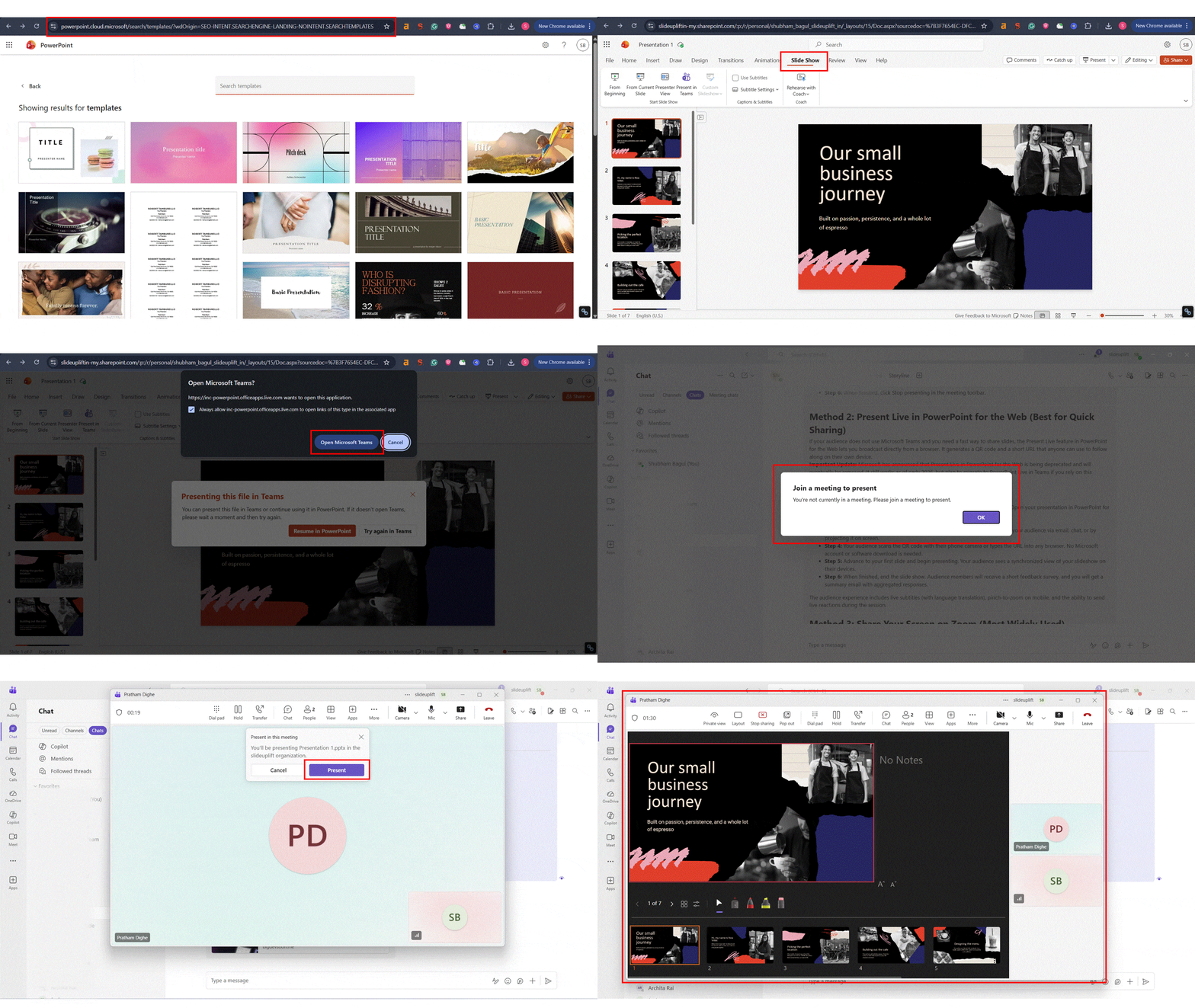
Best for: Quick, informal presentations where your audience does not have Teams installed. Works well for classrooms, public talks, conference breakout sessions, and one-off presentations where simplicity matters.
Method 3: Share Your Screen on Zoom (Most Widely Used)
Zoom remains one of the most popular video conferencing platforms globally. Sharing a PowerPoint presentation through Zoom uses standard screen sharing, which means it works with any version of PowerPoint and does not require a Microsoft 365 subscription.
How To Present PowerPoint on Zoom
- Step 1: Open your PowerPoint presentation and start the slide show by pressing F5 (from the beginning) or Shift+F5 (from the current slide).
- Step 2: Use Alt+Tab on Windows or Cmd+Tab on Mac to switch back to the Zoom meeting window.
- Step 3: Click the Share Screen button at the bottom of the Zoom window.
- Step 4: In the sharing dialog, select the window that shows your PowerPoint slide show. This is important: select the full-screen slideshow window, not the PowerPoint editing window. Click Share.
- Step 5: Present your slides as normal. Your audience sees the full-screen slide show, while you can see your notes if you have Presenter View enabled on a second monitor.
- Step 6: When finished, press Escape to exit the slide show, then click Stop Share in the Zoom floating toolbar.
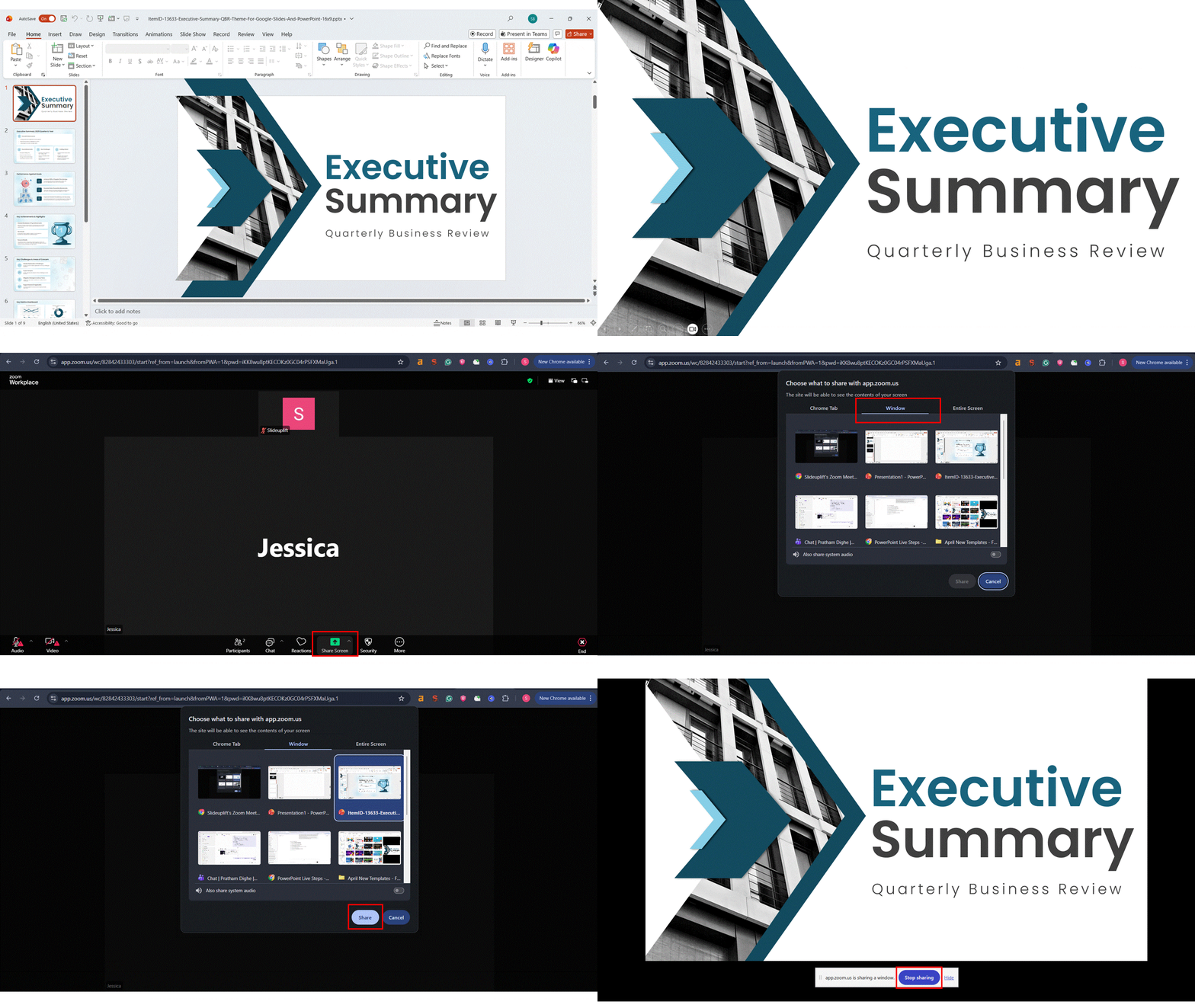
How To Use Presenter View with a Single Monitor
If you only have one monitor, you can still access your notes by using a workaround. Instead of starting the full-screen slide show, go to Slide Show > Set Up Slide Show and select “Browsed by an individual (window).” This runs the slideshow in a resizable window. Share that window in Zoom, and keep your notes open in a separate area of your screen.
Alternatively, start the full-screen slideshow, then switch back to Zoom. Zoom’s floating controls let you see participant thumbnails. You will not see your notes, but you will keep visual contact with your audience.
Pro Tip: If your presentation includes embedded videos or audio clips, check the Share sound box in Zoom’s sharing dialog before clicking Share. Without this, your audience will see the video playing, but will not hear any audio.
Best for: Client meetings, external webinars, cross-platform audiences (Windows, Mac, Linux, mobile), and any situation where you need full PowerPoint functionality, including animations, transitions, and embedded media.
Method 4: Present PowerPoint on Google Meet (Best Free Option)
Google Meet is the default video conferencing tool for Google Workspace users. It offers a completely free tier for basic meetings and makes it easy to share your PowerPoint slides with a remote audience. No paid subscription is required.
How To Present PowerPoint on Google Meet
- Step 1: Open Google Meet in your browser and start or join a meeting.
- Step 2: Open your PowerPoint file on your computer and start the slide show.
- Step 3: Switch back to the Google Meet tab. Click the Present now button at the bottom of the screen.
- Step 4: You will see three options: Your entire screen, A window, or A tab. Select A window and choose your PowerPoint slideshow window. Click Share.
- Step 5: Your audience now sees your slides. Navigate through them as you normally would.
- Step 6: Click Stop presenting in the Meet controls when finished, or press Escape.
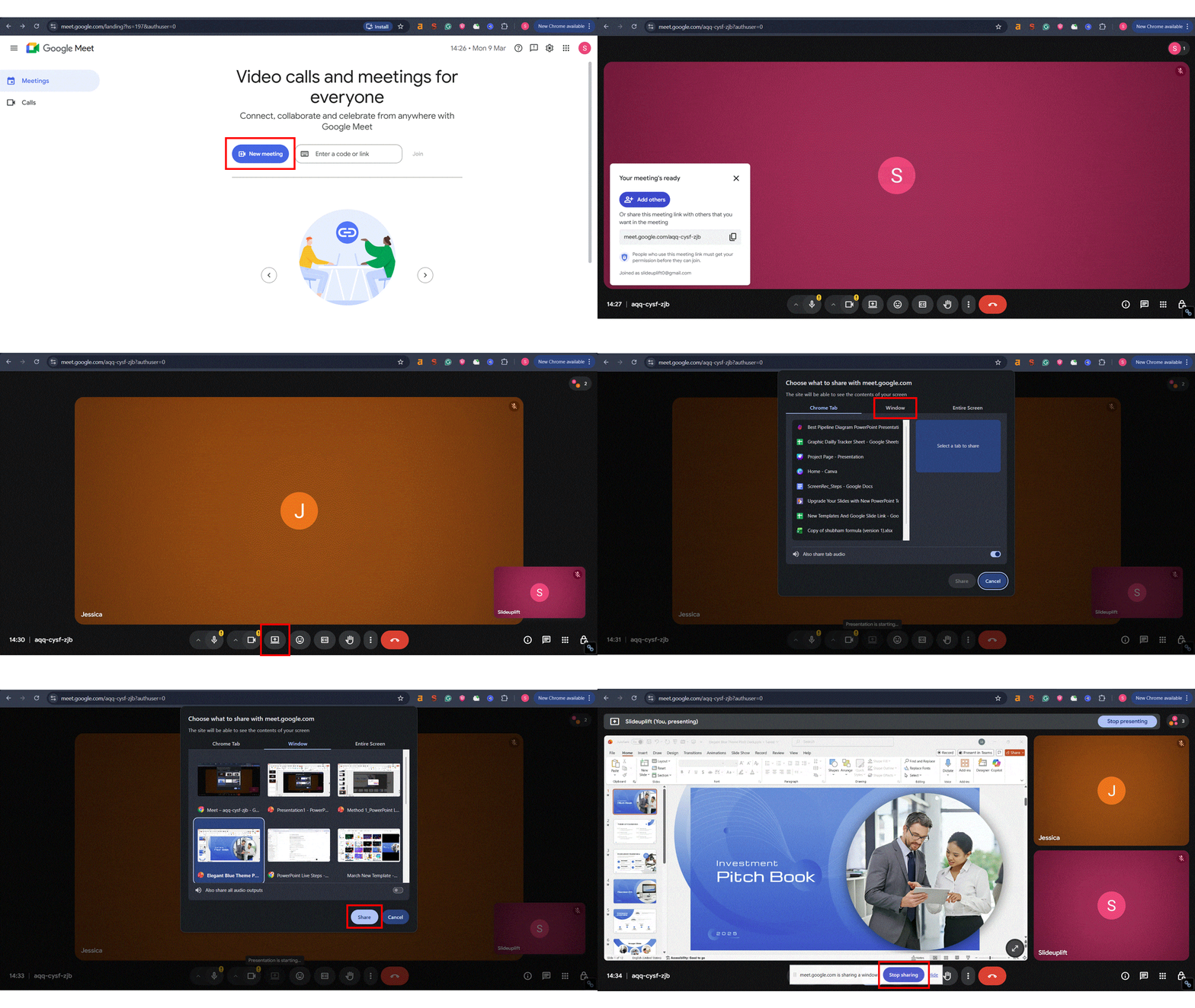
Sharing Audio with Google Meet
If your presentation includes audio or video, window sharing will not transmit the sound. To fix this, open your presentation in PowerPoint for the Web in a Chrome tab instead. Then in Google Meet, choose A tab and select the Chrome tab running your presentation. Check the Share tab audio box. This routes the audio from your presentation directly into the meeting.
Best for: Schools, universities, Google Workspace organizations, small team meetings, and anyone looking for a no-cost option that requires no software installation for participants.
Method 5: Share via OneDrive or Google Drive (Best for Async Collaboration)
Not every presentation needs to happen in real time. If you want your colleagues, clients, or students to view your slides at their own pace, sharing through a cloud drive is the simplest and most flexible approach.
Sharing via OneDrive
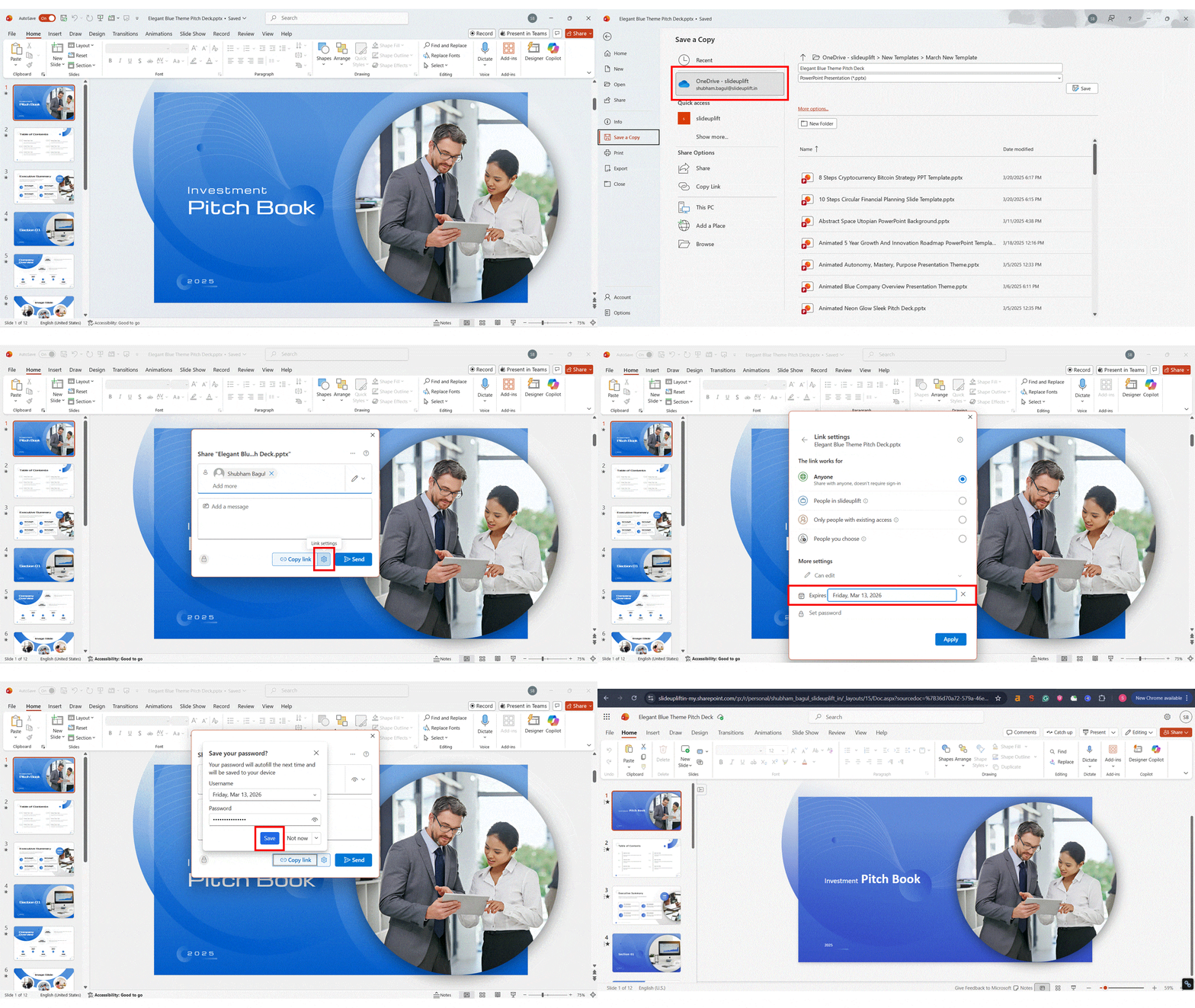
- Step 1: Save your presentation to OneDrive. In PowerPoint, go to File > Save As > OneDrive.
- Step 2: Click the Share button in the top-right corner of the PowerPoint window.
- Step 3: Set permissions: choose whether recipients can view only or also edit. You can optionally set an expiration date and a password for the link.
- Step 4: Copy the link and send it through email, chat, or any messaging platform. Recipients open the presentation directly in their browser using PowerPoint for the Web. No software installation is needed.
Sharing via Google Drive
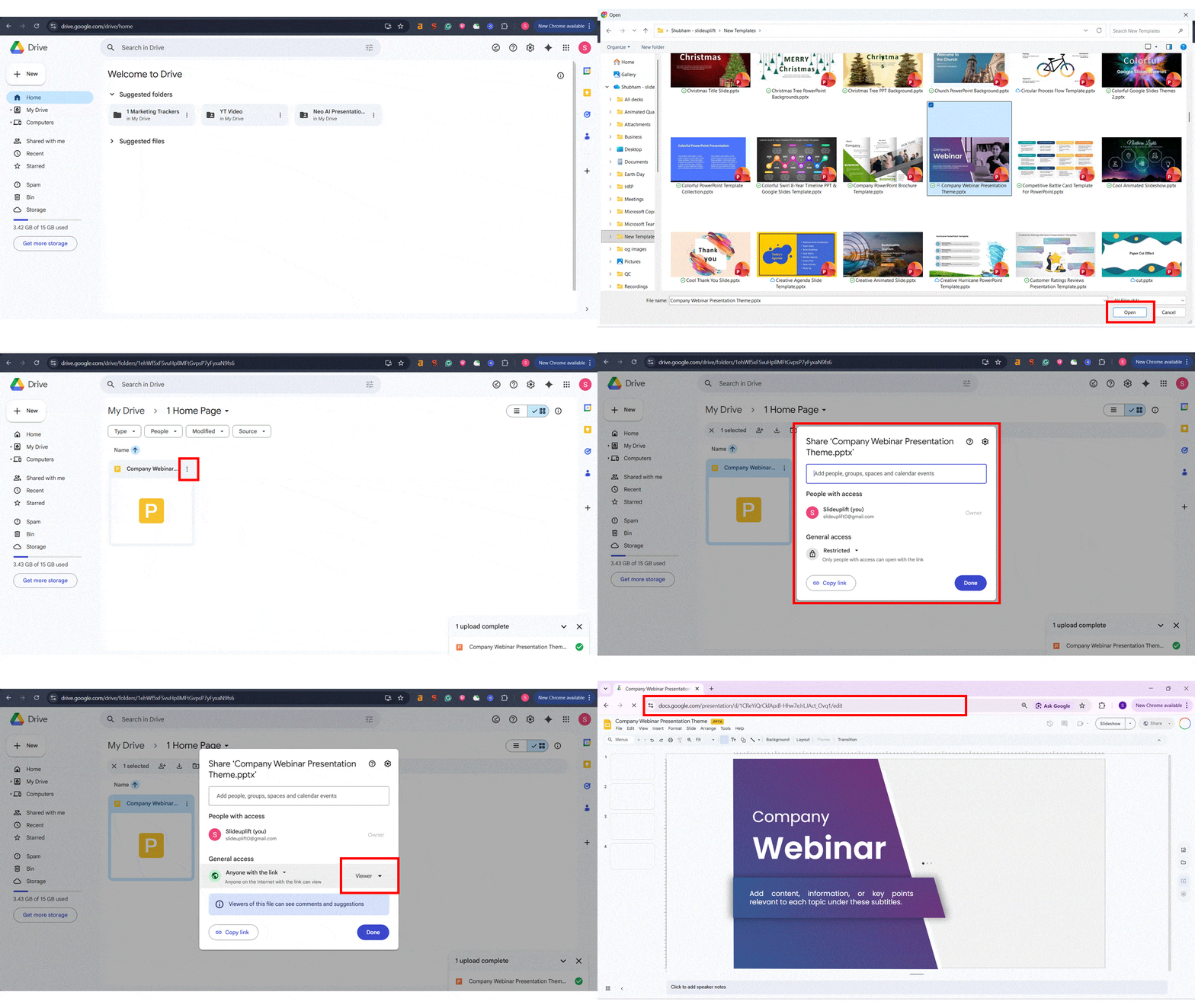
- Step 1: Upload your .pptx file to Google Drive.
- Step 2: Right-click the file and select Share.
- Step 3: Set the access level (Viewer, Commenter, or Editor) and copy the shareable link.
- Step 4: Send the link to your audience. They can view and navigate the presentation in Google Slides directly in their browser. They can also leave comments if you grant commenter access.
Best for: Pre-meeting preparation, asynchronous reviews, collecting feedback through comments, distributing materials to audiences across different time zones, and internal documentation.
Method 6: Upload to an Online Platform (Best for Public Distribution)
If your goal is to reach the widest possible audience rather than present live, you can upload your slides to a dedicated hosting platform. These platforms make your presentation searchable, publicly shareable, and embeddable on websites and blogs.
Popular Platforms
- SlideShare (slideshare.net): The largest platform for hosting and discovering presentations. Supports keyword tagging and SEO-friendly URLs. Good for marketing decks, thought leadership content, and conference materials. Owned by Scribd.
- Speaker Deck (speakerdeck.com): A clean, minimal viewer with no ads. Presentations are converted to images, so animations are lost, but the visual quality is excellent. Popular with the tech and design community.
- Issuu (issuu.com): Converts your presentation into a flipbook-style document with page-turn animations. Best for visually rich content like portfolios, brochures, and annual reports.
Keep in mind that all these platforms convert your slides into static images or PDFs. Animations, transitions, and embedded videos will not play. The audience views at their own pace, and there is no live interaction between you and the viewers.
Best for: Marketing materials, conference decks shared after an event, public portfolios, SEO-driven content strategies, and educational resources meant for on-demand viewing.
Quick Comparison: Which Method Should You Use?
Use this table to compare all six methods at a glance and choose the one that fits your situation.
| Method | Live? | Audio? | Software Needed? | Free? | Best For |
| PPT Live in Teams | Yes | Yes | Teams app/browser | M365 | Corporate, interactive |
| Present Live (Web) | Yes | No | None | Yes | Quick, no-install sharing |
| Zoom | Yes | Yes | Zoom app / browser | Free tier | Clients, external calls |
| Google Meet | Yes | Yes* | None | Yes | Schools, Google users |
| OneDrive / Drive | No | N/A | None | Yes | Async review, prep |
| SlideShare etc. | No | N/A | None | Yes | Public distribution |
Google Meet transmits audio only when sharing a Chrome tab, not when sharing a window.
Tips for Delivering an Effective Online Presentation
1. Test your setup before the meeting. Run a 60-second test of your screen share, audio, and camera. Confirm that your slides display correctly and that embedded media plays with sound. This single step prevents the most common presentation failures.
2. Compress your presentation file. Large files with high-resolution images and embedded videos cause lag during sharing and slow cloud uploads. In PowerPoint, go to File > Compress Pictures and select Web (150 ppi) to reduce file size without a noticeable drop in quality.
3. Use Presenter View whenever possible. Whether you are on Teams, Zoom, or Meet, Presenter View gives you access to your speaker notes and a preview of the next slide without showing them to your audience. On a single monitor, tools like Teams and Zoom offer compact presenter panels that serve the same purpose.
4. Close unnecessary applications. Background apps consume bandwidth and processing power, causing your video and screen share to stutter. Before presenting, close browser tabs, messaging apps, cloud sync tools, and any software you do not need.
5. Engage your audience actively. Remote audiences lose attention faster than in-person ones. Break up your presentation with questions, polls, and Q&A segments. If your platform supports reactions (Teams, Zoom), encourage your audience to use them so you get real-time feedback.
6. Keep a PDF backup ready. Technology can fail. Export a PDF version of your presentation before the session. If screen sharing breaks, you can drop the PDF into the meeting chat as a fallback or switch to a different sharing method from this guide.
Conclusion
The old days of using PowerPoint’s Present Online button to broadcast slides through a link are over. But the tools that replaced it are far more capable. Whether you use PowerPoint Live in Teams for feature-rich corporate presentations, share your screen through Zoom for client calls, or upload your deck to SlideShare for public reach, there is a method that fits every scenario.
For live business meetings with interactive features, PowerPoint Live in Teams is the strongest choice. For quick, no-install sharing, PowerPoint for the Web’s Present Live feature works well while it lasts. For maximum reach, cloud drives and hosting platforms give you the flexibility to share on your terms.
Choose the method that matches your audience, your tools, and your goals. And if you want your slides to look polished before presenting them to the world, explore our collection of professionally designed PowerPoint templates that are built for virtual meetings, online presentations, and screen sharing.
FAQs
-
Can I broadcast a PowerPoint presentation without Microsoft Teams?
Yes. You can present slides online using Zoom, Google Meet, PowerPoint for the Web’s Present Live feature, or by sharing a view-only link through OneDrive or Google Drive. Microsoft Teams is one of several options, not a requirement.
-
Do my viewers need PowerPoint installed to watch my online presentation?
No. With every method listed in this guide, your audience can view the presentation through a web browser. They do not need PowerPoint, Microsoft Office, or any other software installed on their device.
-
Can I present a PowerPoint online from my phone or tablet?
Yes. Microsoft Teams and Zoom both have mobile apps that support presenting and screen sharing. You can also use PowerPoint for the Web from a mobile browser to start a Present Live session. However, for the best experience, particularly with Presenter View and speaker notes, a laptop or desktop is recommended.
-
How do I add live captions or subtitles to my online presentation?
PowerPoint Live in Microsoft Teams has built-in live captions that audience members can enable in their preferred language. This includes real-time translation into over 19 languages. Zoom and Google Meet also offer their own automatic captioning features, which can be turned on from the meeting controls.
-
Is the old Present Online feature ever coming back to PowerPoint?
Microsoft has not announced any plans to restore the Present Online / Office Presentation Service feature. PowerPoint Live in Teams is the designated successor and provides significantly more functionality, including audience interaction, live captions, accessibility features, and annotation tools.
-
What is the difference between screen sharing and PowerPoint Live in Teams?
When you share your screen, you are streaming a video of your desktop to the audience. Everyone sees exactly what you see, including any pop-up notifications or window switches. With PowerPoint Live, the presentation file is uploaded to the cloud and rendered independently for each attendee. This means audience members can navigate slides on their own, enable captions, zoom in, and customize their viewing experience without affecting the live presentation.
Table Of Content


Related posts from the same category
14 Aug, 2025 | SlideUpLift
Curved Arrow PowerPoint: How to Make, Draw, and Customise Arrows Step by Step
Quick Answer: To make a curved arrow in PowerPoint, go to Insert > Shapes > Block Arrows, select a curved arrow shape, and drag to draw it on your slide.

6 Apr, 2026 | SlideUpLift
How to Make an Interactive Quiz in PowerPoint (No Add-ins Required)
Quick Answer You can build a fully interactive quiz in PowerPoint using only the built-in Action and Hyperlink features — no add-ins or plugins required. Create three slide types (question,

4 Oct, 2019 | SlideUpLift
How to insert 3D models in PowerPoint
Imagine giving a product presentation in front of your clients and you feel the need to showcase the product prototype without actually having it there with you. Also, you may
17 Feb, 2020 | SlideUpLift
PowerPoint Arrows: How to Make an Arrow Diagram in PowerPoint | Step-by-Step Tutorial
Quick Answer — How to Insert Arrow in PowerPoint To insert arrow in PowerPoint and build a diagram: Go to Insert > Shapes and select a Rectangle. Duplicate it (Ctrl+D)

8 Nov, 2019 | SlideUpLift
Do You Struggle With Aligning Your Content On The PowerPoint Slide? Learn The Use Of PowerPoint Guides
This PowerPoint tutorial focuses on the use of PowerPoint Guides. Your PowerPoint Presentation design and layout are as important as the content and information. Cluttered and badly proportioned slides can

28 Dec, 2020 | SlideUpLift
How To Screen Record Using PowerPoint Screen Recording | How To Record Your Screen | PowerPoint Tutorial
A lot of us use different desktop screen recorder tools and Softwares to record screens. But did you know there is a better and easy way to capture the screen?

2 Mar, 2021 | SlideUpLift
Learn How To Use PowerPoint Slide Master | PowerPoint Tutorial
When creating your own PowerPoint presentation, it can be a tedious process to make individual changes on your slides if there are elements that need to be modified throughout

4 Dec, 2019 | SlideUpLift
How to Do Hanging Indent on PowerPoint: 5 Easy Methods (Windows & Mac)
Whether you're formatting an APA reference list on a slide, polishing multi-line bullet points, or creating a clean agenda, knowing how to do a hanging indent in PowerPoint is one
25 Jan, 2018 | SlideUpLift
How To Reduce PowerPoint File Size & Compress A PowerPoint
This PowerPoint tutorial explains how to reduce powerpoint file size. Business presentations contain a huge number of slides filled with graphics, audios, videos, etc. making it bulky and taxing on

20 Mar, 2026 | SlideUpLift
How to Add Annotations in PowerPoint: The Complete Step-by-Step Guide
This blog explains how to add real-time annotations in PowerPoint presentations using tools like the pen, highlighter, and laser pointer to make slides more interactive and engaging. It provides step-by-step