

 Flat 1


How to Insert Icons in Google Slides Presentations
Quick Answer
There are 5 ways to insert icons in Google Slides quickly and effectively:
- Install the Flaticon or Noun Project add-on via Extensions > Add-ons > Get add-ons
- Use premade icon templates and import slides directly
- Upload icon files from your device via Insert > Image > Upload from computer
- Insert from Google Drive or via a direct URL
- Search the web from Insert > Image > Search the web — the simplest way to insert icons in Google Slides without any extra tools
Introduction
Google Slides is one of the most widely used presentation tools across classrooms, boardrooms, and conference stages. But a deck full of text blocks rarely holds attention — visuals do. Google Slides icons, in particular, are one of the most efficient design elements you can add: they communicate a concept instantly, break up dense content, and give your slides a polished, professional look. Updated for the 2026 version of Google Slides.
This guide walks you through exactly how to insert icons in Google Slides using five different methods, from quick web searches to dedicated add-ons with libraries of thousands of icons. Whether you need to know how to add icons in Google Slides for a business pitch, a student report, or a training module, you will find the right method here.
You will also learn how to insert icons into Google Slides and then resize, recolor, and format them, so your slides stay cohesive from start to finish. If you have ever wondered how to add icons to Google Slides without spending time hunting across different websites, this guide covers every route available.
Why Use Icons in Google Slides?
Using the right icons for Google Slides is not just about aesthetics — it serves a functional purpose in slide design. Icons in Google Slides help simplify complex ideas, improve readability, and keep your audience engaged from the first slide to the last. Here is why professional presenters consistently include icons in their Google Slides decks:
- Simplify complex ideas: A single icon can replace a sentence of explanation, letting your audience absorb information faster.
- Improve slide readability: Icons create visual breaks between sections, making dense slides easier to scan.
- Guide viewer attention: Strategically placed icons direct the eye toward the most important point on a slide.
- Create design consistency: Using a unified icon style across slides gives your presentation a professional, branded appearance.
- Boost engagement and memorability: Presentations with relevant visuals are retained more effectively by audiences than text-only slides. For even more movement and engagement, you can also add GIFs in Google Slides alongside your icons.
The keyword is relevant. Icons only improve a presentation when they match the content. An unrelated icon is more confusing than helpful. The methods below give you access to large, searchable icon libraries so you can always find exactly what you need.
5 Ways to Insert Icons in Google Slides
Google Slides does not have a dedicated native icon button in its toolbar. But there are multiple practical ways to add a Google Slides icon directly to your slides. Each method suits a different workflow — choose the one that fits how you work:
Method 1: Using the Flaticon Add-on (Most Popular)
Flaticon is the largest icon database available as a Google Workspace add-on. Once installed, it gives you a searchable panel of thousands of Google Slides icons without ever leaving your presentation. If you need to know how to insert icon in Google Slides at scale across multiple decks, this add-on is the most efficient route.
Steps to install and use Flaticon:
- Open your Google Slides presentation.
- Click Extensions in the top menu > Add-ons > Get add-ons.
- Search for “Flaticon” in the Google Workspace Marketplace and click Install.
- Once installed, go to Extensions > Icons for Slides & Docs > Start.
- A search panel opens on the right side of your screen. Type your icon keyword (e.g., “calendar”, “target”, “team”).
- Click the icon you want to select it, then click Insert.
- To customise: right-click the inserted icon > Format options to adjust size, colour, shadow, and more.
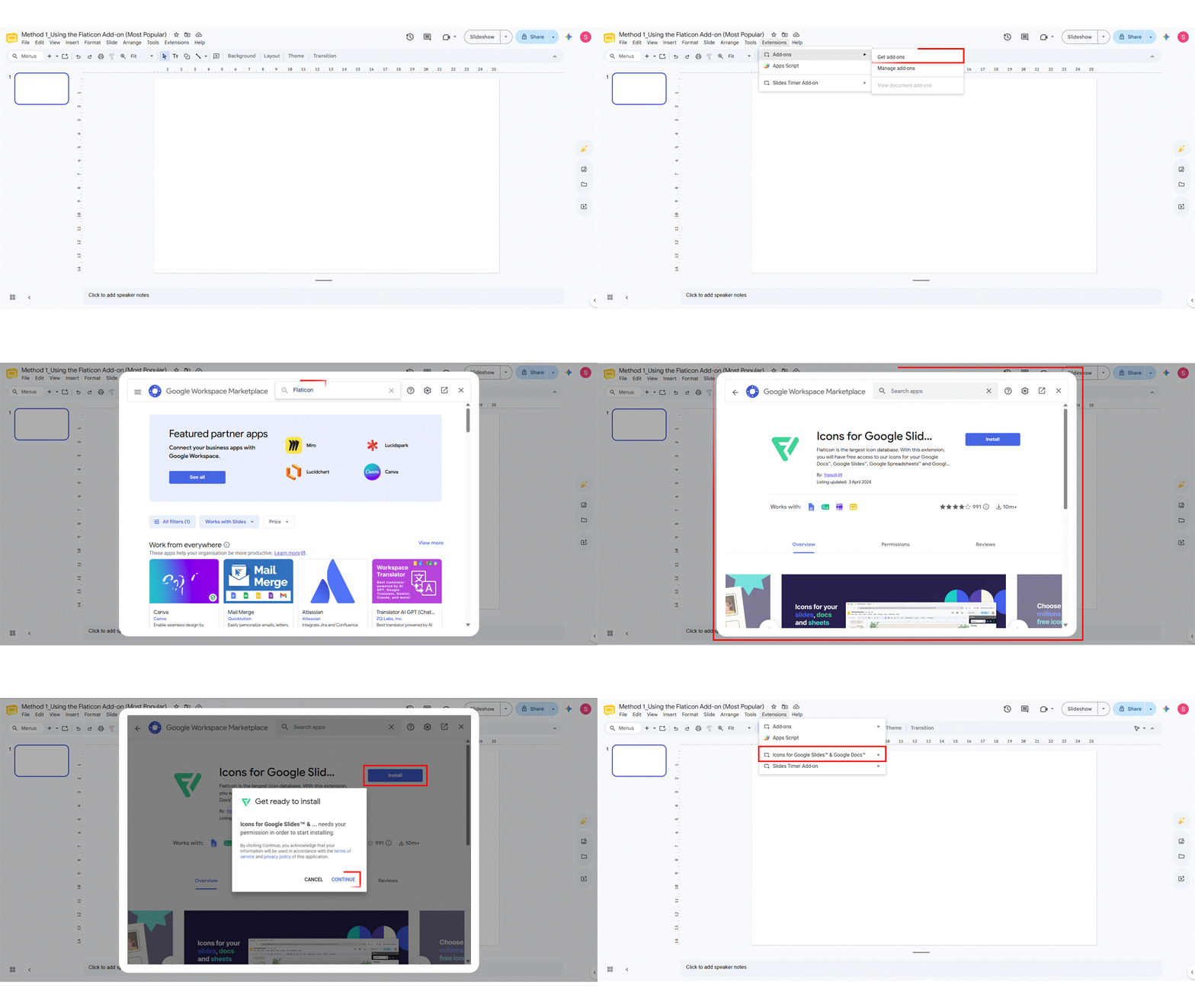
Pro tip: Flaticon also has an icon editor panel within the add-on, where you can change icon color before inserting — useful if you want all icons to match your brand colour.
Note: The free tier of the Flaticon add-on limits how many icons you can insert per day. If you build presentations regularly, a Flaticon Premium plan removes the cap and the attribution requirement.
Method 2: Using Ready-Made Icon Templates
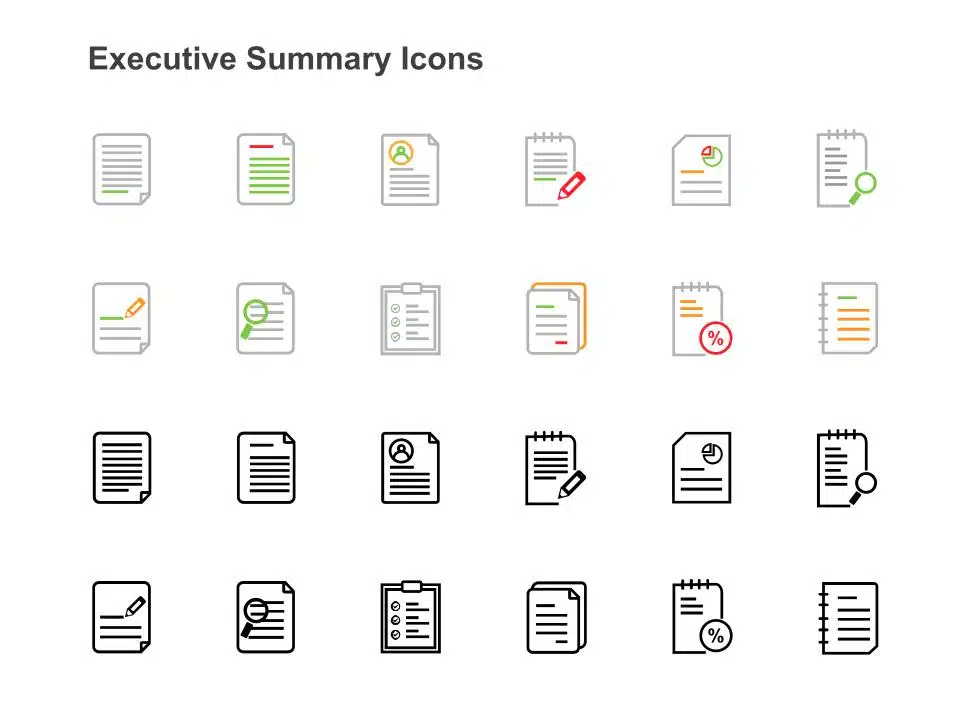
If you want professionally curated icons for Google Slides without searching one by one, pre-designed icon template slides are the fastest route. Many of these templates include free icons for Google Slides that are ready to use right away. You download a template, import the slides into your presentation, and copy-paste the icons you need.
Steps to use icon templates:
- Go to SlideUpLift’s icon templates for Google Slides and download a template (.pptx or Google Slides format) that fits your presentation theme.
- Open your main presentation, then click File > Import slides.
- Select the downloaded template file and choose the slide containing your desired icon.
- Once imported, right-click the icon on the template slide > Copy.
- Navigate to your target slide, right-click > Paste. Resize and reposition as needed.
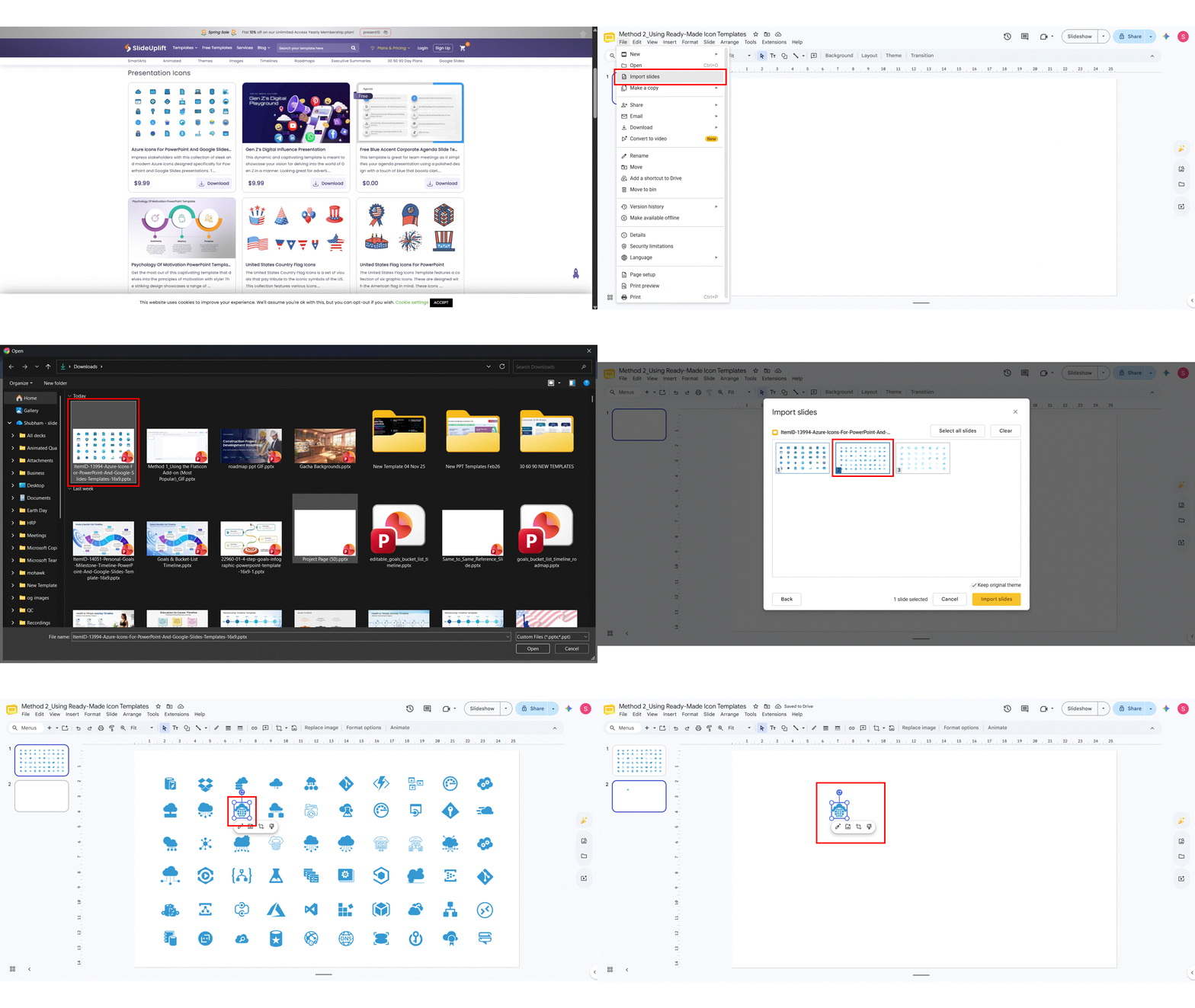
Best for: Business presentations, pitch decks, and any project where design consistency and a polished look matter from the start.
Method 3: Upload from Device, Google Drive, or URL
If you already have icon files saved on your computer, in Google Drive, or hosted online, you can insert them directly as image files — one of the easiest ways to make your Google Slides look good. This method works for PNG and JPG files, and for SVG icons once they are converted to PNG.
- From your device: Go to Insert > Image > Upload from computer. Select the icon file from your hard drive. It lands on your slide as an image that you can resize and reposition freely.
- From Google Drive: Go to Insert > Image > Drive. Browse your folders and select the icon file. This is particularly convenient if your team stores a shared icon library in a Drive folder.
- From a URL: Copy the direct image link of the icon. Go to Insert > Image > By URL. Paste the link and click Insert. Make sure the URL ends in png or jpg for reliable results.
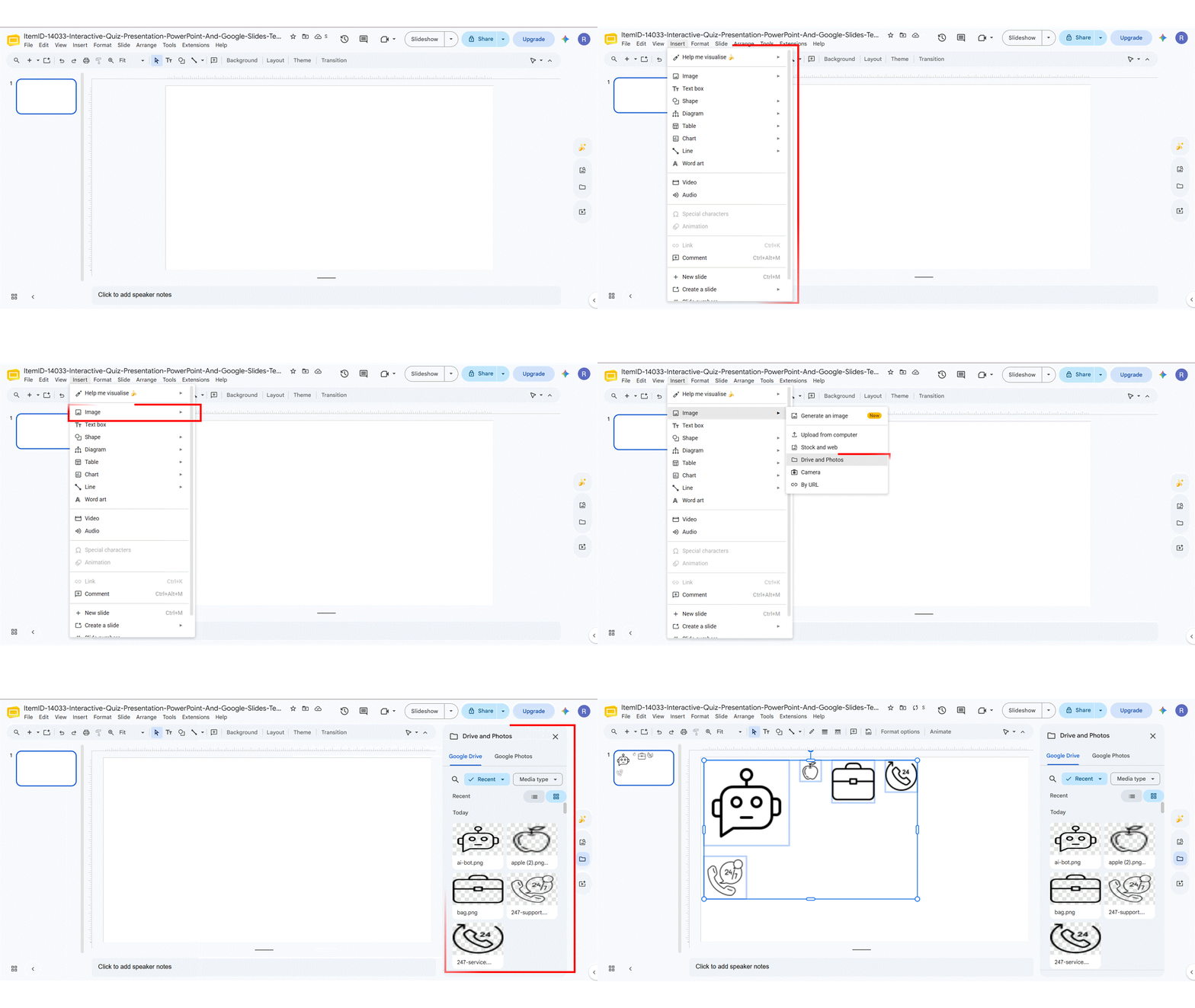
Note: Google Slides does not natively support SVG file uploads. If your icon is in SVG format, convert it to PNG first using a free converter such as CloudConvert, then upload the PNG version.
Method 4: Search the Web Directly from Google Slides
Google Slides has a built-in web image search that lets you find and add Google Slides icons without leaving your presentation. It is the fastest method when you need a single icon quickly and do not want to install any add-on.
Steps:
- Navigate to the slide where you want to add an icon.
- Click Insert > Image > Search the web.
- A search panel opens on the right. Type your icon keyword, for example, “phone icon PNG” or “arrow icon transparent”.
- Browse the results, click the icon you want, then click Insert.
- Resize and reposition the icon on your slide.
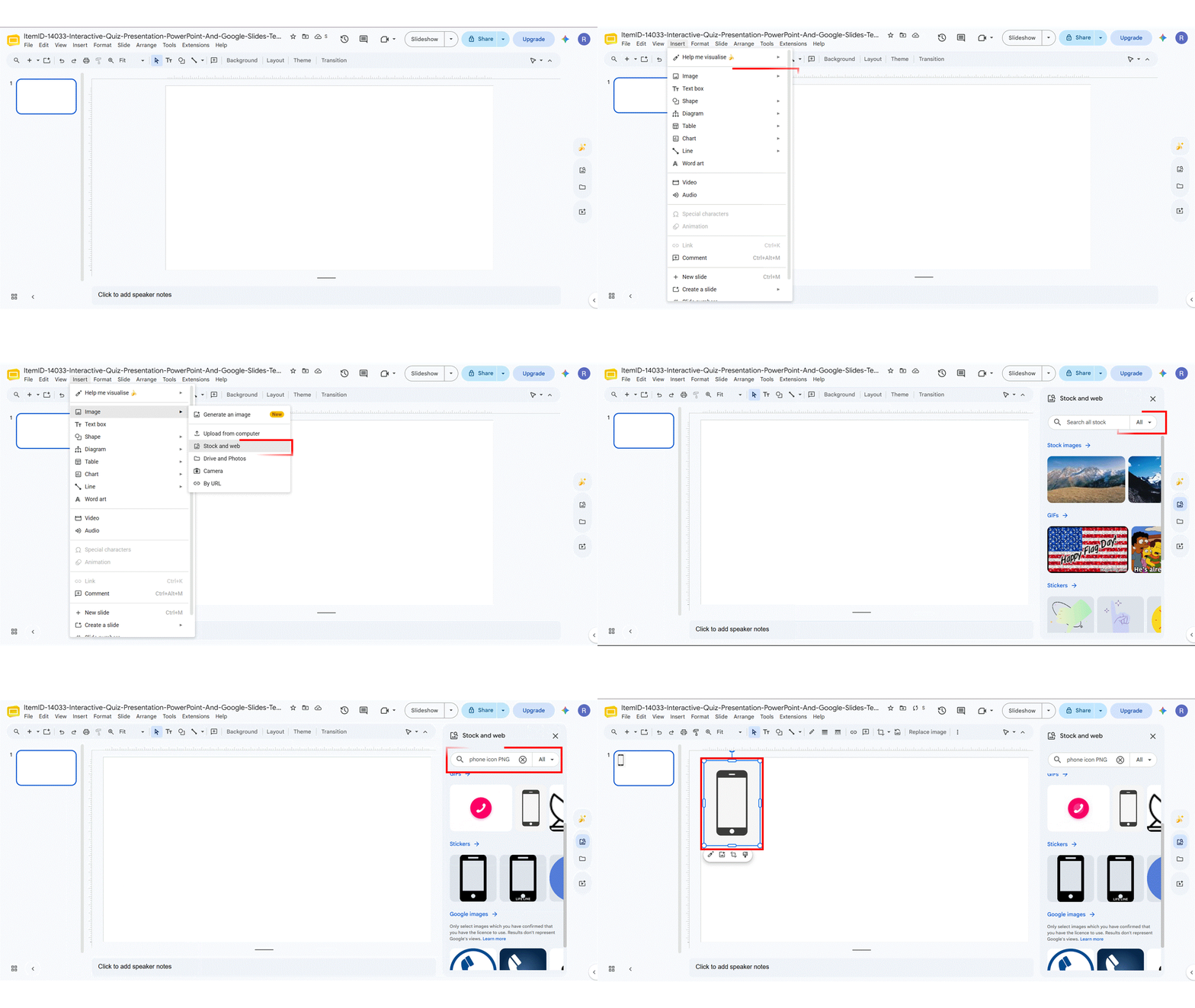
Important: This method pulls images from the general web, so icon style consistency across your presentation is harder to maintain. It works best for one-off additions. For a cohesive deck, use the Flaticon add-on or templates instead.
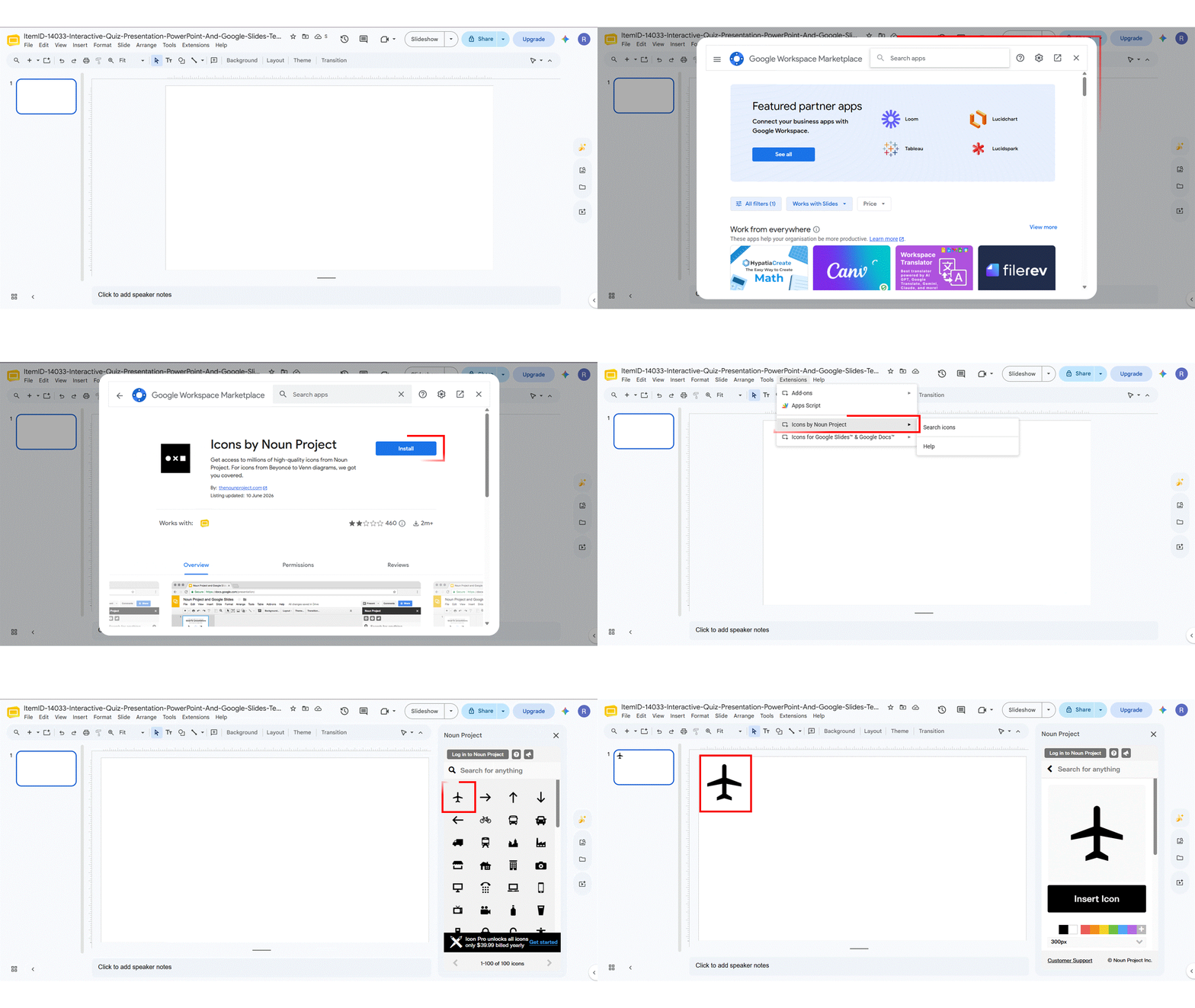
Method 5: Using the Noun Project Add-on
The Noun Project is a curated Google Slides icons library of high-quality, minimal PNG icons. It is especially popular in professional and academic presentations because of its consistent, clean visual style.
- Go to Extensions > Add-ons > Get add-ons and search for “Noun Project”.
- Install the add-on and open it via Extensions > Noun Project.
- Search for an icon in the sidebar panel.
- Click the icon and select Insert. It is added directly to your active slide.
- Resize and reposition as needed.
Attribution note: Free-tier Noun Project icons may require attribution credit to the original designer. If you are using icons in client-facing or commercially distributed presentations, consider a Noun Project Pro subscription for attribution-free use.
How to Customise Icons in Google Slides
Once a Google Slides icon is inserted using any of the methods above, you can adjust it to fit your slide design. Here are the three most common customisations:
Resize an Icon
- Click the icon to select it.
- Drag any corner handle to resize. Hold Shift while dragging to keep the proportions locked.
- For precise dimensions: right-click > Format options > Size & Position and enter exact width and height values.
Change Icon Colour
- Click the icon to select it.
- In the toolbar, click the paint bucket (Fill colour) icon if the icon was inserted as a shape.
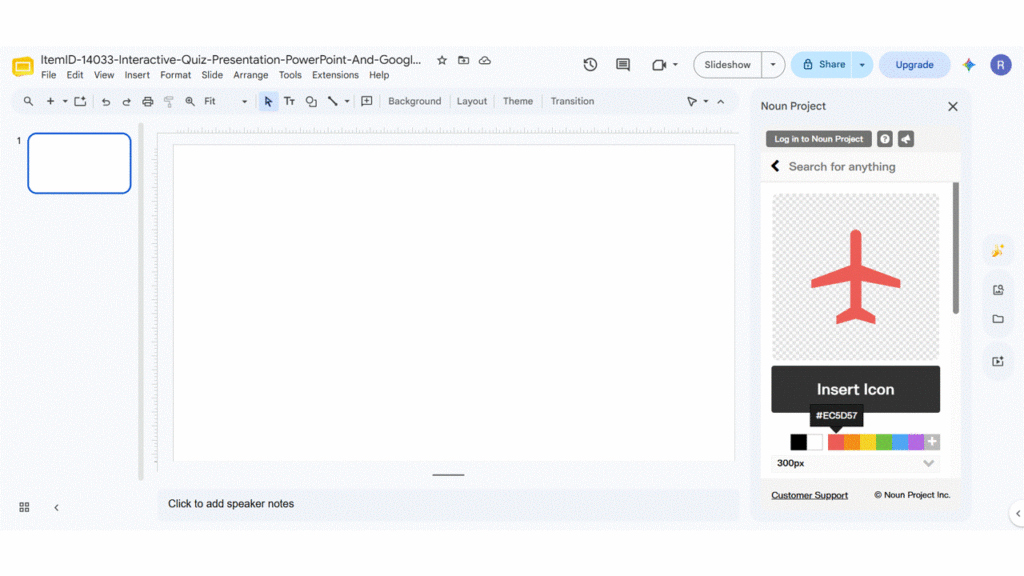
- If it was inserted as a PNG image: right-click > Format options > Recolor, then select a color from the presets or choose a custom option.
- For full color flexibility, use the Flaticon add-on’s built-in color editor before inserting. You can also change text color in Google Slides to keep your labels consistent with your icons and deck palette.
Reposition and Align Icons
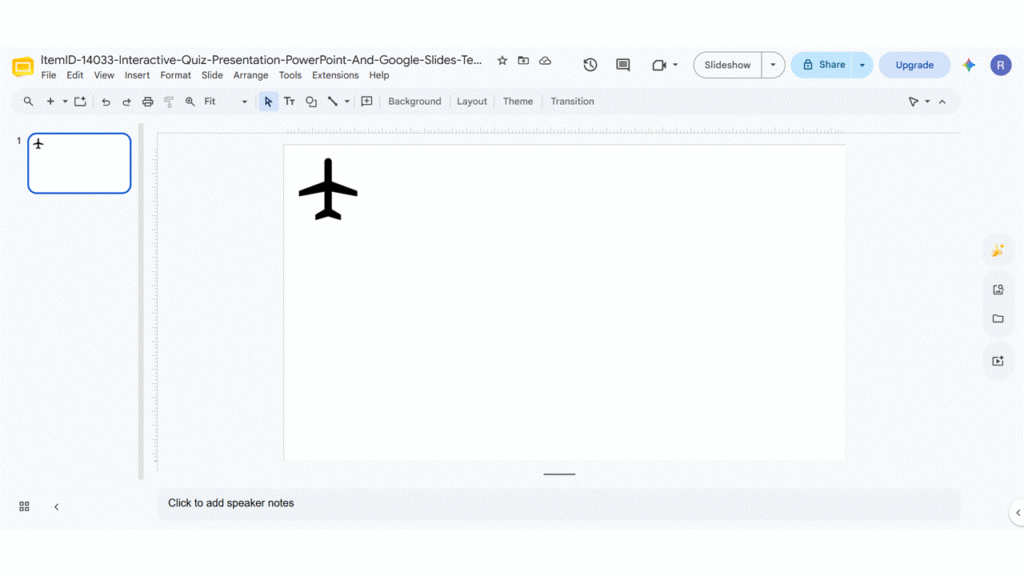
- Click and drag the icon to move it anywhere on the slide.
- Use the Arrange menu > Align to centre, distribute, or snap icons to a grid for clean, consistent placement.
- To layer icons with other elements: Arrange > Order to bring forward or send backward.
Best Types of Icons to Use in Google Slides (by Use Case)
Choosing the right icon can make or break a slide’s clarity — not every icon style works equally well across presentation types. Here is a quick reference guide:
| Icon Type | Best For | Recommended Source |
| Business Icons | Corporate decks, investor pitches, strategy slides | Flaticon, business presentation templates |
| SWOT Icons | SWOT analysis slides, competitive research | SlideUpLift |
| Target & Goal Icons | OKR slides, sales targets, performance reviews | Noun Project, Flaticon |
| People & Team Icons | Org charts, HR presentations, team introductions | Noun Project, Flaticon |
| Communication Icons | Marketing, social media, email campaign slides | Flaticon, web search |
| Finance Icons | Budget slides, financial summaries, revenue reports | Flaticon |
| Calendar & Timeline Icons | Project timelines, roadmaps, and scheduling slides | Noun Project, Flaticon |
| Check Mark Icons | Process checklists, task completions, and audit slides | Flaticon, web search |
Conclusion
Knowing how to insert icons in Google Slides gives you a practical edge in presentation design. Whether you use the Flaticon add-on and its large, searchable icon library, import template slides for a fully curated icon set, or simply search the web from within Google Slides for a quick addition, each method is straightforward once you know where to look.
The most important step after inserting any Google Slides icons is customisation: resize to fit your layout, match color to your slide palette, and position intentionally. A well-placed, colour-matched icon strengthens your message. A randomly sized, off-tone one distracts from it. Start with one method — the Flaticon add-on is the most versatile for regular use — and build from there. Once icons become part of your design workflow, your presentations will look noticeably more professional with very little extra effort. Explore more tips in our full library of Google Slides tutorials.
FAQs
-
Does Google Slides have icons built in?
Google Slides does not have a native icon library. However, you can use Insert > Image > Search the web to find icons instantly, or install add-ons like Flaticon or Noun Project to access thousands of icons for Google Slides without leaving the app.
-
How do I find icons inside Google Slides without leaving the app?
Go to Insert > Image > Search the web. Type your icon name (e.g., “calendar icon”) in the search pane on the right. Browse results, click your preferred icon, then click Insert. It lands directly on your slide — no downloads needed.
-
Can I resize a Google Slides icon after inserting it?
Yes. Click the inserted Google Slides icon to select it, then drag the corner handles to resize. For precise control, right-click > Format options > Size & Position and enter exact dimensions.
-
What are the benefits of icons in Google Slides?
The benefits of icons in Google Slides are simplifying complex information, aiding quick comprehension, and facilitating efficient communication. In visual effects, icons contribute to a streamlined and aesthetically pleasing design, guiding the viewer’s attention and creating a cohesive visual narrative.
-
Are there free icons for Google Slides?
Yes. Flaticon, Noun Project (free tier), and Google’s built-in web search all provide free icons for Google Slides. Template providers like SlideUpLift also offer free icon template collections. Always check the licence before using icons in commercial presentations.
-
What is the easiest way to add icons without any add-ons?
Use Insert > Image > Search the web. Type your icon keyword, select from the results, and click Insert. No add-on installation or file downloads required — it works in any Google account.
-
How do I import SVG icons into Google Slides?
Google Slides does not natively support SVG files. Convert your SVG to PNG first using a free tool like CloudConvert or Inkscape, then go to Insert > Image > Upload from computer to add it to your slide.
-
Are there copyright rules I should follow when using icons?
Yes. Always check the licence of each icon source. Noun Project free-tier icons may require designer attribution. Flaticon free icons require attribution under their free license; a Flaticon Premium plan removes that requirement. Premium plans on both platforms typically allow commercial use without attribution. When in doubt, read the source’s licence page before use.
-
Why can't I see an Insert Icon option in my Google Slides?
Google Slides does not have a dedicated native icon button. You insert icons as images via Insert > Image, or through add-ons like Flaticon or Noun Project accessed via Extensions > Add-ons.
Table Of Content



Related posts from the same category

1 Aug, 2024 | SlideUpLift
How To Add A GIF In Google Slides (Using 3 Methods)
GIFs add a visual aid to convey information in your presentations. These short animations can save time by expressing your point in a visually efficient way. Adding GIFs is one

14 Jan, 2026 | SlideUpLift
How to Add a Timer to Google Slides: Step-by-Step Guide
This blog walks you through how to add a timer to Google Slides using simple, practical methods that actually work. It covers Auto-play timing, visible countdown timers, videos, and add-ons,

9 Nov, 2021 | SlideUpLift
Learn How To Apply Filters To The Picture In Google Slides | Google Slides Tutorial
Google Slides is an excellent tool for creating a professional-looking presentation. Images are the most significant item you can incorporate in your presentation to provide visual attention. Using incorrect images

29 Nov, 2022 | SlideUpLift
How To Make An Image Transparent In Google Slides
The use of images makes your presentation very compelling. They help make a massive positive impact on your audience. According to one study by Forbes, 65% of us are visual

14 Apr, 2026 | SlideUpLift
How to Add a Video to Google Slides Step by Step (2026)
Embedding a video in your presentation takes just a few clicks through the Insert menu — but getting it to actually play for your audience requires knowing a few rules

6 Dec, 2023 | SlideUpLift
How to Flip or Mirror an Image in Google Slides?
Visuals are crucial in conveying messages effectively while presenting. They offer a variety of features to enhance your slides, including the ability to flip or mirror images. Flipping or rotating

1 Oct, 2025 | SlideUpLift
Insert Calendar In PowerPoint And Google Slides: Quick Guide For Smarter Planning.
Do you want your presentations to be more organized, attractive, and professional? Learning how to add a calendar in PowerPoint or Google Slides will take boring schedules and deadlines and

11 Apr, 2025 | SlideUpLift
How to Add Audio to Google Slides: (Step-by-Step Guide)
Benefits of Adding Audio to Google Slides In today’s digital world, it is tough to hold your audience’s attention. Simply using text and images may not make it interesting enough.

24 Jan, 2024 | SlideUpLift
How To Insert A Fraction in Google Slides?
Google Slides is not just a versatile tool for conveying ideas and strategies but also numbers and complex data. Some numbers and data are part of advanced equations, including fractions.

19 Mar, 2024 | SlideUpLift
How To Insert An Equation In Google Slides?
Google Slides is a fantastic online professional software for professionals across industries. If you are new to it, you must be wondering how to insert an equation in Google Slides.