

 Flat 4


How to Do Hanging Indent on PowerPoint: 5 Easy Methods (Windows & Mac)
Whether you’re formatting an APA reference list on a slide, polishing multi-line bullet points, or creating a clean agenda, knowing how to do a hanging indent in PowerPoint is one of the most useful — and most misunderstood — formatting skills in your presentation toolkit. Yet most tutorials skim over the details, leaving you with the wrong shortcut, no Mac instructions, and no idea what to do when it isn’t working.
This guide fixes all of that. You’ll get five complete, tested methods — covering Windows, Mac, and the web version — plus an APA/MLA formatting guide, a troubleshooting section, and clear answers to every common question. If you’ve ever tried to format a reference slide and walked away more confused than when you started, you’re in the right place. Let’s start from the beginning.
Quick Answer
A hanging indent in PowerPoint keeps the first line aligned to the left margin while moving all following lines slightly to the right. Here’s the fastest way to create a hanging indent in PowerPoint :
- Select your paragraph.
- Go to Home → Paragraph dialog launcher.
- Under Special, choose Hanging.
- Set the indent value to 0.5 inches.
- Click OK.
This method works on Windows, Mac, and PowerPoint Online.
What Is a Hanging Indent in PowerPoint?
Definition and How It Looks
A hanging indent in PowerPoint is a paragraph-level formatting style in which the first line of a paragraph starts at the left margin, while every subsequent line is indented to the right of the first line. This creates the visual effect of the first line “hanging” further to the left than the rest of the text. Understanding hanging indents in PowerPoint — and when to use them — is essential for anyone putting together academic or professional presentations.
Here is the difference at a glance:
| Without Hanging Indent | With Hanging Indent (0.5″) |
| Smith, J. (2023). The complete guide to formatting. Academic Press. | Smith, J. (2023). The complete guide to formatting. Academic Press. |
Hanging Indent vs. Standard Indent — Key Difference
A standard (first-line) indent moves only the first line to the right. A hanging indent does the opposite: the first line stays at the margin, and every other line moves right. Both are set in the same Paragraph dialog box under the Special dropdown — the distinction is simply the direction.
When Should You Use a Hanging Indent in PowerPoint?
Knowing when to apply a hanging indentation PowerPoint style is just as important as knowing how. Hanging indents are the right choice when:
- You are listing APA or MLA citations on a reference or works-cited slide
- You have multi-line bullet points and want the text to align cleanly after the bullet symbol
- You are building an agenda slide with long line items
- You are formatting an indented block quotation
- You need a definition list or glossary layout in your presentation
Before You Start — Setting Up Your Workspace
How to Enable the Ruler in PowerPoint (Windows and Mac)
Before using the ruler method (Method 2), make sure the ruler is visible:
- Windows: Click the View tab → check the Ruler checkbox in the Show group.
- Mac: Click View in the menu bar → check Ruler.
- PowerPoint Online: The ruler is available under the View tab as well.
Understanding the Three Ruler Markers
The ruler inside a selected PowerPoint text box has three draggable markers. Understanding what each one does is essential before you touch them:
| Marker | What It Controls |
| Top triangle (pointing down) | First-line indent — moves only the first line left or right |
| Bottom triangle (pointing up) | Hanging indent marker — moves all lines except the first |
| Rectangle (below triangles) | Left indent — moves the entire paragraph block left or right |
How to Open the Paragraph Dialog Box
Almost every method in this guide uses the Paragraph dialog box. Here’s how to open it on each platform:
- Windows: Home tab → in the Paragraph group, click the small diagonal arrow (launcher) in the bottom-right corner.
- Mac: Home tab → click the Paragraph launcher arrow, or go to Format → Paragraph.
- Right-click shortcut (Windows & Mac): Right-click selected text → Paragraph.
Method 1 — Using the Paragraph Dialog Box (Most Precise)
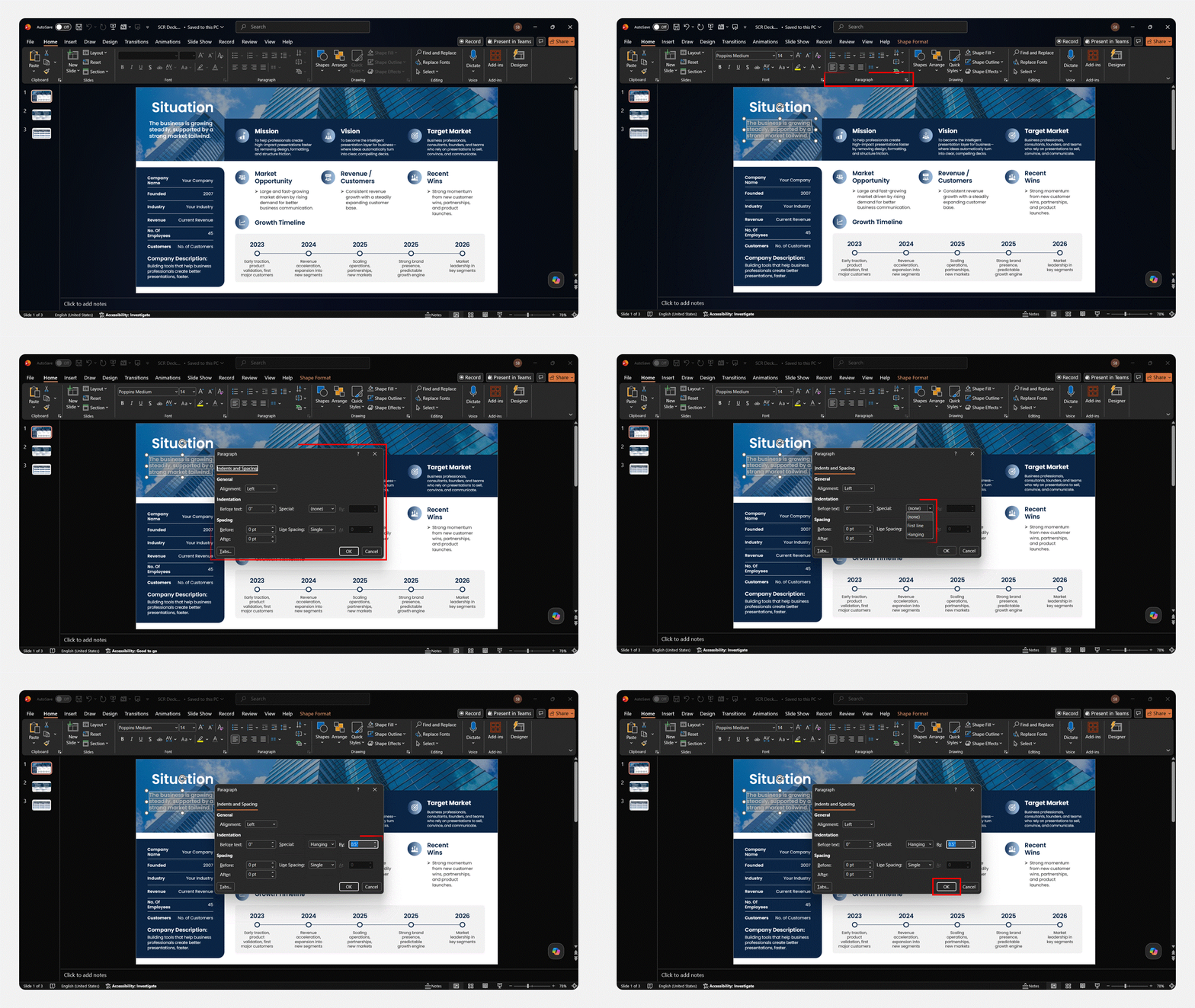
This is the recommended method for anyone learning how to add a hanging indent in PowerPoint. It gives you exact control over the indent measurement, works identically on Windows and Mac, and is the approach style guides most commonly reference.
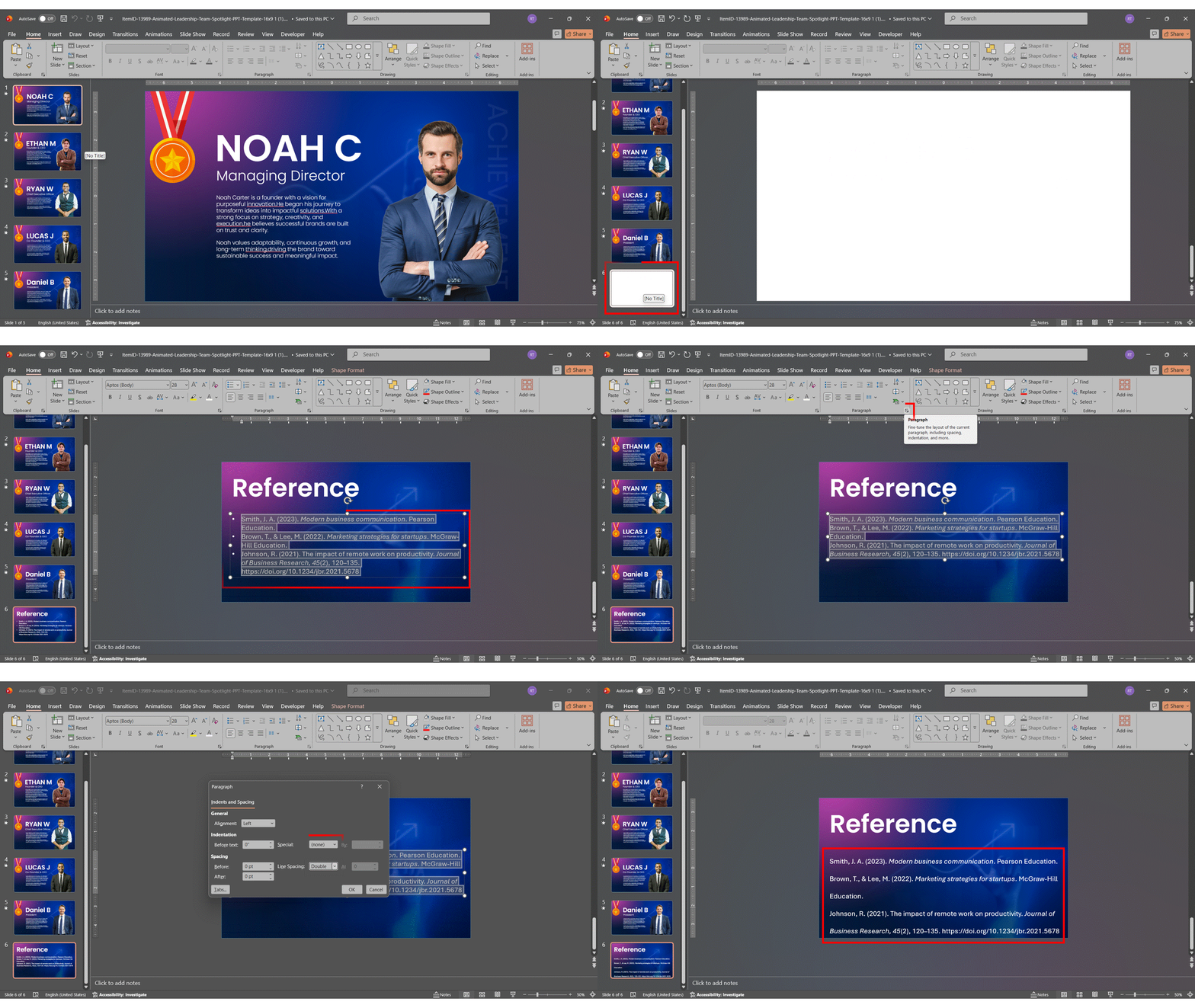
- Step 1: Select the text you want to format. Click inside your text box and either highlight specific paragraphs or press Ctrl+A (Cmd+A on Mac) to select all text in the box.
- Step 2: Open the Paragraph dialog box. On the Home tab, locate the Paragraph group and click the small diagonal arrow in its bottom-right corner. Alternatively, right-click the selected text and choose Paragraph.
- Step 3: In the Indentation section, find the Special dropdown. By default, it will say (none).
- Step 4: Click the Special dropdown and select Hanging.
- Step 5: Set the By value to 0.5 inches (1.27 cm). Note: Also check that the “Before text” field in the Indentation section is set to 0.5″ (the same value). PowerPoint requires both fields to match for the hanging indent to display correctly.
- Step 6: Click OK. Your paragraph will immediately display the hanging indent.
Windows vs. Mac — Any Differences in This Method?
The steps are identical on both platforms. The only visual difference is that on Mac, the Paragraph dialog may open as a floating panel rather than a modal dialog. The field names (Special, By, Indentation) are the same. Both platforms support measurements in inches or centimetres — check File → Options → Advanced → Display if you need to switch units.
Method 2 — Using the Ruler (Fastest Visual Method)
If you prefer a hands-on, drag-to-adjust approach, learning how to make a hanging indent in PowerPoint via the ruler is the fastest option once you know which marker does what.
- Step 1: Make sure the ruler is visible (View tab → check Ruler).
- Step 2: Click inside the text box containing the paragraph you want to format. The ruler must be active within that text box.
- Step 3: Select the paragraph(s) you want to indent.
- Step 4: Drag the bottom triangle (the upward-pointing one) to the right — to the 0.5-inch mark for APA, or wherever you need it. This sets the indent for all lines after the first.
- Step 5: Now drag the top triangle (the downward-pointing one) back to the 0-inch mark (the left margin). This keeps the first line at the margin.
- Step 6: The rectangle will move with the bottom triangle. If you need to shift the entire paragraph block, drag the rectangle.
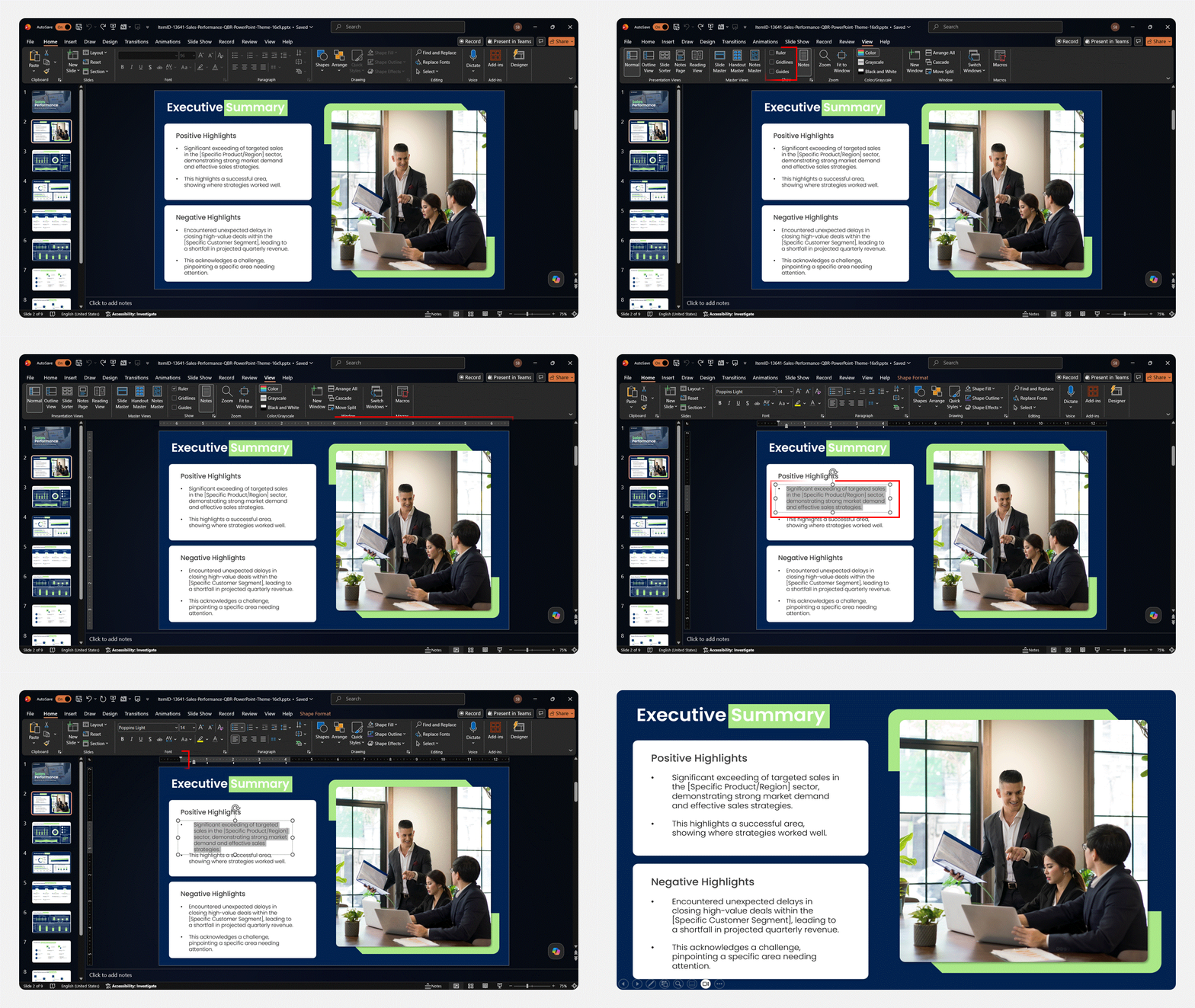
APA ruler tip: For APA format, drag the bottom triangle precisely to the 0.5″ mark. The ruler has small tick marks at every 0.125″ — count four ticks from the left edge to reach 0.5″.
Method 3 — Keyboard Shortcut (Quickest for Power Users)
For anyone who prefers speed, here is how to create a hanging indent in PowerPoint using keyboard shortcuts.
The Correct Shortcuts
| Platform | Shortcut |
| Windows | Ctrl + Shift + T → Opens the Paragraph dialog (set Special to Hanging) |
| Mac | Cmd + Shift + T → Opens the Paragraph dialog (set Special to Hanging) |
- Step 1: Select the text you want to format.
- Step 2: Press Ctrl+Shift+T (Windows) or Cmd+Shift+T (Mac) to open the Paragraph dialog box.
- Step 3: Under Special, choose Hanging.
- Step 4: Set the By value (0.5″ for APA) and click OK.
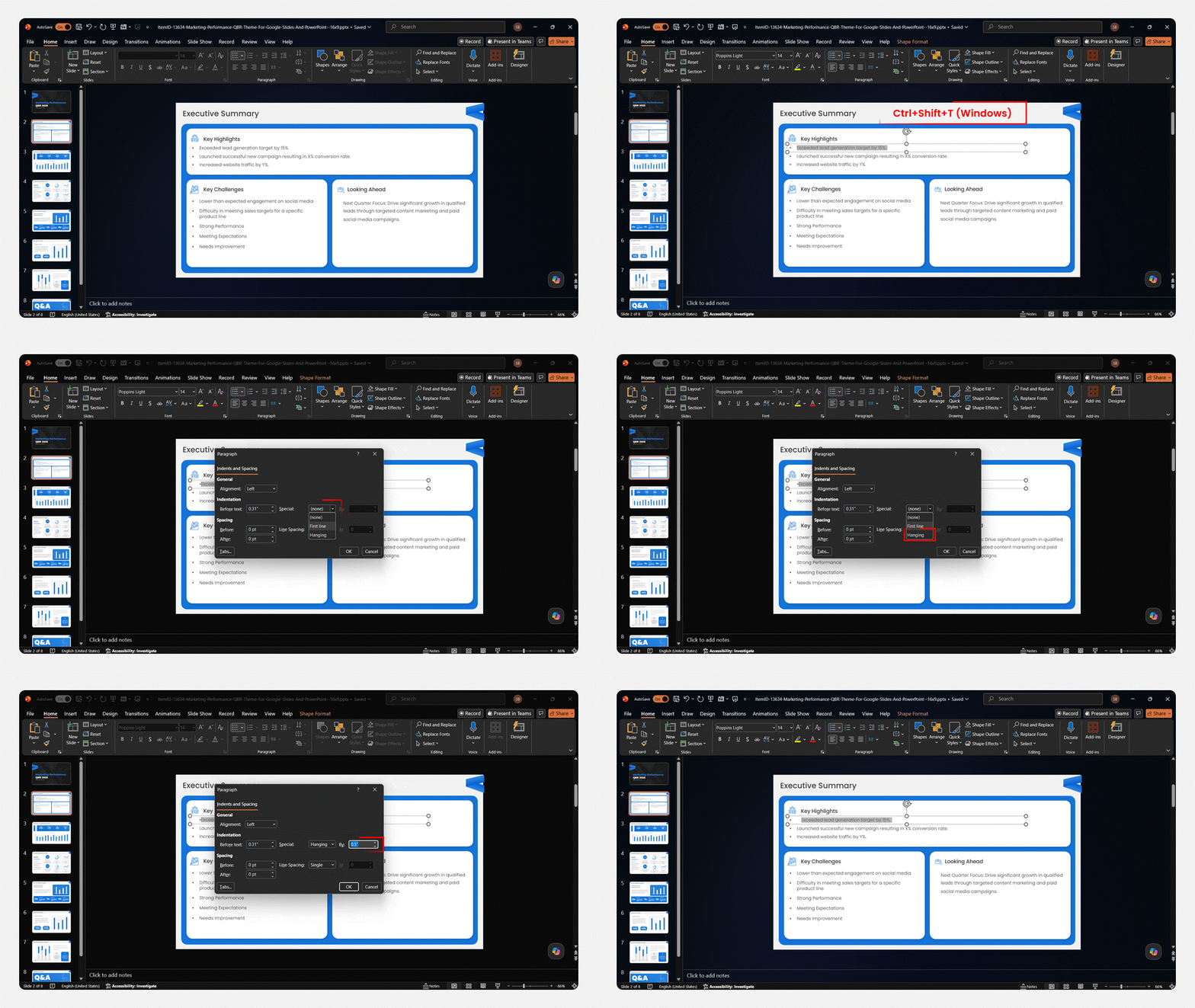
Common mistake: Ctrl+T does NOT create a hanging indent. Many tutorials incorrectly list Ctrl+T as the shortcut for a hanging indent on PowerPoint. In PowerPoint, Ctrl+T opens the Font dialog box — it has nothing to do with indents. The correct shortcut to open the Paragraph dialog is Ctrl+Shift+T. If you’ve been using Ctrl+T and wondering why it isn’t working, that’s why.
Method 4 — Using Format Painter (Best for Multiple Text Boxes)
What Format Painter Does and Why It Helps Here
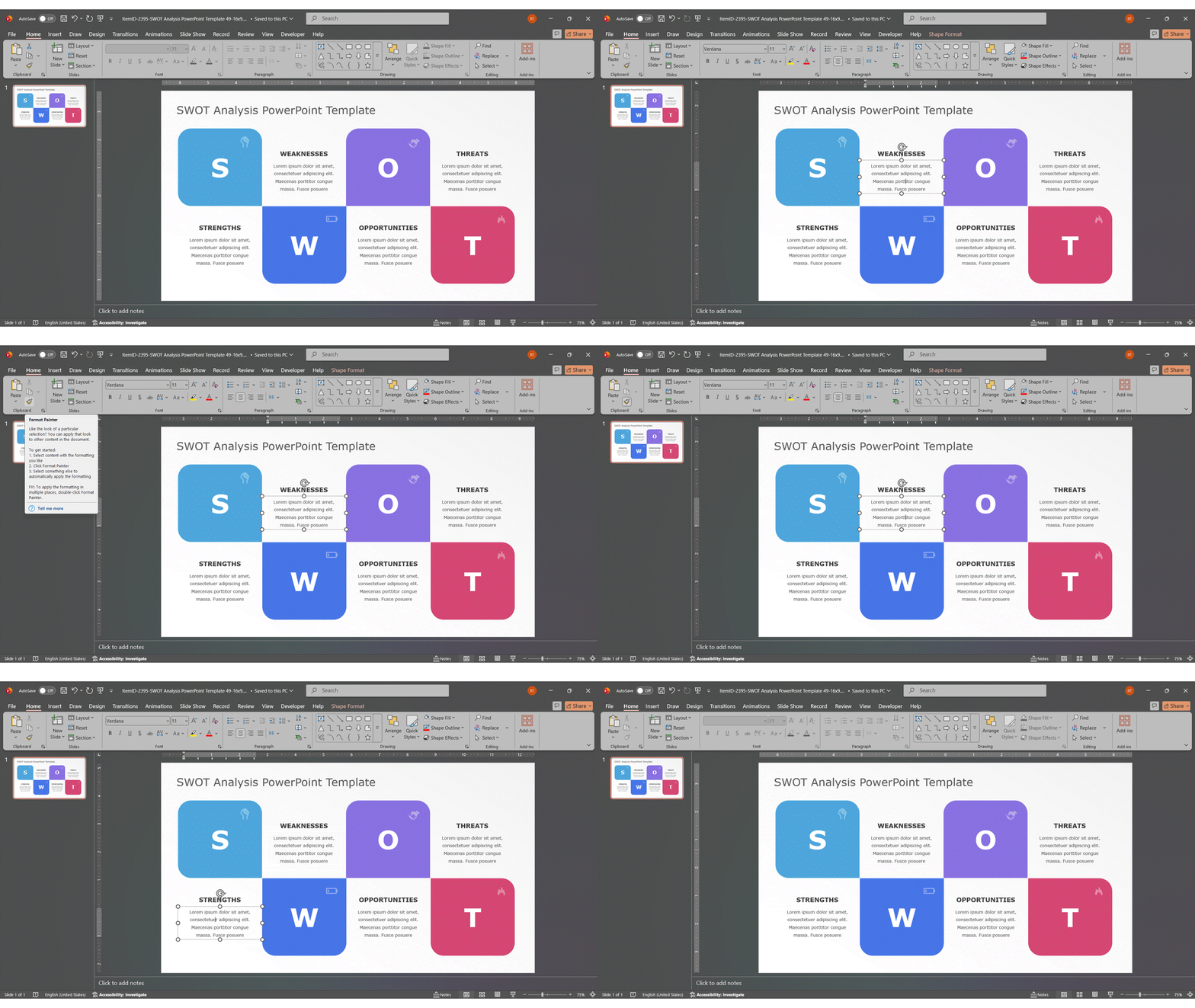
Format Painter copies all formatting from one piece of text — including paragraph-level settings like hanging indents — and applies it to another selection. This makes it the most efficient approach when you need to apply a hanging indent across dozens of slides at once, without reopening the Paragraph dialog each time.
- Step 1: Apply a hanging indent to one paragraph using Method 1 or Method 2.
- Step 2: Click anywhere inside that formatted paragraph to place your cursor there.
- Step 3: On the Home tab, click the Format Painter button (the paintbrush icon in the Clipboard group). Your cursor will change to a paintbrush.
- Step 4: Click on the paragraph in another text box that you want to apply the formatting to. The hanging indent will be instantly copied.
- Step 5: Repeat for other paragraphs as needed.
Applying Format Painter to Multiple Paragraphs
By default, Format Painter turns off after one use. To apply the same formatting to several paragraphs or text boxes in sequence, double-click the Format Painter button instead of single-clicking. It will stay active until you press Escape or click the button again. This is a major time-saver on slides with many citation entries.
Method 5 — Using the Slide Master (Apply to All Slides at Once)
When to Use the Slide Master for Hanging Indents
The Slide Master controls the default formatting for all slides using a given layout. If every content slide in your presentation needs a PowerPoint hanging indent — for example, a research deck where every slide carries citation text — setting it in the Slide Master spares you from reformatting each slide individually.
- Step 1: Go to View → Slide Master. PowerPoint switches to Slide Master view, showing the master slide at the top and individual layout slides below.
- Step 2: In the left panel, click the layout that your content slides use (typically “Title and Content” or “Blank”).
- Step 3: Click inside the text content placeholder on the layout slide.
- Step 4: Select the placeholder text (Ctrl+A / Cmd+A).
- Step 5: Open the Paragraph dialog box (Home → Paragraph launcher) and set Special to Hanging with your preferred value.
- Step 6: Close Slide Master: View → Close Master View.
- Step 7: Return to Normal view and verify that the hanging indent appears on your content slides. If you want to test your formatting without showing a slide to your audience, you can also hide individual slides in PowerPoint while keeping them in the deck.

The process is similar in Google Slides— see our full guide to hanging indents in Google Slides.
Pros and Cons of Using Slide Master
| Pros | Cons |
| Applies formatting globally — one change affects all slides using that layout | Applies to all slides on that layout, even ones where you don’t want the indent |
| Great for long presentations with consistent formatting needs | Changes in the Slide Master override individual slide formatting |
| Saves significant time compared to formatting each text box manually | Requires knowing which layout your slides use — can be confusing in complex decks |
How to Do a Hanging Indent in PowerPoint Online (Web Version)
Does PowerPoint Online Support Hanging Indents?
Yes — PowerPoint Online (the browser-based version at office.com or microsoft365.com) does support hanging indents, but with slightly fewer options than the desktop app. The Paragraph dialog is available, but some advanced indent controls may look different.
Step-by-Step for PowerPoint Online
- Step 1: Open your presentation in PowerPoint Online and click on a text box.
- Step 2: Select the paragraph you want to format.
- Step 3: Click the Home tab in the ribbon.
- Step 4: In the Paragraph group, click the small dialog launcher arrow (bottom-right of the group).
- Step 5: In the Paragraph dialog, under Indentation, find the Special dropdown and select Hanging.
- Step 6: Set the By value to your preferred measurement (0.5″ for APA).
- Step 7: Click OK.

Limitations Compared to the Desktop Version
As of the time of writing, PowerPoint Online does not support dragging ruler markers to set indents — the Paragraph dialog is the only method available in the browser. The Slide Master feature is also limited in the Online version, so for complex formatting workflows, the desktop app is recommended.
How to Do a Hanging Indent for APA and MLA Citations
APA Format Requirements
The American Psychological Association (APA) 7th edition requires a hanging indent of exactly 0.5 inches (1.27 cm) for all entries in a reference list. This applies when you are placing a reference slide in a PowerPoint presentation.
MLA Format Requirements
MLA (Modern Language Association) format also requires a hanging indent for Works Cited entries, at an indent of 0.5 inches. The first line of each citation begins at the left margin, and subsequent lines are indented 0.5 inches — identical to the APA measurement.
Step-by-Step: Formatting a Reference List Slide in APA Style
- Step 1: Create a new slide titled “References.”
- Step 2: Insert a text box and type or paste your citations. If you need to add source references below your slide content instead, see our guide on how to add footnotes in PowerPoint.
- Step 3: Select all citation text (Ctrl+A or Cmd+A).
- Step 4: Remove any bullet points: Home tab → Bullets dropdown → click the active bullet style to turn it off.
- Step 5: Open the Paragraph dialog box (Home → Paragraph launcher).
- Step 6: Set line spacing to Double (or 2.0) under Line Spacing if APA double-spacing is required.
- Step 7: Under Indentation → Special, select Hanging.
- Step 8: Set the By field to 0.5″ (or 1.27 cm).
- Step 9: Click OK. Each citation entry will now display with APA-correct hanging indent formatting.
Do You Need Double-Spacing Too?
In formal APA documents, yes — reference lists use double-spacing between and within entries. In a PowerPoint presentation, this is a judgment call. Dense slides can be hard to read, so many instructors accept 1.5x or single spacing on slides as long as the hanging indent is correct. Always check with your instructor or style guide if you’re unsure.
Quick Tip: Remove Bullet Points Before Applying a Hanging Indent
This is the most common stumbling block for students. If your text box still has bullet formatting active, the hanging indent PowerPoint setting will fight with the bullet’s own indent values, and the result will look wrong. Always remove bullets first (Home → Bullets → click to deselect), then apply the hanging indent through the Paragraph dialog.
How to Remove a Hanging Indent in PowerPoint
Removing a hanging indent is the exact reverse of adding one:
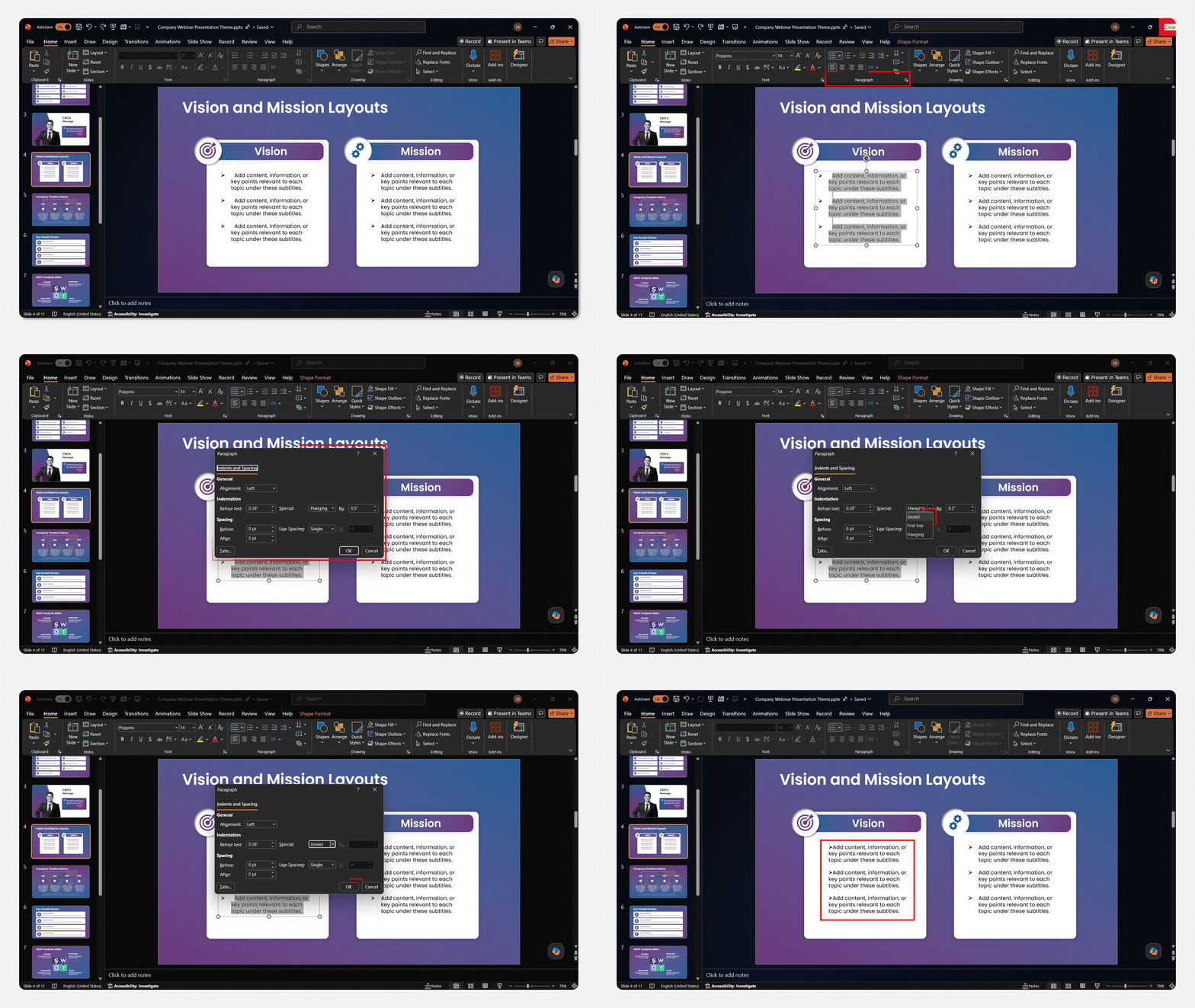
- Step 1: Select the paragraph(s) with the hanging indent you want to remove.
- Step 2: Open the Paragraph dialog box (Home → Paragraph launcher, or right-click → Paragraph).
- Step 3: Under Indentation → Special, change the dropdown from Hanging to (none).
- Step 4: Make sure the Before Text (or Left) field is set to 0.
- Step 5: Click OK. The paragraph returns to standard formatting.
Shortcut to Remove a Hanging Indent Quickly
If you just want to reset all paragraph formatting quickly, select the text and press Ctrl+Q (Windows) or Cmd+Q (Mac). This removes paragraph-level formatting and resets the text to the default paragraph style. Note that this also removes any custom line spacing or alignment you may have set, so use it carefully.
Hanging Indent Not Working? How to Fix Common Problems
One of the most frequently searched questions is why a hanging indent does not work in PowerPoint — and there are several distinct causes, each with a clean fix.
Why does the whole paragraph move instead of creating a hang?
- Cause: You dragged the rectangle on the ruler instead of the bottom triangle, which moves the entire paragraph block rather than just the continuation lines.
- Fix: Open the Paragraph dialog box instead. Manually set Special to Hanging and the By value to 0.5″. This gives you precise control without the risk of accidentally moving the wrong ruler element.
- Additional fix: If the Paragraph dialog approach still produces unexpected results, check that the “Before text” value in the Indentation section matches your “Hanging By” value. Both must be set to the same measurement (e.g., 0.5″) for the indent to render as expected.
Why do bullet points interfere with my hanging indent?
- Cause: Your text box still has active bullet formatting. Bullet points have their own indent settings built in, and they conflict with custom paragraph indentation.
- Fix: Select the text, turn off bullets (Home → Bullets → click the active style to deselect), then apply your hanging indent through the Paragraph dialog. If the indent still looks off, open the Paragraph dialog and manually set the Before Text field back to 0 before adding the hanging indent.
Why is my hanging indent invisible after pasting text?
- Cause: When you paste text from another source (a Word document, a website, a PDF), it often brings invisible formatting along with it. This hidden formatting can override the hanging indent you apply.
- Fix: Before applying the hanging indent, select all the pasted text and click Home → Clear All Formatting (the eraser icon in the Font group). This strips all hidden formatting. Then reapply your font choices and hanging indent from scratch.
Why won’t my ruler markers drag to set the indent?
- Cause: You are trying to drag the ruler without first clicking inside the text box. The ruler only activates for the currently selected text box.
- Fix: Click directly inside the text box first — you should see a cursor blinking in the text. Then select the paragraph(s) you want to format. Only now will the ruler markers respond correctly to dragging.
Why does my hanging indent look different in Slide Show mode?
- Cause: Screen resolution and display scaling can cause very slight visual shifts in text rendering between edit view and Slide Show mode, especially on lower-resolution displays or when projecting.
- Fix: This is usually a display rendering issue, not a formatting error. The indent is correctly set; it’s the rendering that shifts slightly. Try nudging the indent value by 0.05″ in either direction and test again in Slide Show view.
Pro Tips for Using Hanging Indents Effectively
Keep Indent Amounts Consistent Across All Slides
Inconsistent indent measurements — 0.4″ on one slide, 0.5″ on another — are immediately noticeable and make a presentation look sloppy. Once you’ve learned how to do hanging indent in PowerPoint, always use the Paragraph dialog (not the ruler) to set exact values, and note the measurement you used so you can match it on future slides.
Don’t Overuse Hanging Indents — When They Hurt Readability
Hanging indents are a tool for structured lists and citations. Applying them to body text, narrative paragraphs, or short single-line bullets adds visual noise without any structural benefit. Reserve hanging indents for situations where you genuinely have multi-line text that needs the visual separation of the hanging first line.
Combine with Proper Line Spacing for a Professional Result
A hanging indent paired with tight single-spacing often looks cramped. For academic citation slides, use 1.5x or double line spacing alongside the 0.5″ hanging indent. For general slides, 1.15x to 1.3x line spacing complements the hanging indent PowerPoint setting well. Both are set in the same Paragraph dialog box. For other ways to make your slides more presentation-ready, check out our guide on adding annotations in PowerPoint.
How Hanging Indents in PowerPoint Differ from Word
In Microsoft Word, hanging indents can be applied across the entire document using styles, and they are preserved perfectly when exporting to PDF. In PowerPoint, they are applied per text box and per paragraph — there is no global document-level indent style. The Slide Master is the closest PowerPoint equivalent to Word’s style-based approach. Learning how to make hanging indent in PowerPoint is slightly different from Word, but once you know the Paragraph dialog, the core logic is the same. For Google Slides text formatting tips, see our article on how to curve text in Google Slides.
Conclusion
For most users, the Paragraph dialog box (Method 1) is the most reliable path — it works identically on Windows, Mac, and the Online version, giving you exact control over the indent measurement. Whether you’ve been wondering how to do hanging indent on PowerPoint for the first time, or you’re looking for a faster workflow, one of the five methods above will fit your situation. And for anyone arriving here after searching how to do a hanging indent on PowerPoint for a reference or works-cited slide, Method 1 paired with the APA tip below is all you need.
Power users will appreciate the keyboard shortcut (Ctrl+Shift+T, not Ctrl+T), and anyone working across many slides will find Format Painter or the Slide Master approach invaluable.
For APA and MLA reference slides, remember the two-step process: turn off bullet points first, then apply a 0.5″ hanging indent. That single detail resolves the majority of formatting problems students and academics run into.If your formatting still isn’t behaving, the troubleshooting section above covers every common cause. For further reading, for text formatting on that platform, our guide on how to wrap text in Google Slides covers similar concepts.
FAQs
-
Why is my hanging indent not working in PowerPoint?
The most common causes are: (1) bullet formatting is still active on the text — turn off bullets first; (2) you are dragging the wrong ruler marker (the rectangle moves the whole paragraph; use the bottom triangle for hanging); or (3) you pasted text with hidden formatting that overrides your settings — clear formatting first, then reapply the indent.
-
What is the correct hanging indent measurement for APA format in PowerPoint?
APA 7th edition requires a hanging indent of exactly 0.5 inches (1.27 cm). In the Paragraph dialog box, set Special to Hanging and the By field to 0.5″. This is the same measurement used in Microsoft Word APA formatting.
-
Can I apply a hanging indent to bullet points in PowerPoint?
Technically, yes, but it requires removing the bullet formatting first. Bullet points have their own built-in indent settings that conflict with the Paragraph dialog indent controls. Select your text, turn off bullets via Home → Bullets, then apply the hanging indent. If you want the visual look of bullets with a hanging indent, consider using a custom text character (like •) typed manually, followed by a tab, rather than the built-in bullet system.
-
How do I apply hanging indents to all slides at once?
Use the Slide Master (Method 5 above). Go to View → Slide Master, select the layout your slides use, apply the hanging indent to the text placeholder in that layout, and close Slide Master view. Every slide using that layout will inherit the formatting. This is the only way to apply the change globally across an entire presentation.
-
How to get hanging indent on PowerPoint — is there a quick way?
Yes. The Paragraph dialog is the most reliable quick method: go to Home → Paragraph launcher → Special → Hanging → set 0.5″ → OK. For repeat use across multiple slides, Format Painter (Method 4) is even faster once you have one paragraph formatted correctly.
-
Does PowerPoint Online support hanging indents?
Yes. PowerPoint Online supports hanging indents through the Paragraph dialog box (Home tab → Paragraph launcher → Special → Hanging). The ruler dragging method is not available in the browser version, and Slide Master editing is limited. For full functionality, the desktop version of PowerPoint is recommended.
-
How is a hanging indent different in PowerPoint vs. Word?
In Word, hanging indents propagate via styles across the entire document. In PowerPoint, they must be set per text box or per paragraph — there is no document-wide paragraph style system. The Slide Master is the closest equivalent in PowerPoint.
-
How to make hanging indent in PowerPoint on Mac — is it different from Windows?
How to make hanging indent in PowerPoint on Mac follows the exact same steps as Windows. Use Home tab → Paragraph launcher to open the Paragraph dialog, set Special to Hanging, enter 0.5″ in the By field, and click OK. The keyboard shortcut on Mac is Cmd+Shift+T (not Cmd+T). The ruler method also works on Mac — enable the ruler via View → Ruler and drag the bottom triangle to the right.
-
How to do hanging indent on Microsoft PowerPoint across different versions?
Whether you’re on Microsoft 365, PowerPoint 2019, 2021, or the Online version, how to do hanging indent on Microsoft PowerPoint follows the same Paragraph dialog workflow across all of them. Go to Home → Paragraph launcher → Special → Hanging → 0.5″ → OK.
-
How do I create a hanging indent in PowerPoint without using the mouse?
Press Ctrl+Shift+T (Windows) or Cmd+Shift+T (Mac) to open the Paragraph dialog, navigate to the Special dropdown, and choose Hanging. This lets you set a precise hanging indent entirely from the keyboard, without touching the ruler or toolbar.
Table Of Content





Related posts from the same category

22 Dec, 2021 | SlideUpLift
How To Edit and Format The Almighty Text In PowerPoint | PowerPoint Tutorial
A presentation without text? Wouldn’t it look weird? You can, of course, have a slideshow of images and graphics, and you can even embed videos in your slides. However, without

25 Nov, 2024 | SlideUpLift
Make Your Slides Talk With PowerPoint Text To Speech!
Can PowerPoint read to you? Absolutely! PowerPoint Text to Speech is the tool that makes slides speak the content on your presentations! Being a professional, you know presentations are not

25 Apr, 2023 | SlideUpLift
How To Curve Text In PowerPoint
Are you tired of the dull and monotonous textual appearance of your slides in your presentation? Do you want to add some creativity and visual interest to it? Look no

15 May, 2023 | SlideUpLift
How To Embed Fonts In PowerPoint
Have you ever opened a PowerPoint presentation only to comprehend that the fonts used in it are completely different from the ones you have on your computer? This can be

3 Feb, 2023 | SlideUpLift
How To Wrap Text In PowerPoint?
If you've found yourself with more text than can fit onto a single PowerPoint slide, then you know how frustrating it can be to try to fit everything while still
17 Feb, 2020 | SlideUpLift
PowerPoint Arrows: How to Make an Arrow Diagram in PowerPoint | Step-by-Step Tutorial
Quick Answer — How to Insert Arrow in PowerPoint To insert arrow in PowerPoint and build a diagram: Go to Insert > Shapes and select a Rectangle. Duplicate it (Ctrl+D)
14 Aug, 2025 | SlideUpLift
Curved Arrow PowerPoint: How to Make, Draw, and Customise Arrows Step by Step
Quick Answer: To make a curved arrow in PowerPoint, go to Insert > Shapes > Block Arrows, select a curved arrow shape, and drag to draw it on your slide.

7 Feb, 2020 | SlideUpLift
How To Make A Filmstrip Effect In PowerPoint | PowerPoint Tutorial
Learn how to make a cool filmstrip effect. A PowerPoint Timeline Template need not be boring. This tutorial explains step-by-step instructions to create a cool Filmstrip timeline template in minutes.

28 Dec, 2020 | SlideUpLift
How To Screen Record Using PowerPoint Screen Recording | How To Record Your Screen | PowerPoint Tutorial
A lot of us use different desktop screen recorder tools and Softwares to record screens. But did you know there is a better and easy way to capture the screen?
6 Apr, 2026 | SlideUpLift
How to Make an Interactive Quiz in PowerPoint (No Add-ins Required)
Quick Answer You can build a fully interactive quiz in PowerPoint using only the built-in Action and Hyperlink features — no add-ins or plugins required. Create three slide types (question,