
 Flat 4


How to Print Google Slides with Notes: Step-by-Step Guide
Knowing how to print Google Slides with notes gives presenters and audiences a richer, more complete version of any presentation — each printed page shows the slide in the upper half with speaker notes below. This guide covers every method, from the standard Print Preview route to saving as PDF, printing with lines, printing notes on the side, and fixing the issues that trip most people up.
Yes — Google Slides supports printing with speaker notes from any desktop browser. Here is how:
Quick Answer
- Open your presentation in a desktop browser.
- Click File > Print preview (not File > Print).
- Change the dropdown from ‘1 slide (no notes)’ to ‘1 slide with notes.’
- Click Print.
Print Google Slides with Speaker Notes Using Print Preview
This is the most direct method. Follow these exact steps — the most common mistake is going to File > Print directly instead of using Print Preview.
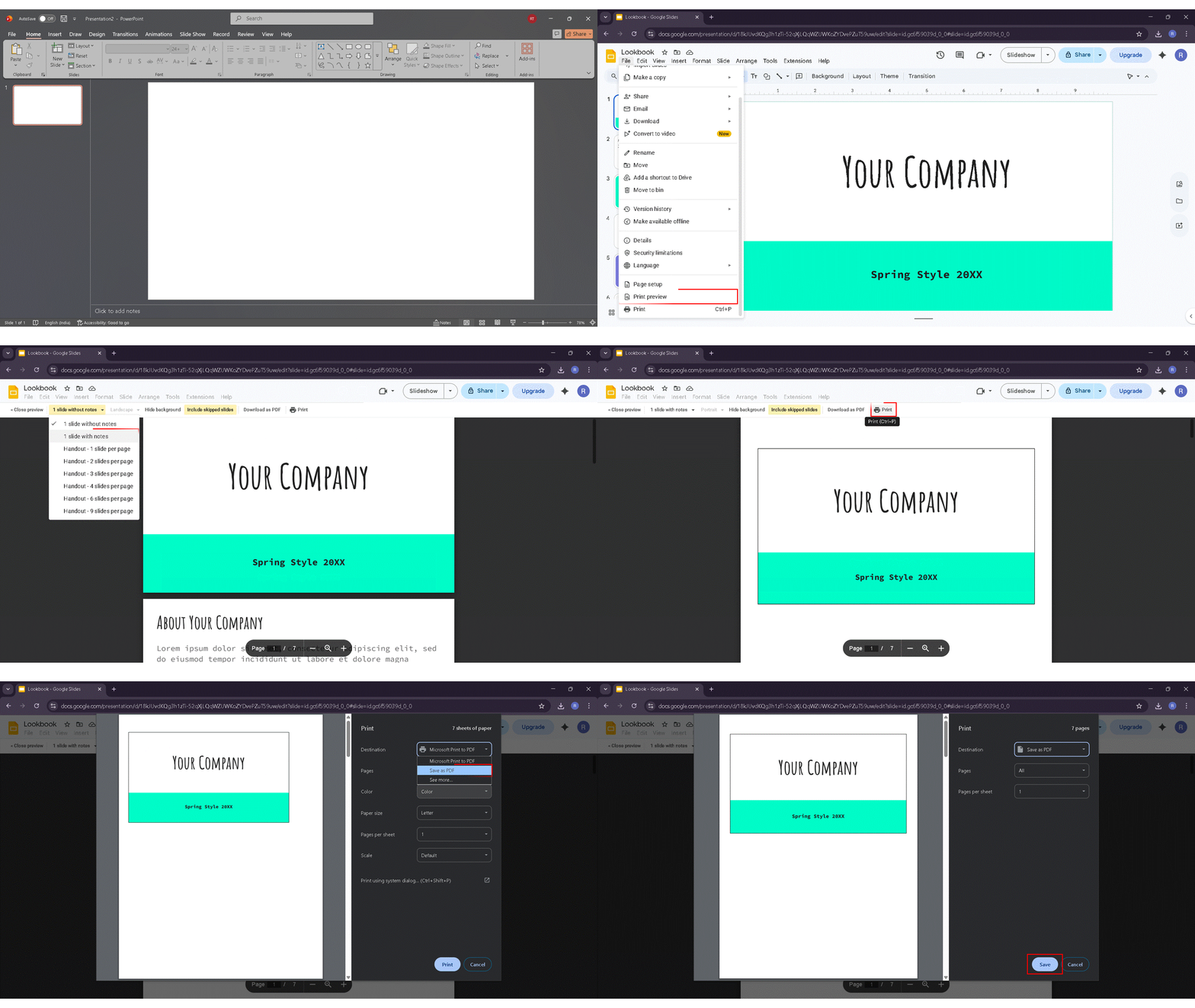
Step-by-Step Using Print Preview
How to print Google Slides with notes correctly relies on the Print Preview feature, not the standard print shortcut. Here is the full process:
- Open your Google Slides presentation in a desktop browser.
- Click File in the top navigation menu.
- Select Print preview — do not click Print directly.
- In the layout dropdown at the top of the preview, change ‘1 slide (no notes)’ to ‘1 slide with notes.’
- Review the preview — each page should show the slide in the upper half with speaker notes below.
- Click Print in the top-left corner of the preview toolbar.
- In the browser print dialog, choose your printer, page range, number of copies, and color or grayscale.
- Click Print one final time to send to the printer.
Pro Tip: If your notes are very long, reduce the font size inside the notes panel to 10pt before printing. This prevents text from being cut off at the bottom of the page.
How to Print on Mac vs. Windows
Printing Google Slides with notes works identically on Mac and Windows — the steps above apply to both. The only difference is the system-level print dialog that opens in Step 7:
- Mac users: Press Cmd + P as a shortcut after reaching Print Preview.
- Windows users: Press Ctrl + P as a shortcut. The Windows print dialog will open.
Important: Does This Work on Mobile?
No. The Google Slides print with notes feature is only supported in a desktop web browser. The Google Slides app on iPhone, iPad, and Android does not include the Print Preview feature or the ‘1 slide with notes’ layout option. If you are on a mobile device, open the presentation at slides.google.com in your phone’s desktop browser mode, or wait until you have access to a laptop or desktop.
How to Save Google Slides with Notes as a PDF
For many users, saving as a PDF is smarter than printing directly — especially when sharing digitally, archiving, or presenting to a remote audience.
Why Save as PDF Instead of Printing Directly?
- Shareable: Send via email, Slack, or Google Drive without needing a printer.
- Consistent layout: PDFs preserve formatting regardless of the recipient’s device or printer settings.
- Archivable: Store a clean record alongside your original presentation.
- Eco-friendly: No paper or ink needed until the recipient chooses to print.
Step-by-Step: Download as PDF with Notes
- Open your Google Slides presentation.
- Go to File > Print preview.
- In the layout dropdown, select ‘1 slide with notes.’
- Click the Print button in the toolbar.
- In the print dialog, change the Destination from your printer to ‘Save as PDF’ (Chrome) or ‘Microsoft Print to PDF’ (Windows).
- Click Save and choose where to store the file.
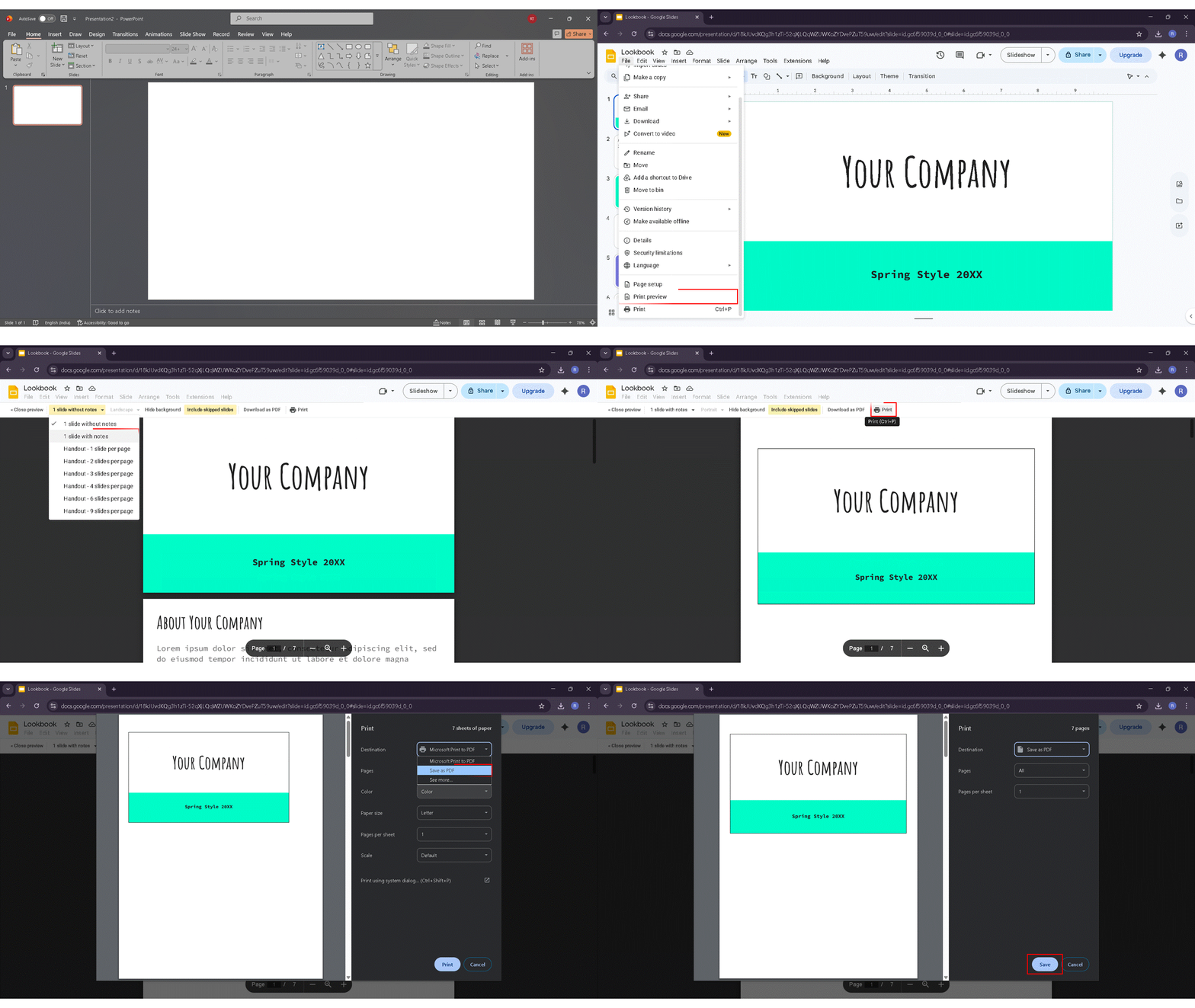
The saved PDF will contain every slide with its corresponding speaker notes below — exactly as it would appear on paper.
How to Share the PDF with Your Audience
Once your PDF is saved, you can:
- Attach it to an email.
- Upload it to Google Drive and share the link.
- Post it in a Slack channel or Teams chat.
- Print it later from any computer or print shop.
How to Print Google Slides with Notes on the Side
Google Slides does not natively support a side-by-side layout where the slide appears on one side and notes appear next to it. To achieve this format, you need to export to Microsoft PowerPoint first.
Exporting to PowerPoint for Side Notes Layout
- In Google Slides, click File > Download > Microsoft PowerPoint (.pptx).
- The file will download to your computer.
- Open it in Microsoft PowerPoint.
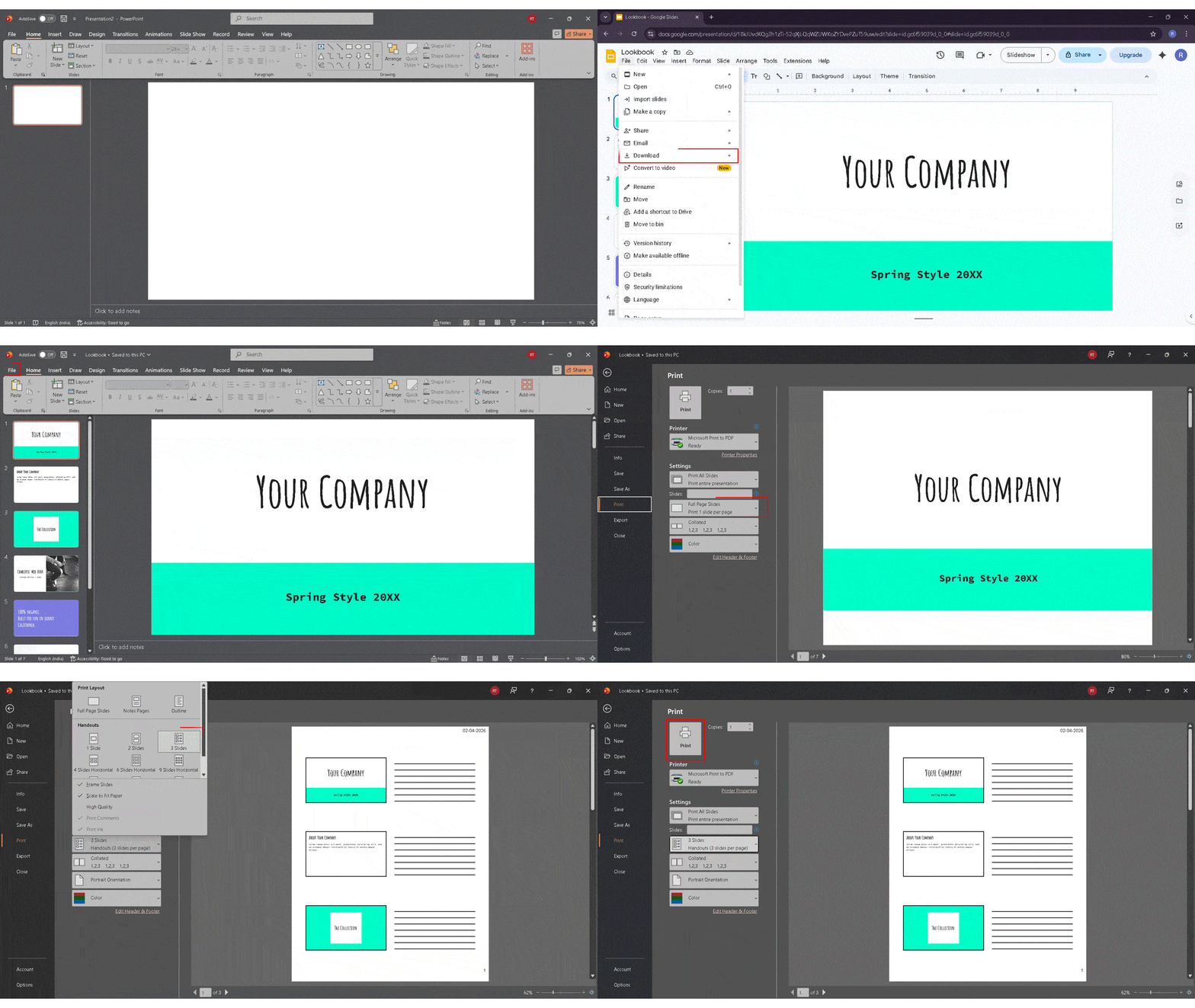
Step-by-Step in Microsoft PowerPoint
- In PowerPoint, go to File > Print.
- Under the Settings section, click the layout dropdown (likely showing ‘Full Page Slides’).
- Select Notes Pages for a slide-on-top, notes-below layout.
- For a side-by-side layout, select Handouts > 3 Slides — this shows thumbnails on the left with lined space on the right.
- Preview and adjust if needed.
- Click Print.
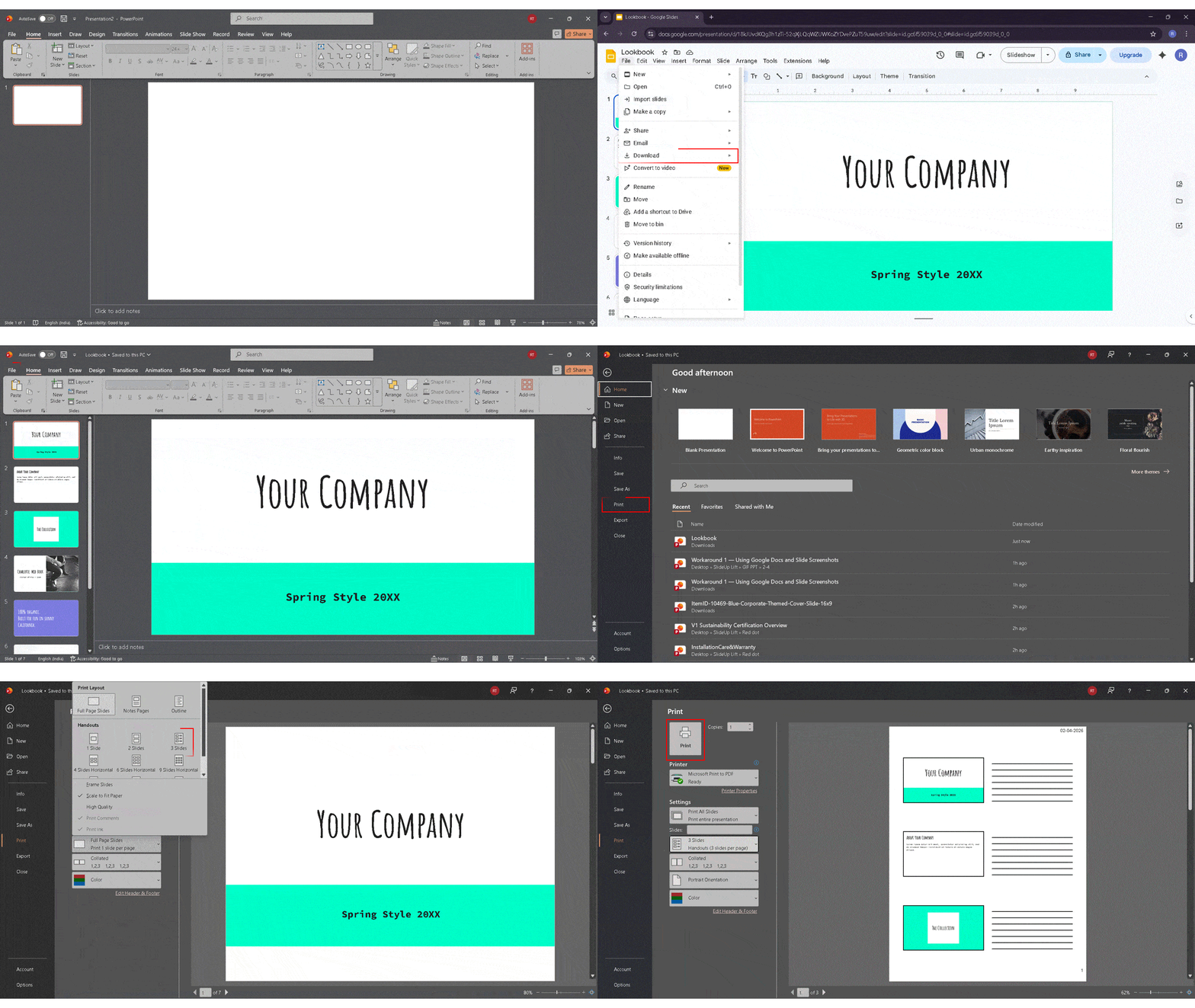
This method gives you far more layout flexibility than Google Slides offers natively, and it is the best way to achieve the classic three-slides-per-page handout format.
How to Print Google Slides with Lines for Notes
Printing slides with blank ruled lines for handwritten notes is a popular format for classroom handouts, workshops, and training sessions. Google Slides does not have this built in, but two solid workarounds get the job done.
Why Google Slides Does Not Support This Natively
Google Slides is designed primarily as a digital presentation tool. Complex print layouts like ruled lines for handwriting, landscape note columns, or custom handout grids are outside its feature scope. Microsoft PowerPoint has traditionally been stronger in this area, which is why both workarounds below use it or Google Docs.
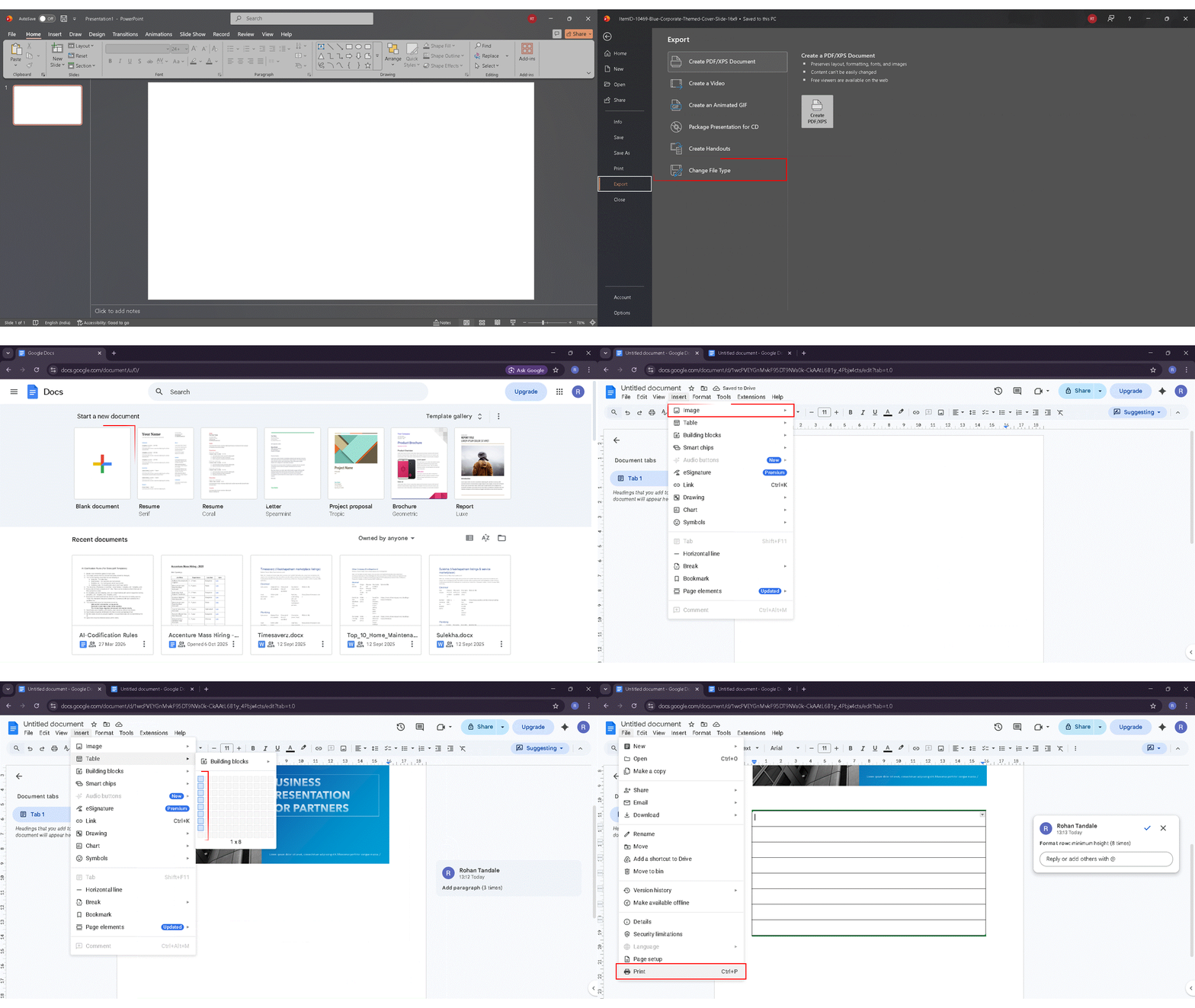
Workaround 1 — Using Google Docs and Slide Screenshots
- Export slides as images: File > Download > PNG image (.png.webp, current slide). Repeat for each slide.
- Open a new Google Doc at docs.google.com.
- Insert a slide image: Insert > Image > Upload from computer.
- Resize the image to fit the top half of the page.
- Below the image, insert a table for note lines: Insert > Table > 1 column x 8 rows.
- Adjust the row height to create natural writing lines.
- Repeat for every slide.
- Go to File > Print to print the Google Doc.
Workaround 2 — Using PowerPoint Handout Layout (3 Slides Per Page)
This is the fastest option with the cleanest result:
- Export your Google Slides to PowerPoint: File > Download > .pptx.
- Open the file in Microsoft PowerPoint.
- Go to File > Print.
- Under layout settings, select Handouts > 3 Slides per page.
- This shows slide thumbnails on the left with horizontal ruled lines on the right.
- Click Print.
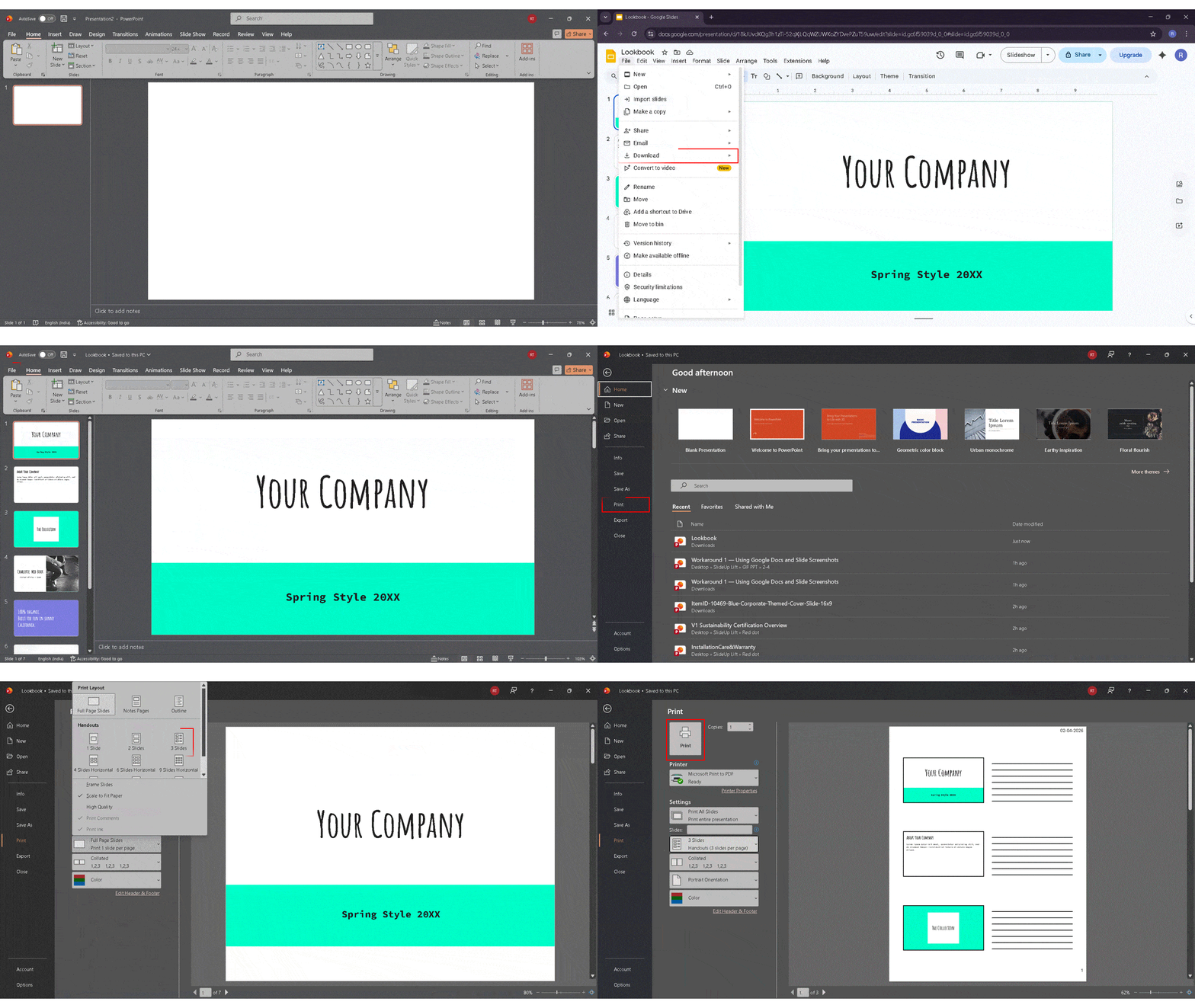
This is the fastest way to achieve the classic note-taking handout format and requires no image exporting or table formatting.
How to Print Multiple Slides Per Page with Notes
Can Google Slides Print Multiple Slides with Notes?
Not natively. Google Slides currently only supports ‘1 slide with notes’ per page in Print Preview. There is no built-in option for 2 or 4 slides with their notes on a single page. This is a widely requested feature that has not yet been added.
Workaround — Export as PDF and Use PDF Viewer Print Settings
- Save your presentation as a PDF with notes: File > Print Preview > ‘1 slide with notes’ > Save as PDF.
- Open the PDF in Adobe Acrobat, Preview (Mac), or any PDF viewer.
- In the print dialog, look for a ‘Pages per sheet’ option.
- Select 2 or 4 pages per sheet.
- Click Print.
Warning: Selecting more pages per sheet will make your notes text smaller. This works best when your notes are short bullet points rather than long paragraphs.
For a full step-by-step guide on this process, see: How to Convert Google Slides to PDF
Workaround — PowerPoint Handout Layout
PowerPoint’s Handout layout gives you the most flexibility. Options include:
- 1 slide per page: Full size with maximum notes space.
- 2 slides per page: Side-by-side slides, no lines.
- 3 slides per page: Slide thumbnails with ruled note lines — the most popular handout format.
- 4, 6, or 9 slides per page: Compact, no note space.
Advanced Printing Tips
Using Notes Master for Consistent Formatting
Notes Master is one of the most overlooked features in both Google Slides and PowerPoint — and it is extremely useful when printing Google Slides with notes across a large deck.
- In Google Slides: Go to View > Notes master. Adjust the global font, size, header, footer, and slide image placement from one screen. All printed note pages will automatically follow this template.
- In PowerPoint: Go to View > Notes Master and make the same global adjustments.
Using Notes Master saves you from manually formatting each individual slide — especially valuable for presentations with 20 or more slides.
Choosing Color vs. Grayscale
- Print in color when your slides include charts, diagrams, maps, or visual elements where color conveys meaning.
- Print in grayscale for text-heavy presentations, large print runs, or draft copies.
- Always check the print preview in your chosen color mode before printing a full batch.
Adjusting Font Size Before Printing
If your speaker notes are lengthy, they may get cut off at the bottom of the printed page. Before printing Google Slides with notes, do the following:
- Click inside the notes panel of a slide.
- Select all notes text (Ctrl+A or Cmd+A on Mac).
- Reduce the font size to 10pt or 11pt.
- Check the Print Preview again to confirm the text fits.
Alternatively, use Notes Master to apply a consistent, smaller font size to all slides at once.
Printing Specific Slides Only
In the browser print dialog, find the Pages field and enter a range or list:
- 1-5 prints slides 1 through 5.
- 1, 4, 7 prints only slides 1, 4, and 7.
- 3- prints from slide 3 to the end of the deck.
Double-Sided Printing to Save Paper
In your browser’s print dialog, look for ‘Print on both sides’ or ‘Duplex printing.’ Enabling this cuts your paper usage in half. Check your printer’s manual to confirm it supports automatic duplex output — not all printers do.
How to Add Speaker Notes in Google Slides
Speaker notes are the written text you add below each slide while editing — during a live presentation, only you can see them, but when you print Google Slides with notes, they appear on the printed page alongside each slide image. To add them, click the ‘Click to add speaker notes’ bar at the bottom of the editing screen and start typing; notes save automatically. For a full walkthrough on writing and formatting effective speaker notes, see our dedicated guide on “How to add speaker notes in Google Slides”.
Troubleshooting — Common Problems When Printing Google Slides with Notes
Speaker Notes Not Showing When I Print
Problem: You clicked Print, and the output shows only the slides — no notes below.
Solution:
- Use File > Print preview — not the keyboard shortcut Ctrl+P or File > Print directly.
- Inside Print Preview, change the layout dropdown from ‘1 slide (no notes)’ to ‘1 slide with notes.’
Notes Are Getting Cut Off
Problem: Your notes text is being truncated — only the first few lines appear on the printed page.
Solution:
- Go into the notes panel and reduce the font size to 10-11pt.
- Shorten the notes content for the affected slides.
- Use View > Notes master to globally apply a smaller font size.
Formatting Looks Wrong on the Printed Page
Problem: Images overlap text, backgrounds do not render properly, or the slide layout looks broken in print.
Solution:
- Simplify the slide design. Complex gradients and decorative elements often do not translate cleanly to print.
- For print-specific versions, switch the slide background to white or light gray before printing.
Cannot find Print Preview in the File Menu
Problem: You do not see ‘Print preview’ listed under the File menu.
Solution: Make sure you are using Google Slides in a desktop browser (Chrome, Firefox, Safari, or Edge). Print Preview is not available in the Google Slides mobile app, in view-only mode, or in offline mode without a stable connection.
Mobile App Not Showing Print with Notes Option
Problem: You are using the Google Slides app on your phone and cannot find the notes printing option.
Solution: This feature is desktop-only. Open your presentation at slides.google.com in a desktop browser, or switch to a laptop or desktop computer.

Conclusion
Printing Google Slides with notes does not have to be complicated. Whether you need a quick physical handout or a shareable PDF, the File > Print Preview route handles both in under a minute. For anyone regularly printing Google Slides with speaker notes across large decks, setting up Notes Master once will save significant time on every future export.
If you need a more structured layout — lines for handwriting, slides on the side, or multiple slides per page — the PowerPoint export workarounds covered above give you the flexibility Google Slides cannot. The PDF method is almost always the right answer for sharing across platforms: export once, share anywhere, print on demand.
FAQs
-
How do I print Google Slides with notes?
Go to File > Print preview in Google Slides. In the layout dropdown, select ‘1 slide with notes,’ then click Print. This will print each slide with its corresponding notes displayed below the slide image on the page.
-
How do I save Google Slides with notes as a PDF?
Follow the same route — File > Print preview > select ‘1 slide with notes’ — but in the print dialog, change the Destination from your printer to ‘Save as PDF.’ Click Save and choose your folder. The PDF will include all slides with notes.
-
Can you print Google Slides with notes on mobile?
No. You cannot print Google Slides with notes from the mobile app. This feature is only available in a desktop web browser. Open your presentation at slides.google.com on a laptop or desktop to access the Print Preview and notes layout options.
-
Why are my notes not showing up when I print?
You need to use Print Preview, not File > Print or Ctrl+P directly. Inside Print Preview, change the layout dropdown to ‘1 slide with notes.’ If you skip this step, only the slides will print with no notes visible.
-
How do you print Google Slides with notes on the side?
Google Slides does not support a side-by-side layout natively. Export your presentation to PowerPoint (File > Download > .pptx), open it in PowerPoint, go to File > Print, and select Notes Pages or the 3 Slides Handout layout for a slide-plus-notes format.
-
How do I print multiple slides per page with notes?
Google Slides only supports one slide with notes per page natively. To print multiple slides per page, save as PDF first, then use your PDF viewer’s ‘Pages per sheet’ print setting to fit 2 or 4 note pages per sheet.
-
How do I print Google Slides with lines for notes?
Export to PowerPoint and use the Handouts > 3 Slides per page layout, which includes ruled lines beside each slide. Alternatively, export slides as images, insert them into a Google Doc, and add a table below each image to create writing lines.
-
What if my notes are very long?
Select all the text in your notes panel and reduce the font size to 10pt. Or go to View > Notes master and set a smaller global font size. Check the Print Preview after adjusting to make sure all text fits before printing.
-
Can I print only the speaker notes without the slides?
Google Slides does not have a native option to print notes only. The workaround is to copy and paste your notes into a Google Doc, then print the document. Format the Doc as needed before printing.
-
How do I fix notes that are cut off when printing Google Slides?
Shorten the notes text, reduce the notes font size to 10-11pt, or use Notes Master (View > Notes master) to apply a globally smaller font size. Recheck the Print Preview to confirm all content is visible before sending to the printer.
Table Of Content


Related posts from the same category

22 Sep, 2023 | SlideUpLift
How to Add Speaker Notes in Google Slides?
A presentation is a smart way to represent what is on your mind in a work environment. It helps in showcasing your idea logically. But to tell a compelling story,

12 Jun, 2025 | SlideUpLift
How to Make an Org Chart in Google Slides: A Step-by-Step Guide
Want to map out any type of organizational structure—whether it's a company, project team, or even a hierarchy? An org chart helps visualize relationships between roles, departments, or functions in

23 Aug, 2023 | SlideUpLift
How to Draw On Google Slides?
Google Slides is an effective tool for creating professional presentations, especially when adding images, graphics, or any type of multimedia. Apart from adding multimedia to slides, Google Slides also offers

29 Dec, 2023 | SlideUpLift
How to Make Checkboxes in Google Slides?
Google Slides is one of the most widely used presentation tools today. It is used for creating simple text and picture presentations and complex presentations. You can create surveys and

6 Jan, 2023 | SlideUpLift
How to Add Header and Footer in Google Slides?
Google Slides is a powerful presentation tool allowing users to create professional-looking presentations easily. One important aspect of any presentation is the header and footer, which can provide context and
12 Sep, 2022 | SlideUpLift
How To Make Google Slides Vertical
While building/presenting a presentation on Google Slides, presenters often have this question- How to change Google slides to portrait? This query not only includes the standard 4:3 slide design, but

30 Apr, 2026 | SlideUpLift
How to Add a Border in Google Slides (7 Easy Methods)
To add a border in Google Slides, insert a rectangle shape, set its fill to transparent, and customize the border color and weight from the toolbar. You can apply borders

30 Jan, 2023 | SlideUpLift
How to Import Google Slides Themes?
Have you ever wanted to make your Google Slides presentation stand out from the crowd? Have you ever wished that you could easily import professional themes on Google Slides to

23 Sep, 2022 | SlideUpLift
How To Add Drop Shadows In Google Slides
Google Slides provide effects like drop shadows, which is an effective feature for presentation design. They can assist in making a flat image, text, or object more interesting by making
1 Oct, 2025 | SlideUpLift
Insert Calendar In PowerPoint And Google Slides: Quick Guide For Smarter Planning.
Do you want your presentations to be more organized, attractive, and professional? Learning how to add a calendar in PowerPoint or Google Slides will take boring schedules and deadlines and