

 Flat 1

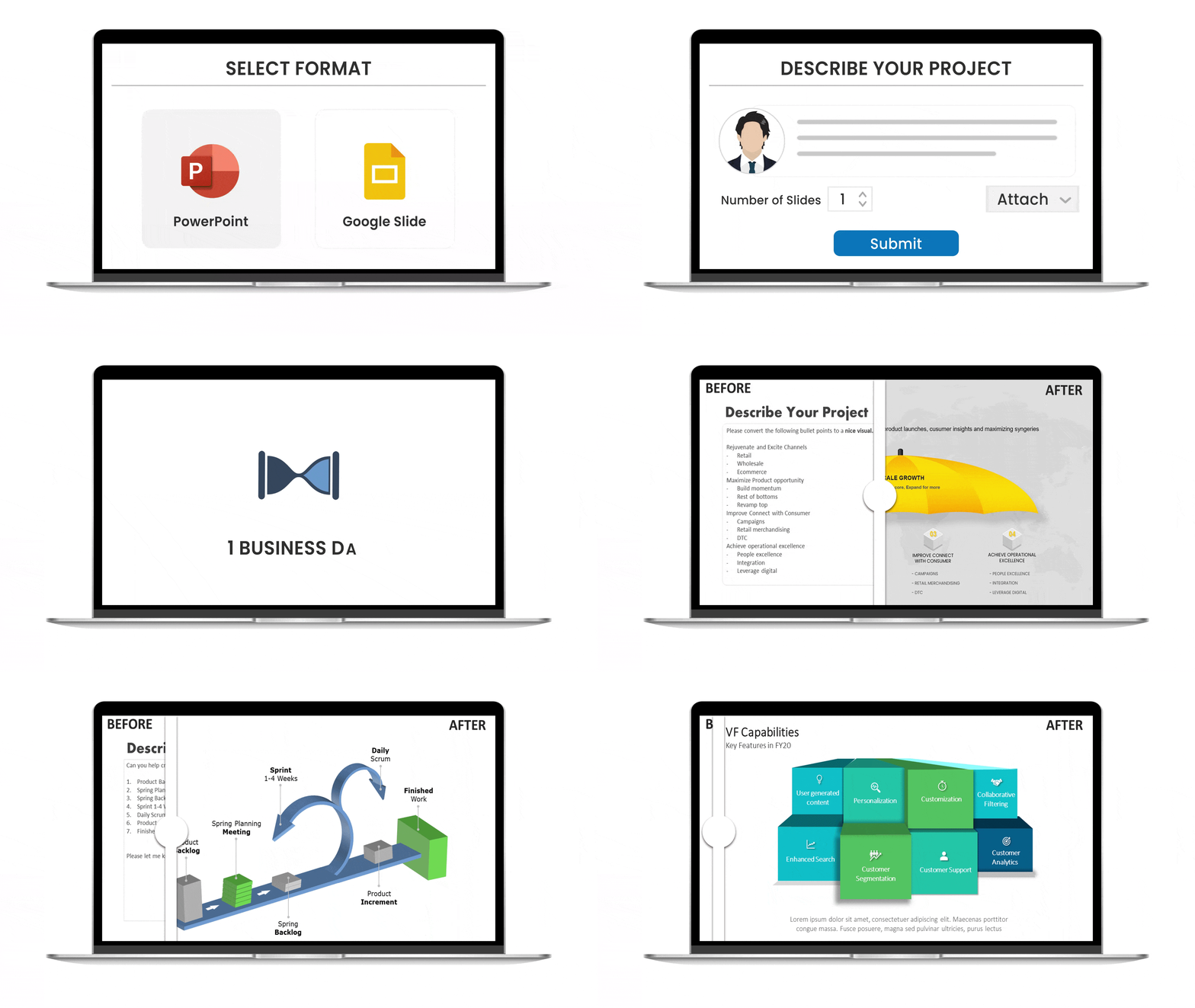


PowerPoint Arrows: How to Make an Arrow Diagram in PowerPoint | Step-by-Step Tutorial
Quick Answer — How to Insert Arrow in PowerPoint
To insert arrow in PowerPoint and build a diagram:
- Go to Insert > Shapes and select a Rectangle.
- Duplicate it (Ctrl+D) to form the arrow body.
- Add an Arrow shape at the end from the Shapes menu.
- Select all shapes and group them (Ctrl+G).
- Apply color via Shape Format > Shape Fill.
- Optional: Right-click > Format Shape > 3-D Format to add depth.
- Double-click boxes to add your text.
Introduction
PowerPoint arrows are one of the most widely used design elements in business presentations — and for good reason. Whether you are mapping a process, visualizing a roadmap, or showing cause-and-effect relationships, working with PowerPoint arrows makes complex ideas immediately clear. If you want to know how to put arrows in PowerPoint in a way that looks polished and professional, this is the guide for you.
The arrow symbol is one of the most universally recognized visual cues in communication. In presentations, a well-placed arrow in PowerPoint instantly tells your audience where to look, what comes next, or how ideas connect — without a single extra word.
This guide walks you through everything: how to add an arrow in PowerPoint, how to customize it, how to make an arrow in PowerPoint with a 3D effect, how to animate it, and how to use arrows creatively across different business scenarios. No design background needed.
By the end of this tutorial, you will be able to build polished, on-brand PowerPoint arrows for any presentation in under 10 minutes.
What Do Arrow Diagrams Represent in PowerPoint?
Before diving into the how, it helps to understand the why. Arrows in PowerPoint are used across industries and presentation types because they convey direction, sequence, and relationship at a glance. In visual design, arrow symbols carry meaning that no bullet point can match — they suggest motion, progression, and priority.
Every PowerPoint arrow symbol you use signals something specific to your audience. A right-pointing arrow implies forward movement. An upward arrow signals growth. Circular arrows suggest a cycle. Understanding this helps you choose the right arrow for the right message.
Common use cases for arrows in PowerPoint include:
- Process flows and workflows — showing how one step leads to the next
- Business roadmaps — illustrating timelines or strategic milestones
- Growth and progress indicators — visually representing upward trends
- Converging or diverging ideas — showing how multiple inputs lead to one outcome
- Step-by-step instructions or guides — making multi-stage information digestible
Arrow symbols work because they tap into a universal visual language. Your audience does not need to read every word — the shape itself communicates movement, direction, and priority instantly. If your process has decision points or branching steps, a flowchart might serve you better — here’s how to create a flow chart in PowerPoint.
How to Insert an Arrow in PowerPoint?
Inserting arrows in PowerPoint takes less than a minute once you know where to look. Whether you need a simple line arrow or a bold block arrow for a diagram, here is exactly how to add arrows in PowerPoint:
- Open the Insert Tab: On the PowerPoint ribbon, click on the Insert tab.
- Click Shapes: A dropdown menu appears with shape options organized by category. This is where all arrows for PowerPoint live.
- Choose Your Arrow Type: Under Lines, you will find simple line arrows — ideal for pointing or annotating. Under Block Arrows, you will find solid-filled arrow shapes better suited for diagrams and step-by-step flows. These block arrows are the ones you’ll reach for most often.
- Insert Arrow in PowerPoint: Click and drag on your slide to place the arrow. Hold Shift while dragging to keep it perfectly horizontal or vertical.
- Reposition and Resize: Click and drag to move it. Pull the corner handles to resize. Use the circular handle above the shape to rotate it to any angle.
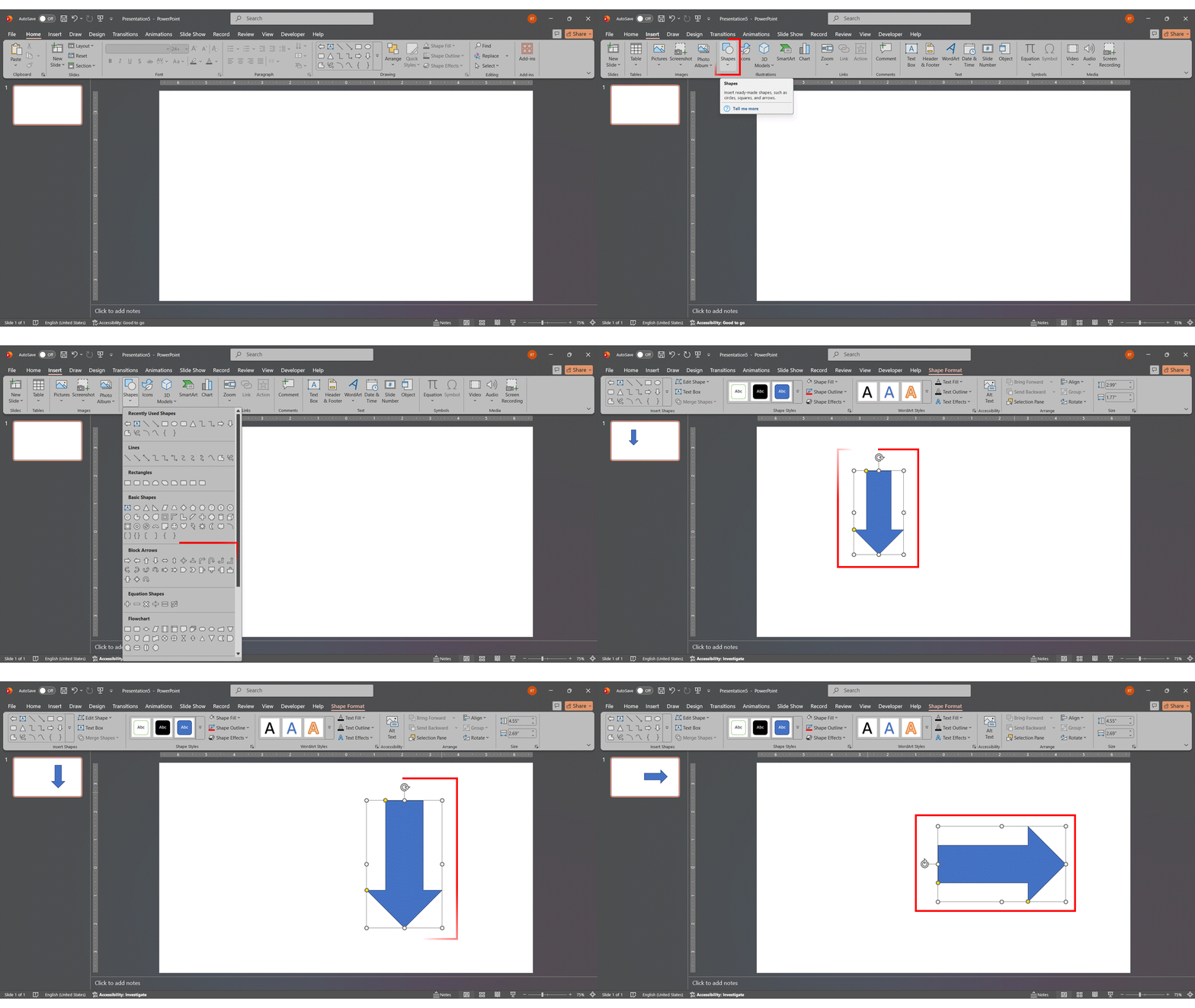
When inserting arrows in PowerPoint, the Block Arrows category is usually your best starting point for diagrams. These are pre-built, ready to resize, and work well for multi-step process visuals. For a clean, versatile starting point, the simple Right Arrow block shape is the one most people use.
How to Insert an Arrow Symbol in PowerPoint (Text Shortcuts & Symbol Menu)
Not every arrow needs to be a shape. When you just want a small arrow inside your text — in a sentence, a label, or a bullet — an arrow symbol in PowerPoint is faster than drawing one. There are two reliable ways to add a PowerPoint arrow symbol, and both take seconds.
Method 1: Type the Arrow Symbol with Keyboard Shortcuts
PowerPoint’s AutoCorrect turns a few simple character combinations into arrows automatically. Click inside any text box to place your cursor, then type one of these in quick succession:
| Type this | You get | Arrow |
| Two hyphens + greater-than –> | Regular right arrow | → |
| Less-than + two hyphens <– | Regular left arrow | ← |
| Two equals + greater-than ==> | Thicker right arrow | ⇒ |
| Less-than + two equals <== | Thicker left arrow | ⇐ |
| Less-than + equals + greater-than <=> | Double-headed arrow | ⇔ |
Because these are text characters, you can style them like any other text — select the arrow and press Ctrl+B to make it bolder, or change its size and color from the Home tab. This is the quickest way to insert an arrow symbol in PowerPoint when you’re mid-sentence.
Method 2: Use the Symbol Menu for More Arrow Types
If you need a specific arrow the shortcuts don’t cover — diagonal, curved, or up/down — use the Symbol dialog:
- Click inside a text box to set your insertion point.
- Go to the Insert tab and click Symbol.
- In the dialog box, set the Font to (normal text) and the Subset dropdown to Arrows.
- Scroll to find the arrow you want, select it, and click Insert (or double-click it).
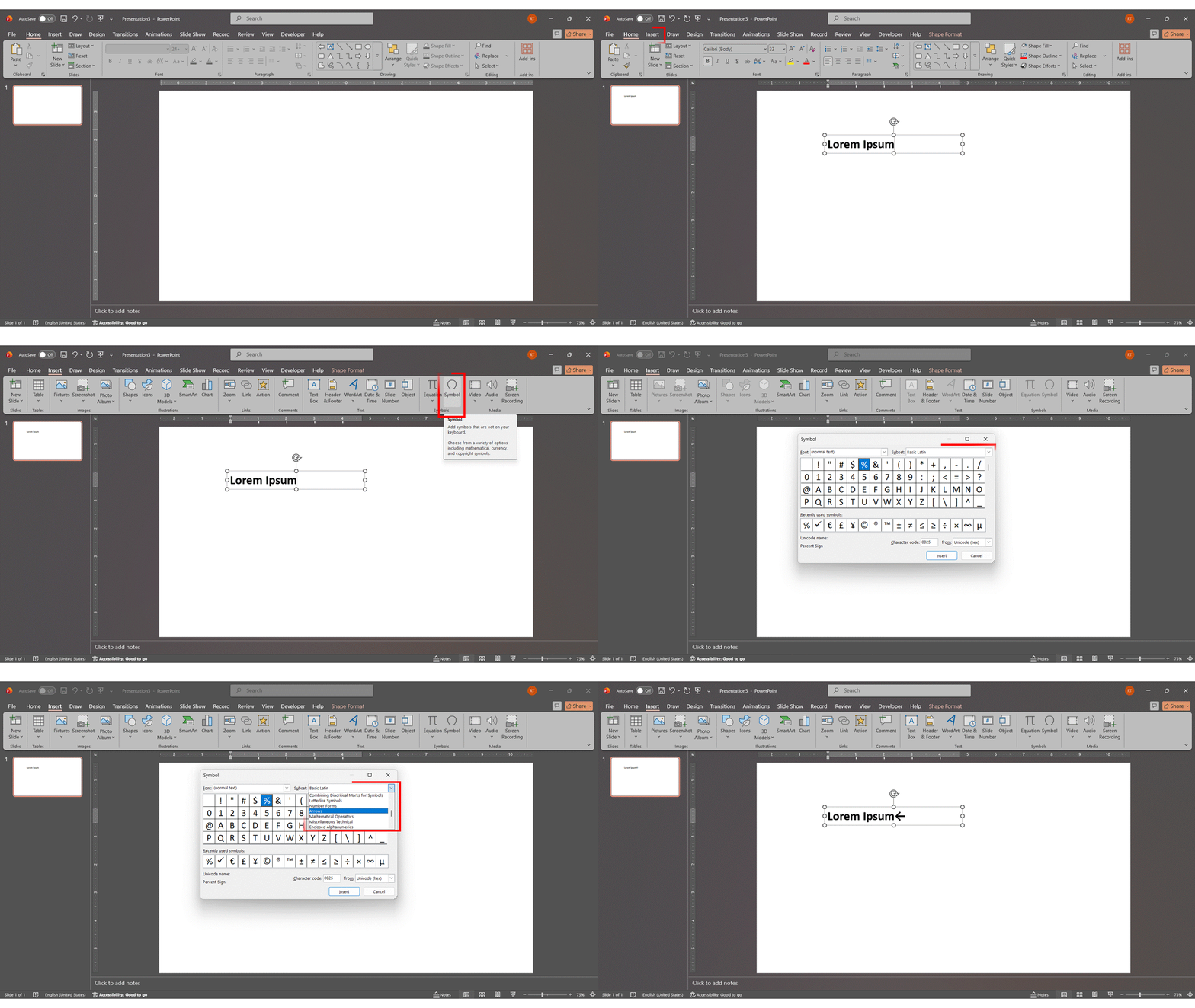
This gives you access to dozens of arrow symbol PowerPoint variations beyond the basic four, all as editable text characters.
Symbol or Shape — Which Should You Use?
Use an arrow symbol when the arrow lives inside your text or needs to stay in line with words. Use an arrow shape (covered above) when you’re building a diagram, a process flow, or anything you’ll resize, recolor, or animate as its own object. For most slide diagrams, the block-arrow shape is the better choice; for quick inline cues, the symbol wins
How to Create an Arrow Diagram in PowerPoint (Step-by-Step)?
If you want to know how to create arrows in PowerPoint that form a structured, multi-step diagram — the kind you often see in process flows and roadmaps — follow these steps. This method shows you how to make arrows in PowerPoint that look custom-built and on-brand.
- Insert a Rectangle Shape: Go to Insert > Shapes and select the Rectangle. Draw it on your slide to form the first segment of the arrow body — this rectangle is the foundation every arrow diagram builds on.
- Duplicate the Rectangle: Select the rectangle and press Ctrl+D to create copies. Arrange them horizontally or vertically to build the full shaft. Use the alignment guides to keep the spacing even — consistent gaps are what make the finished arrow look clean and deliberate.
- Add the Arrowhead: Go back to Insert > Shapes and pick an arrow from the Block Arrows section. Resize it and position it at the end of your rectangle sequence. For a simpler design, you can skip the rectangles entirely and use just this arrowhead shape on its own.
- Apply Color: Select each shape. Go to Shape Format > Shape Fill. Apply colors — use different shades per step to show progression. This is where your PowerPoint arrow starts to look like a real design asset.
- Group All Shapes: Select all shapes together (Ctrl+A or drag to select). Right-click and choose Group, or press Ctrl+G. This turns everything into one manageable object.
- Add Your Text: Double-click on any box within the grouped shape to enter text. Label each step clearly.
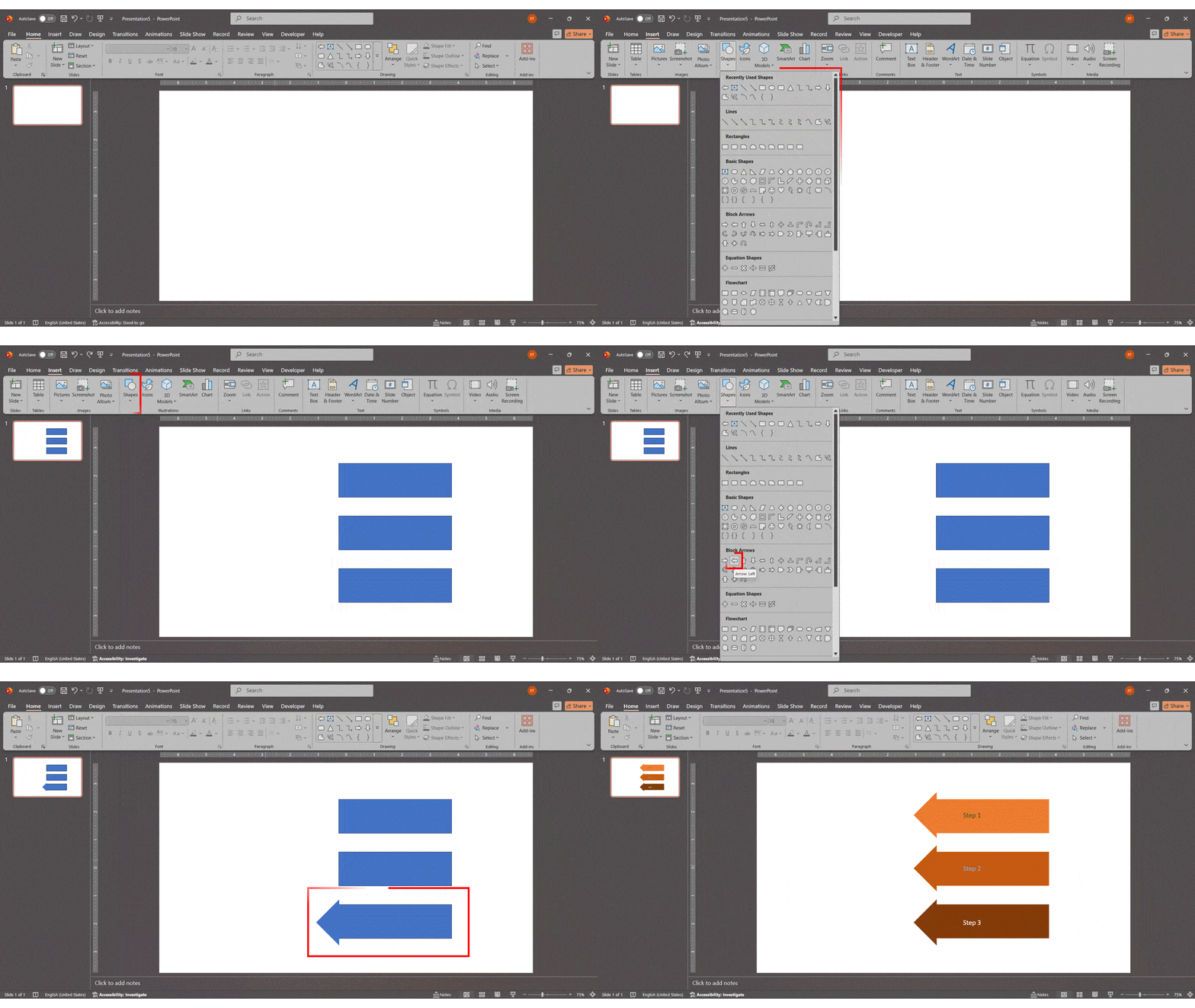
Pro Tip: Use consistent font sizes across all arrow segments for a cleaner, more professional look. Stick to your brand color palette to keep slides on-theme without extra effort.
How to Add a 3D Effect to Your Arrow?
Want to give your arrow diagram extra depth? A 3D arrow PowerPoint design adds a premium, dimensional finish that stands out in any deck. PowerPoint’s built-in formatting tools make this straightforward, and the result looks far more sophisticated than a flat shape.
PowerPoint 3D arrows work by adding depth and rotation to any grouped shape. Here is how to apply the effect:
- Group Your Shapes: Make sure all shapes are grouped (Ctrl+G) before applying the 3D effect — this ensures uniform application across the entire arrow.
- Open Format Shape: Right-click the grouped shape and select Format Shape from the dropdown menu.
- Go to 3-D Format: In the Format Shape panel on the right, click on Effects (the pentagon icon), then expand the 3-D Format section.
- Adjust Depth: Increase the Depth value to add visible thickness. Even a 10–20pt depth creates a noticeable 3D arrow PowerPoint effect without overdoing it.
- Apply 3-D Rotation: Scroll to 3-D Rotation. Choose a preset like Isometric Left Down or Off Axis to give the diagram a dimensional look.
- Fine-Tune Lighting: Under Material and Lighting, try options like Matte, Metal, or Warm Flat to control how light reflects off the surface.
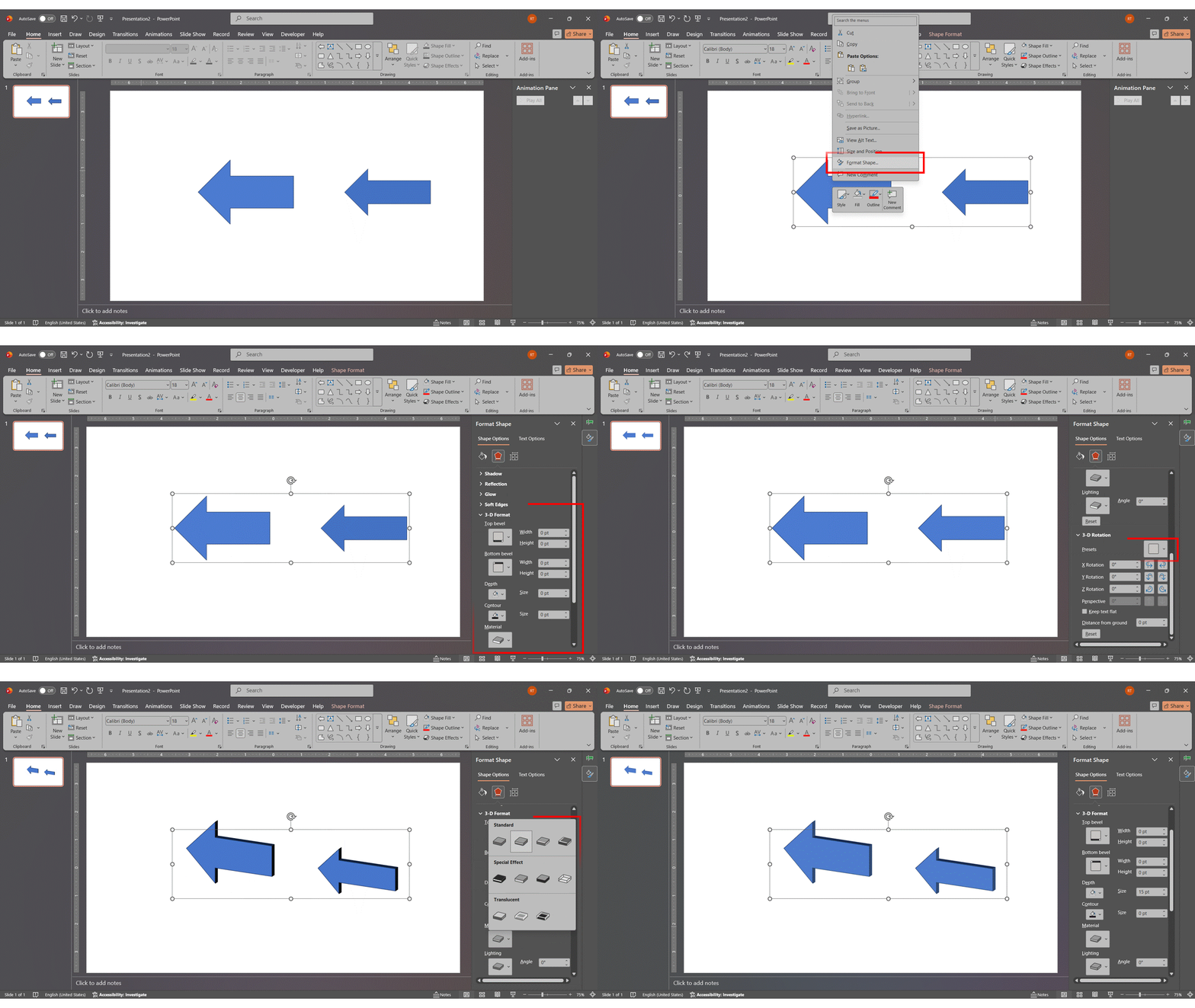
Note: 3D effects work best on simple diagrams. If your arrow has many segments or dense text, keep the depth subtle (5-15pt) so it does not distract from the content. For PowerPoint 3D arrows on presentation decks, the Isometric rotation preset tends to look the most professional.
How to Edit and Customize Your PowerPoint Arrows
Once your PowerPoint arrow is in place, customizing it to match your presentation design takes just a few clicks. Here is what you can adjust in any PowerPoint arrow to make it look exactly how you want:
Change Color
Select the arrow shape. Go to Shape Format > Shape Fill. Choose a solid color, gradient, texture, or picture fill. For multi-step arrows, gradient fills (light to dark) naturally emphasize progression and make each step feel connected.
Change Size and Proportions
Click the shape and drag the corner handles to resize. For precise control, right-click > Format Shape > Size & Properties and enter exact height and width values. Getting the proportions right is one of the most overlooked aspects of making a clean, professional PowerPoint arrow.
Change Line Style and Outline
Go to Shape Format > Shape Outline. Change the border color, increase thickness, or remove it entirely. Removing the outline often gives your arrow a more modern, flat appearance that works especially well in minimal presentation styles.
Add Shadow Effects
Right-click > Format Shape > Effects > Shadow. Choose from outer, inner, or perspective shadow presets. Adjust transparency, blur, and angle to match your slide’s lighting. A subtle shadow can make your arrow look more grounded and polished.
Apply Shape Styles
The Shape Format tab includes a gallery of pre-built Shape Styles — one-click combinations of fill, outline, and effect. These are the fastest ways to transform a plain arrow powerpoint shape into a polished design element without touching individual settings.
Creative Ways to Use Arrow Diagrams in Presentations
Arrows on PowerPoint are not just functional connectors — they can be the visual centerpiece of your entire slide when used with intention. Here are proven approaches that professionals use to build more compelling decks with arrows for PowerPoint:
| Use Case | How to Apply It |
| Process or Workflow | Connect each stage with a horizontal arrow sequence using one color per department or team. |
| Strategic Roadmap | Use a single large arrow pointing right, with milestones labeled along the shaft — the classic arrow for PPT presentation layout. |
| Growth Story | Use an upward-angled arrow to show revenue, user growth, or market expansion over time. |
| Converging Ideas | Point multiple arrows toward a central box to show how different inputs produce one outcome. |
| Compare Options | Two arrows pointing in opposite directions visually frame a contrast or decision clearly. |
| Highlight a Key Point | A small animated arrow can direct audience attention to a specific data point on a busy slide. |
Want to build a full roadmap slide from scratch? Read our step-by-step guide on how to create a roadmap in PowerPoint.
How to Animate an Arrow Diagram in PowerPoint?
Animation adds energy to any arrow diagram and helps guide your audience through a process step by step. Here is how to put an arrow in PowerPoint that moves and appears on cue:
- Select Your Arrow: Click on the arrow shape you want to animate.
- Open the Animations Tab: Click on the Animations tab in the PowerPoint ribbon.
- Choose an Effect: Select an Entrance animation like Wipe (left to right) — this mimics the arrow being drawn, ideal for process flows. Other effective options: Fly In, Zoom, or Appear.
- Set the Direction: For a Wipe animation, set the direction to From Left so the arrow grows toward the right, reinforcing forward movement.
- Adjust Timing: Open the Animation Pane (Animations > Animation Pane). Set each arrow segment to appear On Click or After Previous to control pacing.
- Use Motion Paths (Advanced): Use Add Animation > Motion Paths to make an arrow slide across the screen — great for roadmaps or journey diagrams.
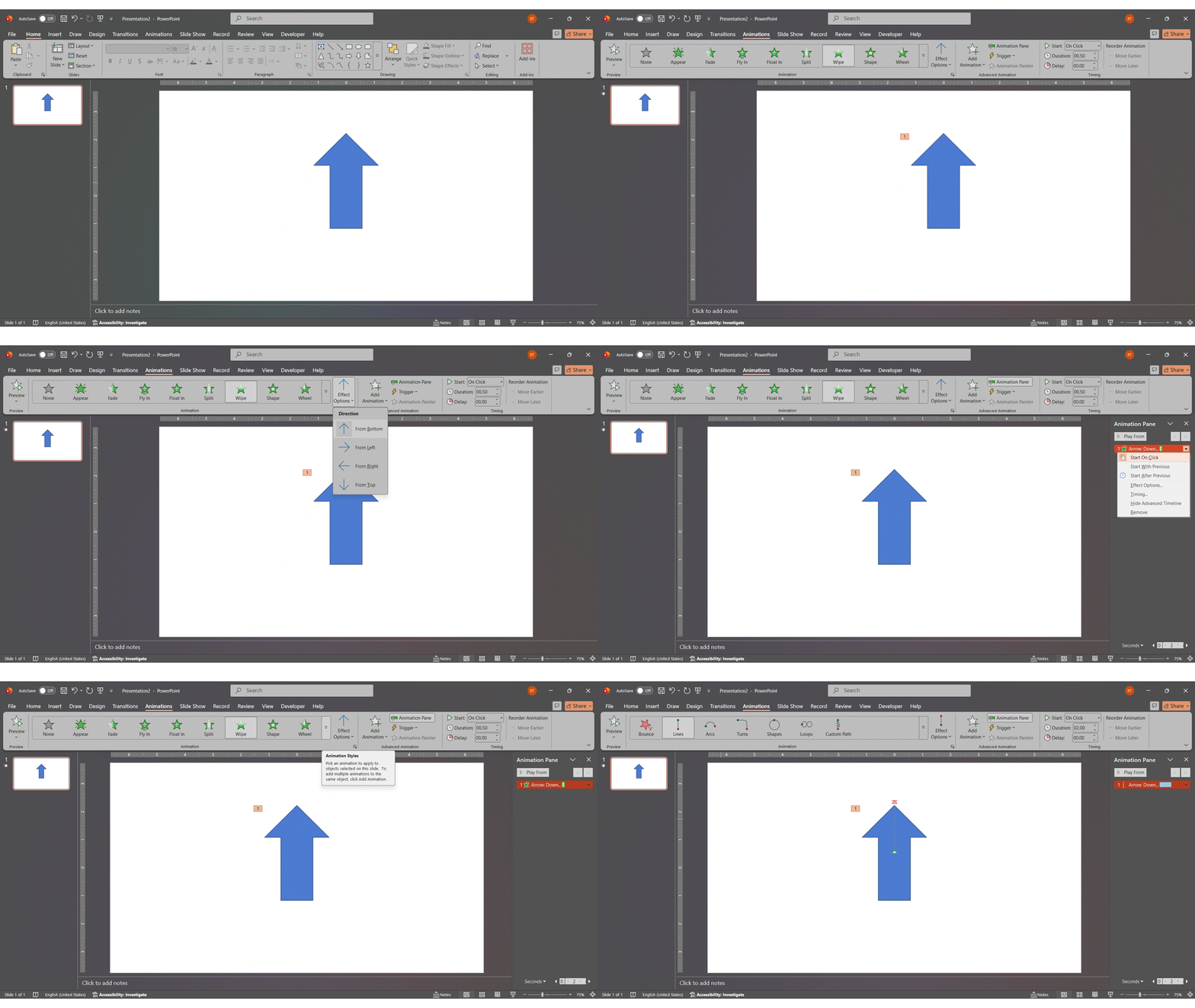
Pro Tip: If you have a multi-step arrow, animate each segment separately so each step appears as you speak about it. This keeps your audience focused on the current point rather than reading ahead. If you want to explore the full range of animation options beyond arrows, check out our complete guide on how to add animation in PowerPoint.
How to Rotate or Reposition an Arrow in PowerPoint?
Need to change the direction or placement of your diagram? Here is how to do it precisely:
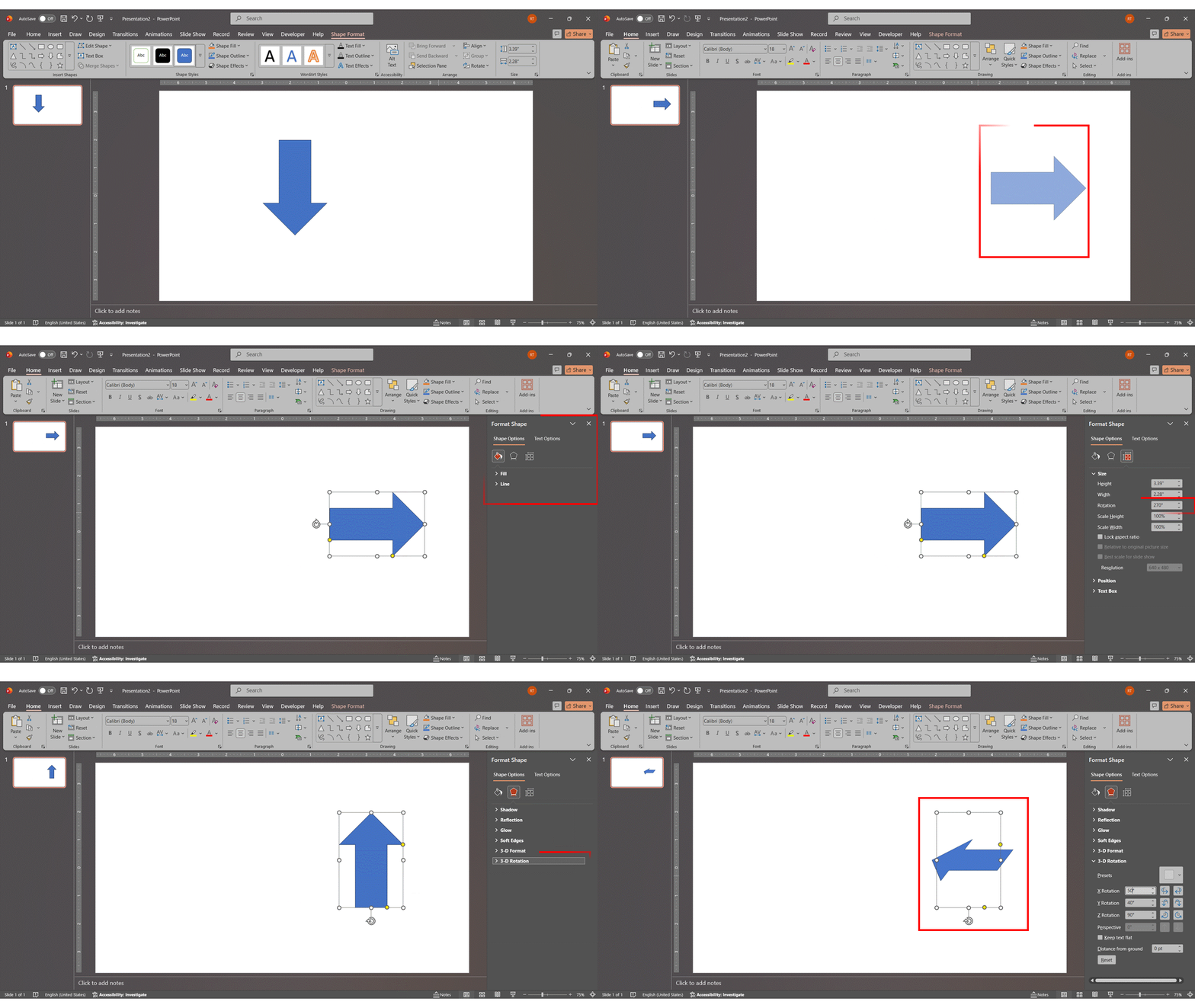
- To reposition: Click and drag the shape anywhere on the slide. Smart alignment guides snap it into place.
- To rotate with the handle: Click the shape, then drag the circular rotation handle above it to spin it freely.
- For exact rotation: Right-click > Format Shape > Size & Properties > Rotation. Enter a specific degree value (e.g., 90 for vertical, 45 for diagonal).
- For 3D rotation: Right-click > Format Shape > Effects > 3-D Rotation. Set X, Y, and Z axis values manually for full dimensional control.
Are There Built-In Arrow Shapes in PowerPoint?
Yes — PowerPoint includes a solid library of ready-to-use arrows for PowerPoint that you can drop in and customize immediately. You do not need to build everything from scratch.
To access them: Insert > Shapes > Block Arrows. Every arrow shape here is fully editable. The most commonly used include:
- Right Arrow, Left Arrow, Up Arrow, Down Arrow — the standard arrow symbol in PowerPoint for most diagrams
- Bent Arrow, U-Turn Arrow, Curved Right Arrow — for showing direction changes or loops
- Striped Right Arrow, Notched Right Arrow, Pentagon — for bold, graphic-style diagrams
- Chevron — the most popular arrow for PPT process flows
- Quad Arrow, Circular Arrow — ideal for cyclical or multi-directional content
These built-in shapes are fully customizable — change color, size, outline, and apply all 3D or shadow effects described above. They are the fastest starting point for any PowerPoint arrows project, especially when you need professional results quickly. If you need arrows that bend, loop, or follow a curved path, we have a dedicated step-by-step guide on how to make a curved arrow in PowerPoint covering every variation in detail.
Arrow Diagram Examples for PowerPoint
Knowing which arrow for PowerPoint to use in which situation saves significant design time. Here are the most effective arrow diagram types used in professional business presentations:
| Diagram Type | Best For |
| Horizontal Step Arrow | Process flows, onboarding steps, product stages |
| Chevron Arrow Chain | Sales funnels, pipelines, sequential steps |
| Converging Arrows | Summarizing inputs into one outcome or strategy |
| Growth Arrow (Upward) | Revenue charts, market growth, and KPI progress |
| Circular Arrow | Recurring cycles, feedback loops, continuous improvement |
| Split Arrow | Showing branching decisions or two possible outcomes |
For ready-made designs, platforms like SlideUpLift offer free and premium arrow PowerPoint templates — including 5-step growth driver arrows, converging layouts, and chevron chains. These are especially useful if you need a polished arrow for PPT without investing time in manual design.
Conclusion
PowerPoint arrows are one of the most versatile and impactful tools in any presenter’s toolkit. Whether you are explaining a process, building a roadmap, or pointing to a key insight, knowing how to add arrows in PowerPoint effectively makes your slides clearer and more compelling.
This guide has covered everything from how to insert arrow in PowerPoint using the Shapes menu to customizing colors and styles, adding optional 3D depth, and bringing your diagrams to life with animation. Start with the built-in shapes, experiment with grouping and color, and add 3D effects or motion only when they genuinely serve the content.
FAQs
-
What tools in PowerPoint do I use to create an arrow diagram?
The primary tool is Insert > Shapes, which is where you access all PowerPoint arrows. Once inserted, the Shape Format tab gives you fill colors, outlines, effects, and styles. For 3D effects, use Format Shape > 3-D Format. For animation, use the Animations tab.
-
How do I customize the color and size of a PowerPoint arrow?
Select the arrow shape and go to Shape Format > Shape Fill to change color — solid, gradient, or texture. To resize, drag the corner handles. For exact dimensions, right-click > Format Shape > Size & Properties and enter precise values.
-
Is there a quick way to use arrow diagrams from PowerPoint templates?
Yes. Go to the Design tab and click Design Ideas, or search online for arrow PowerPoint templates. Many platforms offer free downloadable templates that already include formatted PowerPoint arrows — you just swap in your content. This is the fastest approach if you need a polished result right away.
-
How do I add shadow or lighting effects to a PowerPoint arrow?
Right-click your arrow > Format Shape > Effects > Shadow. Choose a preset and adjust transparency, blur, distance, and angle. For lighting effects on 3D arrow PowerPoint designs, go to 3-D Format > Material and Lighting to control surface appearance.
-
How do you put arrows on PowerPoint and animate them?
Select your arrow and go to the Animations tab. For a realistic drawing effect, choose Wipe from Left. Open the Animation Pane to control timing — set each segment to appear On Click or After Previous. For multi-step diagrams, animate each segment individually so the steps reveal one at a time.
-
How do I type an arrow symbol in PowerPoint?
Click inside a text box and type –> for a right arrow (→) or <– for a left arrow (←) — PowerPoint’s AutoCorrect converts them instantly. For more arrow types, go to Insert > Symbol, set the Subset to Arrows, and pick the one you need.
-
How do I rotate or reposition an arrow in PowerPoint?
Click and drag to reposition. Use the rotation handle above the shape for free rotation, or right-click > Format Shape > Size & Properties for exact degree input. For 3D-rotated arrows, go to Format Shape > 3-D Rotation and set X, Y, and Z axis values precisely.
-
Are there built-in 3D arrow shapes in PowerPoint?
PowerPoint does not include pre-built 3D arrow shapes, but you can apply a 3D effect to any arrow using Format Shape > 3-D Format. For more advanced visuals, browse Insert > 3D Models (Microsoft 365) to find dimensional arrow assets from Microsoft’s online library.




Related posts from the same category
14 Aug, 2025 | SlideUpLift
Curved Arrow PowerPoint: How to Make, Draw, and Customise Arrows Step by Step
Quick Answer: To make a curved arrow in PowerPoint, go to Insert > Shapes > Block Arrows, select a curved arrow shape, and drag to draw it on your slide.

7 Feb, 2020 | SlideUpLift
How To Make A Filmstrip Effect In PowerPoint | PowerPoint Tutorial
Learn how to make a cool filmstrip effect. A PowerPoint Timeline Template need not be boring. This tutorial explains step-by-step instructions to create a cool Filmstrip timeline template in minutes.

6 Apr, 2026 | SlideUpLift
How to Make an Interactive Quiz in PowerPoint (No Add-ins Required)
Quick Answer You can build a fully interactive quiz in PowerPoint using only the built-in Action and Hyperlink features — no add-ins or plugins required. Create three slide types (question,

4 Oct, 2019 | SlideUpLift
How to insert 3D models in PowerPoint
Imagine giving a product presentation in front of your clients and you feel the need to showcase the product prototype without actually having it there with you. Also, you may

3 Feb, 2023 | SlideUpLift
How To Make A Graph In PowerPoint?
Do you need help communicating data effectively in your presentations? Data visualization is an essential tool in today's world as it helps represent complex data sets in a simple and

4 Dec, 2019 | SlideUpLift
How to Do Hanging Indent on PowerPoint: 5 Easy Methods (Windows & Mac)
Whether you're formatting an APA reference list on a slide, polishing multi-line bullet points, or creating a clean agenda, knowing how to do a hanging indent in PowerPoint is one

22 Dec, 2020 | SlideUpLift
How to make a poster in PowerPoint | PowerPoint Tutorial
Most of the time, we use PowerPoint to create presentations, but did you know you could use PowerPoint to build other elements such as posters? It is quite handy software

27 Feb, 2026 | SlideUpLift
How To Broadcast a PowerPoint Presentation Online [6 Working Methods]
If you have been looking for a way to broadcast a PowerPoint presentation online to a remote audience, you have probably run into tutorials that tell you to click Slide

28 Dec, 2020 | SlideUpLift
How To Screen Record Using PowerPoint Screen Recording | How To Record Your Screen | PowerPoint Tutorial
A lot of us use different desktop screen recorder tools and Softwares to record screens. But did you know there is a better and easy way to capture the screen?

26 Dec, 2022 | SlideUpLift
How to make a table in PowerPoint?
Tables are an essential element of any presentation, as they allow you to organize and present data in a clear and concise manner. Whether you're creating a business presentation, a