

 Flat 4


How to Convert PowerPoint to Google Slides?
This blog explains how to convert PowerPoint to Google Slides using simple step-by-step methods like uploading PPT files to Google Drive or importing them directly into Slides. It helps users quickly convert, edit, and share presentations online without losing important content. The guide also highlights the benefits of Google Slides, including free cloud access and real-time collaboration.
Introduction
Google Slides has gained popularity as a presentation alternative to PowerPoint. Many working professionals are now shifting to Google Slides for presentations. Learn different methods to convert PowerPoint to Google Slides and edit them from anywhere, any time.
Presentations are essential in various contexts, including business and educational sectors. They are an important medium for transmitting information, ideas, and statistics to an audience. Both Microsoft PowerPoint and Google Slides are popular presentation-creation tools.
However, Microsoft PowerPoint lacks some features that Google Slides covers. It covers the annotation feature, real-time collaboration, and ensures accessibility from any device via cloud-based solutions. Given these factors, many professionals have started converting PowerPoint to Google Slides and have started using Google Slides to create presentations.
Why Are Professionals Switching to Google Slides Over PowerPoint?
Working professionals look for quick and easy ways to get their work done. Creating a presentation on PowerPoint consumes time and effort as compared to Google Slides. Google Slides is effective for presentations because:
- It allows team members to collaborate seamlessly on the same presentation simultaneously. This functionality is handy for teams operating remotely, in different places, with different devices and internet connections.
- It helps presentations to be browsed and edited, and provides instant edits, comments, and feedback from any device. This adaptability is critical for professionals working on presentations on the go or from various devices.
- Also has features like sharing a link with viewers or collaborators, and gives you control over who can access your link and who can edit it.
- Works seamlessly with other Google Workspace apps like Google Docs and Google Sheets, and is free. It improves overall productivity by streamlining the content-importing process from diverse sources and is an affordable option for organizations as well as working professionals.
READ MORE: Advantages and Disadvantages of using Google Slides
3 Easy Methods to Convert PowerPoint to Google Slides
Google Slides is completely free — no subscription needed. All three methods below work directly in your browser. Converting PPT to Google Slides is easy. You can use any of the methods given below to convert PowerPoint to Google Slides:
- Converting PowerPoint presentation to Google Slides presentation
- Importing PowerPoint presentation to Google Slides presentation
- Importing particular slides from PowerPoint Presentation to Google Slides Presentation
Method 1: Converting PowerPoint Presentation to Google Slides Presentation
By following the steps below, you can learn convert a PowerPoint presentation into a Google Slides presentation:
- Open Google Drive. Click “+ New” > “File Upload” to upload your PowerPoint presentation.
- Locate the uploaded presentation on Drive and click “Open With” > “Google Slides”.
- The PowerPoint presentation will now run as a Google Slides presentation.
Note: You may update and utilize the presentation in the same way as any other Google Slides presentation.
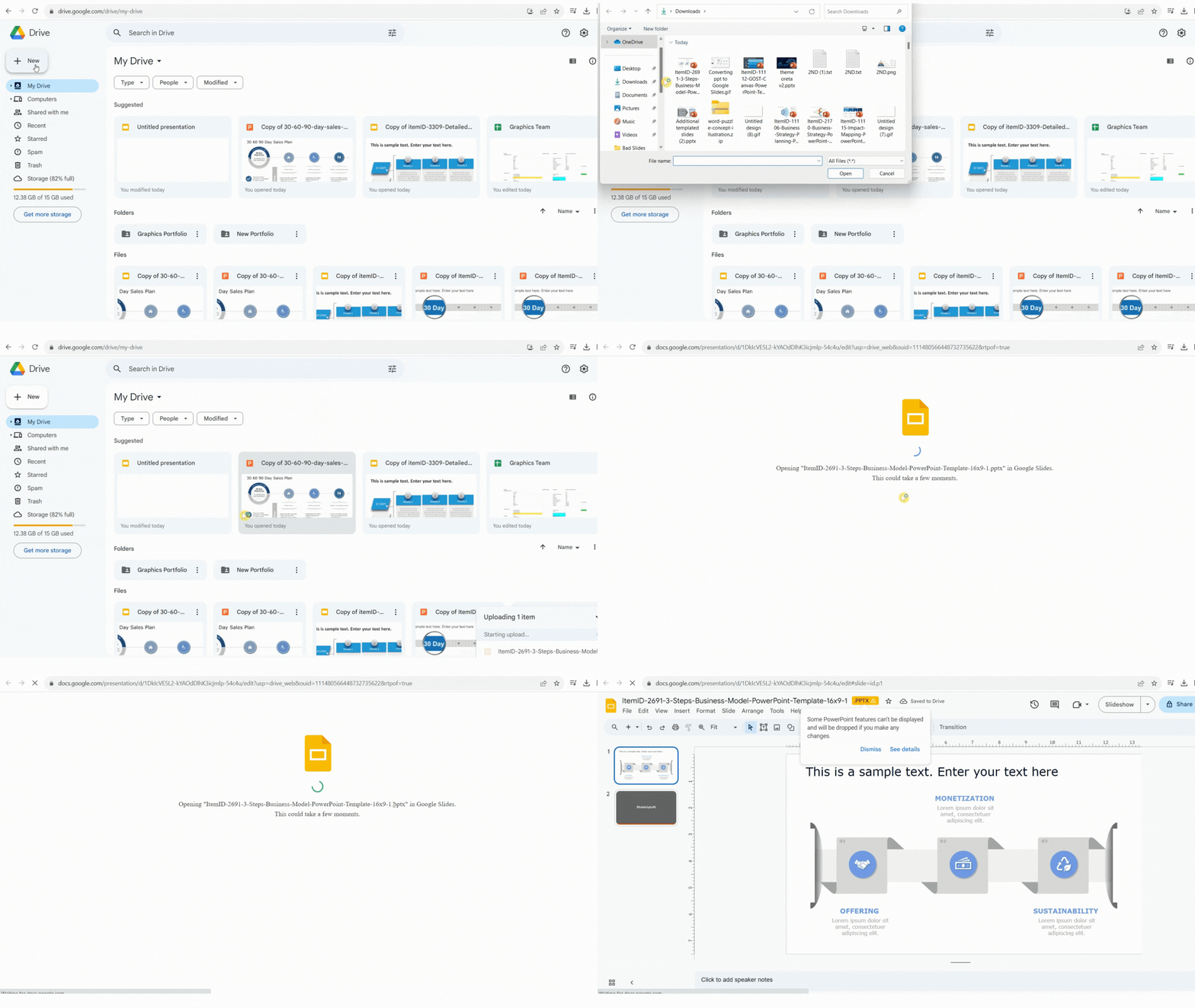
PRO TIP: An alternate way to the first step to upload the PowerPoint presentation directly from your PC is to select the PPT and drag it into your Google Drive.
Method 2: Importing PowerPoint Presentation to Google Slides Presentation
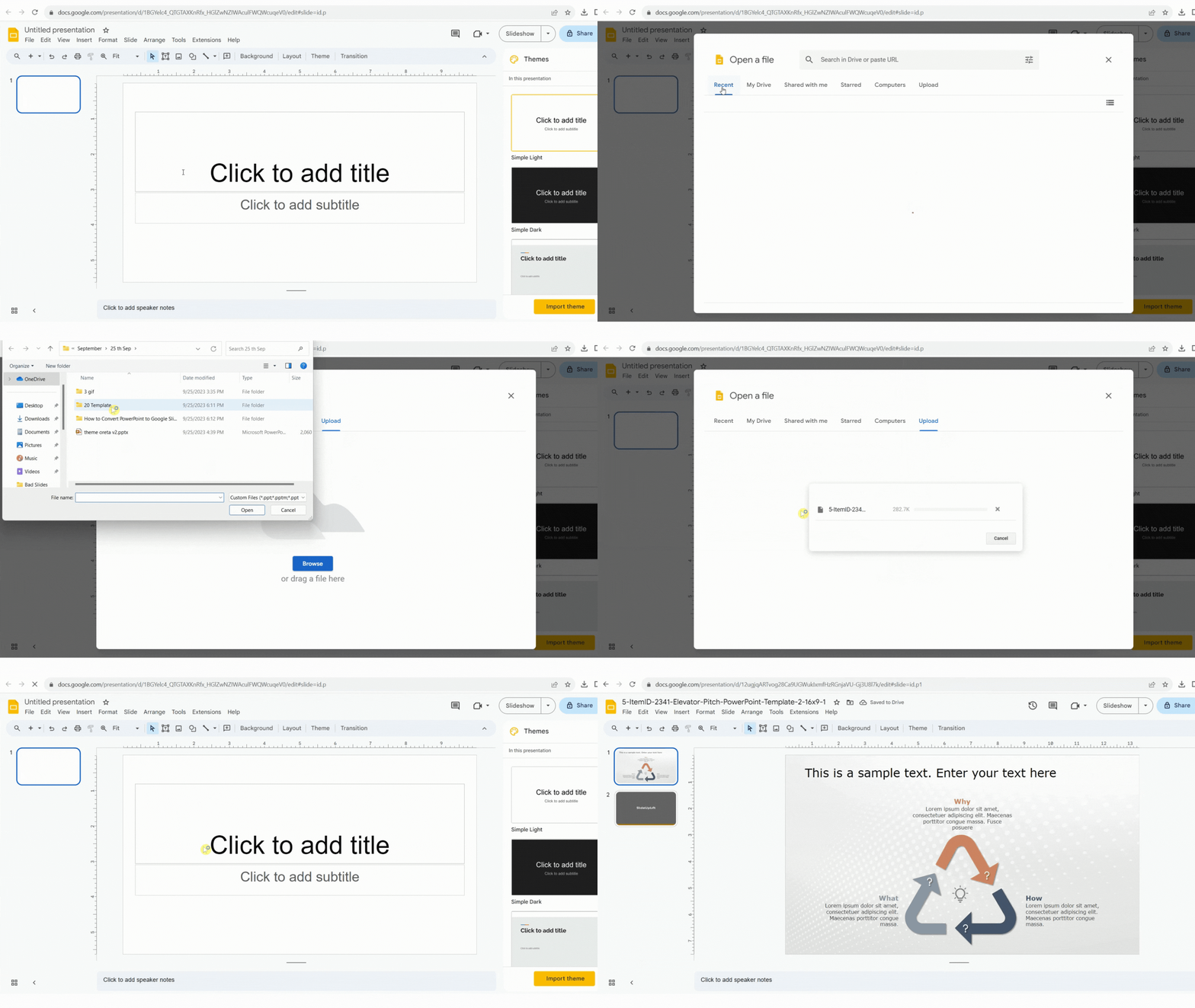
These steps will help import PowerPoint presentations to Google Slides presentations:
- In Google Slides, create a new blank presentation.
- Click “File” > “Open” > Select the PowerPoint presentation to be edited from your Google Drive account or computer.
- To upload the PPT, you have to upload it to your drive. Click “File” > “Open” > “Upload”. Browse the PPT, select, and upload.
Once you have uploaded the PowerPoint presentation to Google Slides, it will be displayed as a Google Slides presentation. All the edits made will be auto-saved in Google Slides itself.
ALSO READ: How To Add A New Slide In Google Slides?
You might already be working on a Google Slides presentation and discover that a few slides already exist in a previously created or shared PowerPoint presentation. In such a case, you can add those slides to your presentation by simply importing those specific PowerPoint slides to Google Slides presentation.
Method 3: Importing Particular Slides from PowerPoint Presentation to Google Slides Presentation
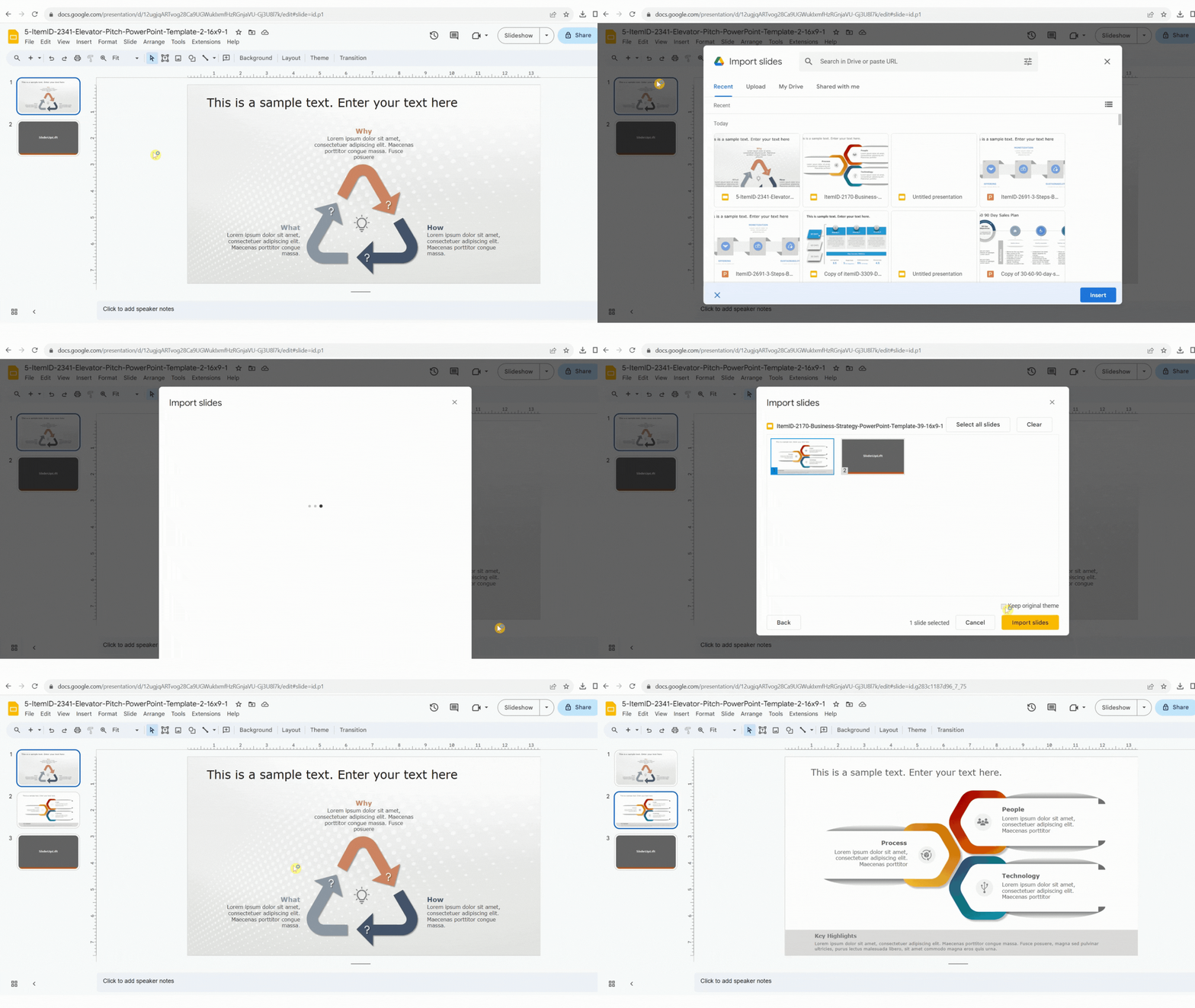
You can also import particular slides from another Google Slides presentation or a PowerPoint presentation into a new Google Slides presentation. Follow these steps to do so:
- Open the Google Slides presentation in which you want to import slides.
- Select “File” > “Import Slides”.
- A new window will appear, displaying all of the presentations in your “Recent”, “Upload”, “My Drive”, and “Shared with me”. You can select any PPT from any of the options.
- Select the presentation, choose the slides to import, and check “Keep original theme” (if you want the original presentation theme), click “Import Slides.”
ALSO READ: How To Copy And Paste A Slide In Google Slides?
How to Convert PowerPoint to Google Slides on Mobile (Android & iPhone)
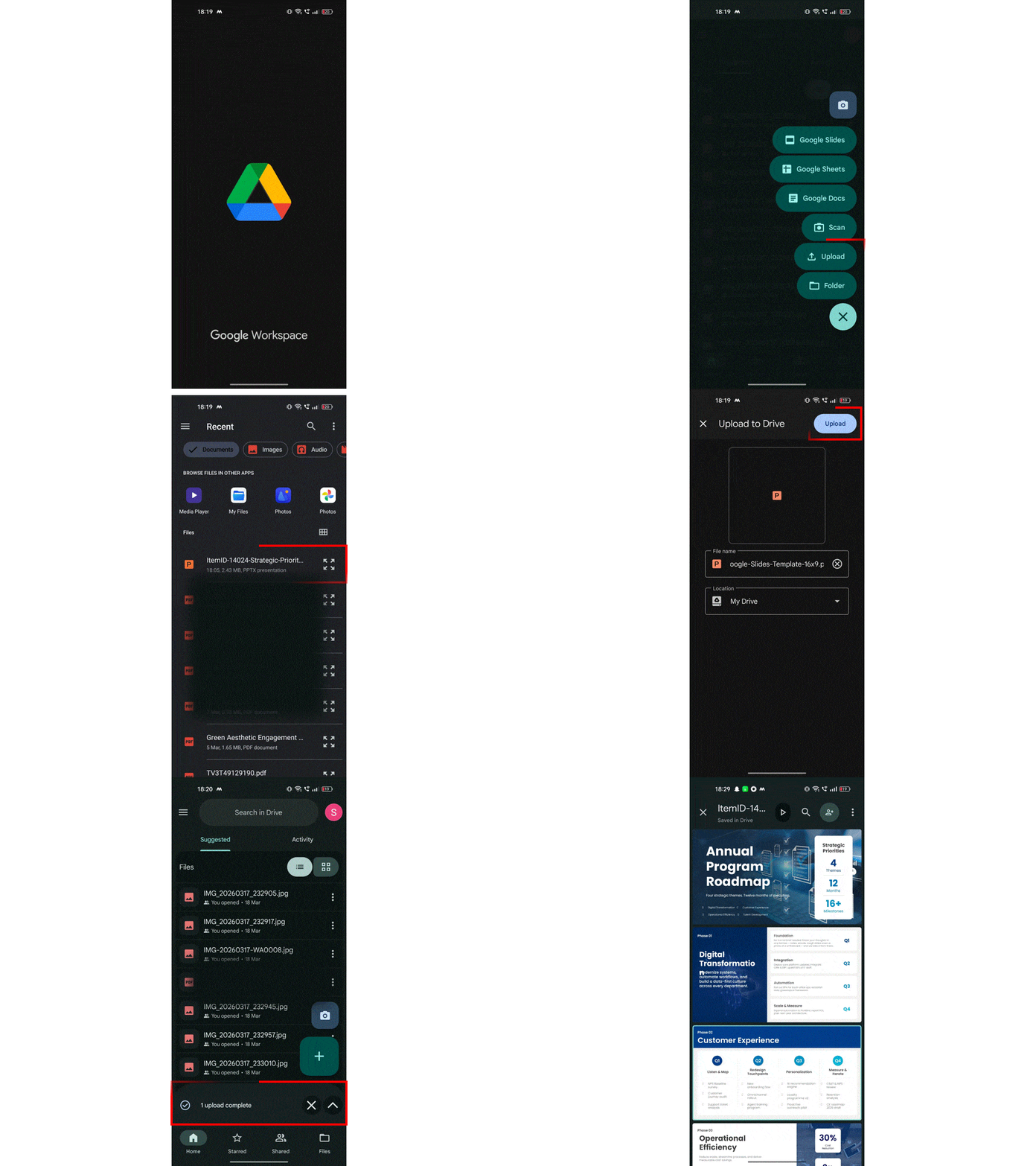
You can also convert PowerPoint files using your phone.
- Open the Google Drive app on Android or iOS.
- Tap the + Upload button.
- Upload your PowerPoint (.ppt or .pptx) file.
- Tap the file and choose Open with Google Slides.
- The file will automatically convert into a Google Slides presentation.
This method lets you edit and share presentations directly from your smartphone.
Common Issues After Converting PowerPoint to Google Slides
Even though converting a PowerPoint presentation to Google Slides is simple, some elements may change during the process. Here are a few common issues to check after conversion — along with quick fixes.
- Formatting changes: Layouts, spacing, or alignment may shift slightly after conversion. Review each slide to ensure the design appears correctly.
- Fix: To minimize layout shifts, avoid using custom slide sizes or SmartArt in your Microsoft PowerPoint file before converting.
- Font replacements: If a font used in PowerPoint isn’t available in Google Slides, it will be replaced automatically with a similar font.
- Fix: Use standard cross-platform fonts like Arial, Calibri, or Georgia in your PowerPoint file before converting to avoid substitutions.
- Animation differences: Basic animations usually transfer well, but advanced animations or triggers may not work the same after conversion.
- Fix: Stick to simple animations like Fade, Appear, or Slide, which are more consistently supported across both platforms.
- Embedded media adjustments: Videos or audio files may need to be reinserted or adjusted after conversion.
- Fix: If the media does not play correctly, reinsert the file directly in Google Slides or upload it to Google Drive and embed it again.
Conclusion
Because of its growing popularity, learning how to convert PowerPoint to Google Slides has become essential. When converting PowerPoint presentations to Google Slides, keep track and organize your files in Google Drive folders for quick access. Google Slides features real-time collaboration, cost-effectiveness, ease of sharing, real-time presenting, audience interaction, and others. This makes it a versatile and user-friendly option for modern presentation needs. Hence, professionals nowadays have started shifting to Google Slides presentations. SlideUpLift not only guides you through converting PPT to Google Slides but also helps you convert presentations from Google Slides to PowerPoint in a quick and easy way.

SlideUpLift offers you over 7,000+ Google Slides themes and templates to get you started with your Google Slides presentation. Explore Now!
FAQs
-
How do I convert a PowerPoint to Google Slides?
To convert a powerpoint to Google Slides, upload your PowerPoint to Google Slides. Open Google Slides, click “File” > “Open” > browse the PPT, select, and upload. You can also drag and drop the PPT from your PC to Google Drive.
-
How to make a PowerPoint into Google Slides on Android?
To convert a PowerPoint presentation into Google Slides on an Android device, follow these steps:
- Install Google Slides and Google Drive apps.
- Open Google Drive > Sign in > Upload the PowerPoint file. Then, open it with Google Slides from Google Drive.
-
How to save PowerPoint as Google Slides?
To save a PowerPoint presentation as Google Slides:
- Open your PowerPoint file.
- Go to “File” > “Download” or “Save As” and choose “PPTX” format.
- Open Google Slides in a web browser.
- Create a new presentation or open an existing one.
- Click “File” > “Import slides” and upload your PowerPoint file.
- Click “File” > “Save” in Google Slides to save it in the Google Slides format.
-
How to copy slides from PowerPoint to Google Slides?
To copy slides from PowerPoint to Google Slides:
- Open your PowerPoint presentation.
- Select the slide you want to copy.
- Press Ctrl+C (Windows) or Command+C (Mac) to copy.
- Open your Google Slides presentation.
- Right-click the slide where you want to insert the copied slide.
- Select “Paste” from the context menu (Ctrl+V or Command+V). Do note that the slide will be pasted as an image.
-
Do animations from PowerPoint work after converting to Google Slides?
Some basic PowerPoint animations may work after converting to Google Slides, but advanced animations, triggers, or motion paths might not transfer perfectly. After conversion, it is recommended to review the slides and reapply animations in Google Slides if needed.
-
Will speaker notes transfer when converting PowerPoint to Google Slides?
Yes, speaker notes are usually preserved when you convert PowerPoint to Google Slides. When you open the converted file in Google Slides, you can view and edit the speaker notes in the Notes section below each slide.
-
How can you keep fonts consistent when converting PowerPoint to Google Slides?
To keep fonts consistent, try using standard fonts that exist in both PowerPoint and Google Slides, such as Arial, Calibri, or Times New Roman. If a font used in PowerPoint is unavailable in Google Slides, the platform will automatically replace it with a similar font.
-
Can large PowerPoint presentations be converted to Google Slides?
Yes, large PowerPoint presentations can be converted to Google Slides, but very large files with heavy images, videos, or complex graphics may take longer to upload and convert. Compressing images and removing unused media can improve performance.
-
Is it possible to edit a PowerPoint file in Google Slides without converting it?
Yes, Google Slides allows you to open and view PowerPoint files without fully converting them. However, to access all editing features and collaboration tools, it is recommended to convert the file into Google Slides format.
-
How do you share a converted Google Slides presentation with others?
After converting PowerPoint to Google Slides, click the Share button in the top-right corner. You can add email addresses or generate a shareable link to allow others to view, comment, or edit the presentation.
Table Of Content


Related posts from the same category
31 Jan, 2022 | SlideUpLift
Learn How To Convert Presentations From Google Slides To PowerPoint | Google Slides Tutorial
The most popular presentation software right now is PowerPoint and Google Slides. Although some people prefer one over the other, and PowerPoint has been around for longer, both tools have

31 Jul, 2025 | SlideUpLift
Google Slides vs PowerPoint: A Complete Comparison Guide
Introduction Stuck deciding between Google Slides and PowerPoint for your next big presentation? Yeah, we've been there too. Both pack a punch with features, leaving you wondering: "Which one will
8 Jun, 2023 | SlideUpLift
Keynote V/s PowerPoint: Which Presentation Software Is Better?
Creating a presentation is a routine task for students and working professionals both. You must have toiled over charts, pies, graphs, and slides to make a presentation in front of

11 Mar, 2024 | SlideUpLift
How To Convert PDF To Google Slides? 1-Minute Guide
Professionals must deliver visually appealing and engaging presentations that capture the audience's attention and help them easily understand the context. Creating Google Slides presentations requires multiple resources. If those resources

18 Oct, 2023 | SlideUpLift
How to Convert Keynote to Google Slides Presentations?
Presentations are essential for effective communication, from classrooms and boardrooms to conferences and webinars. PowerPoint, Keynote and Google Slides are popular tools for creating top-class presentations. While everyone is aware

14 Apr, 2026 | SlideUpLift
How to Add a Video to Google Slides Step by Step (2026)
Embedding a video in your presentation takes just a few clicks through the Insert menu — but getting it to actually play for your audience requires knowing a few rules
10 Feb, 2026 | SlideUpLift
How To Convert Google Slides Into PDF: Quick & Easy Guide
This guide explains how to convert Google Slides into a PDF quickly and without formatting issues. It covers saving slides with or without speaker notes and methods for desktop and

23 Aug, 2023 | SlideUpLift
How to Draw On Google Slides?
Google Slides is an effective tool for creating professional presentations, especially when adding images, graphics, or any type of multimedia. Apart from adding multimedia to slides, Google Slides also offers

7 Jun, 2023 | SlideUpLift
How To Convert Keynote To PowerPoint?
Numerous applications are available for Mac users that do similar work to the corresponding Microsoft programs. To ensure the recipient can open the file you transmit while sharing documents with
1 Oct, 2025 | SlideUpLift
Insert Calendar In PowerPoint And Google Slides: Quick Guide For Smarter Planning.
Do you want your presentations to be more organized, attractive, and professional? Learning how to add a calendar in PowerPoint or Google Slides will take boring schedules and deadlines and