

 Flat 4


How to Hide and Unhide Slides in PowerPoint (Complete Guide)
This blog explains how to hide and unhide slides in Microsoft PowerPoint so you can skip certain slides during a presentation without deleting them. It covers why the hide slide feature is useful, how hidden slides work, and step-by-step methods to hide or unhide slides using Normal View, Slide Sorter View, and keyboard shortcuts in PowerPoint. The guide helps presenters manage slide visibility, keep backup slides, and control presentation flow efficiently.
Introduction
If you have ever built a PowerPoint presentation, you know how quickly slides pile up. The hide slides in PowerPoint feature is the perfect solution — it lets you remove slides from your slideshow without deleting them, so your content stays safe, and your presentation stays clean. Whether you need to hide a slide in PowerPoint for a specific audience or skip over backup slides during a live session, this guide covers every method across Windows, Mac, and the Web.
Equally important is knowing how to unhide slides in PowerPoint when you need that content back. Hidden slides stay in your file, greyed out and ready to restore at any time. We also cover every hide slide in PowerPoint shortcut so keyboard users can toggle slide visibility without ever touching the mouse. By the end of this guide, you’ll know exactly how to hide and unhide a slide in PowerPoint across every platform, in every situation.
Let’s understand how to hide a slide in PowerPoint. And correspondingly, how to unhide a slide as well.
How to Hide Slides in PowerPoint on Windows
Windows gives you three ways to hide slides in PowerPoint — Normal View, Slide Sorter, and a keyboard shortcut. Whether you want to hide a slide in PowerPoint quickly via right-click or use the hide slide in PowerPoint shortcut, all methods keep the slide safely in your file.
- Method 1: Normal View
- Method 2: Slide Sorter View
- Method 3: Keyboard Shortcut
Method 1: Normal View
- Open your PowerPoint presentation.
- Go to the View tab and select Normal from Presentation Views (if not already active).
- In the left slide panel, click the slide you want to hide.
- Right-click and select Hide Slide from the context menu.
- The slide will turn grey in the panel, confirming it is hidden.
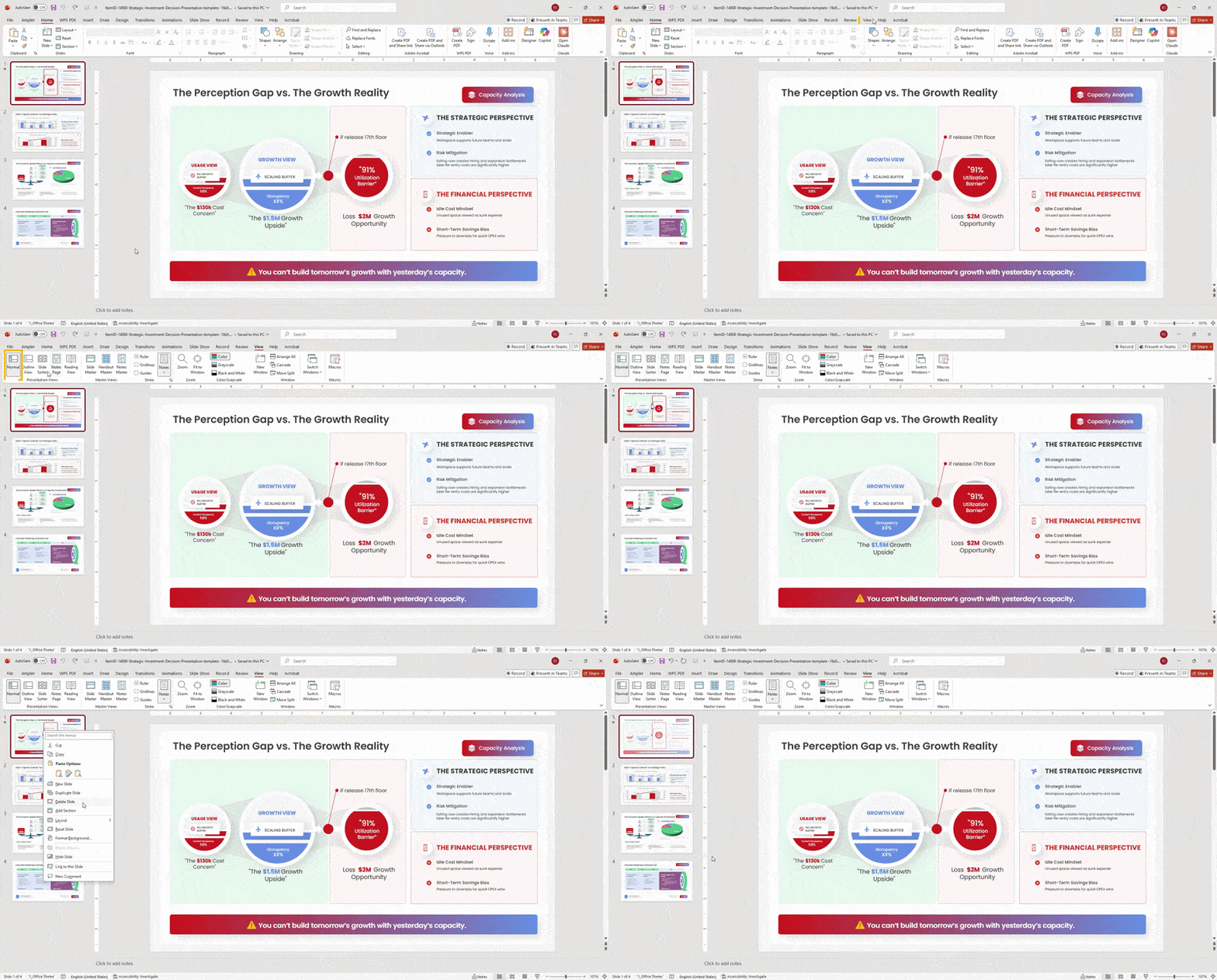
To hide slides in PowerPoint in bulk, hold Ctrl, select each slide you want, then right-click any selected slide and choose Hide Slide.
Method 2: Slide Sorter View
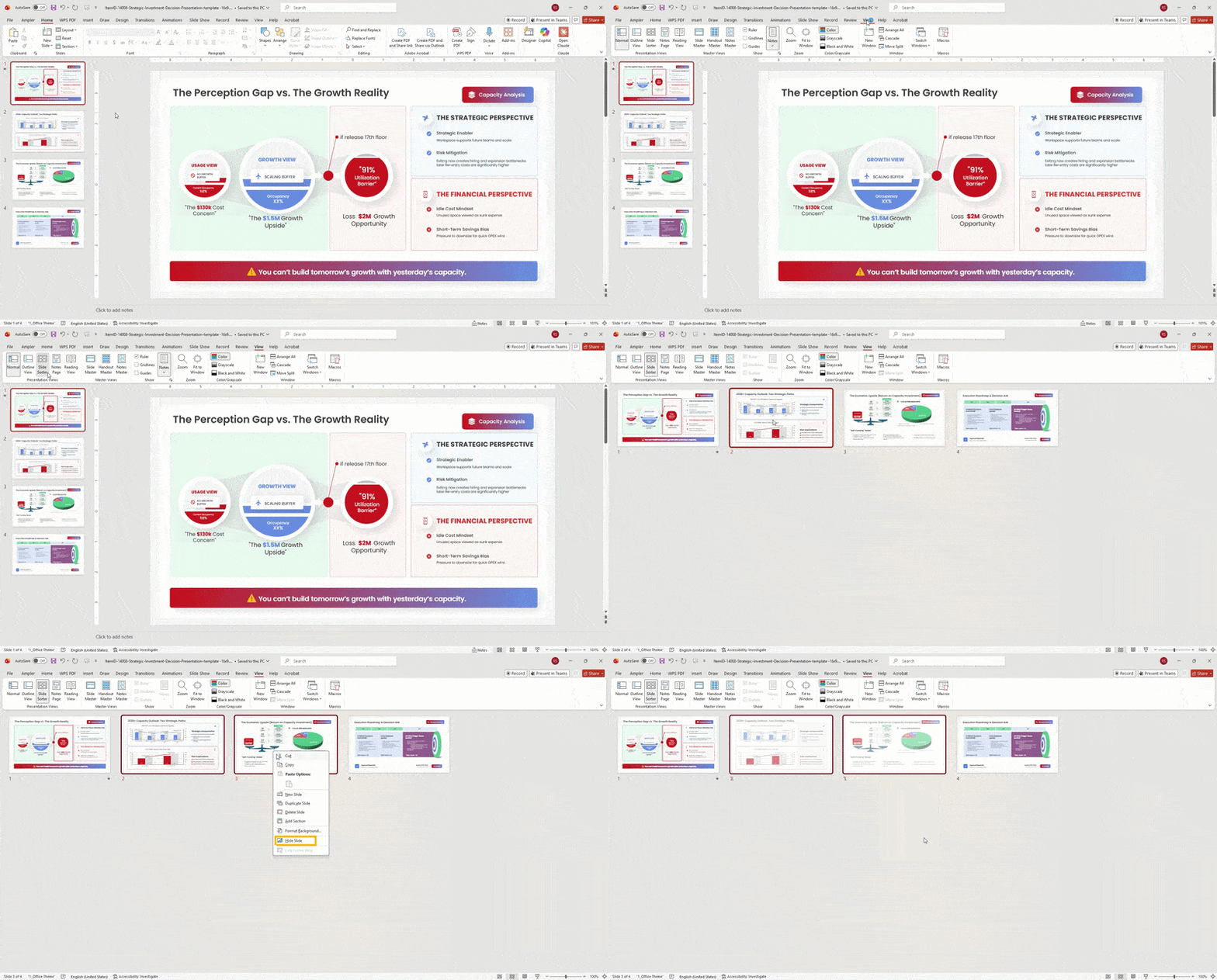
- Go to the View tab and select Slide Sorter to see all slides in a grid.
- Click the slide you want to hide.
- Right-click and select Hide Slide.
- For multiple slides, hold Ctrl, select all desired slides, right-click any one, and choose Hide Slide.
Method 3: Keyboard Shortcut
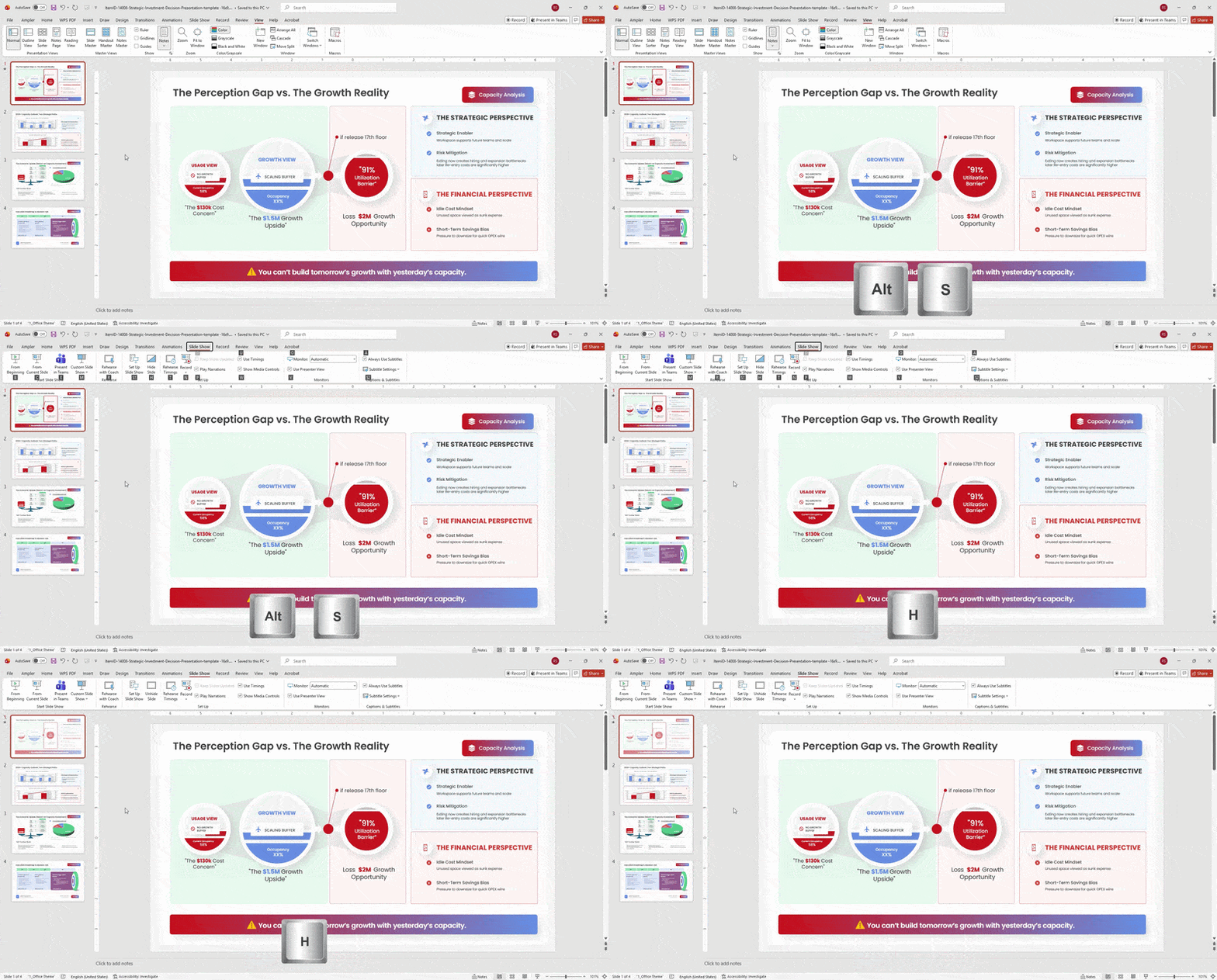
- In Normal View, select the slide you want to hide in the left pane.
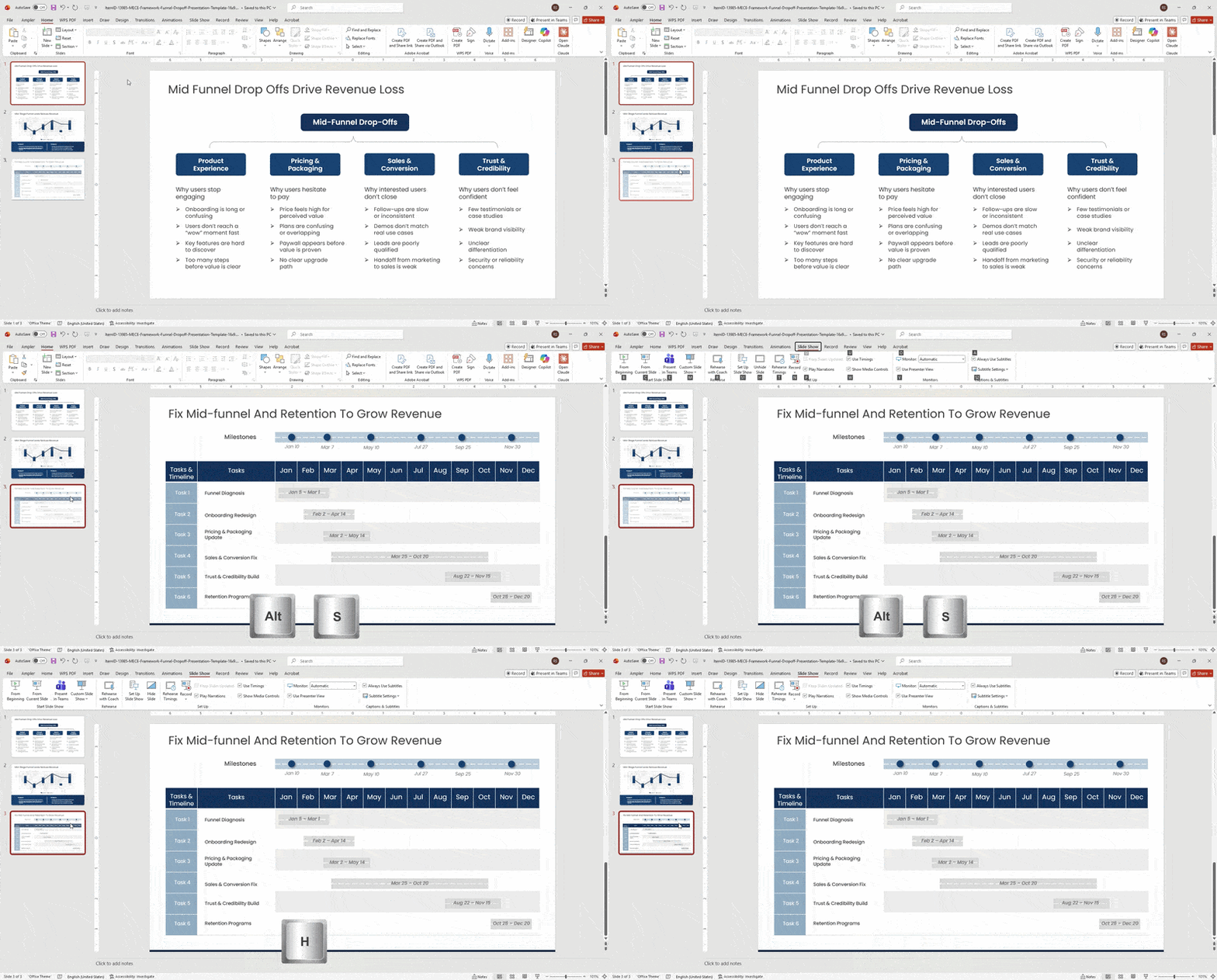
- Press Alt+S to open the Slide Show ribbon.
- Press H to toggle Hide Slide on or off.
- NOTE: This is the hide slide in PowerPoint shortcut for Windows only. Mac does not use the same Alt+S shortcut.
How to Unhide Slides in PowerPoint on Windows
Once your slides are hidden, you can unhide slides in PowerPoint on Windows using the exact same three methods. If you need to know how to unhide all slides in PowerPoint at once, simply select all with Ctrl+A, right-click, and choose Unhide Slide.
Normal View
- Open your presentation in Normal View.
- In the left slide pane, locate the greyed-out hidden slide.
- Right-click and select Unhide Slide.
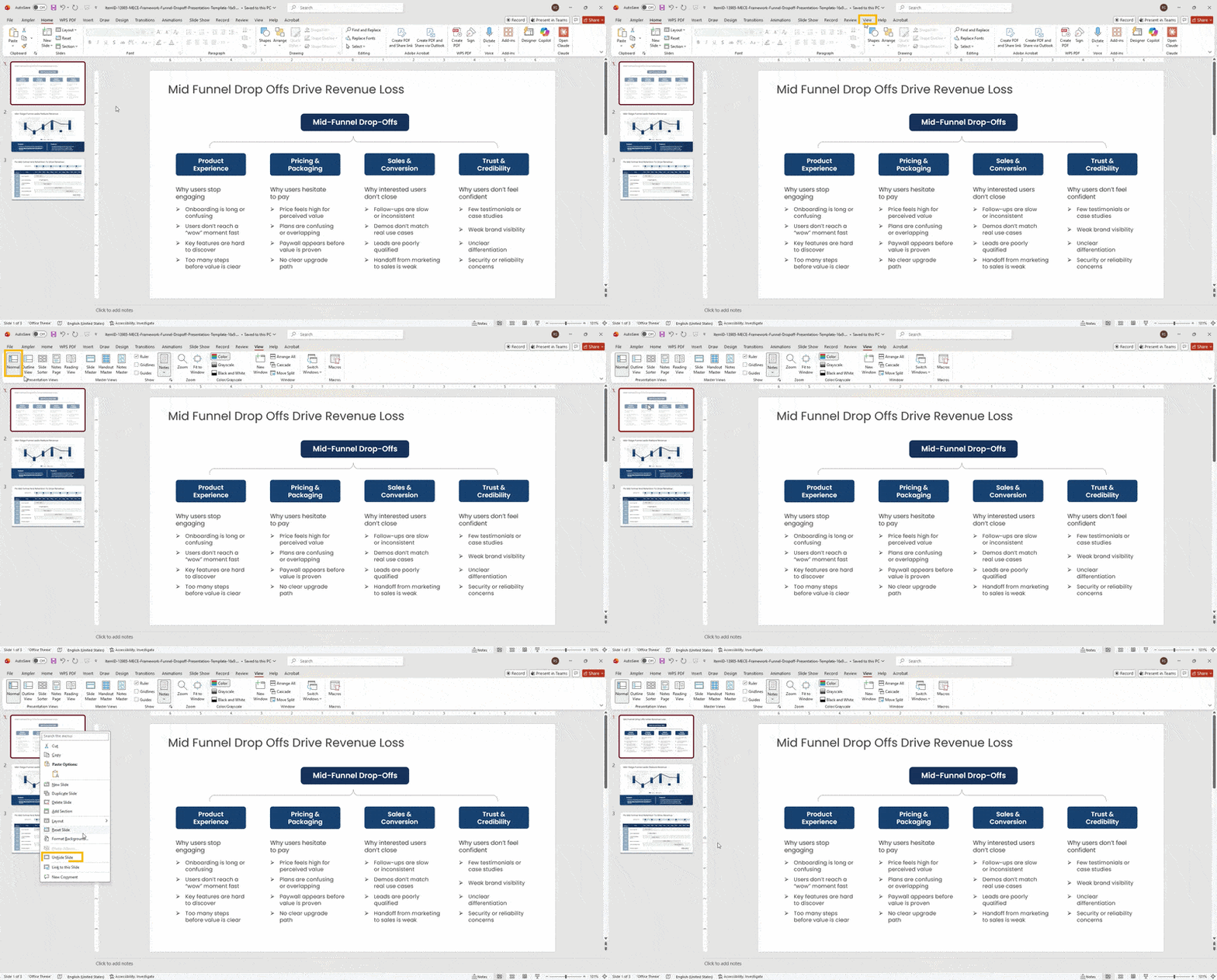
Hold Ctrl to select multiple hidden slides, then right-click any one and choose Unhide Slide to restore them all at once.
Slide Sorter View
- Go to View > Slide Sorter.
- Locate the greyed-out slide(s) in the grid.
- Right-click and select Unhide Slide.
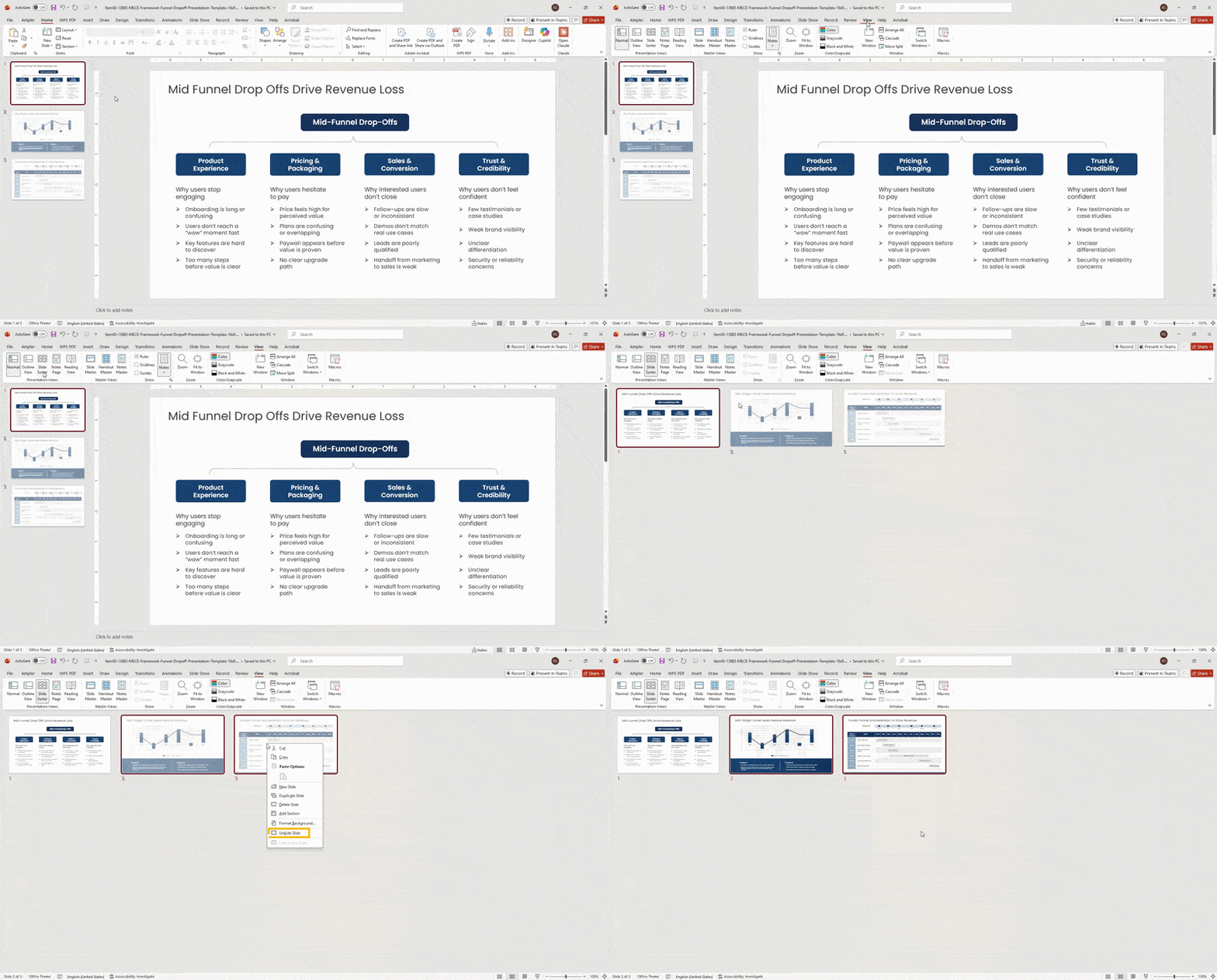
Keyboard Shortcut
Select the hidden slide, press Alt+S to access the Slide Show ribbon, then press H to unhide it. The same toggle used to hide is used to unhide.
Tip: Working in Google Slides instead of PowerPoint? Learn how to hide and unhide slides in Google Slides with a similar quick method.
How to Hide a Slide in PowerPoint on Mac?
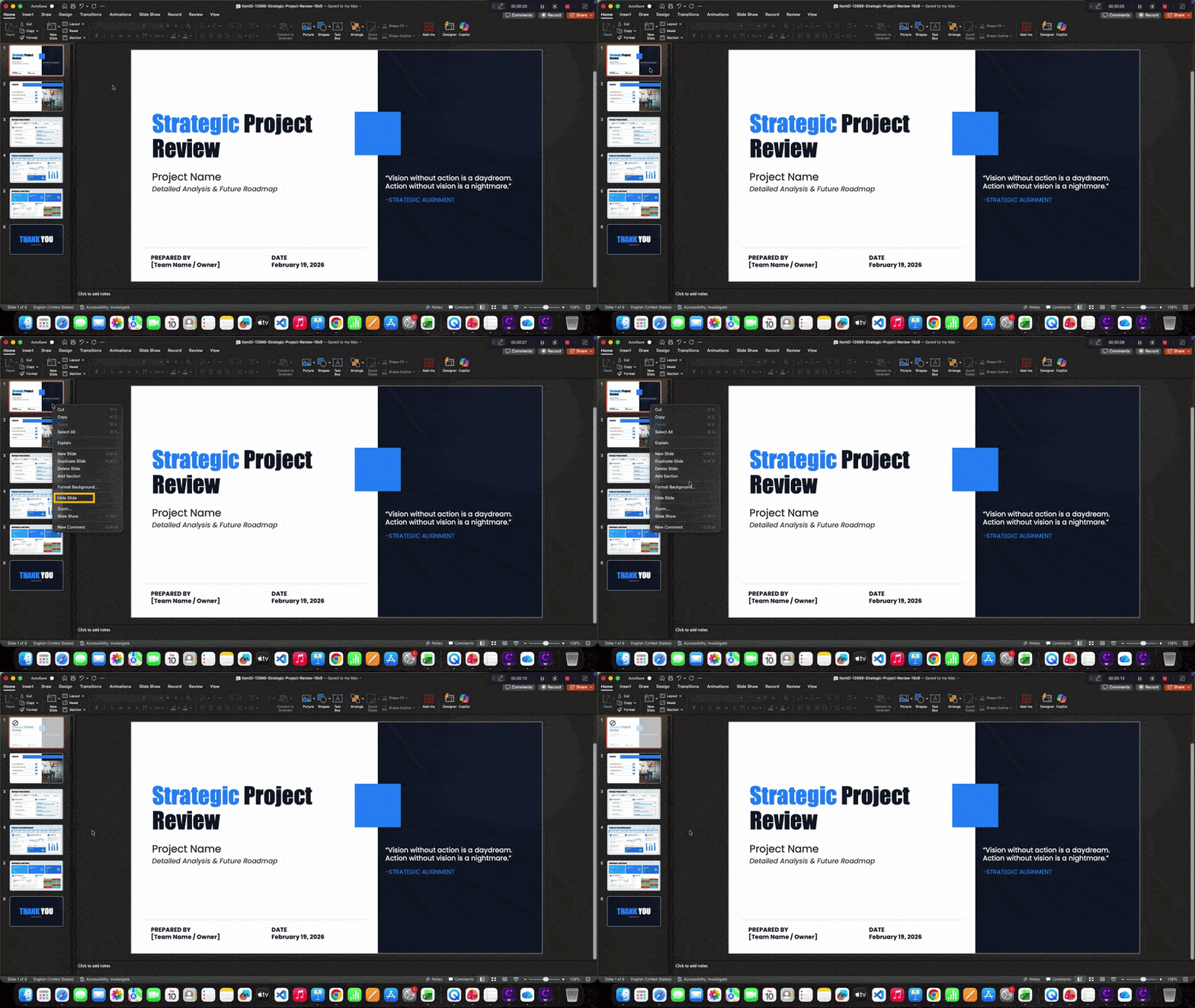
On Mac, the easiest way to hide a slide in PowerPoint is by right-clicking in the left navigation pane. Mac also supports Shift and Command for multi-select, making it simple to hide selected slide in PowerPoint or an entire section of your deck at once.
- Open your PowerPoint presentation on a Mac.
- In the left navigation pane, click the slide you want to hide.
- Right-click and select Hide Slide.
The slide will turn grey and display a null symbol in the upper-left corner of its thumbnail. The context menu will also show a checkmark next to Hide Slide to confirm the status.
For multiple slides:
- Sequential slides: Hold Shift, click the first and last slide in the range, then right-click and choose Hide Slide.
- Non-sequential slides: Hold Command, click each slide individually, then right-click any selected slide and choose Hide Slide.
How to Unhide a Slide in PowerPoint on Mac
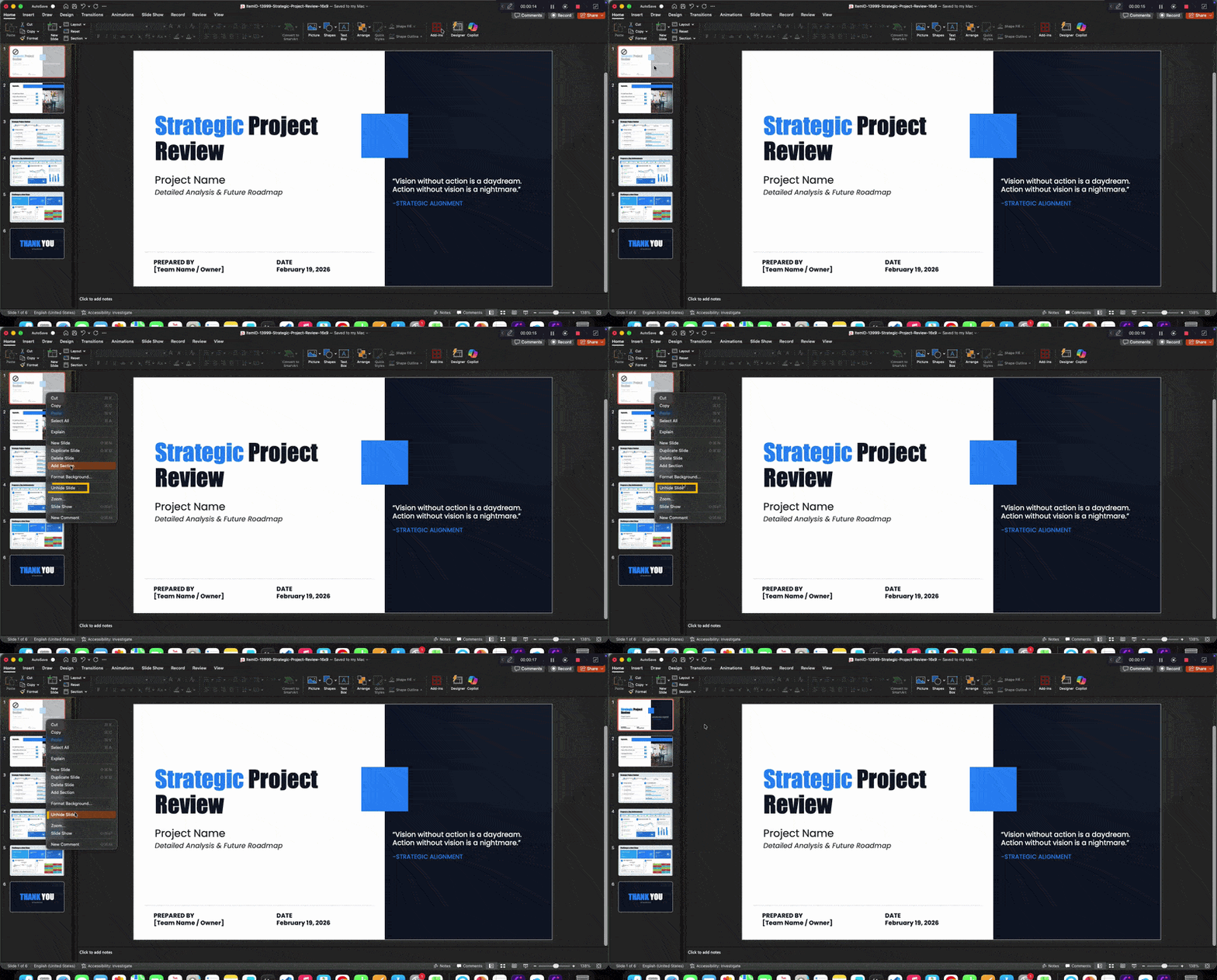
To unhide ppt slides on Mac, right-click the greyed-out slide in the left pane and select Unhide Slide. Whether you’re asking how do I unhide a slide in PowerPoint, the answer is the same — one right-click restores it instantly.
- Open your presentation and locate the greyed-out hidden slide in the left navigation pane.
- Right-click on it and select Unhide Slide.
- For multiple slides, hold Command or Shift to select all target slides, then right-click any one and choose Unhide Slide.
How to Hide Slides in PowerPoint on the Web?
You can hide slides in PowerPoint directly in the browser without the desktop app. The web version supports both Normal View and Slide Sorter, so if you’re asking how do you hide slides in PowerPoint online, the steps follow the same right-click logic as the desktop.
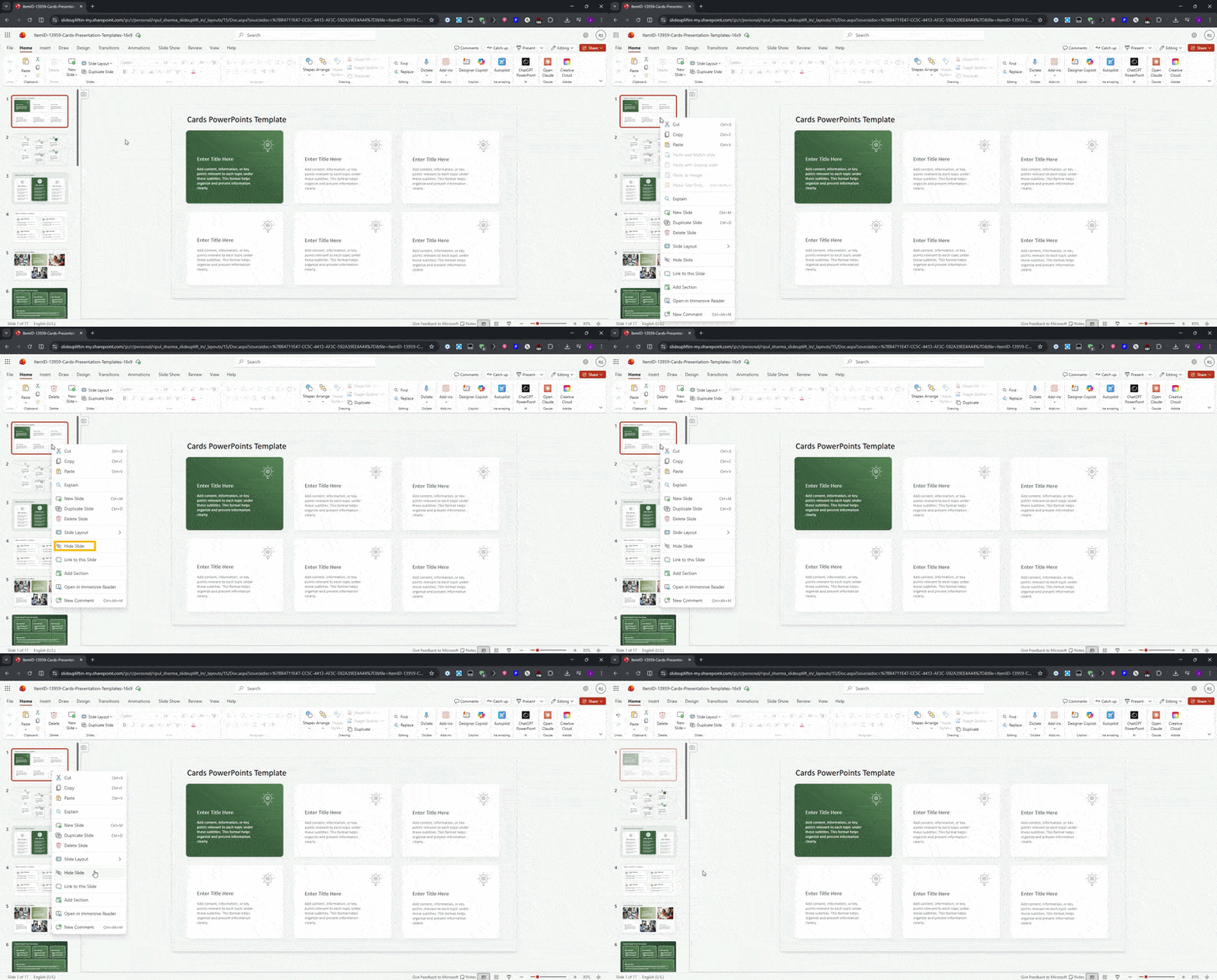
Method 1: Normal View
- Open your presentation in PowerPoint Web.
- In the left navigation pane, click the slide you want to hide.
- Right-click and select Hide Slide.
The slide will be greyed out with a blocked symbol to confirm it is hidden.
Method 2: Slide Sorter View
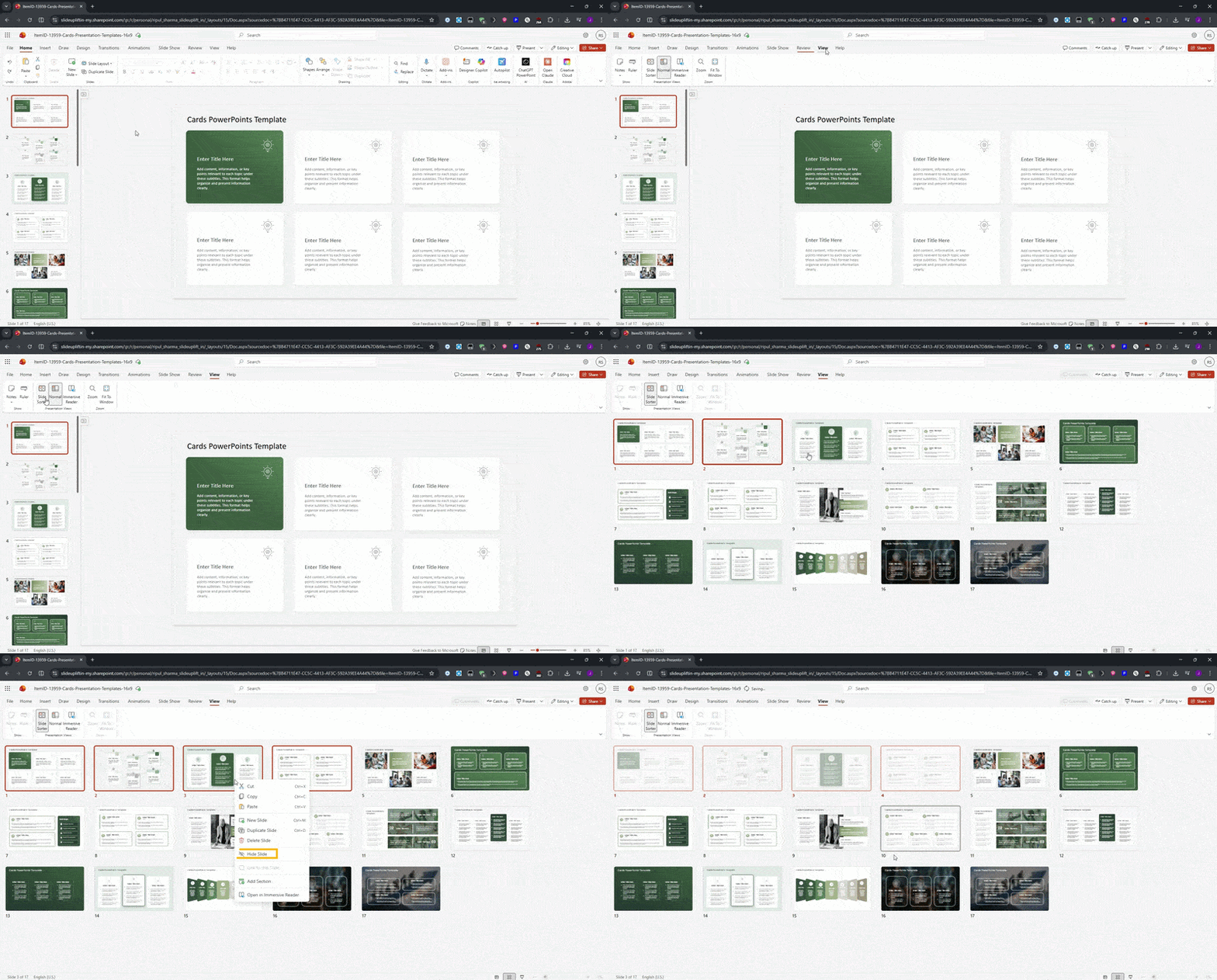
- Go to View > Slide Sorter.
- Right-click any slide thumbnail and select Hide Slide.
- To hide a range of slides, hold Shift, click the first and last slide in the range, then right-click and choose Hide Slide.
How to Unhide Slides in PowerPoint on the Web
To unhide slides in PowerPoint on the web, right-click any greyed-out slide and select Unhide Slide. If you need to PowerPoint unhide slides in bulk, hold Ctrl to multi-select and restore them all at once.
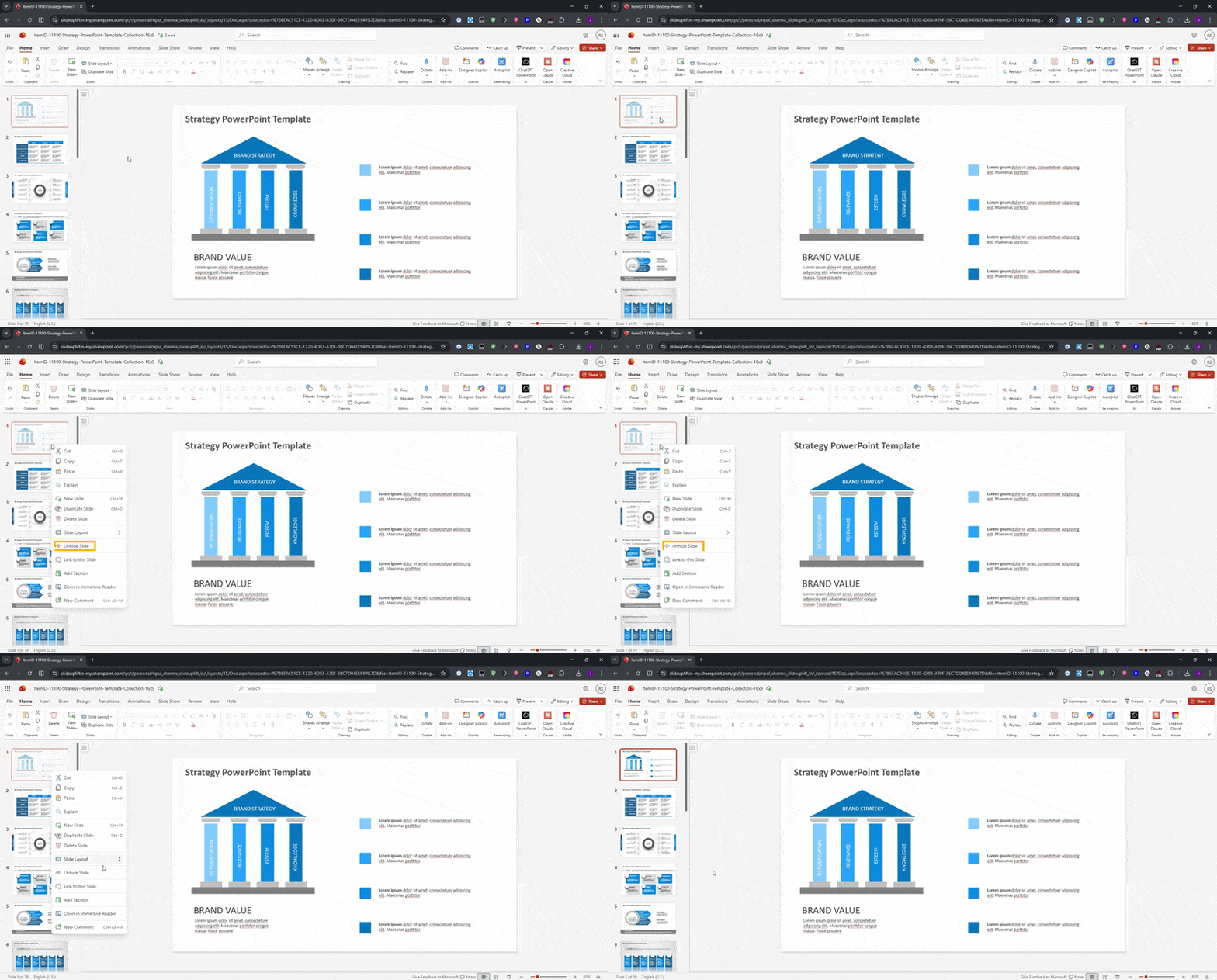
Normal View
- Right-click the greyed-out hidden slide in the left pane.
- Select Unhide Slide from the context menu.
- Hold Ctrl to select multiple hidden slides, then right-click any one and choose Unhide Slide.
Slide Sorter View
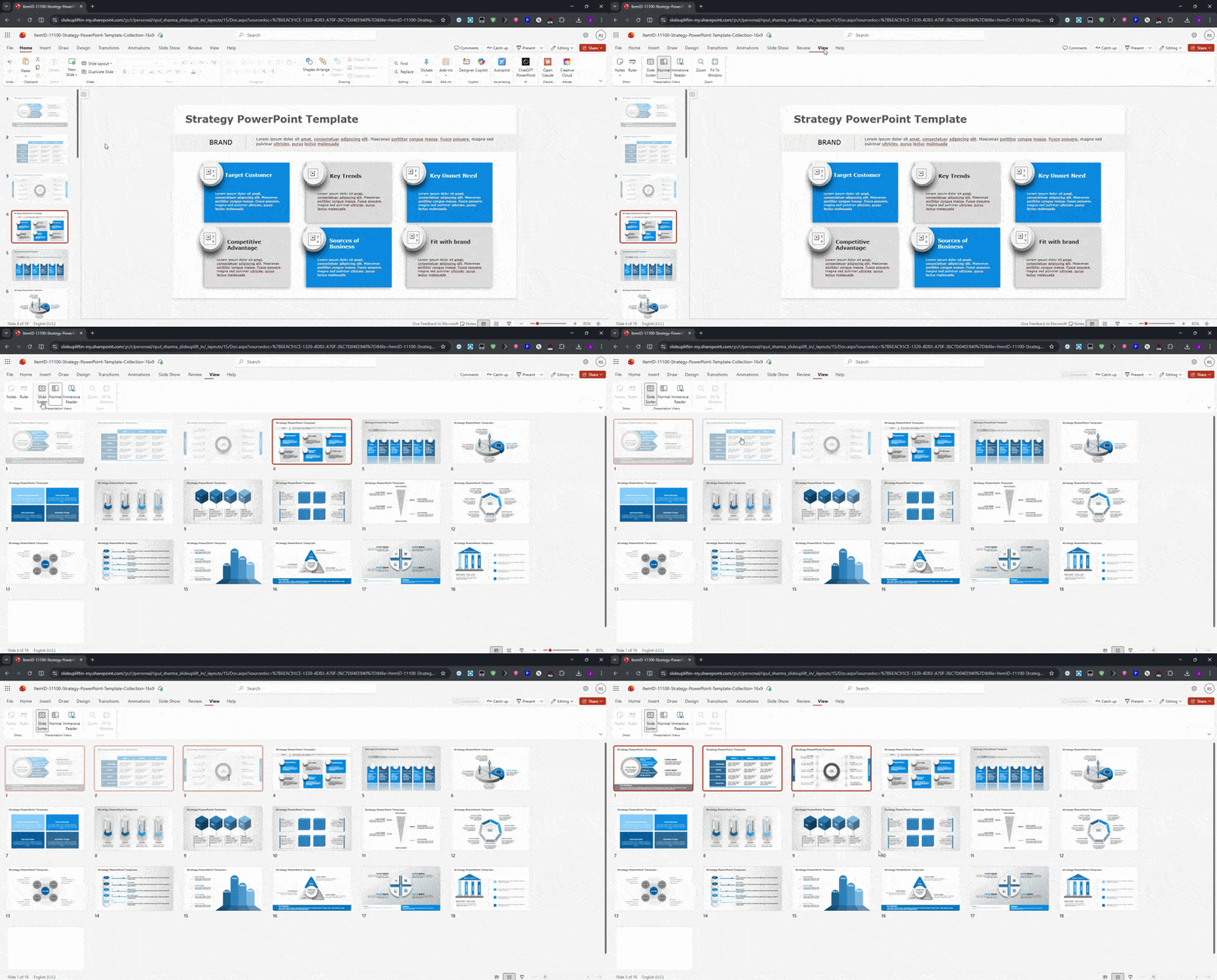
- Go to View > Slide Sorter.
- Locate the greyed-out hidden slide in the grid.
- Right-click and select Unhide Slide.
- For multiple slides, hold Ctrl, select all target slides, right-click any one, and choose Unhide Slide.
PowerPoint Hide Slide Shortcut — All Platforms
The hide slide in PowerPoint shortcut on Windows saves you from right-clicking every time. Press Alt+S then H to toggle any slide hidden or visible instantly — the same PowerPoint hide slide shortcut works as the ppt hide slide shortcut regardless of file format.
| Action | Windows Shortcut | Mac Shortcut |
| Hide Slide | Alt + S, then H | No native shortcut — use right-click → Hide Slide, or Slide Show tab in ribbon |
| Unhide Slide | Alt + S, then H (same toggle) | No native shortcut — right-click greyed-out slide → Unhide Slide |
| Unhide All Slides | Ctrl + A to select all → right-click → Unhide Slide | Cmd + A to select all → right-click → Unhide Slide |
Want to work even faster in PowerPoint? Check out our complete guide to PowerPoint keyboard shortcuts to discover dozens of time-saving shortcuts for slides, formatting, animations, and presentations.
Bonus: View Hidden Slides During a Live Presentation
You can reveal a hidden slide mid-presentation without exiting the slideshow or interrupting your flow.
- While in Slideshow view, right-click anywhere on the screen.
- Select See All Slides from the context menu.
- A grid showing all slides — including hidden ones — will appear.
- Click any hidden slide to jump to it. The slideshow resumes from there.
Conclusion
The Hide Slide feature is one of PowerPoint’s most versatile tools for presentation management. Whether you need to hide slides in PowerPoint for a specific audience, toggle visibility during prep, or unhide slides in PowerPoint before a final review, the process is fast and non-destructive. Your content stays intact no matter how many times you hide or restore it. Use the quick reference table at the top of this guide any time you need a reminder of which method works best on your platform.
FAQs
-
How do I hide a slide in PowerPoint during a presentation?
Open your PowerPoint presentation in Normal View. In the navigation pane on the left side of your screen, select the slide thumbnail, right-click, and choose the Hide Slide option from the context menu. The slide becomes a hidden slide with a null symbol next to the slide number and will be skipped during the slideshow.
-
Can I unhide a slide in PowerPoint once I've hidden it?
Yes. In Normal View, locate the hidden slide in the slide thumbnails. Right-click the slide in the navigation pane and select Hide Slide again from the context menu to unhide the slide so it appears in the slideshow view.
-
Will hidden slides be visible to my audience when I present?
No. Hidden slides are skipped during the slideshow and presentation mode, so your audience will not see them unless you manually navigate to them.
-
Is there a quick way to hide a slide in PowerPoint using a shortcut?
Yes. In Normal View, select the slide thumbnail in the navigation pane, then use the keyboard Alt + S, then H key or right-click and choose the Hide Slide option from the context menu.
-
How do I check which slides are hidden in my PowerPoint deck?
In Normal View, check the slide thumbnails in the navigation pane. A hidden slide appears dimmed and shows a null symbol or a hidden slide indicator next to the slide number.
-
Does hiding a slide remove it from the slide thumbnails or just the presentation?
No. The slide remains visible in the slide thumbnails in Normal View, but it becomes a hidden slide and will be skipped during the slideshow view.
-
Can hidden slides be printed or exported in PowerPoint?
Yes. Hidden slides remain part of the PowerPoint presentation and can still be included when you print slides, export, or save the file as a PDF version, depending on settings.
-
Is it possible to hide slides in PowerPoint on both Windows and Mac?
Yes. The Hide Slide option works the same on Windows and Mac. In Normal View, right-click the selected slide in the navigation pane and choose Hide Slide from the context menu.
-
What happens if I hyperlink to a hidden slide in PowerPoint?
A hyperlink to a hidden slide still works. Clicking it during the slideshow will open that slide even though it is hidden from the normal slide sequence.
-
How do I hide a slide without deleting it from my PowerPoint file?
In Normal View, right-click the selected slide in the slide thumbnails and choose the Hide Slide option from the context menu. The slide stays in the PowerPoint presentation but is skipped in the slideshow.





Related posts from the same category

22 May, 2023 | SlideUpLift
How To Copy And Paste a Slide In PowerPoint
When making presentations, you can save time and effort by simply copying and pasting a slide into PowerPoint. The duplicate slide option in PowerPoint is useful to eliminate the two-step

11 Mar, 2026 | SlideUpLift
How to Hide a Slide in Google Slides: Complete Guide
Learn how to hide and unhide slides in Google Slides without deleting them in this step-by-step guide. The blog explains simple methods like using the Skip Slide option, toolbar, and
![How To Delete A Slide In PowerPoint? [1-Minute Guide]](https://slideuplift.com/wp-content/uploads/2023/05/How_To_Delete_A_Slide_In_PowerPoint.jpg "How To Delete A Slide In PowerPoint? [1-Minute Guide]")
3 May, 2024 | SlideUpLift
How To Delete A Slide In PowerPoint? [1-Minute Guide]
Whether you are giving a presentation at work, school, or to friends and family, ensuring it is polished and professional is crucial. Figuring out how to delete a slide in

16 May, 2023 | SlideUpLift
How To Move A Slide In PowerPoint
PowerPoint is an excellent presentation software that helps you create eye-catching yet informative slideshows. Whether you are making a business presentation or a school project, knowing how to move a

22 May, 2023 | SlideUpLift
How to Add a New Slide in PowerPoint
PowerPoint is a powerful tool that allows users to create engaging and dynamic slideshows for various purposes. Adding new slides to a PowerPoint presentation is a fundamental skill that is

15 May, 2023 | SlideUpLift
How To Add Slide Numbers To PowerPoint
Adding slide numbers to PowerPoint presentations is an important aspect of creating effective presentations. Slide numbers not only help you organize your presentation but also allow your audience to follow

15 May, 2024 | SlideUpLift
How To Create A Captivating Title Slide For A Presentation
Are you looking for a way to ditch the boring title slide and hook your audience from the start? This blog will teach you all you need to know to

9 Jun, 2023 | SlideUpLift
How To Delete A Slide In Google Slides?
Google Slides is a great place to make fantastic presentations for school, college, or work. But keeping your presentation minimal and decluttered is very vital. It is necessary not to

18 Feb, 2026 | SlideUpLift
How to Copy a Slide in Google Slides: Step-by-Step Guide
Learn how to duplicate, copy, and paste a slide in Google Slides using simple, step-by-step methods. This guide covers desktop shortcuts, right-click options, toolbar methods, and mobile steps for Android

16 May, 2023 | SlideUpLift
How To Add A New Slide In Google Slides
Google Slides is an easy way to create group projects and presentations. Many people can work together at a time on a project to make a great presentation. Moreover, you