

 Flat 1


How To Make a Quiz in Google Slides? (Step-by-Step Guide)
Quick Answer: To make a quiz in Google Slides, create a question slide with answer options, then build separate “Correct Answer” and “Wrong Answer” feedback slides. Use Insert → Link (Ctrl+K) to hyperlink each answer option to its corresponding feedback slide. Repeat for every question and test everything in Present mode before sharing.
Introduction
One of the biggest challenges in any business presentation or general session is keeping your audience engaged from start to finish. Whether you are presenting to colleagues, clients, or a classroom, a bored audience is a missed opportunity.
Google Slides is one of the most widely used presentation tools in the world — and most people don’t realize it can do far more than display bullet points. With a few smart tweaks, you can turn your slides into an interactive quiz that captures attention, drives participation, and makes your content memorable. Knowing how to create a quiz in Google Slides is one of the most underrated skills for business presenters and educators alike.
In this guide, you will learn exactly how to make a quiz in Google Slides step by step — from building your question slides to linking answer options, setting up feedback slides, using Google Add-ons, and even creating a self-grading quiz with Google Forms. No coding required.
Want to skip the setup? Download a free Google Slides quiz template and just replace the placeholder questions with your own.
How To Make a Quiz in Google Slides (Step-by-Step)
Google Slides does not have a built-in quiz feature. However, by using its hyperlinking capability, you can create a fully interactive Google Slides quiz experience where participants click answer options and are directed to different slides based on whether they are right or wrong. Whether you want to know how to make a quiz on Google Slides for a training session or a classroom activity, this workflow covers everything.
Here is exactly how to do it:
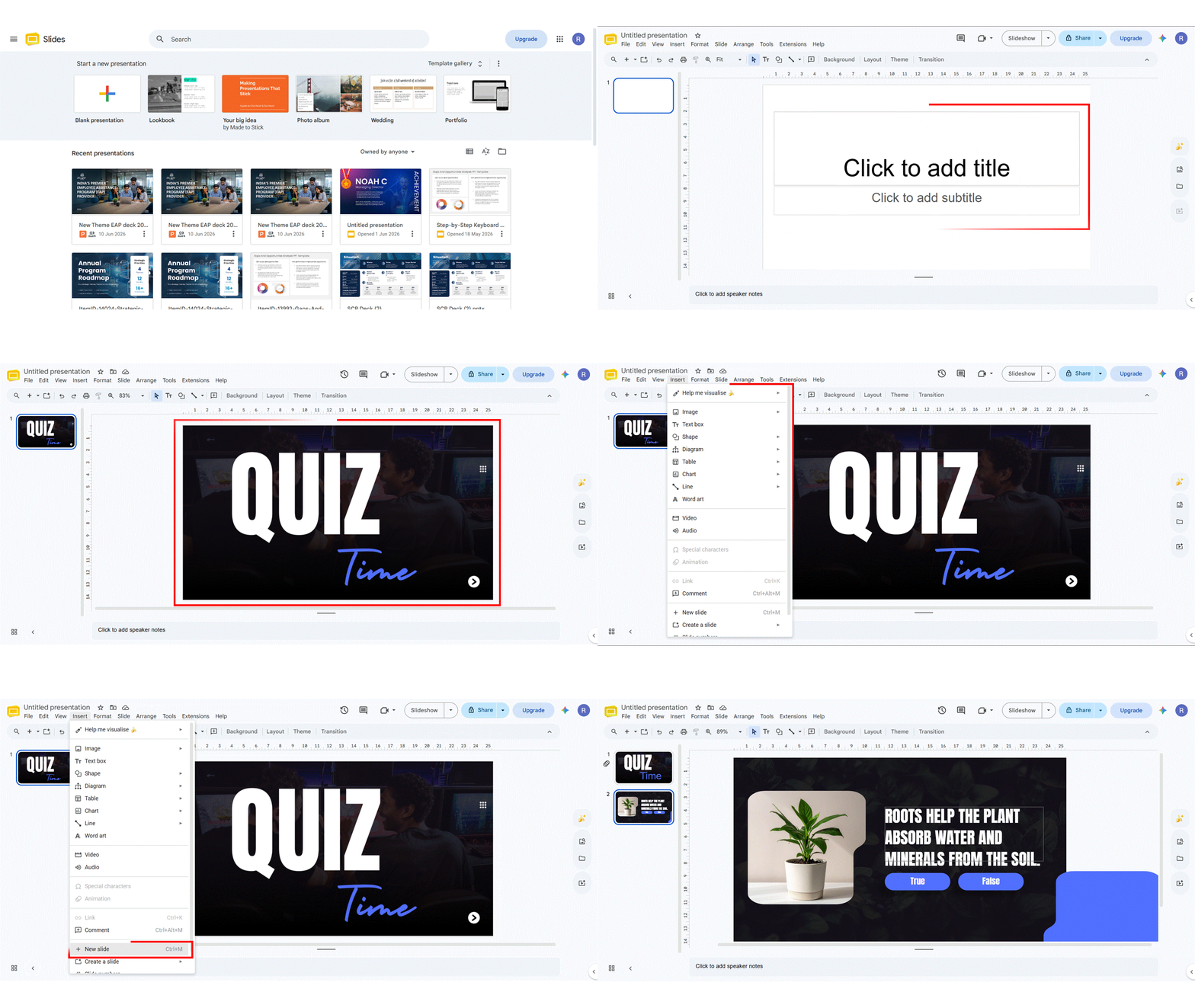
Step 1: Open a Blank Google Slides Presentation
Go to slides.google.com, click the “+” icon to open a new blank presentation, and rename it with your quiz topic (for example, “Product Knowledge Quiz” or “Team Trivia — Q3 2026”).
Step 2: Create Your Title Slide
Design a clean opening slide with the quiz name and a brief instruction such as “Click the correct answer on each slide.” This sets expectations for your audience before the quiz begins. Keep fonts large and legible, and use your brand colors if this is for a business presentation. If you’re wondering how to make a trivia game on Google Slides, this opening slide is where you set the tone and rules for participants.
Step 3: Design Your Question Slides
For each question, add a new slide using the Title and Body layout (Slide → Apply Layout → Title and Body). Type your question in the title field. Then, add text boxes or button-like shapes below for each answer option (A, B, C, D). Using oval or rounded-rectangle shapes makes the answer choices look like clickable buttons, which improves the visual experience for your audience.
Pro Tip: Number each question slide (e.g., Q1, Q2) so participants know where they are in the quiz. If you are using a Google Slides multiple choice quiz template, this numbering is usually already built in — saving you significant formatting time. Consistent formatting across all question slides also makes the experience feel polished and professional.
Step 4: Create Correct Answer and Wrong Answer Slides
This is the step most people miss — and it is what makes the quiz truly interactive.
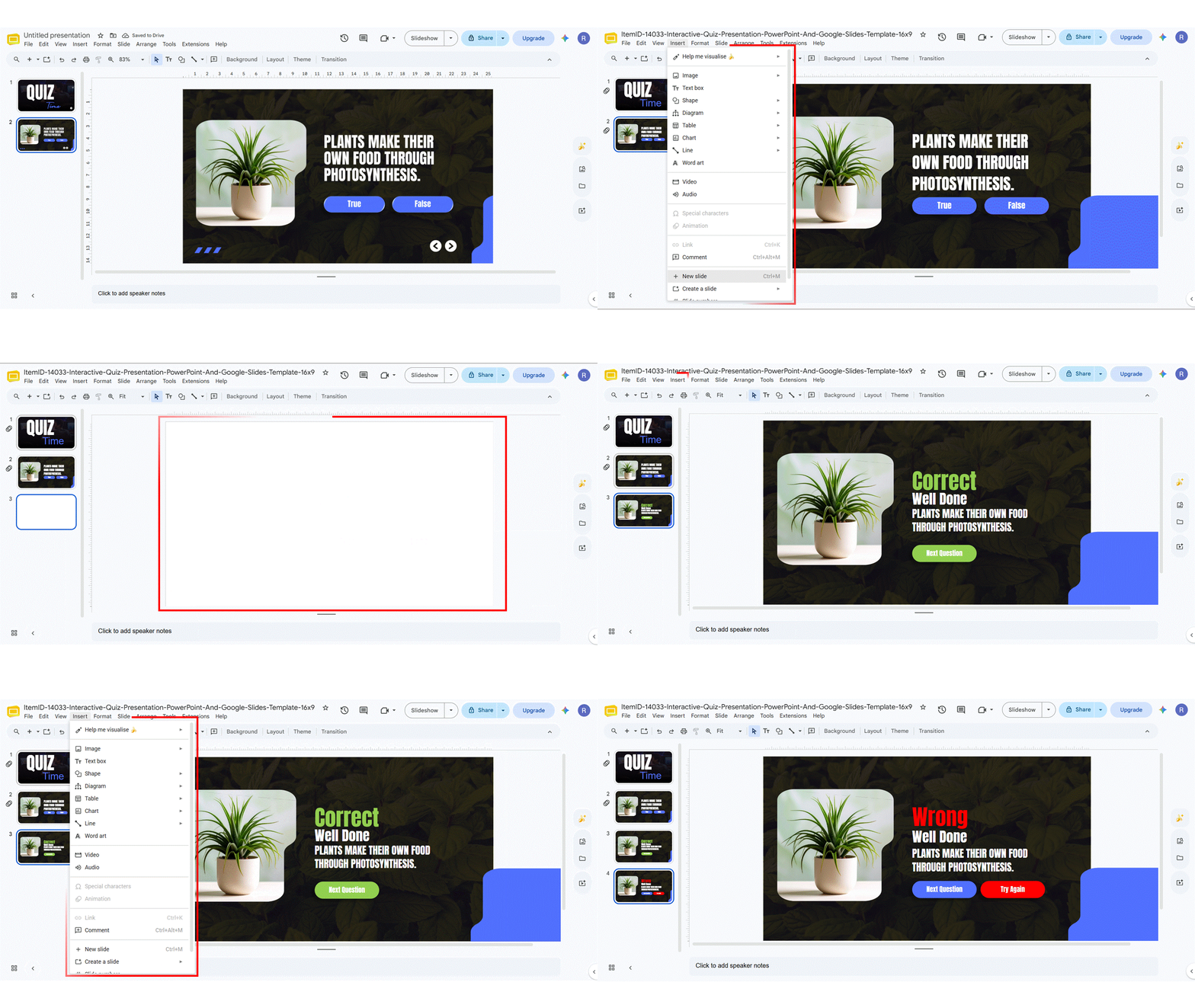
After each question slide, you need to create two separate feedback slides:
- Correct Answer slide: Add a green checkmark or positive message such as “Correct! Well done.” Include a button labeled “Next Question” or “Continue.”
- Wrong Answer slide: Add a red X or message such as “Not quite! Try again.” Include a button labeled “Try Again” that links back to the question slide.
These feedback slides are what give participants immediate responses to their choices, which dramatically increases engagement and makes the Google Slides interactive quiz feel real rather than passive.
Step 5: Link Each Answer Option to the Right Slide
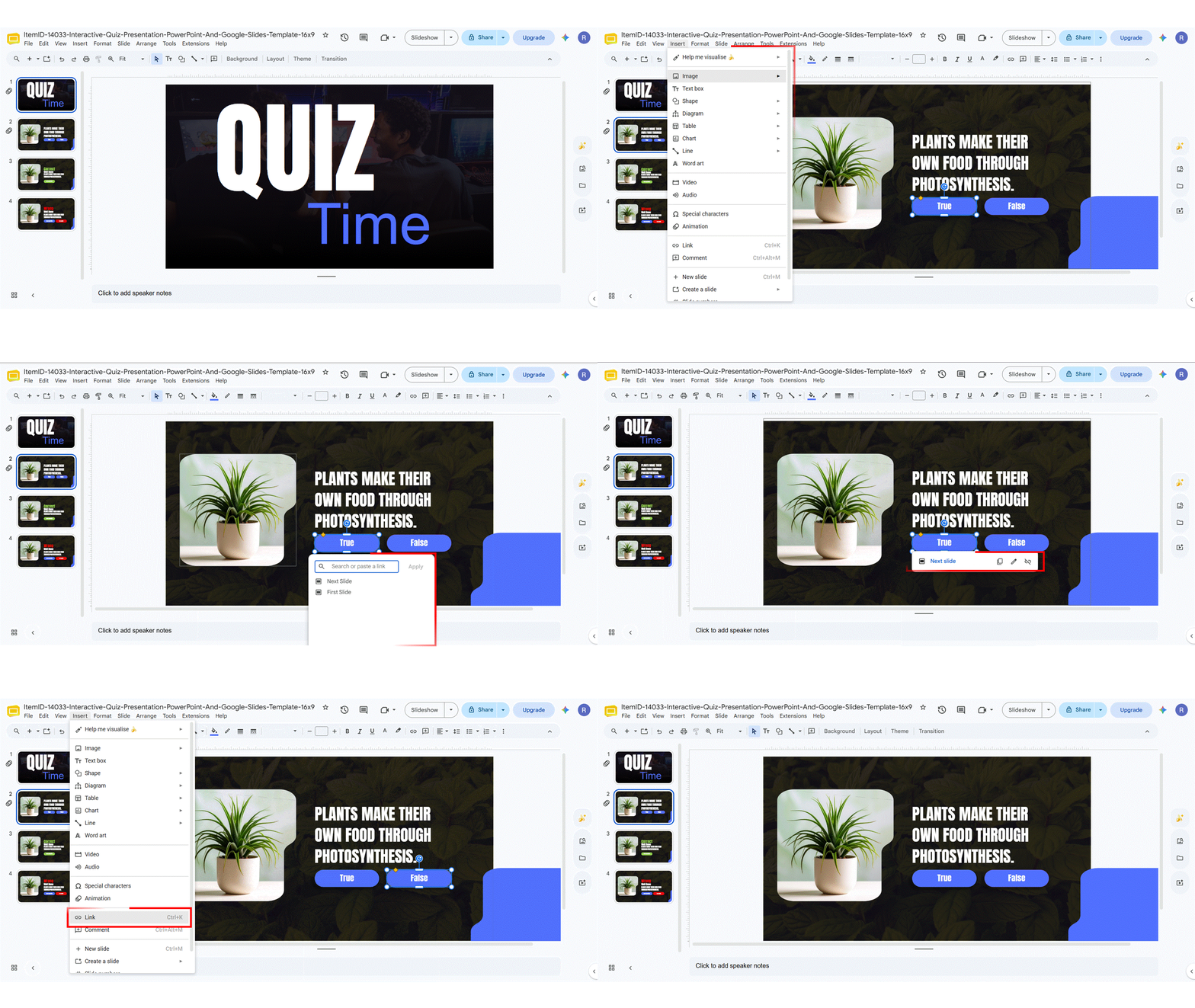
This is the core mechanic of the entire quiz. Here is how to set up the links:
- Click on the answer option shape or text box you want to link.
- Go to Insert → Link (or press Ctrl+K on Windows / Cmd+K on Mac).
- In the link panel, select “Slides in this presentation.”
- Choose the Correct Answer slide if this option is right, or the Wrong Answer slide if it is incorrect.
- Click Apply.
- Repeat for all remaining answer options on that question slide.
New to linking inside a presentation? See our full guide on how to add hyperlinks in Google Slides.
Pro Tip: Keep your slide order logical. A typical structure is: Question 1 → Correct 1 → Wrong 1 → Question 2 → Correct 2 → Wrong 2, and so on. This makes it easy to manage links without confusion. If you want to embed a quiz in your Google Slides for a live audience session, this clean structure also makes it easier to manage in Present mode.
Step 6: Add a “Next Question” Button on Feedback Slides
On every Correct Answer slide, add a button (shape or text box) labeled “Next Question” and link it to the next question slide. On every Wrong Answer slide, add a “Try Again” button and link it back to the same question slide. This creates a smooth, self-navigating experience for your audience.
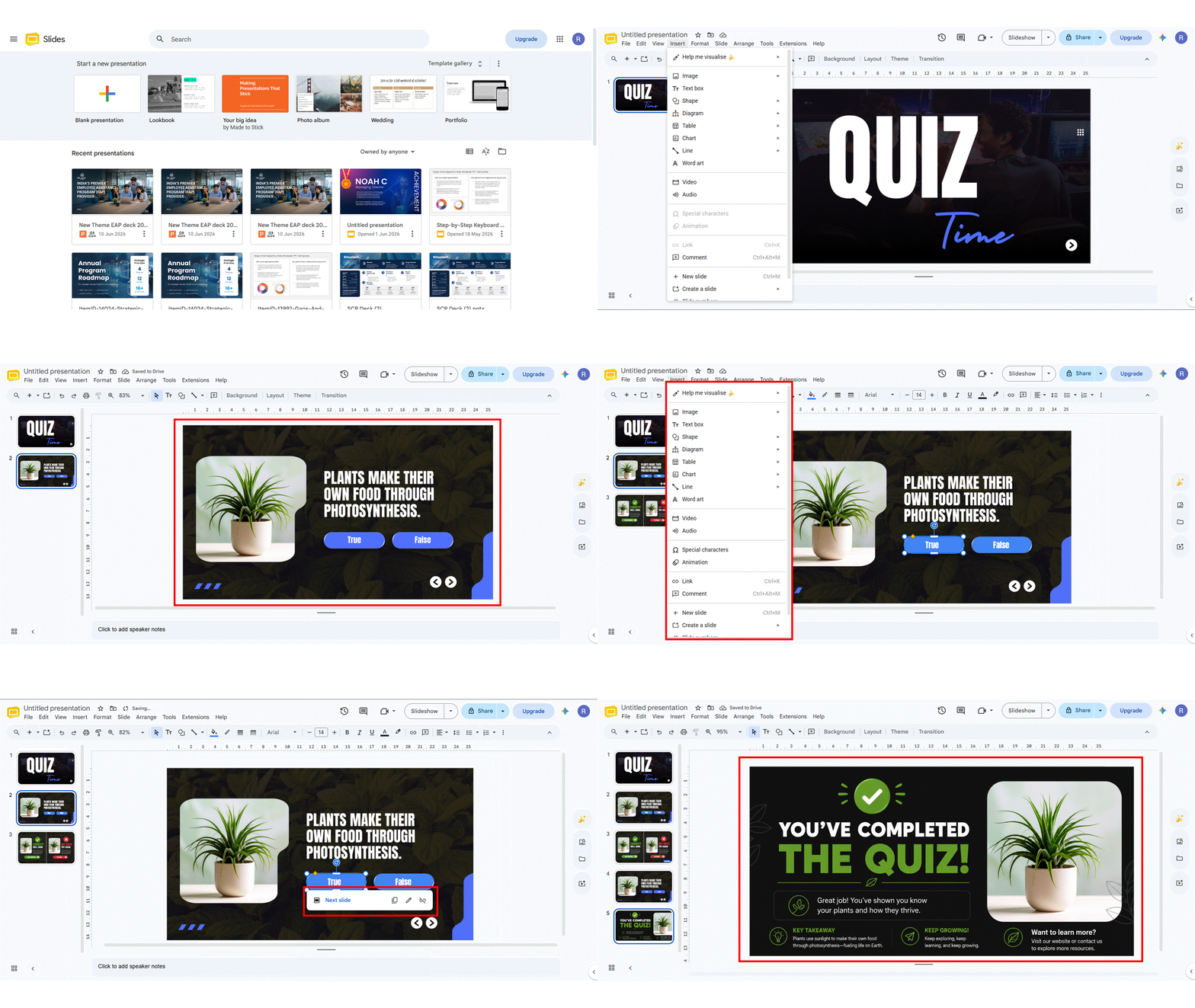
Step 7: Add a Final Score or Completion Slide
At the end of your quiz, add a closing slide that says something like “You’ve completed the quiz!” or shows a summary. For business presentations, this is a great place to add a call-to-action, a key takeaway, or contact information.
Step 8: Test Your Quiz in Present Mode
Before sharing the quiz with anyone, click Present mode and go through every single question. Click every answer option and verify that it links to the correct feedback slide. Fix any broken or incorrect links before distributing. This step is non-negotiable — a broken link in a live presentation looks unprofessional.
The Faster Method: Fake Interactivity With Slide Animations (No Hyperlinks)
If you don’t want to build and link dozens of feedback slides, there is a quicker approach that works especially well for trivia-style games: use slide order and built-in animations to reveal answers instead of hyperlinks.
Here is the idea: put your question and all answer buttons on a single slide. Color the answer buttons neutrally. Then add a “reveal” animation so that, when you click to advance, the correct answer turns green and the incorrect ones turn red. You are not building real click-through interactivity — you are using animation timing to simulate it. This is the classic “Who Wants to Be a Millionaire” style format, and it is far faster to produce for a large question set. For a ready-made version of this game-show format, browse our jeopardy powerpoint templates – categories, points, and a scoreboard already built in.
Use this method when you are running the quiz live yourself (so you control the clicks), and the hyperlink method when participants will navigate on their own.
How to Create a Quiz Using Google Add-Ons
If you want to speed up quiz creation or add advanced features like real-time polling, live leaderboards, or automatic question generation, Google Add-ons are your best option. Understanding how to create a quiz on Google Slides using add-ons opens up significantly more functionality than the native hyperlinking method alone.
Here is how to get started:
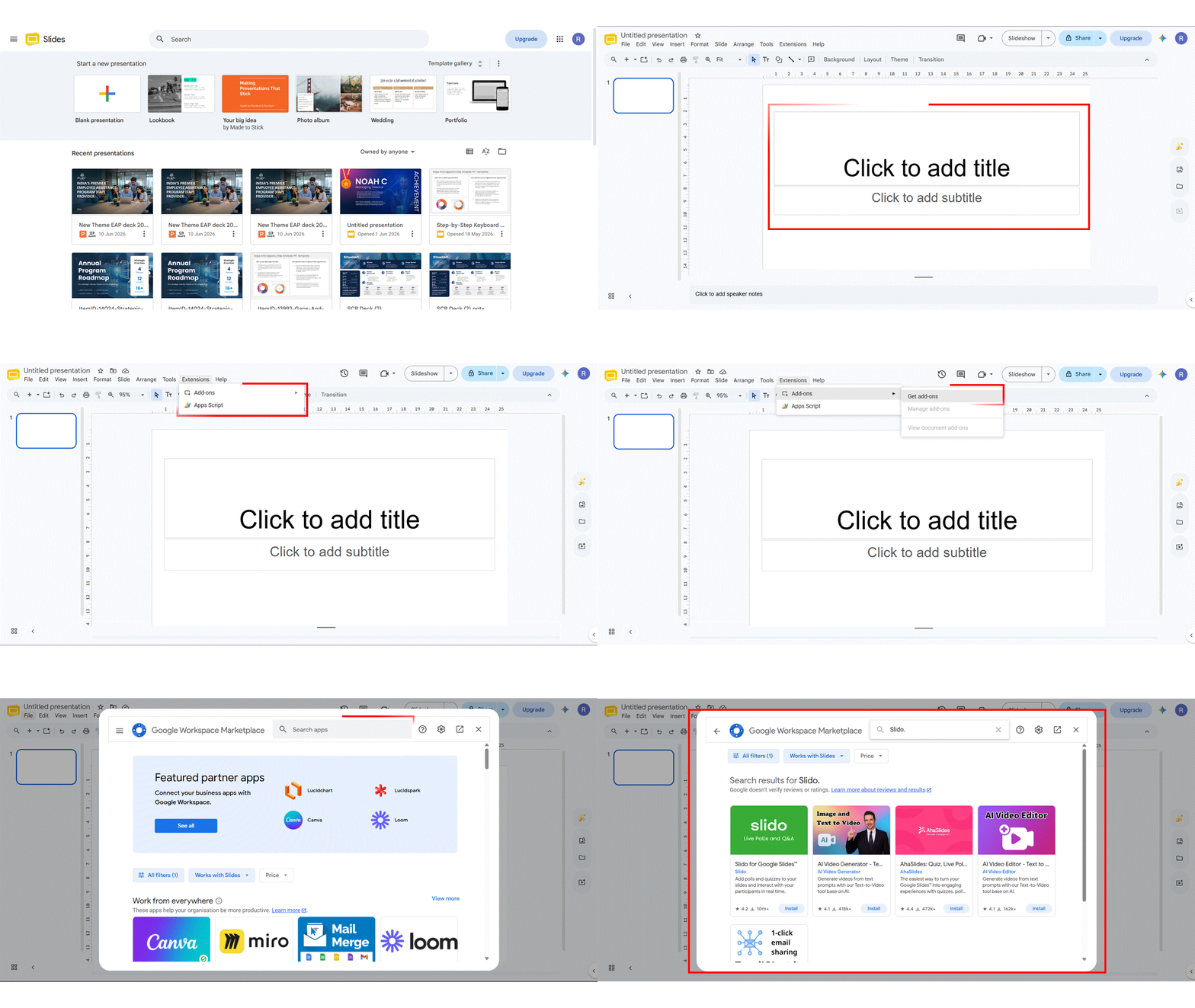
- In Google Slides, go to Extensions → Add-ons → Get add-ons.
- This opens the Google Workspace Marketplace. Search for the add-on you want (see recommendations below).
- Click Install and follow the authorization prompts.
- Once installed, access it anytime from Extensions → [Add-on Name].
Recommended Add-Ons for Quiz Creation
- Slido. Ideal for live business presentations. Slido lets you run real-time polls, Q&A sessions, and quizzes that participants can join from their phones. Results appear live on your slide. Best for team meetings, town halls, and webinars.
- Quizizz AI. Automatically generates quiz questions based on your existing slide content. It saves significant time when you have a lot of material to cover and need to build your questions quickly without writing them all manually.
- SlidesAI. Found in the Google Workspace Marketplace, SlidesAI can generate full quiz sections based on your topic or input criteria. Useful when building quizzes from scratch.
These add-ons are particularly useful for business presenters who need to run a Google Slides interactive quiz during live sessions where audience interaction and instant feedback are critical.
Why Use Google Slides for Quizzes?
Google Slides is a strong quiz platform because it combines full design control with zero cost and no software for your audience to install. Here is why it works so well for business and general-use scenarios:
- Visually flexible: Google Slides presentations are easy to customize with your own brand colors, fonts, images, and layouts. Unlike form-based quiz tools, you have complete design control.
- Clickable answers: The hyperlink feature lets you create slides with clickable answer choices that guide users to immediate feedback, reinforcing learning and keeping participants engaged.
- No extra software needed: Anyone with a Google account can access and run the quiz. There is nothing to download or install for your audience.
- Custom animations and transitions: Using the Theme Builder, you can add animations, transitions, and custom graphics to make your quizzes more dynamic and on-brand.
- Works online and offline: Google Slides can be downloaded and presented offline, which is useful for conferences or venues with unreliable internet.
These features make Google Slides a practical and polished option for business presenters, trainers, HR teams, and marketers who want to know how to make an interactive quiz on Google Slides without investing in separate quiz software. For more ways to build participation into your deck, see our guide on how to make an interactive Google Slides presentation.
How to Make a Self-Grading Quiz Using Google Slides and Google Forms
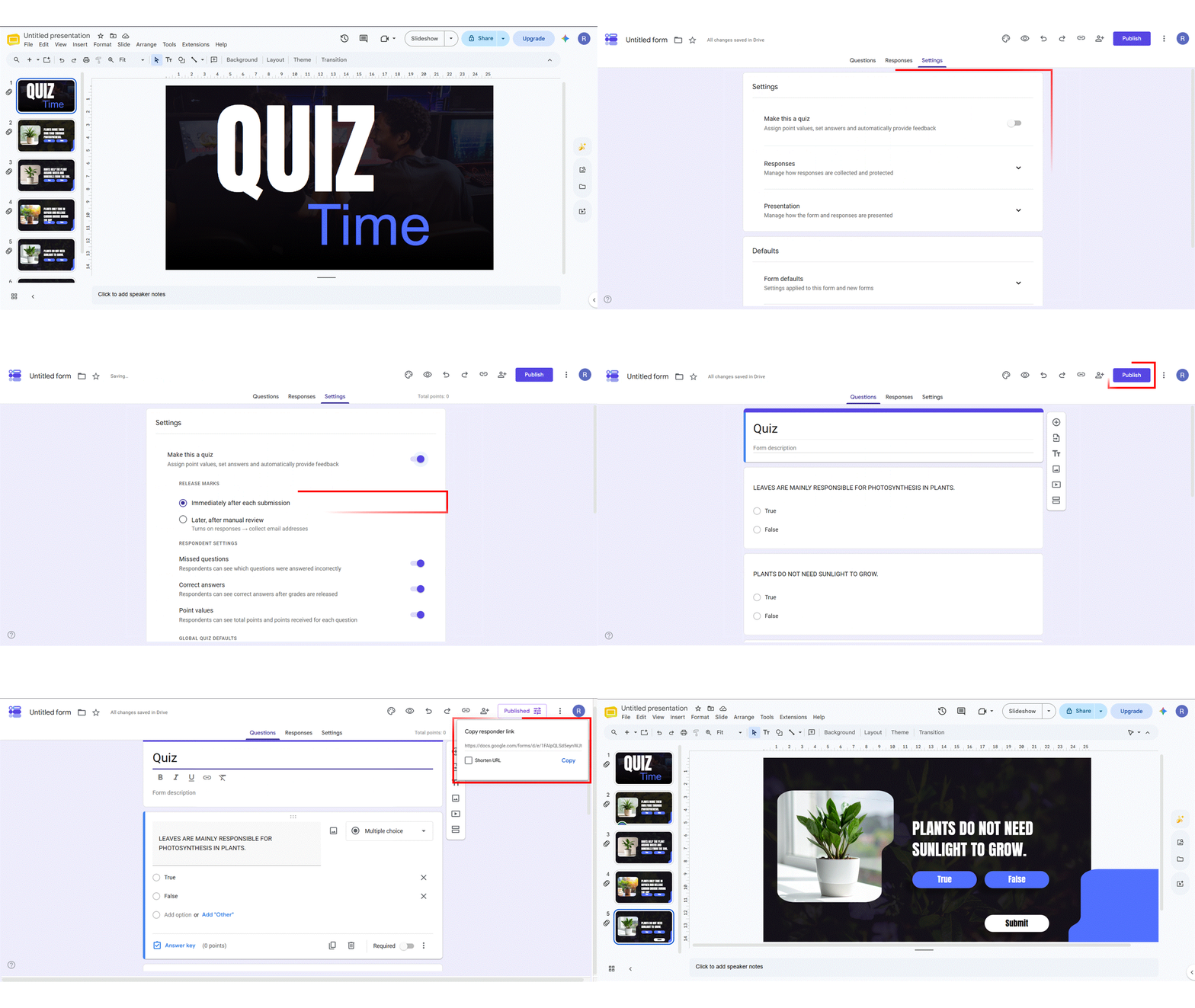
One limitation of the hyperlink-based Google Slides quiz is that it does not collect or store participant responses. If you need to track scores, gather data, or auto-grade results, combining Google Slides with is the solution.
Here is how to set it up:
- Design your quiz questions visually in Google Slides as described above.
- Open Google Forms (forms.google.com) and recreate the same questions there.
- In Google Forms, click the Settings gear icon and enable “Make this a quiz” under the Quiz section.
- Assign point values to each correct answer. Google Forms will handle automatic grading.
- In your Google Slides presentation, add a link on your final slide (or a dedicated “Submit Your Answers” slide) that directs participants to the Google Form URL.
- After participants submit the form, they receive an instant score summary if you enable “Release grade immediately after each submission.”
This combined approach is ideal for business trainers, HR professionals running onboarding assessments, and anyone who needs a record of how participants performed.
Using Templates to Make a Quiz in Google Slides
If you want to skip the manual setup and start with a professionally designed layout, using a Google Slides multiple choice quiz template is the fastest route. Google Slides offers built-in template options, and several platforms provide ready-made quiz templates with the question and feedback slides already structured.
To find templates within Google Slides, go to File → New → From template gallery and search for quiz-related options. For more variety and pre-built correct/wrong answer feedback slides, browse our own editable Google Slides quiz templates. Knowing how to make a quiz on Google Slides becomes significantly easier when you start from a well-structured template rather than a blank slide.
Using a template is especially useful when you need to build a quiz quickly for a business presentation or recurring training session. You simply replace the placeholder text with your own questions and update the hyperlinks.

Conclusion
Making a quiz in Google Slides is more straightforward than most people expect. The key steps are: design your question slides, create dedicated Correct and Wrong Answer feedback slides, use Insert → Link to connect every answer option to the right slide, add navigation buttons on your feedback slides, and test the whole thing in Present mode before going live.
For business presenters and general users who need more functionality — like live audience polling, automatic question generation, or self-grading results — Google Add-ons like Slido and Quizizz AI, or the Google Forms integration, extend what Google Slides can do significantly. Whether your goal is onboarding, training, or audience engagement, the tools and methods covered here give you everything you need.
The result is a presentation that does not just inform your audience — it actively involves them. And that is what separates a memorable presentation from a forgettable one.
FAQs
-
How do I create an interactive quiz in Google Slides?
Start by creating your question slide with answer options as shapes or text boxes. Then create a Correct Answer slide and a Wrong Answer slide. Use Insert → Link (Ctrl+K) to connect each answer option to its corresponding feedback slide. Add a Next Question or Try Again button on each feedback slide and link it forward or back as needed. Test everything in Present mode before sharing. This is the most straightforward method for how to create a quiz in Google Slides without any add-ons.
-
What are the steps to add multiple choice questions in a Google Slides quiz?
Select a new slide and apply the Title and Body layout. Type your question in the title. Add text boxes or shapes below for each answer choice (A, B, C, D). Hyperlink each choice to either the Correct or Wrong Answer slide using Insert → Link. This structure gives participants immediate feedback on each choice and keeps them navigating through the quiz.
-
Can I use templates to make a quiz in Google Slides?
Yes. Google Slides has a built-in template gallery (File → New → From template gallery), and you can also start from a dedicated quiz template with pre-designed question and feedback slide layouts that you customize by replacing placeholder text and updating the hyperlinks.
-
How do I make a self-grading quiz using Google Slides and Google Forms?
Design your quiz in Google Slides for visual delivery, then recreate the same questions in Google Forms with automatic grading enabled (Settings → Quizzes → Make this a quiz). Assign correct answers and point values in Forms. Link the Form URL from your final Slides slide. Participants submit the Form and receive an instant score. This setup is ideal for training assessments and onboarding quizzes where you need a data record.
-
What is the easiest way to add interactive elements to Google Slides quizzes?
The easiest method is using the Insert → Link feature to hyperlink answer choices to feedback slides. For a more visual experience, use shapes as buttons rather than plain text boxes, and apply fill colors to distinguish correct and incorrect options. Adding slide transitions gives the quiz a more dynamic, app-like feel. If you need even more functionality, learning how to make an interactive quiz on Google Slides using add-ons like Slido or Quizizz AI takes things further.
-
Are there AI tools or add-ons to help generate quiz questions in Google Slides?
Yes. Quizizz AI automatically generates questions from your existing slide content. SlidesAI (available in the Google Workspace Marketplace) can build entire quiz sections from a topic or prompt. Both are accessible via Extensions → Add-ons → Get add-ons inside Google Slides. These tools are particularly useful when you need to build quizzes quickly from large amounts of content.
-
Can I embed videos or audio in a Google Slides quiz?
Yes. Go to Insert → Video to embed a YouTube video directly into a slide, or Insert → Audio to add an audio file from Google Drive. These multimedia elements can serve as quiz prompts — for example, asking participants to answer a question based on a short video clip they just watched within the presentation.
Table Of Content



Related posts from the same category
1 Sep, 2022 | SlideUpLift
How To Group & Ungroup In Google Slides (Step-by-Step Guide)
This blog walks you through how to group and ungroup elements in Google Slides in a simple, practical way. It covers grouping images, shapes, text boxes, and objects, along with
9 Nov, 2021 | SlideUpLift
Learn How To Apply Filters To The Picture In Google Slides | Google Slides Tutorial
Google Slides is an excellent tool for creating a professional-looking presentation. Images are the most significant item you can incorporate in your presentation to provide visual attention. Using incorrect images

29 Dec, 2023 | SlideUpLift
How to Make Checkboxes in Google Slides?
Google Slides is one of the most widely used presentation tools today. It is used for creating simple text and picture presentations and complex presentations. You can create surveys and

30 Mar, 2021 | SlideUpLift
How to use Google Slides | Google Slides Tutorial
One of the biggest challenges during the pandemic has been adapting to the changes in how we work and give presentations. What we need is a platform that allows us
12 Sep, 2022 | SlideUpLift
How To Make Google Slides Vertical
While building/presenting a presentation on Google Slides, presenters often have this question- How to change Google slides to portrait? This query not only includes the standard 4:3 slide design, but

23 Sep, 2022 | SlideUpLift
How To Add Drop Shadows In Google Slides
Google Slides provide effects like drop shadows, which is an effective feature for presentation design. They can assist in making a flat image, text, or object more interesting by making

30 Apr, 2026 | SlideUpLift
How to Add a Border in Google Slides (7 Easy Methods)
To add a border in Google Slides, insert a rectangle shape, set its fill to transparent, and customize the border color and weight from the toolbar. You can apply borders

18 Nov, 2022 | SlideUpLift
Learn How To Add Bullet Points In Google Slides
In today’s dynamic world, people have very less attention span to read and absorb information. Be it blogs, posts, or presentations, people generally scan through the information. To get people

1 Oct, 2025 | SlideUpLift
Insert Calendar In PowerPoint And Google Slides: Quick Guide For Smarter Planning.
Do you want your presentations to be more organized, attractive, and professional? Learning how to add a calendar in PowerPoint or Google Slides will take boring schedules and deadlines and

6 Jan, 2023 | SlideUpLift
How to Add Header and Footer in Google Slides?
Google Slides is a powerful presentation tool allowing users to create professional-looking presentations easily. One important aspect of any presentation is the header and footer, which can provide context and