

 Flat 4


How to Present an Action Plan in PowerPoint: Templates, Design Tips & Examples [2026]
Why Presentation Matters
You’ve created a solid action plan. Now comes the critical part: presenting it effectively to stakeholders, team members, and leadership.
Here’s the reality: A brilliant action plan that’s poorly presented will go nowhere. But a good action plan that’s presented with clarity and visual impact will energize your team and secure buy-in.
The difference between a forgotten plan and an executed plan often comes down to HOW it was presented.
When you present an action plan, you need to:
- Make it visually clear at a glance
- Show the connection between tasks and goals
- Demonstrate realistic timelines and milestones
- Build confidence in the plan
- Inspire team commitment
This guide shows you exactly how to do it with professional PowerPoint presentations.

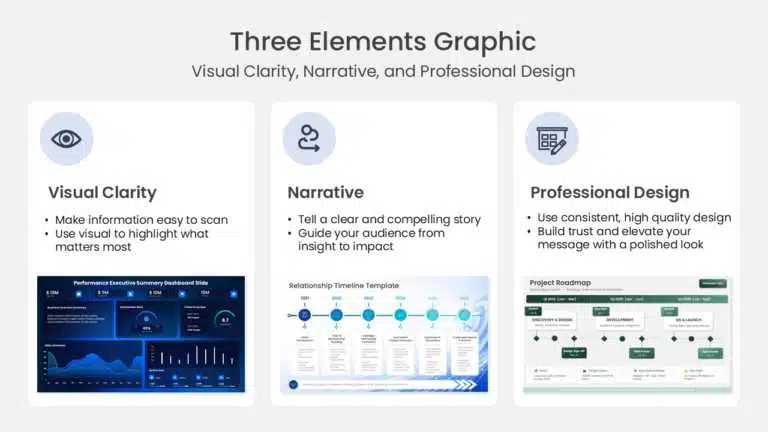
The Three Elements of a Great Action Plan Presentation
1. Visual Clarity
Your stakeholders need to understand the plan immediately. No room for confusion. Use:
- Clear graphics and icons
- Consistent color schemes
- Minimal text (let visuals do the talking)
- Logical flow from left to right or top to bottom
2. Strategic Narrative
Your presentation should tell a story:
- Here’s where we are (current state)
- Here’s where we want to go (goal)
- Here’s how we’ll get there (action steps)
- Here’s how we’ll measure success (metrics)
- Here’s the timeline (when it happens)
3. Professional Design
Use templates that look polished and credible. Avoid:
- Cluttered slides
- Too many fonts or colors
- Inconsistent styling
- Unprofessional graphics
Key Elements to Include in Your Action Plan Slide Deck
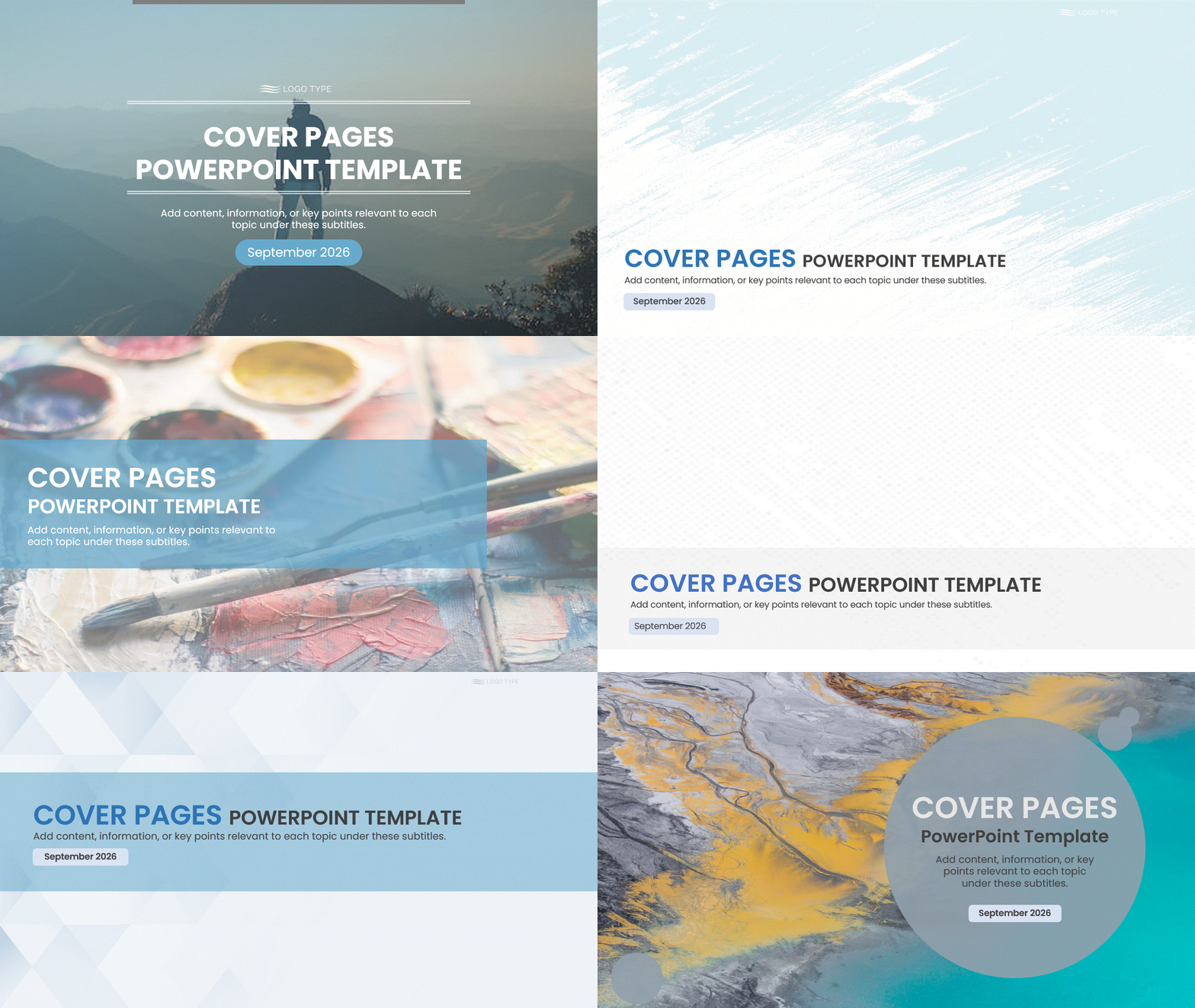
1. Title Slide
- Action plan title (e.g., “Q4 2026 Growth Initiative”)
- Department/Team name
- Presentation date
- Owner/Presenter name
2. Executive Summary (1 slide)
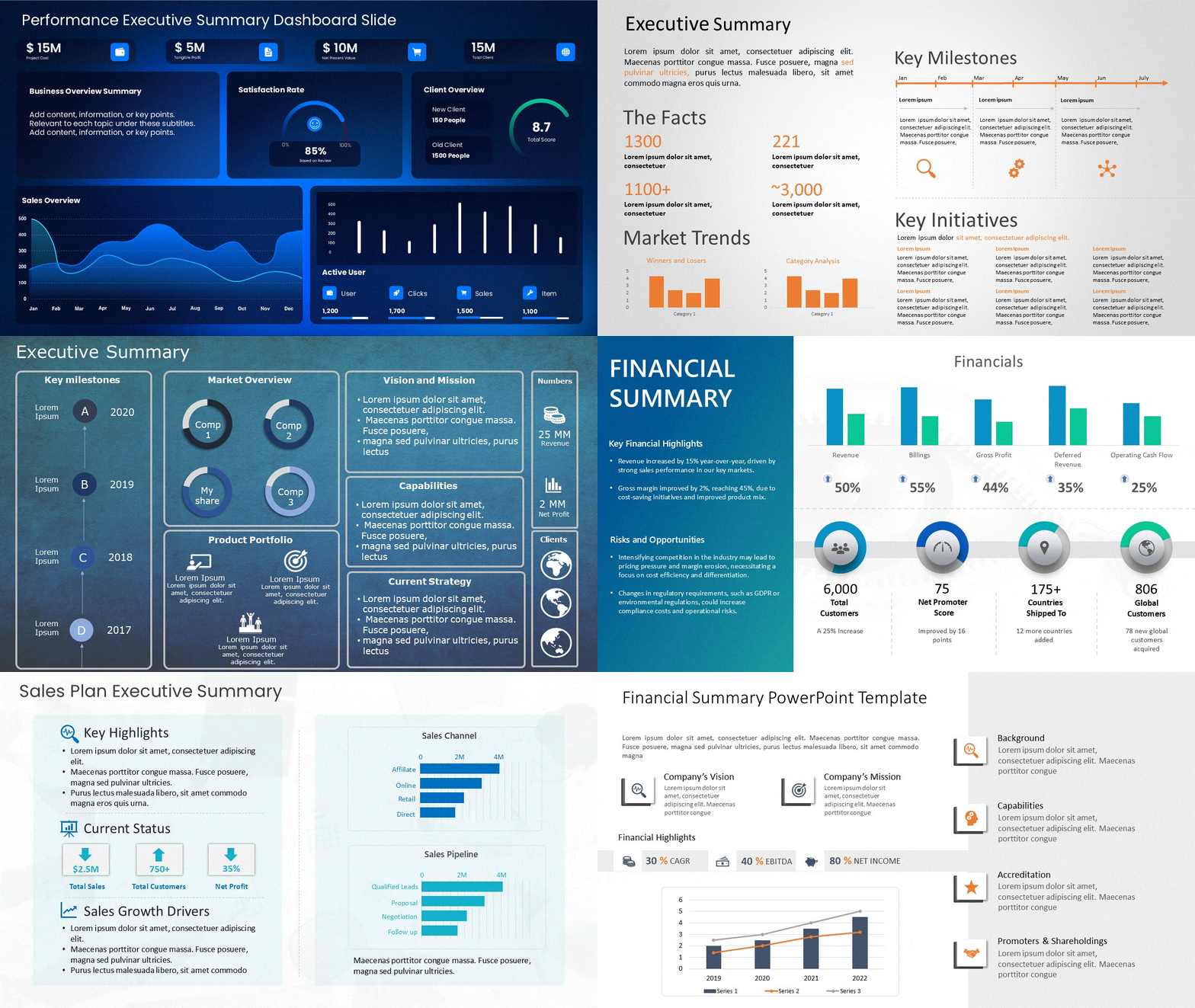
One sentence that captures the essence: “Implement a new customer onboarding process to reduce time-to-value by 30% and increase retention by 15% by October 31, 2026.”
3. Current State Assessment (1-2 slides)
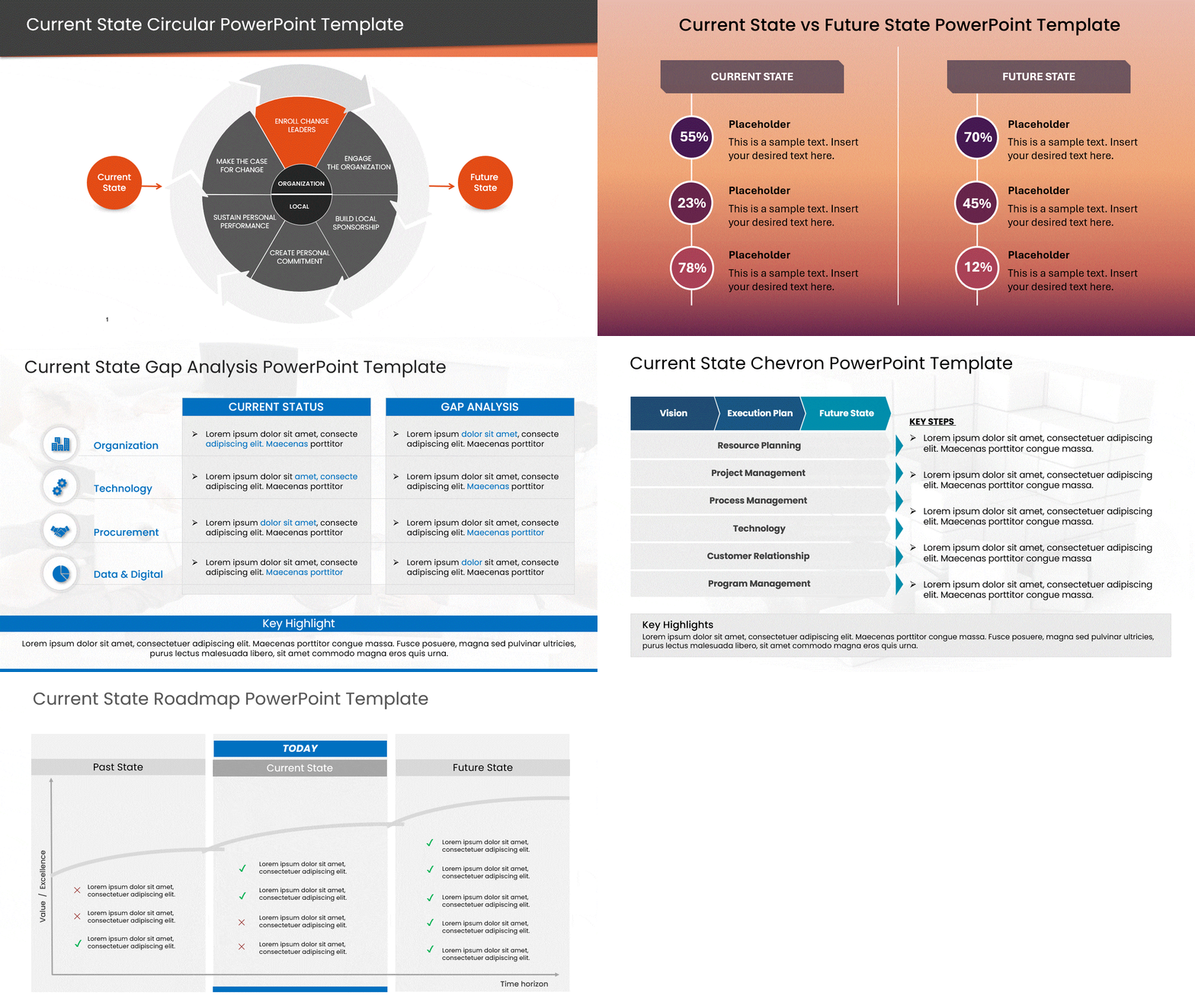
Show where you are now:
- Key metrics (what’s not working)
- Pain points customers/team experience
- Why change is necessary
Visual approach: Use a simple diagram or graphic showing the problem
4. Goals & Objectives (1 slide)
Display your SMART goal prominently:
- What you want to achieve
- By when
- How you’ll measure it
Visual approach: Large, bold statement with supporting metrics
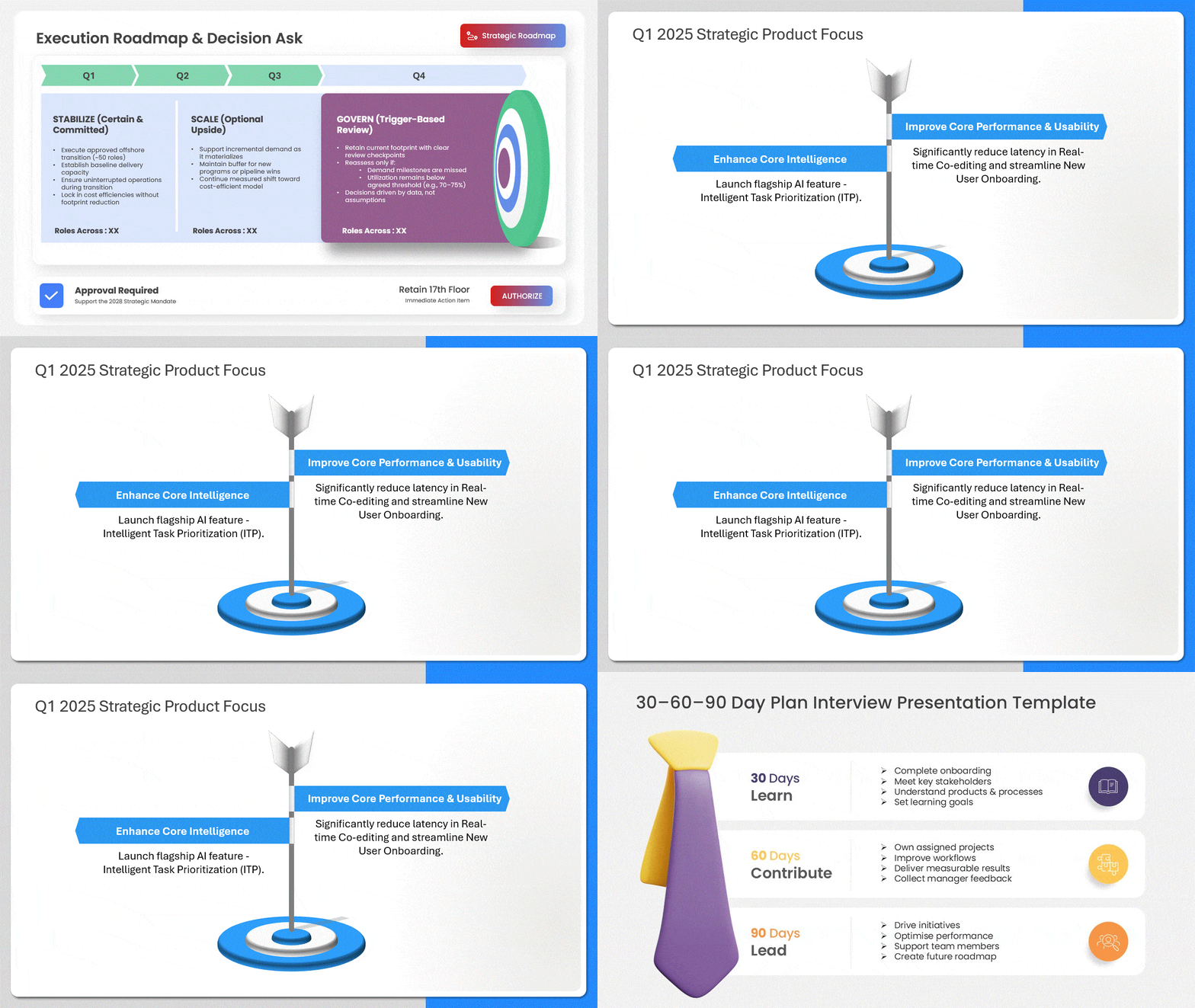
5. Action Steps Overview (1-2 slides)
Show all tasks in chronological order. This is a critical action plan slide. Options:
- Timeline/roadmap format (tasks along a line showing progression)
- Numbered list with visual icons
- Process flow diagram (shows dependencies)
- Milestone format (groups related tasks)
Visual approach: Use consistent icons or colors for different task categories
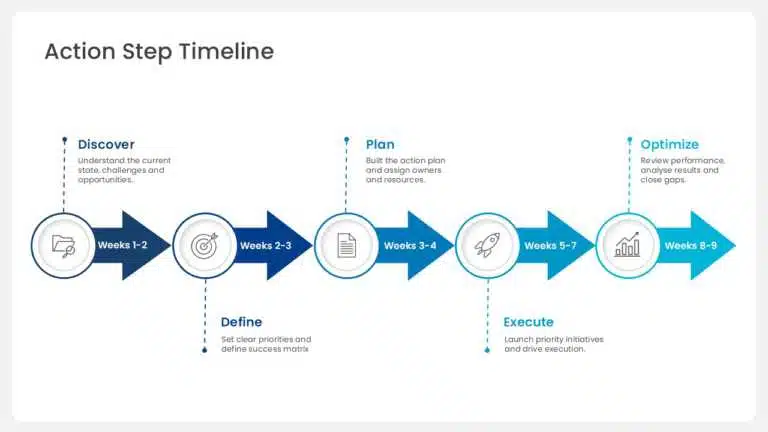
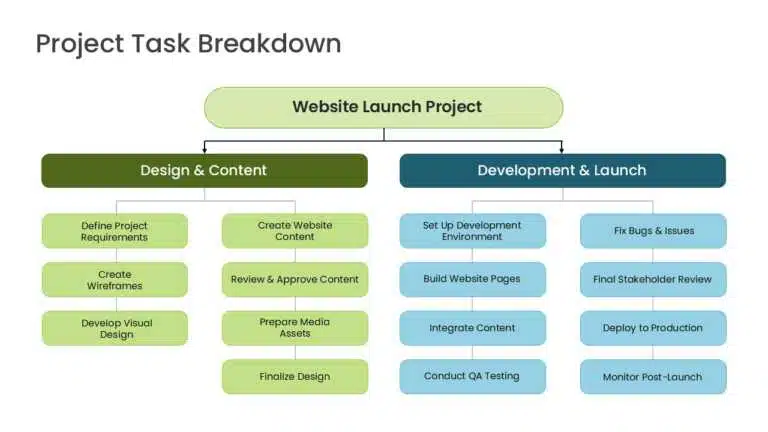
6. Detailed Task Breakdown (2-3 slides or appendix)
For major initiatives, show details:
- Each task
- Owner/responsible person
- Start and end dates
- Key deliverables
Visual approach: Table or timeline showing task details, owner assignments
7. Resource & Budget (1 slide)
Show what’s required:
- Budget needed
- Key team members involved
- Tools or systems needed
- Time allocation per team member
Visual approach: Simple bar charts or icons representing resources
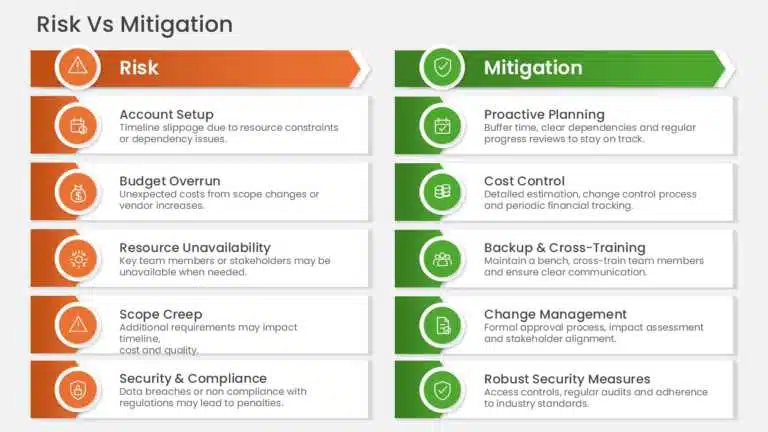
8. Risk & Mitigation (1 slide)
Address the elephant in the room:
- What could go wrong?
- How will you handle it?
- Contingency plans
9. Success Metrics & Monitoring (1 slide)
Define what success looks like:
- Key metrics to track
- Review frequency (weekly? monthly?)
- Who’s responsible for tracking
Visual approach: Dashboard-style display showing KPIs and targets
10. Call to Action (1 slide)
End with what you need from stakeholders:
- Approval to proceed
- Resource commitment
- Team member assignment
- Next steps and timeline
Design Best Practices for Action Plan PowerPoint Presentations
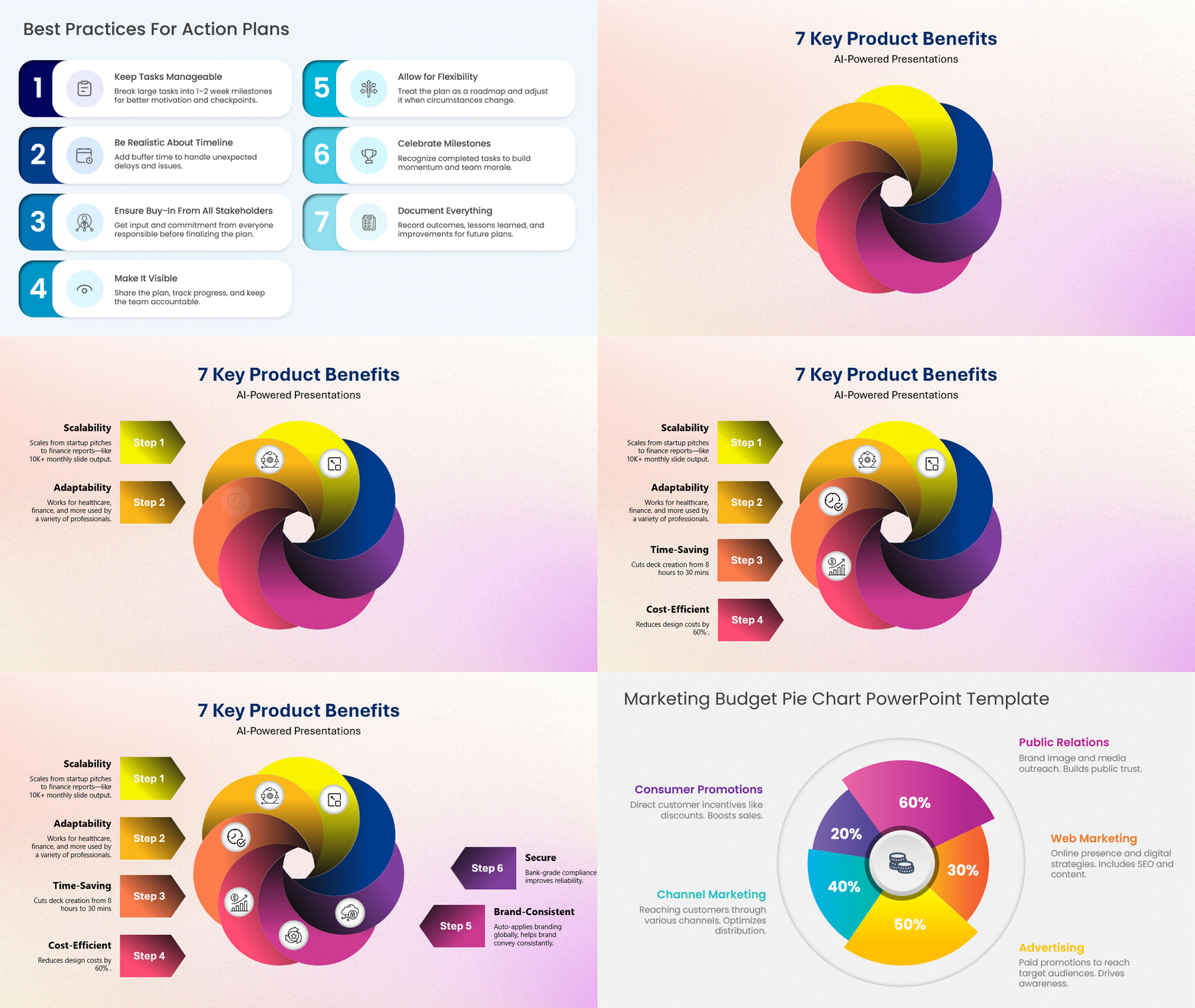
Color Strategy
- Use 3-4 colors maximum to maintain professional appearance
- Pair complementary colors: Dark blue + orange, dark gray + green
- Use one color for primary elements (headings, icons)
- Use neutral backgrounds: White, light gray
- Avoid bright neon colors – they make content hard to read
Typography
- Use 2 fonts maximum (one for headings, one for body text)
- Fonts to use: Arial, Helvetica, Calibri, Roboto (modern and professional)
- Font sizes: 44pt+ for titles, 28pt+ for content, 14pt+ for captions
- Keep it readable from 10 feet away (yes, really)
Layout for Action Plan Slides
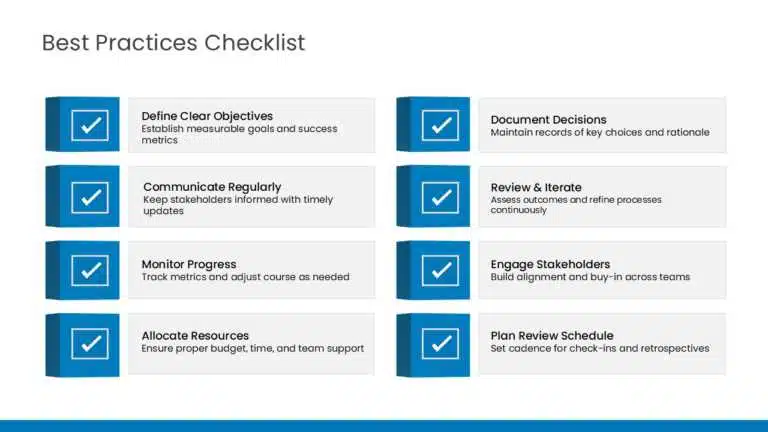
- One idea per slide (not cramming everything on one slide)
- Use 60/40 rule: 60% content, 40% white space
- Left-align body text for easy reading
- Use bullet points strategically (no more than 5 bullets per slide)
- Center titles and important information
Icons & Graphics
- Use icons to break up text and add visual interest
- Use consistent icon style throughout presentation
- Icons should clarify, not confuse (avoid decorative icons with no meaning)
- Use simple diagrams to show processes and relationships
Charts & Graphs
- Keep it simple: Bar charts, line charts, pie charts only
- Label clearly: Every axis and data point should be labeled
- Use consistent colors for similar data categories
- Make it readable: Large enough to see from back of room
Action Plan Presentation Formats
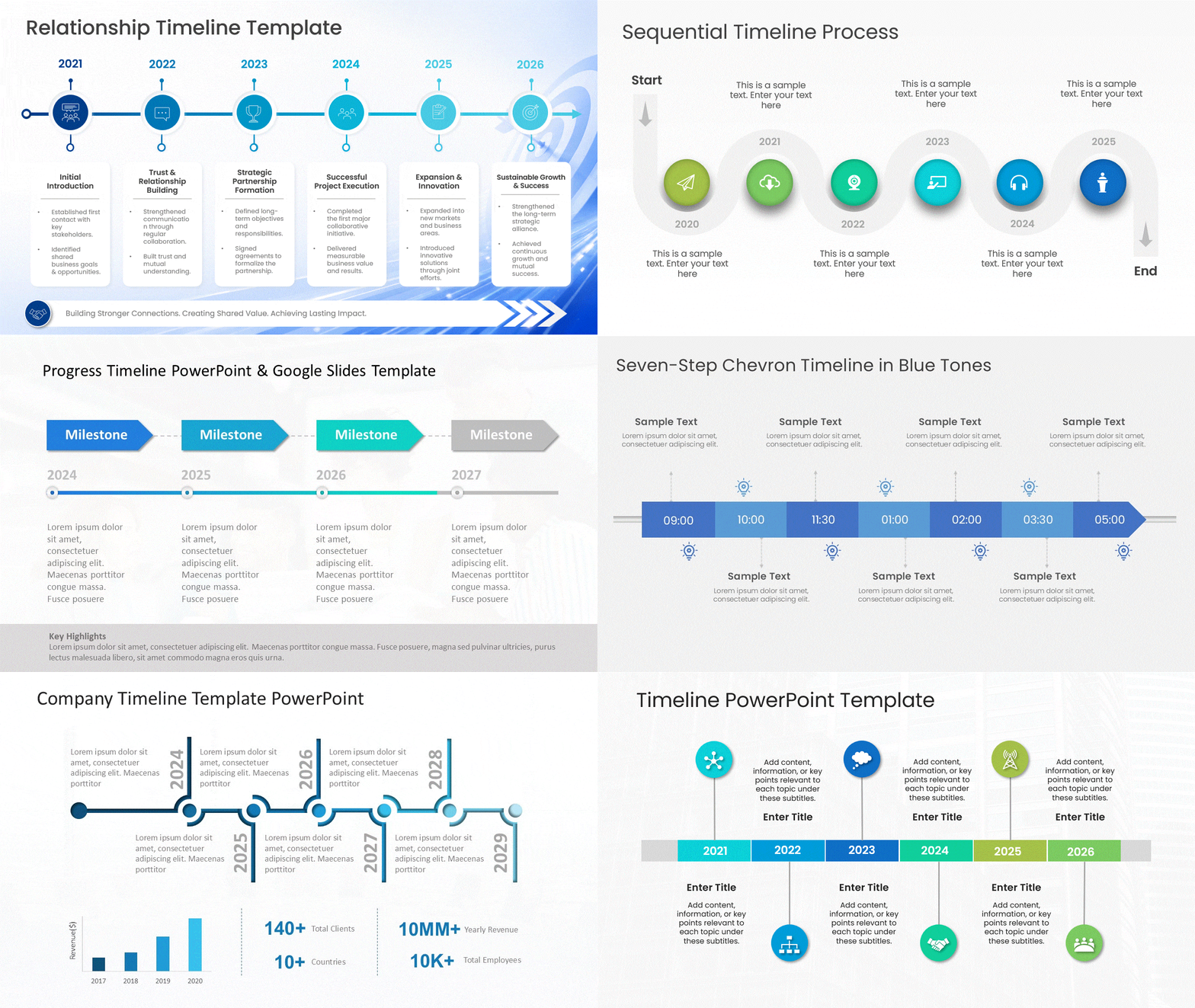
Format 1: Linear Timeline
Best for: Projects with clear sequential steps
START → STEP 1 → STEP 2 → STEP 3 → STEP 4 → GOAL
Week 1 Week 2 Week 3 Week 4 Week 5 Week 6
This format makes it obvious what happens when and how long it takes. Perfect for action plan slides showing progression.
Format 2: Milestone-Based
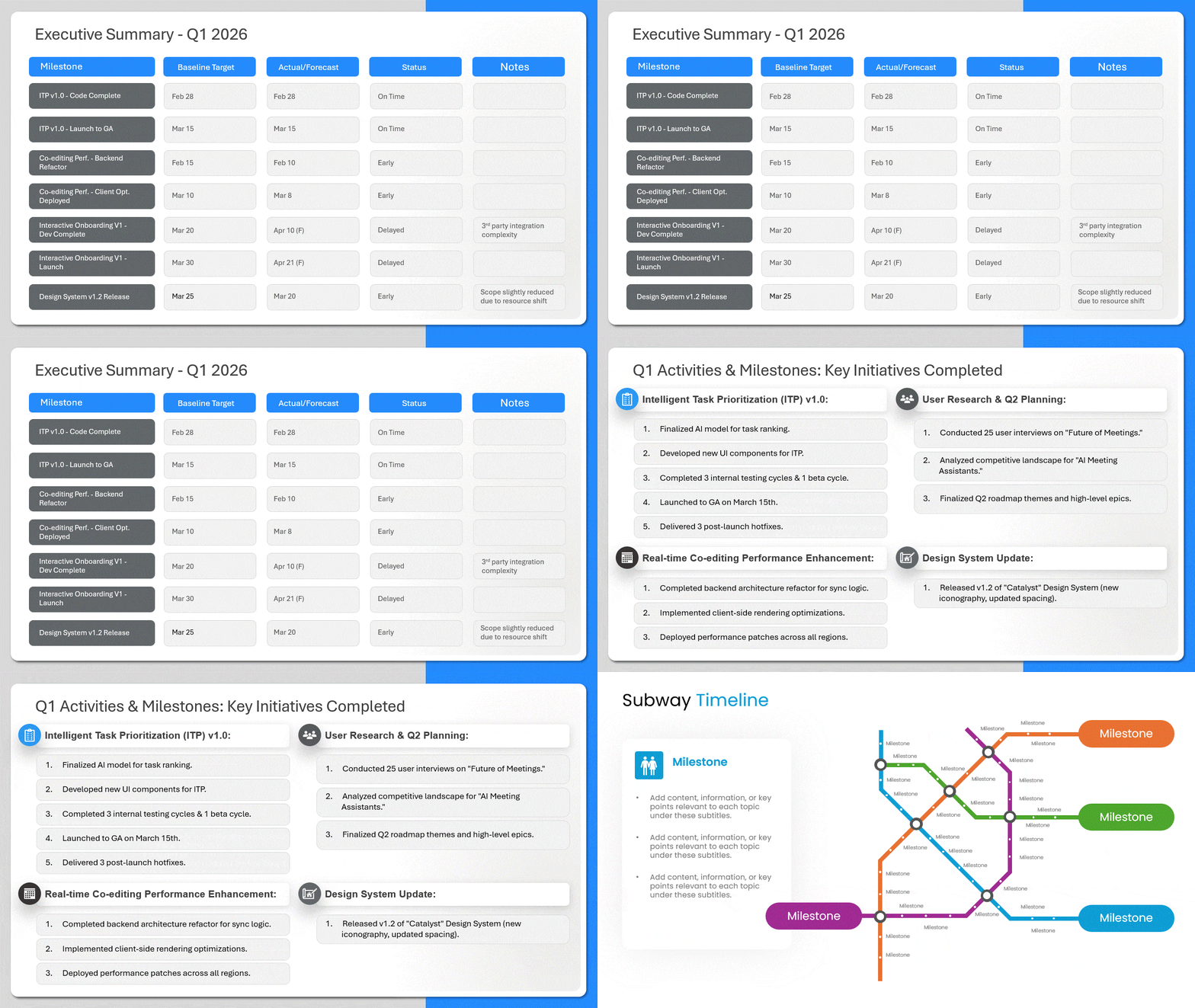
Best for: Projects with major checkpoints
Milestone 1 (Week 2)
├─ Task A
├─ Task B
└─ Task C
Milestone 2 (Week 4)
├─ Task D
├─ Task E
└─ Task F
Milestone 3 (Week 6)
└─ LAUNCH
This format groups related tasks and shows progression. Great for action plan slides that need to show phase-based work.
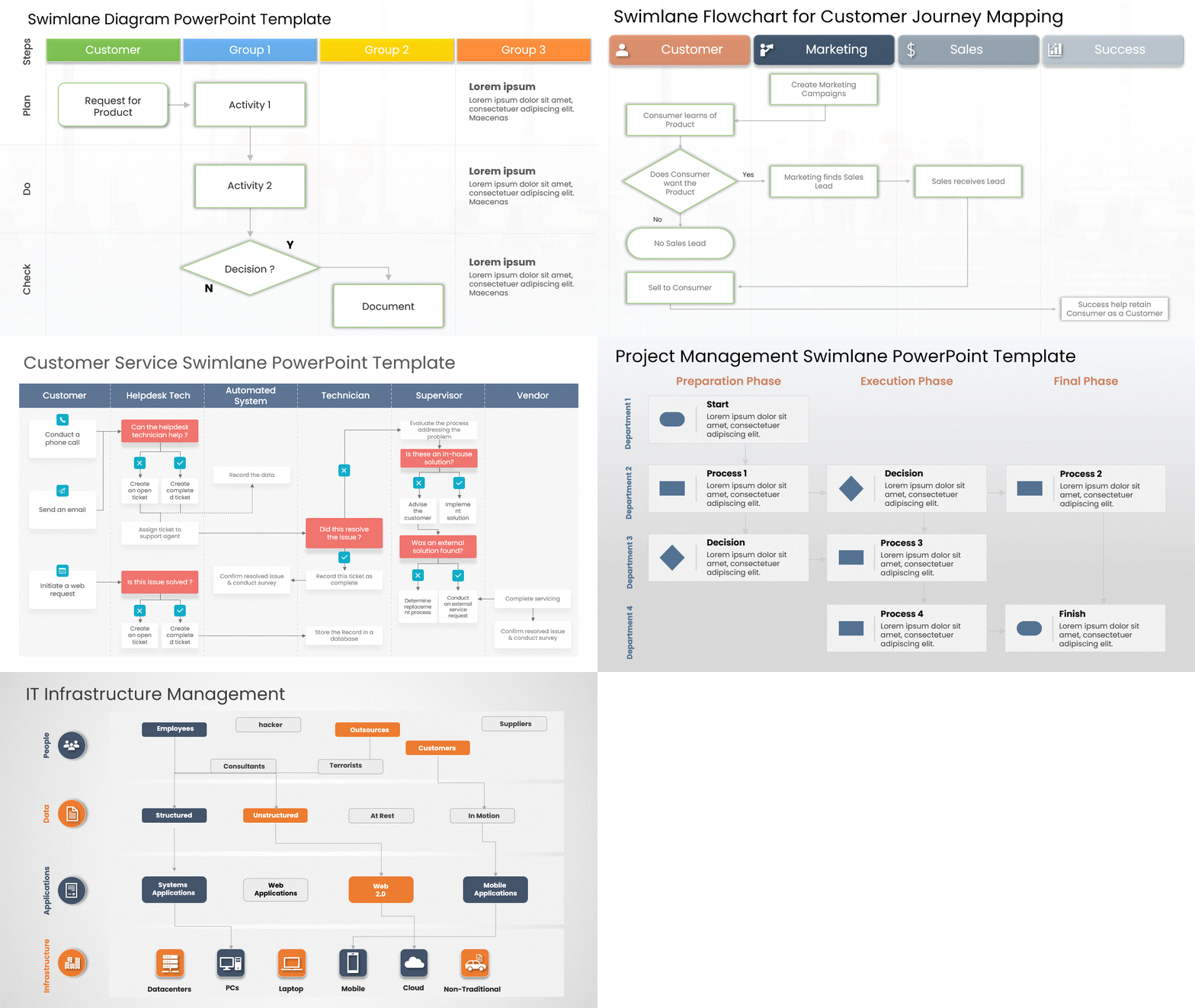
Format 3: Swim Lane Diagram
Best for: Multiple teams working in parallel
Team A: [Task 1] → [Task 2] → [Task 3]
Team B: [Task 4] → [Task 5] ↓
Team C: [Task 6] → [Task 7]
This shows how different teams work simultaneously. Excellent for complex action plan slides.
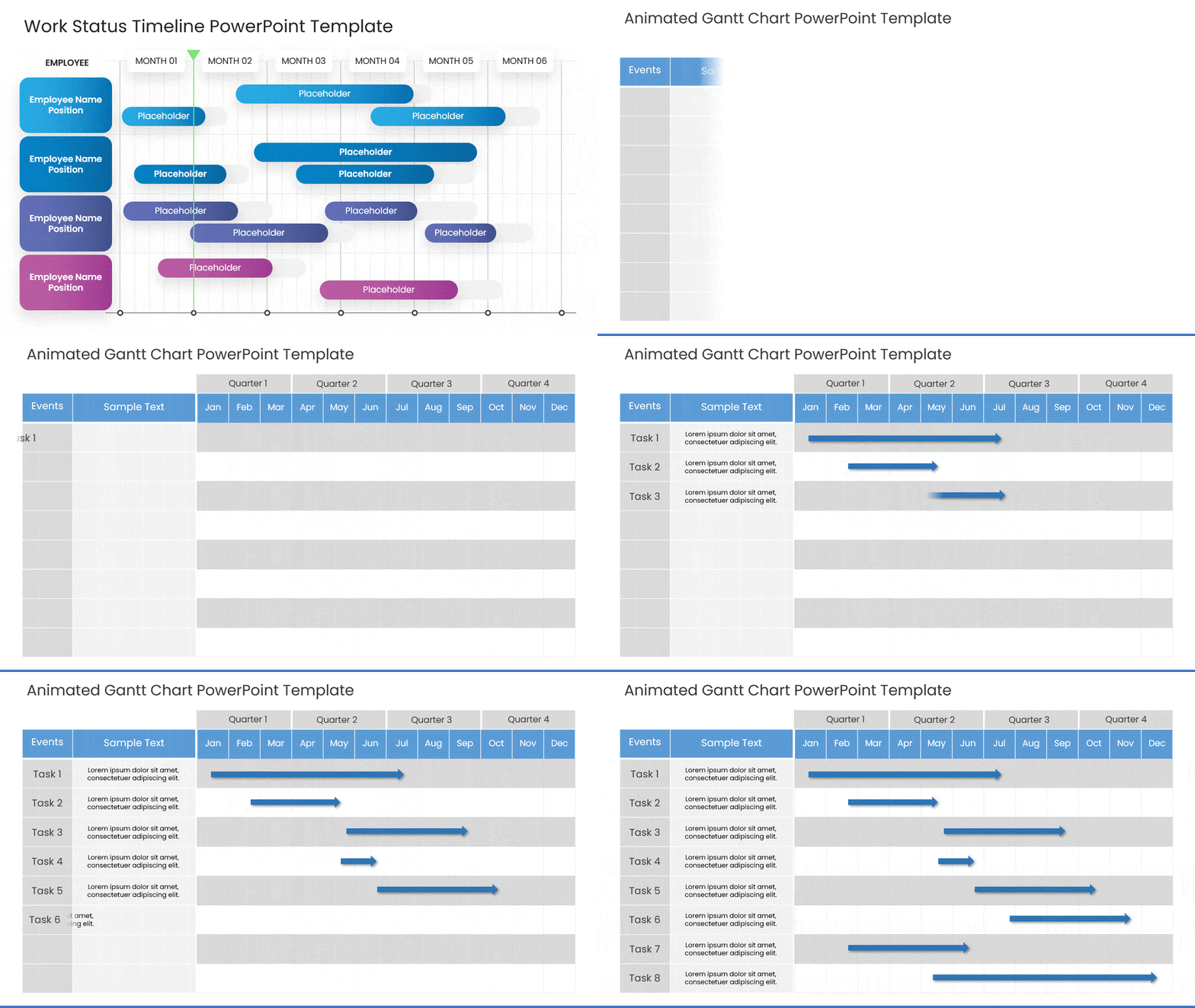
Format 4: Gantt Chart
Best for: Complex projects with dependencies
Task 1 ████████
Task 2 ████████
Task 3 ████████████████
Task 4 ████████
This shows duration and overlaps, useful for technical audiences. Good for detailed action plan slides.
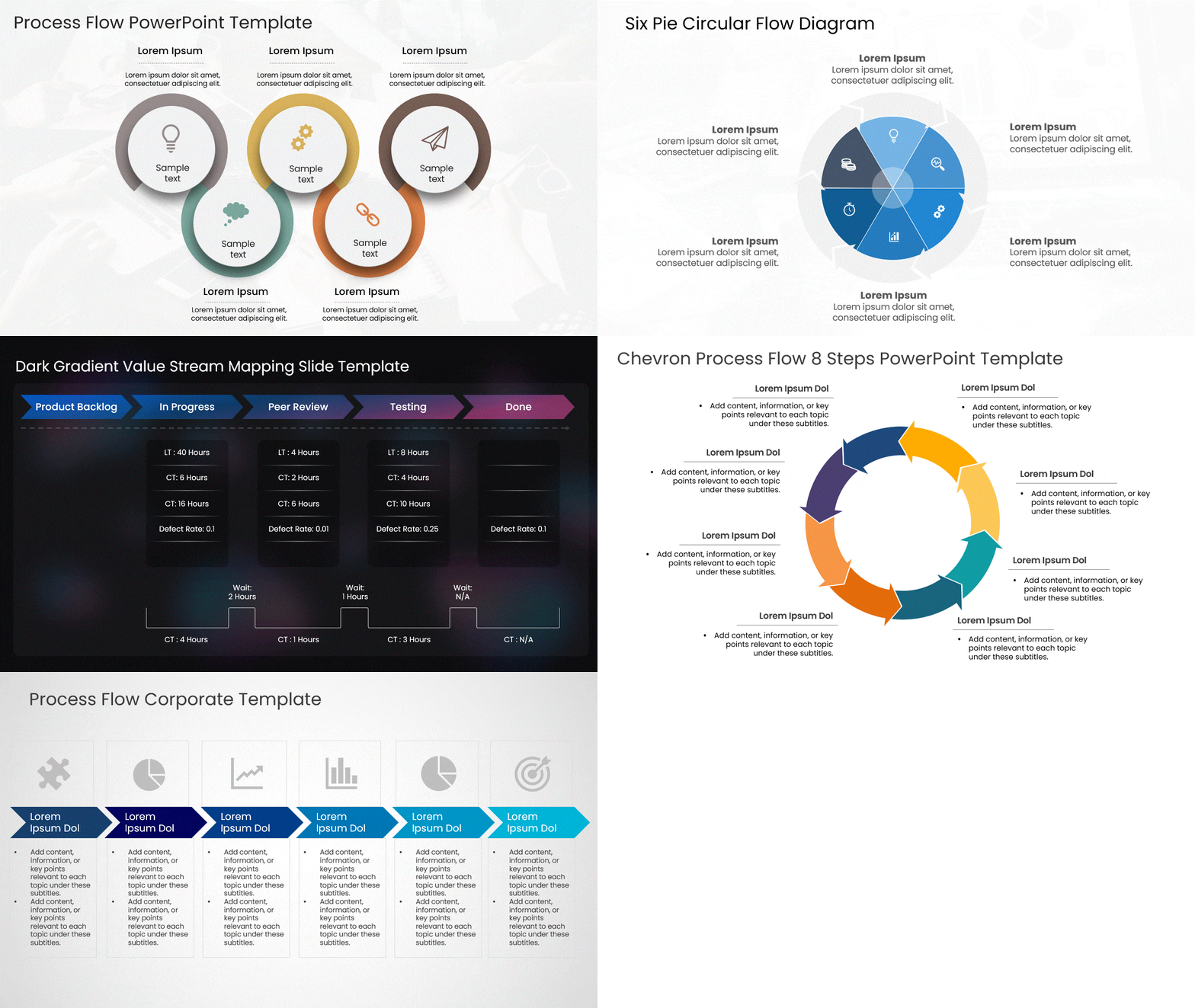
Format 5: Process Flow
Best for: Showing sequence and dependencies
[Start] → [Decision] → [Path A] → [Goal]
↓
[Path B] → [Goal]
This format clarifies which paths depend on others. Perfect for action plan slides showing decision points.
Creating Professional Action Plan Slide Presentations
Using Action Plan Templates
Don’t start from scratch. Professional action plan templates save time and ensure consistency:
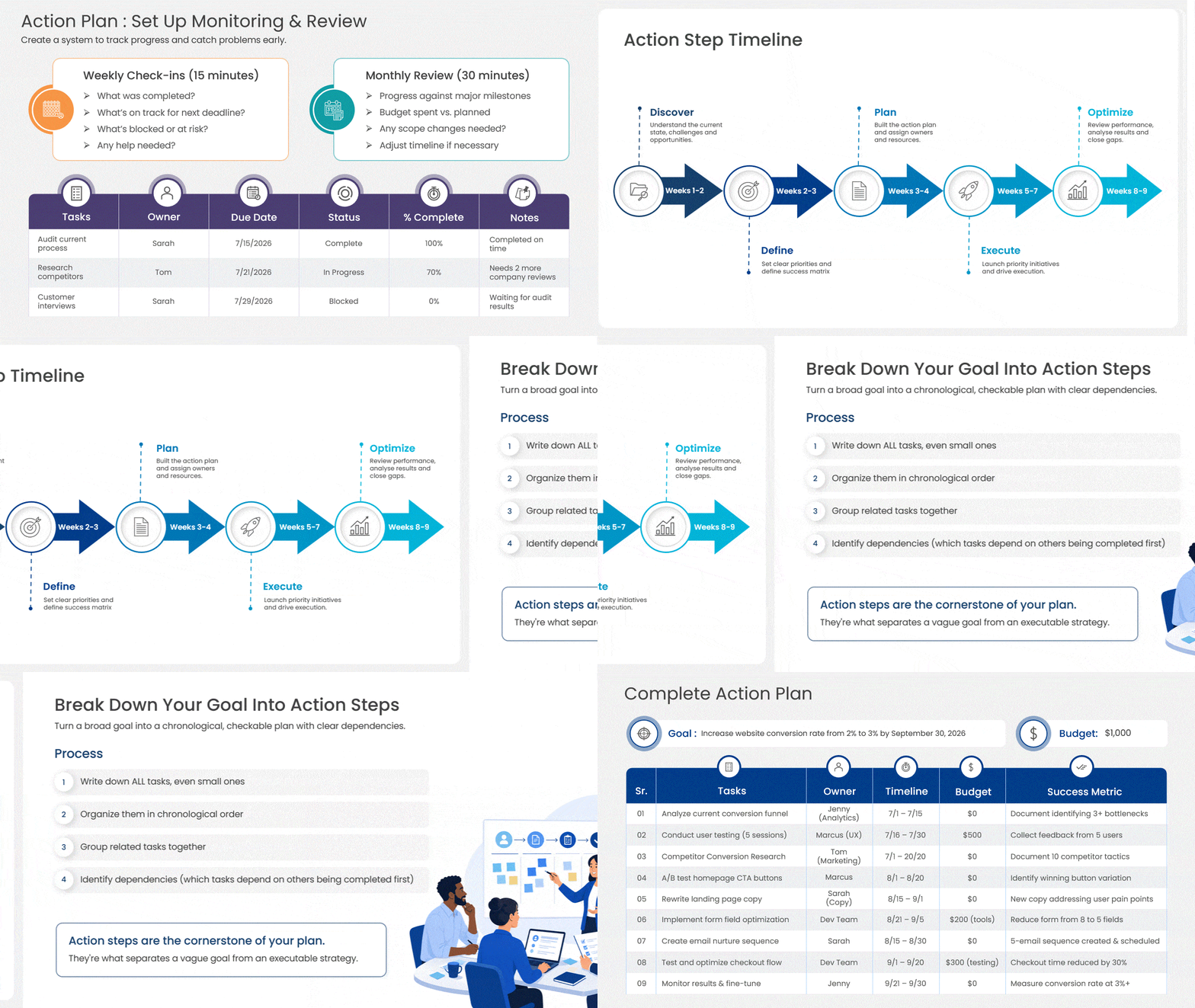
Popular action plan template formats include:
- Linear roadmap templates – Show sequential tasks over time
- Milestone templates – Organize by phases or checkpoints
- Dashboard templates – Display metrics and KPIs prominently
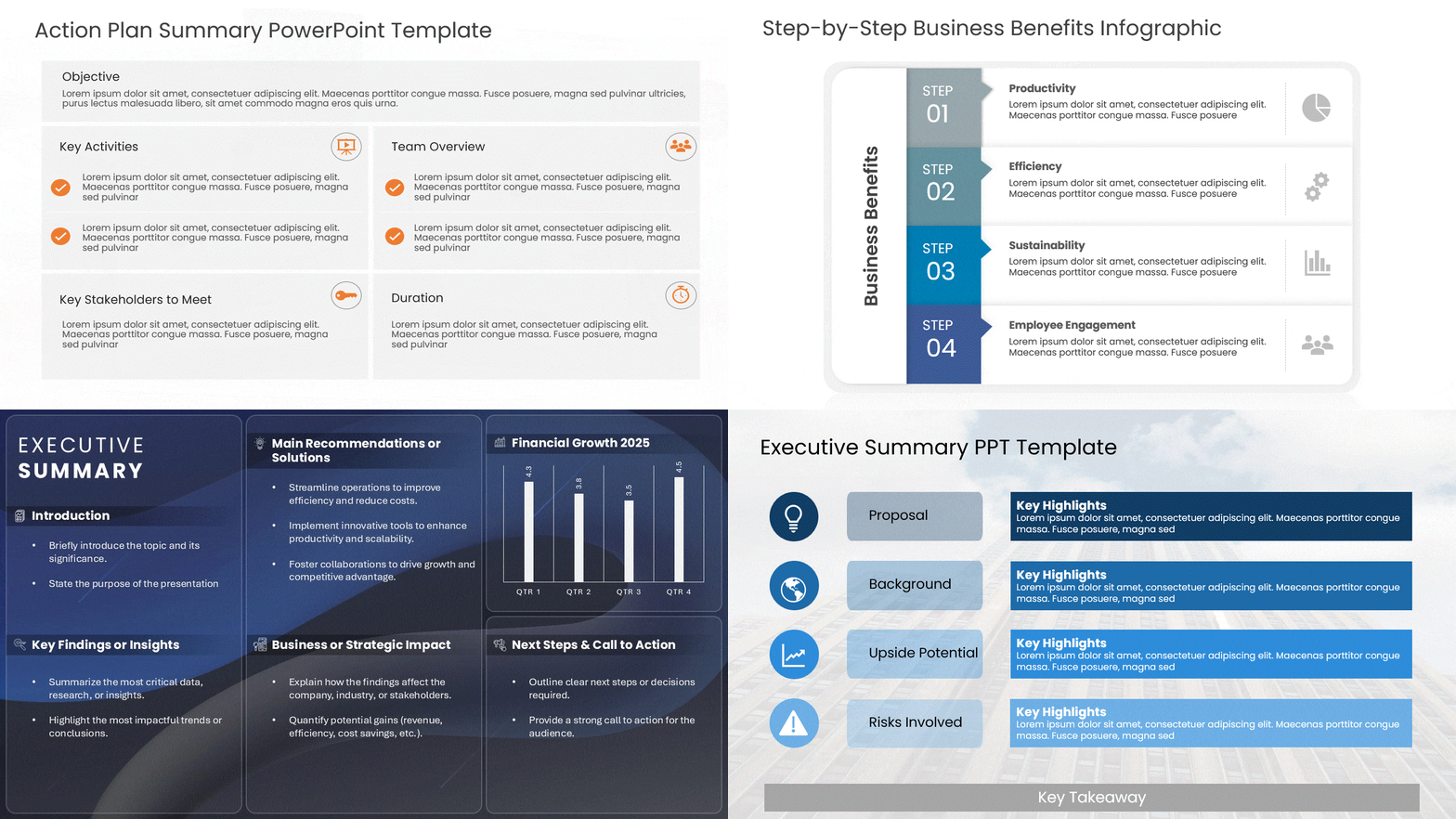
- Executive summary templates – High-level overview with key points
- Team swimlane templates – Show work across departments
Step-by-Step: How to Present Your Action Plan
Before the Presentation
1. Know Your Audience
- C-suite? Use high-level metrics and ROI
- Team members? Use practical implementation details
- Clients? Use outcomes and deliverables they care about
2. Practice Your Delivery
- Read through slides 3+ times
- Record yourself presenting
- Practice handling questions
- Time yourself (aim for 20-30 minutes for complex plans)
3. Prepare for Questions
- What concerns might stakeholders have?
- What data should you have ready?
- Prepare backup slides with details
During the Presentation
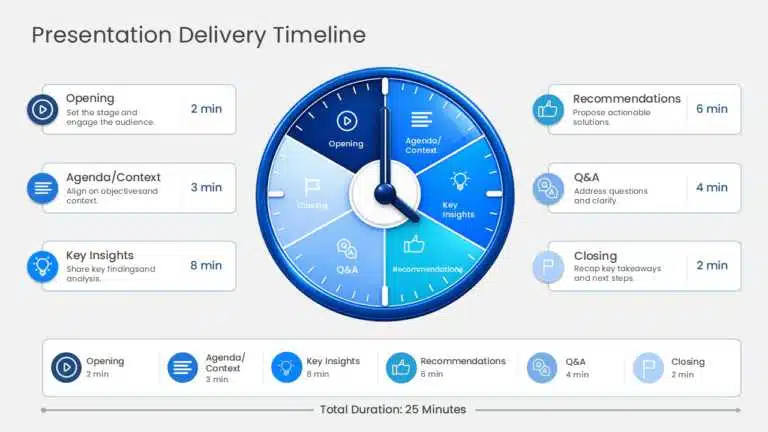
1. Start with Impact (0-2 minutes) Open with why this matters: “This action plan will increase our revenue by $500K and free up our team from repetitive work, so we can focus on innovation.”
Not: “Today I’m presenting an action plan…”
2. Provide Context (2-5 minutes) Show where you are now. Why change? “Currently, our onboarding takes 3 weeks. Industry standard is 1 week. Customers are frustrated, and we’re losing 15% to competitor switching.”
3. Present the Solution (5-15 minutes) Walk through your action plan step-by-step:
- “First, we’ll audit our current process (July 1-15)”
- “Next, we’ll identify improvements based on competitor research (July 15-30)”
- “Then we’ll implement changes (August 1-September 30)”
- “Finally, we’ll test and refine (September 30-October 31)”
Use visuals to guide conversation. Reference your action plan slides showing timeline.
4. Demonstrate Feasibility (15-20 minutes) Show you’ve thought through logistics:
- “We’ve allocated $50K budget”
- “Sarah will own the project (20% time)”
- “We’ve identified 3 potential roadblocks and plans to address each”
5. Explain the Benefit (20-25 minutes) Connect back to business outcomes:
- “Reduction in onboarding time → Faster customer success”
- “Faster customer success → Improved retention”
- “Improved retention → Higher revenue”
6. Call to Action (25-30 minutes) End with what you need: “We need leadership approval to proceed and $50K budget allocation. Can we move forward?”
Real Example: Complete Action Plan Presentation
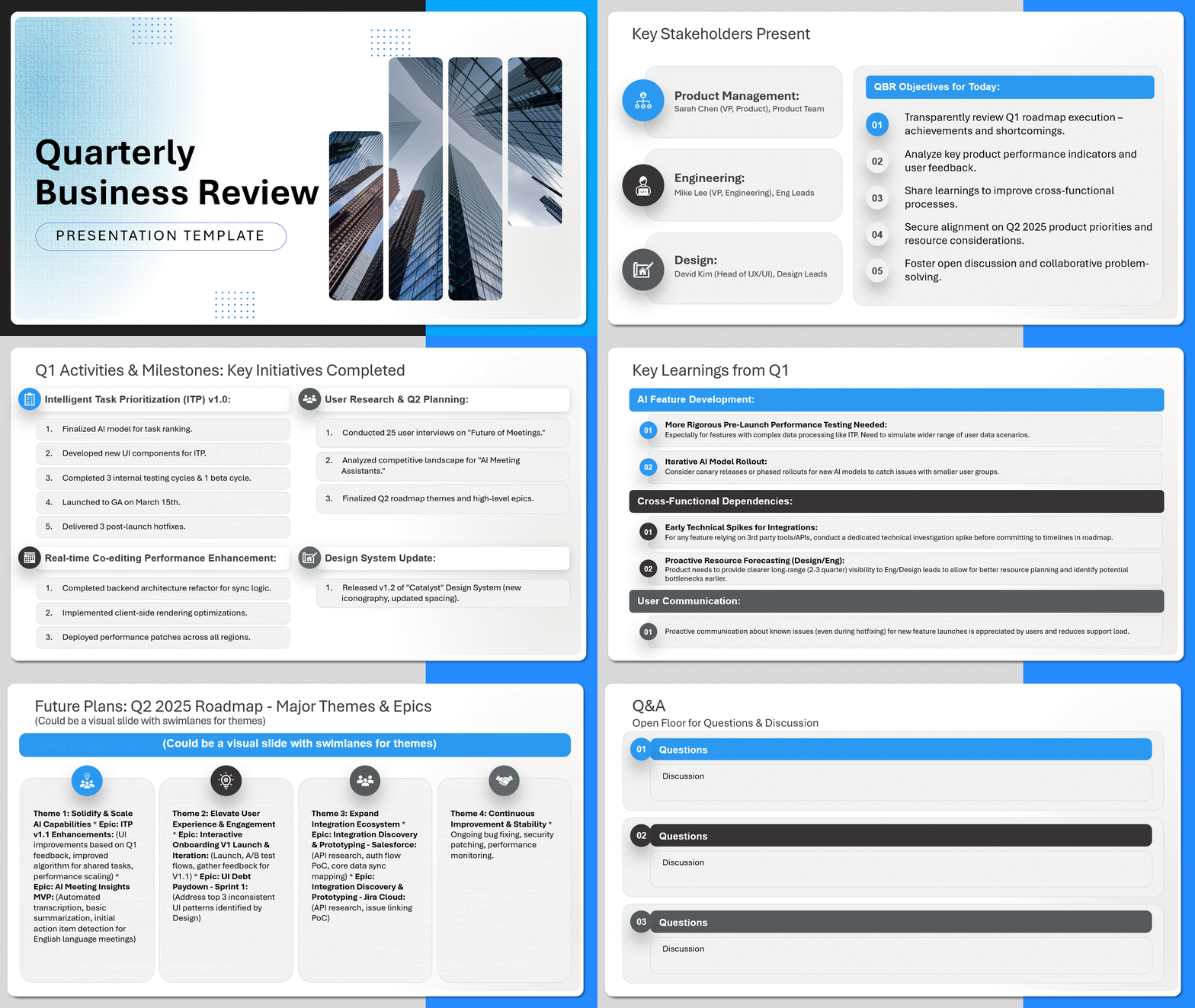
- Slide 1: Title “Q4 Customer Onboarding Initiative – October 31, 2026”
- Slide 2: Why This Matters “Onboarding currently takes 3 weeks. Industry standard: 1 week. We’re losing 15% of customers to faster competitors.”
- Slide 3: The Goal “Reduce onboarding time to 10 days and increase customer satisfaction from 72% to 85% by October 31, 2026”
- Slide 4-5: Timeline Visual – Action Plan Slides [Roadmap showing Sept, Oct with key milestones]
- Slide 6: Task Breakdown Table showing 8 main tasks, owners, dates
- Slide 7: Team Involvement Swim lanes showing which teams do what
- Slide 8: Budget & Resources “$45K investment, 3 FTE involved, 4-month timeline”
- Slide 9: Risks & Mitigation “Risk: Staff resistance → Solution: Include team in design”
- Slide 10: Success Metrics KPIs we’ll track (onboarding time, customer satisfaction, costs)
- Slide 11: Next Steps “Requesting approval to proceed. Implementation starts Sept 15.”
- Total: 11 slides, ~25 minutes
Presenting to Different Audiences
Presenting to C-Suite/Leadership
Focus On:
- Business impact (revenue, costs, risk)
- Timeline and critical milestones
- Budget and ROI
- One-sentence summary upfront
Slide Count: 8-10 slides, 20-30 minutes Tone: Executive, confident, results-focused Graphics: Minimal text, data-driven visuals
Presenting to Your Team
Focus On:
- Practical next steps
- Individual responsibilities
- Timeline affecting their work
- Support available to them
Slide Count: 12-15 slides, 30-45 minutes Tone: Collaborative, detailed, supportive Graphics: Swim lanes showing roles, task lists, owner assignments
Presenting to Clients/Stakeholders
Focus On:
- How plan benefits them
- Key milestones they’ll see
- Timeline for deliverables
- Communication plan
Slide Count: 10-12 slides, 20-30 minutes Tone: Professional, outcomes-focused, transparent Graphics: Progress indicators, delivery timeline, success metrics
Common Presentation Mistakes to Avoid
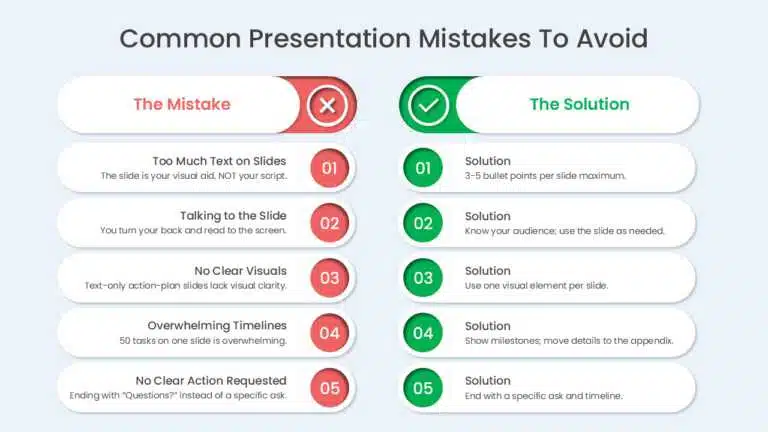
- Too Much Text on Slides: The slide is your visual aid, NOT your script. Audience reads the slide instead of listening to you.
- Solution: 3-5 bullet points per slide maximum
- Talking to the Slide: You turn your back and read to the screen.
- Solution: Look at your audience, reference the slide as needed
- No Clear Visuals: Using only text and no graphics/charts on your action plan slides.
- Solution: Use one visual element per slide
- Overwhelming Timelines: Showing 50 tasks on one action plan slide, makes it incomprehensible.
- Solution: Show high-level milestones on main slide, detailed tasks in appendix
- No Clear Action Requested: Ending with “Questions?” instead of “We need your approval to proceed.”
- Solution: End with specific ask and timeline
- Over-Complicated Diagrams: Showing dependencies so complex that nobody understands it.
- Solution: Keep diagrams simple, use swim lanes for clarity
Digital vs. In-Person Presentation Tips
For In-Person Presentations
- Print handouts with slide notes for audience
- Practice timing with actual slides and projector
- Have backup plan if technology fails
- Use large font (readable from back of room)
- Make eye contact with different audience members
For Virtual Presentations (Zoom, Teams)
- Share screen so everyone sees same thing
- Use speaker notes to guide talking points
- Keep slides simple (harder to see details on smaller screens)
- Use larger fonts than in-person presentation
- Record presentation for those who can’t attend live
- Have slides ready to share via email after
After the Presentation
During Q&A
- Listen carefully to questions
- Clarify without getting defensive
- Use appendix slides for detailed questions
- If you don’t know the answer: “Great question, let me research that and send you details by tomorrow”
After Approval
- Send presentation deck to attendees via email
- Include written summary of action plan
- Confirm next steps and timeline
- Schedule kickoff meeting
Weekly Communication
- Share progress updates with presentation stakeholders
- Use same visual format as your presentation
- Highlight milestones hit and tasks completed
- Flag any risks or adjustments early
Get Professional Action Plan Templates
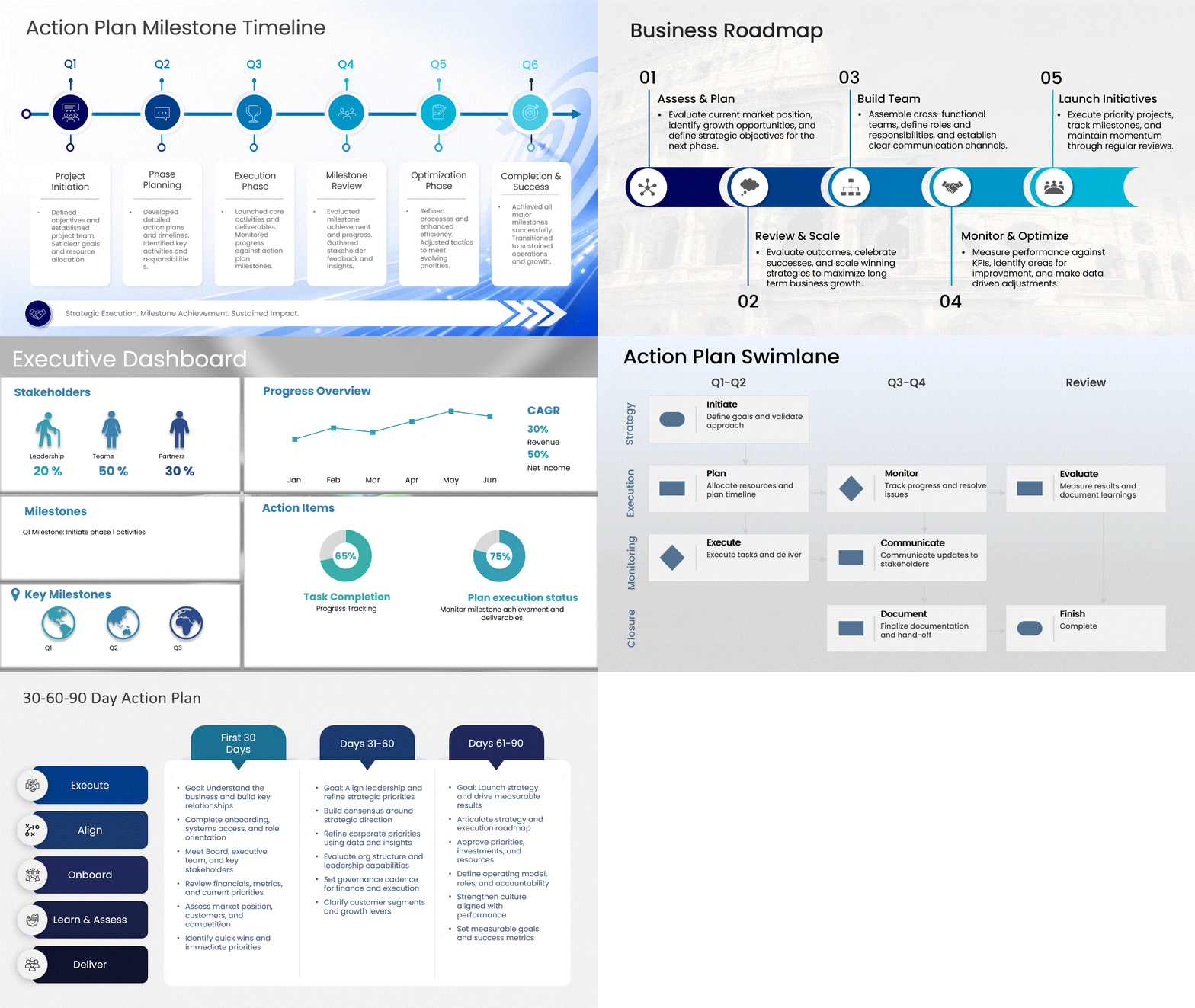
Stop building presentations from scratch. Use professionally designed templates:
Available templates include:
- Linear roadmap formats
- Milestone-based presentations
- Executive dashboard style
- Animated timeline templates
- Multi-team swimlane layouts
- 30-60-90 day plan formats
All templates are fully customizable and ready to download for PowerPoint.
Conclusion
Presenting your action plan is your chance to:
- Build confidence in the strategy
- Secure buy-in from key stakeholders
- Clarify expectations for the team
- Create accountability
- Inspire commitment to execution
A well-presented action plan is the difference between a plan that sits in a drawer and a plan that gets executed.
Use clear visuals, tell a compelling story, show you’ve thought through logistics, and end with a specific ask. Your stakeholders will feel confident and ready to commit.
FAQs
-
How many slides should an action plan presentation be?
8-15 slides depending on complexity. Plan 2-3 minutes per slide. Long presentations lose audience attention.
-
Should I include every detail in the presentation?
No. Show high-level overview in main presentation. Put detailed tasks, budget breakdowns, and appendices at the end for reference.
-
What if stakeholders ask questions I can’t answer?
Say “Great question. I’ll research that and send you details by [specific date].” Then follow up. Never guess or make up answers.
-
How do I make an action plan presentation more engaging?
Use visuals, tell a story, include real data/examples, vary your tone, ask for audience input, use analogies they understand.
-
Should I present in person or virtually?
When possible, in-person is better. You can read body language, build rapport, and handle questions more naturally. But virtual works fine with good slides and clear delivery.
-
How do I handle disagreement about the plan?
Listen to their concerns, ask clarifying questions, explain your thinking, adjust if they raise valid points. Show flexibility—plans should be collaboration, not dictates.
-
Don’t have an action plan yet?
Start with our complete guide on how to write an action plan before presenting.
Table Of Content


Related posts from the same category

8 Jun, 2023 | SlideUpLift
How To Present Data In The Best Way?
Having accessible means to analyze and understand data is more vital than ever in our increasingly data-driven environment. After all, employers increasingly value people with strong data abilities, and every

20 Aug, 2021 | SlideUpLift
Storytelling Tips to Change the Way You Present Ideas
A piece of oft-given advice surrounding making presentations is that in order to engage an audience, your presentation and speech need to have a narrative. And we wholeheartedly agree with
28 Jan, 2022 | SlideUpLift
Present TED-style: Six Things TED Presenters Do That You Can Copy And Use In Your Next Presentation
It's a harsh reality of the digital age: capturing and maintaining another person's attention is becoming increasingly difficult. While there is minimal factual information on the typical person's attention span

6 Jan, 2021 | SlideUpLift
How To Start a Presentation : Make A Strong First Impression
Presenting well requires preparation, and the first step is mastering the art of the opening statement. You may pique your audience's curiosity by crafting a captivating introduction to your presentation.

7 Sep, 2023 | SlideUpLift
How to Hire a Presentation Designer?
Presentations have a special power, whether used in business, education, or public speaking. They can enlighten, convince, incite any information. An effective presentation is the key to winning over stakeholders,

14 Oct, 2022 | SlideUpLift
How To Create Your Perfect Webinar Presentation
Webinars are becoming an increasingly important tool for businesses to connect directly with their customers — to educate and inform, maintain relationships and even build a brand. They're also excellent

13 Sep, 2023 | SlideUpLift
How to Write a Presentation: Outline, Script & Examples
Quick Answer To write a presentation, work in this order: (1) write your message as one full sentence with a verb, (2) build an outline of 3–5 main points before

14 Feb, 2023 | SlideUpLift
How to Make a Presentation: A Step-by-Step Guide
Quick answer: To make a presentation, work in this order — (1) write your one-sentence takeaway before you open any software, (2) outline your slides as plain text, (3) set
![How To Introduce Yourself Professionally [Examples + Templates]](https://slideuplift.com/wp-content/uploads/2022/09/Project-Page-36.jpg "How To Introduce Yourself Professionally [Examples + Templates]")
31 Jul, 2024 | SlideUpLift
How To Introduce Yourself Professionally [Examples + Templates]
Are you tired of the same old, boring self-introductions? It's time to step into the spotlight and make a memorable entrance. Whether you're facing a panel of interviewers or a

10 Nov, 2021 | SlideUpLift
PowerPoint Presentation Tips: How to Make a Good PowerPoint Presentation
A well-crafted PowerPoint presentation can have a lasting impact on your audience. However, creating an effective presentation can be daunting, especially if you are unsure how to make it engaging