
 Flat 4


How To Convert Google Slides Into PDF: Quick & Easy Guide
This guide explains how to convert Google Slides into a PDF quickly and without formatting issues. It covers saving slides with or without speaker notes and methods for desktop and mobile users. Learn simple, reliable ways to export single or multiple slides as a PDF for easy sharing and printing.
Introduction
Sharing Google Slides can sometimes be frustrating due to formatting changes, access restrictions, or accidental edits. When you need a clean and final version, converting your slides into a PDF is the easiest solution. It keeps your design intact and works smoothly across all devices.
In this blog, you’ll learn why saving Google Slides as a PDF is helpful and how to do it step by step. We’ll cover converting slides on desktop and mobile, saving files without speaker notes, and exporting single or multiple slides as a PDF.
What are the benefits of saving Google Slides as a PDF?
Saving your Google Slides as a PDF is a simple step, but it can make a big difference in how your presentation is shared and viewed. Whether you’re sending slides to a client, a teacher, or a teammate, PDFs help keep everything consistent and accessible.
Here are some key benefits of converting Google Slides into a PDF:
- Keeps formatting intact: Fonts, layouts, images, and spacing stay exactly the same, no matter which device or platform the file is opened on.
- Easy to share and open anywhere: PDFs can be opened on almost any device without needing Google Slides or a Google account.
- Prevents unwanted edits: Unlike slide files, PDFs are read-only by default, so your content won’t be accidentally changed.
- Looks more professional: PDFs are widely accepted for reports, proposals, assignments, and official submissions.
- Smaller and cleaner file size: PDFs are often more compact, making them easier to email or upload.
- Works well for printing: If your slides need to be printed or shared offline, PDFs ensure consistent page layout and quality.
- Better for archiving and documentation: PDFs are ideal for storing final versions of presentations for future reference.
Overall, saving Google Slides as a PDF is a reliable way to share your presentation without worrying about compatibility or formatting issues.
How To Convert Google Slides Into PDF?
Method 1: How To Save Google Slides as PDF Without Speaker Notes
Converting your Google Slides presentation to PDF is incredibly straightforward. This method gives you a clean PDF with just your slides—no speaker notes included.
- Step 1: Open your presentation – Go to Google Slides and open the presentation you want to convert to PDF.
- Step 2: Click on “File” in the menu – Look for the File option in the top-left corner of your screen and click on it.
- Step 3: Hover over “Download” – In the dropdown menu, move your cursor over the “Download” option. This will open a submenu with different file format options.
- Step 4: Select “PDF Document (.pdf)” – Click on the PDF option from the list. Google Slides will automatically start preparing your file.
- Step 5: Wait for the download – Your browser will process and download the PDF file. Depending on the size of your presentation, this might take a few seconds.
- Step 6: Find your downloaded file – The PDF will save to your default downloads folder. You can now open it, share it, or upload it wherever you need.
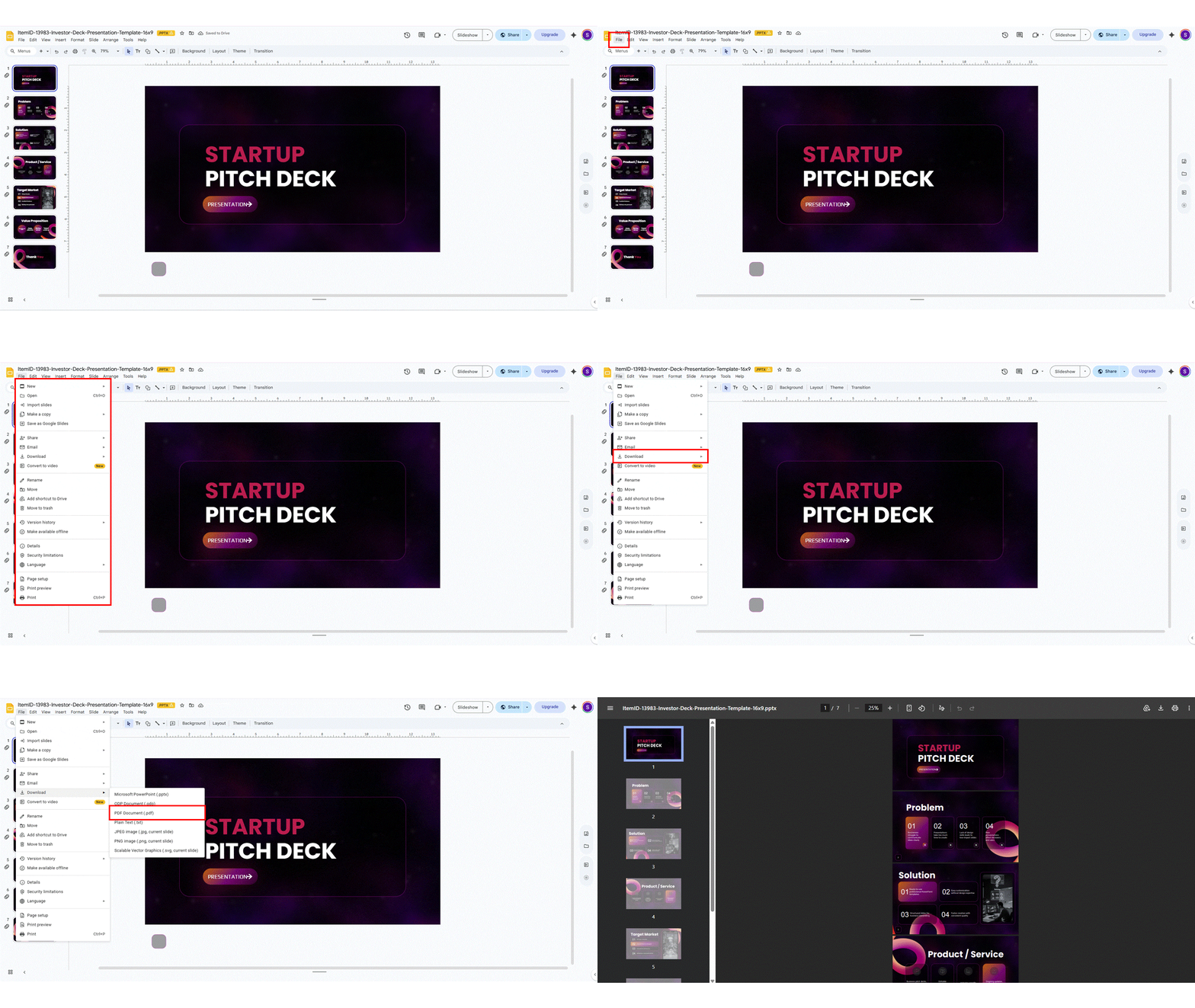
That’s it! Your presentation is now a PDF with just the slide content, perfect for sharing or printing.
Method 2: How To Save Google Slides as PDF with Speaker Notes
If you want to include your speaker notes in the PDF—great for handouts, study guides, or keeping your talking points handy—you’ll need to use the print function instead of the download option.
- Step 1: Open your presentation – Navigate to Google Slides and open the presentation that contains the speaker notes you want to include.
- Step 2: Click on “File” then “Print” – Go to the File menu at the top and select “Print” from the dropdown. Alternatively, you can use the keyboard shortcut Ctrl+P (Windows) or Command+P (Mac).
- Step 3: Choose your layout – In the print settings window that appears, look for the dropdown menu that says “1 slide without notes” and click on it.
- Step 4: Select “1 slide with notes” – From the layout options, choose “1 slide with notes.” This will display each slide with its corresponding speaker notes below it.
- Step 5: Click “Download as PDF” – Instead of sending to a printer, look for the “Destination” section and make sure it’s set to “Save as PDF.” Then click the “Download” or “Save” button.
- Step 6: Choose your save location – A dialog box will appear asking where you want to save the file. Pick your preferred location, name your file if needed, and click “Save.”
- Step 7: Access your PDF – Your PDF with both slides and speaker notes is now ready. You’ll find it in the location you selected.
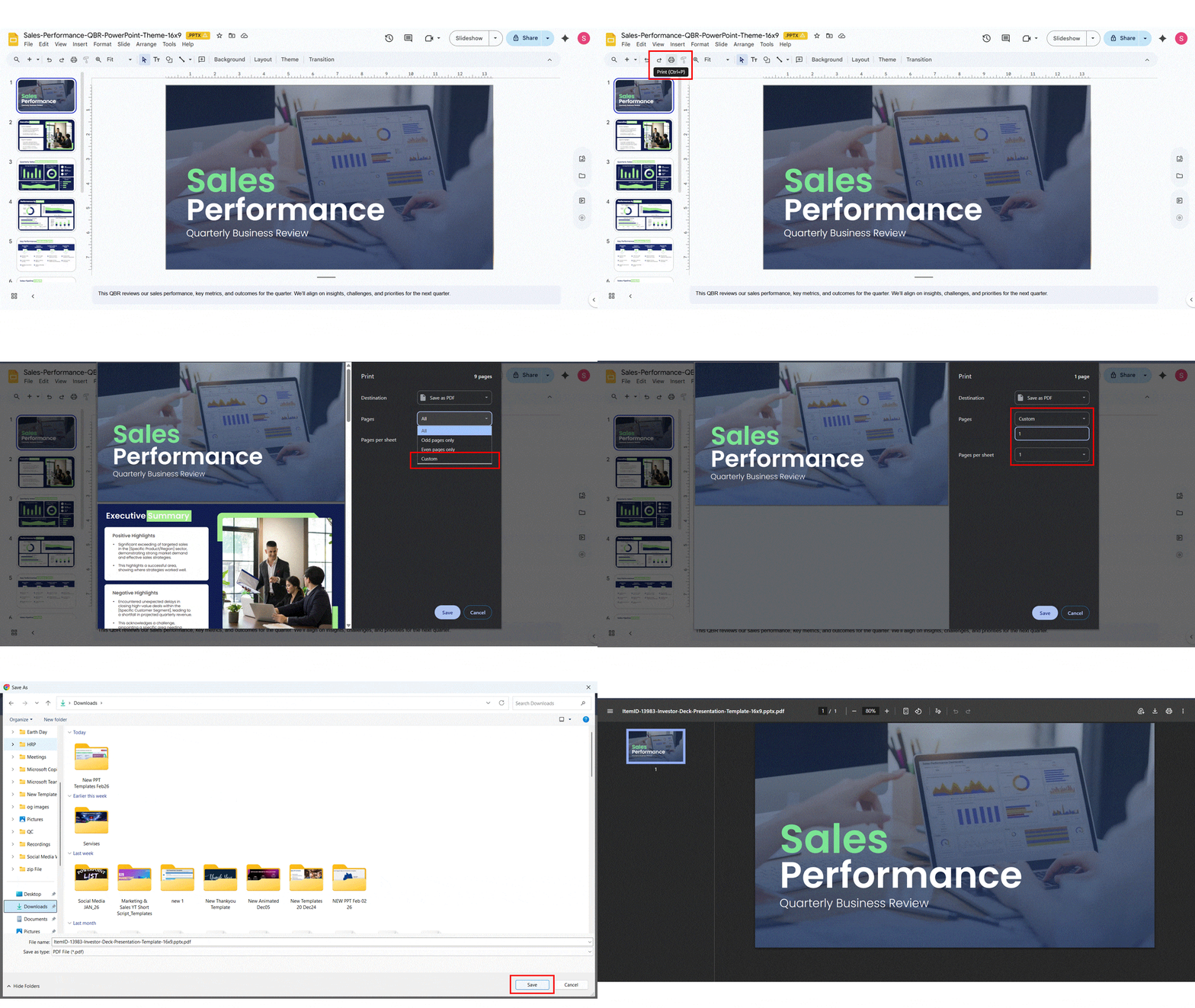
This method is perfect when you need a complete reference document that includes all your presentation details and notes. If you also use PowerPoint, you can learn how to add speaker notes in PowerPoint for a similar workflow.
How To Save Google Slides Presentations as PDF in the Mobile App?
The Google Slides mobile app works on both Android and iOS, but the steps and menu names are slightly different. Below is a clear, step-by-step breakdown for each platform.
Steps to Save Google Slides as PDF on Android
- Open the Google Slides app: Launch the app and open the presentation you want to convert.
- Tap the three-dot menu (More options): This is located in the top-right corner of the screen.
- Select “Share & export.”: This opens all available sharing and download options.
- Tap “Save as”: Android allows you to save the file directly to your device.
- Choose “PDF (.pdf)” as the format: Select PDF from the list of file formats.
- Confirm and save the file: The PDF will be downloaded and stored on your phone.
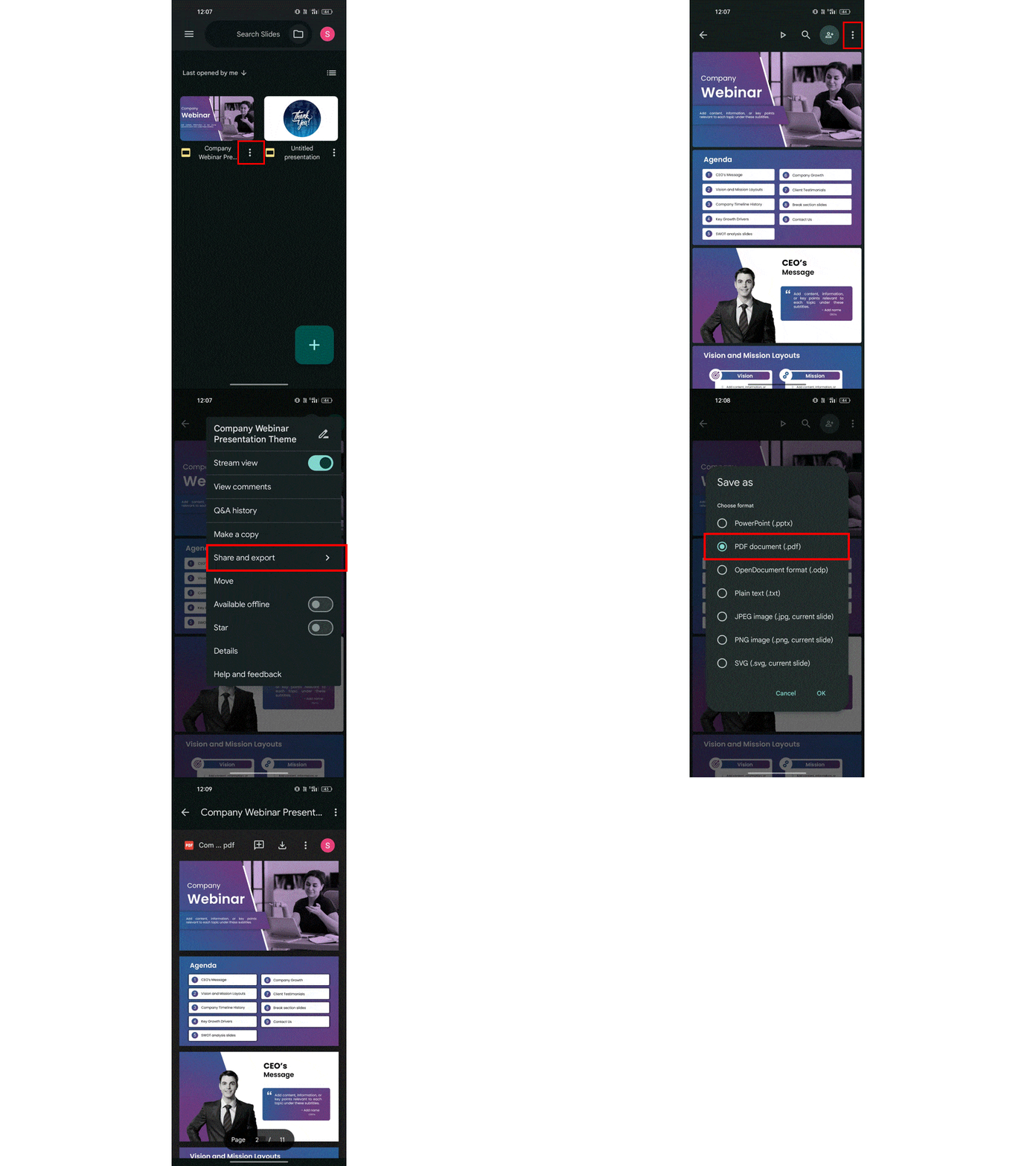
Steps to Export Google Slides as PDF on iPhone & iPad
- Open the Google Slides app: Open your presentation in the app.
- Tap the three-dot menu (More options): You’ll find this in the top-right corner.
- Select “Share & export”: This gives access to export options.
- Tap “Send a copy”: Unlike Android, iOS uses “Send a copy” instead of “Save as.”
- Choose “PDF (.pdf)”: Select PDF as the file format.
- Select where to save or share: Use the iOS share sheet to save it to Files, AirDrop it, or share via apps like Mail or WhatsApp.
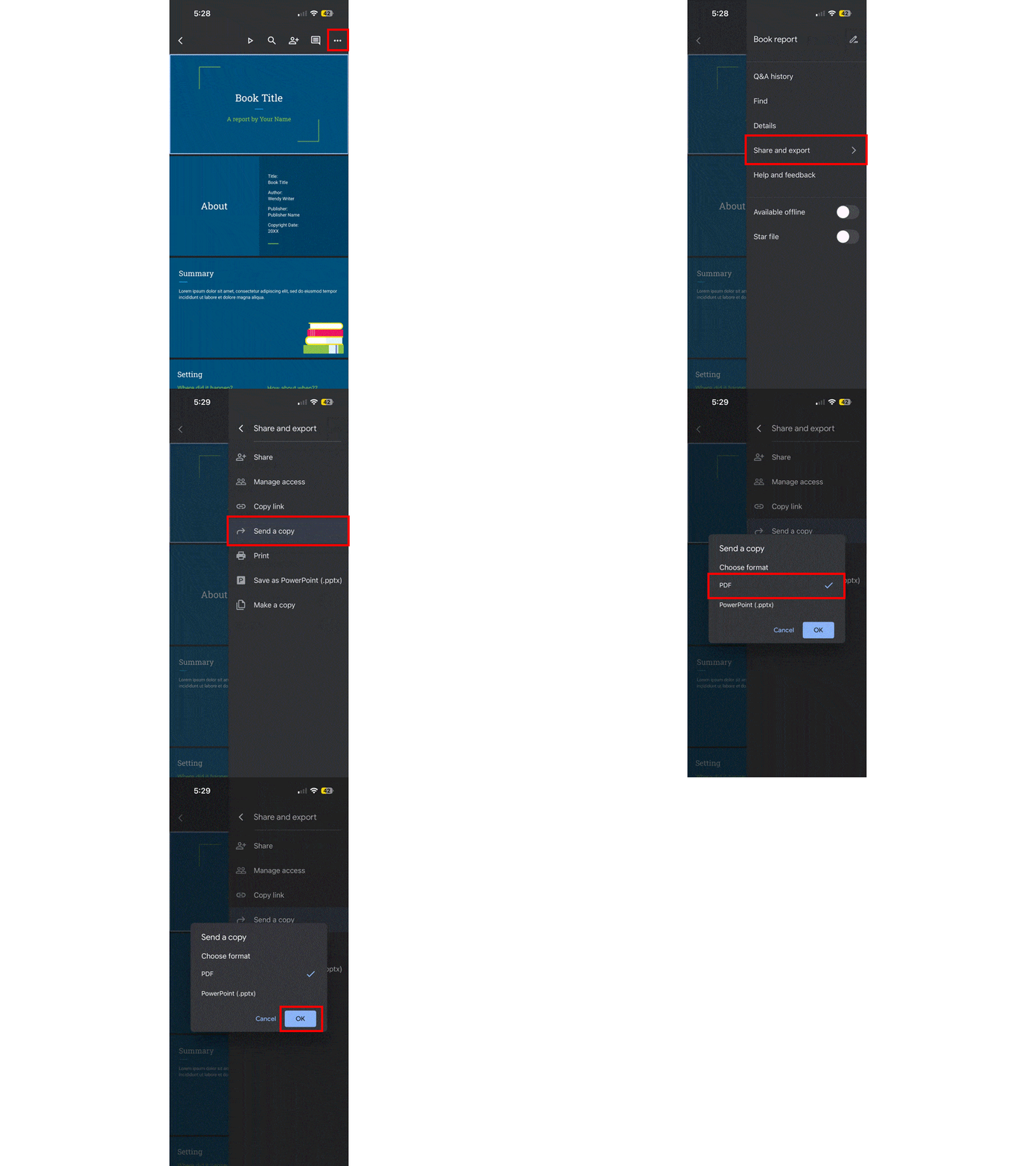
Saving Google Slides as a PDF on mobile is quick and easy on both Android and iOS. Just a few taps let you share or save your presentation in a clean, professional format.
How to Export a Single or Multiple Slides into a PDF?
If you don’t need the entire presentation, Google Slides lets you export just one slide or a selected range into a PDF. Follow these step-by-step instructions
- Open Google Slides: Go to Google Slides and open the presentation you want to export.
- Click on “File”: You’ll find this at the top-left of the screen.
- Select “Print preview”: This opens a preview of how your slides will look when printed.
- Click the “Print” button: A new window (print dialog) will appear.
- Choose “Save as PDF”: In the Destination or Printer section, select Save as PDF.
- Choose “Custom” under Pages: This option lets you decide which slides to export.
- Enter the slide numbers
- For one slide: type 2
- For multiple slides in order: type 2–5
- For specific slides: type 1,3,6
- Click “Save”: Choose where you want to store the file on your computer.
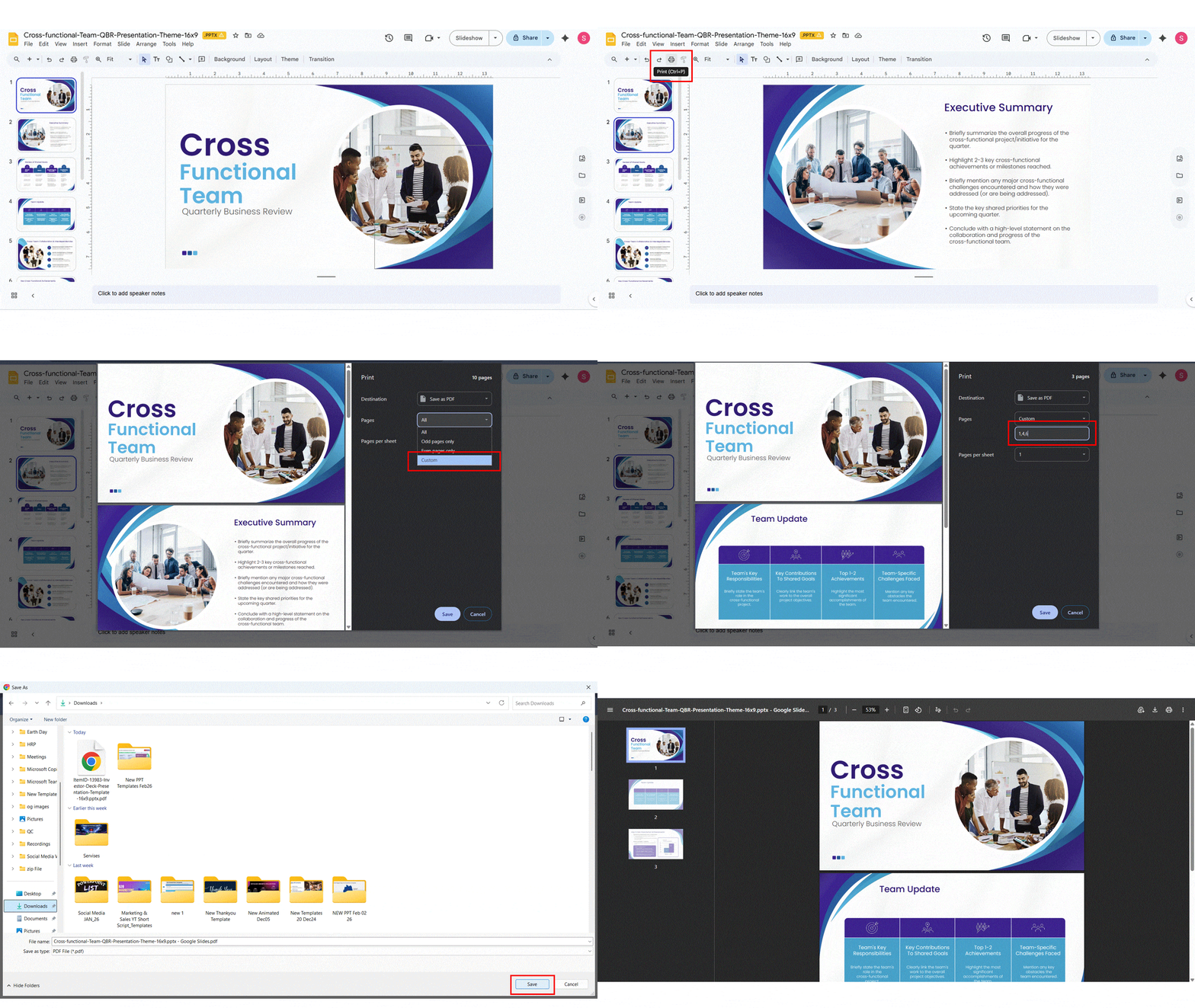
That’s it! Only the slides you selected will be saved as a PDF, making this perfect for sharing just a few slides instead of the full presentation. This method works smoothly with all types of Google Slides templates, keeping your design and layout exactly as intended.

Conclusion
Converting Google Slides into a PDF makes sharing presentations simple and reliable. It preserves formatting, prevents unwanted edits, and works smoothly across devices. This guide covered desktop and mobile methods, including exporting slides without speaker notes. You also learned how to save single or multiple slides as a PDF. Use these steps to share clear, professional presentations with confidence every time. If you also work with PowerPoint files, you can check this guide to convert PowerPoint to PDF for a smooth workflow across tools.
FAQs
-
How can I save my Google Slides presentation as a PDF?
- Open your presentation in Google Slides
- Click File in the top menu
- Select Download
- Choose PDF Document (.pdf)
- The file will download automatically to your device
-
What are the steps to convert a Google Slides file to PDF?
- Open the file in Google Slides
- Click File from the top menu
- Select Download
- Choose PDF Document (.pdf)
- Save the PDF to your device
-
Is there an easy way to export Google Slides as a PDF file?
Yes, there is an easy way to export Google Slides as a PDF file. Simply open your presentation, click File → Download, and choose PDF Document (.pdf). This method keeps your formatting intact and works quickly on both desktop and laptop devices.
-
Can I download Google Slides as a PDF without losing formatting?
Yes, you can download Google Slides as a PDF without losing formatting. PDFs preserve your slide layout, fonts, images, and spacing exactly as they appear in Google Slides. This makes PDFs ideal for sharing, printing, or submitting presentations without design changes.
-
Are there any online tools to convert Google Slides to PDF?
Yes, there are online tools that can convert Google Slides to PDF, though it’s usually easiest to use Google Slides’ built-in download feature. If needed, services like CloudConvert or Smallpdf can take your slide file and turn it into a PDF. Just be cautious with sensitive content and choose reputable tools.
-
What is the difference between printing and saving Google Slides as a PDF?
Saving Google Slides as a PDF downloads the file directly with your slide layout preserved. Printing to PDF uses print settings, which can change layout, slide size, or slide selection. Printing is useful for exporting specific slides, while saving as a PDF is better for the full presentation.
-
Can I save individual slides from Google Slides as separate PDF pages?
Yes, you can save individual slides from Google Slides as separate PDF pages. Use Print preview, choose Save as PDF, and enter specific slide numbers in the page range. This lets you export only the slides you need instead of the full presentation.
-
How do I save Google Slides as a PDF on mobile devices?
To save Google Slides as a PDF on mobile, open the presentation in the Google Slides app. Tap the three-dot menu, choose Share & export, then select Send a copy or Save as and pick PDF. The file will be saved or shared from your device.
-
Are there any limitations when exporting Google Slides to PDF?
Yes, there are a few limitations when exporting Google Slides to PDF. Animations, transitions, and embedded videos won’t work in PDFs. Interactive elements like links remain clickable, but slide timing and presenter notes are not included unless printed separately.
-
What should I do if my images are missing after saving Google Slides as a PDF?
If images are missing after saving Google Slides as a PDF, first check your internet connection and reload the presentation. Make sure all images are fully loaded and not linked from restricted sources. Re-export the file, and if the issue continues, try downloading the PDF using a different browser.
Table Of Content



Related posts from the same category

11 Mar, 2024 | SlideUpLift
How To Convert PDF To Google Slides? 1-Minute Guide
Professionals must deliver visually appealing and engaging presentations that capture the audience's attention and help them easily understand the context. Creating Google Slides presentations requires multiple resources. If those resources

18 Oct, 2023 | SlideUpLift
How to Convert Keynote to Google Slides Presentations?
Presentations are essential for effective communication, from classrooms and boardrooms to conferences and webinars. PowerPoint, Keynote and Google Slides are popular tools for creating top-class presentations. While everyone is aware
19 Oct, 2023 | SlideUpLift
How to Convert Canva to Google Slides Presentation?
The fastest way to convert a Canva presentation to Google Slides is to download the Canva deck as a PowerPoint (.pptx) file and then open that file in Google Slides.

28 Apr, 2026 | SlideUpLift
How to Insert a PDF into Google Slides Every Method That Actually Works
No, Google Slides does not let you insert a PDF directly as an editable PDF object. Instead, you can use one of three practical workarounds. First, convert the PDF pages
1 Sep, 2022 | SlideUpLift
How To Group & Ungroup In Google Slides (Step-by-Step Guide)
This blog walks you through how to group and ungroup elements in Google Slides in a simple, practical way. It covers grouping images, shapes, text boxes, and objects, along with

25 Oct, 2021 | SlideUpLift
How To Make a Quiz in Google Slides? (Step-by-Step Guide)
Quick Answer: To make a quiz in Google Slides, create a question slide with answer options, then build separate “Correct Answer” and “Wrong Answer” feedback slides. Use Insert → Link

18 Nov, 2022 | SlideUpLift
Learn How To Add Bullet Points In Google Slides
In today’s dynamic world, people have very less attention span to read and absorb information. Be it blogs, posts, or presentations, people generally scan through the information. To get people

7 Jun, 2023 | SlideUpLift
How To Convert Keynote To PowerPoint?
Numerous applications are available for Mac users that do similar work to the corresponding Microsoft programs. To ensure the recipient can open the file you transmit while sharing documents with

30 Mar, 2026 | SlideUpLift
How to Convert PPT to Video: Complete Guide for 2026
This guide shows how to convert PPT to video using PowerPoint and other tools with simple, step-by-step methods. It covers formats, quality settings, narration, animations, and fixes for common export

23 Sep, 2022 | SlideUpLift
How To Add Drop Shadows In Google Slides
Google Slides provide effects like drop shadows, which is an effective feature for presentation design. They can assist in making a flat image, text, or object more interesting by making