

 Flat 1


Mastering Zoom in PowerPoint: Tips for Engaging Presentations
Quick Answer 1: How to use the PowerPoint Zoom navigation feature
- Go to Insert tab → Links group → Zoom
- Choose Slide Zoom, Section Zoom, or Summary Zoom
- Select your target slide or section and click Insert
- In Slide Show mode, click the thumbnail to navigate
Quick Answer 2: How to zoom in on a slide during a presentation
- Click the magnifying glass icon in the lower-right corner of Presenter View
- Or use Ctrl + Scroll Wheel to zoom incrementally
- Type a slide number + Enter to jump to any slide instantly
Introduction
Microsoft PowerPoint’s Zoom feature transforms static, sequential slide decks into flexible, interactive presentations. Rather than advancing through slides one by one, you can build a central navigation hub and jump to any section, in any order, with a smooth zooming animation.
This guide covers everything you need to use Zoom confidently — from enabling the feature and understanding the three Zoom types, to advanced techniques, known limitations, troubleshooting, and keyboard shortcuts. Whether you’re presenting in a boardroom or on a video call, the Zoom tool gives you full control over how your audience experiences your content.
What Is PowerPoint Zoom and How Does It Work?
Important: PowerPoint has two separate features that both use the word ‘Zoom’:
- Insert tab → Zoom — A navigation tool that creates clickable slide thumbnails for non-linear presentation flow. This is what this guide covers.
- Animations tab → Zoom — An entrance/exit animation effect that scales an object in or out on a single slide. Learn more in our guide on how to add animation in PowerPoint. If you’re looking to animate an object with a zoom effect on a slide, go to the Animations tab and search for the Zoom entrance effect. If you want to navigate between slides interactively, stay with this guide.
PowerPoint Zoom is a built-in navigation tool found under the Insert tab. It lets you place a clickable thumbnail of another slide or section directly onto your current slide. Knowing how to zoom in in PowerPoint slides is particularly useful for navigating large decks without losing the audience. In Slide Show mode, clicking that thumbnail triggers a smooth zoom animation that takes the audience directly to the linked content.
Think of it as creating a visual table of contents on a single slide — like a visual home base for your entire presentation. Instead of clicking through 30 slides to reach a chart in the appendix, you place a Zoom link on your summary slide and go there instantly. To access Zoom, navigate to the Insert tab → Links group → Zoom button. A dropdown offers the three Zoom types, each covered in detail below.
Types of Zoom: Slide Zoom, Section Zoom, and Summary Zoom
- Slide Zoom creates a link to a single, specific slide. It is ideal for quickly referencing a supporting data slide, a detailed chart, or an appendix item without disrupting the main flow.
- Section Zoom links to the first slide of an entire section. After presenting that section, PowerPoint automatically returns you to the hub slide — perfect for presentations organised into distinct topics or chapters.
- Summary Zoom automatically creates a brand new slide populated with thumbnails linking to the start of each section. This acts as a visual table of contents, giving your audience an overview of the entire presentation upfront.
| Zoom Type | What It Links To | Best Used For |
|---|---|---|
| Slide Zoom | A single slide | Jumping to an appendix slide, chart, or reference point |
| Section Zoom | First slide of a section | Navigating between distinct topics or chapters |
| Summary Zoom | Multiple sections (auto-created slide) | Visual table of contents at the start or end of a presentation |
Key Benefits of Using Zoom for Presentations
The Zoom feature changes how you deliver information and interact with your audience. Rather than a passive viewing experience, it creates an active, responsive one — where you adapt the presentation to the conversation in the room.
- Enhanced Storytelling: Guide your audience through different parts of a narrative in a non-linear, audience-led order.
- Interactive Navigation: Jump to any section instantly during Q&A sessions without scrolling through unrelated slides.
- Improved Clarity: Zoom in on complex visuals or data-heavy graphics from a summary slide without cluttering individual slides.
- Professional Polish: The smooth zoom animation gives presentations a modern, dynamic feel that standard transitions cannot match.
- Flexible Delivery: Tailor the order of content based on real-time audience interest — no rigid sequence required.
How to Enable the Zoom Option in PowerPoint
The Zoom feature requires no additional add-ins or plugins. It is a native feature, but only available in specific versions.
VERSION COMPATIBILITY: Zoom was first introduced in 2016 for Microsoft 365 (Office 365) subscribers and later became available in the perpetual license versions of PowerPoint 2019 and PowerPoint 2021. It is not available in PowerPoint 2016 or earlier, and is not fully supported in PowerPoint for the Web (browser version).
Steps to access the Zoom feature:
- Open your presentation and click the Insert tab in the ribbon.
- Locate the Links group in the middle of the ribbon.
- Click the Zoom button to open a dropdown with the three Zoom types.
- Select your desired Zoom type to open the Zoom dialog box.
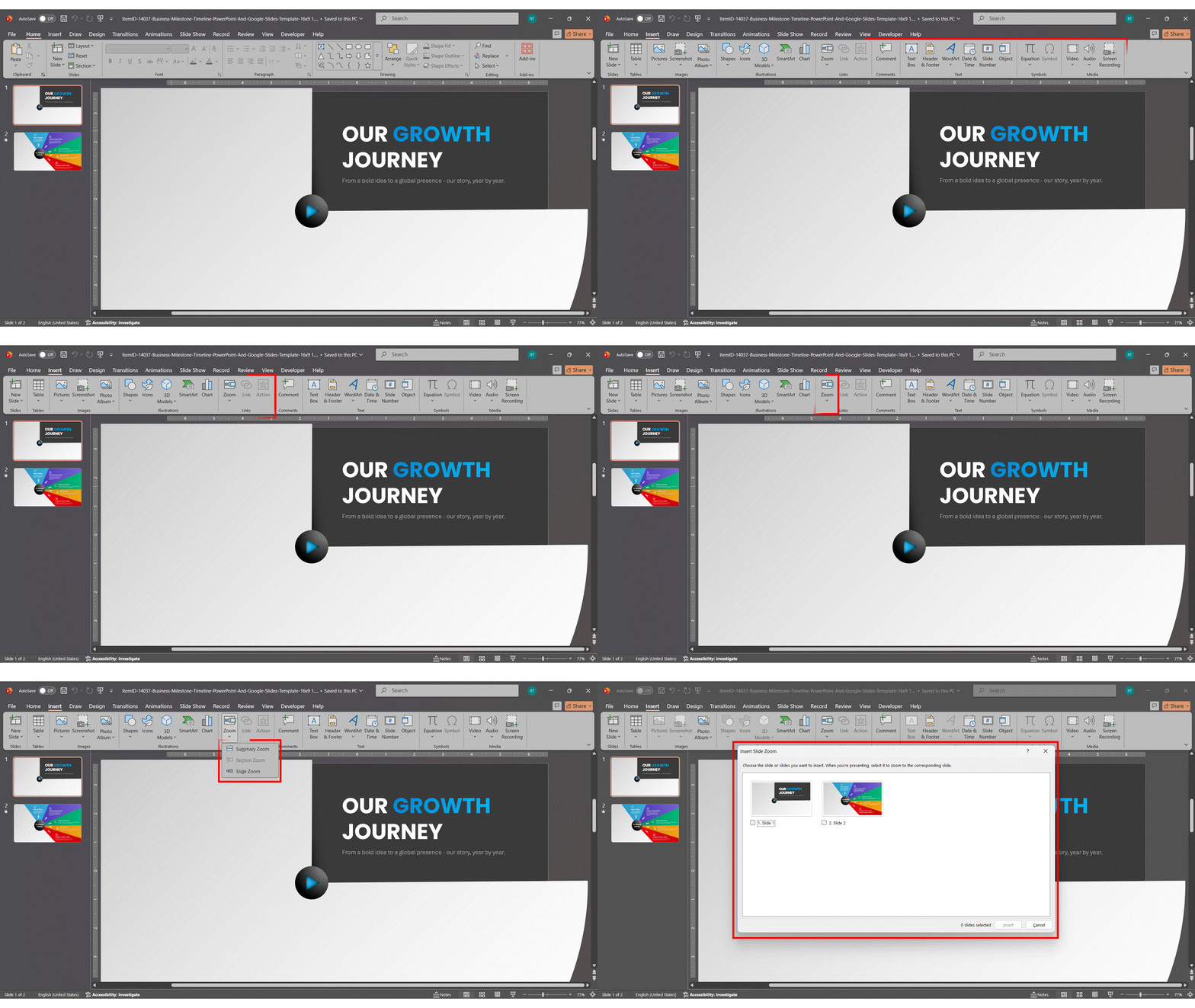
Steps for Creating a Basic Slide Zoom
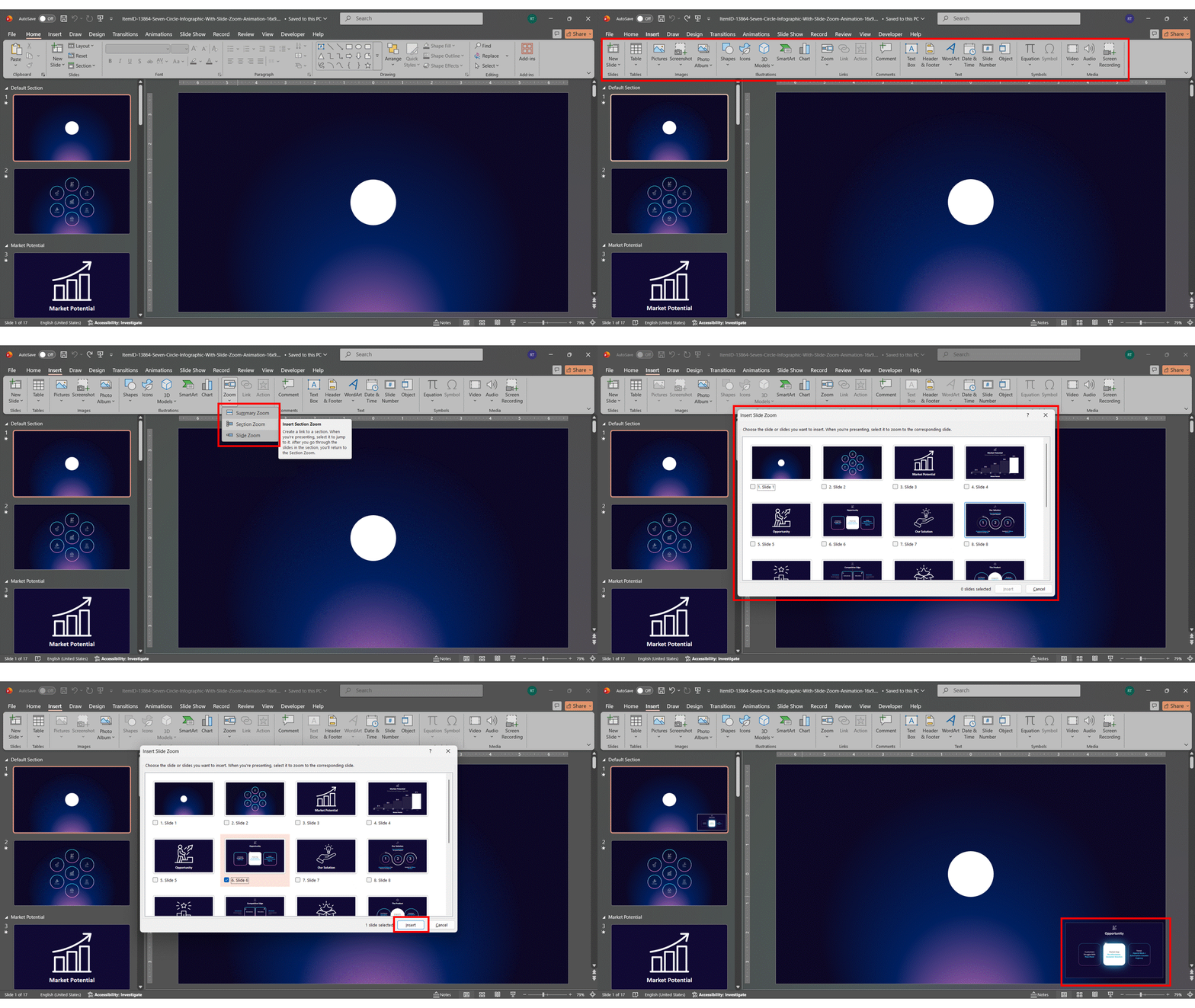
PowerPoint slide zoom is the quickest way to link from your main slide to any specific slide in your deck — useful for appendix data, backup charts, or detailed references you may need, depending on audience questions.
- Navigate to the slide where you want to place the clickable link.
- Go to Insert → Zoom → Slide Zoom.
- In the dialog box, select the target slide from the thumbnail grid, then click Insert.
- The thumbnail appears on your slide. Resize and reposition it as needed — it behaves like an image.
- In Slide Show mode, clicking the thumbnail triggers the zoom animation to that slide.
Faster method (Windows only): You can skip the dialog box entirely — just drag a slide thumbnail directly from the slide panel on the left onto your slide. PowerPoint instantly creates a Slide Zoom link. Similarly, drag a section name from the panel to create a Section Zoom in one step.
Pro Tip: Use the Format tab → Zoom Background option to remove the thumbnail’s background, making the content appear to float on your slide for a cleaner, more integrated look. This is especially effective when you want to zoom in on image elements in PowerPoint without a cluttered frame.
Making a Section Zoom for Smooth Navigation
Section Zoom requires sections to already exist in your presentation. To add sections, right-click between slides in the Normal view panel or Slide Sorter view and select Add Section. Give each section a clear name — these names appear in the Zoom dialog.
Once your sections are set up:
- Go to the slide you want to use as your navigation hub.
- Click Insert → Zoom → Section Zoom.
- Check the boxes next to each section you want to link to, then click Insert.
- Thumbnails of the first slide of each section will appear on your hub slide.
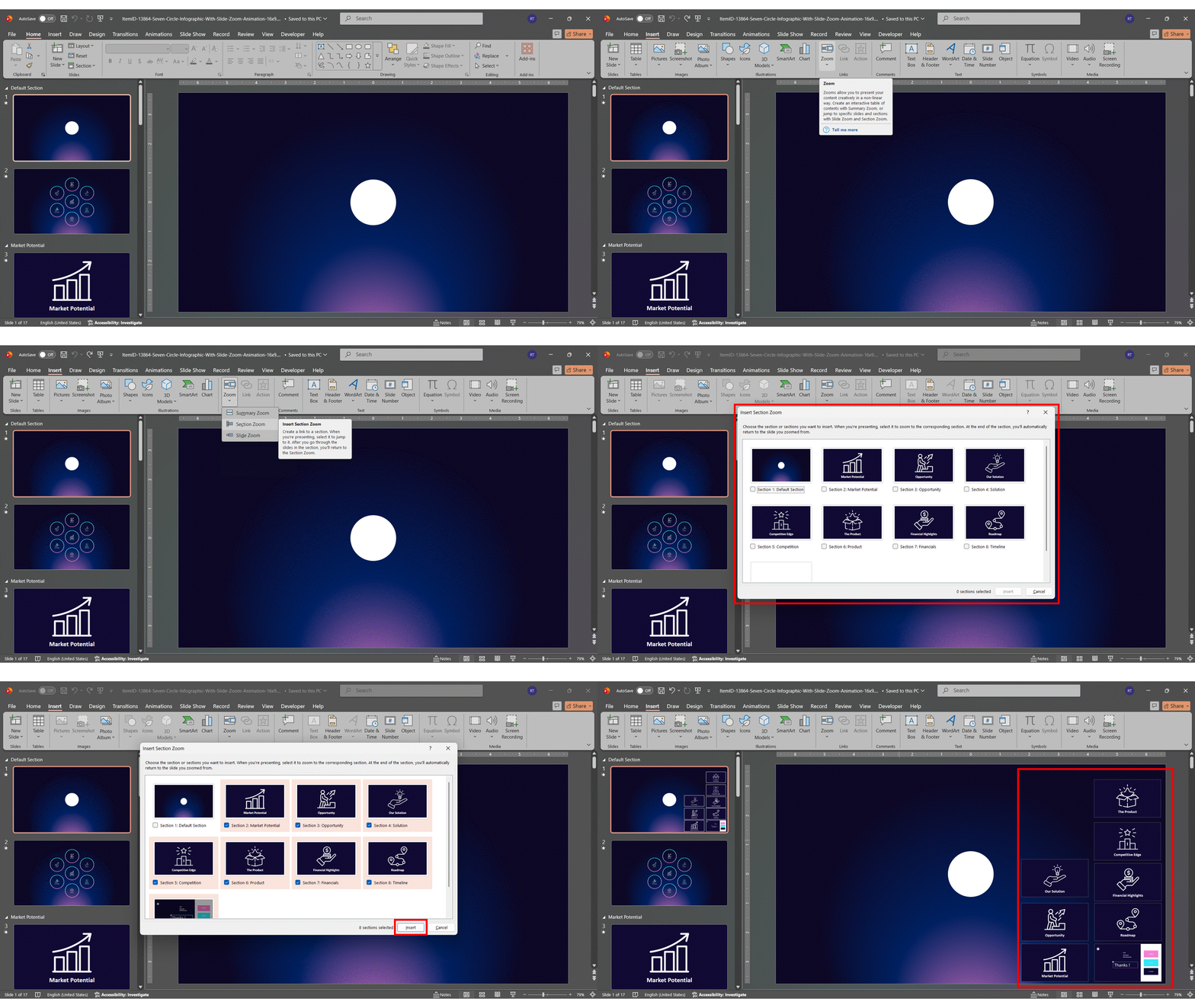
The key advantage of Section Zoom is the Return to Zoom behaviour. After presenting all slides in a linked section, PowerPoint automatically brings you back to the hub slide. This can be toggled on or off in the Format tab when a Zoom thumbnail is selected. If your content is spread across separate files, first learn how to merge multiple PowerPoint presentations into one before setting up sections
Limitations and Known Issues with PowerPoint Zoom
Understanding the limitations of the Zoom feature helps you plan your presentation structure in advance and avoid surprises during delivery.
- Zoom thumbnails do not auto-update if you rename a section after inserting a Section Zoom. You will need to re-insert the Zoom link.
- Summary Zoom requires sections to be defined first. If no sections exist, the Summary Zoom option will not produce meaningful navigation links.
- Reordering or hiding slides can break Slide Zoom links. Always check links after restructuring your deck.
- Not available in PowerPoint for the Web. Zoom links may not work correctly if collaborators review the file in a browser.
- Zoom links to whole slides only. You cannot natively link to a specific region of a slide. Use the Morph transition workaround (see Advanced Techniques) for this.
Creative and Practical Ways to Use PowerPoint Zoom
Using Zoom to Highlight Critical Data or Visuals
Knowing how to zoom in in PowerPoint on complex charts, detailed maps, and data-heavy graphics is essential when individual slides feel crowded. Create a main overview slide and link individual Slide Zooms to full-screen versions of each visual:
- Charts and Graphs: Show a summary visual on your main slide and use Slide Zoom to display close-up data points and annotations.
- Geographic Maps: Display a world or regional map as the hub, with Zoom links to individual country or region slides.
- Product Features: Show the full product on a hero slide, then use Zoom links to walk through each feature individually.
Enhancing Storytelling with Interactive Zoom Paths
A Summary Zoom creates a central hub that acts as a visual roadmap for your narrative. For a project timeline presentation, the Summary Zoom slide could display each milestone as a thumbnail. Clicking a milestone zooms into all the detail slides for that phase before returning you to the roadmap.
This approach gives you the flexibility to adapt your story in real time. If the audience wants to skip ahead or revisit an earlier point, you can navigate there instantly without clicking through unrelated slides.
PowerPoint Zoom vs. Prezi Prezi built its reputation on non-linear, zooming presentations — but PowerPoint’s Zoom feature now offers a comparable experience without switching platforms. Unlike Prezi, PowerPoint Zoom works inside your existing deck, integrates with your slide designs, and requires no subscription to a separate tool. For most business presenters already working in PowerPoint, the built-in Zoom feature delivers a Prezi-like feel with none of the learning curve.
Customising Zoom Animations for Greater Impact
When you select a Zoom thumbnail, a Format tab appears in the ribbon. This gives you several customisation options to control the PowerPoint zoom animation:
- Zoom Background: Removes the thumbnail background so only the slide content is visible, creating a cleaner, integrated look that feels polished and professional.
- Transition Duration: Adjust the speed of the zoom animation — faster for snappy navigation, slower for dramatic emphasis.
- Return to Zoom: Toggle whether PowerPoint returns to the hub slide after the linked section or slide is complete.
- Change Image: Replace the auto-generated thumbnail with a custom image or icon that better suits your slide design.
- Image Effects: Apply shadows, glows, or borders to thumbnails to make them visually distinct and clickable-looking.
- Zoom Styles Gallery: When a Zoom thumbnail is selected, the Format tab reveals a full Zoom Styles gallery with pre-built border and visual effect combinations. Browse these to quickly apply a consistent look across all your Zoom thumbnails without manually adjusting individual shadow or glow settings.
Advanced Zoom Techniques
How to Zoom Into a Specific Image or Area Using Morph
PowerPoint’s Zoom feature links to whole slides only. To simulate a zoom-in effect in PowerPoint for a particular image or text block, use this Morph transition workaround:
- Create your slide with the full image or chart visible.
- Duplicate that slide (Ctrl + D).
- On the duplicate slide, enlarge and reposition the specific object you want to focus on — this is where the zoom-in effect takes place.
- Apply the Morph transition to the duplicate slide (Transitions tab → Morph).
- During the presentation, advancing from slide one to slide two creates a smooth zoom in animation directly into the object.
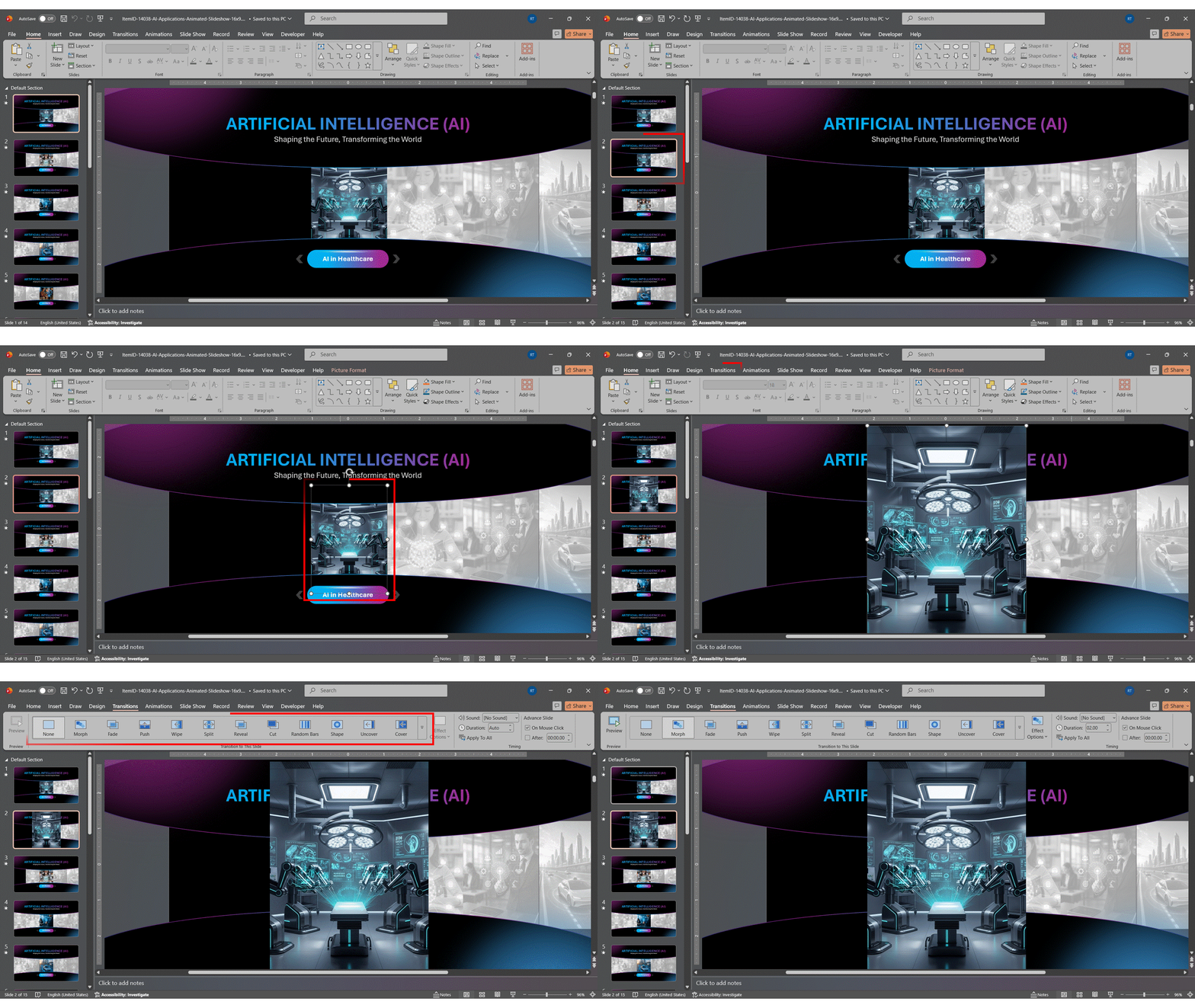
Morph Tip: For Morph to work smoothly, the object must have the same name on both slides. Check and match object names via Home → Arrange → Selection Pane.
This technique also works well as an alternative to the grow and shrink animation in PowerPoint, giving you a more cinematic, directional zoom rather than a simple scale pulse.
Using Zoom During Virtual Meetings
When presenting via Zoom, Microsoft Teams, or Google Meet, PowerPoint’s Zoom navigation features work exactly as they do in person. Start your presentation in Slide Show mode, then share that specific window in your meeting software. Your audience sees the smooth zoom transitions and interactive navigation as you click through thumbnails.
This is particularly useful during virtual Q&A sessions. If a participant asks about a topic from an earlier section, use your Summary Zoom or Section Zoom hub to jump directly to it without scrolling. It signals a strong command of your material and keeps the session focused. If you need to share the presentation asynchronously after the meeting, learn how to convert your PowerPoint to video while keeping the zoom transitions intact.
Keyboard Shortcuts for Zooming During a Presentation
These keyboard shortcuts apply during Slide Show mode and are separate from the Insert tab Zoom navigation feature. They allow you to magnify any part of the current slide on the fly —useful when you need to magnify slide content without pre-building a Zoom link.
| Shortcut | Action |
|---|---|
| Ctrl + Scroll Wheel | Zoom in or out incrementally |
| [Slide Number] + Enter | Jump directly to a specific slide number |
Note: The magnifying glass and Zoom navigation feature are two separate functions. The magnifier lets you enlarge slide content during a live presentation; the Insert tab Zoom feature controls non-linear slide navigation. During live sessions, you can also annotate slides in real time alongside Zoom navigation to draw attention to specific areas.
Troubleshooting Common PowerPoint Zoom Problems
| Problem | Cause | Fix |
|---|---|---|
| The Zoom option is greyed out | The file is in Read-Only / Protected View, or the version is too old | Enable editing, or confirm you’re using PowerPoint 2019/ 2021/ 2024/ 365 |
| Zoom thumbnail shows the wrong slide | The slide was moved or renamed after Zoom was inserted | Delete and re-insert the Zoom link from Insert → Zoom |
| Return to Zoom is not working | “Return to Zoom” is disabled in the Format tab | Select the Zoom thumbnail → Format tab → enable Return to Zoom |
| Section Zoom is not available | No sections exist in the presentation | Right-click between slides → Add Section, then re-try Section Zoom |
| Morph transition is not smooth | Object names differ between the two slides | Match object names in Home → Arrange → Selection Pane on both slides |
Conclusion
PowerPoint’s Zoom feature — across Slide Zoom, Section Zoom, and Summary Zoom — gives presenters a practical way to move beyond rigid linear decks. Used well, it turns a standard presentation into a responsive, audience-led experience. Whether you need to zoom in on image data, walk through product features, or build a full non-linear navigation system, the tools are all built in and ready to use.
- Use Slide Zoom for quick references to single slides
- Use Section Zoom for topic-based navigation with automatic return
- Use Summary Zoom for a visual table of contents
- Combine with Morph to zoom into specific image areas or chart regions with a cinematic feel.
FAQs
-
What is the Zoom feature in PowerPoint?
PowerPoint Zoom is a built-in Insert tab tool that places clickable thumbnails on a slide, enabling non-linear navigation with a smooth zoom animation in Slide Show mode.
-
What is the difference between Slide Zoom, Section Zoom, and Summary Zoom?
Slide Zoom links to one slide. Section Zoom links to an entire section and auto-returns to the hub. Summary Zoom creates a new overview slide with links to all sections.
-
Which versions of PowerPoint support Zoom?
Microsoft 365 (originally from 2016), PowerPoint 2019, PowerPoint 2021, and PowerPoint 2024 on Windows and Mac. Not supported in older perpetual versions prior to 2019, or in PowerPoint for the Web.
-
How do I create a Summary Zoom?
Go to Insert → Zoom → Summary Zoom, select the first slide of each section, and click Insert. Sections must be set up first.
-
How do I zoom into a specific part of a slide or image?
Duplicate the slide, enlarge the target element on the copy, then apply the Morph transition. This creates a smooth PowerPoint zoom in animation focused on that specific area. Note: Morph does not animate charts — use this technique for images, shapes, and text only.
-
What keyboard shortcuts zoom in during a presentation?
To magnify a slide during Slide Show mode, click the magnifying glass icon in the lower-right corner of the Presenter View. You can also use Ctrl + Scroll Wheel to zoom incrementally on some systems.
-
Can I use PowerPoint Zoom in virtual meetings?
Yes. Run Slide Show mode and share that window. PowerPoint’s zoom transitions work the same as in-person, which is great for Q&A navigation.
-
Why is the Zoom option greyed out?
The file may be in Read-Only/Protected View, you may be on an unsupported version (pre-2019), or Section Zoom is selected with no sections defined.
-
Does Section Zoom automatically return to the main slide?
Yes. This “Return to Zoom” behaviour is on by default and can be toggled in the Format tab when the Zoom thumbnail is selected.
-
What are common Zoom problems and fixes?
Wrong thumbnail → re-insert the link. Return to Zoom not working → enable in Format tab. Section Zoom missing → add sections first. Morph not smooth → match object names in the Selection Pane.
Table Of Content





Related posts from the same category

25 Jan, 2018 | SlideUpLift
PowerPoint Hack: How To Create Sections In PowerPoint And How To Zoom In PowerPoint
This PowerPoint tutorial is about How To Create Sections In PowerPoint. Imagine that you are about to begin your business presentation to a room full of clients, and you remember
![How To Create Puzzle Pieces In PowerPoint [+Templates]](https://slideuplift.com/wp-content/uploads/2022/10/How-To-Create-Puzzle-Piece-In-PPT.jpg "How To Create Puzzle Pieces In PowerPoint [+Templates]")
11 Sep, 2024 | SlideUpLift
How To Create Puzzle Pieces In PowerPoint [+Templates]
The jigsaw puzzle is the perfect design element that you can use for your strategy presentations; it helps with the storytelling aspect of your presentation by showing how the pieces

7 Feb, 2020 | SlideUpLift
How To Make A Filmstrip Effect In PowerPoint | PowerPoint Tutorial
Learn how to make a cool filmstrip effect. A PowerPoint Timeline Template need not be boring. This tutorial explains step-by-step instructions to create a cool Filmstrip timeline template in minutes.

3 Oct, 2024 | SlideUpLift
10 Best PowerPoint Animation Examples
Animations in PowerPoint can bring life and interactivity to otherwise static slides. It improves presentations and makes them more engaging for the audience. With these, you can emphasize key points

5 May, 2025 | SlideUpLift
Step-by-Step Guide: How to Create a PowerPoint Template
If you use PowerPoint often to make professional presentations, you probably have realized that the built-in PowerPoint Library doesn't have sufficient PowerPoint templates available for all types of presentation needs.
17 Feb, 2020 | SlideUpLift
PowerPoint Arrows: How to Make an Arrow Diagram in PowerPoint | Step-by-Step Tutorial
Quick Answer — How to Insert Arrow in PowerPoint To insert arrow in PowerPoint and build a diagram: Go to Insert > Shapes and select a Rectangle. Duplicate it (Ctrl+D)

2 Nov, 2022 | SlideUpLift
How To Highlight Certain Parts Of Your PowerPoint Presentation
PowerPoint includes several wonderful features that will make your presentation stand out and leave an impression on your audience. One such function is PowerPoint's Zoom Effect. You can use the

7 Dec, 2022 | SlideUpLift
How To Create Neumorphic PowerPoint Presentation To Dazzle Your Audience?
Neumorphic designs are a relatively recent design style that was first used in the User Interface design of gadgets in the previous decade. The perfect and straightforward design is unexpectedly

28 Dec, 2020 | SlideUpLift
How To Screen Record Using PowerPoint Screen Recording | How To Record Your Screen | PowerPoint Tutorial
A lot of us use different desktop screen recorder tools and Softwares to record screens. But did you know there is a better and easy way to capture the screen?
![How to Make an Org Chart in PowerPoint: Step-by-Step Guide [+ Templates]](https://slideuplift.com/wp-content/uploads/2021/01/How-to-create-an-org-chart-in-powerpoint.jpg "How to Make an Org Chart in PowerPoint: Step-by-Step Guide [+ Templates]")
13 Jun, 2025 | SlideUpLift
How to Make an Org Chart in PowerPoint: Step-by-Step Guide [+ Templates]
Without a clear org chart, even small teams feel messy. People start asking: “Who’s responsible for what?” Whether you are a manager, HR professional, or team lead, explaining the team