



How to Add Footnotes in PowerPoint: A Step-by-Step Guide
Adding footnotes in PowerPoint helps you cite sources and add context without overcrowding your slides. Since PowerPoint doesn’t offer an automatic footnote feature, footnotes are created manually using text boxes or the footer option, with superscript numbers linking references to notes. When formatted consistently and placed correctly, footnotes improve clarity, credibility, and the overall professionalism of your presentation.
Introduction
Have you ever needed to cite a source or add a quick note to a PowerPoint slide without cluttering your main content? Adding a footnote is the perfect solution, but PowerPoint doesn’t make it as obvious as other Microsoft programs. This guide is here to help. We’ll walk you through the simple, step-by-step process of how to insert footnote in PowerPoint, from using a basic text box to formatting with superscript. Get ready to make your presentations more credible and informative.
Understanding Footnotes in PowerPoint Presentations
Before you start adding them, it’s helpful to understand what a PowerPoint footnote is and why it’s a valuable tool. A footnote adds supplementary information or credits a source without interrupting the flow of your presentation.
Unlike a dedicated feature, creating a PowerPoint footnote is a manual process. This gives you full control over where the footnote text appears and how it looks, ensuring it matches your presentation’s style. This section will explore what footnotes are and the common ways to use them.
What Is PowerPoint Footnote and Why Use Them in Slides?
A footnote is simply an annotation placed at the bottom of the slide. It references a specific part of your main text, usually marked with footnote indicators like numbers or symbols. The corresponding footnote text provides extra context or citation details. Think of it as a way to give your audience more information without overwhelming the slide itself.
So, why should you use a PowerPoint footnote? They serve several important purposes that can elevate the quality and professionalism of your presentation. By using them, you can keep your slides clean and focused on the key message.
Here are the main benefits of using footnotes:
- Citing sources: They allow you to properly credit data, quotes, and other reference material.
- Adding context: You can provide definitions, clarifications, or extra details that are helpful but not essential to the main point.
- Maintaining a professional look: Footnotes keep your slides from looking cluttered with long URLs or detailed explanations.
Common Ways to Reference Sources and Add Context in PowerPoint
When it comes to referencing sources in PowerPoint, there are a few common methods. The most popular approach is to use a footnote number in your main text that corresponds to a full citation at the bottom of your slide. This keeps your presentation looking clean while still providing the necessary credit.
PowerPoint offers two primary ways to add this kind of reference material. You can use the built-in Header & Footer tool, which is great for single, repeating notes. Alternatively, you can manually insert a text box, which gives you more flexibility for placement and formatting, especially if you have multiple citations on one slide.
Here are the common ways to add PowerPoint footnote:
- Using the Footer Tool: This places text in a designated area at the bottom of the slide, ideal for a single, consistent note.
- Inserting a Text Box: This manual method lets you place your footnote anywhere you like and is perfect for slides with multiple references.
Preparing to Add Footnotes: What You’ll Need
Getting ready to add a footnote in PowerPoint is straightforward. You don’t need any special software, just the program itself and the reference material you plan to cite. The primary tools you’ll use are the text box feature and the font formatting options.
Having your information ready will make the process much smoother. Before you begin, gather your sources and decide what extra context you want to add. Let’s look at the specific tools and options available in different PowerPoint versions.
PowerPoint Versions (Windows, Mac, Online) and Their Features
While the core process of adding footnotes is similar across all versions of PowerPoint, you might notice slight differences in the user interface. Whether you’re using PowerPoint for Windows, Mac, or the online version, you can add footnotes effectively. The main methods—inserting a text box or using the footer feature—are available on all platforms.
The location of certain tools, however, can vary. For instance, accessing the Header & Footer menu or font formatting options might involve a different click path depending on your device. On mobile versions, like for iPad, you may rely more on pop-up formatting menus rather than a fixed ribbon.
Here’s a quick comparison of where to find the key features on different platforms:
| Feature | Windows/Mac (Desktop) | PowerPoint Online |
| Header & Footer | Insert tab > Header & Footer | Insert tab > Header & Footer |
| Text Box | Insert tab > Text Box | Insert tab > Text Box |
| Superscript | Home tab > Font dialog launcher | Home tab > More Font Options (…) |
Essential Tools and Formatting Options for Footnotes
To create a professional-looking footnote, you’ll need to use a few key formatting tools in PowerPoint. The most important of these is superscript, which raises your reference number or symbol above the text line. This is the standard way to indicate a footnote. You can access this option through the Font dialog box on the Home tab.
Another critical element is the font size. Your footnote text should be smaller than your main content to avoid distracting the audience. A good rule of thumb is to use a font size between 8 and 10 points. Consistency is also key, so try to use your preferred footnote style throughout the presentation.
Essential formatting options include:
- Superscript: Use this for your in-text reference numbers to give them a professional look.
- Font Size: Reduce the font size of the footnote text to differentiate it from the main content.
- Text Box/Footer: Use a text box for custom placement or the footer check box for consistent placement across slides.
Proper font size and alignment matter when adding footnotes—this is also covered in our blog on How to Format Text in PowerPoint.
Step-by-Step Guide: How to Add Footnotes in PowerPoint
Now that you’re prepared, let’s walk through exactly how to insert footnote in PowerPoint presentation. This step-by-step guide covers both single-slide footnotes and repeating footnotes across multiple slides, so you can choose the method that fits your needs.
Whether you’re adding one citation or a recurring note, the process is simple and beginner-friendly. We’ll start with the most flexible option: using a manual text box.
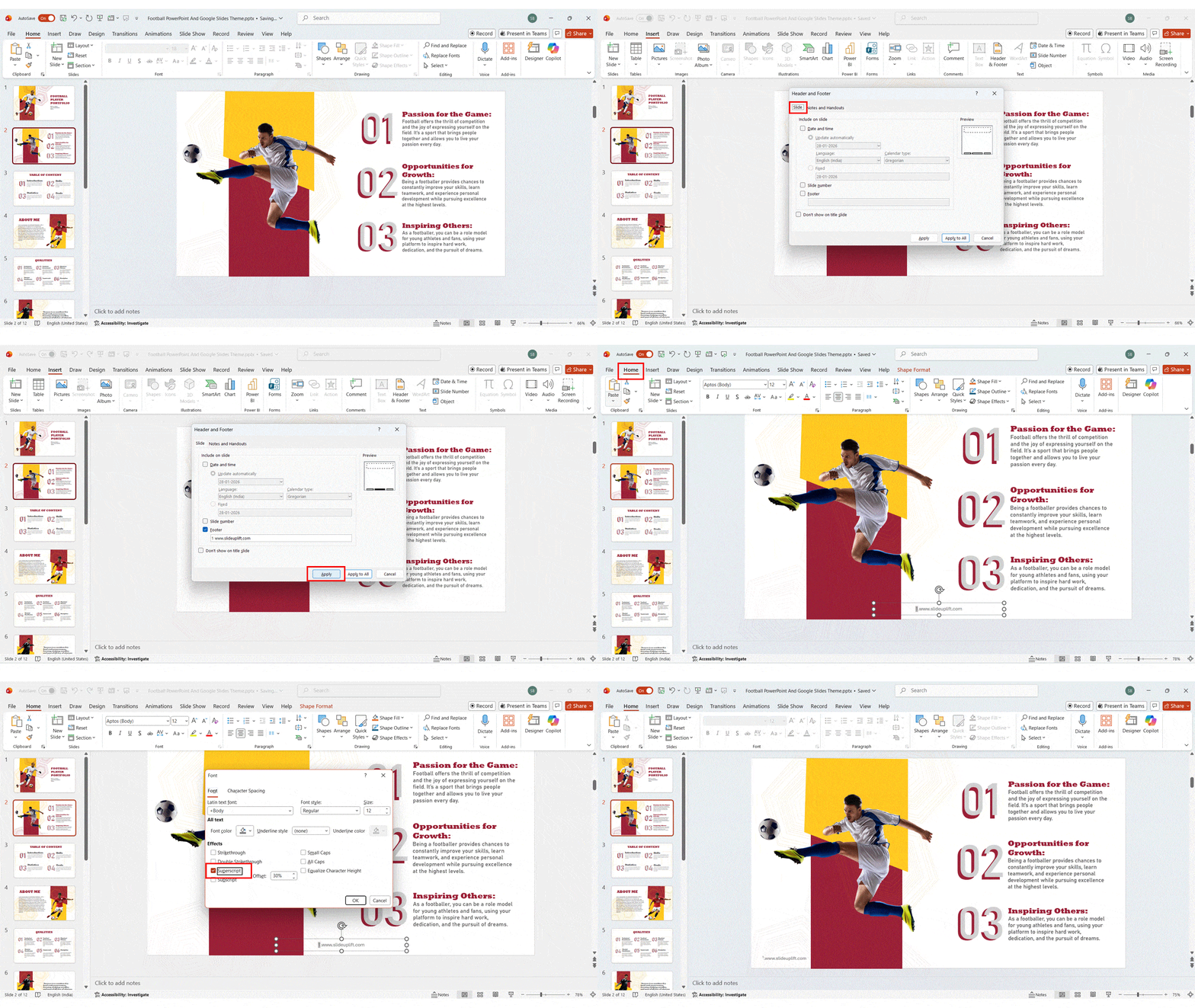
Step 1: Select the Slide and Insert a Text Box
Begin by opening the slide where you want to add your footnote. This method works best when you need precise control over placement or want to include multiple footnotes on a single slide.
To insert a text box:
- Go to the Insert tab in the PowerPoint ribbon.
- In the Text group, click Text Box.
- Click and drag near the bottom of the slide to draw the text box.
This text box is separate from your main slide content, which means you can move and resize it freely. This flexibility ensures your footnote stays neatly positioned without interfering with charts, images, or text placeholders.
Step 2: Enter the Footnote Text and Apply Superscript Formatting
Once the text box is in place, type your footnote number or symbol, followed by the citation or explanatory text. To keep the footnote subtle and professional:
- Reduce the font size (typically 8–10 pt)
- Use the same font family as the rest of the slide for consistency
Next, format the reference marker in your main slide text:
- Select the number or symbol next to the referenced content.
- Press Ctrl + Shift + = to apply superscript
or - Go to Home > Font dialog box and check Superscript.
Using superscript makes your references easier to read and instantly recognizable. This manual approach also allows you to connect multiple superscript markers to different notes within the same text box.
Step 3: Use the Footer Tool for Footnotes Across Multiple Slides
If the same footnote needs to appear on every slide—such as a copyright notice, disclaimer, or recurring source—the built-in footer tool is the most efficient option.
To add a footer footnote:
- Go to the Insert tab and click Header & Footer.
- In the dialog box, check the Footer option.
- Enter your footnote text in the provided field.
You can then choose:
- Apply – adds the footnote to the current slide only
- Apply to All – adds the footnote to every slide in the presentation
The footer will appear in a predefined position set by your PowerPoint template, ensuring consistent placement and formatting throughout the deck.
Quick Tip
Use text boxes for slide-specific citations and footers for repeating notes. Combining both methods gives you maximum flexibility and a clean, professional presentation.
Formatting, Editing, and Removing Footnotes in PowerPoint
Once you’ve added a PowerPoint footnote, you may need to make changes. Whether it’s adjusting the font size, correcting a typo, or removing the note entirely, the editing process is simple. The steps for editing vary slightly depending on whether you used a text box or the footer tool.
This section will provide quick tips for formatting, editing, and deleting footnotes. Knowing the right shortcut or method can save you time and help maintain a consistent and professional look across all your slides.
Tips for Consistent Formatting, Quick Edits, and Deleting Unwanted Footnotes
Maintaining consistency is crucial for a professional presentation. To ensure all your footnotes look the same, try editing the Slide Master. By adjusting the footer placeholder on the parent slide, you can set a consistent font size and style for all footers added via the Header & Footer tool.
For quick editing of a manually added footnote, simply click on the text box and start typing. To delete it, select the text box and press the “Delete” key. If you used the footer tool, go back to the “Header &Footer” menu, uncheck the footer box, and click “Apply to All” to remove it from every slide.
Here are some tips to help you manage your footnotes:
- For consistency: Use the Slide Master to define a uniform style for your footers.
- For quick edits: Click directly into the text box or footer field to update the text.
- For deletion: Select and delete a manual text box, or uncheck the footer option in the Header & Footer menu.
- Avoid mistakes: Always double-check for typos and ensure the font isn’t too small to read or too large that it distracts.
If you want the same footnote style across slides, learning how to create a PowerPoint template can help maintain consistency.
Advanced Options for Footnotes and Endnotes
Once you’ve mastered the basics, you might want to explore more advanced ways to manage footnotes in PowerPoint. This includes adding the same note to all slides efficiently or even creating endnotes instead. While PowerPoint doesn’t have built-in automation tools for this, there are workarounds and shortcuts that can speed up your workflow.
These advanced techniques can help you handle complex citation needs and maintain a polished, professional look in your presentations. Let’s explore how to add recurring footnotes and whether using endnotes is a viable option in PowerPoint.
Adding the Same Footnote to All Slides or Using Endnotes Instead
As mentioned earlier, the most effective way to add the same footnote to all your slides is by using the footer tool. Simply go to “Insert” > “Header & Footer,” enter your text, and click “Apply to All.” This feature is perfect for disclaimers, copyright information, or a general source that applies to the entire PPT.
What if you prefer endnotes instead of footnotes? PowerPoint does not have a dedicated feature for endnotes. However, you can easily create them manually. Simply create a new, final slide at the end of your presentation titled “References” or “Endnotes.”
On this slide, you can list all your numbered citations in one convenient place. This approach is often preferred for academic or research-heavy presentations where footnotes on every slide might become distracting. It keeps your slides clean while still providing comprehensive references.
Shortcuts, Automation Tools, and Best Practices for Efficient Workflow
To speed up the process of creating footnotes, you can use a keyboard shortcut. After typing your reference number, select it and press Ctrl + Shift + = to instantly format it as a superscript. This simple shortcut saves you from navigating through the font menu every time.
While PowerPoint lacks native automation tools for footnotes, third-party add-ins like PPT Productivity can fill this gap. These tools often include features that let you save your preferred footnote style to a personal library. With a single click, you can insert a perfectly formatted footnote text box onto any slide, streamlining your workflow significantly.
For an efficient workflow, consider these best practices:
- Use shortcuts: Master the PowerPoint keyboard shortcut for superscript to save time.
- Explore add-ins: Look into automation tools that can save and reuse your custom footnote formats.
- Create a template: If you frequently use footnotes, create a presentation with a pre-formatted footnote text box that you can copy and paste.
Conclusion
In summary, adding footnotes in PowerPoint can significantly enhance the clarity and credibility of your presentations. By following the step-by-step guide outlined in this blog, you can easily insert, format, and manage footnotes across various devices. Remember, effective footnotes not only provide essential references but also improve your audience’s understanding of the content. Whether you’re preparing for a business meeting, educational lecture, or creative project, mastering the art of footnoting will elevate your presentations. If you’re ready to take your skills to the next level, don’t hesitate to reach out for a free consultation with our experts!
FAQs
-
How do you insert a footnote in powerpoint on a slide?
To insert footnote in PowerPoint, the most reliable method is to use a text box. Open the Insert tab, choose Text Box, and place it at the bottom of your slide. This approach allows precise positioning, easy editing, and full control over font size and alignment.
-
How to insert a footnote in powerpoint correctly for clarity?
The key is where to insert footnote information so it supports—not distracts from—your content:
- Add a superscript number immediately after the referenced text
- Place the explanation at the bottom of the slide
- Use a smaller, consistent font size for readability
-
What are footnotes on powerpoint commonly used for?
A footnote on PowerPoint is commonly used to cite data sources, explain charts, or clarify assumptions. It allows presenters to add credibility and context while keeping the main slide visually clean and focused.
-
Can I insert footnote in PPT automatically?
No, PowerPoint does not support automation for references. You must insert footnote PPT manually using text boxes or the footer area. However, formatting shortcuts and reusable slide templates can significantly reduce repetitive work.
-
How do you add a footnote in powerpoint across all slides?
To insert footnote on powerpoint consistently:
- Open Insert → Header & Footer
- Enable the Footer option
- Enter your text
- Click Apply to All
This ensures uniform placement across the entire presentation.
-
How should footnotes in powerpoint be formatted?
When inserting footnotes, follow these formatting best practices:
- Use a smaller font size than body text
- Apply superscript to reference numbers
- Keep alignment and spacing consistent
This helps footnotes remain readable without drawing attention away from key points.
-
What does a professional ppt footnote look like?
The professional footnote PowerPoint appears subtle and structured. It includes a small superscript marker in the content and a concise note aligned neatly at the bottom, matching the slide’s overall design style.
-
How do I remove footnotes?
To remove footer-based notes:
- Go to Insert → Header & Footer
- Uncheck the Footer option
- Click Apply or Apply to All
This instantly clears PowerPoint footnotes from selected or all slides.
-
Is How to add a footnote to Google Slides similar to PowerPoint?
Yes. Google Slides follows a similar manual approach using text boxes and superscript formatting. However, it lacks a dedicated footer feature, making PowerPoint more efficient for recurring notes
-
What mistakes should I avoid with footnotes?
Avoid inconsistent placement, oversized text, and unclear numbering. A disciplined approach to footnotes on PowerPoint ensures your slides remain professional, readable, and visually balanced.
Table Of Content




Related posts from the same category

5 Mar, 2026 | SlideUpLift
Quarterly Business Review (QBR): What It Is, Examples & How to Present One
A QBR, or quarterly business review, is a strategic meeting held every three months to evaluate business performance, review key metrics, and align on goals for the next quarter. QBRs

4 Mar, 2026 | SlideUpLift
What Is a Product Roadmap? A Complete Guide With Types, Examples, and Templates
Every product starts with an idea. Turning that idea into a shipped, successful product requires coordination across design, engineering, marketing, sales, and leadership. A product roadmap is the strategic tool
27 Feb, 2026 | SlideUpLift
How To Broadcast a PowerPoint Presentation Online [6 Working Methods]
If you have been looking for a way to broadcast a PowerPoint presentation online to a remote audience, you have probably run into tutorials that tell you to click Slide
27 Feb, 2026 | SlideUpLift
How to Change Transparency in PowerPoint (Step-by-Step Guide)
Learn how to use transparency in Microsoft PowerPoint to adjust the opacity of images, shapes, and text for cleaner, more professional slide designs. This step-by-step guide explains how to change

24 Feb, 2026 | SlideUpLift
Which Program Is Used to Open PPTX Files: Complete Guide
This blog explains which program is used to open PPTX files and how to view or edit presentations on Windows, Mac, and mobile devices. It covers tools like Microsoft PowerPoint,

20 Feb, 2026 | SlideUpLift
How to Create Engaging Academic Presentations: 10 Expert Tips + Templates
This blog is a complete guide on how to create engaging academic presentations, offering 10 expert tips for structuring content, designing slides, and delivering with confidence. It covers common mistakes

20 Feb, 2026 | SlideUpLift
How to Make Google Slides Play Automatically On A Loop? (Step-by-Step Guide)
This blog explains how to make presentations in Google Slides play automatically and loop without manual clicks. It covers clear step-by-step methods using auto-advance timings and the Publish to Web
18 Feb, 2026 | SlideUpLift
How to Copy a Slide in Google Slides: Step-by-Step Guide
Learn how to duplicate, copy, and paste a slide in Google Slides using simple, step-by-step methods. This guide covers desktop shortcuts, right-click options, toolbar methods, and mobile steps for Android

17 Feb, 2026 | SlideUpLift
How to Round Corners in Google Slides: Complete Guide
Learn how to round corners in Google Slides using both the simple yellow handle method and the advanced Edit Points feature. This guide explains how to adjust the corner radius,
12 Feb, 2026 | SlideUpLift
How To Add plus or minus symbol in PowerPoint Presentations – Step-by-Step Guide
This blog explains how to add the plus or minus symbol (±) in Microsoft PowerPoint using keyboard shortcuts (Windows & Mac), the Symbols menu, equation tools, and copy-paste methods. It
10 Feb, 2026 | SlideUpLift
How To Convert Google Slides Into PDF: Quick & Easy Guide
This guide explains how to convert Google Slides into a PDF quickly and without formatting issues. It covers saving slides with or without speaker notes and methods for desktop and

6 Feb, 2026 | SlideUpLift
How To Make A Professional PowerPoint Presentation With Practical Tips
This blog shows how to make professional presentations with clear structure, engaging visuals, and effective delivery. It highlights using AI tools like ChatGPT and Copilot with ready-made templates to quickly

4 Feb, 2026 | SlideUpLift
How to Write a Sales Pitch That Captures Attention and Converts Leads
This SlideUpLift guide explains how to write an effective sales pitch by identifying your target audience, highlighting your unique value, focusing on benefits over features, and structuring a persuasive presentation

30 Jan, 2026 | SlideUpLift
Sales Presentation: A Complete Guide to Structure, Examples, and Best Practices
This blog is a complete guide to building a high-impact sales presentation, covering everything from structure and slide selection to delivery and follow-up. It explains what makes sales presentations effective,
28 Jan, 2026 | SlideUpLift
Types of Slides That Make Presentations Clear, Engaging, and Impactful
This blog explains why choosing the right slide types is essential for clear, engaging presentations. It covers the most important PowerPoint slide types, when to use them, and how they
23 Jan, 2026 | SlideUpLift
How to Rotate a Slide in PowerPoint: Complete Guide
This blog explains how to rotate slides in PowerPoint using all practical methods, including changing slide orientation, rotating objects, and handling single-slide workarounds. It also covers professional solutions for mixing

21 Jan, 2026 | SlideUpLift
What Is 6×6 Rule in PowerPoint? Complete Guide To Improve Slides
This blog explains what is 6x6 Rule in PowerPoint and how it improves slide clarity and readability. It shows how to apply the rule, avoid common mistakes, and compare it

16 Jan, 2026 | SlideUpLift
How To Merge PowerPoint Presentations Using Simple Methods and a Free Tool
Learn how to merge PowerPoint presentations quickly and easily using manual methods or a free merge PPT tool. Keep slides, formatting, animations, and transitions intact while creating polished, professional decks.

14 Jan, 2026 | SlideUpLift
How to Create a McKinsey-Style Presentation: The Complete Guide (2026)
Creating presentations that rival McKinsey's legendary clarity and impact isn't about copying slides—it's about mastering a communication philosophy that transforms complex ideas into actionable insights. Whether you're pitching to executives,

14 Jan, 2026 | SlideUpLift
How to Add a Timer to Google Slides: Step-by-Step Guide
This blog walks you through how to add a timer to Google Slides using simple, practical methods that actually work. It covers Auto-play timing, visible countdown timers, videos, and add-ons,

8 Jan, 2026 | SlideUpLift
How to Prepare for a Presentation: A Simple Guide for Beginners
This blog explains how to prepare for a presentation step by step. It covers goal setting, content structuring, slide design, practice, and handling questions. Beginners can also learn common challenges,

6 Jan, 2026 | SlideUpLift
Presentation Tips for Structuring Messages and Effective Storytelling
This blog breaks down practical presentation tips to help you plan, design, and deliver slides that truly stand out. It covers how to simplify text, use visuals effectively, and maintain

9 Dec, 2025 | SlideUpLift
How to Change a PowerPoint Template – Quick Step-by-Step Guide
This blog shows how to change or update a PowerPoint template to give your slides a fresh, professional design without losing your content. It walks through step-by-step actions in the

4 Dec, 2025 | SlideUpLift
The 5-5-5-Rule-of-PowerPoint: Your Guide to Effective Design
Introduction Have you ever seen a PowerPoint presentation with too much information on the slide? The problem with today’s presentations is that they draw attention away from the actual content,

12 Nov, 2025 | SlideUpLift
How to Create a Heat Map in PowerPoint: Beginner-Friendly Guide
Heat maps are one of the easiest ways to turn rows of numbers into visuals people understand quickly. In this blog, you will learn what a heat map is, in

6 Nov, 2025 | SlideUpLift
How to Add Transitions in PowerPoint: Complete Step-by-Step Guide
Do you want to create a seamless flow in your PowerPoint slides and make a strong impression? While adding transitions to PowerPoint slides might seem obvious, transitions are the key

4 Nov, 2025 | SlideUpLift
How to Use Morph in PowerPoint: The Ultimate Guide to Smooth Transitions
If you’ve ever watched a presentation where shapes flow smoothly, images glide effortlessly, and text elegantly shifts between slides, you’ve witnessed the power of Morph in PowerPoint. This feature is
30 Oct, 2025 | SlideUpLift
How To Make A Graph In PowerPoint: Step-by-Step Guide
The goal of impactful graphs is not simply to convey data; rather, it is to tell a story with data that has meaning to the audience. Graphs and charts can

13 Oct, 2025 | SlideUpLift
How to Write a Business Case: A Beginner’s Guide + Examples
Every project needs a passport to get through executive approval. Without it, even the best plans can get grounded before taking off. This very piece of evidence holds the power

10 Oct, 2025 | SlideUpLift
What Is A Project Charter? Definition, Examples & Best Practices
Launching a project without adequate planning can result in confusion, delays, and misaligned expectations. A project charter is a key document in the project documentation process that lays the groundwork

8 Oct, 2025 | SlideUpLift
How to Insert Emoji in Google Slides & PowerPoint for Fun, Eye-Catching Slides
Have you ever thought about how a simple emoji can change the mood or tone of your presentation? You could use a smiley face 😊, that would certainly lighten the
1 Oct, 2025 | SlideUpLift
Insert Calendar In PowerPoint And Google Slides: Quick Guide For Smarter Planning.
Do you want your presentations to be more organized, attractive, and professional? Learning how to add a calendar in PowerPoint or Google Slides will take boring schedules and deadlines and
26 Sep, 2025 | SlideUpLift
What Is a PPTX File? Think of It as PowerPoint 2.0
PowerPoint presentations are everywhere — from boardrooms to classrooms — and behind every great slide deck is the PPTX file. It’s not just some random presentation software and powerpoint file

17 Sep, 2025 | SlideUpLift
Google Slides Strikethrough: Cross Out The Old And Spotlight The New
Ever wished you could just cross something out instead of deleting it? You know, like putting a big line through “boring idea” and replacing it with “brilliant plan”. That’s the

12 Sep, 2025 | SlideUpLift
What is KPI? Step-by-Step Guide with KPIs Examples That Work
Is it hard for you to know if your business is getting to the level it should be? That's where key performance indicators (KPIs) come into play. KPIs indicate how

10 Sep, 2025 | SlideUpLift
Best Fonts For PowerPoint Presentation: The Runway Of Letters
Imagine this: your presentation is a red-carpet event. Your slides are the guests, the content is the message, and the font? That is the outfit; the one builds up the

10 Sep, 2025 | SlideUpLift
Advantages and Disadvantages of Microsoft PowerPoint: Pros, Cons, and AI Features Explained
PowerPoint has been the go-to tool for presentations for decades—but is it keeping up with today’s fast-paced, AI-driven world? PowerPoint makes it easy to take ideas to slides, whether you're

5 Sep, 2025 | SlideUpLift
10 Virtual Meeting Etiquette Rules for Professionals
Introduction Virtual meetings and online meetings are the new normal for remote work teams everywhere. Whether you're chatting with co-workers, giving a client presentation, or taking part in a hybrid

3 Sep, 2025 | SlideUpLift
How to Add Watermark in PPT Like a Pro: Step-by-Step Tutorial
Every presentation tells a story, but it should also say who it belongs to, right? And if we tell you that there is a way to stamp your identity on

29 Aug, 2025 | SlideUpLift
30+ ChatGPT Presentation Prompts To Create Impactful Presentations
Creating presentations can be challenging. It takes a lot of time and effort to conduct research, write the text, format the slides, add photos, and practice. But, what if AI

29 Aug, 2025 | SlideUpLift
Microsoft Copilot vs ChatGPT-4 Showdown: Who’s Got the Edge?
Not long ago, making a presentation meant spending hours and hours writing content, formatting slides, finding visuals, and tweaking layouts. Tools like PowerPoint and Google Slides gave us templates, but

29 Aug, 2025 | SlideUpLift
10 Best Presentation Software: In-Depth Comparison Guide
The fact is, giving a great presentation is not only about how you choose your words, but rather involves expressing those very words. With the right PowerPoint presentation software, you

28 Aug, 2025 | SlideUpLift
Password Protect PPT: How To Secure Your Presentations (Easy Guide)
Have you ever shared a PowerPoint and then worried, “What if someone changes my slides?”, or even worse, “What if the wrong person opens it and leaks the content?”. Frustrating,

26 Aug, 2025 | SlideUpLift
Track Changes In PowerPoint And Keep Your Team In Sync
Ever spent hours perfecting a PowerPoint, way too much time that you then forget to track who made what change? You aren't alone. Unfortunately, unlike Word or Gmail slides, PowerPoint
14 Aug, 2025 | SlideUpLift
How to Make a Curved Arrow in PowerPoint? A Detailed Guide
Think of your presentation as a journey. On a slide, you have the ideas stacked up, but there is no way you are understanding what is connected to the next.

13 Aug, 2025 | SlideUpLift
How To Create Infographics In PowerPoint For Smarter Visual Storytelling?
As a professional, you might have to host meetings and deliver presentations to your stakeholders and team members. As a host, it's crucial to deliver presentations in a way that

6 Aug, 2025 | SlideUpLift
How To Edit Footer In PowerPoint For Consistent Presentation Design
Footers are an important part of a PowerPoint presentation. They give the same footer text, like the date or slide numbers, on all slides. This helps people understand the talk

31 Jul, 2025 | SlideUpLift
Google Slides vs PowerPoint: A Complete Comparison Guide
Introduction Stuck deciding between Google Slides and PowerPoint for your next big presentation? Yeah, we've been there too. Both pack a punch with features, leaving you wondering: "Which one will

25 Jul, 2025 | SlideUpLift
How Many Slides For A 30 Minute Presentation? Timing, Tips, and Structure
One of the biggest challenges in presentations is staying on time. Whether it’s 5 minutes or 45, running over means rushing key points or losing your audience. Here’s the good

21 Jul, 2025 | SlideUpLift
PowerPoint Slide Size 101: Why It Matters More Than You Think
Imagine crafting the perfect slide, visuals on point, text crisp, animations smooth. But when you present, the content looks off. Cropped images, awkward white spaces, or text running off the

15 Jul, 2025 | SlideUpLift
Google Slides Shortcuts Cheat Sheet To Boost Workflow
Google Slides is already a go-to tool for everything. From classroom projects to business decks and online workshops. It is a one-stop platform to create and share your ideas, thoughts,

7 Jul, 2025 | SlideUpLift
PowerPoint Shortcuts You’ll Wish You Knew Sooner (Beginner to Pro Guide)
PowerPoint is one of the most powerful tools for creating presentations. However, working in PowerPoint can become time-consuming, especially when you have to click through menus for every small task.

4 Jul, 2025 | SlideUpLift
Why Your Conclusion Slide Matters—And How To Get It Right
Picture this: You've delivered an amazing presentation. Great start solid middle... but then... the ending just... flops. The energy drains. People shuffle out, already thinking about lunch. Sad, isn't it?
3 Jul, 2025 | SlideUpLift
How to Change Text Color in Google Slides for Maximum Impact – Quick Guide
Using Google Slides to build presentations is now widely practiced across the digital world. It is clean, collaborative, and performs its tasks fairly well. Be it a business pitch, a

30 Jun, 2025 | SlideUpLift
A Simple Guide On How To Change Margins In PowerPoint
Margins—those often-overlooked borders framing your slides—play a crucial role in creating polished, professional presentations. Adjusting margins helps you control your layout. This is important for printed handouts and projections. It

13 Jun, 2025 | SlideUpLift
Org Chart in PowerPoint: Simplify Complex Team Structures with Smart Visuals
Without a clear org chart, even small teams feel messy. People start asking: “Who’s responsible for what?” Whether you are a manager, HR professional, or team lead, explaining the team

12 Jun, 2025 | SlideUpLift
Create An Org Chart in Google Slides: A Step-by-Step Guide
Want to map out any type of organizational structure—whether it's a company, project team, or even a hierarchy? An org chart helps visualize relationships between roles, departments, or functions in

28 May, 2025 | SlideUpLift
Beginner’s Guide: How To Make A Venn Diagram In Powerpoint
What Is A Venn Diagram? In today’s fast-paced business world, clarity is currency, and Venn diagrams deliver just that. Whether you're analyzing market segments, comparing competitors, or aligning team strategies,

27 May, 2025 | SlideUpLift
How to Create a Roadmap Diagram in PowerPoint? (Step-by-Step Guide)
Need to build a professional roadmap slide for your next presentation? You are in the right place. This tutorial walks you through every method for creating a roadmap diagram in

14 May, 2025 | SlideUpLift
How To Crop A Picture Into A Circle In The Presentation: Step-By-Step Guide
Ever found the perfect image for your presentation, but it just doesn’t look right in that boring rectangle frame? We’ve all been there. Whether you're trying to make your slides

25 Jun, 2024 | SlideUpLift
Best PowerPoint Color Palettes for 2026 (Trends, Examples & Psychology)
This blog covers the best PowerPoint color palettes and how the right colors boost clarity, engagement, and professionalism. It includes ready-to-use palettes with Hex codes for different presentation types. The

24 Jan, 2024 | SlideUpLift
What Is a Project Roadmap? A Complete Guide With Examples and Free Templates
This blog explains what a project roadmap is and how it helps define goals, timelines, and key milestones. It covers different roadmap types and how to create them. The guide

1 Sep, 2022 | SlideUpLift
How To Group & Ungroup In Google Slides (Step-by-Step Guide)
This blog walks you through how to group and ungroup elements in Google Slides in a simple, practical way. It covers grouping images, shapes, text boxes, and objects, along with