



Types of Slides That Make Presentations Clear, Engaging, and Impactful
This blog explains why choosing the right slide types is essential for clear, engaging presentations. It covers the most important PowerPoint slide types, when to use them, and how they support flow, understanding, and decision-making. You’ll also learn practical tips to balance visual appeal with functionality for maximum presentation impact.
Introduction
Presentations can be boring, overwhelming, or forgettable if slides aren’t chosen carefully. Every slide has a purpose, and using the wrong type can confuse your audience. From grabbing attention with a title slide to leaving a lasting impression with a thank-you slide, the right slides make your message stick.
Choosing slides wisely isn’t just about looking good—it’s about clarity, flow, and impact. Understanding your audience, aligning slides with your goals, and balancing visuals with functionality can transform any presentation. In this guide, we’ll show why slide choice matters, different types of slides in powerpoint, how to select slides for maximum impact, and tips for creating presentations that are both beautiful and effective.
Why Choosing the Right Type of Slide Matters?
Have you ever sat through a presentation where every slide looked the same? Choosing the right type of slide for your content is crucial because not all slides serve the same purpose. Each one is designed to guide your audience’s attention, simplify information, or prompt a specific action.
When you strategically mix different types of slides, you control the pacing, reinforce key ideas, and keep your audience focused. Using the wrong slide, like one with dense text when a visual would be better, can confuse your message and cause you to lose your audience. A thoughtful presentation style makes your business presentations far more memorable.
Aligning Slide Types with Presentation Intent
- Every slide should match what you want your audience to understand at that moment.
- A title slide helps you introduce the topic and set expectations right away.
- Data slides are great when numbers need to be explained quickly and clearly.
- Comparison slides make choices easier by showing differences side by side.
- Summary slides help your audience remember what really matters.
- The right layout keeps your message clear and easy to follow.
- Using the Slide Master keeps everything consistent without extra effort.
Maintaining Audience Attention and Conveying Complex Ideas
- Visual slides help keep your audience focused instead of reading long text.
- Charts and images make complex ideas easier to understand quickly.
- Breaking content into visuals prevents information overload.
- Different slide types keep the presentation from feeling repetitive.
- Transition slides help move smoothly from one topic to the next.
- Visual storytelling improves understanding and memory.
- Clear, simple slides help your message stick longer.
Commercial Benefits of Choosing the Right Slide Types
- Clear slides help your audience understand faster and avoid confusion, leading to quicker and smarter decisions.
- Engaging slide types keep stakeholders interested and involved.
- Comparison slides make it easier to choose between options.
- Persuasive slides help build trust and support your message.
- Strong visuals improve recall long after the presentation ends.
- The right slides increase the impact of sales pitches and meetings.
12 Essential Types of Slides in PowerPoint Explained
Creating an effective presentation requires a well-structured slide deck where each slide serves a unique purpose. By understanding the different types of slides available in PowerPoint, you can build a presentation that flows logically and keeps your audience engaged. From introducing your main topics to summarizing your key takeaways, there’s a slide for every need.
These unique slides work together to tell a cohesive story. Below, we’ll explore 12 essential PowerPoint slides that can enhance your message and improve clarity.
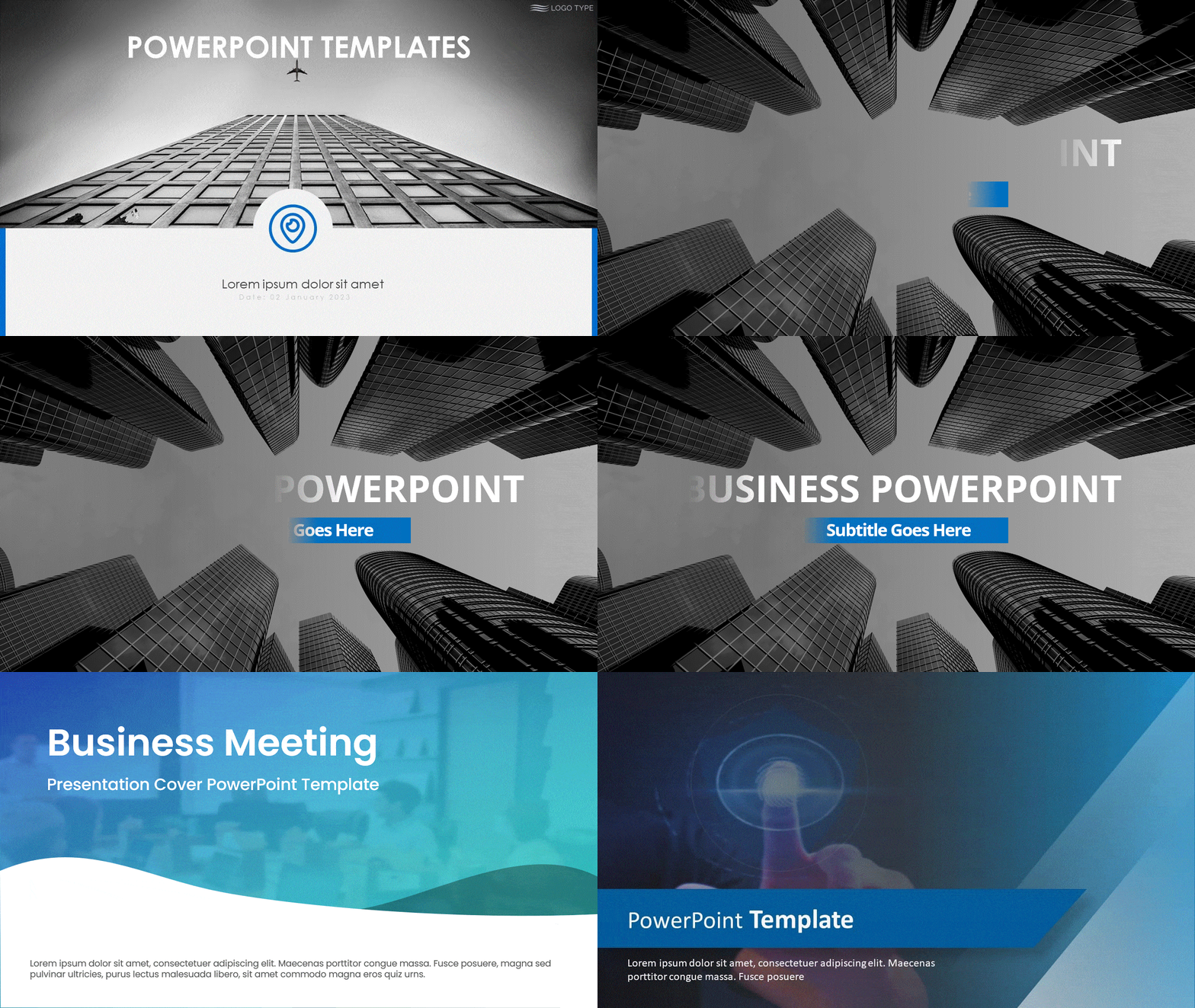
- Title Slides: The title slide is the first thing your audience sees, so it sets the mood for everything that follows. A clear and well-designed title slide helps people quickly understand the topic and why it matters.
- Creates a strong first impression right from the start.
- Introduces the topic, presenter, or company clearly.
- Sets expectations for the presentation ahead.
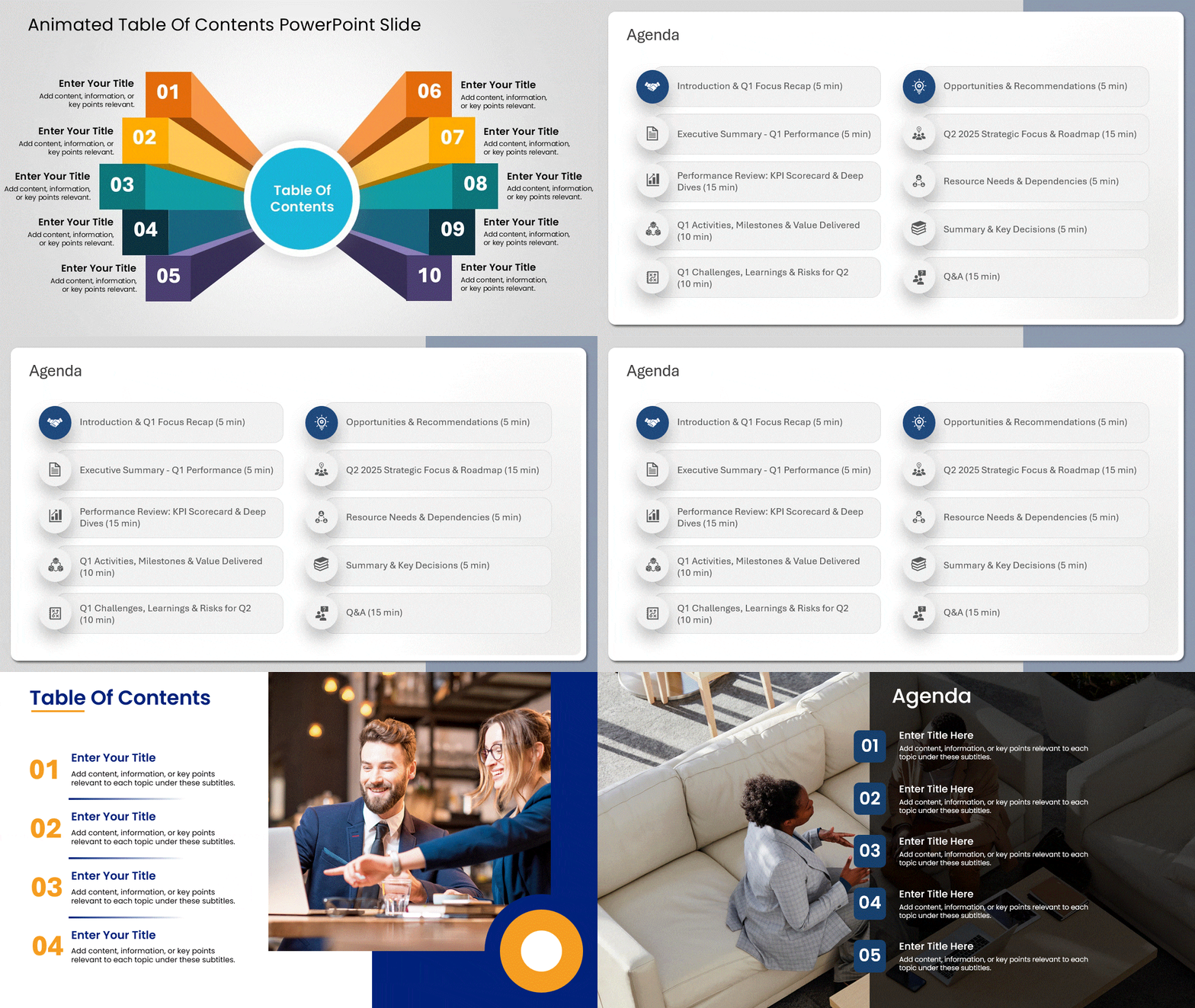
- Agenda Slides: An agenda slide helps your audience know what to expect before you dive in. It gives structure to your presentation and makes it easier to follow along.
- Outlines the main sections or talking points.
- Helps manage time and audience expectations.
- Keeps everyone aligned on the presentation flow.
- Section Header Slides: Section header slides act like signposts during your presentation. They let your audience know you’re moving to a new topic or idea.
- Clearly separates different sections of content.
- Makes long presentations feel organized and less overwhelming.
- Improves overall flow and readability.
- Content Slides: Content slides are where your main ideas come to life. They are used to explain concepts, share insights, and support your message.
- Presents key information in a structured way.
- Combines text, visuals, and data for better clarity.
- Supports your story and keeps it focused.
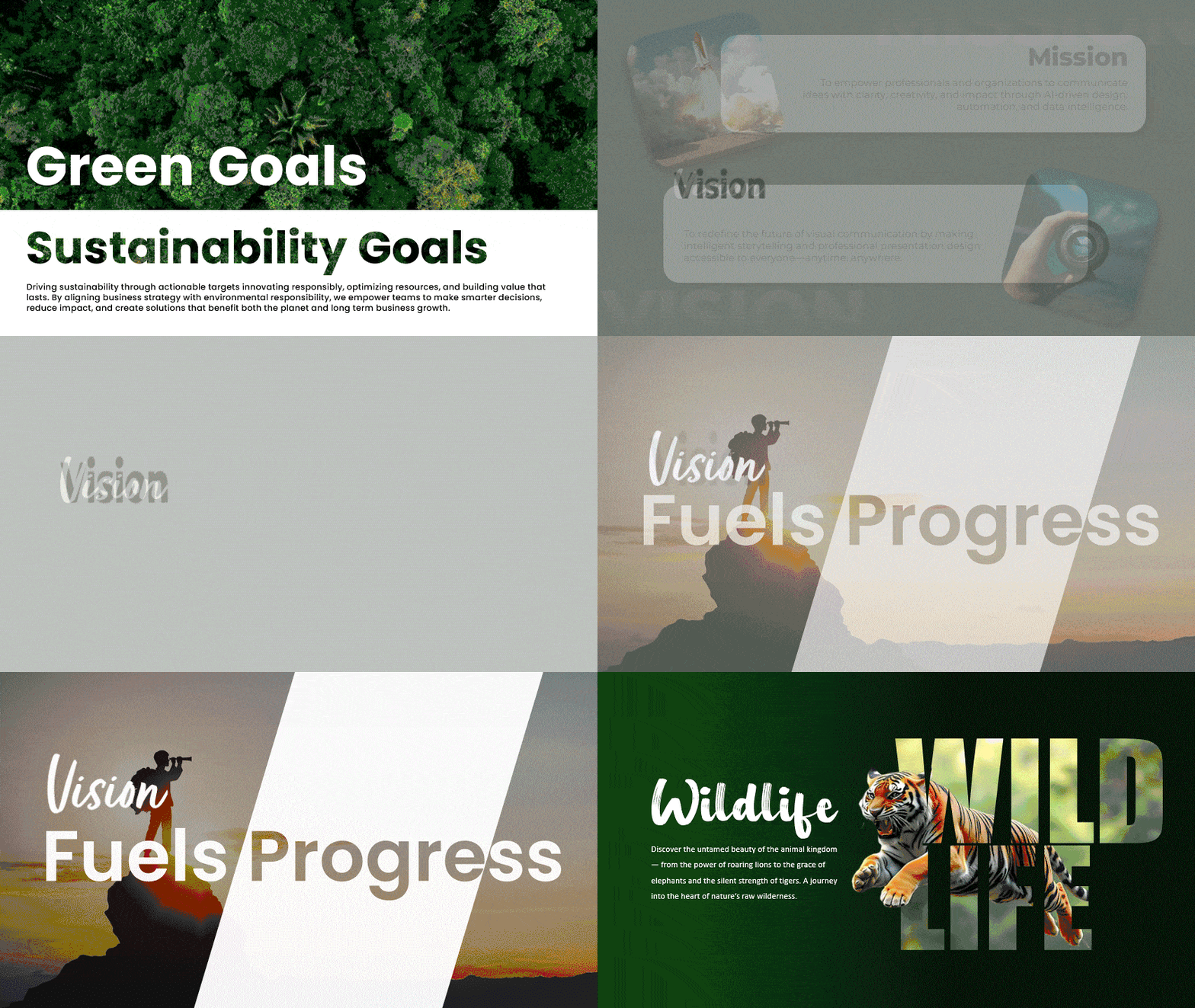
- Picture Slides: Picture slides rely on visuals to communicate ideas quickly. They are especially useful when words alone are not enough.
- Strengthens storytelling through images.
- Creates an emotional connection with the audience.
- Reduces text and keeps slides visually appealing.
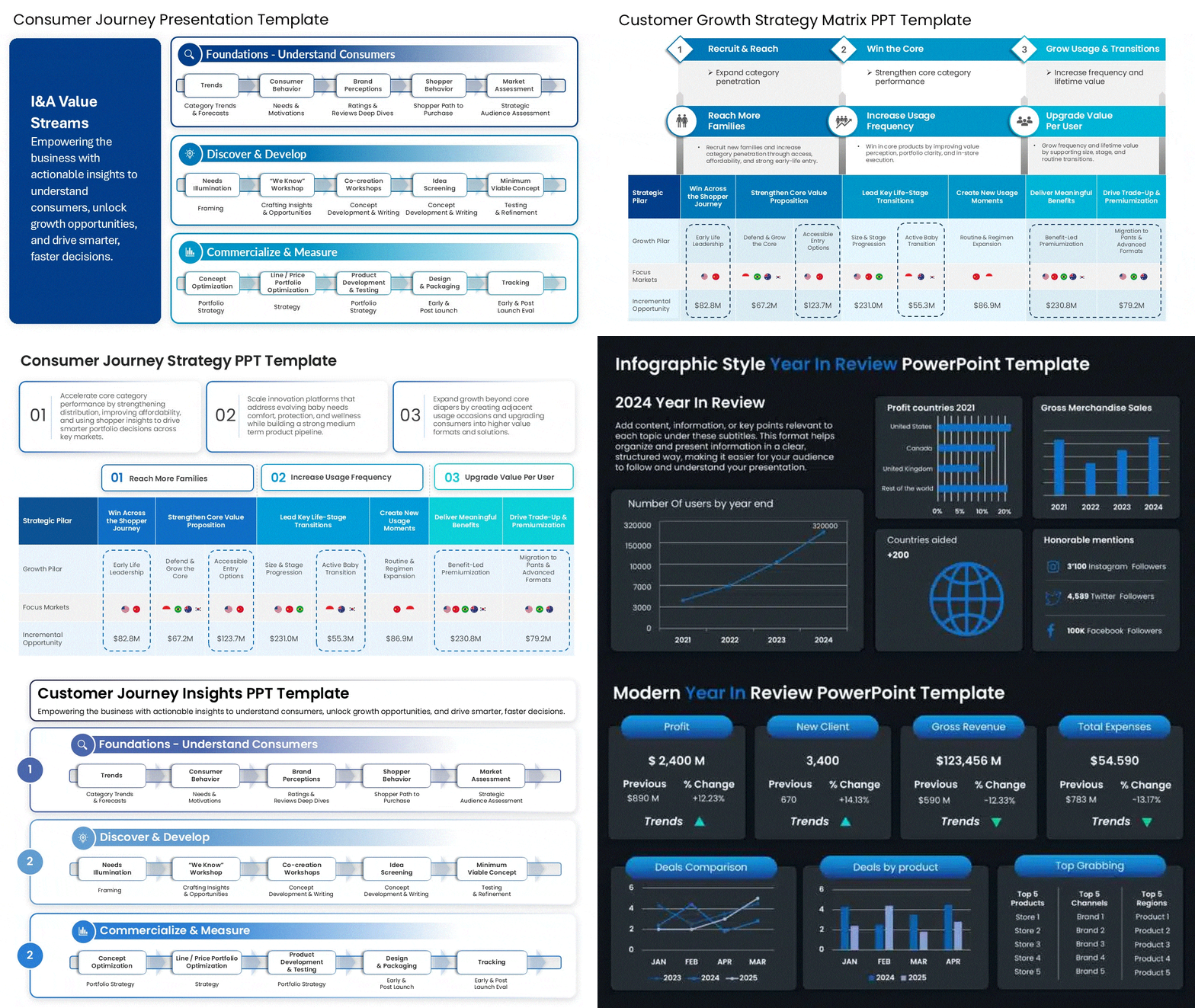
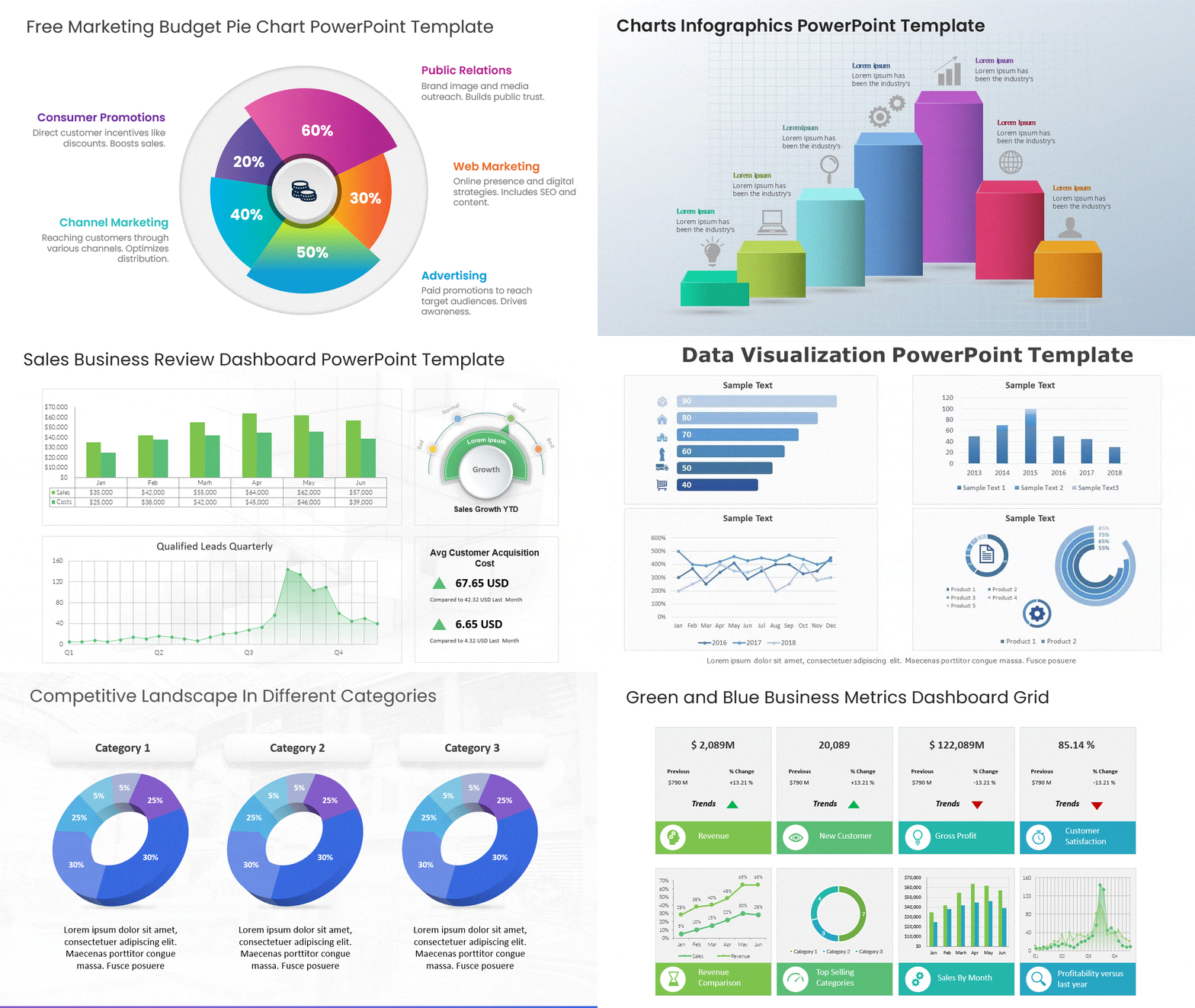
- Chart and Graph Slides: These slides help turn numbers into meaningful insights. They make data easier to understand and faster to absorb.
- Visualizes trends, patterns, and comparisons.
- Simplifies complex data sets.
- Helps audiences grasp insights at a glance.
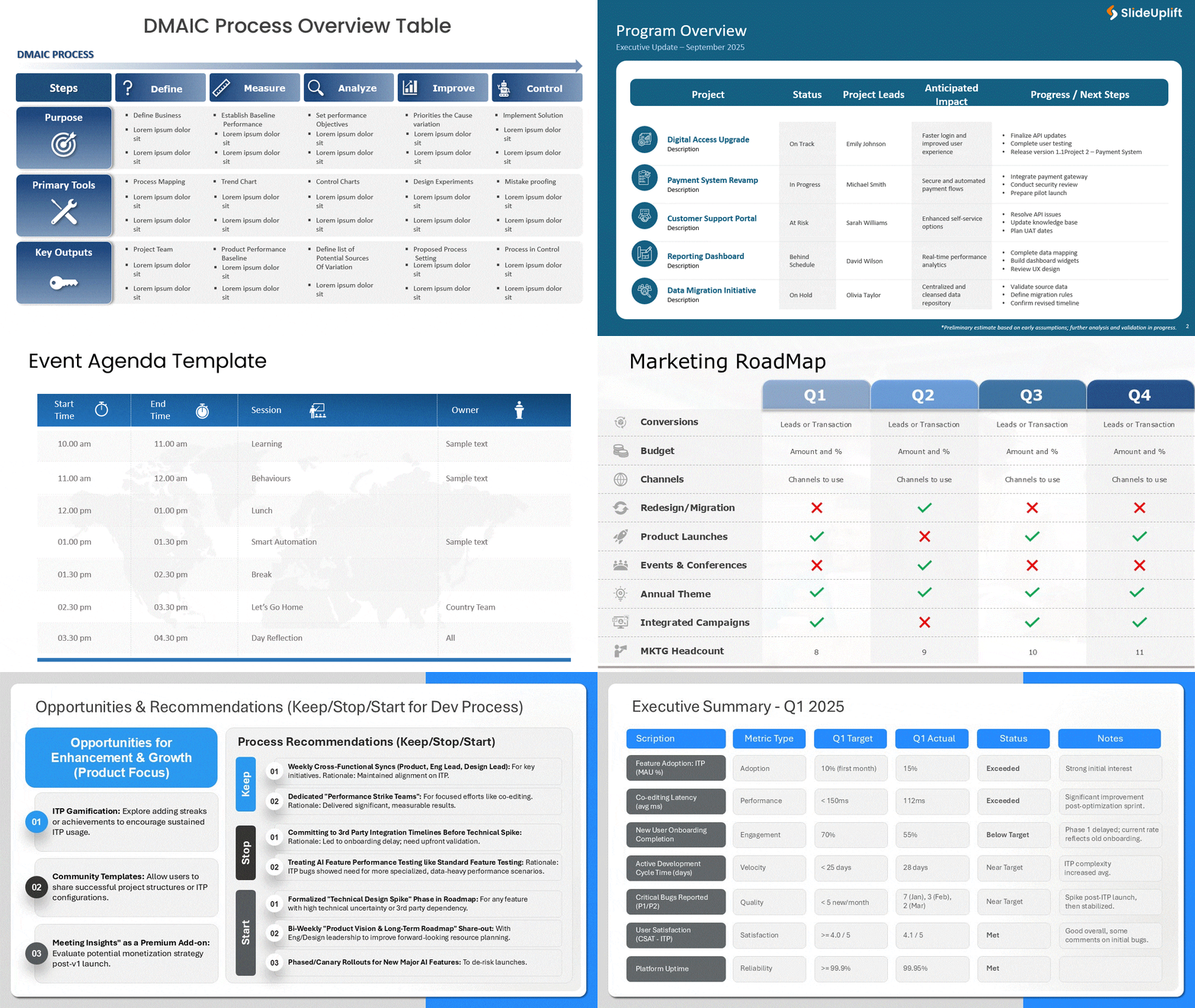
- Table Slides: Table slides are best when you need to show detailed information clearly. They bring order to data that might otherwise feel cluttered.
- Organizes information into rows and columns.
- Makes side-by-side comparison easier.
- Ensures accuracy and clarity in data-heavy slides.
- Comparison Slides: Comparison slides help audiences weigh different options easily. They are commonly used in business and decision-focused presentations.
- Highlights similarities and differences clearly.
- Supports informed decision-making.
- Makes complex choices easier to evaluate.

- Quote Slides: Quote slides introduce ideas from experts, leaders, or customers. They help add credibility and a fresh voice to your presentation.
- Builds trust and authority.
- Adds emphasis to key points.
- Breaks the monotony of content-heavy slides.

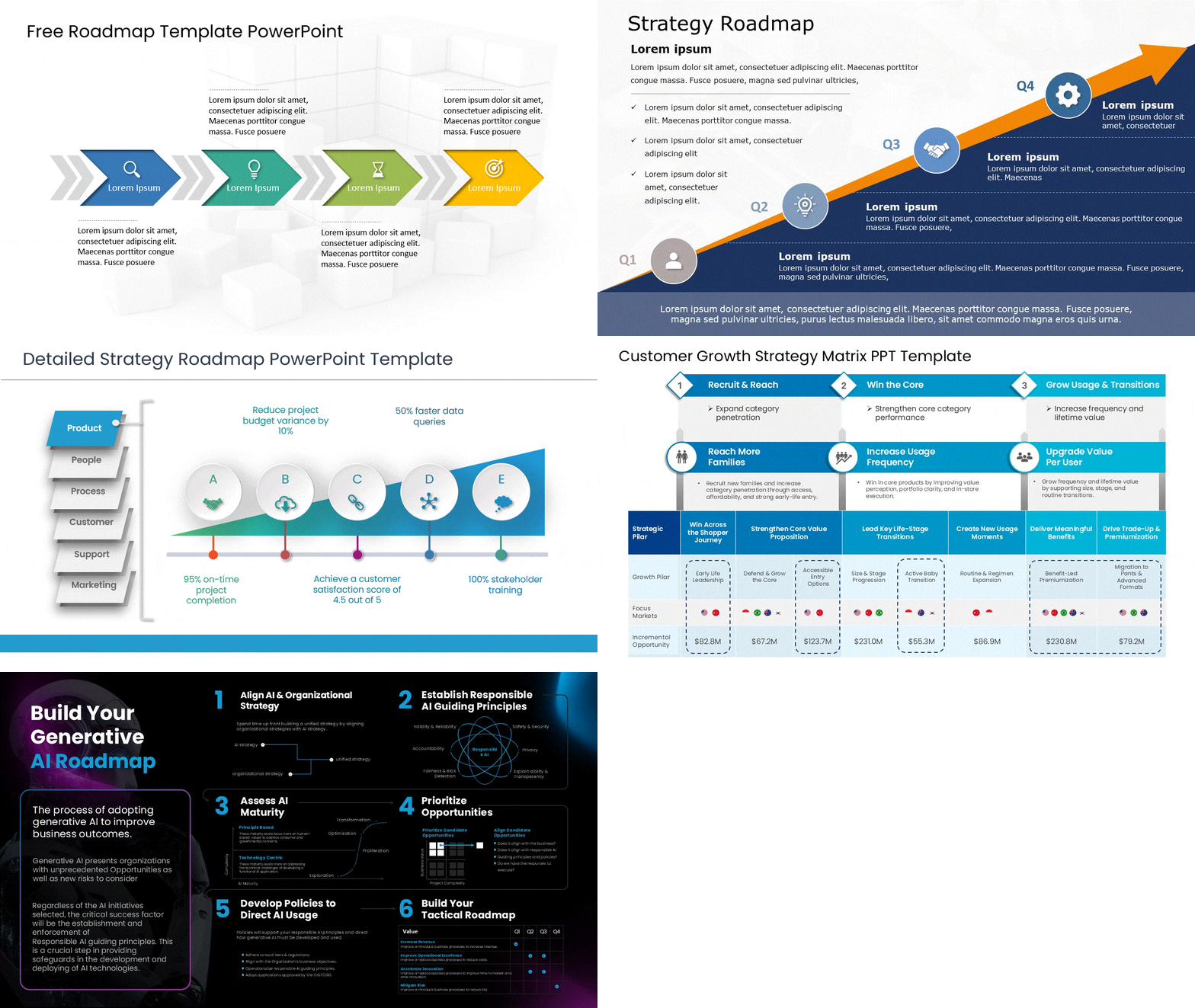
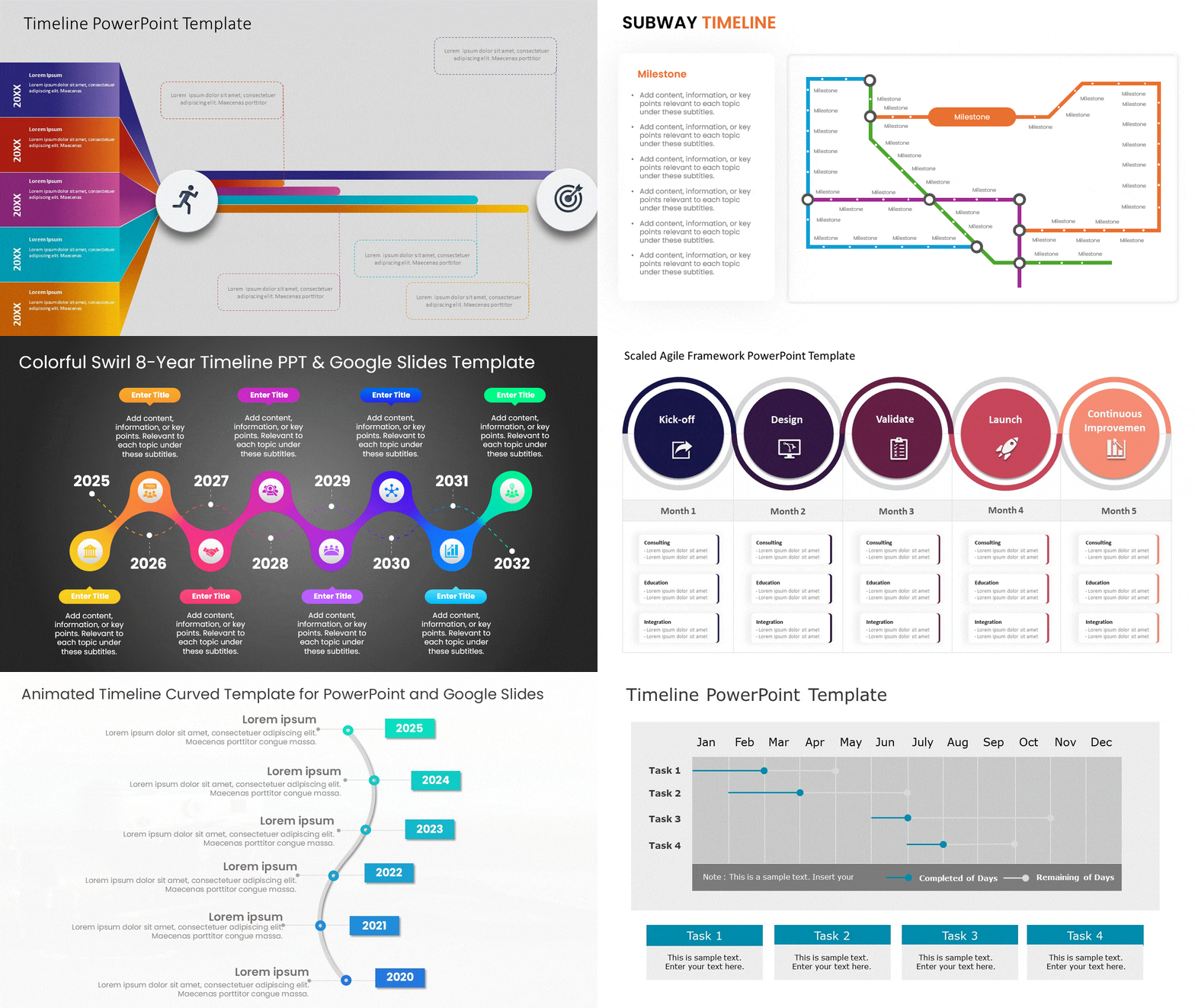
- Timeline or Process Slides: These slides show how things progress over time or through steps. They are great for explaining journeys, workflows, or project stages.
- Visualizes sequences in a simple way.
- Helps audiences understand order and flow.
- Makes processes easier to remember.
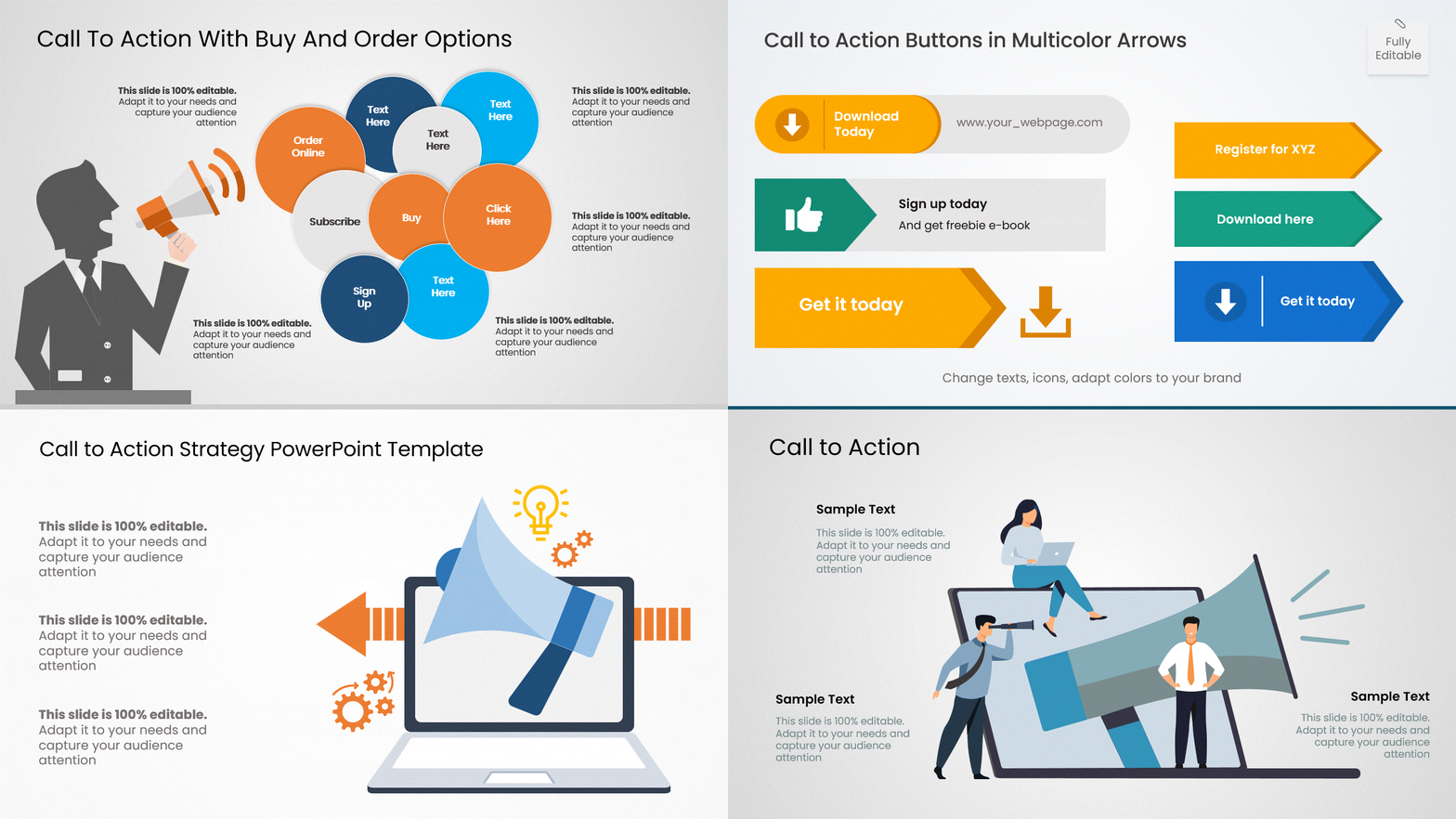
- Call-to-Action Slides: A call-to-action slide tells your audience what to do next. It helps turn your presentation into real outcomes.
- Encourages a clear and specific action.
- Guides decision-making and follow-ups.
- Increases the impact of your presentation.
- Thank You Slides: The thank you slide wraps up your presentation on a positive note. It leaves your audience with a polite and professional impression.
- Shows appreciation for the audience’s time.
- Provides contact details or next steps.
- Ends the presentation smoothly and confidently.

Overview Table of 12 Essential PowerPoint Slide Types
If you’re wondering how many types of slides there are in PowerPoint, the table below gives a clear overview.
| Slide Type | Purpose | Why It Matters |
| Title Slide | Introduces the topic and sets the tone. | Creates a strong first impression and sets expectations. |
| Agenda Slide | Outlines the presentation structure. | Helps audiences follow the flow and stay aligned. |
| Section Header Slide | Signals a new topic or section. | Improves clarity and keeps long presentations organized. |
| Content Slide | Presents the main information. | Communicates key ideas clearly and effectively. |
| Picture Slide | Uses visuals to support the message. | Enhances storytelling and audience engagement. |
| Chart and Graph Slide | Displays data and statistics visually. | Makes complex data easier to understand. |
| Table Slide | Organizes detailed information. | Enables clear comparison and accurate understanding. |
| Comparison Slide | Shows differences and similarities. | Helps audiences evaluate options quickly. |
| Quote Slide | Highlights expert or customer insights. | Builds credibility and reinforces key messages. |
| Timeline / Process Slide | Shows steps or progression over time. | Explains workflows and sequences clearly. |
| Call-to-Action Slide | Encourages the next step. | Drives decisions and desired actions. |
| Thank You Slide | Closes the presentation politely. | Leaves a professional and positive final impression. |
How to Select the Right Slides for Maximum Impact
Selecting the right slides plays a major role in how your presentation is received. Your slide selection should always reflect the types of presentation you are creating. By understanding your audience, defining your goal, and matching each slide type to your message, you can make your content clearer, more engaging, and far more impactful. The following sections will show you exactly how to do that.
- Audience Analysis and Slide Selection: Understanding your audience helps you choose the right slide types. Executives prefer summary slides, while teams may need detailed visuals.
- Match Slide Types to Presentation Goals: Your slides should reflect what you want to achieve. Informative goals need data slides, while persuasive goals need visuals.
- Use Visual Slides for Complex Information: Visual slides simplify ideas that feel heavy or technical. Charts and images help your audience understand faster.
- Maintain Simplicity and Focus: Each slide should communicate one clear idea. Simple layouts keep attention on the message, not the design.
- Create Flow with Section and Transition Slides: Transitions guide your audience through the story. They prevent sudden jumps and improve presentation flow.
- Support Decisions with Comparison Slides: Comparison slides make choices easier to evaluate. They help audiences understand trade-offs clearly.
- Ensure Consistency Across All Slides: Consistent design builds trust and professionalism. It also makes your presentation easier to follow.
- End with a Clear Call to Action: A strong ending guides your audience on what to do next. It turns your presentation into meaningful results.
Tips for Balancing Visual Appeal and Functionality
Here are a few Presentation tips to help you strike the right balance:
- Keep Design Clean and Simple: Avoid clutter and focus on essential elements. A clean design ensures your audience notices the content, not distractions. One of the core principles of strong presentation tips.
- Use Consistent Fonts and Colors: Stick to a limited color palette and consistent fonts. This keeps the slides professional and visually cohesive.
- Prioritize Readability Over Decoration: Text should always be easy to read at a glance. Decorative elements should enhance, not overpower, the message.
- Use Visuals Purposefully: Images, icons, and charts should support your points. Every visual should have a clear reason for being on the slide.
- Balance Text and Visuals: Avoid slides that are all text or all visuals. A mix helps convey ideas clearly while keeping attention high.
- Highlight Key Points Strategically: Use size, color, or placement to draw focus to important information. This guides your audience without distracting from the overall flow. For a deeper dive into designing and delivering effective slides, explore our presentation skills blog.
- Test Across Devices and Screens: Check how your slides look on different monitors or projectors. Ensures visuals remain clear and text remains readable everywhere.
Conclusion
In summary, understanding the essential types of slides in MS PowerPoint is crucial for creating compelling and effective presentations. Each slide type serves a unique purpose, from making a strong first impression with your Title Slide to clearly presenting data with Chart and Graph Slides. By strategically selecting and utilizing these slide types, you can engage your audience, convey your message effectively, and maintain their attention throughout your presentation. Remember, the key to impactful presentations lies not only in the content you deliver but also in how you present it. Ready to elevate your presentation skills? Get started today!
FAQs
-
What is the difference between content slides and section header slides in PowerPoint?
A section header slide acts as a signpost, signaling the start of a new topic and dividing the presentation into different sections. A content slide is where you deliver the main information on those topics, using a slide layout with text, images, and other elements to explain your key points.
-
How do I choose the right slide layout for my presentation content?
To choose the right slide layout, first consider your specific needs and presentation objectives. The right type of slide should match your content. PowerPoint templates offer various layouts for text, images, and charts, so select the one that presents your information most clearly and effectively.
-
What role do transition slides play in PowerPoint presentations?
Transition slides, like section headers, guide your audience through the slide deck and maintain their attention. They create a smooth flow between topics, prevent abrupt jumps, and help break down complex concepts into manageable parts, making your PowerPoint presentations more organized and easier to follow.
-
What are the main types of slides you can use in a PowerPoint presentation?
The main types of slides include the title slide for introductions, an agenda slide to outline topics, and content slides for detailed information. You can also use quote slides for authority, a comparison slide to show differences, and various data slides to present statistics visually.
-
Can you explain the purpose of a title slide in PowerPoint?
The purpose of a title slide is to make a strong first impression. The introduction slide, it presents your main title, name, and affiliation, setting the tone for your talk. A well-designed title slide is crucial for creating a professional PowerPoint presentation right from the start.
-
How can I use chart and graph slides effectively in my presentation?
To use chart and graph slides effectively in PowerPoint presentations, focus on one key insight per slide. Label charts clearly, remove unnecessary clutter, and use color to highlight important information. This transforms raw data into a story with a strong visual appeal that your audience can easily understand.
-
What is a comparison slide, and when should I use it in PowerPoint?
A comparison slide is a presentation design tool used to evaluate two or more items side-by-side. Use it when you need to highlight key points of difference or similarity between products, ideas, or data. It’s one of the most effective tools for facilitating clear, informed decision-making.
-
How do picture slides enhance a PowerPoint presentation?
Picture slides enhance a PowerPoint presentation by adding powerful visual elements that grab the audience’s attention. High-quality images and thoughtful design elements can evoke emotion, illustrate complex ideas, and give your presentation a more engaging and professional look compared to text-only slides.
-
What are the best practices for using quote slides in PowerPoint?
Best practices for using quote slides include keeping the presentation design clean and readable. Use a large font for the quote, attribute it clearly, and ensure high contrast with the background. The goal is to add authority or inspiration without distracting from your key points.
-
What is a structured slide versus a free-form slide in PowerPoint?
A structured slide follows a predefined slide layout, often using placeholders for titles and bullet points. A free-form slide offers more creative freedom, allowing you to place text boxes, images, and other elements anywhere on the slide to create a more custom and visual design.
Table Of Content




Related posts from the same category

13 Mar, 2026 | SlideUpLift
How to Play Video in PowerPoint Across Single and Multiple Slides
Introduction If you've ever asked yourself how to play a video in Microsoft PowerPoint, you’re not alone. It’s one of the most common questions people have when creating presentations. Knowing

11 Mar, 2026 | SlideUpLift
How to Hide a Slide in Google Slides: Complete Guide
Learn how to hide and unhide slides in Google Slides without deleting them in this step-by-step guide. The blog explains simple methods like using the Skip Slide option, toolbar, and

9 Mar, 2026 | SlideUpLift
How to Hide and Unhide Slides in PowerPoint (Complete Guide)
This blog explains how to hide and unhide slides in Microsoft PowerPoint so you can skip certain slides during a presentation without deleting them. It covers why the hide slide

5 Mar, 2026 | SlideUpLift
Quarterly Business Review (QBR): What It Is, Examples & How to Present One
A QBR, or quarterly business review, is a strategic meeting held every three months to evaluate business performance, review key metrics, and align on goals for the next quarter. QBRs

4 Mar, 2026 | SlideUpLift
What Is a Product Roadmap? A Complete Guide With Types, Examples, and Templates
Every product starts with an idea. Turning that idea into a shipped, successful product requires coordination across design, engineering, marketing, sales, and leadership. A product roadmap is the strategic tool
27 Feb, 2026 | SlideUpLift
How To Broadcast a PowerPoint Presentation Online [6 Working Methods]
If you have been looking for a way to broadcast a PowerPoint presentation online to a remote audience, you have probably run into tutorials that tell you to click Slide
27 Feb, 2026 | SlideUpLift
How to Change Transparency in PowerPoint (Step-by-Step Guide)
Learn how to use transparency in Microsoft PowerPoint to adjust the opacity of images, shapes, and text for cleaner, more professional slide designs. This step-by-step guide explains how to change

24 Feb, 2026 | SlideUpLift
Which Program Is Used to Open PPTX Files: Complete Guide
This blog explains which program is used to open PPTX files and how to view or edit presentations on Windows, Mac, and mobile devices. It covers tools like Microsoft PowerPoint,

20 Feb, 2026 | SlideUpLift
How to Create Engaging Academic Presentations: 10 Expert Tips + Templates
This blog is a complete guide on how to create engaging academic presentations, offering 10 expert tips for structuring content, designing slides, and delivering with confidence. It covers common mistakes

20 Feb, 2026 | SlideUpLift
How to Make Google Slides Play Automatically On A Loop? (Step-by-Step Guide)
This blog explains how to make presentations in Google Slides play automatically and loop without manual clicks. It covers clear step-by-step methods using auto-advance timings and the Publish to Web
18 Feb, 2026 | SlideUpLift
How to Copy a Slide in Google Slides: Step-by-Step Guide
Learn how to duplicate, copy, and paste a slide in Google Slides using simple, step-by-step methods. This guide covers desktop shortcuts, right-click options, toolbar methods, and mobile steps for Android

17 Feb, 2026 | SlideUpLift
How to Round Corners in Google Slides: Complete Guide
Learn how to round corners in Google Slides using both the simple yellow handle method and the advanced Edit Points feature. This guide explains how to adjust the corner radius,
12 Feb, 2026 | SlideUpLift
How To Add plus or minus symbol in PowerPoint Presentations – Step-by-Step Guide
This blog explains how to add the plus or minus symbol (±) in Microsoft PowerPoint using keyboard shortcuts (Windows & Mac), the Symbols menu, equation tools, and copy-paste methods. It
10 Feb, 2026 | SlideUpLift
How To Convert Google Slides Into PDF: Quick & Easy Guide
This guide explains how to convert Google Slides into a PDF quickly and without formatting issues. It covers saving slides with or without speaker notes and methods for desktop and

6 Feb, 2026 | SlideUpLift
How To Make A Professional PowerPoint Presentation With Practical Tips
This blog shows how to make professional presentations with clear structure, engaging visuals, and effective delivery. It highlights using AI tools like ChatGPT and Copilot with ready-made templates to quickly

4 Feb, 2026 | SlideUpLift
How to Write a Sales Pitch That Captures Attention and Converts Leads
This SlideUpLift guide explains how to write an effective sales pitch by identifying your target audience, highlighting your unique value, focusing on benefits over features, and structuring a persuasive presentation

30 Jan, 2026 | SlideUpLift
Sales Presentation: A Complete Guide to Structure, Examples, and Best Practices
This blog is a complete guide to building a high-impact sales presentation, covering everything from structure and slide selection to delivery and follow-up. It explains what makes sales presentations effective,
23 Jan, 2026 | SlideUpLift
How to Rotate a Slide in PowerPoint: Complete Guide
This blog explains how to rotate slides in PowerPoint using all practical methods, including changing slide orientation, rotating objects, and handling single-slide workarounds. It also covers professional solutions for mixing
21 Jan, 2026 | SlideUpLift
What Is 6×6 Rule in PowerPoint? Complete Guide To Improve Slides
This blog explains what is 6x6 Rule in PowerPoint and how it improves slide clarity and readability. It shows how to apply the rule, avoid common mistakes, and compare it
19 Jan, 2026 | SlideUpLift
How to Add Footnotes in PowerPoint: A Step-by-Step Guide
Adding footnotes in PowerPoint helps you cite sources and add context without overcrowding your slides. Since PowerPoint doesn’t offer an automatic footnote feature, footnotes are created manually using text boxes

16 Jan, 2026 | SlideUpLift
How To Merge PowerPoint Presentations Using Simple Methods and a Free Tool
Learn how to merge PowerPoint presentations quickly and easily using manual methods or a free merge PPT tool. Keep slides, formatting, animations, and transitions intact while creating polished, professional decks.

14 Jan, 2026 | SlideUpLift
How to Create a McKinsey-Style Presentation: The Complete Guide (2026)
Creating presentations that rival McKinsey's legendary clarity and impact isn't about copying slides—it's about mastering a communication philosophy that transforms complex ideas into actionable insights. Whether you're pitching to executives,

14 Jan, 2026 | SlideUpLift
How to Add a Timer to Google Slides: Step-by-Step Guide
This blog walks you through how to add a timer to Google Slides using simple, practical methods that actually work. It covers Auto-play timing, visible countdown timers, videos, and add-ons,

8 Jan, 2026 | SlideUpLift
How to Prepare for a Presentation: A Simple Guide for Beginners
This blog explains how to prepare for a presentation step by step. It covers goal setting, content structuring, slide design, practice, and handling questions. Beginners can also learn common challenges,

6 Jan, 2026 | SlideUpLift
Presentation Tips for Structuring Messages and Effective Storytelling
This blog breaks down practical presentation tips to help you plan, design, and deliver slides that truly stand out. It covers how to simplify text, use visuals effectively, and maintain

9 Dec, 2025 | SlideUpLift
How to Change a PowerPoint Template – Quick Step-by-Step Guide
This blog shows how to change or update a PowerPoint template to give your slides a fresh, professional design without losing your content. It walks through step-by-step actions in the

4 Dec, 2025 | SlideUpLift
The 5-5-5-Rule-of-PowerPoint: Your Guide to Effective Design
Introduction Have you ever seen a PowerPoint presentation with too much information on the slide? The problem with today’s presentations is that they draw attention away from the actual content,
12 Nov, 2025 | SlideUpLift
How to Create a Heat Map in PowerPoint: Beginner-Friendly Guide
Heat maps are one of the easiest ways to turn rows of numbers into visuals people understand quickly. In this blog, you will learn what a heat map is, in

6 Nov, 2025 | SlideUpLift
How to Add Transitions in PowerPoint: Complete Step-by-Step Guide
Do you want to create a seamless flow in your PowerPoint slides and make a strong impression? While adding transitions to PowerPoint slides might seem obvious, transitions are the key

4 Nov, 2025 | SlideUpLift
How to Use Morph in PowerPoint: The Ultimate Guide to Smooth Transitions
If you’ve ever watched a presentation where shapes flow smoothly, images glide effortlessly, and text elegantly shifts between slides, you’ve witnessed the power of Morph in PowerPoint. This feature is
30 Oct, 2025 | SlideUpLift
How To Make A Graph In PowerPoint: Step-by-Step Guide
The goal of impactful graphs is not simply to convey data; rather, it is to tell a story with data that has meaning to the audience. Graphs and charts can

13 Oct, 2025 | SlideUpLift
How to Write a Business Case: A Beginner’s Guide + Examples
Every project needs a passport to get through executive approval. Without it, even the best plans can get grounded before taking off. This very piece of evidence holds the power

10 Oct, 2025 | SlideUpLift
What Is A Project Charter? Definition, Examples & Best Practices
Launching a project without adequate planning can result in confusion, delays, and misaligned expectations. A project charter is a key document in the project documentation process that lays the groundwork

8 Oct, 2025 | SlideUpLift
How to Insert Emoji in Google Slides & PowerPoint for Fun, Eye-Catching Slides
Have you ever thought about how a simple emoji can change the mood or tone of your presentation? You could use a smiley face 😊, that would certainly lighten the

1 Oct, 2025 | SlideUpLift
Insert Calendar In PowerPoint And Google Slides: Quick Guide For Smarter Planning.
Do you want your presentations to be more organized, attractive, and professional? Learning how to add a calendar in PowerPoint or Google Slides will take boring schedules and deadlines and
26 Sep, 2025 | SlideUpLift
What Is a PPTX File? Think of It as PowerPoint 2.0
PowerPoint presentations are everywhere — from boardrooms to classrooms — and behind every great slide deck is the PPTX file. It’s not just some random presentation software and powerpoint file

17 Sep, 2025 | SlideUpLift
Google Slides Strikethrough: Cross Out The Old And Spotlight The New
Ever wished you could just cross something out instead of deleting it? You know, like putting a big line through “boring idea” and replacing it with “brilliant plan”. That’s the
12 Sep, 2025 | SlideUpLift
What is KPI? Step-by-Step Guide with KPIs Examples That Work
Is it hard for you to know if your business is getting to the level it should be? That's where key performance indicators (KPIs) come into play. KPIs indicate how

10 Sep, 2025 | SlideUpLift
Best Fonts For PowerPoint Presentation: The Runway Of Letters
Imagine this: your presentation is a red-carpet event. Your slides are the guests, the content is the message, and the font? That is the outfit; the one builds up the

10 Sep, 2025 | SlideUpLift
Advantages and Disadvantages of Microsoft PowerPoint: Pros, Cons, and AI Features Explained
PowerPoint has been the go-to tool for presentations for decades—but is it keeping up with today’s fast-paced, AI-driven world? PowerPoint makes it easy to take ideas to slides, whether you're

5 Sep, 2025 | SlideUpLift
10 Virtual Meeting Etiquette Rules for Professionals
Introduction Virtual meetings and online meetings are the new normal for remote work teams everywhere. Whether you're chatting with co-workers, giving a client presentation, or taking part in a hybrid

3 Sep, 2025 | SlideUpLift
How to Add Watermark in PPT Like a Pro: Step-by-Step Tutorial
Every presentation tells a story, but it should also say who it belongs to, right? And if we tell you that there is a way to stamp your identity on

29 Aug, 2025 | SlideUpLift
30+ ChatGPT Presentation Prompts To Create Impactful Presentations
Creating presentations can be challenging. It takes a lot of time and effort to conduct research, write the text, format the slides, add photos, and practice. But, what if AI

29 Aug, 2025 | SlideUpLift
Microsoft Copilot vs ChatGPT-4 Showdown: Who’s Got the Edge?
Not long ago, making a presentation meant spending hours and hours writing content, formatting slides, finding visuals, and tweaking layouts. Tools like PowerPoint and Google Slides gave us templates, but

29 Aug, 2025 | SlideUpLift
10 Best Presentation Software: In-Depth Comparison Guide
The fact is, giving a great presentation is not only about how you choose your words, but rather involves expressing those very words. With the right PowerPoint presentation software, you

28 Aug, 2025 | SlideUpLift
Password Protect PPT: How To Secure Your Presentations (Easy Guide)
Have you ever shared a PowerPoint and then worried, “What if someone changes my slides?”, or even worse, “What if the wrong person opens it and leaks the content?”. Frustrating,

26 Aug, 2025 | SlideUpLift
Track Changes In PowerPoint And Keep Your Team In Sync
Ever spent hours perfecting a PowerPoint, way too much time that you then forget to track who made what change? You aren't alone. Unfortunately, unlike Word or Gmail slides, PowerPoint
14 Aug, 2025 | SlideUpLift
How to Make a Curved Arrow in PowerPoint? A Detailed Guide
Think of your presentation as a journey. On a slide, you have the ideas stacked up, but there is no way you are understanding what is connected to the next.

13 Aug, 2025 | SlideUpLift
How To Create Infographics In PowerPoint For Smarter Visual Storytelling?
As a professional, you might have to host meetings and deliver presentations to your stakeholders and team members. As a host, it's crucial to deliver presentations in a way that
6 Aug, 2025 | SlideUpLift
How To Edit Footer In PowerPoint For Consistent Presentation Design
Footers are an important part of a PowerPoint presentation. They give the same footer text, like the date or slide numbers, on all slides. This helps people understand the talk

31 Jul, 2025 | SlideUpLift
Google Slides vs PowerPoint: A Complete Comparison Guide
Introduction Stuck deciding between Google Slides and PowerPoint for your next big presentation? Yeah, we've been there too. Both pack a punch with features, leaving you wondering: "Which one will

25 Jul, 2025 | SlideUpLift
How Many Slides For A 30 Minute Presentation? Timing, Tips, and Structure
One of the biggest challenges in presentations is staying on time. Whether it’s 5 minutes or 45, running over means rushing key points or losing your audience. Here’s the good

21 Jul, 2025 | SlideUpLift
PowerPoint Slide Size 101: Why It Matters More Than You Think
Imagine crafting the perfect slide, visuals on point, text crisp, animations smooth. But when you present, the content looks off. Cropped images, awkward white spaces, or text running off the

15 Jul, 2025 | SlideUpLift
Google Slides Shortcuts Cheat Sheet To Boost Workflow
Google Slides is already a go-to tool for everything. From classroom projects to business decks and online workshops. It is a one-stop platform to create and share your ideas, thoughts,

7 Jul, 2025 | SlideUpLift
PowerPoint Shortcuts You’ll Wish You Knew Sooner (Beginner to Pro Guide)
PowerPoint is one of the most powerful tools for creating presentations. However, working in PowerPoint can become time-consuming, especially when you have to click through menus for every small task.

4 Jul, 2025 | SlideUpLift
Why Your Conclusion Slide Matters—And How To Get It Right
Picture this: You've delivered an amazing presentation. Great start solid middle... but then... the ending just... flops. The energy drains. People shuffle out, already thinking about lunch. Sad, isn't it?
3 Jul, 2025 | SlideUpLift
How to Change Text Color in Google Slides for Maximum Impact – Quick Guide
Using Google Slides to build presentations is now widely practiced across the digital world. It is clean, collaborative, and performs its tasks fairly well. Be it a business pitch, a

30 Jun, 2025 | SlideUpLift
A Simple Guide On How To Change Margins In PowerPoint
Margins—those often-overlooked borders framing your slides—play a crucial role in creating polished, professional presentations. Adjusting margins helps you control your layout. This is important for printed handouts and projections. It

13 Jun, 2025 | SlideUpLift
Org Chart in PowerPoint: Simplify Complex Team Structures with Smart Visuals
Without a clear org chart, even small teams feel messy. People start asking: “Who’s responsible for what?” Whether you are a manager, HR professional, or team lead, explaining the team

12 Jun, 2025 | SlideUpLift
Create An Org Chart in Google Slides: A Step-by-Step Guide
Want to map out any type of organizational structure—whether it's a company, project team, or even a hierarchy? An org chart helps visualize relationships between roles, departments, or functions in

28 May, 2025 | SlideUpLift
Beginner’s Guide: How To Make A Venn Diagram In Powerpoint
What Is A Venn Diagram? In today’s fast-paced business world, clarity is currency, and Venn diagrams deliver just that. Whether you're analyzing market segments, comparing competitors, or aligning team strategies,

27 May, 2025 | SlideUpLift
How to Create a Roadmap Diagram in PowerPoint? (Step-by-Step Guide)
Need to build a professional roadmap slide for your next presentation? You are in the right place. This tutorial walks you through every method for creating a roadmap diagram in

14 May, 2025 | SlideUpLift
How To Crop A Picture Into A Circle In The Presentation: Step-By-Step Guide
Ever found the perfect image for your presentation, but it just doesn’t look right in that boring rectangle frame? We’ve all been there. Whether you're trying to make your slides

25 Jun, 2024 | SlideUpLift
Best PowerPoint Color Palettes for 2026 (Trends, Examples & Psychology)
This blog covers the best PowerPoint color palettes and how the right colors boost clarity, engagement, and professionalism. It includes ready-to-use palettes with Hex codes for different presentation types. The

24 Jan, 2024 | SlideUpLift
What Is a Project Roadmap? A Complete Guide With Examples and Free Templates
This blog explains what a project roadmap is and how it helps define goals, timelines, and key milestones. It covers different roadmap types and how to create them. The guide
1 Sep, 2022 | SlideUpLift
How To Group & Ungroup In Google Slides (Step-by-Step Guide)
This blog walks you through how to group and ungroup elements in Google Slides in a simple, practical way. It covers grouping images, shapes, text boxes, and objects, along with