

 Flat 4


18 Best Google Slides Themes for Business & Corporate Presentations
The best Google Slides themes for business are editable, professionally designed decks built around a specific presentation job – a proposal, a QBR, a strategy roadmap, or an investor update. The 18 themes below cover business, technology, education, and history use cases. Each one opens natively in Google Slides via Open in Google Slides → Make a Copy, works in PowerPoint too, and includes editable master slides so brand colours and fonts change once and apply everywhere.
Introduction
Google Slides is the easiest platform for a team to collaborate on a deck. The problem is the built-in themes were never designed for business communication — no KPI layouts, no financial tables, no roadmap structures. When you are building a Quarterly Business Review or an investor update, you end up rebuilding all of that from blank shapes.
This roundup collects 18 Google Slides themes that already have those structures built in, organised by what you are actually presenting. Every one is fully editable, opens without reformatting, and works in PowerPoint as well. You can also browse the full Google Slides themes collection if you need something outside these four categories.
How these were chosen
Every theme here was checked against the same four criteria: it imports into Google Slides without reformatting, the master slide actually controls the deck, the data layouts (charts, tables, timelines) are pre-built rather than improvised, and it holds up when a second person edits it.
Types of Google Slides Themes Covered
This roundup is organised into four categories, so you can jump straight to the type of theme you need:
- Business presentation themes — proposals, strategy, dashboards, and investor-facing decks for teams and leadership.
- Technology presentation themes — startup pitches, product roadmaps, and timeline decks for founders and tech teams.
- Education presentation themes — classroom, training, and workshop decks for educators and students.
- History presentation themes — research and storytelling decks for historians, museums, and academic use.
If you already have your slide structure and simply want to improve the visual style, browse our background templates for ready-to-use presentation designs.
Business Presentation Themes
Professionally designed themes for proposals, strategy, project management, performance reviews, and corporate growth. These help teams communicate ideas clearly and save hours of design work. This is the category to start with for day-to-day business decks.
Business Proposal Presentation Theme
- What it is: A modern, professionally designed theme for compelling business proposals, with solution, pricing, timeline, and value proposition slides.
- Who uses it: Sales teams, consultants, agencies, and business development professionals.
- Why they use it: Presents proposals in a polished, persuasive format that builds credibility and increases your chances of winning new clients.

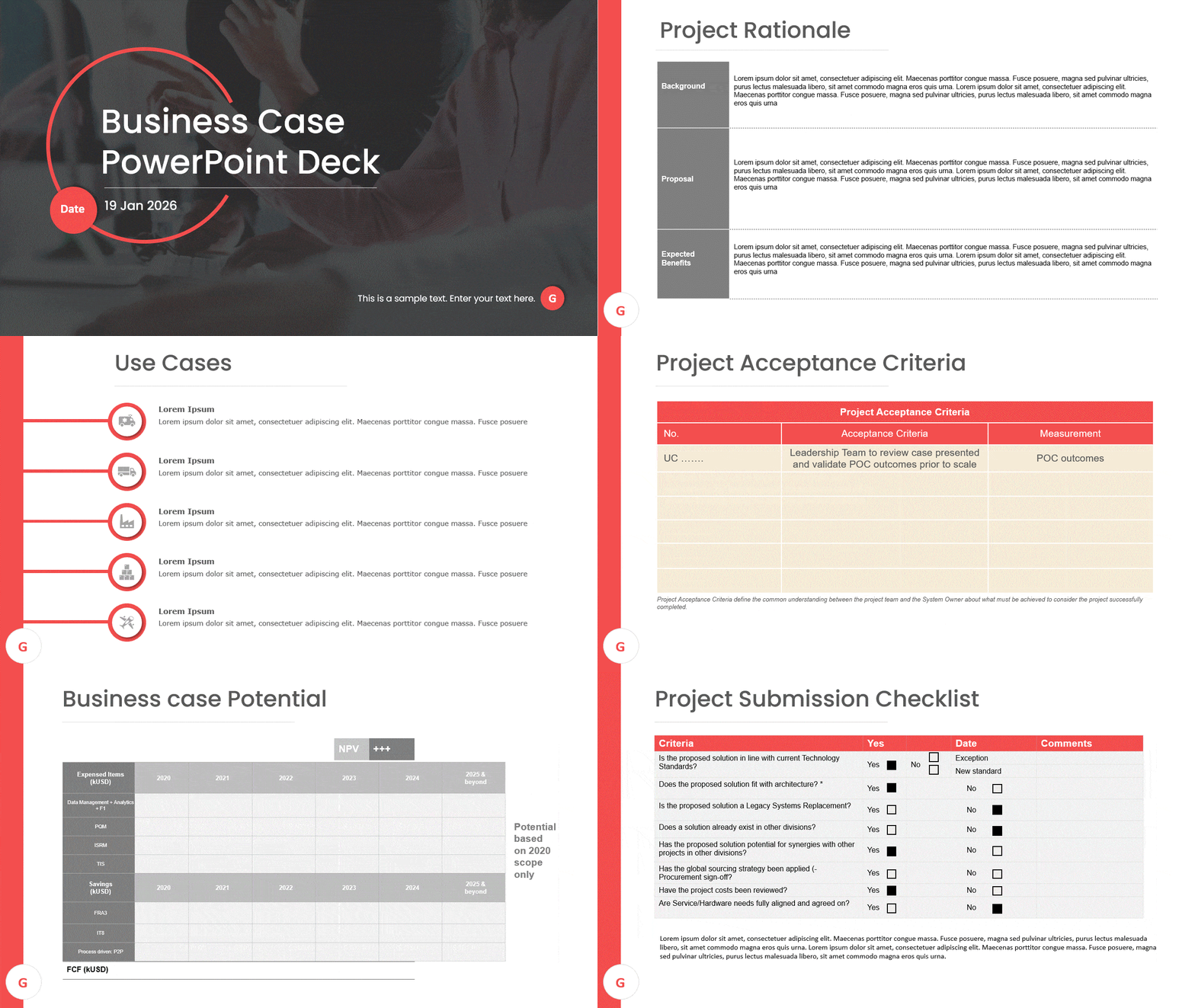
Business Case Presentation
- What it is: A structured deck for evaluating business opportunities, costs, benefits, risks, and recommendations.
- Who uses it: Business analysts, project managers, consultants, and executives.
- Why they use it: Simplifies decision-making by organising financial analysis, strategic objectives, and recommendations into a clear sequence.
Still working out the argument itself? See our guide on how to write a business case.
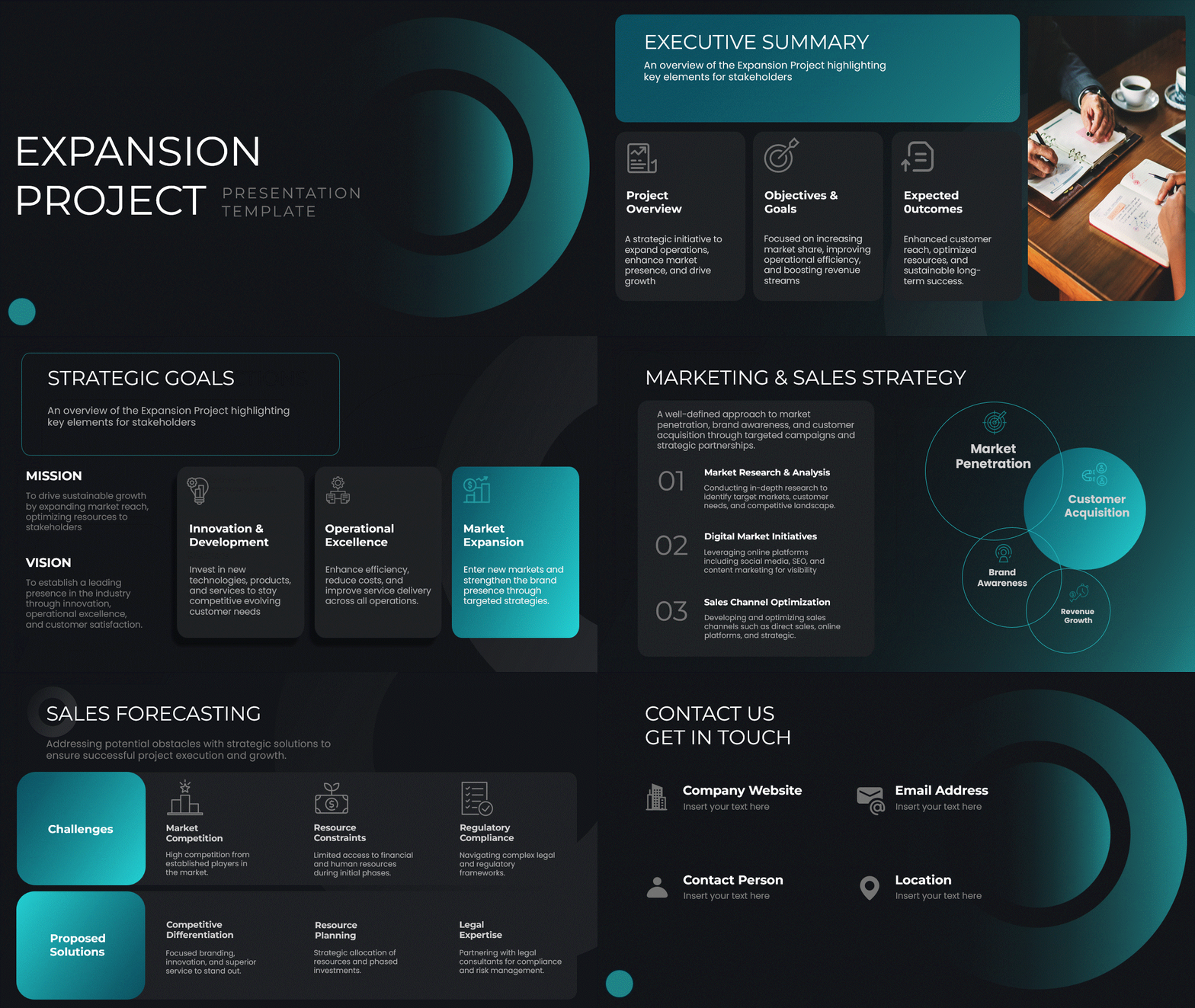
Business Expansion Presentation Theme
- What it is: A strategic theme for market expansion plans, growth strategies, investment opportunities, and scaling initiatives.
- Who uses it: Founders, strategy teams, business consultants, and executives.
- Why they use it: Communicates expansion roadmaps, market opportunities, and growth plans with professional visuals.
Corporate Strategy Blue Google Slides Template
- What it is: A professional blue-toned deck for GTM plans, roadmaps, and corporate strategy — editable and ready to use.
- Who uses it: Strategy teams, product managers, and senior leadership.
- Why they use it: Organises ideas, priorities, and next steps clearly, helping secure stakeholder buy-in with polished layouts.
For the narrative that goes around it, see our roadmap presentation guide.

Business Review Dashboard Google Slides Deck
- What it is: A clean, dashboard-style deck for KPIs, metrics, and quarterly summaries — fully editable.
- Who uses it: Managers, consultants, and team leads preparing QBRs or performance updates.
- Why they use it: Turns complex data into clear visuals so you can present results, trends, and action plans without rebuilding charts.
New to the format? Start with our quarterly business review guide.

Business Review Presentation
- What it is: A professional business review deck with KPI dashboards, performance metrics, achievements, challenges, and action plan slides.
- Who uses it: Department heads, managers, consultants, and leadership teams.
- Why they use it: Gives a structured way to review performance, communicate insights, and align teams on the next quarter.

Agile Project Management Google Slides Pack
- What it is: A complete agile deck with sprint slides, Kanban boards, timelines, and progress trackers.
- Who uses it: Scrum masters, project managers, and product teams.
- Why they use it: Organises workflows and simplifies project tracking, sprint updates, and team alignment.
Deciding between methodologies first? Read agile vs traditional project management.

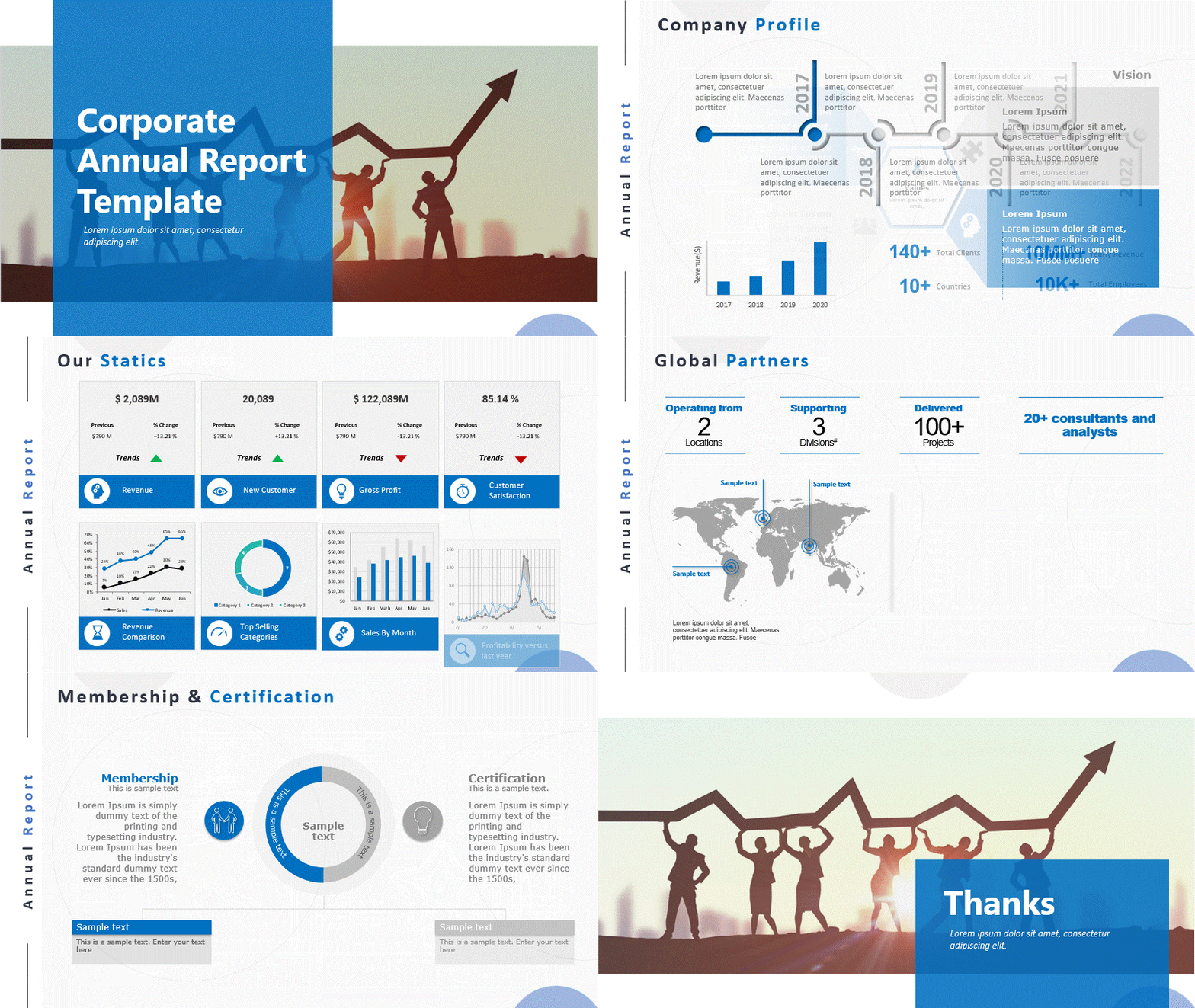
Investor Relations Annual Report Google Slides Deck
- What it is: A formal, report-style deck for annual results and investor presentations.
- Who uses it: Founders, CFOs, and investor relations teams.
- Why they use it: Presents achievements, numbers, and projections professionally, saving hours of formatting before a board meeting.
Raising rather than reporting? See our business plan presentation guide.
Technology Presentation Themes
Modern themes for startups, AI, software, product launches, and technology evolution. These help you showcase innovation, product roadmaps, and fundraising pitches with impactful visuals.
Evolution of Meta Timeline PowerPoint Template
- What it is: A modern blue-themed timeline deck of 6 slides tracing how Meta evolved over the years.
- Who uses it: Professionals and educators presenting a company’s technological evolution or product development history.
- Why they use it: Gives a ready-made, year-by-year visual structure instead of building a timeline from scratch.

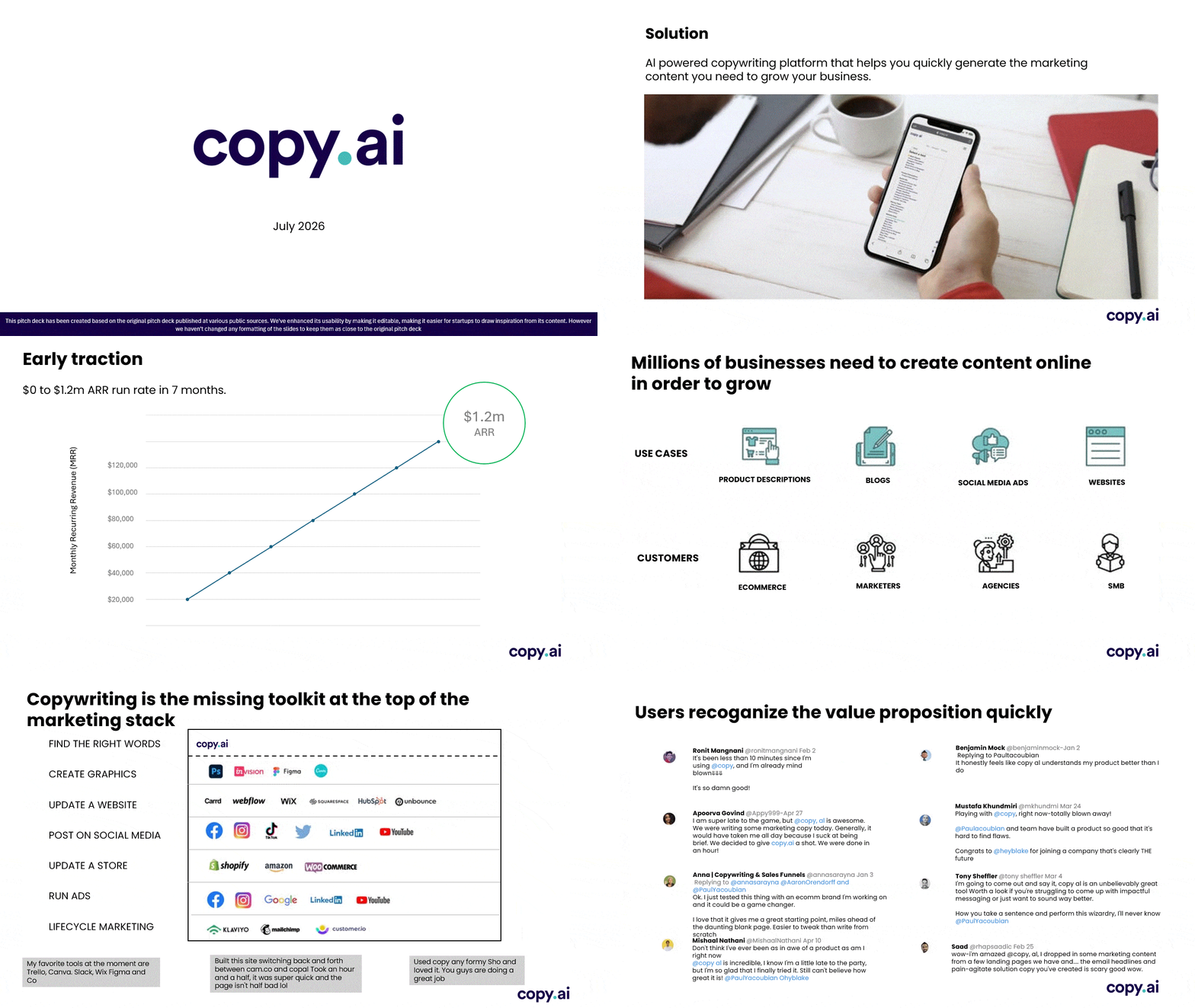
Copy.ai Series A Pitch Deck
- What it is: A light-themed startup pitch deck built around traction data, team intro, product walkthrough, and problem-solution slides.
- Who uses it: Startup founders and tech teams raising a Series A round.
- Why they use it: Mirrors a real, proven fundraising narrative structure that investors already expect to see.
Animated Technology Evolution Timeline Slide Template
- What it is: A purple-themed animated timeline (1980–2024) illustrating how computers evolved from bulky supercomputers to smartphones.
- Who uses it: Professionals visualising technological advancement, product development, or company tech history.
- Why they use it: The animation and illustrated progression make dry technical history visually engaging.

Education Presentation Themes
Engaging themes for classrooms, training sessions, workshops, and student projects. From science and technology to arts and planners, these make learning more interactive and visually appealing.
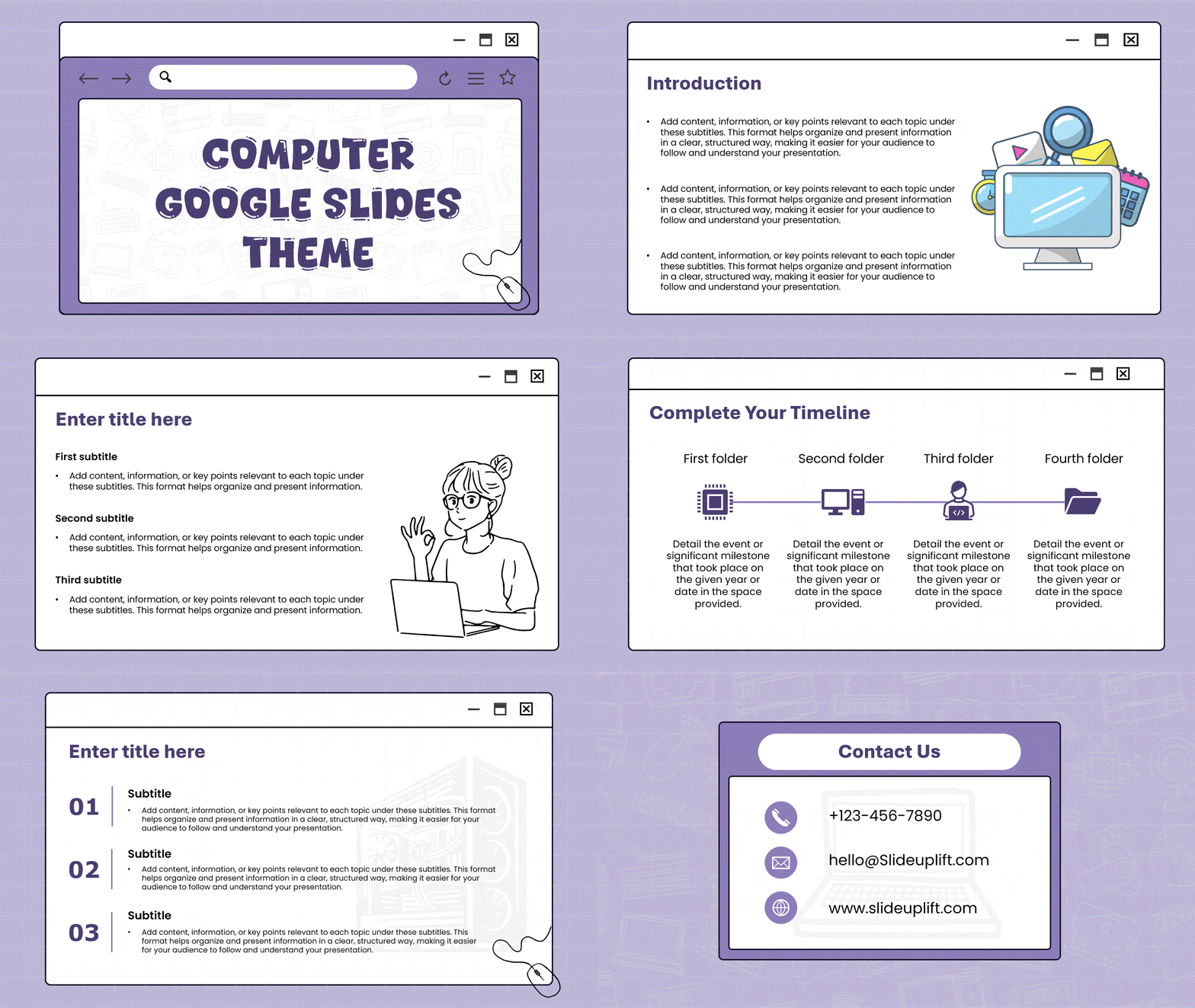
Computer Google Slides Theme
- What it is: A tech-focused, playful 7-slide deck with a browser-window layout and light purple colour scheme.
- Who uses it: Educators, IT trainers, and tech enthusiasts.
- Why they use it: Built for presenting IT training, software walkthroughs, or computer-based project content while keeping the audience engaged.
Theatre Google Slides Theme
- What it is: A 9-template set of theatre-themed slides ranging from classic to modern styles.
- Who uses it: Performing arts professionals, theatre companies, directors, and educators.
- Why they use it: Captures the atmosphere of theatre visually, making the presentation feel like part of the production.

Cute Background for Google Slides and PowerPoint
- What it is: A colourful, computer-inspired 8-slide theme in green and yellow with doodles, mouse cursors, and window-tab visuals.
- Who uses it: Educators and students who want an informal, engaging presentation tone.
- Why they use it: Best for classroom lessons and student projects where a formal corporate deck would feel out of place.
For more in this style, browse the full cute Google Slides themes collection.

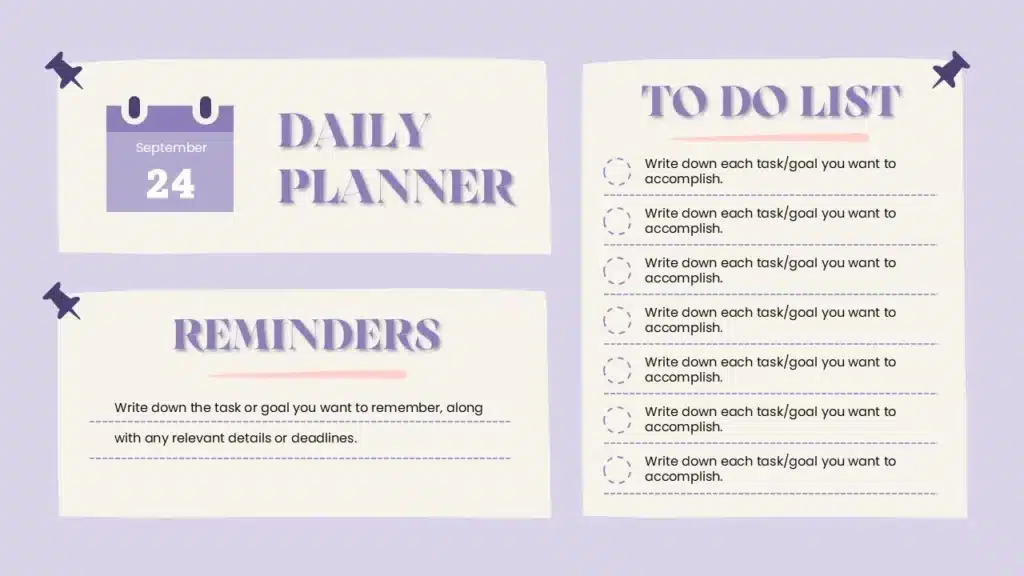
To Do List Google Slides Template
- What it is: A lavender-themed planner slide with three paper-style sections for day, date, reminders, and seven to-dos.
- Who uses it: Educators, students, and professionals managing assignments, schedules, and deadlines.
- Why they use it: Turns task tracking into a visual, easy-to-follow format for a classroom wall or a team stand-up.
Animated Orbit PowerPoint Presentation
- What it is: An animated solar-system deck with the sun, planets, stars, and satellites on a purple-black cosmic background.
- Who uses it: Science teachers and students.
- Why they use it: Makes the solar system, orbits, and space exploration easier to explain than a static diagram.

World Mental Health Day Presentation Theme
- What it is: A soft, gradient-heavy theme with calming visuals and modern layouts.
- Who uses it: HR teams, educators, wellness coordinators, and organisations hosting awareness programmes.
- Why they use it: Creates a welcoming atmosphere for mental health workshops, awareness sessions, and educational discussions.

History Presentation Themes
Present historical events, timelines, and research with classic visuals and structured layouts that make historical storytelling informative and memorable.
History Google Slides Theme
- What it is: An 8-slide deck featuring classic imagery, maps, and vintage design elements for historical presentations.
- Who uses it: Historians, researchers, museum curators, educators, and students.
- Why they use it: Provides a designed framework for presenting historical events, research, and timelines without starting from a blank deck.

When Free Google Slides Themes Are No Longer Enough
Free themes are a fine starting point, but they hit a ceiling as your presentations and brand grow. Here is where that ceiling shows up, and why premium templates solve it:
- Limited branding depth — free themes offer basic colour and font swaps, but not deep customisation. That becomes a problem once your brand has specific guidelines to follow, not just a colour preference.
- Scaling across teams or clients — free templates are not built for reuse across dozens of decks. Premium templates hold up when several people are editing the same base file.
- Missing advanced assets — financial tables, Gantt charts, and KPI dashboards are rare in free themes. If your deck needs to show real business data, a premium template already has the layout built for it.
- Fewer animation and motion options — free themes typically support only basic transitions. Premium templates include built-in animations that make data reveals and storytelling slides feel more polished.
- Weaker visual impact for high-stakes decks — for investor pitches or board reviews, small design gaps stand out.
Free covers the basics. Premium covers the edge cases — and the edge cases are usually the decks that matter most.
If you are building a one-off deck and do not need that depth, browse SlideUpLift’s free presentation templates — over 10,000 of them, no paywall. Our roundup of the best free Google Slides templates narrows it down further, and the full Google Slides collection covers everything else.
How to Use These Templates in Google Slides
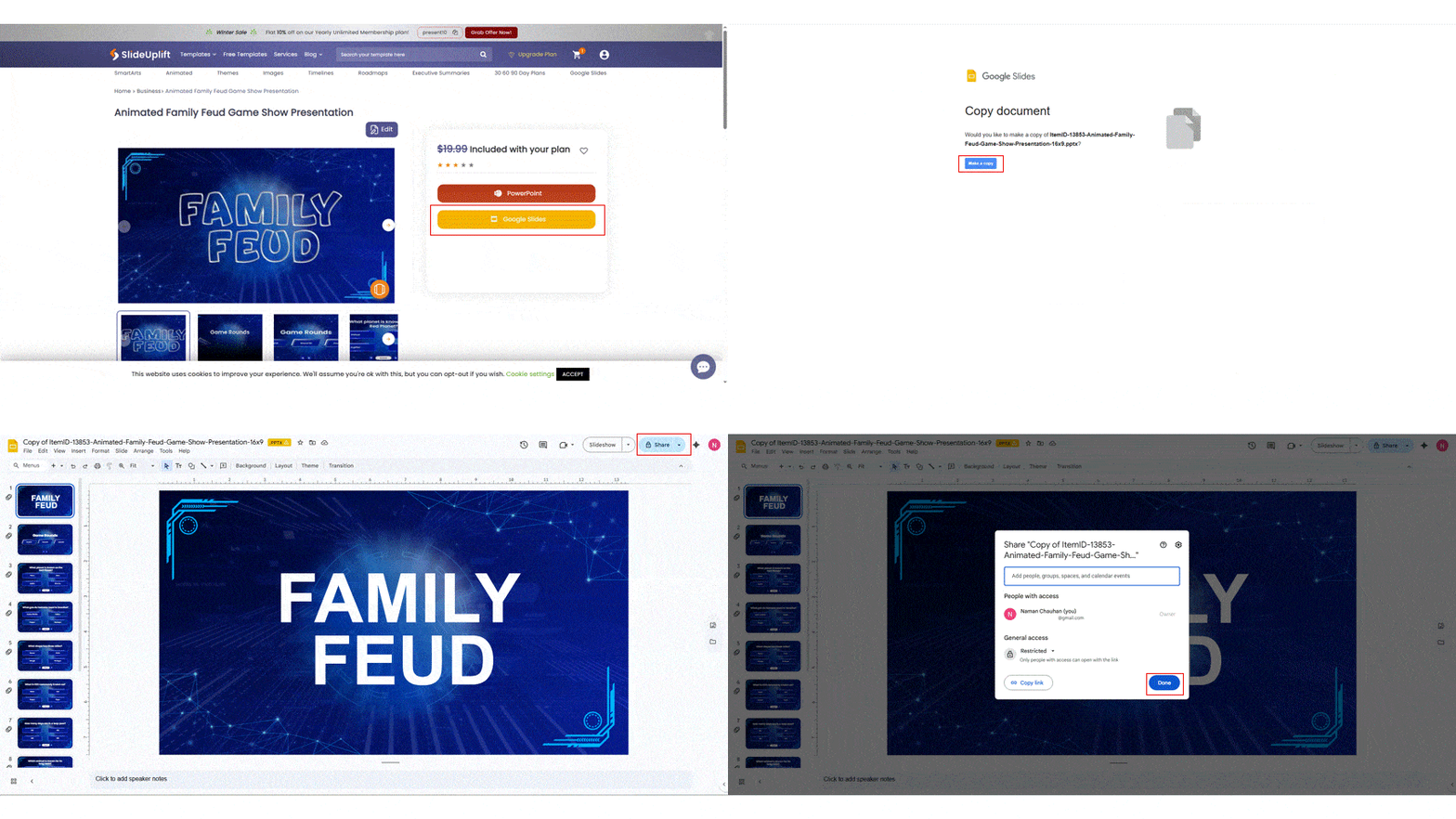
Do not upload a PowerPoint file and hope for the best. All SlideUpLift templates are “Google Slides Ready,” which means each step below works without any manual reformatting:
- Download — select the “Open in Google Slides” option on the product page. This loads the deck directly into Slides instead of forcing a PowerPoint-to-Slides conversion, which is where formatting usually breaks.
- Copy — click “Make a Copy” to save it to your personal Drive. You get your own editable version, so the original stays untouched if you or a teammate needs it again.
- Collaborate — share the link with your team and start editing in real time. Because it is a native Google Slides file, everyone can edit simultaneously without exporting or re-uploading.
Importing a theme from outside our library works differently — see our step-by-step guide on how to import a theme into Google Slides.
6 Key Elements of a Great Google Slides Theme
A great theme prioritises clarity and aesthetics together. These are the elements that separate a theme that just looks nice from one that actually works under real presentation conditions:
- Intuitive layouts — support easy navigation, so your audience follows the flow of ideas instead of getting lost in the slide design.
- Versatile colour schemes — give you room to match brand colours without redesigning the whole layout.
- Editable slides with real personalisation — go beyond a palette swap, letting you actually restructure content rather than just recolour it.
- Professional visuals — integrated with your brand identity so the deck looks intentional, not templated.
- A consistent master slide — ensures every slide stays visually aligned, so key messages land the same way for every stakeholder and client who sees the deck.
- Distinct backgrounds — the difference between a generic backdrop and one that carries a visual identity from slide to slide.
If you need to swap one out, here is how to change the background in Google Slides.
Key Features to Look for in Business Google Slides Themes
Choosing the right theme involves more than picking a pretty design. A good template balances aesthetics and functionality, so your process — not just your final slide — gets faster. Here is what to check for:
- Master slide controls — this is what lets you make one change (a logo, a font) and have it apply everywhere, instead of editing slide by slide.
- Font options — built-in font choices that match professional brand guidelines, so you are not hunting for the right typeface mid-deck.
- Available animations — subtle, built-in motion that makes data reveals and transitions feel deliberate rather than default.
One more thing to check: whether the themes come as a matching set or as one-off designs. A set means your proposal deck, your QBR, and your board update all look like they came from the same company — which is the whole point of using a theme in the first place.
Customizability and Ease of Editing
Your presentation should reflect your unique brand and message, not be a carbon copy of a default design. A highly customisable template lets you modify colours, fonts, and layouts to align with your company’s identity.
Editing the master slide is the most powerful way to ensure consistency. Any change you make there — adding a logo, changing a font — applies automatically across every slide using that layout, saving time and preventing inconsistencies.
Look for a template that lets you easily adjust:
- Colour palettes — quickly switch to your brand’s colours, so the deck matches your company without a manual redesign.
- Font styles — change fonts to match your brand guidelines, keeping the deck consistent with everything else your company publishes.
- Object placeholders — easily insert images, charts, and text, so swapping in your own content does not break the layout.
Professional Visuals and Brand Integration
The visual quality of your presentation speaks volumes about your professionalism. A top-tier theme should include high-quality graphics, icons, and a well-thought-out layout. Here is why each of those matters:
- High-quality graphics and icons — break up text-heavy slides, keeping your audience engaged instead of skimming past dense paragraphs.
- A well-thought-out layout — guides the eye to what matters most on each slide, rather than leaving the viewer to work out the hierarchy.
- Consistent logo, colour, and font use — builds recognition and trust across the deck, which matters most when a client or stakeholder is seeing your brand for the first time.
- Designated placeholders — make brand integration seamless, since swapping in your logo or images does not require rebuilding the slide around them.
Here is how specific features support brand integration:
| Feature | Importance for branding |
| Consistent colour palette | Reinforces brand identity and recognition |
| Custom font options | Ensures all materials use your official brand typography |
| Logo placeholder | Adds your logo to every slide automatically |
| Object placeholders | Swap in your own images and charts without rebuilding the layout |
Conclusion
Your presentation’s design significantly affects how your ideas are received. Choosing one of these 18 best Google Slides themes gives you a professional, credible look instantly, with the editable structure to match any business scenario, from investor updates to internal training.
Not sure which to start with? Match the theme to the meeting: QBR → Business Review Dashboard. Board or investor update → Investor Relations Annual Report. Sprint review → Agile Project Management. New client pitch → Business Proposal.
FAQs
-
What are the best Google Slides themes for professional presentations?
The best Google Slides themes for professional use combine a clean layout with easy editing — like the Business Proposal and Corporate Strategy Blue themes — so you can align the deck with your brand without redesigning it from scratch.
-
Are Google Slides themes compatible with PowerPoint?
Yes. Most professionally designed Google Slides themes, including SlideUpLift’s, are built to open cleanly in both, so you are not locked into one platform. If you are moving an existing deck across, see how to convert PowerPoint to Google Slides, or our Google Slides vs PowerPoint comparison.
-
What is the difference between a Google Slides theme and a template?
A theme sets the overall visual style — colours, fonts, master slide design — while a template is a full pre-built deck (like a business plan or SWOT deck) that already applies that theme to specific slide layouts.
-
Can I customize a free Google Slides theme to match my brand?
Yes. Most editable themes let you update colours, fonts, and logos through the master slide. Free themes are more limited in customisation depth than premium ones, but basic brand matching is usually possible.
-
Which Google Slides theme should I use for an investor pitch?
The Investor Relations Annual Report deck or the Corporate Strategy Blue template. Both are structured to present financials, projections, and growth metrics clearly
-
Do these Google Slides themes include charts and dashboards?
Yes. The Business Review Dashboard and Business Review Presentation both come with pre-built KPI charts, financial tables, and metric layouts you can populate with your own data.
-
How do I edit the master slide in Google Slides?
Go to Slide > Edit Theme. Any changes you make there — fonts, colours, logo placement — apply automatically to every slide using that layout. Our guide to importing and editing Google Slides themes walks through it step by step.
-
Are there Google Slides themes for technical presentations?
Yes. The Animated Technology Evolution timeline and the Copy.ai Series A deck in this list are both built for technical and product content, with layouts that keep diagrams and progressions easy to read. For dedicated engineering and industrial decks, browse the full Google Slides collection.
-
Which Google Slides theme works best for agile or sprint updates?
The Agile Project Management pack. It includes sprint slides, Kanban boards, and progress trackers, making it the most direct fit for scrum team
-
Can I use these Google Slides themes for client-facing sales decks?
Yes. The Business Proposal and Business Expansion themes are built for client-facing pitches, with sections for pricing, benefits, and next steps
Table Of Content



Related posts from the same category

14 Aug, 2026 | SlideUpLift
SlideUpLift Launches Creatos AI, the AI Presentation Maker That Never Starts From a Blank Page
Free to try, with 40,000+ professionally designed slides, AI-assisted editing, one-click branding and a fully editable PowerPoint at the end JERSEY CITY, N.J. - Aug. 14, 2026 : SlideUpLift, a

14 Aug, 2026 | SlideUpLift
How to Create an Impactful Career Presentation
Quick Answer: A strong career presentation has three parts: a short intro that states who you are and where you're headed, 3–5 milestones told as brief stories (not a list
3 Aug, 2026 | SlideUpLift
Mekko Chart in PowerPoint: Step-by-Step Guide (2026)
A mekko chart (or marimekko chart) uses variable column widths to show the size of each category, and stacked segments inside each column to show its internal split. PowerPoint has

30 Jul, 2026 | SlideUpLift
The Ultimate Guide to Types of Charts and Their Uses
Quick Answer: There are many types of charts to choose from, and there is no single "best" one — the right choice depends on what you want your data to
16 Jul, 2026 | SlideUpLift
Appendix Slide in Presentations: What It Is and How to Add One
Appendix Slides: Additional data & Q&A for deeper insights An appendix slide is a supporting slide placed at the end of a presentation, after the closing slide, that holds supplementary

6 Jul, 2026 | SlideUpLift
Mastering Masking Images in PowerPoint: Step-by-Step Guide
Quick Answer Masking images in PowerPoint means displaying a picture only within a chosen shape — such as a circle, custom outline, or block of text — instead of a
15 Jun, 2026 | SlideUpLift
How to Add Exponents in Google Slides (3 Methods)
Quick Answer: To add an exponent in Google Slides: Click inside a text box and type your full equation (e.g., x2). Highlight only the character to raise (e.g., the '2').

3 Jun, 2026 | SlideUpLift
How to PowerPoint Shuffle Slides: 3 Easy Methods
Quick Answer PowerPoint has no built-in shuffle button, but you can randomize PowerPoint slides in three ways: Drag and drop in Slide Sorter view — fastest for small decks (under

26 May, 2026 | SlideUpLift
Claude for PowerPoint: A Comprehensive Guide for Users
Quick Answer Claude for PowerPoint is an official AI add-in by Anthropic, installed from the Microsoft Marketplace (AppSource). Once added, it embeds a sidebar directly in PowerPoint — on the

30 Apr, 2026 | SlideUpLift
How to Add a Border in Google Slides (7 Easy Methods)
To add a border in Google Slides, insert a rectangle shape, set its fill to transparent, and customize the border color and weight from the toolbar. You can apply borders

28 Apr, 2026 | SlideUpLift
How to Insert a PDF into Google Slides Every Method That Actually Works
No, Google Slides does not let you insert a PDF directly as an editable PDF object. Instead, you can use one of three practical workarounds. First, convert the PDF pages
24 Apr, 2026 | SlideUpLift
How to Insert a Check Mark in PowerPoint (PPT): 6 Methods
The fastest way to insert a check mark in PowerPoint is to copy and paste this symbol directly: ✓. If you want to insert it from PowerPoint, go to Insert

22 Apr, 2026 | SlideUpLift
How to make a Venn Diagram on Google Slides (3 Easy Methods)
Need to compare two products, contrast competing ideas, or map shared traits for a classroom exercise? The most common question designers and educators ask is how to make a Venn

21 Apr, 2026 | SlideUpLift
How To Lock An Image In Google Slides: Complete Step-By-Step Guide
If you have ever carefully positioned a logo or background graphic in Google Slides — only for an accidental click to send it flying across the slide — you are

15 Apr, 2026 | SlideUpLift
How To Change Opacity in Google Slides (Images, Shapes & Backgrounds)
In Google Slides, images and shapes use different controls for opacity. To change the opacity of an image, select it, open Format options, and adjust the Opacity or Transparency control

14 Apr, 2026 | SlideUpLift
How to Add a Video to Google Slides Step by Step (2026)
Embedding a video in your presentation takes just a few clicks through the Insert menu — but getting it to actually play for your audience requires knowing a few rules

13 Apr, 2026 | SlideUpLift
How To Lock An Image In PowerPoint: Complete Step-By-Step Guide
If you have ever spent time positioning a logo or background graphic perfectly — only for an accidental click to send it flying across the slide — this guide is

8 Apr, 2026 | SlideUpLift
How to Embed YouTube Video in PowerPoint (2026 Complete Guide)
Most PowerPoint videos fail at the worst moment — they don’t play, lag during playback, or force you to switch tabs mid-presentation. This guide shows you exactly how to embed
6 Apr, 2026 | SlideUpLift
How to Make an Interactive Quiz in PowerPoint (No Add-ins Required)
Quick Answer You can build a fully interactive quiz in PowerPoint using only the built-in Action and Hyperlink features — no add-ins or plugins required. Create three slide types (question,

1 Apr, 2026 | SlideUpLift
How to Print Google Slides with Notes: Step-by-Step Guide
Knowing how to print Google Slides with notes gives presenters and audiences a richer, more complete version of any presentation — each printed page shows the slide in the upper

30 Mar, 2026 | SlideUpLift
How to Convert PPT to Video: Complete Guide for 2026
This guide shows how to convert PPT to video using PowerPoint and other tools with simple, step-by-step methods. It covers formats, quality settings, narration, animations, and fixes for common export

26 Mar, 2026 | SlideUpLift
How to Curve Text in Google Slides (5 Methods That Actually Work)
This guide explains how to curve text in Google Slides using simple workarounds like Word Art, text rotation, and external tools, since there’s no built-in feature for curved text. It

24 Mar, 2026 | SlideUpLift
How to Wrap Text in Google Slides — 4 Methods That Actually Work
Learn how to wrap text in Google Slides with simple step-by-step methods to align text around images and create clean, professional layouts. This guide explains practical workarounds since Google Slides

20 Mar, 2026 | SlideUpLift
How to Add Annotations in PowerPoint: The Complete Step-by-Step Guide
This blog explains how to add real-time annotations in PowerPoint presentations using tools like the pen, highlighter, and laser pointer to make slides more interactive and engaging. It provides step-by-step

17 Mar, 2026 | SlideUpLift
How to Create a Project Presentation That Gets Stakeholder Approval
In any business environment, the ability to create a project presentation that actually moves people — securing approvals, aligning teams, and building client confidence — is one of the most
16 Mar, 2026 | SlideUpLift
How to Convert PowerPoint to Google Slides?
This blog explains how to convert PowerPoint to Google Slides using simple step-by-step methods like uploading PPT files to Google Drive or importing them directly into Slides. It helps users

13 Mar, 2026 | SlideUpLift
How to Play Video in PowerPoint Across Single and Multiple Slides
This blog explains how to play a single video across multiple slides in PowerPoint using simple animation and playback settings. It walks through the step-by-step process of inserting the video,

11 Mar, 2026 | SlideUpLift
How to Hide a Slide in Google Slides: Complete Guide
Learn how to hide and unhide slides in Google Slides without deleting them in this step-by-step guide. The blog explains simple methods like using the Skip Slide option, toolbar, and

9 Mar, 2026 | SlideUpLift
How to Hide and Unhide Slides in PowerPoint (Complete Guide)
This blog explains how to hide and unhide slides in Microsoft PowerPoint so you can skip certain slides during a presentation without deleting them. It covers why the hide slide
5 Mar, 2026 | SlideUpLift
Quarterly Business Review (QBR): What It Is, Examples & How to Present One
A QBR, or quarterly business review, is a strategic meeting held every three months to evaluate business performance, review key metrics, and align on goals for the next quarter. QBRs

4 Mar, 2026 | SlideUpLift
What Is a Product Roadmap? A Complete Guide With Types, Examples, and Templates
A product roadmap is a high-level strategic document that communicates a product’s vision, direction, priorities, and planned progress over time. It shows the product team and stakeholders what is being
![How To Broadcast a PowerPoint Presentation Online [6 Working Methods]](https://slideuplift.com/wp-content/uploads/2020/04/Broadcast-Presentation-Online-1.jpg "How To Broadcast a PowerPoint Presentation Online [6 Working Methods]")
27 Feb, 2026 | SlideUpLift
How To Broadcast a PowerPoint Presentation Online [6 Working Methods]
If you have been looking for a way to broadcast a PowerPoint presentation online to a remote audience, you have probably run into tutorials that tell you to click Slide
27 Feb, 2026 | SlideUpLift
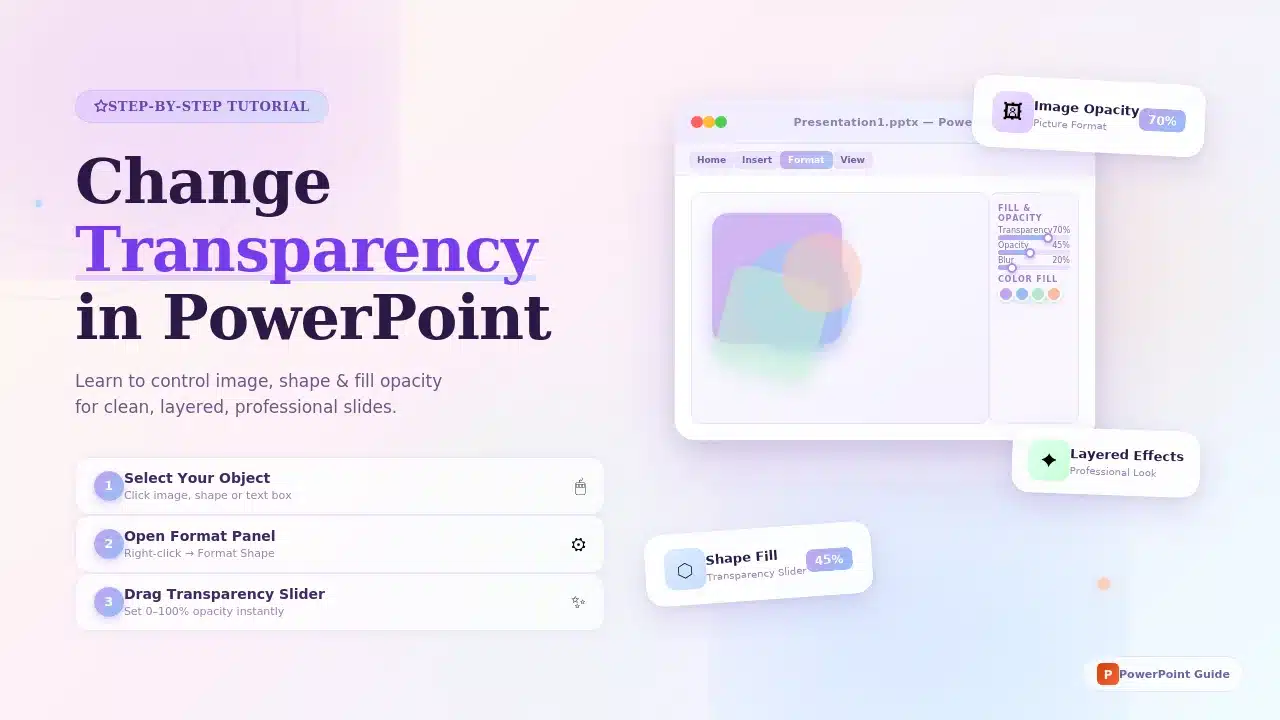
How to Change Transparency in PowerPoint (Step-by-Step Guide)
Learn how to use transparency in Microsoft PowerPoint to adjust the opacity of images, shapes, and text for cleaner, more professional slide designs. This step-by-step guide explains how to change

24 Feb, 2026 | SlideUpLift
Which Program Is Used to Open PPTX Files: Complete Guide
This blog explains which program is used to open PPTX files and how to view or edit presentations on Windows, Mac, and mobile devices. It covers tools like Microsoft PowerPoint,
20 Feb, 2026 | SlideUpLift
How to Create Engaging Academic Presentations: 10 Expert Tips + Templates
This blog is a complete guide on how to create engaging academic presentations, offering 10 expert tips for structuring content, designing slides, and delivering with confidence. It covers common mistakes

20 Feb, 2026 | SlideUpLift
How to Make Google Slides Play Automatically On A Loop? (Step-by-Step Guide)
There are two main ways to make Google Slides play automatically on a loop, and the right method depends on how you are showing the presentation. For a live presentation,
18 Feb, 2026 | SlideUpLift
How to Copy a Slide in Google Slides: Step-by-Step Guide
Learn how to duplicate, copy, and paste a slide in Google Slides using simple, step-by-step methods. This guide covers desktop shortcuts, right-click options, toolbar methods, and mobile steps for Android
17 Feb, 2026 | SlideUpLift
How to Round Corners in Google Slides: Complete Guide
Learn how to round corners in Google Slides using both the simple yellow handle method and the advanced Edit Points feature. This guide explains how to adjust the corner radius,
12 Feb, 2026 | SlideUpLift
How To Add plus or minus symbol in PowerPoint Presentations – Step-by-Step Guide
This blog explains how to add the plus or minus symbol (±) in Microsoft PowerPoint using keyboard shortcuts (Windows & Mac), the Symbols menu, equation tools, and copy-paste methods. It
10 Feb, 2026 | SlideUpLift
How To Convert Google Slides Into PDF: Quick & Easy Guide
This guide explains how to convert Google Slides into a PDF quickly and without formatting issues. It covers saving slides with or without speaker notes and methods for desktop and

6 Feb, 2026 | SlideUpLift
How To Make A Professional PowerPoint Presentation With Practical Tips
This blog shows how to make professional presentations with clear structure, engaging visuals, and effective delivery. It highlights using AI tools like ChatGPT and Copilot with ready-made templates to quickly

4 Feb, 2026 | SlideUpLift
How to Write a Sales Pitch That Captures Attention and Converts Leads
This SlideUpLift guide explains how to write an effective sales pitch by identifying your target audience, highlighting your unique value, focusing on benefits over features, and structuring a persuasive presentation

30 Jan, 2026 | SlideUpLift
Sales Presentation: A Complete Guide to Structure, Examples, and Best Practices
This blog is a complete guide to building a high-impact sales presentation, covering everything from structure and slide selection to delivery and follow-up. It explains what makes sales presentations effective,
28 Jan, 2026 | SlideUpLift
Types of Slides That Make Presentations Clear, Engaging, and Impactful
This blog explains why choosing the right slide types is essential for clear, engaging presentations. It covers the most important PowerPoint slide types, when to use them, and how they
23 Jan, 2026 | SlideUpLift
How to Rotate a Slide in PowerPoint: Complete Guide
This blog explains how to rotate slides in PowerPoint using all practical methods, including changing slide orientation, rotating objects, and handling single-slide workarounds. It also covers professional solutions for mixing
21 Jan, 2026 | SlideUpLift
What Is 6×6 Rule in PowerPoint? Complete Guide To Improve Slides
This blog explains what is 6x6 Rule in PowerPoint and how it improves slide clarity and readability. It shows how to apply the rule, avoid common mistakes, and compare it
19 Jan, 2026 | SlideUpLift
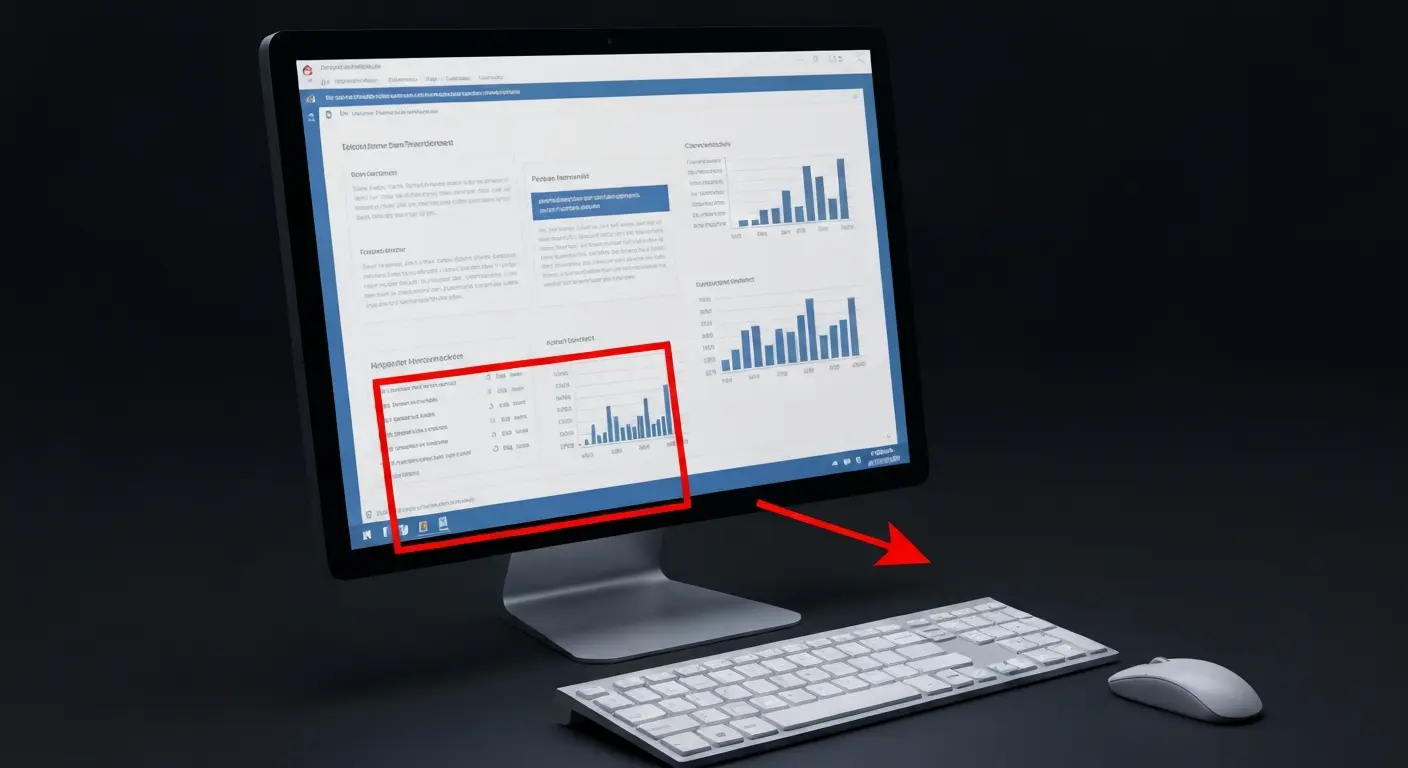
How to Add Footnotes in PowerPoint: A Step-by-Step Guide
Adding footnotes in PowerPoint helps you cite sources and add context without overcrowding your slides. Since PowerPoint doesn’t offer an automatic footnote feature, footnotes are created manually using text boxes
16 Jan, 2026 | SlideUpLift
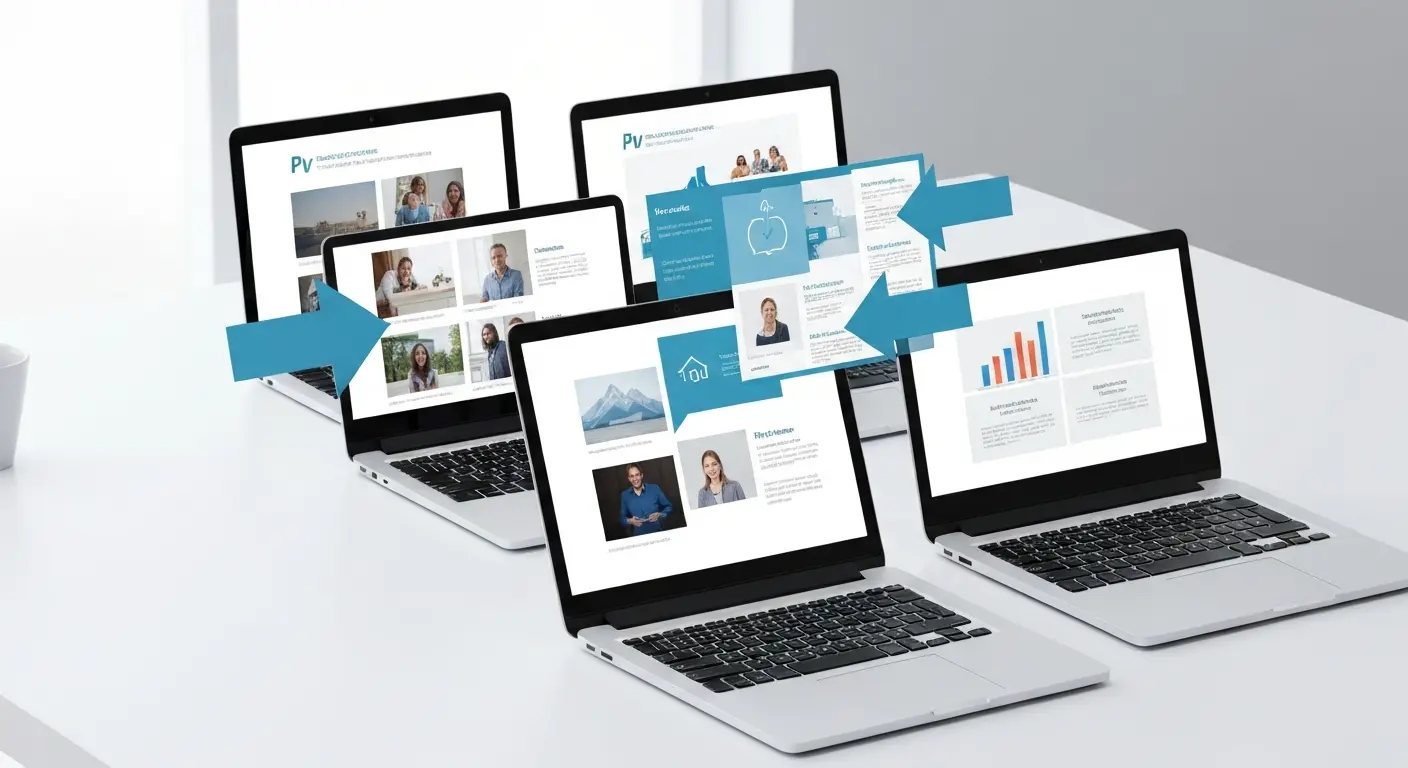
How To Merge PowerPoint Presentations Using Simple Methods and a Free Tool
Learn how to merge PowerPoint presentations quickly and easily using manual methods or a free merge PPT tool. Keep slides, formatting, animations, and transitions intact while creating polished, professional decks.

14 Jan, 2026 | SlideUpLift
McKinsey Slide Deck Guide: Presentation Style, Real Examples and Templates (2026)
The McKinsey presentation style is a structured, minimalist approach designed to help executives understand the main conclusion quickly. A typical McKinsey-style deck uses one clear idea per slide, an answer-first

14 Jan, 2026 | SlideUpLift
How to Add a Timer to Google Slides: Step-by-Step Guide
This blog walks you through how to add a timer to Google Slides using simple, practical methods that actually work. It covers Auto-play timing, visible countdown timers, videos, and add-ons,

8 Jan, 2026 | SlideUpLift
How to Prepare for a Presentation: A Simple Guide for Beginners
This blog explains how to prepare for a presentation step by step. It covers goal setting, content structuring, slide design, practice, and handling questions. Beginners can also learn common challenges,

6 Jan, 2026 | SlideUpLift
Presentation Tips for Structuring Messages and Effective Storytelling
This blog breaks down practical presentation tips to help you plan, design, and deliver slides that truly stand out. It covers how to simplify text, use visuals effectively, and maintain
9 Dec, 2025 | SlideUpLift
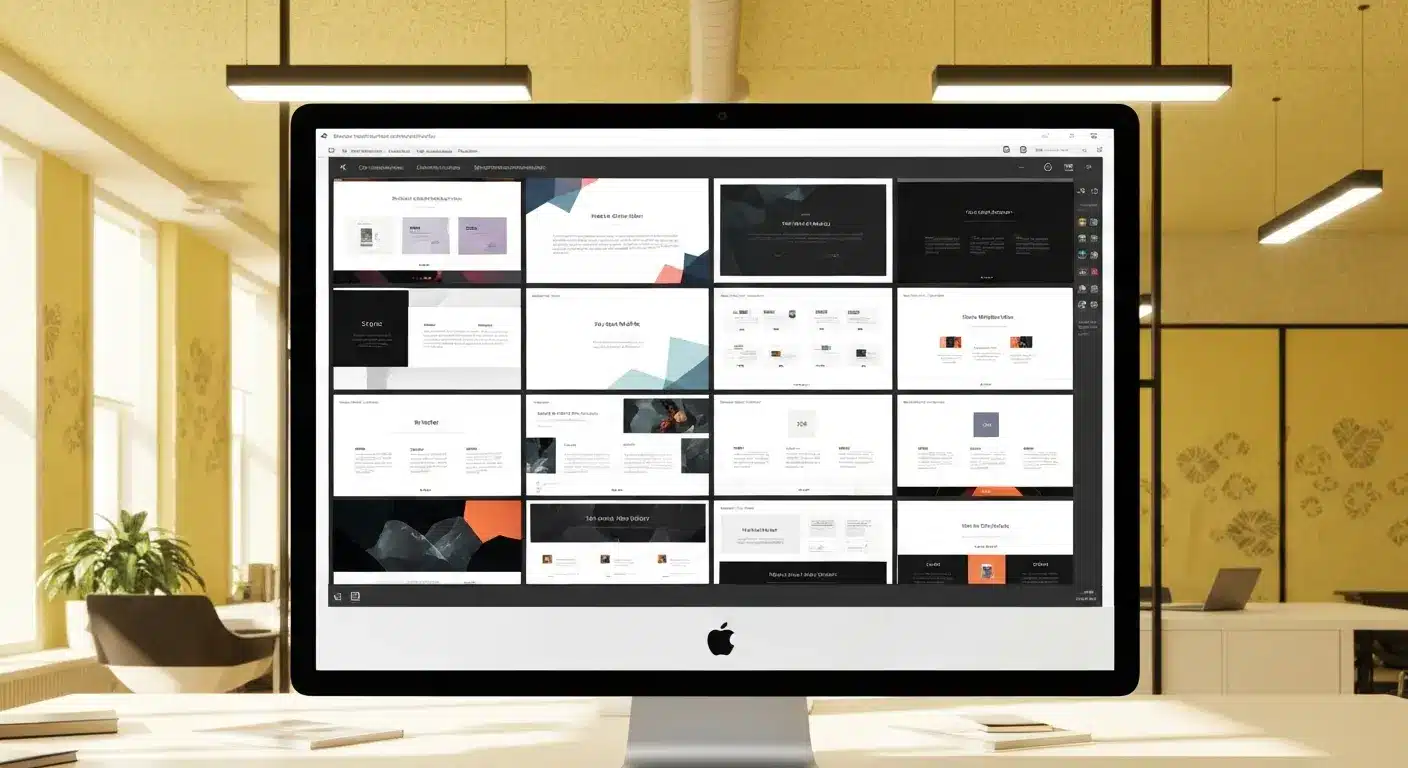
How to Change a PowerPoint Template – Quick Step-by-Step Guide
To change a PowerPoint template without rebuilding your presentation, open the Design tab, click the More arrow in the Themes group, choose Browse for Themes, and select the saved theme

4 Dec, 2025 | SlideUpLift
The 5-5-5-Rule-of-PowerPoint: Your Guide to Effective Design
The 5-5-5 rule of PowerPoint is a simple guideline for keeping presentation slides readable: use no more than 5 words per line, 5 lines of text per slide, and avoid
12 Nov, 2025 | SlideUpLift
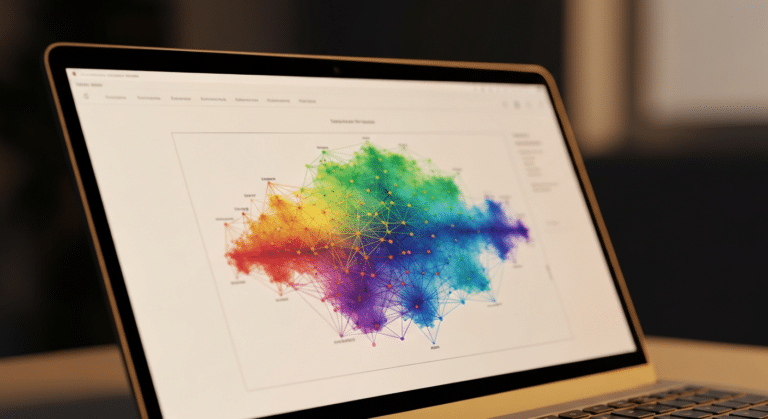
How to Create a Heat Map in PowerPoint: Beginner-Friendly Guide
Heat maps are one of the easiest ways to turn rows of numbers into visuals people understand quickly. In this blog, you will learn what a heat map is, in

6 Nov, 2025 | SlideUpLift
How to Add Transitions in PowerPoint: Complete Step-by-Step Guide
Do you want to create a seamless flow in your PowerPoint slides and make a strong impression? While adding transitions to PowerPoint slides might seem obvious, transitions are the key

4 Nov, 2025 | SlideUpLift
How to Use Morph in PowerPoint: The Ultimate Guide to Smooth Transitions
If you’ve ever watched a presentation where shapes flow smoothly, images glide effortlessly, and text elegantly shifts between slides, you’ve witnessed the power of Morph in PowerPoint. This feature is
30 Oct, 2025 | SlideUpLift
How To Make A Graph In PowerPoint: Step-by-Step Guide
The goal of impactful graphs is not simply to convey data; rather, it is to tell a story with data that has meaning to the audience. Graphs and charts can

13 Oct, 2025 | SlideUpLift
How to Write a Business Case: A Beginner’s Guide + Examples
Every project needs a passport to get through executive approval. Without it, even the best plans can get grounded before taking off. This very piece of evidence holds the power

10 Oct, 2025 | SlideUpLift
What Is A Project Charter? Definition, Examples & Best Practices
Launching a project without adequate planning can result in confusion, delays, and misaligned expectations. A project charter is a key document in the project documentation process that lays the groundwork

8 Oct, 2025 | SlideUpLift
How to Insert Emoji in Google Slides & PowerPoint for Fun, Eye-Catching Slides
Have you ever thought about how a simple emoji can change the mood or tone of your presentation? You could use a smiley face 😊, that would certainly lighten the
1 Oct, 2025 | SlideUpLift
Insert Calendar In PowerPoint And Google Slides: Quick Guide For Smarter Planning.
Do you want your presentations to be more organized, attractive, and professional? Learning how to add a calendar in PowerPoint or Google Slides will take boring schedules and deadlines and
26 Sep, 2025 | SlideUpLift
What Is a PPTX File? Think of It as PowerPoint 2.0
A .pptx file is Microsoft PowerPoint's Open XML presentation format, introduced with PowerPoint 2007 as the successor to the older binary .ppt format. It can contain slides, text, images, charts,

17 Sep, 2025 | SlideUpLift
Google Slides Strikethrough: Cross Out The Old And Spotlight The New
Ever wished you could just cross something out instead of deleting it? You know, like putting a big line through “boring idea” and replacing it with “brilliant plan”. That’s the
12 Sep, 2025 | SlideUpLift
What is KPI? Step-by-Step Guide with KPIs Examples That Work
Is it hard for you to know if your business is getting to the level it should be? That's where key performance indicators (KPIs) come into play. KPIs indicate how

10 Sep, 2025 | SlideUpLift
Best Fonts For PowerPoint Presentation: The Runway Of Letters
Imagine this: your presentation is a red-carpet event. Your slides are the guests, the content is the message, and the font? That is the outfit; the one builds up the

10 Sep, 2025 | SlideUpLift
Advantages and Disadvantages of Microsoft PowerPoint: Pros, Cons, and AI Features Explained
PowerPoint has been the go-to tool for presentations for decades—but is it keeping up with today’s fast-paced, AI-driven world? PowerPoint makes it easy to take ideas to slides, whether you're

5 Sep, 2025 | SlideUpLift
10 Virtual Meeting Etiquette Rules for Professionals
Introduction Virtual meetings and online meetings are the new normal for remote work teams everywhere. Whether you're chatting with co-workers, giving a client presentation, or taking part in a hybrid

3 Sep, 2025 | SlideUpLift
How to Add Watermark in PPT Like a Pro: Step-by-Step Tutorial
Every presentation tells a story, but it should also say who it belongs to, right? And if we tell you that there is a way to stamp your identity on

29 Aug, 2025 | SlideUpLift
50 ChatGPT Prompts for Presentations (Copy-Paste Ready, Categorized for Professionals)
Most professionals don’t have a ChatGPT problem. They have a prompt problem. If you’ve ever asked ChatGPT to “make me a presentation on quarterly sales” and watched it spit out

29 Aug, 2025 | SlideUpLift
Microsoft Copilot vs ChatGPT-4 Showdown: Who’s Got the Edge?
Not long ago, making a presentation meant spending hours and hours writing content, formatting slides, finding visuals, and tweaking layouts. Tools like PowerPoint and Google Slides gave us templates, but

29 Aug, 2025 | SlideUpLift
14 Best Presentation Software Tools in 2026: In-Depth Comparison Guide
The fact is, giving a great presentation is not only about how you choose your words, but rather involves expressing those very words. With the right PowerPoint presentation software, you

28 Aug, 2025 | SlideUpLift
Password Protect PPT: How To Secure Your Presentations (Easy Guide)
Have you ever shared a PowerPoint and then worried, “What if someone changes my slides?”, or even worse, “What if the wrong person opens it and leaks the content?”. Frustrating,

26 Aug, 2025 | SlideUpLift
Track Changes In PowerPoint And Keep Your Team In Sync
Ever spent hours perfecting a PowerPoint, way too much time that you then forget to track who made what change? You aren't alone. Unfortunately, unlike Word or Gmail slides, PowerPoint
14 Aug, 2025 | SlideUpLift
Curved Arrow PowerPoint: How to Make, Draw, and Customise Arrows Step by Step
Quick Answer: To make a curved arrow in PowerPoint, go to Insert > Shapes > Block Arrows, select a curved arrow shape, and drag to draw it on your slide.

13 Aug, 2025 | SlideUpLift
How To Create Infographics In PowerPoint For Smarter Visual Storytelling?
As a professional, you might have to host meetings and deliver presentations to your stakeholders and team members. As a host, it's crucial to deliver presentations in a way that
6 Aug, 2025 | SlideUpLift
How To Edit Footer In PowerPoint For Consistent Presentation Design
Footers are an important part of a PowerPoint presentation. They give the same footer text, like the date or slide numbers, on all slides. This helps people understand the talk

31 Jul, 2025 | SlideUpLift
Google Slides vs PowerPoint: A Complete Comparison Guide
Introduction Stuck deciding between Google Slides and PowerPoint for your next big presentation? Yeah, we've been there too. Both pack a punch with features, leaving you wondering: "Which one will

25 Jul, 2025 | SlideUpLift
How Many Slides For A 30 Minute Presentation? Timing, Tips, and Structure
One of the biggest challenges in presentations is staying on time. Whether it’s 5 minutes or 45, running over means rushing key points or losing your audience. Here’s the good

21 Jul, 2025 | SlideUpLift
PowerPoint Slide Size 101: Why It Matters More Than You Think
The default PowerPoint slide size is Widescreen (16:9), which measures 13.33 x 7.5 inches and is commonly used at 1920 x 1080 px for Full HD screens. The older Standard

15 Jul, 2025 | SlideUpLift
Google Slides Shortcuts Cheat Sheet To Boost Workflow
Google Slides is already a go-to tool for everything. From classroom projects to business decks and online workshops. It is a one-stop platform to create and share your ideas, thoughts,

7 Jul, 2025 | SlideUpLift
PowerPoint Shortcuts: The Beginner-to-Pro Keyboard Cheat Sheet
PowerPoint is one of the most powerful tools for creating presentations. However, working in PowerPoint can become time-consuming, especially when you have to click through menus for every small task.

4 Jul, 2025 | SlideUpLift
Why Your Conclusion Slide Matters—And How To Get It Right
Picture this: You've delivered an amazing presentation. Great start solid middle... but then... the ending just... flops. The energy drains. People shuffle out, already thinking about lunch. Sad, isn't it?
3 Jul, 2025 | SlideUpLift
How to Change Text Color in Google Slides for Maximum Impact – Quick Guide
Using Google Slides to build presentations is now widely practiced across the digital world. It is clean, collaborative, and performs its tasks fairly well. Be it a business pitch, a

30 Jun, 2025 | SlideUpLift
A Simple Guide On How To Change Margins In PowerPoint
Margins—those often-overlooked borders framing your slides—play a crucial role in creating polished, professional presentations. Adjusting margins helps you control your layout. This is important for printed handouts and projections. It
![How to Make an Org Chart in PowerPoint: Step-by-Step Guide [+ Templates]](https://slideuplift.com/wp-content/uploads/2021/01/How-to-create-an-org-chart-in-powerpoint.jpg "How to Make an Org Chart in PowerPoint: Step-by-Step Guide [+ Templates]")
13 Jun, 2025 | SlideUpLift
How to Make an Org Chart in PowerPoint: Step-by-Step Guide [+ Templates]
Without a clear org chart, even small teams feel messy. People start asking: “Who’s responsible for what?” Whether you are a manager, HR professional, or team lead, explaining the team

12 Jun, 2025 | SlideUpLift
How to Make an Org Chart in Google Slides: A Step-by-Step Guide
Want to map out any type of organizational structure—whether it's a company, project team, or even a hierarchy? An org chart helps visualize relationships between roles, departments, or functions in

28 May, 2025 | SlideUpLift
Beginner’s Guide: How To Make A Venn Diagram In Powerpoint
What Is A Venn Diagram? In today’s fast-paced business world, clarity is currency, and Venn diagrams deliver just that. Whether you're analyzing market segments, comparing competitors, or aligning team strategies,

27 May, 2025 | SlideUpLift
How to Create a Roadmap Diagram in PowerPoint? (Step-by-Step Guide)
Need to build a professional roadmap slide for your next presentation? You are in the right place. This tutorial walks you through every method for creating a roadmap diagram in

14 May, 2025 | SlideUpLift
How To Crop A Picture Into A Circle In The Presentation: Step-By-Step Guide
To crop a picture into a circle in PowerPoint, select the image, go to Picture Format -> Crop -> Crop to Shape, and choose Oval. Then use a 1:1 aspect

9 May, 2025 | SlideUpLift
Mastering SVG in PowerPoint for Sharp & Professional Slides
SVG vs PNG in PowerPoint SVG in PowerPoint refers to inserting Scalable Vector Graphics — images built from mathematical paths instead of pixels — directly into your slides. Because SVGs

6 May, 2025 | SlideUpLift
VBA in PowerPoint: How to Automate Your Slides
Quick answer: VBA (Visual Basic for Applications) is the programming language built into PowerPoint. You use it to write macros that automate repetitive tasks — formatting every slide, inserting logos,

2 May, 2025 | SlideUpLift
150+ Informative Speech Topics for 2026 (Students, College & Work)
Picking the right informative speech topic is half the battle: it decides how easy your research will be, how confident you'll sound, and whether your audience leans in or checks
22 Apr, 2025 | SlideUpLift
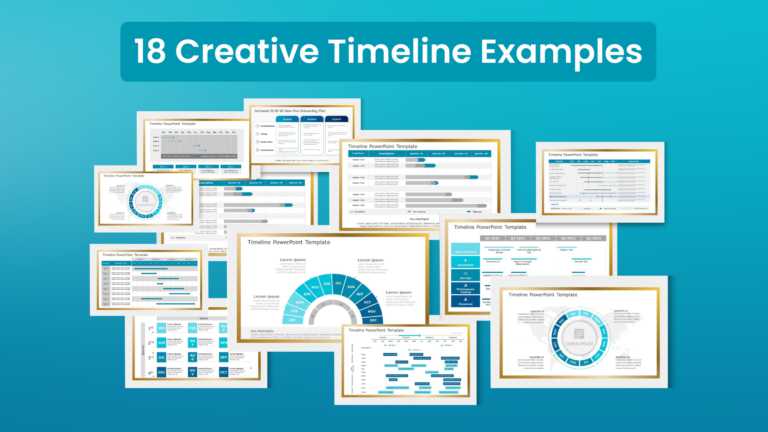
18 Timeline Examples for Presentations (+ Free Templates)
Quick answer: A timeline is a visual that shows events in chronological order, making milestones, schedules, and progress easy to follow at a glance. Presenters use them for project plans,

28 Mar, 2025 | SlideUpLift
Can ChatGPT Make a PowerPoint Presentation? Step-by-Step Guide
Yes, ChatGPT can help you make a presentation by generating the outline, slide-by-slide content, key messages, and speaker notes. It can also produce a basic downloadable PowerPoint file through supported
![How to Present an Action Plan in PowerPoint: Templates, Design Tips & Examples [2026]](https://slideuplift.com/wp-content/uploads/2024/12/Blog-Header-Image_How-To-Present-An-Action-Plan_Dec24-1-1.jpg "How to Present an Action Plan in PowerPoint: Templates, Design Tips & Examples [2026]")
2 Jan, 2025 | SlideUpLift
How to Present an Action Plan in PowerPoint: Templates, Design Tips & Examples [2026]
Why Presentation Matters You’ve created a solid action plan. Now comes the critical part: presenting it effectively to stakeholders, team members, and leadership. Here’s the reality: A brilliant action plan
![How to Write an Action Plan: 5-Step Guide with Examples [2026]](https://slideuplift.com/wp-content/uploads/2024/12/Header-Images-Blog-1.jpg "How to Write an Action Plan: 5-Step Guide with Examples [2026]")
2 Jan, 2025 | SlideUpLift
How to Write an Action Plan: 5-Step Guide with Examples [2026]
What Is An Action Plan? An action plan is a detailed roadmap that transforms your goals into concrete, executable steps. It’s not just a wish list—it’s a strategic document that

10 Dec, 2024 | SlideUpLift
How to Make a PowerPoint Presentation Attractive: 11 Design Techniques (2026)
Quick Answer: Making a PowerPoint attractive comes down to a set of repeatable layout techniques — visual bullets, split layouts, chunking, full-bleed images with overlays, icon systems, focal points, and

22 Nov, 2024 | SlideUpLift
Personal Timeline Examples: 15+ Ideas to Map Your Life Story
A personal timeline is a visual map of the key moments in your life — births, milestones, achievements, and turning points — arranged in chronological order. People use them for
![Org Chart Examples: 12 Real Examples by Type & Industry [+ Free Templates]](https://slideuplift.com/wp-content/uploads/2024/08/COVER-PAGE_12-Org-Chart-Examples-You-Need-To-Check-Out-Templates_JULY26.jpg "Org Chart Examples: 12 Real Examples by Type & Industry [+ Free Templates]")
5 Aug, 2024 | SlideUpLift
Org Chart Examples: 12 Real Examples by Type & Industry [+ Free Templates]
An organizational chart (org chart) is a diagram that shows a company's internal structure — who reports to whom, how teams are grouped, and where each role sits in the

24 Jul, 2024 | SlideUpLift
SWOT Analysis: The Complete Guide to Strengths, Weaknesses, Opportunities & Threats
One of the biggest challenges professionals face is a lack of structured thinking when strategizing plans, conducting competitor analysis, or evaluating current strategies. This often leads to wasted time, inconsistent

25 Jun, 2024 | SlideUpLift
Best PowerPoint Color Palettes for 2026 (Trends, Examples & Psychology)
The best PowerPoint color palette depends on the purpose and tone of your presentation. For corporate decks, use dependable blues, teals, whites, and neutrals to create a clear, credible look.

24 Apr, 2024 | SlideUpLift
How to Create a Project Timeline: Steps, Types & Examples
A project timeline is a visual schedule that lays out a project's phases, tasks, milestones, and deadlines in chronological order, so your team can see what is due and when.
![How To Make A Flow Chart In Google Slides [Step-by-Step Guide]](https://slideuplift.com/wp-content/uploads/2021/11/How-to-make-a-flowchart-in-google-slides.jpg "How To Make A Flow Chart In Google Slides [Step-by-Step Guide]")
19 Apr, 2024 | SlideUpLift
How To Make A Flow Chart In Google Slides [Step-by-Step Guide]
If you have been manually sketching process flows or copying shapes one by one, there is a faster way. Google Slides has everything you need to build a clean, professional

19 Mar, 2024 | SlideUpLift
How To Make A Flow Chart in PowerPoint Presentation?
To make a flowchart in PowerPoint, go to Insert → SmartArt → Process, select a layout, click OK, fill in your steps, and apply a color scheme under SmartArt Design.

5 Mar, 2024 | SlideUpLift
SWOT Analysis Examples: Real-World Examples for Business, Projects & Products
The fastest way to understand a SWOT analysis is to see completed ones. Below are five detailed SWOT examples — two well-known companies, a small business, a project, and a

4 Mar, 2024 | SlideUpLift
5 Whys Root Cause Analysis: How It Works (With Examples)
Quick Answer 5 Whys root cause analysis is a problem-solving technique developed at Toyota that asks “why” repeatedly (typically five times) to trace a problem from its symptoms back to

29 Feb, 2024 | SlideUpLift
How to Create Harvey Balls in PowerPoint: A Complete Step-by-Step Guide
Quick Answer: What Are Harvey Balls and How Do You Create Them? Harvey Balls are circular ideograms — partially filled circles — used to represent qualitative data such as project

20 Feb, 2024 | SlideUpLift
Start Stop Continue Retrospective: A Complete Guide With Examples, Templates & Exercises
A Start Stop Continue retrospective is a team reflection exercise where each member names one thing the team should start doing, one it should stop, and one it should continue.

9 Feb, 2024 | SlideUpLift
60+ Best Business Presentation Topics to Captivate Your Audience (2026)
Imagine standing in front of a room full of people waiting to hear what you have to say. Instead of feeling nervous, you feel confident and prepared — because you
![9 Box Talent Review Explained [Detailed 9 Box Matrix Guide]](https://slideuplift.com/wp-content/uploads/2024/01/9-Box-Talent-Review-Explained-and-detailed-guide.png "9 Box Talent Review Explained [Detailed 9 Box Matrix Guide]")
30 Jan, 2024 | SlideUpLift
9 Box Talent Review Explained [Detailed 9 Box Matrix Guide]
Quick Answer A 9 box talent review is a talent management tool that plots employees on a 3x3 grid across two dimensions: current performance and future potential. Managers use it

24 Jan, 2024 | SlideUpLift
How to Make a Roadmap Presentation That Wins Buy-In
Quick answer: To make a roadmap presentation that lands, tailor it to your audience, build it around a narrative instead of a list of dates, present at the right level

24 Jan, 2024 | SlideUpLift
How to Make a Business Plan Presentation: Guide, Examples & Free Template
Quick Answer A business plan presentation is a concise, visual slide deck — usually 10 to 12 slides — that communicates a company's business model, market analysis, competitive position, marketing

24 Jan, 2024 | SlideUpLift
What Is a Project Roadmap? A Complete Guide With Examples and Free Templates
A project roadmap is a high-level visual plan that shows a project’s goals, major milestones, key deliverables, and timeline at a glance. Unlike a detailed project plan that tracks tasks
21 Dec, 2023 | SlideUpLift
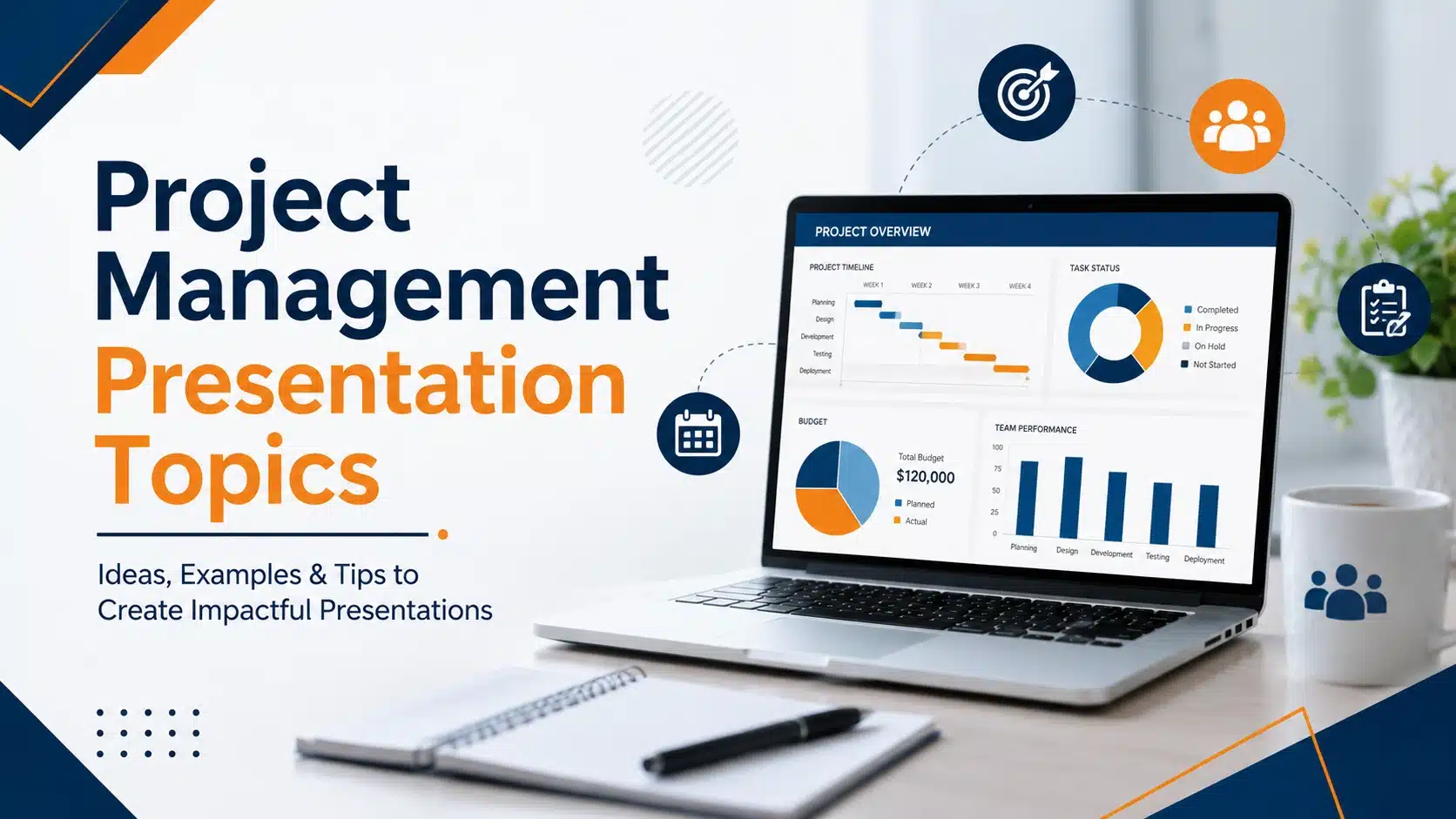
25+ Project Management Presentation Topics for 2026
Project management presentation topics span everything it takes to deliver work successfully — planning methods, team collaboration, risk management, leadership, and the trends reshaping how projects get done. Whether you're

18 Dec, 2023 | SlideUpLift
Project Proposal Presentation: How to Make One That Gets Approved
Quick Answer: A project proposal presentation is a slide deck that pitches a project to decision-makers — investors, management, or stakeholders — to win approval, funding, or resources. It covers

20 Nov, 2023 | SlideUpLift
How to Add Superscript and Subscript in Google Slides
Quick Answer: To add a superscript in Google Slides: Click inside a text box and type your full expression (e.g., x2). Highlight only the character to raise (e.g., the 2).

18 Nov, 2023 | SlideUpLift
How to Insert Icons in Google Slides Presentations
Quick Answer There are 5 ways to insert icons in Google Slides quickly and effectively: Install the Flaticon or Noun Project add-on via Extensions > Add-ons > Get add-ons Use
12 Oct, 2023 | SlideUpLift
How to Do Hanging Indent on Google Slides: 4 Easy Methods (Complete Guide)
Have you ever tried to format citations or multi-line bullet points in Google Slides, only to end up with text that wraps messily back to the left edge? You are

13 Sep, 2023 | SlideUpLift
How to Write a Presentation: Outline, Script & Examples
Quick Answer To write a presentation, work in this order: (1) write your message as one full sentence with a verb, (2) build an outline of 3–5 main points before

28 Feb, 2023 | SlideUpLift
Gardner’s Theory of Multiple Intelligences: All 8 Types Explained
Quick Answer: Gardner's Theory of Multiple Intelligences proposes that intelligence is not one fixed ability but a set of at least eight distinct types — linguistic, logical-mathematical, spatial, bodily-kinesthetic, musical,

21 Feb, 2023 | SlideUpLift
PowerPoint Design Ideas: Layouts, Colors, Charts & the Design Ideas Feature (2026)
A great message can still fail on a bad slide. Design is what carries your idea from your head into your audience's — the color choices, the layout, the way

14 Feb, 2023 | SlideUpLift
How to Make a Presentation: A Step-by-Step Guide
Quick answer: To make a presentation, work in this order — (1) write your one-sentence takeaway before you open any software, (2) outline your slides as plain text, (3) set

13 Oct, 2022 | SlideUpLift
Agile vs Traditional Project Management: Key Differences and Which Is Better
Agile project management is an iterative, flexible approach that delivers work in short cycles and adapts to change as it goes. Traditional (Waterfall) project management is a linear, plan-driven approach

8 Sep, 2022 | SlideUpLift
How to Add Background Music in PowerPoint: The Complete Guide (All Versions)
You've spent hours building the perfect presentation — your slides are polished, your data is solid, your design is on point. But something still feels flat. That missing ingredient? Background
1 Sep, 2022 | SlideUpLift
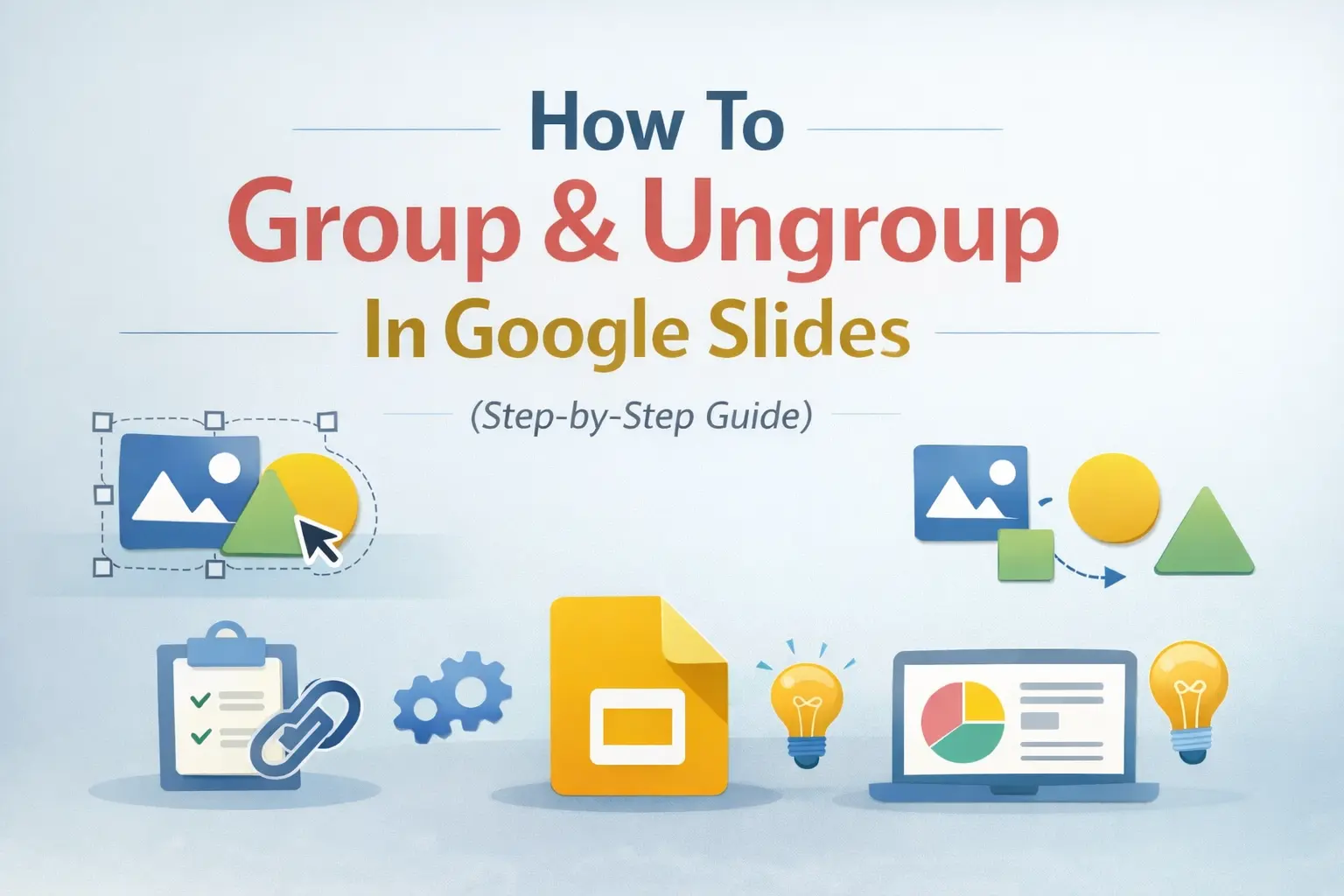
How To Group & Ungroup In Google Slides (Step-by-Step Guide)
This blog walks you through how to group and ungroup elements in Google Slides in a simple, practical way. It covers grouping images, shapes, text boxes, and objects, along with

25 Oct, 2021 | SlideUpLift
How To Make a Quiz in Google Slides? (Step-by-Step Guide)
Quick Answer: To make a quiz in Google Slides, create a question slide with answer options, then build separate “Correct Answer” and “Wrong Answer” feedback slides. Use Insert → Link

3 Mar, 2021 | SlideUpLift
30-60-90 Day Plan for Interview: Examples, Templates & Sample Answers
A 30-60-90 day plan for an interview is a short presentation or one-page document that outlines what you will accomplish in your first 30, 60, and 90 days in the
6 Jan, 2021 | SlideUpLift
Mastering Zoom in PowerPoint: Tips for Engaging Presentations
Quick Answer 1: How to use the PowerPoint Zoom navigation feature Go to Insert tab → Links group → Zoom Choose Slide Zoom, Section Zoom, or Summary Zoom Select your
17 Feb, 2020 | SlideUpLift
PowerPoint Arrows: How to Make an Arrow Diagram in PowerPoint | Step-by-Step Tutorial
Quick Answer — How to Insert Arrow in PowerPoint To insert arrow in PowerPoint and build a diagram: Go to Insert > Shapes and select a Rectangle. Duplicate it (Ctrl+D)

4 Dec, 2019 | SlideUpLift
How to Do Hanging Indent on PowerPoint: 5 Easy Methods (Windows & Mac)
Whether you're formatting an APA reference list on a slide, polishing multi-line bullet points, or creating a clean agenda, knowing how to do a hanging indent in PowerPoint is one

25 Mar, 2019 | SlideUpLift
16 PowerPoint Hacks You Didn’t Know for More Effective Presentations
Quick Answer: The most useful PowerPoint hacks include playing a video continuously behind your content, using Sections and Summary Zoom for smooth navigation, applying Morph transitions, embedding fonts before sharing,